This guide explains how to connect a custom subdomain to a Horizons application using a temporary domain. To switch to a different custom domain or subdomain, use the domain change guide.When you create a Hostinger Horizons web application, it is initially published on a temporary domain. You can later replace the temporary domain with a custom domain (for example, domain.tld) or a subdomain (for example, app.domain.tld).
This article explains how to connect a Hostinger Horizons web application to a subdomain and make it accessible online.
Before you start
- The subdomain must be from a domain you own.
- Only first-level subdomains are supported (for example,
app.domain.tld). - Second-level subdomains (for example,
shop.app.domain.tld) are not supported.
Step 1 – Create a Hostinger Horizons web application on a subdomain
If you have not yet created the website, start from adding it to your hosting plan:
-
Open hPanel and go to Websites.
-
Select Add website on the desired hosting plan.
-
Choose Hostinger Horizons.
-
Complete the onboarding process.
-
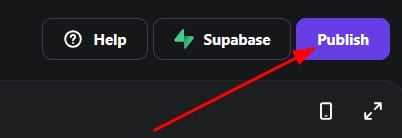
In the Hostinger Horizons platform, click Publish.
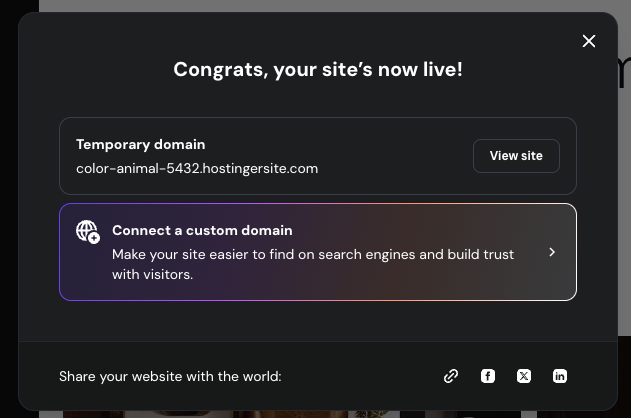
- On the pop-up, click on Connect to a custom domain
- Enter the subdomain name and continue.
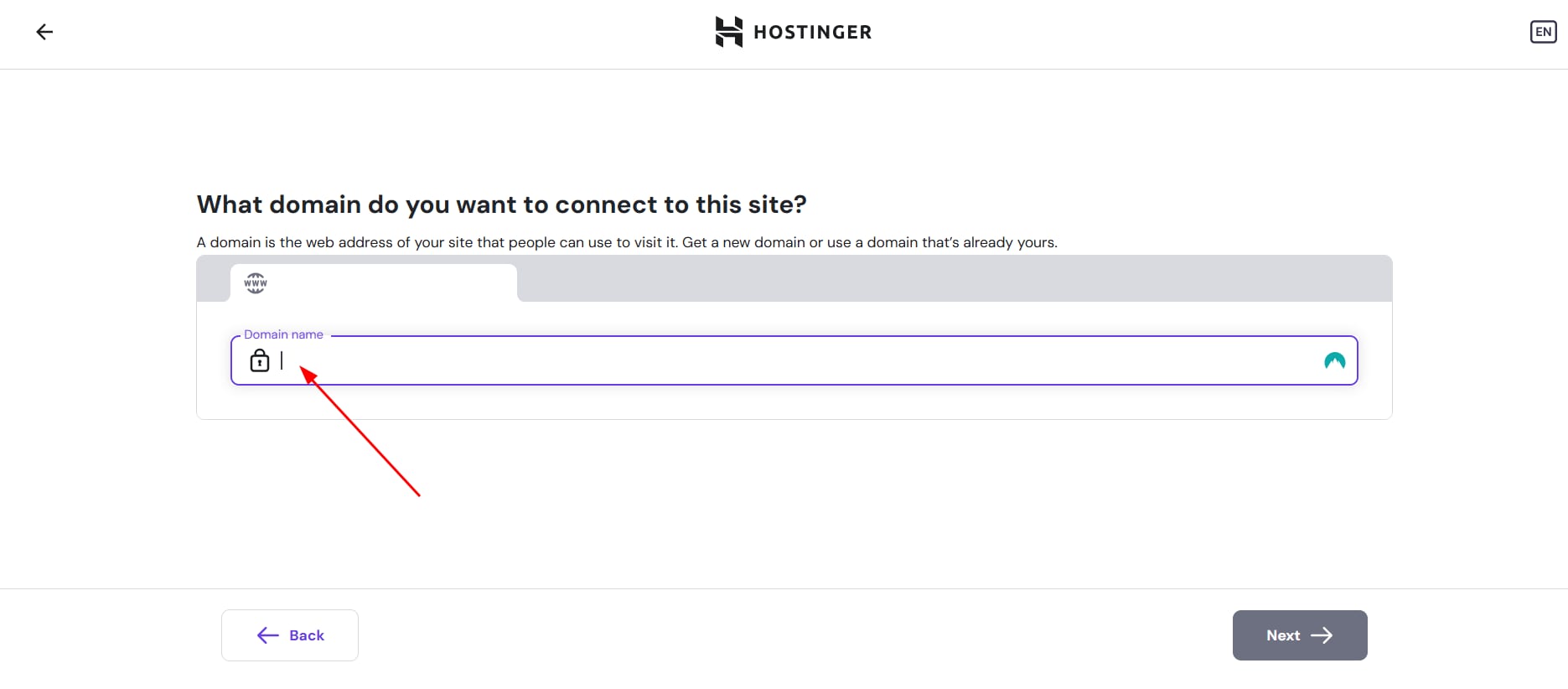
This connects the subdomain to the website. Now you can proceed to the next step to point the domain.
Connect the subdomain later
If you prefer to connect the subdomain at a later time, or if you have already created the website, follow these steps:
- Go to hPanel → Websites
- Locate the website using a temporary domain, and click on Connect domain below the temporary domain name to continue with domain connection.
If the website was not published before connecting the subdomain, make sure to publish it before moving to the next step.
Step 2 – Point the subdomain
For the website to be accessible using the subdomain, the subdomain’s DNS must point to Hostinger.
If the domain uses Hostinger nameservers
If the main domain is pointing to Hostinger nameservers, no additional action is required.
The subdomain connects automatically and becomes available shortly.
If the domain uses external nameservers
If the domain’s DNS zone is managed outside Hostinger (for example, at Cloudflare):
- Go to hPanel → Websites
- Locate the website using a temporary domain, and click on Check guide below the custom subdomain name, and continue with the instructions provided.
NOTES
- A Hostinger Horizons website can be connected only to one address (domain or subdomain) at a time.
- Subdomains from domains registered under a different Hostinger account cannot be connected.