WooCommerce maintenance checklist to keep your site working
Mar 10, 2026
/
Jordana A.
/
11 min Read
Building an online store with WooCommerce, a self-hosted solution, means you’re in charge of keeping everything running smoothly. Regular maintenance is crucial for enhancing security and avoiding costly issues down the road, improving search engine rankings, and meeting legal standards.
By ensuring your site operates like a well-oiled machine, you can deliver a great customer experience while optimizing business operations.
If you’re not sure where to start, we’ve prepared a handy checklist to help you manage your WooCommerce maintenance tasks. We’ll also cover how often to perform them and what signs to look out for that require immediate attention.
What to do before performing maintenance
Before performing maintenance on your WooCommerce store, we recommend enabling maintenance mode. This is one of the most important WordPress maintenance tips, as it temporarily limits access to your online store and informs website visitors that updates are in progress, helping avoid any confusion.
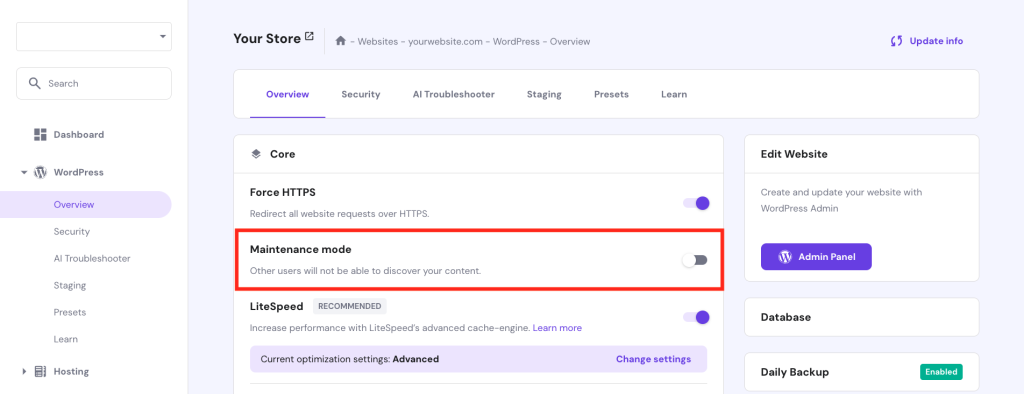
Hostinger users can easily enable maintenance mode for WooCommerce stores from their hPanel dashboard. Head to WordPress → Overview and toggle the Maintenance mode option to activate or deactivate it.
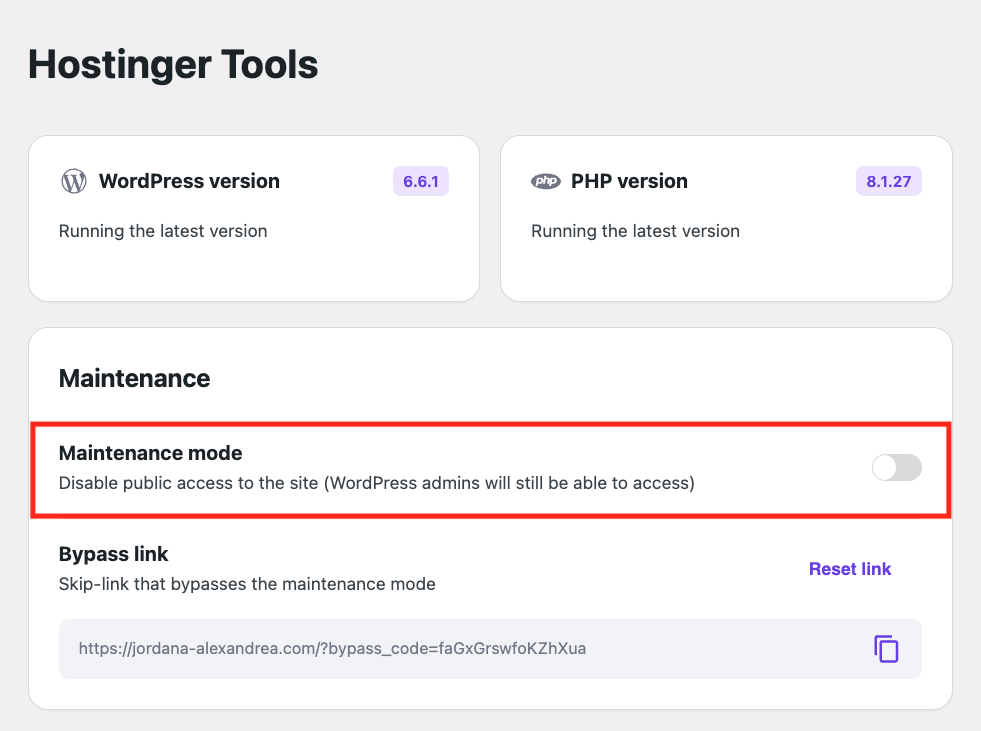
Enabling maintenance mode is also possible through the WordPress admin dashboard. Go to Hostinger → Tools and toggle the Maintenance mode option to activate it.
Installing a WordPress maintenance mode plugin, such as SeedProd or LightStart, allows you to activate it without any coding and customize your maintenance page to your liking.
Once maintenance is complete, remember to turn off the mode by following the same steps.
Additionally, consider creating a staging environment. It serves as a replica of your live site, allowing you to safely test changes without impacting the actual website. If anything goes wrong during maintenance, you can fix it without rolling back to a previous version.
Similar to maintenance mode, Hostinger users on Business and cloud hosting plans can build a staging website from the hPanel dashboard. Navigate to WordPress → Staging and follow the steps to utilize our code-free staging tool.

For non-Hostinger users, other WordPress staging plugins like WP Staging and Duplicator can streamline the setup process.
Using both maintenance mode and a staging site makes the maintenance process smoother, keeping your customers happy and minimizing downtime.
10 essential WooCommerce maintenance tasks
Once the preparation is finished, use this checklist to address the essential maintenance tasks for keeping your WooCommerce site in top shape.
1. Update WordPress
Running your online store on outdated software can jeopardize its security and cause compatibility issues. If left unresolved, this could disrupt business operations and harm customer experience.
Updates often include feature improvements and patches that fix bugs and address security vulnerabilities. That’s why keeping your WordPress core, themes, and plugins updated at all times is key to a secure and high-performing online store.
The most common way to update WordPress is through the Updates page in the admin dashboard. WordPress will notify you of any available updates for the latest version and your installed themes and plugins.
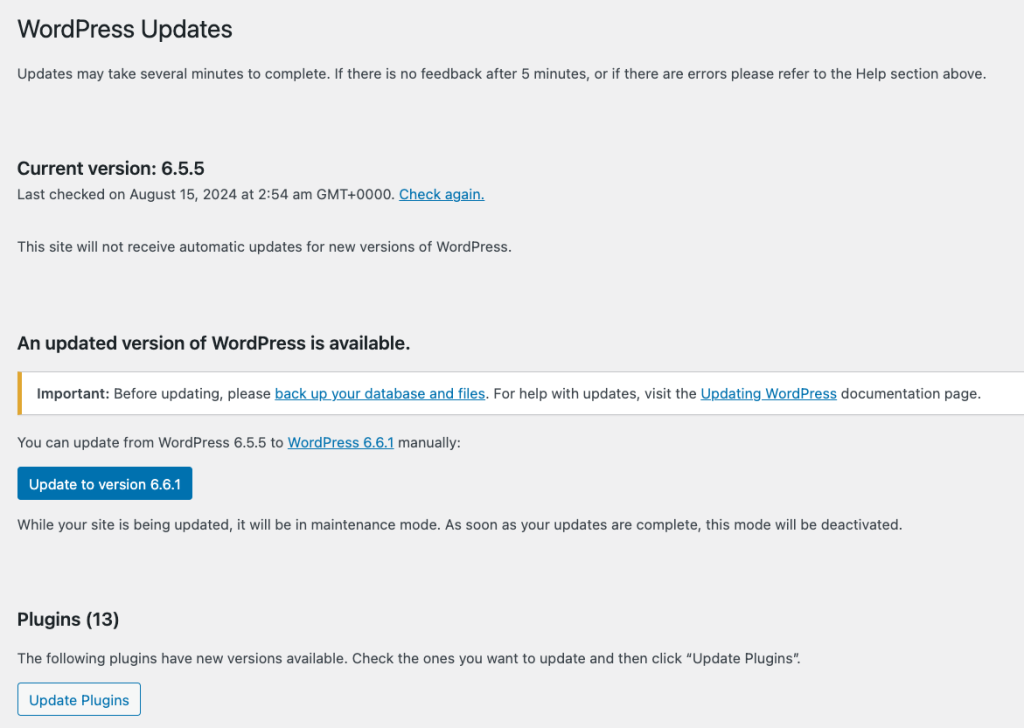
While checking for and installing WooCommerce updates as soon as they’re available is crucial, it can be a hassle and time-consuming. To avoid human error, make sure to automate WordPress core, theme, and plugin updates.
Hostinger users can do so using Smart auto updates in hPanel. Navigate to WordPress → Security and choose Smart auto-updates under the WordPress auto-updates configuration section. Choose to automate All updates or Security updates only.
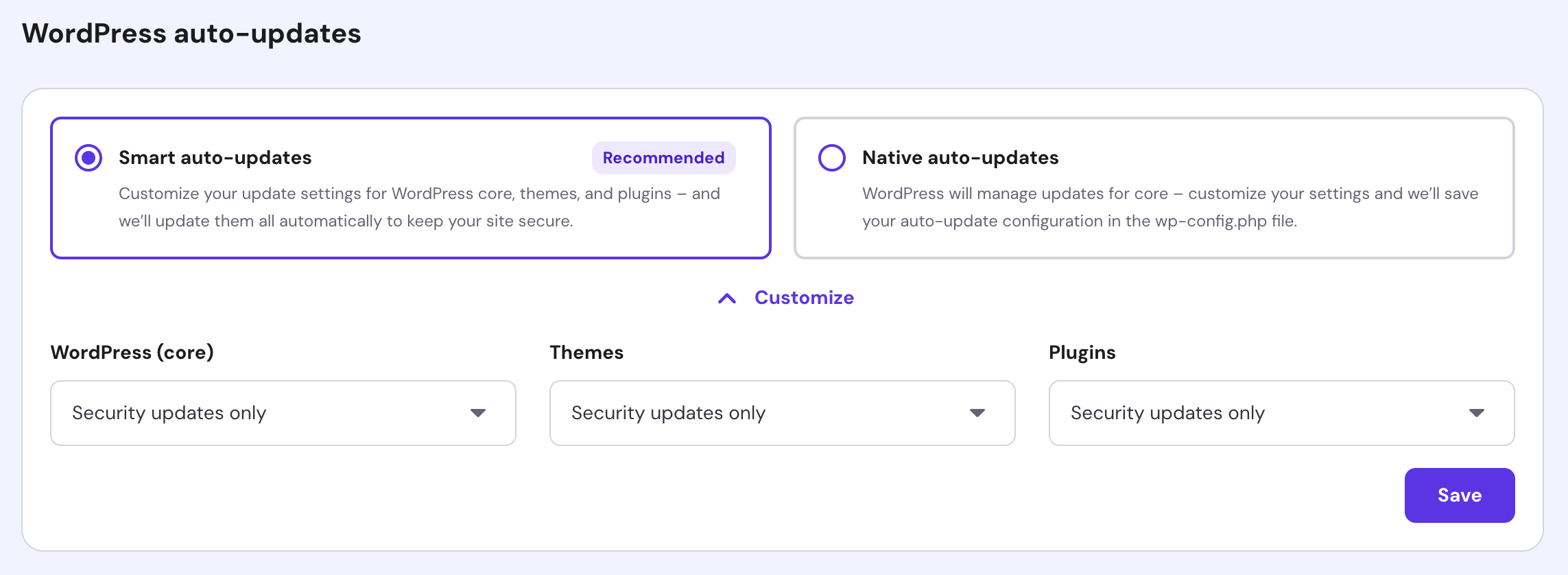
Non-Hostinger users can install a WordPress auto-update plugin like Easy Updates Manager or Updater to automate updates and avoid manual configurations.
2. Back up your site
Regular backups serve as your safety net against issues such as faulty updates, data breaches, or server failures. They allow you to quickly restore your WooCommerce shop to a previous state, keeping downtime minimal and preserving important order and customer information.
The easiest way to back up your WooCommerce site is using the built-in Backup tools in hPanel. This feature, included in all Hostinger managed hosting plans, lets you back up and restore your website with just a few clicks.
Go to Files → Backups in the hPanel dashboard and select Generate new backup to save the latest version of your WooCommerce store. If you need to roll back, simply choose a site backup from your preferred date and click Restore.
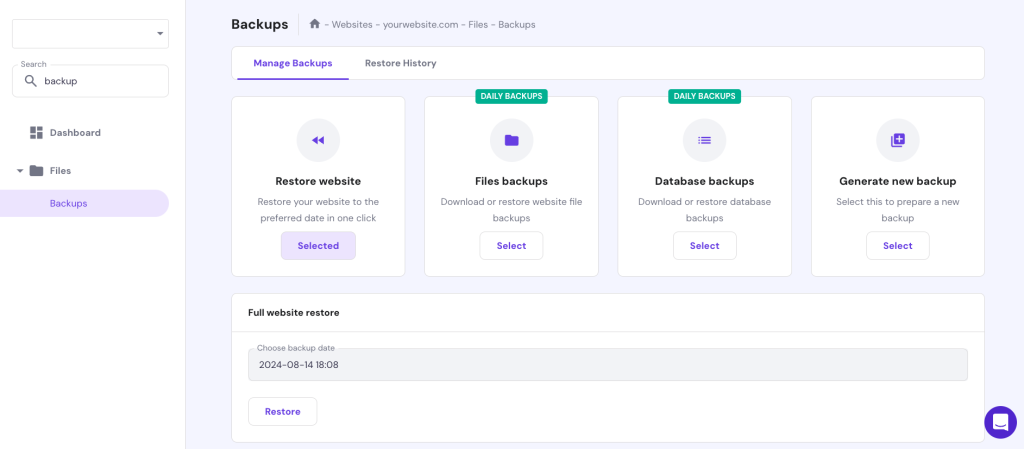
Non-Hostinger website owners looking to avoid manual file and database handling can explore our guide on backing up a WordPress site.
We recommend using the plugin method, as the steps are straightforward and code-free. Many excellent plugins, such as Jetpack and UpdraftPlus, are also available to make the process easier.
3. Scan for malware
Regularly scanning for malware is crucial for catching and removing potential threats before they can cause harm to your eCommerce site. It helps keep your WooCommerce store secure, maintain customer trust, and avoid business interruptions.
Hostinger automatically scans clients’ websites for malware regularly. Head to Security → Malware Scanner in hPanel to see the latest scan results, including any malware found, removed, or cleaned.
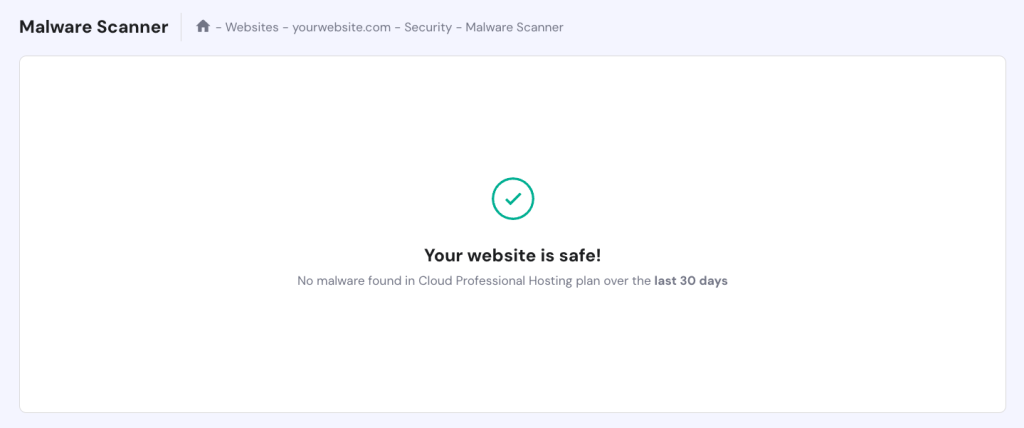
If your current hosting provider doesn’t have this tool, check out our list of the best WordPress malware scanner plugins to streamline the process. We’ve included options for different budgets to find one that fits your needs quickly.
Our WordPress malware removal guide offers a detailed checklist of what to prepare before running the scan and the steps to do it manually.
4. Filter and remove spam
eCommerce websites that include blogs or contact forms are vulnerable to receiving spam, which often contains inappropriate messages and malicious links that can harm your site and visitors.
If left unattended, spam can damage your brand’s image, negatively impact customer experience, and hurt your search engine optimization (SEO) rankings. Therefore, it’s crucial to remove any existing spam from your WooCommerce site regularly.
Installing anti-spam plugins like Akismet helps protect your store by automatically detecting and deleting spam before it reaches your inbox or comment section. These tools can identify spam patterns to automate filtering and block IP addresses from specific regions, minimizing manual comment moderation.
Although WordPress doesn’t have built-in spam filters, it offers handy features to stop spam comments. Here’s how to access and configure them from your WordPress admins dashboard:
- Go to Settings → Discussion and check the Users must be registered and logged in to comment option within the Other comment settings section. This restricts commenting ability to registered users only.
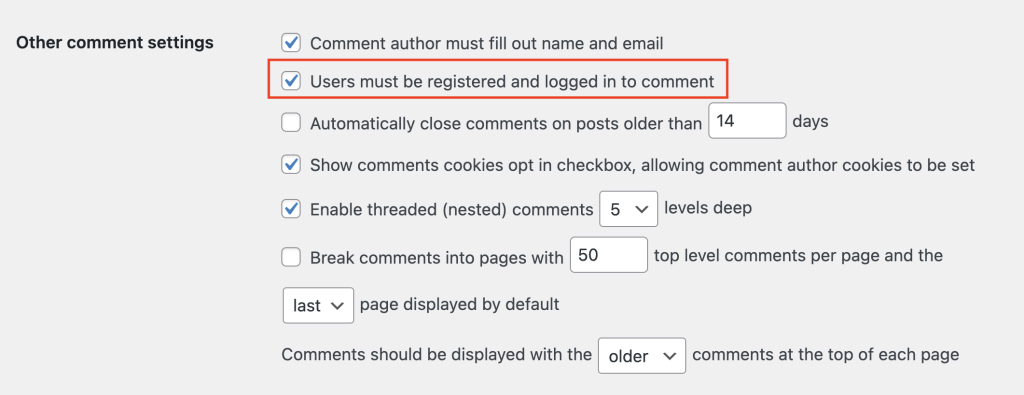
- Scroll down to the Before a comment appears section and check both options. The Comment must be manually approved option enables comment moderation, whereas the Comment author must have a previously approved comment option sets the condition for automated approval.

- Specify the maximum number of links in a comment that will trigger manual moderation in the Comment Moderation section. You can also add keywords to automatically place a comment in the moderation queue.
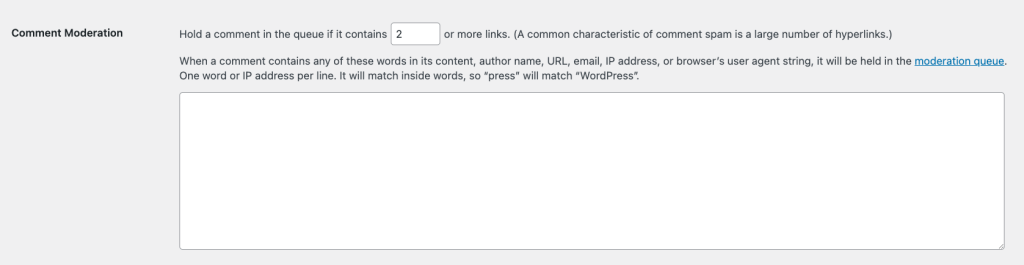
- Add blocklisted keywords to the Disallowed Comment Keys to automatically delete comments with them.
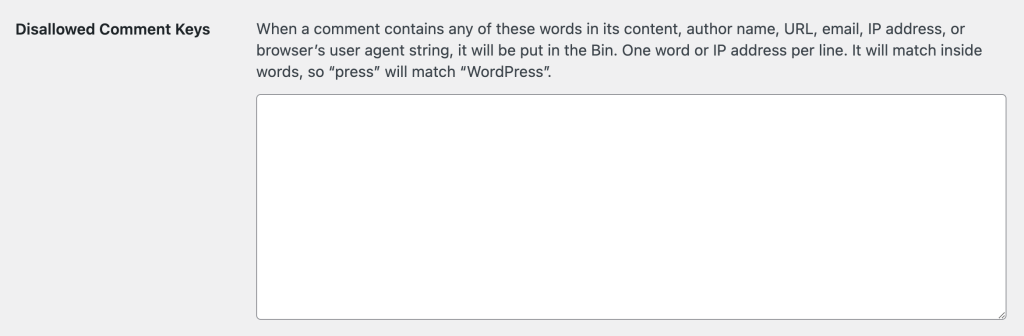
- Hit Save Changes once you’re done.
5. Review and manage inventory
For online stores selling physical products, regular inventory audits or stocktakes are crucial to maintaining accuracy and making smart decisions for smoother business operations.
By preventing overselling and underselling, you can manage reorder levels better and provide a reliable shopping experience.
Using the right tools is just as important as doing regular stocktakes. Consider installing a WooCommerce inventory management plugin like ATUM Inventory Management or Smart Manager to make the process easier and reduce errors.
Make sure the plugin supports your product types and automates stock updates to minimize discrepancies. If your online business has multiple sales channels, using a plugin with multi-channel integration helps maintain synchronized stock levels across multiple platforms.
6. Test all checkout process
As the checkout process is where your customers complete their purchases, you’d want to ensure it’s free from bugs or issues. By testing it regularly, you can catch and fix any problems before they affect your customers and cause lost sales.
Here are key aspects to test when optimizing your checkout process:
- Page load speed. Your checkout page must load in under three seconds on all devices to lower cart abandonment rates due to slow site speed.
- Navigation. The flow from cart to checkout should be intuitive, with minimal steps and clear instructions. Create a test customer account and simulate a guest checkout to ensure both processes work smoothly.
- Form usability. The checkout form should have clear labels and be easy to fill out. If customers enter incorrect information, the page or form should display a clear error message with the correct format. Remember to test the functionality of auto-filled fields as well.
- Mobile optimization. Test the entire checkout process on mobile devices to ensure it’s responsive, user-friendly, and easy to navigate.
- Payment options. Confirm that all integrated payment gateways are simple to select and work smoothly. If you offer discount codes, verify they’re easy to apply and work correctly.
- Shipping and tax calculations. Simulate purchases from different regions using all available shipping methods to make sure shipping costs and taxes are calculated correctly.
- Order summary. Customers should be able to verify all charges, including product costs, shipping, taxes, and discounts, before completing their purchase.
- Post-purchase experience. Simulate the process after a purchase, including the confirmation page, email notifications, and any follow-up communications, to find opportunities for improving the customer experience.
7. Review and refresh content
Search engines love fresh content just as much as your customers do. Keeping your store’s content up to date with the latest products and offers can boost SEO, enhance the customer experience, and build trust with potential buyers.
How often you should update depends on the type of content. For static content, like your business’s contact information or About Us page, reviewing and updating every six months is usually enough to keep your branding and information accurate.
On the other hand, dynamic content needs more frequent attention—ideally, every month or quarter. To help drive sales, keep product descriptions, blog posts, and promotions engaging and free from outdated information.
Follow our tips to make your content updates more effective:
- Use analytics. Analyze website traffic and customer behavior to identify high-traffic pages that should be prioritized for updates.
- Refresh all content types. Regularly update images, videos, and audio to keep them appealing and relevant to your audience.
- Review SEO. Update keywords, meta descriptions, and alt text for images to optimize your content for search engines. This is especially important for dynamic content like blog posts and product pages.
- Feature recent customer reviews. Build trust by showcasing the latest feedback from your customers.
- Rotate featured products. Periodically change the products featured on your homepage or category pages to boost sales of less popular items.
8. Check your store’s analytics
Completing this maintenance task is crucial because it offers valuable insights into customer behavior, sales trends, and your WooCommerce store’s overall performance. These insights can help you identify potential issues early, like high bounce rates or abandoned carts.
By understanding what’s working and what needs improvement, you can make data-driven decisions to enhance your marketing, products, and user experience—ultimately leading to higher sales.
WooCommerce has a built-in analytics tool to monitor your store’s performance metrics, accessible in the Analytics section of the WordPress dashboard. Pair it with WordPress Google Analytics and inventory management plugins to track the following key metrics:
- Sales conversion rate. The percentage of visitors who complete a purchase. It’s calculated by dividing orders by visitor counts.
- Average order value. The average net amount of sales spent per order. It’s calculated by dividing total net sales by the number of orders.
- Refund rate. The percentage of returned or refunded orders. High rates can indicate product quality issues, misleading product descriptions, or other customer dissatisfaction factors.
- Revenue. Gain insights into gross sales, net sales, total revenue, coupons, taxes, and shipping to spot sales trends and assess your business’ health.
- Product page views. Identify which products are getting the most attention and compare these views with their sales to determine the effectiveness of your product listings.
- Traffic sources. Monitor the most effective channels driving traffic to your store and determine which ones need re-strategizing.
- Repeat buyer rate. Calculate this by dividing the number of customers who made more than one purchase by the total number of unique customers within a specific period. Use this insight to assess the effectiveness of your customer retention strategies.
- Inventory turnover rate. Measure how quickly you sell and replace your inventory over a specific period to avoid overstocking or stockouts.
9. Perform a speed test
Google recommends a three-second page load time, but 47% of customers expect a website to load in two seconds or less. In fact, 40% will abandon a site that takes longer than three seconds.
Optimizing your WooCommerce site for faster load speeds helps address these expectations, reducing lost traffic and potential conversions. A quicker, more efficient store also enhances user experience, encouraging customers to make a purchase and return.
Many free website speed test tools like GTmetrix and Pingdom are available to help you monitor your online store’s loading speed. Some can even pinpoint your performance bottleneck and provide improvement suggestions.
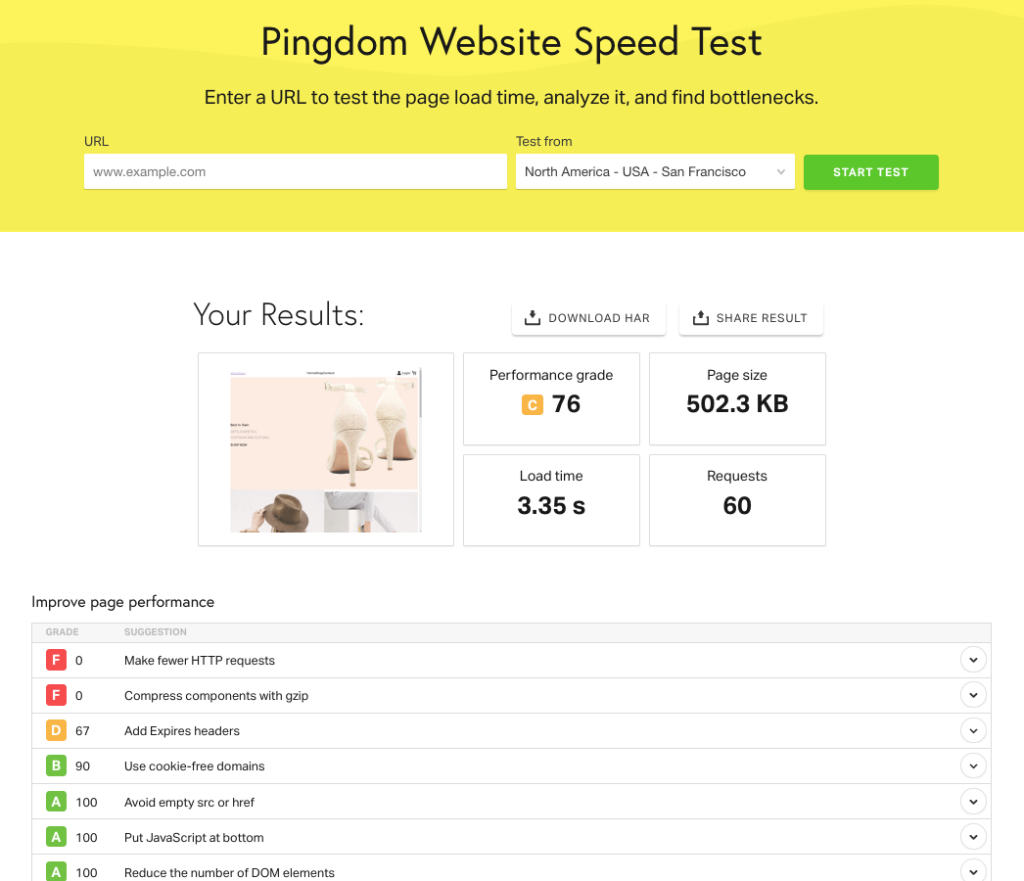
We’ve written a separate guide with the best WooCommerce site speed optimization tips.
Here are the ones you should perform regularly as part of your WooCommerce maintenance routine:
- Manage plugins and WooCommerce extensions. Uninstall any plugins and extensions you no longer use to reduce load times and minimize the risk of vulnerabilities from outdated software.
- Enable WordPress caching. Implement caching to speed up your site by storing static versions of your pages.
- Compress and optimize images. This helps pages with many images load faster, improving overall site speed.
- Minify JavaScript, CSS, and HTML scripts. Remove unnecessary code to make your WooCommerce store lighter. This is especially important after installing updates or adding custom code.
- Clean up WooCommerce database. Remove old revisions, spam comments, and other unnecessary data to keep your database bloat-free.
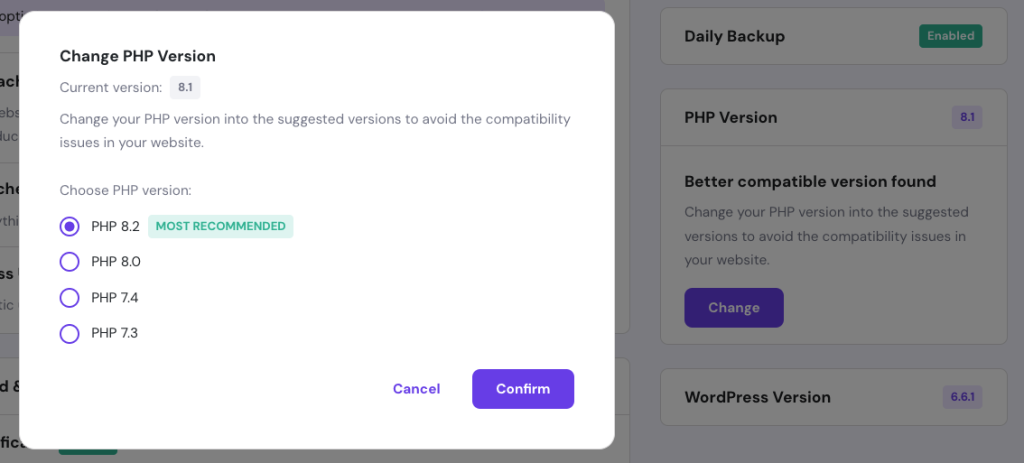
- Update PHP version. Running your online store on the latest PHP version enhances execution speed and improves resource management efficiency.
- Limit WordPress revisions. Remove old revisions of your pages and posts to reduce the load on your database.
WordPress optimization plugins like WP Rocket and WP-Optimize can automate most of these tasks. We also offer built-in tools to help from the server side.
Hostinger users can enable object caching through WordPress → Overview in hPanel. This server-side caching feature, included in all Hostinger WooCommerce hosting plans, speeds up data retrieval and reduces server workload.
In short, it can make your store respond up to three times faster.

The Overview tab also displays a WordPress and PHP compatibility checker. If you’re on an unsupported version, simply click Change and install the recommended PHP version for better site performance.
10. Check for broken links
A broken link happens when a URL on your WooCommerce store leads to a page that no longer exists or can’t be found, resulting in a poor user experience. If left unresolved, it can signal to search engines that your site isn’t well-maintained, which can harm your SEO.
The easiest way to find broken links in WordPress is by using a plugin like Broken Link Checker. This free tool can automate the process at your chosen intervals and notify you via email when it flags dead internal and external links, missing images, and broken video embeds.
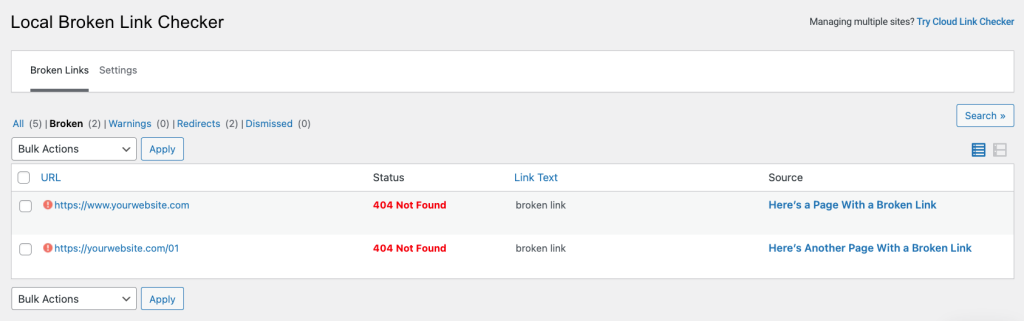
Those with an additional budget can invest in premium analytics tools like Semrush or Ahrefs to automate site audits, including fixing broken links, based on industry-standard SEO parameters.
In order to avoid errors from dead links, set up 301 redirects for any removed or moved pages to prevent errors from dead links. A 301 redirect sends website visitors to the correct URL and transfers the old page’s authority to the new one, helping maintain search engine rankings.
When you should perform maintenance for WooCommerce
Once you know the essential WooCommerce maintenance tasks, the next step is deciding how often to perform them. While consistent maintenance is crucial for store efficiency, finding the right balance is critical to avoiding excessive or insufficient efforts.
Critical tasks like backing up your WooCommerce store and removing spam should be performed daily. These help you stay ahead of unexpected challenges while maintaining a professional brand identity.
Resource-intensive tasks, like malware scans, inventory checks, and analytics monitoring, can be done weekly to prevent system overload.
However, if your store has a large inventory, handles sensitive information, or experiences high traffic, consider performing these tasks more frequently to catch issues or threats early.
Monthly tasks help you maintain performance, security, and user experience. Regular updates, testing the checkout process, refreshing content, and running speed tests ensure your WordPress site is efficient and user-friendly.
Quarterly tasks, like site audits, analytics reviews, checking for broken links, and inventory tracking, focus on long-term planning. These tasks help you spot broader trends, adapt to market demands, and set your store up for future growth.
Warning signs for urgent WooCommerce maintenance
Some conditions or signs indicate your WooCommerce store needs immediate maintenance, such as:
- Slow page load times. Optimize your site immediately to prevent high bounce rates and lost sales if your site suddenly slows down.
- Frequent site crashes or downtime. These can signal issues with your hosting, plugins, or themes that need urgent attention.
- 404 errors. Review and fix any issues with your site’s navigation.
- Security breaches or malware detection. If your site has been hacked or infected by malware, act quickly to secure your store and protect customer data. Check our guide for signs of a hacked WordPress site.
- High cart abandonment rates. A sudden increase in cart abandonment may imply checkout process issues or unexpected costs.
- Decline in sales or conversion rates. This could indicate issues with your site’s functionality or user experience that deter visitors from purchasing.
- Unusual traffic patterns. Unexpected drops or spikes in traffic could point to performance, SEO, or security issues.
- Outdated WordPress, plugins, or themes. If you’ve missed critical updates, install them immediately to avoid security risks and compatibility issues.
Conclusion
If you own a WooCommerce website and decide not to outsource maintenance to a third-party service, you’re fully responsible for managing every aspect of your store.
If done right, regular maintenance will minimize the risk of errors, enhance overall user experience, and boost conversion rates.
Let’s recap the ten essential WooCommerce website maintenance tasks:
- Update your WordPress
- Back up your site
- Scan for malware
- Filter and remove spam
- Review and manage inventory
- Test all checkout process
- Review and refresh content
- Check your store’s analytics
- Perform a speed test
- Check for broken links
Before performing maintenance, enable WooCommerce maintenance mode to prevent visitors from encountering disruptions or errors.
Hostinger offers this as a built-in feature, allowing you to display a WooCommerce maintenance mode page with just a click. Alternatively, use a WooCommerce plugin to create a custom maintenance mode page.
Testing changes and improvements on a staging site before applying them to your live WordPress site is also an excellent practice. After maintenance is complete, remember to deactivate maintenance mode so your business can resume operations.
We hope this WooCommerce maintenance guide helps keep your shop in optimal shape. If you have any questions, check out our FAQ section or leave a comment below.
FAQ
Does Woocommerce have a maintenance mode?
No, WooCommerce doesn’t have a built-in maintenance mode. However, many WordPress maintenance mode plugins are available to help business owners enable the mode without coding.
Is Woocommerce hard to maintain?
With the right tools and routine care, WooCommerce isn’t difficult to maintain. Regular updates, backups, and security plugins make it manageable for business owners of all skill levels. While some technical knowledge helps, plenty of online resources and guides are available to assist you.
Is there any WooCommerce maintenance service?
Yes, many agencies and freelancers offer WooCommerce maintenance services for tasks like updates, security audits, and performance optimization. Pricing usually depends on the website’s size and complexity, as well as the number of tasks required.

Jordana is a Senior Content Writer with a background in Information Systems. She has over five years of experience in WordPress and is casually dabbling with PHP and MySQL. Her passion for writing and technology drives her to create tutorials for anyone wanting to build their online presence. Follow her on LinkedIn.


