You can install WordPress locally on Windows, macOS, or Linux using a free development environment such as WampServer, MAMP, or XAMPP. These tools let you run WordPress directly on your computer, so you can build websites, test plugins, and troubleshoot issues without affecting a live site.
The setup involves installing a local server, creating a database, and running the WordPress installer. Below, we’ll compare the available tools and walk through the installation steps for each operating system.
Which tool should you use to install WordPress locally?
The best tool for installing WordPress locally depends on your operating system and how much control you need over the development environment. LocalWP is generally the easiest choice for beginners, while WampServer, MAMP, and XAMPP are useful when you want to manage the local server and database yourself.
Here’s how the available options compare:
| Tool | Operating system | Best for |
|---|---|---|
| WampServer | Windows | Setting up WordPress with a traditional local server stack |
| MAMP | macOS, Windows | Managing Apache or Nginx, PHP, and databases through a desktop interface |
| XAMPP | Windows, macOS, Linux | Learning how to configure a local web server and database |
| LocalWP (Local) | Windows, macOS, supported Linux distributions | Creating WordPress sites with minimal manual configuration |
| Docker | Windows, macOS, Linux | Building reproducible development environments using containers |
| WordPress Playground | Web browser | Quickly testing WordPress without installing a desktop server |
A local installation follows the same basic WordPress setup process as a hosted installation, but the web server and database run on your own computer rather than a hosting provider’s server.
For a traditional setup, choose WampServer on Windows, MAMP on macOS, or XAMPP on Linux. These tools give you direct access to the components WordPress needs, including PHP and a database.
If you prefer a simpler approach, LocalWP automates much of the installation process. Developers who need control over their environment can use Docker, while WordPress Playground is convenient for quick browser-based experiments. Playground also supports saving or exporting your work, although it isn’t a full replacement for every local server setup.
How to install WordPress locally on Windows using WampServer
To install WordPress locally on Windows, you can use WampServer, a free development environment that includes Apache, PHP, and MySQL or MariaDB. It provides the server components needed to run WordPress on your computer without purchasing web hosting.
Follow these steps:
- Download and install WampServer. Visit the official WampServer website and download the 64-bit version compatible with your Windows system. Run the installer and follow the setup instructions. Install any required Visual C++ components if prompted.
- Launch WampServer. Open the application from the Windows Start menu. Check the WampServer icon in the system tray. A green icon indicates that the required services are running.
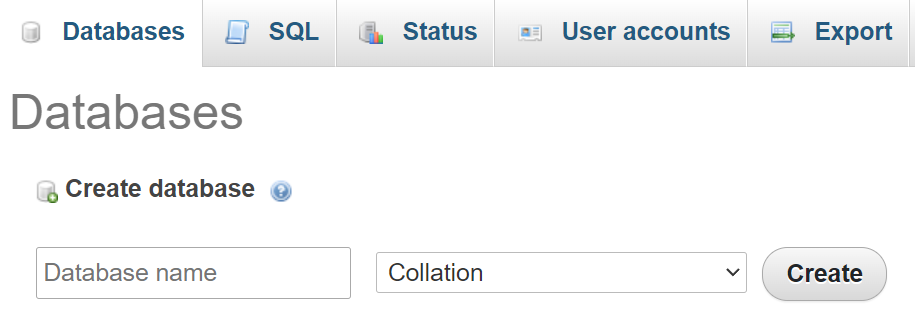
- Create a WordPress database. Open
http://localhost/phpmyadmin/in your browser. Sign in using the credentials configured for your local database server, then select Databases and create a new database namedwordpress_local.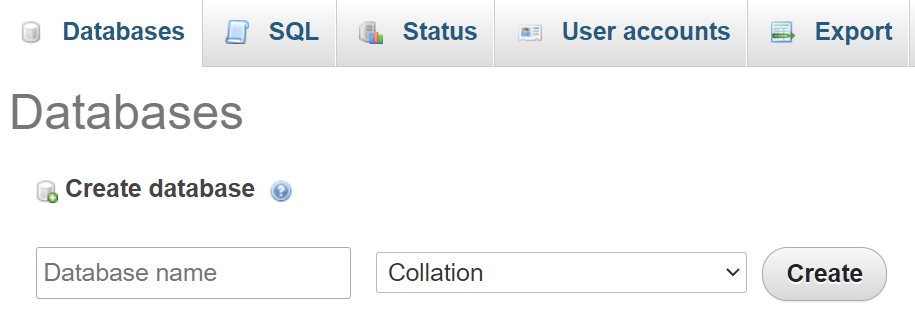
- Download WordPress. Get the latest WordPress package from WordPress.org, extract the ZIP file, and copy the WordPress folder into WampServer’s web root directory, typically
C:wamp64www. Rename the foldermytestingsite. - Run the WordPress installer. Open
http://localhost/mytestingsite/in your browser. Select your language and enter the database namewordpress_local, your local database username and password, and the database hostlocalhost. - Complete the installation. Enter your website title, administrator username, password, and email address. Click Install WordPress, then sign in at
http://localhost/mytestingsite/wp-admin/.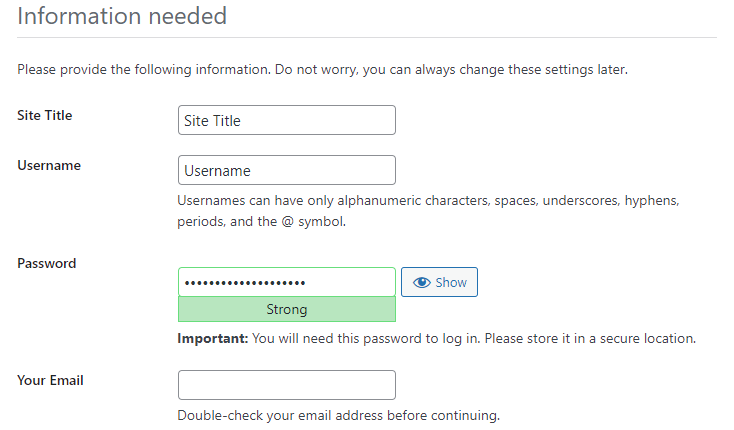

Your WordPress website is now running locally on Windows. You can install themes, test plugins, and make changes without affecting a live website.
How to install WordPress locally on macOS using MAMP
You can install WordPress locally on macOS using MAMP, a development environment that includes a web server, PHP, and a database server. The free version provides the components needed to create and test a WordPress website on your Mac.
Follow these steps:
- Download and install MAMP. Visit the official MAMP website and download the version compatible with your Mac. Open the installer and complete the installation process.
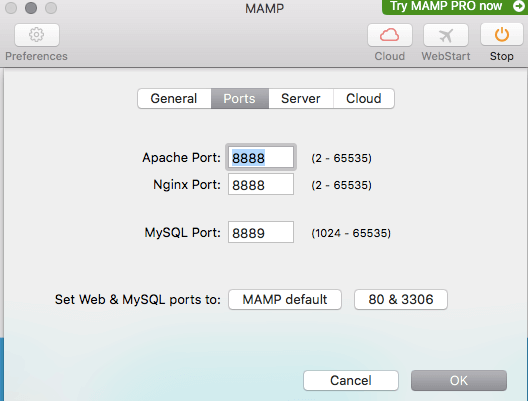
- Start the MAMP servers. Open MAMP from your Applications folder and start the servers. By default, MAMP uses port
8888for Apache and8889for MySQL. You can keep these settings unless another application is using the same ports.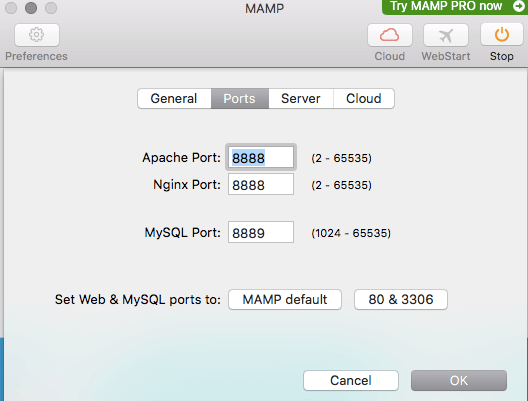
- Download WordPress. Download the latest WordPress package from WordPress.org and extract it. Copy the WordPress folder into
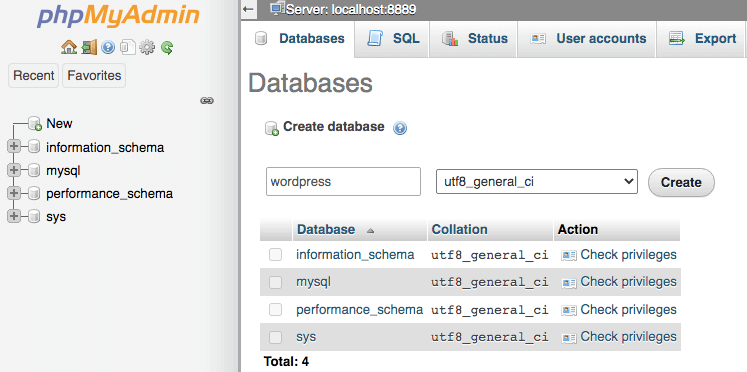
/Applications/MAMP/htdocs/and rename itmytestingsite. - Create a database. In MAMP, click WebStart and open phpMyAdmin from the Tools menu. Create a new database named
wordpress_local.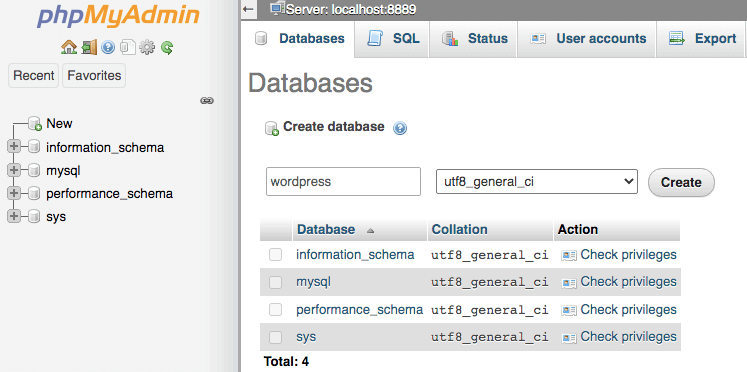
- Run the WordPress installer. Open
http://localhost:8888/mytestingsite/in your browser. Select your language, then enter the database namewordpress_local. For an unchanged default MAMP installation, the database username and password are bothroot, and the database host islocalhost. - Complete the WordPress setup. Enter your website title, administrator credentials, and email address. Click Install WordPress, then sign in to your local dashboard at
http://localhost:8888/mytestingsite/wp-admin/.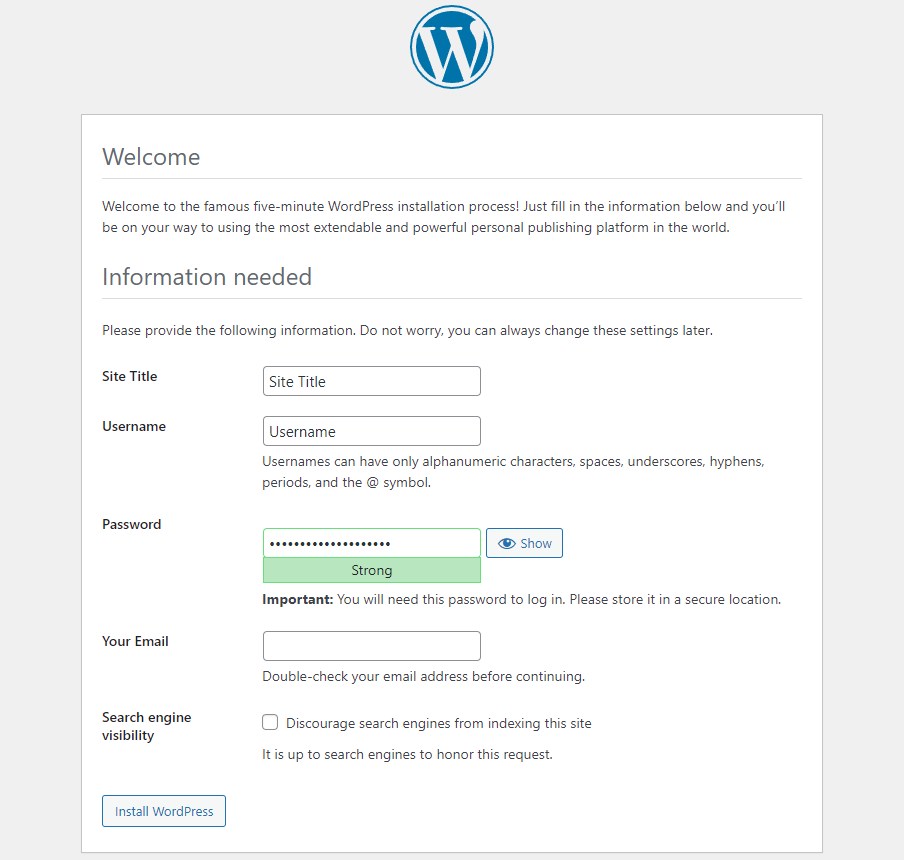

You can now use your local WordPress website to test themes, plugins, and configuration changes before applying them to a live site.
How to install WordPress locally on Linux using XAMPP
To install WordPress locally on Linux, you can use XAMPP, a free software package that includes Apache, MariaDB, PHP, and phpMyAdmin. It provides the server environment WordPress needs without requiring you to configure each component separately.
The following steps apply to Linux distributions compatible with the official XAMPP Linux installer.
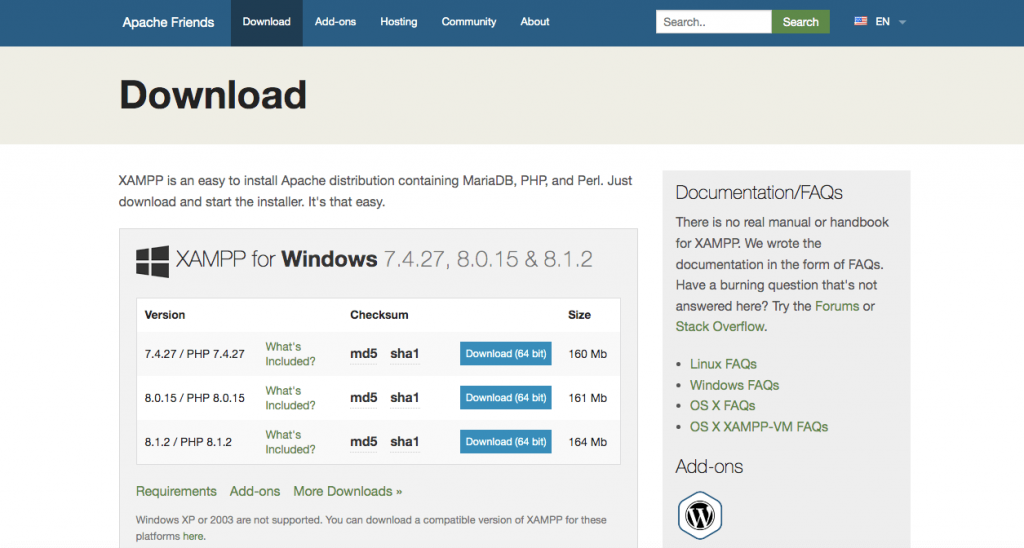
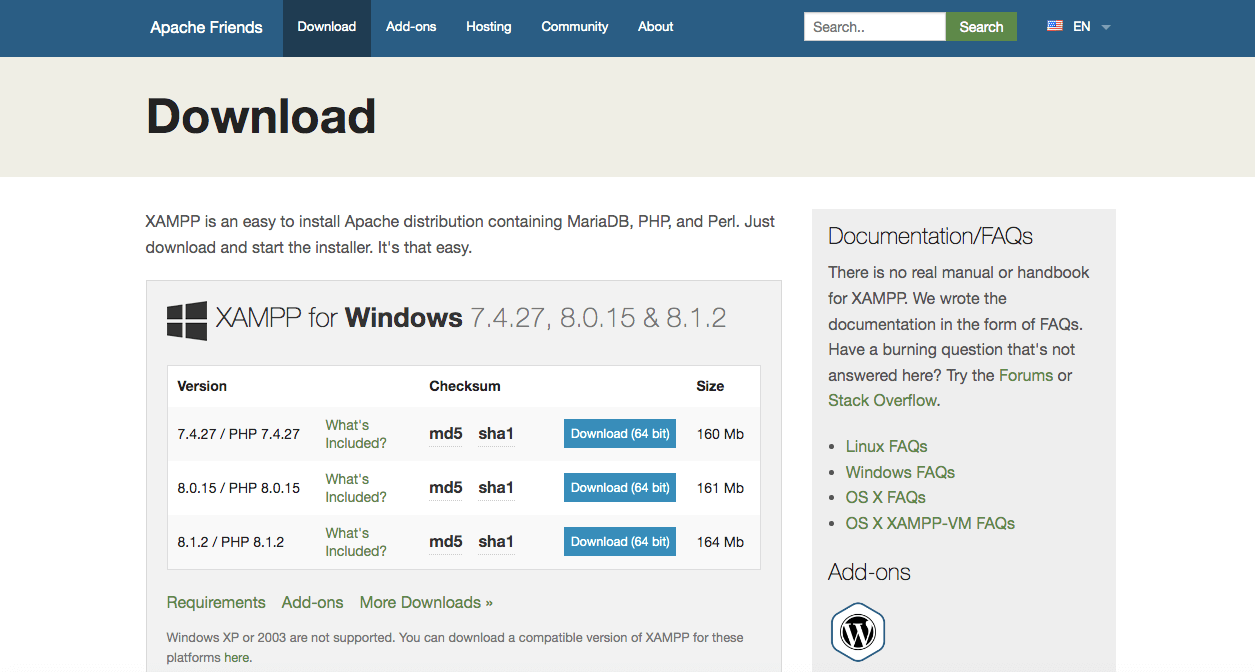
- Download XAMPP for Linux. Visit the Apache Friends website and download the Linux installer compatible with your system.
- Install XAMPP. Open your terminal, navigate to the directory containing the downloaded installer, and make the file executable by running
chmod +x xampp-linux-*-installer.run. Then launch it usingsudo ./xampp-linux-*-installer.runand complete the installation wizard. - Start the local server. Run
sudo /opt/lampp/lampp startin your terminal. This starts XAMPP’s Apache and MariaDB services. Openhttp://localhostin your browser to confirm that the server is working. - Download and copy WordPress. Download the latest WordPress package from WordPress.org and extract it. Copy the extracted
wordpressdirectory into/opt/lampp/htdocs/, renaming the copied directorymytestingsite. Because this directory is normally protected, use administrator privileges to copy the files and ensure your local user can edit the new site directory. - Create a WordPress database. Open
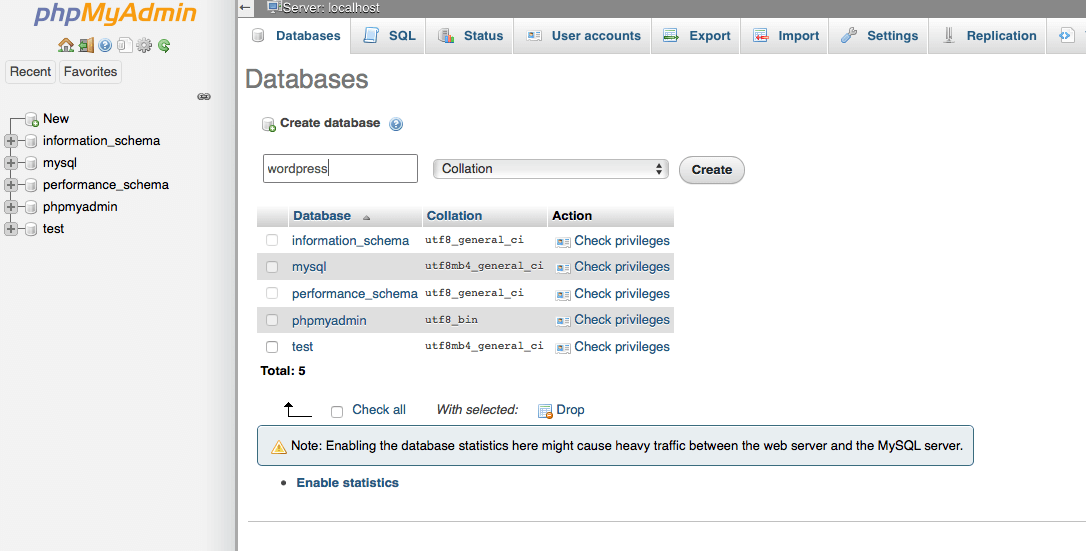
http://localhost/phpmyadmin/in your browser. Select Databases and create a new database namedwordpress_local.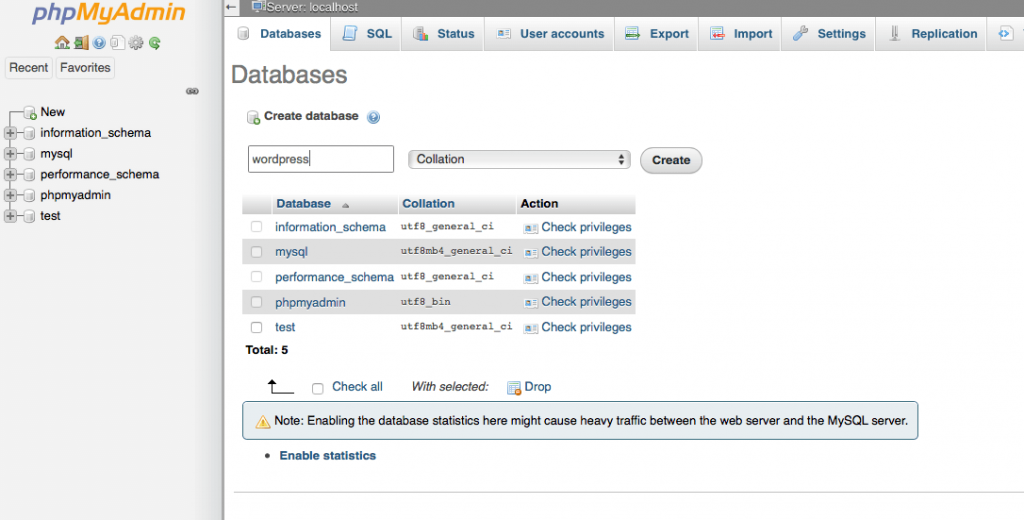
- Run the WordPress installer. Visit
http://localhost/mytestingsite/and choose your preferred language. Enterwordpress_localas the database name andlocalhostas the database host. If you haven’t changed XAMPP’s default database credentials, userootas the username and leave the password field empty. - Complete the setup. Enter your WordPress site title, administrator username, password, and email address. Click Install WordPress, then log in at
http://localhost/mytestingsite/wp-admin/.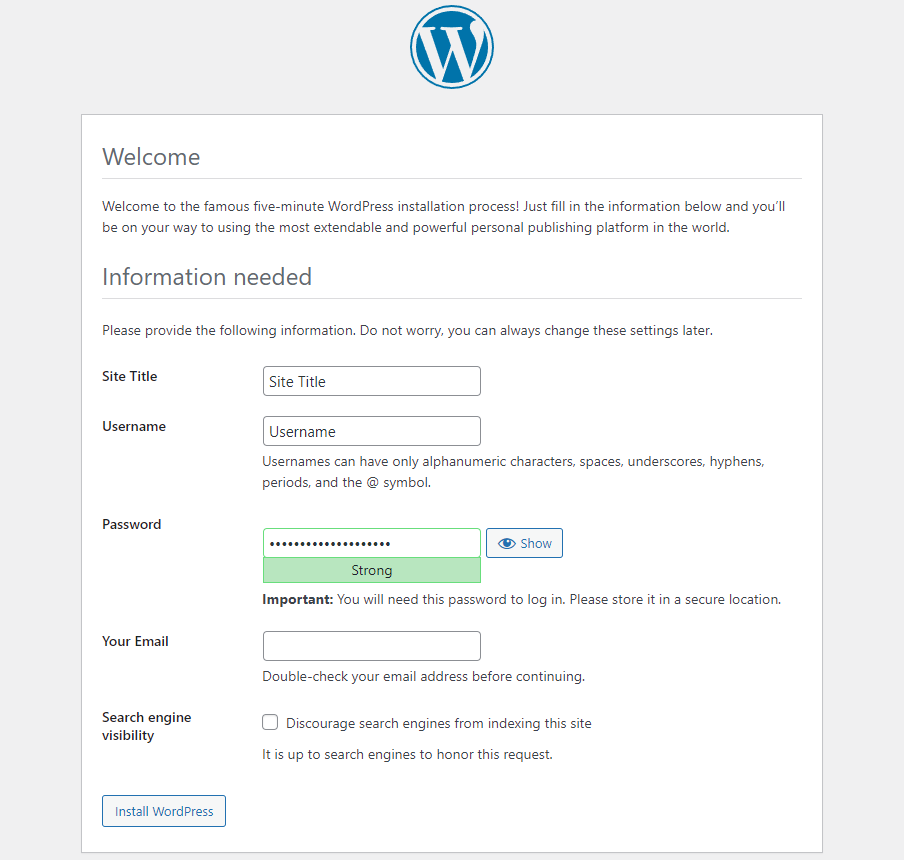

Important: XAMPP is intended for local development, not public production servers. Its default configuration includes settings that aren’t secure for internet-facing websites. Keep the environment accessible only from your trusted local machine.
Once you’ve finished working, you can stop the XAMPP services with sudo /opt/lampp/lampp stop.
Why install WordPress locally?
Installing WordPress locally lets you develop, customize, and troubleshoot a website without affecting a live site. It’s especially useful for experimenting with themes, plugins, and code before publishing changes.
The main benefits include:
- Safe testing: Try WordPress updates, plugins, and theme changes without affecting visitors.
- Offline development: Work on your website without an active internet connection once the required software and resources are installed locally.
- Learning and experimentation: Practice working with WordPress files, databases, and PHP in a private environment.
- Free development: Build and test a WordPress website without purchasing hosting or registering a domain.
If you’re testing changes to an existing website, a local environment may not fully reproduce its live server configuration. A separate WordPress staging environment can provide a more representative environment for final compatibility checks before publishing.

How to move your local WordPress site to a live server
Once you’ve finished developing and testing WordPress locally, you can make your website accessible to visitors by moving it to a hosting server.
This typically involves transferring your WordPress files and database, updating the database connection details, and replacing local URLs with your public domain. The exact process depends on your hosting provider and whether you use a migration plugin or transfer the files manually.
Before publishing, make sure to:
- Back up your local website, including its files and database.
- Check server compatibility to ensure your hosting environment supports the PHP version and WordPress requirements.
- Update your website URLs so links and media no longer reference
localhost.
A migration plugin can simplify the process of transferring your WordPress files and database to the new server.
Once the website is online, test its pages, navigation, plugins, and forms to confirm everything works as expected.
This article is a localized version of How to install WordPress locally on Windows, macOS, and Linux, originally published in English.

Will Morris is a staff writer at WordCandy. When he's not writing about WordPress, he likes to gig his stand-up comedy routine on the local circuit.