To sell on Pinterest, create a free business account, connect a website where shoppers can complete checkout, upload your products, and publish Pins that link directly to individual product pages. While Pinterest drives discovery, checkout happens on your website. Publishing organic Pins is free, and Pinterest does not take a commission on those off-platform sales.
Results depend on product-category fit, content consistency, and product-page quality. The platform works best for visually appealing products in categories where people actively search before buying.
Physical products have the broadest access to Pinterest’s shopping features, though digital products and services can still use Pins to drive traffic to dedicated sales or landing pages.
There are seven steps from account setup to your first tracked sale:
- Set up a free business account.
- Verify your store’s domain.
- Upload your product catalog.
- Link each product to its own Pin.
- Design Pins that earn clicks.
- Target the searches your buyers use.
- Measure what turns into sales.
1. Create a Pinterest Business account
Create a Pinterest Business account at pinterest.com/business/create, or convert an existing personal account under Settings → Account management → Convert to business account.
A Pinterest Business account gives you access to the features you need to sell, including Catalogs, Pinterest Analytics, website claiming, and other shopping tools. It’s free to create.
During setup, fill in your Business name, Country, and, if you already have it, Website URL. Enter the domain you have or plan to use for your store; Pinterest pre-fills this domain when you reach the claiming step.
Pinterest shows a few additional onboarding screens: business goals, brand focus, and interest in running ads.
Pro tip
When Pinterest asks for your website URL during signup, enter the domain you own, not a social media profile or marketplace listing. Pinterest carries this domain through to the website claiming step.
2. Claim your ecommerce website
To claim your website on Pinterest, go to Settings → Link to Pinterest → Websites → Claim, verify your domain with one of the methods Pinterest offers, and click Claim your website once the verification is live on your site.
Claiming links every Pin that points to your domain to your business profile and gives you analytics for those Pins. Pinterest only verifies domains you own, so marketplace listings and hostinger.store quick-link URLs can’t be claimed.
The Claim pop-up opens with your website URL pre-filled and three standard verification methods; some accounts also show a Google Merchant Center option.
Method | How it works |
Add an HTML tag | Paste a meta tag into your site’s <head> section |
Upload HTML file | Upload a verification file to your server’s root folder |
Add TXT record | Add a DNS verification record through your domain registrar |
Google Merchant Center | Connect an eligible Google Merchant Center account to verify the website |
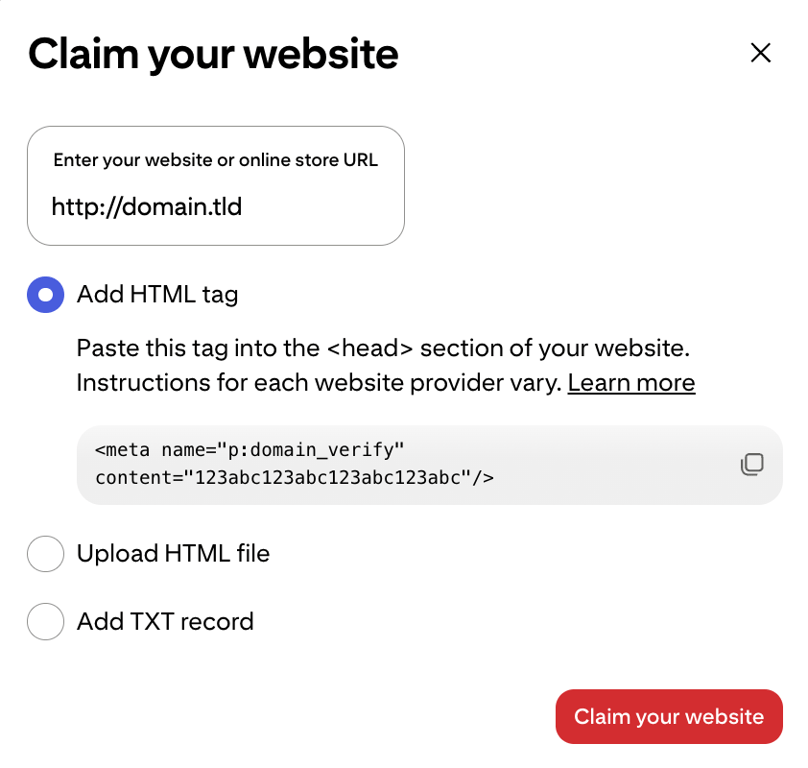
The HTML tag method is a straightforward option for a Hostinger AI Builder website. Copy the tag from Pinterest, then in the website editor, go to More → Integrations → Custom code. Paste the tag into the code field and save.
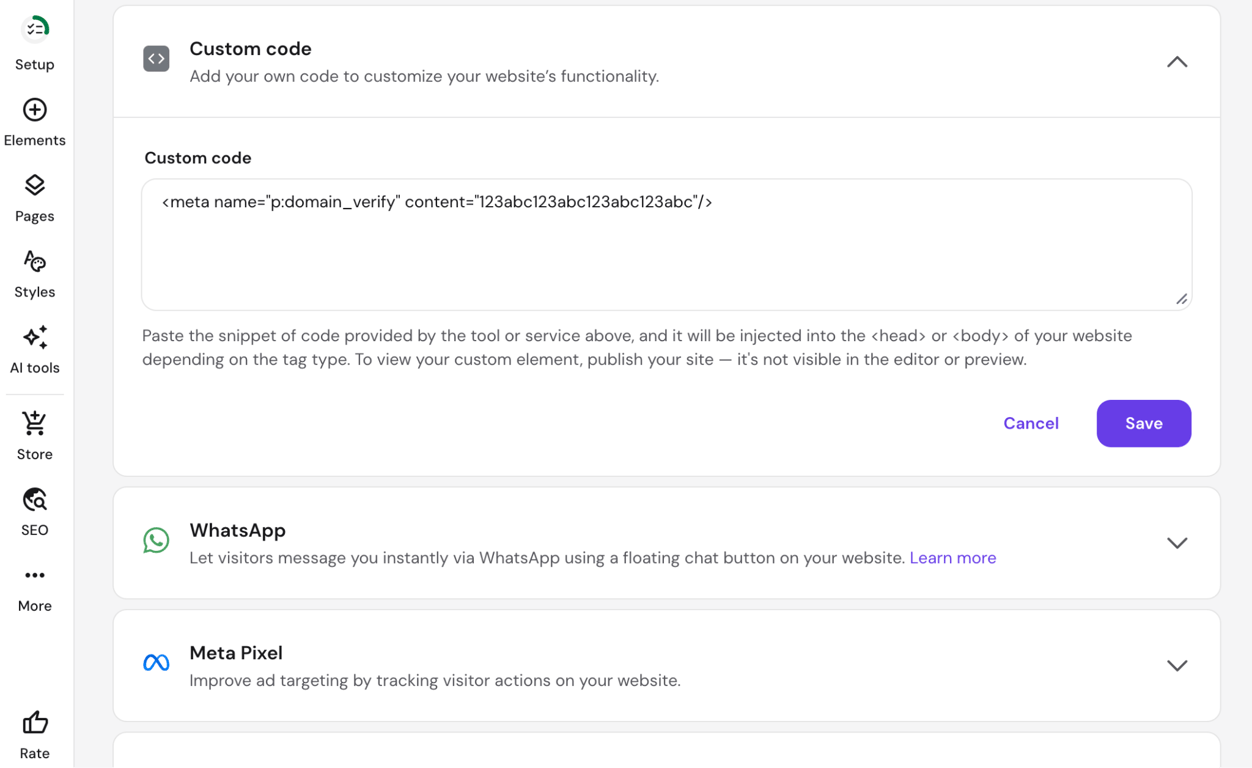
A confirmation pop-up appears immediately after saving; click Update website.
The tag is invisible in the editor preview, which is expected. Only click Claim your website on Pinterest after you’ve clicked Update website in the builder. Pinterest checks the verification automatically; DNS TXT record changes can take up to 72 hours to propagate.
Install the Pinterest Tag
The Pinterest Tag is a tracking code that records visit and conversion events on your site, such as PageVisit, AddToCart, and checkout, so you can measure what happens after someone clicks a Pin.
To install it, open the Pinterest menu (≡) and go to Manage business → Conversions → Pinterest tag → Tag manager, then click Install the Pinterest tag. Pinterest first checks your website URL for supported integrations; Hostinger Ecommerce isn’t one of them, so click Manual setup and copy the base code.
Paste the base code into the same Custom code field, click Update website, then configure the conversion events you need and test the implementation. Pinterest notes that a newly installed tag can take up to 24 hours to appear in Ads Manager.
Set up your store on your own domain
Set up a store on a domain you own before claiming if you don’t have one yet.
Hostinger Ecommerce is a platform that manages your products, inventory, payments, and orders from one dashboard. Your catalog lives in one place, and the same product data flows to every sales surface you connect: your website, a quick-link store, or additional channels as you grow. All plans charge 0% platform transaction fees.

You can get a quick-link store live in under three minutes by uploading your product images. Hostinger’s AI writes product descriptions and suggests prices based on the images, so you can start selling online before the full website is ready.
When you’re ready for a full website, add a website sales channel in the Ecommerce dashboard, and the same catalog connects automatically. Publishing it prompts you to connect a free domain, included for the first year with Growth and Scale plans, and the store becomes available on that domain immediately.
Before going live, review the AI-generated content, particularly the footer: the builder writes plausible-sounding contact details, including email addresses, that reference your store name but don’t exist. Replace or remove anything you didn’t write.
3. Add your products to Pinterest
To add a retail catalog data source, open Pinterest’s top-left business menu → Catalogs and product groups → Add data source.
Pinterest Catalogs let you upload your product inventory so Pinterest can create Product Pins from your data and keep prices and availability up to date over time.
Choose how you want Pinterest to receive your product data.
Data source options
Option | Best for |
Provide a URL link | Hosted files or Google Sheets; Pinterest re-ingests daily |
Upload manually | Small catalogs that don’t change frequently |
Use an ecommerce partner | Supported integrations such as Shopify or WooCommerce that can catalog data for you |
Use Shopping API | Large catalogs with frequent changes; requires development |
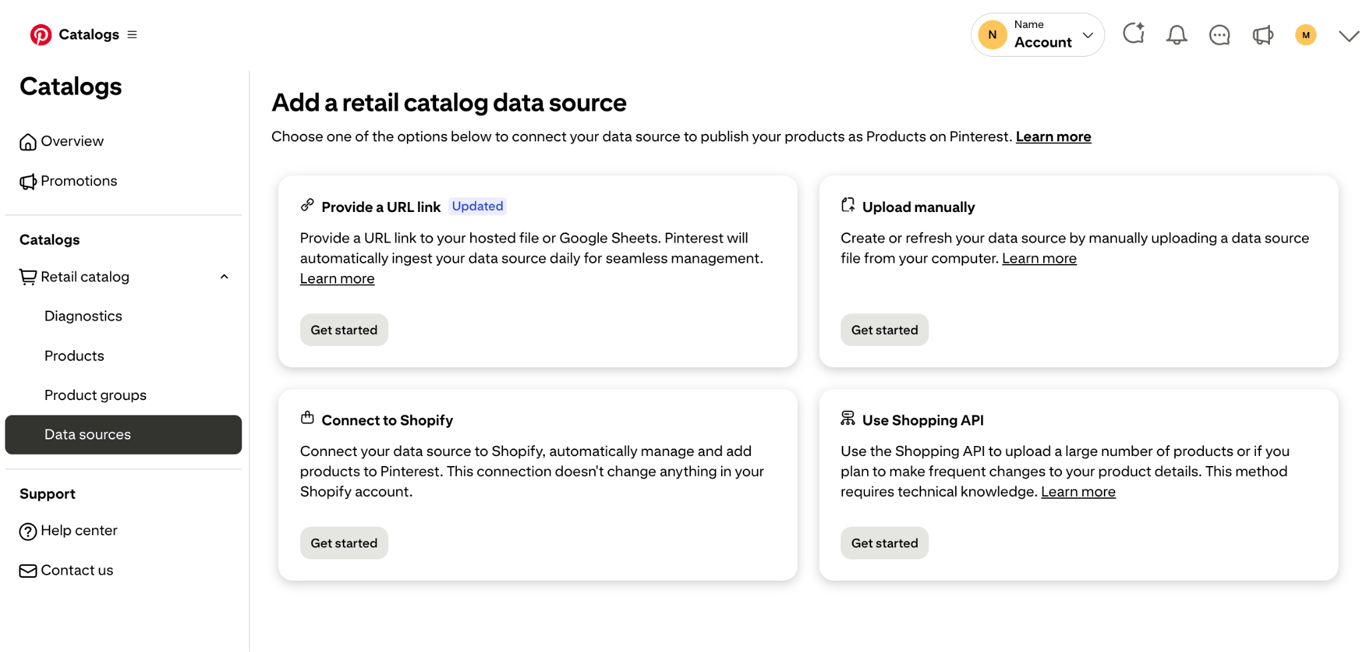
For a Hostinger Ecommerce store, the URL link option with a Google Sheet is a practical path. Create a Google Sheet with one product per row, make it accessible, and paste the URL into Pinterest. Pinterest re-ingests the sheet once daily, but you still need to keep the sheet itself updated when prices, inventory, or URLs change.
Required product fields
Field | What it contains |
ID | Unique product identifier required by Pinterest |
Title | Product name as it will appear on the Pin |
Description | What the product is |
Link | Direct URL to the product page on your site |
Image link | URL to the product photo |
Price | Listed price with currency |
Availability | in stock or out of stock |
Item group ID | Required when a product has multiple variants |
Keep this data accurate: Missing or incorrectly formatted required fields can cause feed-ingestion errors, while outdated data can leave Product Pin details out of sync with your store.
Pro tip
Use the same product titles in your Google Sheet as in your Hostinger Ecommerce dashboard. Consistent naming means your Catalog Pins and your manually created Pins describe the same product in the same terms.
4. Create Product Pins
Create Product pins in one of the three ways supported by Pinterest: manually linking a Pin to a specific product page, connecting a product catalog so Pinterest generates them automatically, and enabling Product Rich Pins that pull live price and availability data directly from your product page.
How to create a Pin that links to a product page
Create a product-focused Pin by going to Create → Create Pin in Pinterest, uploading a product image, writing a title and description, and setting the destination URL to the specific product page on your site.
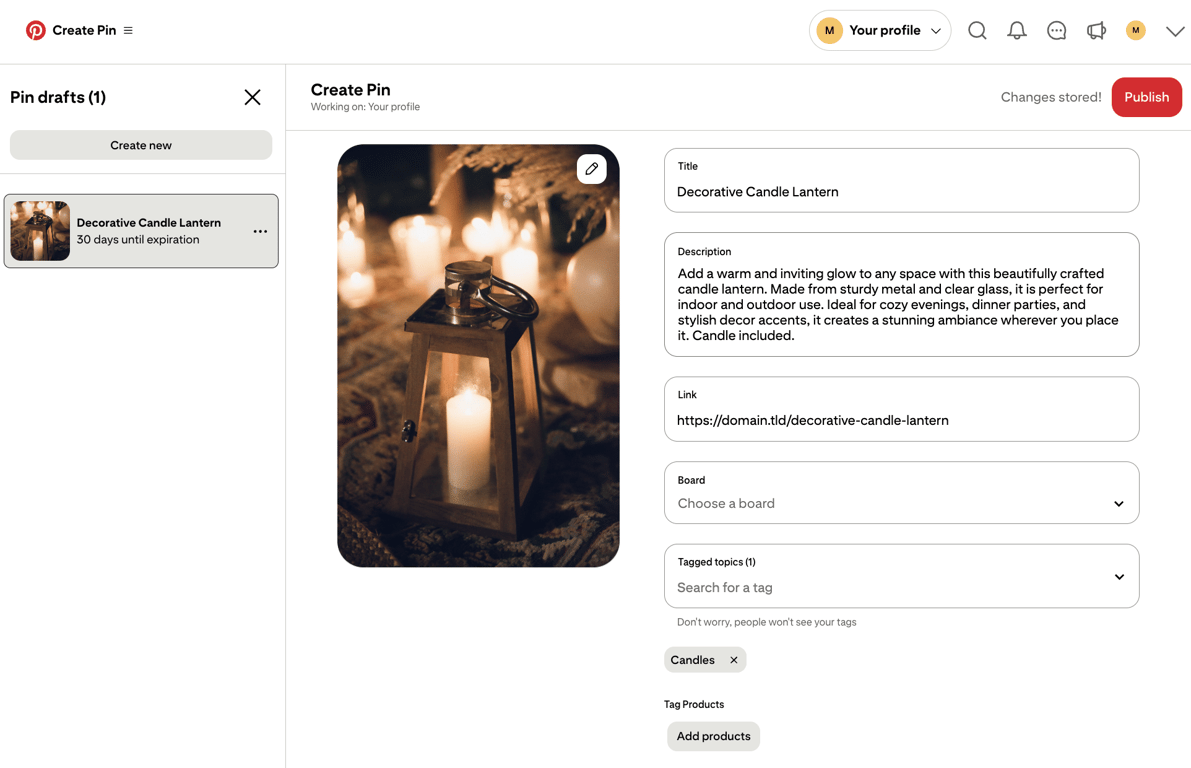
For product-focused Pins, link directly to the matching product page rather than the homepage or a broad shop page. You can create multiple Pins for the same product using different images or angles.
Product tagging
Product tagging lets you tag catalog products within a lifestyle- or scene-based Pin. Pinterest surfaces tagged products below or beside the Pin, giving shoppers a direct route to those product pages. It’s useful for content where multiple products appear together, such as a styled shelf, a gift flat lay, or a seasonal table setting.
Product Rich Pins
Product Rich Pins pull price and availability data directly from your product page’s code and display it on the Pin itself, updating automatically when your page changes. Pinterest supports Open Graph or Schema.org for product Rich Pins.
The markup needs to declare the page type as a product, the price and currency, and the availability status.
Hostinger Ecommerce stores don’t currently output this product markup, so Product Rich Pins won’t activate automatically. Product pages do include standard Open Graph tags – title, description, and image – so Pins created from them render correctly as standard Pins with your product name and photo.
The Pinterest Rich Pin validator was retired in September 2022. Product Rich Pins now activate automatically when Pinterest crawls a page with valid product markup; no submission needed.
5. Create effective Pinterest Pins
Create effective Pinterest Pins with a vertical 2:3 format, a clear product image, and a direct link to the matching product page.
An effective Pinterest Pin clearly shows the product, links to the matching product page, and delivers on what the shopper saw before clicking. A Pin with a strong image that leads to the wrong page wastes the traffic Pinterest already delivered.
Format
Use a 2:3 aspect ratio; Pinterest recommends 1000 × 1500 pixels for a standard image creative. Pins with taller aspect ratios may be cropped in people’s feeds.
What to include
- Clear product focus. The product should be identifiable at first glance. Props and background elements should support the product, not compete with it.
- Lifestyle context. Show the product in use or in a setting that reflects how a buyer would use it. A candle in a styled living room reads stronger than a product shot on white.
- Readable text overlays. If you add text, keep it short and large enough to read comfortably on a mobile screen.
- Consistent branding. Use the same fonts, colors, or logo placement across your Pins. Visual consistency builds recognition over time.
Product-to-page match
The Pin image and title should match exactly what’s on the linked product page. A beeswax candle Pin links to the beeswax candle page; a lantern Pin links to the lantern page. Category pages and homepages sit between the shopper and the product they saw – remove that friction.
As a practical example, a decorative lantern works well as a warm lifestyle image, lit on a wooden surface, photographed in ambient light, with the product name in a readable font. Link the Pin directly to that lantern’s product page so the landing experience matches the creative.
6. Optimize your Pins for Pinterest SEO
Optimize your Pins for Pinterest SEO by placing relevant keywords in Pin titles, descriptions, board names, and product catalog data.
Find keywords
Start with Pinterest’s search bar: type your product category, then use the autocomplete suggestions for keyword ideas. For a candle store, “soy candle” might surface “soy candle gift set,” “soy candle aesthetic,” or “soy candle home decor.”
Pinterest Trends shows relative search volume over time by region. It covers the US, Canada, Europe, Latin America, and a growing number of markets across Asia, the Middle East, and Oceania. Use it to plan seasonal content so you can publish before demand peaks.
Pro tip
The same product can surface under different keywords in different seasons. Pin a candle under "cozy autumn decor" in October and "spring home refresh" in March – different images, different titles, same product page.
Where to use keywords
- Pin titles. Include the primary keyword near the start. Titles appear in search results and on the Pin itself.
- Pin descriptions. Write two to three natural sentences. Work in one or two keyword variations without forcing them.
- Board names. Name boards after what people search for. “Soy candle gift ideas” gives Pinterest and users more context than “My products.”
- Board descriptions. Fill these in with relevant keywords. A short description helps Pinterest understand the board’s topic.
- Product titles and descriptions in Catalogs. The data you feed into Catalogs directly powers Product Pin copy. Optimize it at the source.
Board organization
Create boards by product type, use case, or season, not by internal catalog structure or brand name. A candle seller might run separate boards for “Minimalist candle decor,” “Cozy living room ideas,” and “Candle gifts under $50.” Each board targets a different search intent.
Save each new Pin to the most relevant board so its topic and context are clear.
7. Track Pinterest performance
Track Pinterest performance through Pinterest Analytics by opening the Pinterest menu (≡) and going to Analyze performance → Analytics overview. Pinterest Analytics shows which Pins, products, and keywords generate real traffic and which don’t.
What to track
Metric | What it tells you |
Impressions | How often your Pins appeared in feeds and search results |
Saves | How often someone saved your Pin to a board |
Outbound clicks | How often someone clicked through to your website |
Product page visits | How many of those clicks landed on a product page |
Conversions | Purchases, add-to-carts, or other events tracked via Pinterest Tag |
Outbound clicks show how much traffic Pinterest sends to your site, while tracked conversions show whether that traffic completes actions such as ‘add-to-cart’ or ‘checkout’. Impressions and saves matter for reach and long-term content signals, but neither one confirms a sale.
Find what’s working
Sort Pins by outbound clicks over a 30- or 90-day window. Consistent performers can reveal what your audience responds to: product type, image style, specific keyword, or board. Products with strong saves but weak outbound clicks may indicate that the creative attracts interest but doesn’t give people enough reason to visit the destination.
Cross-reference Pinterest Analytics with your Ecommerce dashboard. Pinterest shows what happened on Pinterest; your store shows what happened after the click. If outbound clicks look healthy but conversions are low, the product page is where to focus next, not the Pins.
Scale with Pinterest Ads
Pinterest Ads make sense for Pins that already perform well organically. Promoting a Pin that generates consistent outbound clicks extends its reach without changing what already works.
You can promote eligible existing Pins or create ad creative for a campaign. In Ads Manager, choose an objective supported by the ad format, set the budget and schedule, and select the Pin or product group you want to promote.
Pro tip
Give a Pin at least 30 days of organic data before promoting it. If a Pin isn't generating organic clicks, spending on reach won't fix the underlying issue.
What can you sell on Pinterest?
You can sell physical products, digital downloads, services, and print-on-demand merchandise on Pinterest. Physical products have the fullest access to the platform’s selling features, as Catalogs, Product Pins, and product tagging all center on goods that ship to customers.
Physical products
Visually appealing physical products are a natural fit for Pinterest: home decor, gifts, fashion, beauty, food, craft supplies, and print-on-demand merchandise.
These categories match how Pinterest users browse: saving ideas, comparing options, and returning to buy.
Digital products
Digital products don’t have native checkout on Pinterest, but the platform drives traffic to the pages where they’re sold. Ebooks, templates, courses, and downloadable files can be promoted through well-optimized Pins.
A full walkthrough of selling digital products covers setup, delivery, and payment options in detail.
Services
Service businesses can use Pinterest to reach potential clients. Photographers, interior designers, event planners, and instructors can link Pins directly to booking pages or service descriptions.
The inquiry or booking happens off-platform, but Pinterest can still act as a discovery channel for visual service categories.
Print-on-demand products
Print-on-demand products fit Pinterest well: they’re visual, often gift-oriented, and require no upfront inventory. List them in Catalogs and create Pins the same way you would for any physical product.
Marketplace sellers
Sellers listing products on Etsy, Amazon, or similar platforms have limited control over domain claiming and tracking, since they don’t own the marketplace domain. They can still link Pins to marketplace listings, but they have less control over site-level attribution and tracking than sellers using a domain they own
How much does it cost to sell on Pinterest?
Publishing organic shopping content on Pinterest is free, and Pinterest takes no commission from sales made through your website.
The costs involved in selling through Pinterest come from the infrastructure around it:
- Ecommerce platform – Hostinger Ecommerce plans start at $2.99/month, billed annually. All plans charge 0% platform transaction fees.
- Payment processing – Stripe, PayPal, and other providers charge per-transaction fees that vary by provider and region.
- Shipping and fulfillment – For physical products, carrier costs and packaging apply.
- Pinterest Ads – Optional. You set the daily budget, objective, audience, and campaign settings based on your goals.
How to get more sales from Pinterest
Get more sales from Pinterest by publishing multiple Pins per product, matching each Pin to its exact product page, timing content ahead of seasonal demand, and improving the pages shoppers land on.
Create multiple Pins per product
Create multiple Pins for your best-selling products, with different images, angles, and lifestyle contexts. Pinterest’s algorithm surfaces content over time, not just once at publication. Compare their outbound clicks and conversions to see which creative approach works best.
Match Pins to exact product pages
Every Pin links to its specific product page. Category pages and homepages remove one too many clicks from the sale.
Time content seasonally
Pinterest users often plan seasonal items early, such as holiday gifts, Valentine’s Day gifts, and spring home decor. Schedule Pins ahead of when demand rises
Improve your product pages
Pinterest delivers the traffic, but it’s up to your product page to close the sale. Slow load times, missing product details, and low-quality images can reduce the conversions Pinterest has already sent. Treat product page quality as part of your Pinterest strategy, not separate from it.
Use analytics to prioritize
Identify which Pins drive outbound clicks and which products convert. Allocate publishing effort toward what the data already shows is working. A broader ecommerce marketing strategy covers the full range of acquisition channels available beyond Pinterest.
Is selling on Pinterest worth it?
Yes. Pinterest works particularly well for sellers in visual product categories like home decor, fashion, gifts, and beauty, where it drives discovery-led traffic that often converts days or weeks after the first save.
Home decor, fashion, gifts, beauty, food, and print-on-demand products are great fits for Pinterest’s visual discovery format. Pinterest users tend to save ideas and return to them before deciding whether to buy
Pinterest often supports discovery and planning before purchase, so the path from Pin to sale may involve saves, repeat exposure, or later visits. Categories with weak visual discovery demand or products that require extensive explanation can be a harder fit.
Results depend on four things: how visually appealing your products are, how much search demand exists for your category on Pinterest, how consistently you publish, and how well your product pages convert the traffic you receive.
Grow your ecommerce business
Build beyond Pinterest as a single channel by adding new traffic sources, improving conversion rates, expanding your catalog, and tightening fulfillment.
Four levers scale a store beyond what one traffic source can deliver:
- Add new sales channels. Expand alongside Pinterest rather than relying on it.
- Improve conversion rates. Better product pages and checkout flows can make more of the traffic from every acquisition channel useful.
- Expand your catalog. Build on what your top-performing Pins already attract.
- Tighten fulfillment. A smooth post-purchase experience can help turn buyers into repeat buyers.
A full walkthrough of scaling your ecommerce business covers channel diversification, operations, and growth tactics in detail.
This article is a localized version of How to sell on Pinterest in 7 steps, originally published in English.

Bruno is a Content Writer at Hostinger, focused on creating and optimizing helpful, engaging articles about web development and marketing. With a background in journalism, he combines storytelling with practical insights to make complex topics easier to understand. He has also contributed to publications like MacMagazine and Jornal A Tarde. Outside of work, Bruno enjoys exploring art, cooking, and technology.

Hasna is passionate about tech, culture, and the written word. She hopes to create content that helps people succeed on the web. When not writing, rearranging, or polishing sentences, she enjoys live music and overanalyzing movies.