How to upgrade Magento to the latest version
Jul 01, 2025
/
Ariffud M.
/
7 min Read
As the leading eCommerce platform, Magento regularly releases updates to enhance security, optimize performance, and introduce new features. Store owners must keep their Magento installation current to ensure their online store runs smoothly.
In contrast, running an outdated version of Magento can expose your website to potential security risks and stability issues.
This article will walk you through the Magento upgrade process, from preparation steps to post-upgrade actions. By the end, you’ll know how to safely upgrade your Magento store, ensuring its security and efficiency with the latest technology.
Prerequisites
Before upgrading Magento, you need to complete the following preparations:
- SSH access. Make sure you can access your server via SSH. With it, you can update Magento using command-line instructions.
- User permissions. Verify you have the root or a dedicated user with the correct permissions. This ensures you can execute commands without permission issues.
- Sufficient server resources. Before upgrading, confirm that your server has adequate disk space to back up important data. If you store a large number of files, you’ll need more resources.
You can check out our Magento 2 tutorial to learn the fundamentals of managing a Magento store.
Why should you upgrade Magento to the latest version?
Regularly upgrading Magento offers several advantages, such as:
- Enhanced security. Each new version comes with security fixes for any vulnerabilities found in previous versions, helping to safeguard your Magento site.
- Improved performance and scalability. Upgrades often include performance improvements for your store to run faster and handle more traffic. This is important for scaling your business effectively.
- Access to new features and enhancements. Upgrading gives you access to the latest features that can enhance your store’s functionality and user experience.
- Compliance with the latest web standards. Keeping your Magento installation up to date ensures compliance with the latest web standards and regulations, vital for maintaining a professional and trustworthy online presence.
Steps to upgrade Magento to the latest version
Here’s how to upgrade Magento 2 to the latest version:
1. Back up your Magento store
Backing up Magento before upgrading lets you restore your site to its previous state if anything goes wrong during the update.
Magento backup on Hostinger
If you have installed Magento on Hostinger’s VPS, you can use our built-in features to create backups easily. Here’s how:
- Log in to hPanel, then navigate to VPS → Manage.
- From the left sidebar, go to Backup & Monitoring → Snapshots & Backups.
- Click Create Snapshot to capture your VPS data and current state at a specific moment.
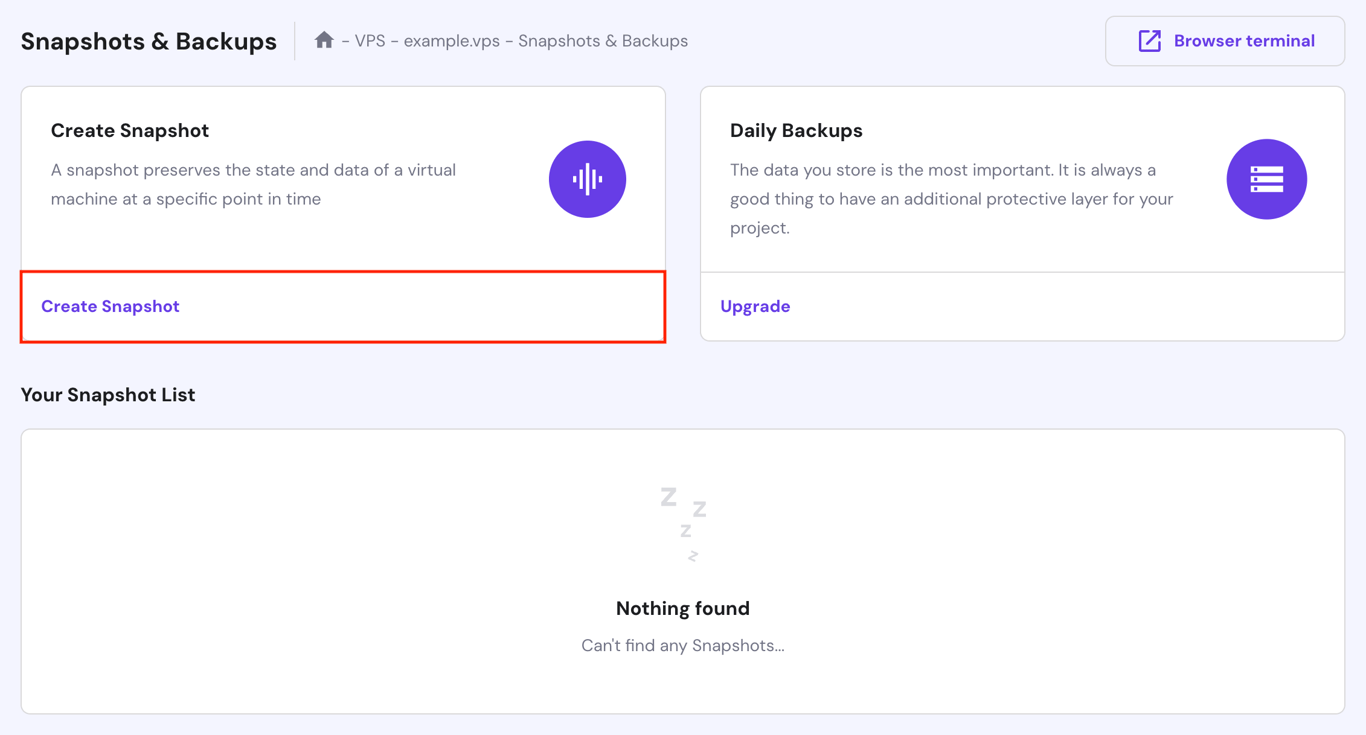
However, if you prefer to back up your server automatically at regular intervals, hit Upgrade. Then, complete your purchase and set your backup frequency by clicking Auto-backups settings.
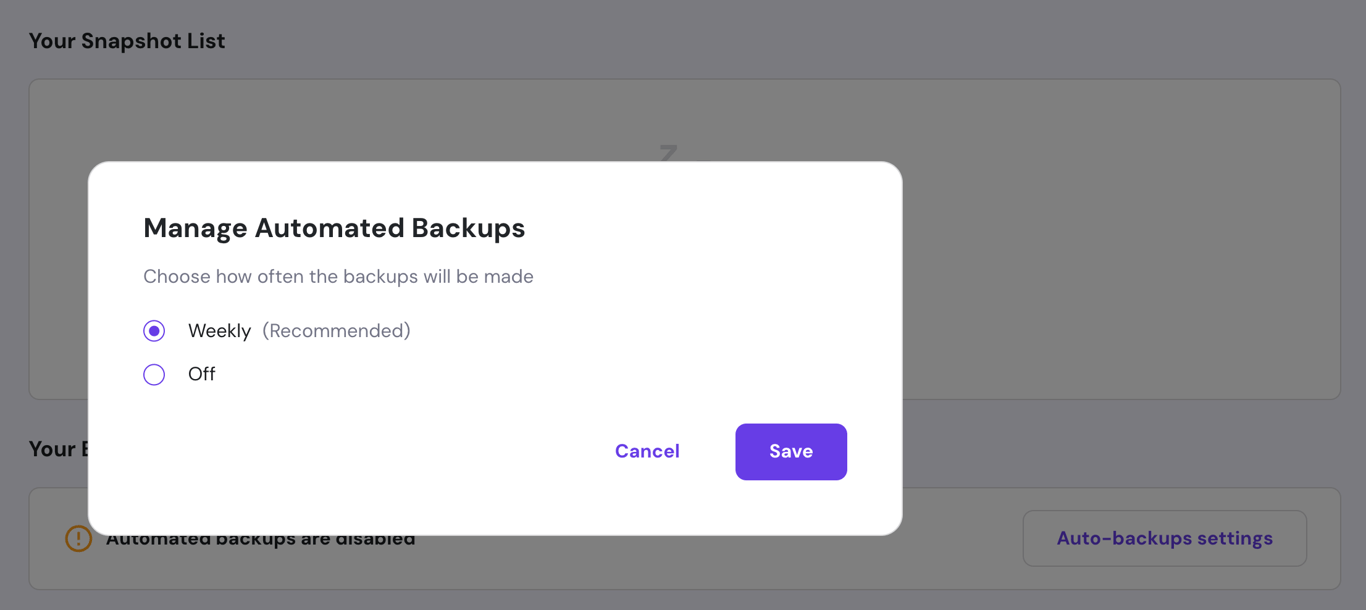
Back up with Kodee
If you already have a backup schedule for your VPS, you can check, enable, or disable it without accessing the Snapshots & Backups menu on hPanel by simply asking Kodee AI assistant.
Manual Magento backup
Alternatively, you can manually back up your Magento website by following these steps:
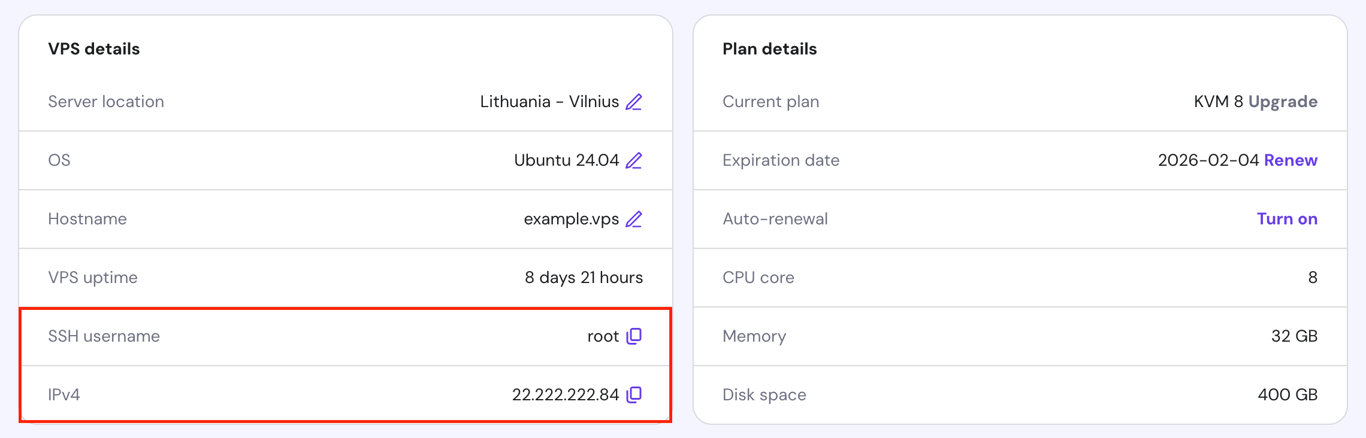
- Log in to your server via a terminal or SSH client. For our Magento VPS customers, find your SSH credentials by accessing VPS Overview → VPS details.
- Navigate to your Magento installation’s root directory:
cd /path/to/magento2
- Use tar to create a compressed archive of your Magento files:
tar -czvf magento-backup.tar.gz .
- Execute the mysqldump command to back up your Magento database. Replace username and database_name with your actual details.
mysqldump -u username -p database_name > database_backup.sql

2. Upgrade necessary components
Upgrading server components ensures your environment is fully compatible with the newest Magento version. Here are the necessary components that you need to update:
- Linux packages and dependencies.
- Apache or NGINX web server.
- PHP and all its required extensions.
- MariaDB or MySQL.
Follow these instructions to upgrade them:
- Go back to your home directory:
cd
- Refresh the available Linux package list and their versions:
sudo apt update
- Upgrade all the installed packages:
sudo apt upgrade
- If you use Apache, run these commands to update and restart the web server:
sudo apt install apache2

sudo systemctl restart apache2
- For NGINX, execute the following commands instead:
sudo apt install nginx

sudo systemctl restart nginx
- Install the latest PHP version and its extensions. Find the current PHP version in its official documentation. For example, to install PHP 8.3, execute the following:
sudo apt install php8.3 libapache2-mod-php8.3 php8.3-common php8.3-gmp php8.3-curl php8.3-soap php8.3-bcmath php8.3-intl php8.3-mbstring php8.3-xmlrpc php8.3-mysql php8.3-gd php8.3-xml php8.3-cli php8.3-zip
- Now, it’s time to upgrade your database server. For MariaDB, run:
sudo apt install mariadb-server

sudo systemctl restart mariadb
- If you’re using MySQL, upgrade it to the latest version:
sudo apt install mysql-server

sudo systemctl restart mysql
3. Enable maintenance mode
Activating Magento maintenance mode temporarily takes your eCommerce site offline, preventing disruptions or data loss during system upgrades. Your store will display a maintenance page to visitors during this time.
Here’s a guide to enable maintenance mode:
- Make sure you’re in the Magento root directory:
cd /path/to/magento2
- Switch to maintenance mode by running:
php bin/magento maintenance:enable
- You should see the following output:
Enabled maintenance mode
4. Run the upgrade commands through Composer
Now, it’s time to upgrade Magento 2 via Composer. Here are the steps to do so:
- Run the following command to update Composer:
composer self-update
- Specify the latest Magento version to install. Based on Adobe’s released versions page, the current stable version is Magento 2.4.7-p1.
composer require-commerce magento/product-community-edition 2.4.7-p1 --no-update
- To update all dependencies to the required versions, type:
composer update
- Next, you need to upgrade Magento’s database schema:
php bin/magento setup:upgrade
- Recompile the Magento code to ensure all changes are applied properly:
php bin/magento setup:di:compile
- Deploy the static content to make sure your store displays all its assets:
php bin/magento setup:static-content:deploy -f
5. Update extensions and themes
You should also update installed extensions and themes so they work seamlessly with your current Magento version. Otherwise, you might encounter compatibility issues or reduced functionality.
Follow this guide to update your Magento extensions and themes to their latest versions:
- Open each extension’s official page or documentation to see if updates are available.
- If your extension is installed using Composer, update it using the command below. Replace vendor/extension-name with the actual vendor and extension name:
composer update vendor/extension-name
- Similarly, check your theme’s documentation for updates and update it via Composer:
composer update vendor/theme-name
- If necessary, recompile the Magento code again to implement all these changes:
php bin/magento setup:di:compile
6. Disable maintenance mode
Before bringing your Magento store back online, make sure to clear and rebuild caches beforehand to refresh your website’s stored cache. Here’s how:
- Execute these commands to clean up the Magento cache:
php bin/magento cache:clean

php bin/magento cache:flush
- Once done, disable maintenance mode to make your store accessible to customers again:
php bin/magento maintenance:disable
- Here’s the expected output:
Disabled maintenance mode
7. Verify the upgrade
Lastly, verify that your upgrade was successful. To do so, type the following command:
php bin/magento --version
You should see the version number that matches the one you upgraded to:
Magento CLI 2.4.7-p1
Additionally, ensure your online store’s frontend and backend functionalities are working correctly.
Test frontend functionalities
Open your Magento site’s storefront to test these from a customer’s perspective:
- Product browsing. Check that all product images, descriptions, and prices are displayed correctly. This ensures that visitors can browse products without any issues.
- Shopping cart. Test the shopping cart to confirm that items can be added, updated, and removed without problems. Verify that the cart reflects the correct totals and that the ‘Proceed to Checkout’ button works.
- Checkout process. Go through the entire checkout process to ensure it’s smooth and error-free. Check that all payment methods and shipping options are available and functional.
Verify backend performance
Log into your Magento admin panel to ensure your backend is fully functional, and there are no error messages:
- Store management. Make sure you can manage products, orders, and customers without delays. Try adding, editing, and deleting products to ensure these functions work smoothly.
- Custom features. Verify any custom features or third-party APIs you’ve added are still operational. Test any custom modules or integrations to ensure they function correctly.
- Extension functionality. Open each extension’s settings to test their functionality. Ensure all installed extensions work as intended and integrate seamlessly with your Magento site’s current version.
Troubleshoot common Magento upgrade issues
Even with thorough preparation, you might still encounter issues when updating Magento. Here are some common problems and their solutions:
Missing dependencies
Missing dependencies errors usually appear during the composer update or php bin/magento setup:upgrade commands. To resolve them, follow these steps:
- Read the error messages carefully to identify which packages are missing.
- Use Composer to install the missing packages:
composer require vendor/package-name
Permission denied
Permission issues often arise when files and folders don’t have the correct ownership or access rights. Here’s how to overcome these problems:
- Make sure the web server user owns all files and directories using the chown command:
sudo chown -R www-data:www-data /path/to/magento2
- Set the appropriate permissions for these files:
find /path/to/magento2 -type f -exec chmod 644 {} \;

find /path/to/magento2 -type d -exec chmod 755 {} \;
Cache problems
Cache issues can cause your site to display outdated content or malfunction. To fix these problems, first try clearing your browser cache.
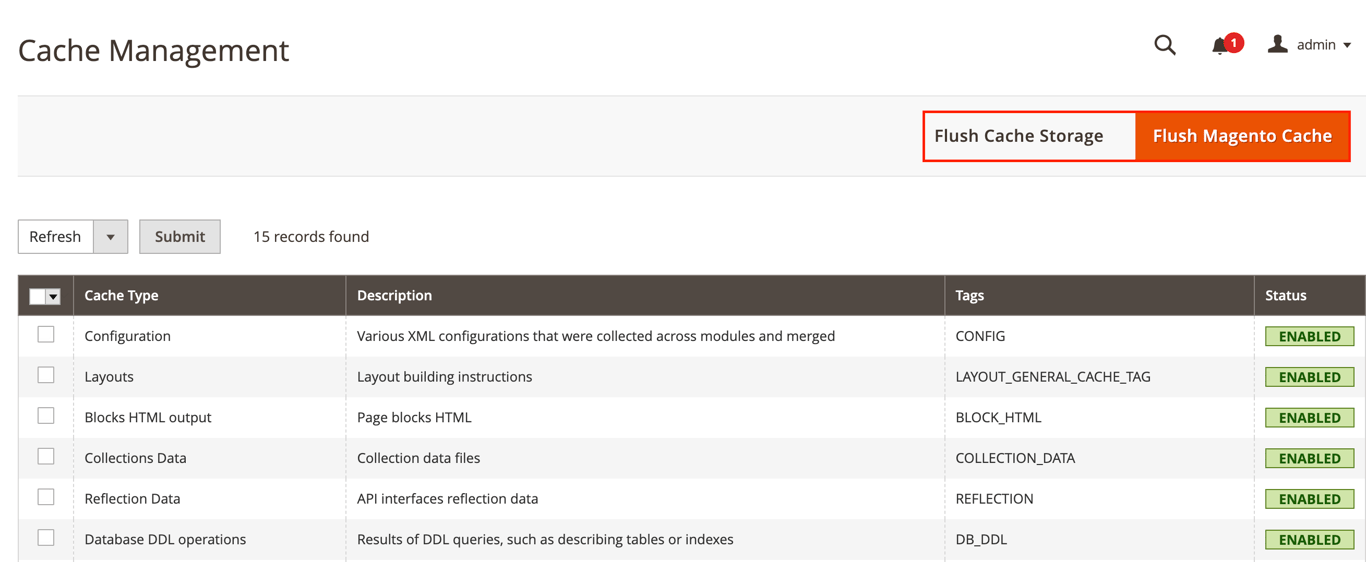
If the issue persists, open your Magento dashboard and go to System → Cache Management. Then, click both Flush Cache Storage and Flush Magento Cache.
Reindex data issues
Reindexing is necessary when data changes in your Magento store, such as product prices, categories, or other catalog data. This ensures that your website displays the latest information.
However, if it doesn’t show updated data correctly after upgrading, execute the command below:
php bin/magento indexer:reindex
Extension or theme conflicts
Conflicts can occur when extensions or themes are incompatible with the new Magento version. These issues may cause site errors or faulty features. Here’s a guide to identifying the problematic extension or theme:
- Turn off each extension or theme one by one and check if the issue is resolved:
php bin/magento module:disable vendor/extension-name
- After deactivating them individually, test your eCommerce site to see if the issue persists. If it runs normally after disabling a particular extension or theme, you have identified the culprit.
- Contact the extension or theme’s developer for a solution or seek an alternative compatible with the most recent Magento version.
Conclusion
In this article, we’ve covered the steps to upgrade your Magento store to the latest version, from backing up your data to verifying the upgrade. We’ve also discussed how to troubleshoot common issues when updating, such as missing dependencies and extension conflicts.
Regular upgrades are crucial to maintaining a secure and efficient Magento store. By updating your site each time a new version is launched, you can provide an optimal shopping experience for your customers.
How to upgrade Magento FAQ
What is the latest version of Magento?
The latest version of Magento is 2.4.7-p1, released on June 11, 2024. To stay updated on launched versions, periodically check Adobe’s official documentation.
Is it necessary to back up my data before upgrading Magento?
Yes, it’s important to back up your data before upgrading Magento. Without a backup, you risk losing critical data and customizations if something goes wrong during the upgrade process, which can be costly to recover.
How do I check if my extensions are compatible with the new Magento version?
Verify extension compatibility by checking their developers’ websites or Adobe Commerce’s official page. Many developers update their extensions to ensure compatibility with the latest Magento versions.
How long does it take to upgrade Magento?
The upgrade duration depends on the store size and number of extensions. Generally, it takes a few minutes to a few hours. Larger Magento stores with more extensions may require additional time for thorough testing.
All of the tutorial content on this website is subject to Hostinger's rigorous editorial standards and values.

Ariffud is a Technical Content Writer with an educational background in Informatics. He has extensive expertise in Linux and VPS, authoring over 200 articles on server management and web development. Follow him on LinkedIn.