How to organize emails in 7 steps
May 10, 2026
/
By Alma F.
/
10 min Read
To organize your emails, first review your inbox. Then set up folders, labels, and filters to automatically sort messages. Archive what you don’t need, flag what needs action, and stick to a simple routine.
The average worker receives somewhere around 100 to 120 emails a day. That adds up to roughly 11 hours a week just reading, sorting, and replying. Without a system, important messages get buried under newsletters, old threads, and promotional noise.
Good inbox management changes how your day flows. You find what you need in seconds, respond faster, and stop wasting time scrolling through clutter. The approach is simple. First, understand your inbox. Then choose a system, set up folders or labels, add filters, and build a habit of keeping things organized.
The most common methods for how to organize emails include:
- Folders – Move emails into category-based containers (most email clients support this).
- Labels – Tag emails with one or more categories without moving them (Gmail’s approach).
- Filters and rules – Automatically sort incoming messages based on sender, subject, or keywords.
- Archiving – Remove handled emails from your inbox without deleting them.
- Flags, stars, or pins – Mark emails that need action or follow-up.
These methods work best when you use them together.
1. Analyze your current email habits and inbox structure
Review your email volume, top senders, and unread count to understand where your current setup is falling short. Before you change anything, take 10 minutes to look at what’s actually in there.
Open your inbox and scroll through the last few days. Notice the patterns. How many unread emails do you have? Are most messages from colleagues, newsletters, or automated notifications? Do you have folders you never use, or is everything sitting in one giant pile?
Pay attention to the pain points. Maybe you keep missing replies because they’re buried under promotional emails. Or you’ve got 3,000 unread messages and no idea which ones actually need a response. These patterns show you where your setup is breaking down.
Here’s what to look for during your review:
- Email volume – How many emails do you get per day? If it’s over 50, you’ll need filters and rules to stay on top of things.
- Top senders – Sort by sender to see who fills your inbox the most. Newsletters and automated alerts usually dominate.
- Unread count – A high unread count means you’re either getting too many low-priority emails or you don’t have a clear way to process them.
- Missed messages – Think about the last time you lost track of an important email. What caused it?
The right system depends on your specific problem. Someone drowning in newsletters needs different tools than someone who can’t keep track of client conversations. That’s why this step comes first.
If you haven’t set up a professional address yet, you can create an email with a custom domain for a more polished look. It also makes sorting easier when your work and personal inboxes are separate from the start.
Also, don’t start deleting or reorganizing anything during this step. You’re only observing. The goal is to understand your habits before you build a system around them.

2. Choose a suitable email organization system
The best email organization system is the one that matches how you already work. There’s no single right answer. It depends on your email volume, the devices you use, and how you prefer to sort things.
Most email clients give you some version of folders, labels, or categories. Here’s a quick comparison:
System | How it works | Downside |
Folders | You move each email into one container, like “Work” or “Finance.” | Each email can only live in one folder. |
Labels | You tag emails with one or more categories. One email can have multiple labels. | Not all email apps support labels. Gmail does, but many others don’t. |
Categories/Tags | Color-coded markers you apply to emails. Common in Outlook. | Fewer customization options in some apps. |
Folders are the simplest option if your emails fall into clear groups like work, personal, and finance. You move each email to its place, and your inbox stays clean.
Labels give you more flexibility when emails overlap. Say you get a message about a project that’s also a client invoice. Instead of choosing one folder, you give it two labels. Both categories show that email.
Start with five to seven categories. More than that slows you down and makes you second-guess where emails should go.
Think about your devices, too. If you check email on your phone, laptop, and tablet, make sure whatever system you pick syncs across all of them. Gmail labels sync everywhere. Outlook folders and categories work well across Microsoft devices and the web app.
3. Create relevant folders or labels for sorting emails
Your folders or labels should reflect the types of email you actually receive. Keep the names short, clear, and easy to scan.
Start with broad categories, then go more specific only if the volume calls for it. Here are folder structures that work well for most people:
- Action needed – Emails that require a reply or task from you.
- Waiting on – Messages you’ve sent or replied to that are awaiting a response.
- Reference – Important emails you might need later (receipts, contracts, login details).
- Projects – One subfolder per active project, if you manage multiple.
- Newsletters – For subscriptions you actually read.
The key is consistency. If you name one folder “Finance” and another “Money Stuff,” you’ll waste time second-guessing where things go. Pick a naming pattern and stick with it.
Most email clients also let you create folders inside folders (sometimes called sub-labels in Gmail). These help when a top-level category gets too full.
For example, you might have a “Clients” folder with a separate folder for each client. In Gmail, you do this by selecting Nest label under when adding a new label.
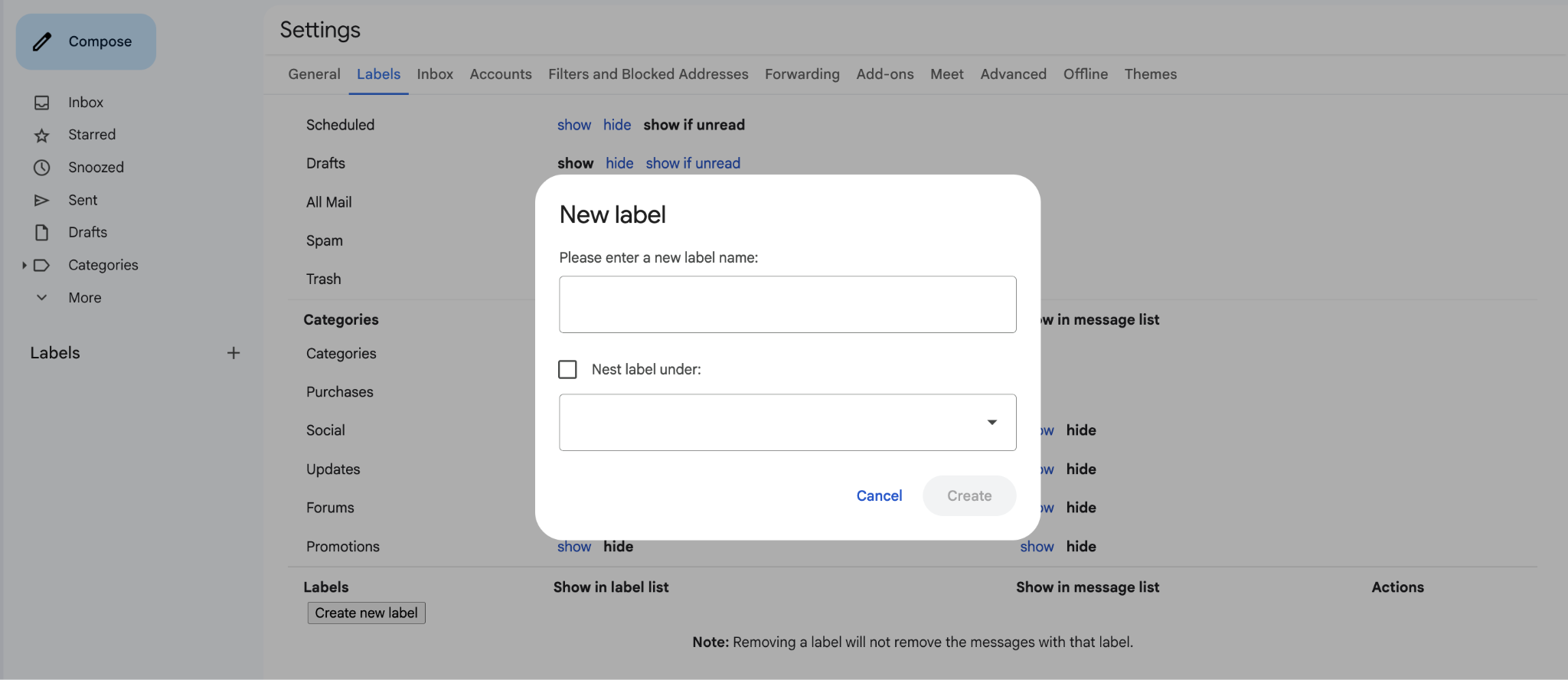
Here are a few naming tips that can help save you time:
- Use lowercase or sentence case. It’s faster to scan.
- Keep names under three words.
- Avoid vague names like “Misc” or “Other.” If you can’t name it clearly, you probably don’t need it.
Don’t create a folder for every possible category upfront. Start with five or six, use them for a week, and then add more only when you see a clear need. Overbuilding your system before you test it usually leads to abandoning it.
4. Set up filters and rules for automatic email sorting
Filters automatically sort your emails. You set a rule (like a sender or keyword), and choose what happens (like moving it to a folder). Once set up, incoming emails land in the right folder or label before you even open your inbox.
Every major email client supports filters (Gmail calls them “filters,” Outlook calls them “rules”). The setup process follows the same steps:
- Pick your conditions. That could be a sender address, subject line keywords, or whether you’re in the “To” or “CC” (copied) field.
- Choose the action. Move to a folder, apply a label, mark as read, star it, or skip the inbox entirely.
- Save and test. Send yourself a test email that matches the conditions and confirm it gets sorted correctly.
Here are three common filters to start with:
- Newsletter filter – Route all emails from known newsletter senders into a “Newsletters” folder. You read them when you have time, not when they arrive.
- Client or team filter – Auto-label emails from specific contacts so you spot them instantly.
- Notification filter – Send automated alerts from tools like project management apps or social media platforms to a separate folder. These rarely need immediate attention.
In Gmail, go to Settings → Filters and blocked addresses → Create a new filter. In Outlook, head to Settings → Mail → Rules → Add new rule.
Review your filters every month or two. Senders change their email addresses, projects wrap up, and new ones start. A filter that made sense three months ago might be routing emails to a folder you no longer check.
Pro tip
After creating a new filter, apply it to emails already in your inbox. In Gmail, check the box that says "Also apply filter to matching conversations" before saving. This cleans up your backlog without any manual sorting.
5. Regularly archive and delete unnecessary emails
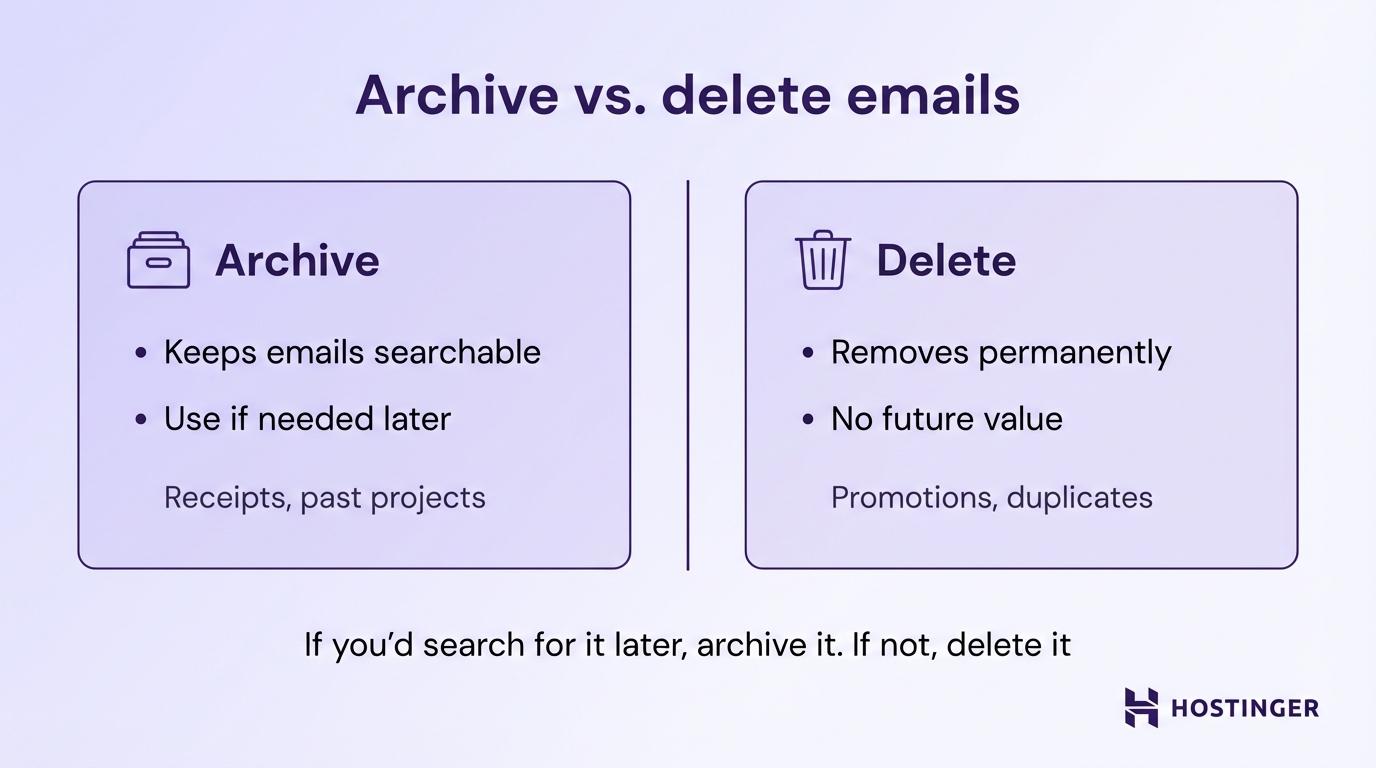
Archive emails you’ve handled but might need later, and delete the ones you won’t.
The difference between the two is that archiving moves an email out of your inbox but keeps it searchable. Deleting removes it for good (usually after 30 days in the trash).
The rule here is that if you’d search for the email in six months, archive it. If you wouldn’t, delete it. So archive things like order confirmations, completed project threads, or past meeting notes. Delete emails with zero future value, such as expired promotions, duplicate notifications, or old calendar reminders.
Build a quick cleanup habit. Spend five minutes at the end of each day clearing handled emails. Here’s a structure that you can follow:
- Daily – Archive or delete every email you’ve already handled before you log off.
- Weekly – Skim through your folders. Archive anything resolved. Delete anything expired.
- Monthly – Check your Sent folder and Trash. Empty the trash and review whether any saved emails can be removed.
6. Use flags, stars, or pins to mark important emails
Flags, stars, and pins turn your inbox into a to-do list. They highlight emails that need your attention so you don’t rely on memory alone.
The setup is pretty simple. When an email comes in that needs action (a reply, a task, a decision, for example), flag or star it right away. Then, process your flagged emails during a dedicated block of time, just like you’d work through a task list.
Different email clients give you different options:
- Gmail uses yellow stars by default, but you can activate additional icons (colored stars, question marks, exclamation points) in Settings → General → Stars. Drag the icons you want into the “In use” row.
- Outlook offers flags with due dates. You flag an email, set a reminder, and it appears in your task list alongside your calendar.
- Apple Mail uses flags with color-coding. You assign colors based on your own system. Red for urgent, orange for follow-up, blue for reference.
The real value is prioritization. When you sit down to work through your inbox, flagged messages tell you exactly where to start. Everything else can wait.
If your email client syncs with a task or calendar app, connect them. Outlook flags already appear in Microsoft To Do. Gmail stars can be filtered and viewed as a separate list. This way, your email priorities show up alongside your regular tasks. No double-tracking needed.
But remember: flags only work as a system if they reflect what actually needs action right away. A pile of 50 flagged messages is no better than an unsorted inbox.
7. Maintain consistent email organization habits
Most people who organize their inbox once end up back at square one within two weeks. The difference between them and people who keep a clean inbox? A routine.
Set two or three specific times per day to process your email. Morning, after lunch, and late afternoon work well for most people. During each session, go through every new message and do one of four things: reply, move it to a folder, flag it for later, or delete it. Don’t leave emails sitting in your inbox without a decision.
The goal is simple: keep your inbox empty (or close to it). Your inbox isn’t a storage space. It’s a processing station. Emails come in, get handled, and move out.
Build a weekly review into your routine, too. Pick a day (Friday afternoons work well) and spend 10 minutes checking your folders, clearing your flagged items, and making sure nothing slipped through. Think of it like a weekly reset.
There are a few habits that make this stick:
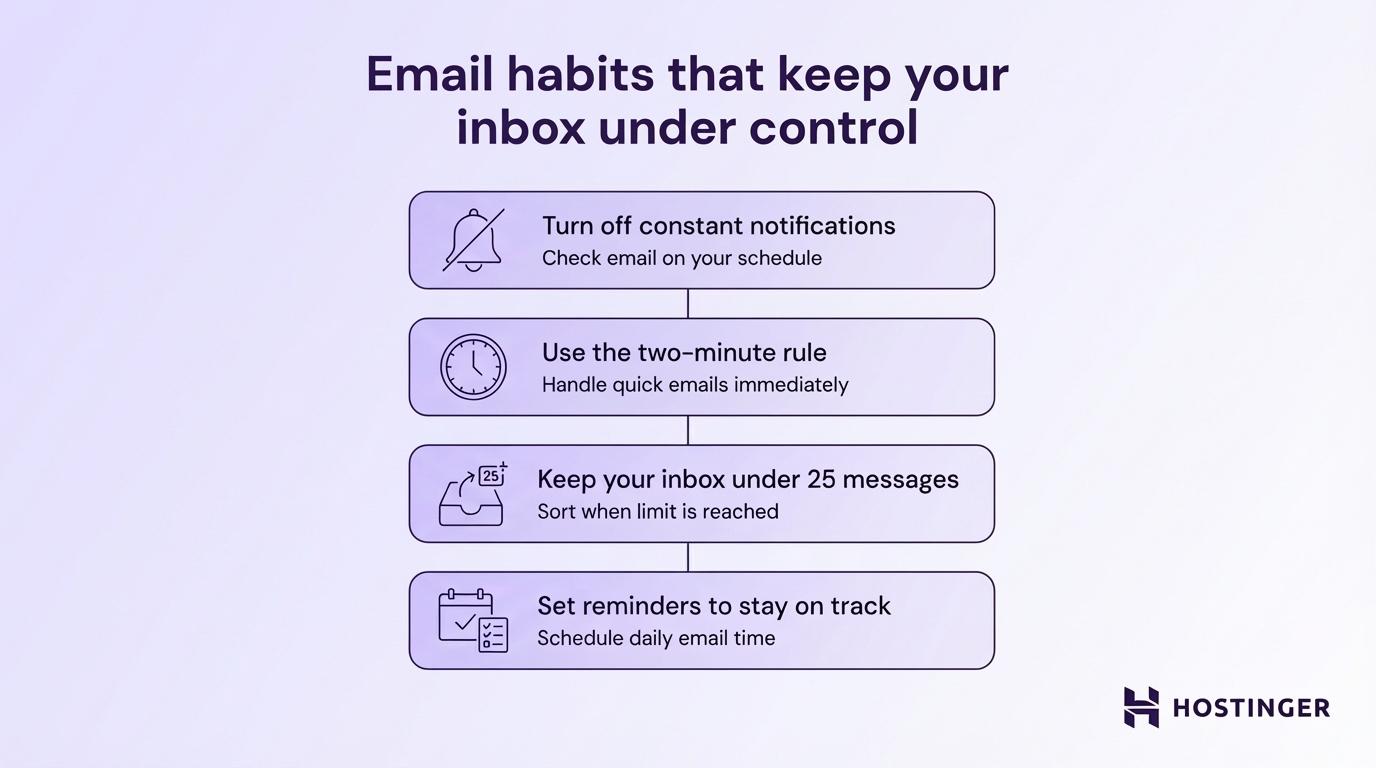
- Turn off constant notifications. Check your email on your schedule, not every time a notification pops up. This alone saves hours of distracted half-attention.
- Use the two-minute rule. If you can reply or handle an email in under two minutes, do it immediately. Anything longer gets flagged and scheduled.
- Keep your inbox under 25 messages. That’s your ceiling. When it creeps above that, you know it’s time for a quick sorting session.
- Set reminders to stay on track. Use your phone’s built-in reminder app, Google Calendar, or a task manager like Microsoft To Do to block out time for email processing. A recurring 15-minute reminder twice a day keeps the habit from slipping.
Consistency beats complexity. A simple system you actually follow outperforms an elaborate one you abandon after a week.
Why organizing emails improves productivity
A clean inbox saves you real, measurable time. And it reduces the mental weight that comes with digital clutter.
Research from Mckinsey shows that the average knowledge worker spends roughly 28% of their workweek on email. That’s about 11 hours. A good chunk of that time goes to searching for messages, re-reading threads, and deciding what to do next. Organization cuts most of that overhead.
Here’s what changes when your inbox is in order:
- You find messages faster. Instead of scrolling through hundreds of emails or typing vague search terms, you go straight to the right folder or label.
- You make decisions quicker. A cluttered inbox forces your brain to treat every message like it could be urgent. When your emails are already sorted, filtered, and flagged, you skip the mental sorting and jump straight to action. Fewer choices at any given moment means faster, better decisions.
- You respond on time. Missed replies damage professional relationships. When urgent messages are flagged, and everything else is sorted, nothing important slips through. You reply faster because you see what needs attention first.
- You feel less stressed. Employees who struggle with email overload report higher stress and lower job satisfaction. That tracks with what most people experience. An overflowing inbox creates a low-level anxiety that sits in the background all day. Getting it under control removes that pressure.
- You protect your focus. It takes roughly 23 minutes to fully regain concentration after an interruption. With a sorted inbox and scheduled check-in times, you get interrupted less and spend more time on the work that actually requires your full attention.
Email organization isn’t about being tidy for the sake of it. It’s about getting time back and spending it on work that moves things forward.
Common mistakes to avoid when organizing emails
The most common email organization mistake is building a system that’s too complicated to maintain. If your setup takes more effort than it saves, you’ll stop using it within a week.
Here are the errors that trip people up the most, and how to fix them:
- Creating too many folders. If you have 30 folders and can’t remember which one to check, that’s a problem. Stick to five to seven main categories. You can always search within them for specific messages.
- Skipping filters entirely. Manual sorting works when you get 20 emails a day. At 50 or more, it becomes a chore. Filters do the heavy lifting for you, and they take just a few minutes to set up.
- Hoarding emails you’ll never reopen. Not every email deserves to be archived. That promotional offer from 2023? The automated notification about a completed software update? Delete them. Keeping everything “just in case” creates the same clutter you’re trying to escape.
- Ignoring your inbox for days. Skipping even one day of email processing can set you back fast. Emails pile up quickly, and a backlog of 200 messages feels overwhelming enough to avoid. That creates a cycle. Process daily, even if it’s just a quick five-minute scan.
- Treating your inbox like a to-do list. Your inbox isn’t designed for task management. If you leave emails sitting there as reminders, they get mixed in with new incoming messages, and you lose track. Flag them, move them to an “Action needed” folder, or add the task to a separate app. Then get the email out of your inbox.
- Reorganizing constantly instead of maintaining. Rebuilding your system from scratch every few months is a sign that the original setup was either too complex or never became a habit. Build something simple, test it for a week, then refine. Don’t restart.
If you notice your inbox slipping back into a mess, check which of these mistakes is creeping in. The fix is almost always the same: simplify.
How to prevent inbox clutter after organizing your email
Block unwanted senders and unsubscribe from mailing lists you no longer read. Even the best folder-and-filter setup breaks down when unwanted emails keep flooding in. The organization handles what’s already there. Prevention stops the mess before it starts.
Spam, promotional blasts, and random notification emails work against everything you’ve built. They fill your folders, trigger unnecessary filters, and force you to sort through noise every single day. Over time, that extra effort adds up, making it harder to stick with your system.
Start by hitting unsubscribe on newsletters and mailing lists you no longer read. Most promotional emails have an unsubscribe link at the bottom. This is the fastest way to reduce incoming volume without setting up any new rules or filters.
That’s why blocking unwanted senders, domains, and message types is the logical next step after organizing. It reduces incoming volume, keeping your folders cleaner and ensuring your filters work on emails that actually need attention.
You can set this up yourself by learning how to block unwanted emails in Gmail, Outlook, and other popular clients.
Inbox organization comes down to two things: sorting what comes in and reducing what shouldn’t. When you combine a solid organizational system with active prevention, your inbox stays manageable in the long term.
No weekly overhauls. No fresh-start cleanups. Just a system that holds.
All of the tutorial content on this website is subject to Hostinger's rigorous editorial standards and values.

Alma is an AI Content Editor with 9+ years of experience helping ideas take shape across SEO, marketing, and content. She loves working with words, structure, and strategy to make content both useful and enjoyable to read. Off the clock, she can be found gaming, drawing, or diving into her latest D&D adventure.