What is malware?
Malware, short for malicious software, is a type of software designed to harm applications, computers, or networks. It often alters system files or creates new ones, which can result in the following issues on your website:
-
Slowing down or making your website unresponsive due to excessive use of server resources.
-
Redirecting your website (or specific pages) to other, often illegal, sites.
-
Causing various website errors.
-
Stealing sensitive information from your site, such as passwords or user data.
Malware is typically used for illegal purposes. To learn more, check out this video:
To provide more security insights for your website, our web and cloud hosting plans include a Malware Scanner—an automated tool integrated into the control panel that scans your site for harmful or compromised files.
How to analyze a website for malware
The Malware Scanner runs automatically, keeping you informed about your website’s security status and allowing you to take action if needed. To get started, navigate to Websites → Dashboard, find Malware Scanner in the left sidebar, and click on it.
-
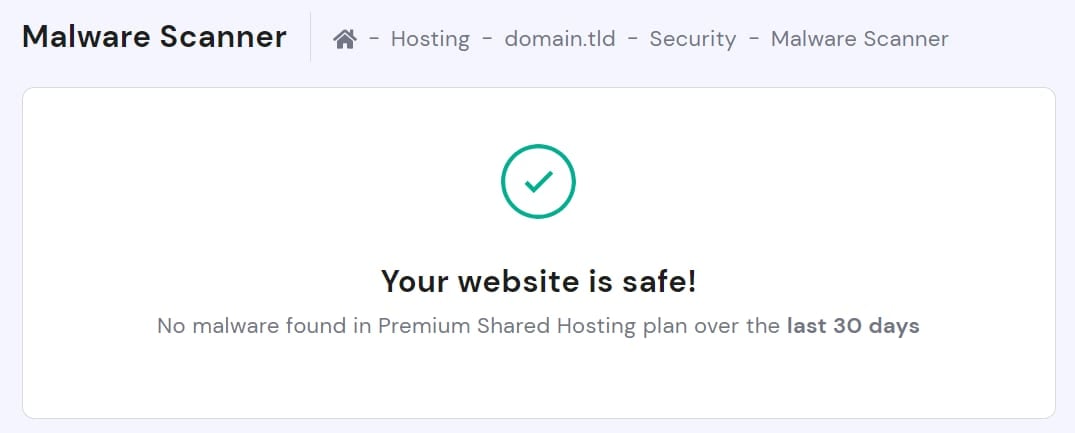
If no malware is detected, this section will display the time since the last scan:
-
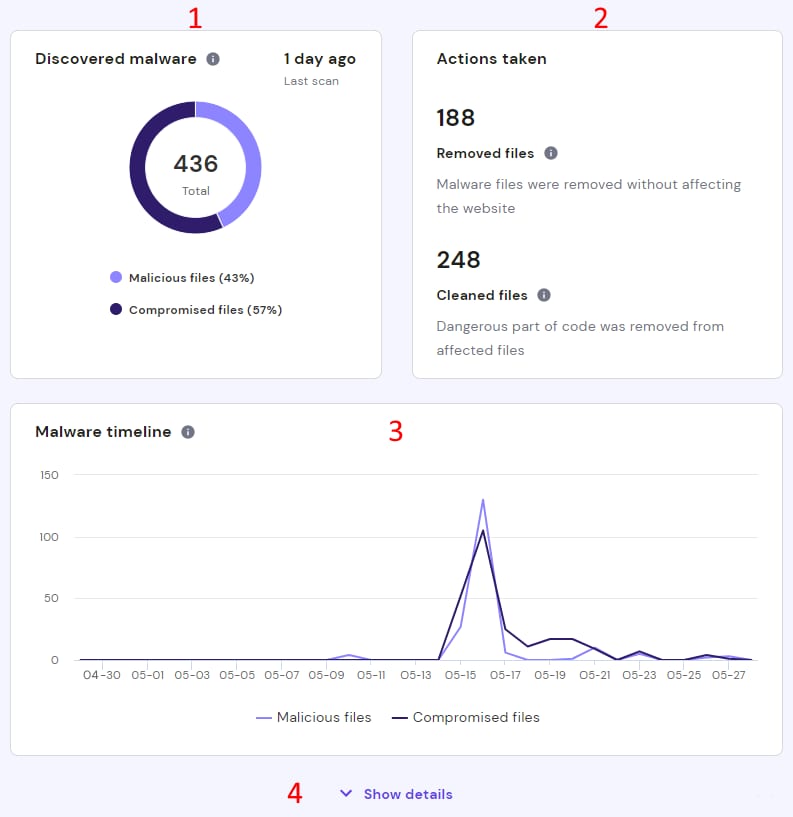
If the Malware Scanner detects suspicious files, it will show the number of cases found and a summary of the following information:
-
Discovered malware – The total number of harmful or compromised files found during the last scan.
-
Actions taken – If an assisted cleanup was performed, this section shows how many files were either removed or cleaned.
-
Malware timeline – A record of all malware detections from the past 30 days.
-
Show details – This expands a section displaying a list of compromised and malicious files and their locations.
Important limitations of the Malware Scanner
The Malware Scanner scans and cleans website files only. Keep the following in mind before and after running a scan:
The database is not scanned or cleaned. A clean scan result does not rule out a database-level infection. Malware injected into database tables (such as wp_options, wp_posts, or wp_users) will not be detected. Symptoms include persistent redirects, phishing pages, or spam that return even after files are cleaned.
- To inspect the database manually, use phpMyAdmin (hPanel → Databases → phpMyAdmin) or a security plugin such as Wordfence or MalCare.
- To include database cleanup, request the Site Cleanup service.
One infected site can affect all sites on the account On Web Hosting and Cloud Hosting plans, all websites under the same account share the same file system. If one site is infected, malware can spread to all others on the account. Always scan every website on the account — not just the one showing symptoms.
What to do if malware is detected
If your website is infected, follow these steps to clean and secure your site:
Step 1 — Update vulnerabilities (WordPress sites)
If your website is built on WordPress, update all located vulnerabilities immediately. This includes:
- Updating WordPress core to the latest version
- Updating all plugins to their latest versions
- Updating your theme to the latest version
Outdated software is a common entry point for malware, so keeping everything up to date is crucial for security.
Step 2 — Change all passwords
Change the following passwords immediately to prevent unauthorized access:
- SSH/FTP passwords – Update your file transfer protocol credentials
- Admin login passwords – Change your WordPress admin password (or CMS admin password)
- Database passwords – Consider updating your database credentials as well
Use strong, unique passwords for each account to maximize security.
Step 3 — Clean up the malware
You have several options for removing the malware:
Manual cleanup
- For WordPress websites, follow this guide: How to fix a WordPress site with malware.
- For other website types, check your CMS official documentation or help forums; for further assistance, you can consider a freelance service such as Fiverr.
Restore from backup
Restore your website – choose a backup date previous to the malware infection, then apply security measures to prevent reinfection.
Site cleanup service (WordPress only)
If your website is built on WordPress and the domain is pointed to Hostinger, we can assist with professional cleanup for $95.
This service includes:
- Removal of all detected malware files
- MySQL injection cleanup
- Stopping any malicious scripts running on your website
- Comprehensive site security review
To request the service, click the Request site cleanup button in the Malware Scanner section:

Review the information about the cleanup process, click Continue, and proceed with the payment. You’ll receive an email notification once the cleanup is complete.
Conclusion
While the automated Hostinger Malware Scanner (powered by Monarx) proactively cleans files on your hosting plan, it does not scan or clean your website’s database. If your site is affected by MySQL injections, these can be resolved by using our professional Site cleanup service, which includes a comprehensive database cleanup and security review. Following these steps ensures your website remains fast, safe, and reliable for your visitors
How to protect against malware
After removing the malware, it’s important to take steps to prevent future infections. We recommend the following:
-
Keep your website’s theme and plugins updated to the latest versions.
-
Use the latest PHP version available.
-
Only use licensed themes, plugins, or extensions, and uninstall any unlicensed ones.
-
Change the admin user passwords to strong, unique ones.
-
Update your antivirus software on your local device and run regular scans.
These security practices are recommended at all times, not just after an infection 🔒
Additional resources