Why is domain verification required?
The Internet authority on domain names, ICANN (or Internet Corporation for Assigned Names and Numbers), requires confirming the validity of the domain owner’s email address and other contact information.
Therefore, most domains must be verified within the first 15 days after purchase, transfer, or a change in the contact details. If verification is not completed in time, the domain is temporarily suspended and stops working until verified.
Special requirements for India-related domains:
- All domain registrations where the registrant country is India
- All .IN TLD domains, regardless of registrant country
These domains’ contact details must be verified within 7 days to avoid suspension.
How to verify a domain
After registering a new domain at Hostinger, we send you a verification message to the email address specified in the domain owner’s contact details.
If you haven’t received the verification email, navigate to the Domains tab and click on Manage next to the domain in question:

Next, click on Resend email:

Open the inbox of the email address you specified for your domain and look for a message sent by an address ending with @hostingerdomains.com. Make sure to check the Spam and Trash folders as well.
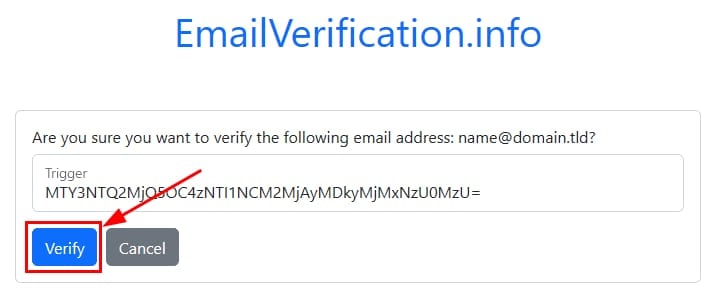
Next, click on the link in the message. You will be redirected to a verification page similar to the following. Once there, click on Verify:
Give it up to 15 minutes for the changes to be applied. If the domain verification still appears as pending after that time, you can update the status on your panel by clicking on the Check again button:

What to do if you don’t receive the verification email?
If you have tried resending the verification email and you are not receiving it, you can try the following:
-
Use your email account’s search function to find keywords such as ICANN, domain, or your actual domain name.
-
Check for emails sent by @hostinger-domains.com or @hostingerdomains.com.
-
Change your domain’s contact details to another email address to which you have access.
If you inserted an email address to which you don’t have access, e.g., due to a typo, enter the correct address on your domain’s contact details and approve the change. Once the new address is applied, contact us, and we will help you with the next steps to verify your domain.
Early contact correction (within 7 days of registration)
If the original email is unverified and the domain was registered within the last 7 days, you can update the registrant email directly in hPanel without requiring approval from the old address:
- Go to Domains ❯ Manage.
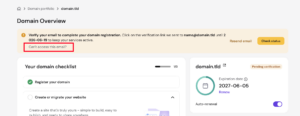
- Select Can’t access this email
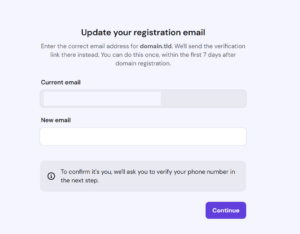
- Input the new email that you want to use to verify the domain.
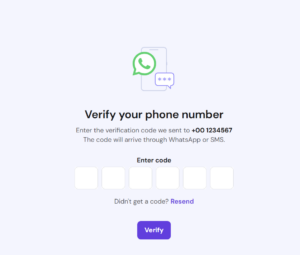
- Complete the phone verification (OTP). You can click Resend OTP if needed.
- Once you complete the OTP verification, open the inbox of your new email address and click the confirmation link to finalize the change.

NOTES
- This option is only visible in hPanel during the first 7 days after domain registration. After 7 days, or if the original email was already verified, the standard contact-change process applies and requires approval from the registered email.
- If you entered an incorrect email address due to a typo and the 7-day window has passed, enter the correct address in your domain’s contact details and approve the change. Once the new address is applied, contact our support for assistance with the remaining verification steps.
Some TLDs do not require domain verification – in that case, you will not receive the verification email or see the option to resend it 💡