How to Speed Up WooCommerce Websites: 15 Practical Steps
Mar 10, 2026
/
Ariffud M. & Marco C.
/
10 min Read
A slow-loading WooCommerce store can frustrate potential customers, leading to lost sales. Online shoppers expect fast, seamless experiences – even slight delays in load time can drive them to abandon their carts in favor of a competitor.
In this article, we’ll present practical strategies to speed up your WooCommerce website. Our guide ensures your eCommerce store can deliver a smoother, more enjoyable shopping experience for your customers.
15 Ways to Speed Up WooCommerce Websites
Let’s explore 15 proven WooCommerce optimization tips to speed up your online store.
1. Choose a Reliable WooCommerce Hosting Service
Selecting the right hosting provider is crucial for your WooCommerce store’s performance. Hostinger’s managed WooCommerce hosting is designed specifically for eCommerce sites, ensuring the performance of your online store, even during traffic spikes.
Our WooCommerce hosting service offers sufficient hosting resources and a dedicated IP address to boost your store’s performance. As a result, your site will be equipped to handle high-traffic volumes, store numerous products, and display high-resolution images.
Furthermore, our hosting plans incorporate advanced caching technology through LiteSpeed Cache for WordPress (LSCWP). It significantly accelerates WooCommerce online stores by efficiently caching web pages for rapid access.
Each plan includes a built-in content delivery network (CDN), offering extensive global coverage to ensure fast loading times for customers worldwide. This feature is essential for WooCommerce sites aiming for global reach.
Beyond performance features, our WooCommerce hosting plans come with an intuitive hosting control panel. You can easily integrate payment gateways, include shipping methods, and access comprehensive analytics and reporting tools from a user-friendly dashboard.
2. Use a Fast WooCommerce Theme
Choosing an ideal WooCommerce theme is vital to optimizing your store’s performance while maintaining its rich features and functionality.
Opt for a lightweight theme that is crafted to minimize load times. This ensures your WooCommerce and WordPress sites remain responsive, even when loaded with extensive eCommerce features.
Consider these WordPress themes that are well-suited for enhancing WooCommerce site speed:
- Astra – renowned for its quick performance and adaptability, Astra stands out as a favored choice among many WooCommerce store owners. It’s designed for speed and comes with ready-to-use eCommerce templates to help you launch your site quickly.
- Storefront – built by the WooCommerce core development team, Storefront aims for simplicity and efficiency. It offers smooth WooCommerce integration and optimized website performance.
- Botiga – offering a clean and modern design, Botiga is a lightweight theme that doesn’t compromise on customization options, allowing you to tailor your store’s look while keeping it fast and efficient.
- Flatsome – known for its responsiveness and flexibility, Flatsome is perfect for building a quick-loading eCommerce site. With its intuitive UX builder, personalizing your site is simple, ensuring both speed and utility.
3. Manage Plugins and WooCommerce Extensions
Another key aspect of WooCommerce speed optimization is managing the use of your WordPress plugins and WooCommerce extensions. While these tools can enhance your site’s features and functionality, overloading your WordPress site with too many plugins can slow down its performance.
Regular audits are crucial to determine which plugins are essential and which can be removed. Follow these guidelines for effective plugin management:
- Evaluate and prioritize – assess each WordPress plugin and WooCommerce extension for its impact on performance and necessity. Keep only those vital to running your eCommerce store.
- Remove unused plugins – deactivate and uninstall any plugins and extensions that are not in active use. This streamlines your site’s operations and enhances security.
- Opt for multi-function plugins – select plugins that serve multiple purposes, minimizing the need for additional installations. For instance, choose image optimization plugins capable of both compressing images and converting them to efficient formats like WebP in a single action.
- Consider lightweight alternatives – seek out plugins that are efficient without sacrificing essential functionality. For example, lightweight SEO plugins can improve your site’s visibility on the search engine results page (SERP) without significant resource demands.
4. Enable WordPress Caching
Activating WordPress caching can drastically reduce your store’s loading times. Caching stores a static version of your content. It allows faster access for returning visitors without the need to reload the entire website data for each visit.
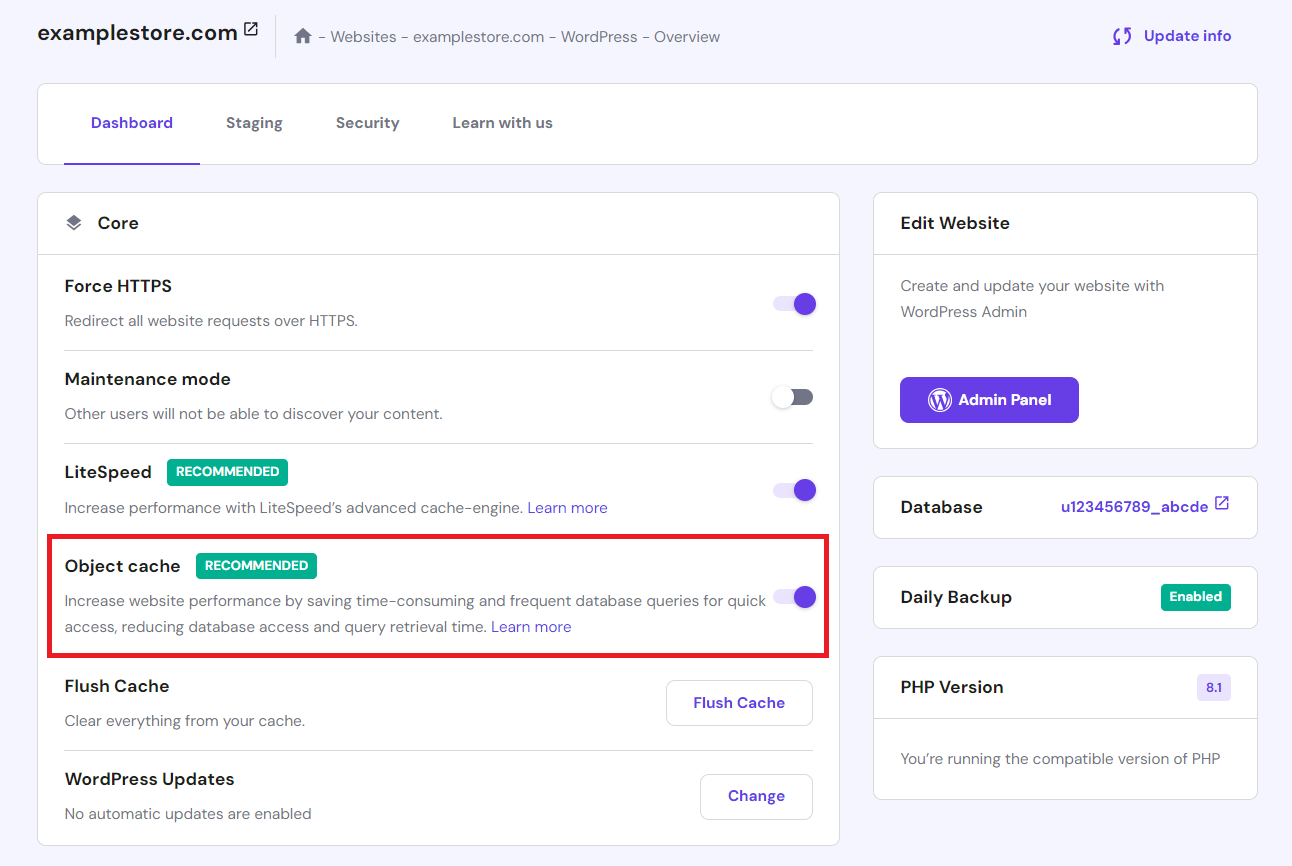
Hostinger provides an advanced object caching technology for all WooCommerce hosting plans. This feature boosts WordPress and WooCommerce sites by caching frequently accessed elements, such as database queries, in memory, enhancing site performance.
To activate Hostinger’s object caching, follow these steps:
- Log in to your Hostinger account and navigate to your WooCommerce-based website.
- In your hPanel’s dashboard, click WordPress Overview.
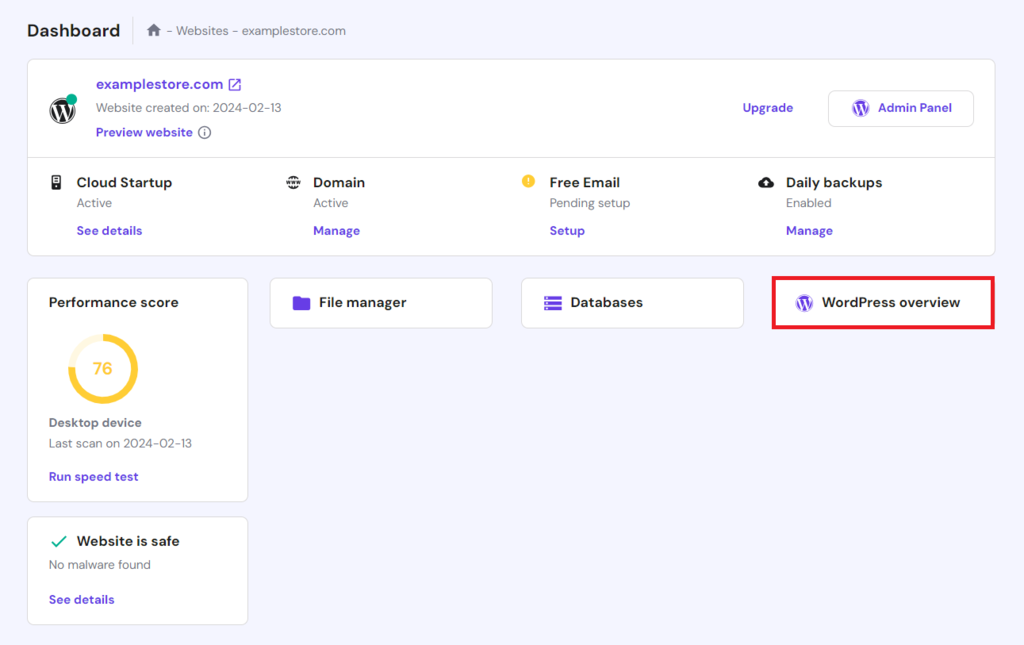
- Ensure LiteSpeed is installed. If it’s not, click Install.
- Once LiteSpeed is installed, enable the Object Cache option by toggling it on.
Alternatively, you can use a WordPress caching plugin like WP Rocket. Known for its user-friendly interface, WP Rocket offers extensive caching features, including web page caching, cache preloading, and static file compression, to enhance your site’s speed further.
5. Use a Content Delivery Network
Using a CDN can be a game-changer for your WooCommerce page speed optimization. A CDN stores your site’s static assets, such as images, across a global network of servers. When someone visits your site, these assets are delivered from the nearest server, significantly reducing load times.
As mentioned before, Hostinger includes a built-in CDN for our customers. This feature provides rapid page loading, the capacity to manage traffic surges seamlessly, and robust protection against DDoS attacks and other security threats.
Here’s how to activate Hostinger’s CDN:
- Log into your hPanel dashboard and go to Performance → CDN.
- In the CDN status section, click Enable.

- Once enabled, allow 24-48 hours for the DNS settings to propagate fully.
Additionally, there are other CDN services for WordPress sites like Cloudflare, KeyCDN, and StackPath that provide similar speed and security enhancements.
6. Compress and Optimize Images
High-resolution product images are important for showing your WooCommerce store’s items clearly. However, if they aren’t optimized, they can slow down your website. Large image files increase your store’s load time, affecting the user experience and raising the chance of abandoned carts.
To address this issue, you need to compress and optimize WooCommerce images. This process decreases the file size without sacrificing quality, leading to quicker load times.
There are several image compression plugins in the WordPress repository, such as Smush, ShortPixel, and Imagify. These plugins can automatically compress images upon upload, integrating seamlessly into your site management routine.
Implementing lazy loading is another effective WordPress image optimization strategy. Lazy loading allows your WooCommerce website images to be loaded as they come into view. This can drastically reduce initial page load times, particularly on product pages featuring numerous images.
Many modern plugins like WP Rocket offer lazy loading functionality, simplifying this image optimization process into your site.
7. Optimize Video Delivery
Using videos in your product showcases can significantly enhance your WooCommerce store’s appeal. However, hosting large video files directly on your website can lead to slower page loading times.
A recommended practice is to upload your videos to a video hosting platform such as YouTube and then embed these videos into your WordPress site. This approach minimizes the storage and bandwidth demands on your hosting server, helping to speed up WooCommerce sites.
Furthermore, these video-sharing platforms are designed to automatically adjust video playback quality based on the viewer’s device and internet connection. This ensures that your customers enjoy a seamless viewing experience when watching videos on your online store.
8. Increase WordPress Memory Limit
WooCommerce may require a higher WordPress memory limit to run effectively. Boosting the memory limit helps prevent errors and minimizes lag during request processing, leading to smoother performance for your WooCommerce store.
For most WooCommerce sites, setting the WordPress memory limit to at least 256MB is advisable. This amount of memory ensures adequate resources for handling requests and supporting numerous users simultaneously. For larger sites with many plugins or high traffic, a higher memory limit might be necessary.
Hostinger customers can quickly increase their site’s memory limit through the hPanel. Here’s how:
- Navigate to Advanced → PHP Configuration from your hPanel dashboard.
- Access the PHP options tab, then scroll down to the memoryLimit field.
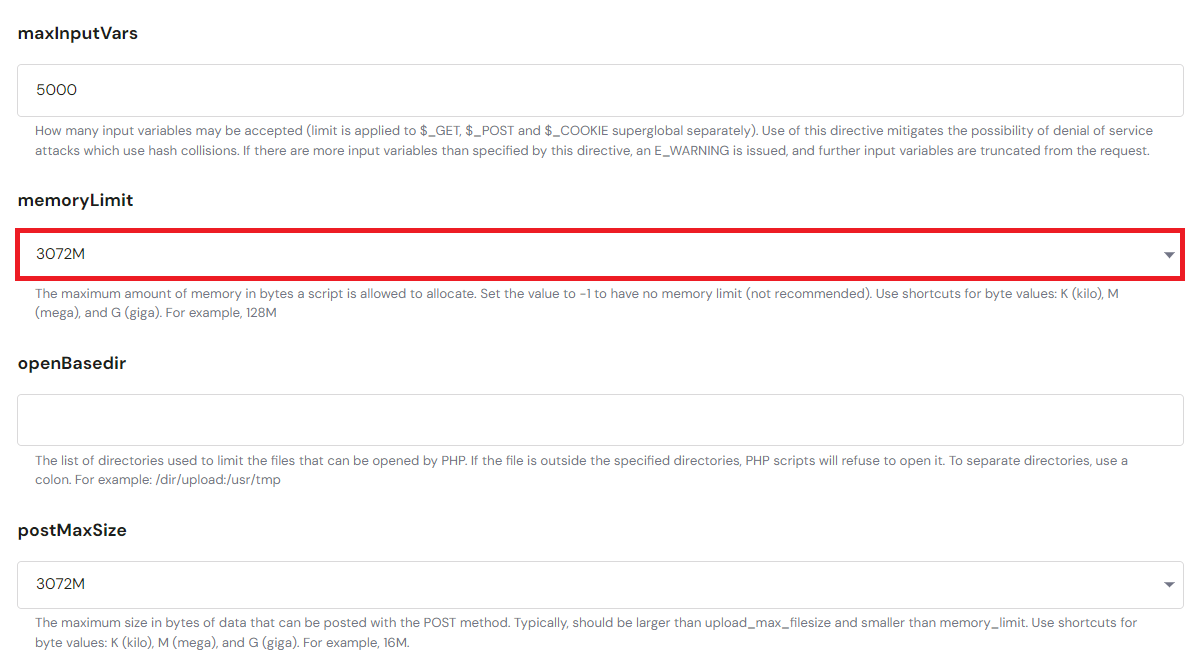
- Adjust the PHP memory limit upwards as needed.
9. Update PHP Version
Maintaining an up-to-date PHP version is vital for optimizing your WooCommerce site’s speed. Newer PHP versions typically bring enhancements in execution speed and resource management, contributing to a more efficient website.
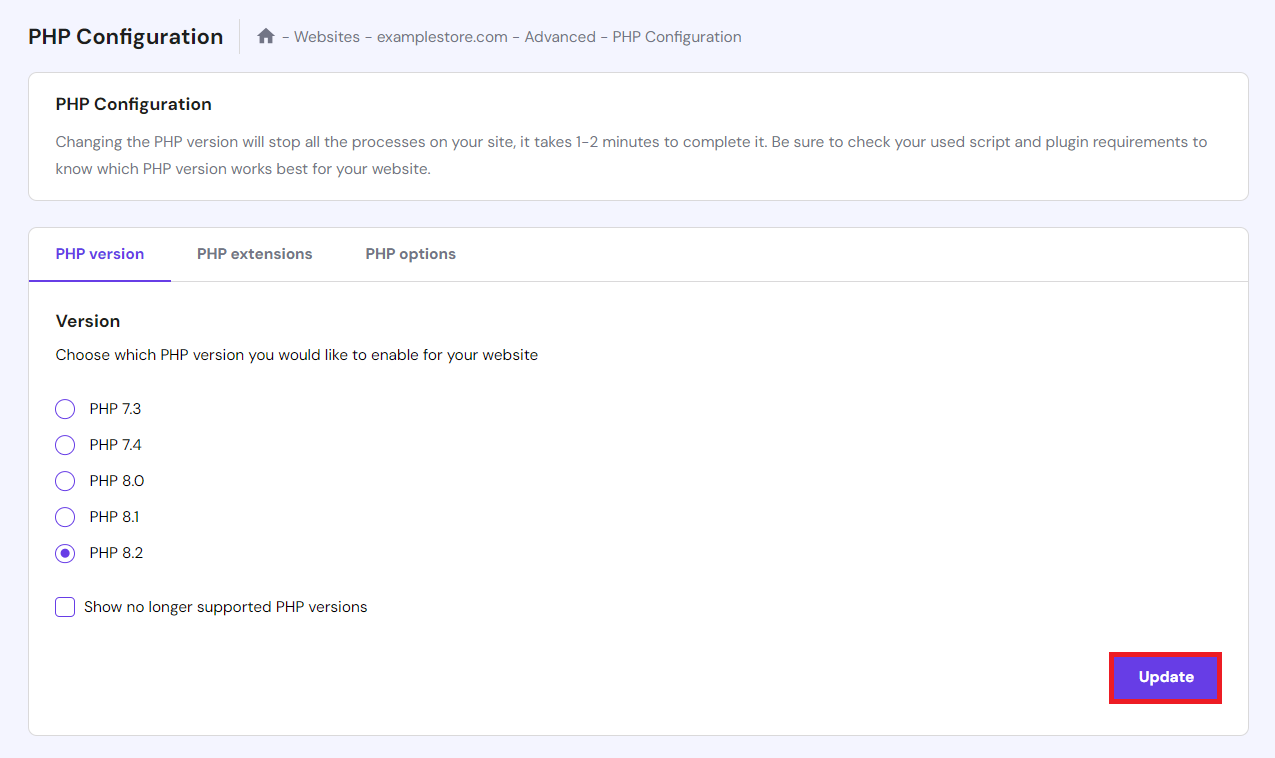
For Hostinger users, here’s how to update your PHP version in hPanel:
- In your hPanel dashboard, go to Advanced → PHP Configuration.
- Navigate to the PHP version tab, where you’ll find a list of available PHP versions.
- Choose the latest version and click Update to apply the change.
Hostinger also provides a WordPress and PHP compatibility checker. This feature examines your site’s core and current PHP version, advising a switch to a compatible version if necessary.
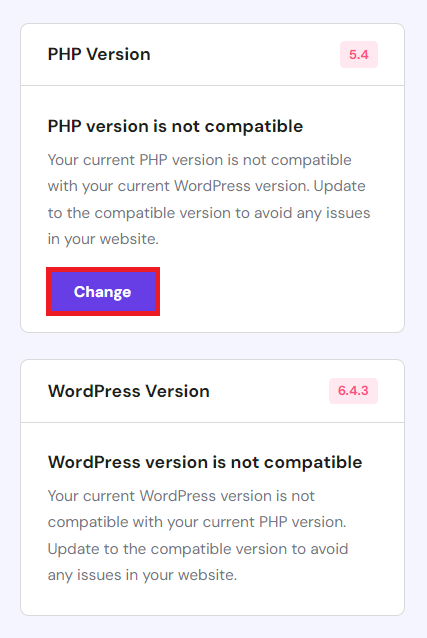
To use our compatibility checker, head to WordPress → Overview in your hPanel dashboard. Look for the PHP Version and WordPress Version sections to review your current setup. If you’re on a supported PHP version, it will appear as follows:
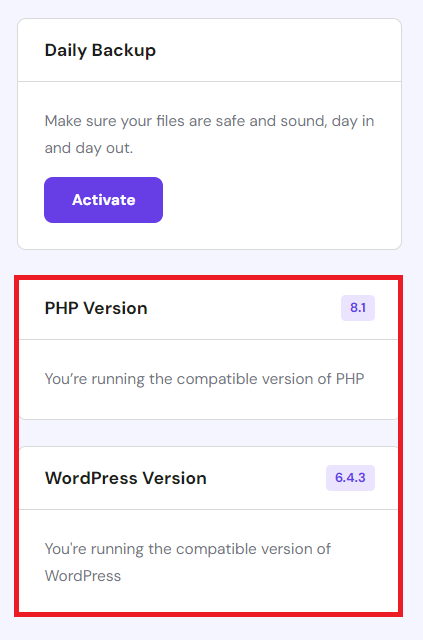
Should you find yourself on an unsupported version, click the Change button to update your site’s PHP version to a supported one.
10. Minify JavaScript, CSS, and HTML Scripts
Minifying JavaScript, CSS, and HTML scripts by removing redundant characters like whitespace, comments, and delimiters optimize their size without altering functionality. This reduction in file size leads to quicker website loading times.
Additionally, many websites accumulate unnecessary code from inactive plugins or themes, slowing down performance. You can further accelerate your site’s speed by eliminating needless scripts and stylesheets, especially load scripts related to unused site features.
To minify your scripts and remove redundant code, consider these approaches:
- Use plugins – WordPress plugins such as WP Rocket, Autoptimize, and W3 Total Cache can automatically minify JavaScript, HTML, and CSS files. They also assist in pinpointing and pruning unused scripts on your site.
- Manual optimization – for those with web development expertise, manually curating your site’s code to discard unnecessary scripts and minify files is an option. This approach demands caution to prevent site functionality issues.
11. Clean Up WooCommerce Database
Over time, your WooCommerce database may accumulate unnecessary data like old product revisions, expired transient options, and outdated order data, leading to database bloat. Such data can contribute to slow-loading sites by prolonging the execution of database queries, affecting overall site performance.
Purging your WooCommerce database of unnecessary data can enhance database query efficiency, accelerating your WordPress website site in the long run. Here’s how to clean up your WooCommerce database:
- Use database optimization plugins – tools such as WP-Optimize or Advanced Database Cleaner help you optimize your WordPress database. They offer an intuitive interface for eliminating post revisions, drafts, comments, and transient options without the need for direct database interaction.
- Manual cleanup via phpMyAdmin – for those with technical expertise, phpMyAdmin provides more control over WordPress database cleanup. This approach involves manually identifying and excising unneeded tables or entries. Exercise caution to prevent the accidental deletion of crucial data.
12. Limit WordPress Revisions
WordPress automatically stores revisions of your posts and pages during editing, helping restore previous versions. However, an excessive number of WordPress revisions can enlarge your database, potentially slowing down your site.
To speed up your WooCommerce store, you can limit the number of WordPress revisions. Here’s how to do it:
- Use a plugin – plugins such as WP-Optimize offer an intuitive way to control and limit revisions, thereby optimizing your database’s efficiency.
- Modify wp-config.php – you can also directly set a revision limit by adding code to your wp-config.php file. Add define(‘WP_POST_REVISIONS’, 5); to specify a maximum of 5 revisions per post. Tailor this value to suit your requirements.
13. Use Anti Spam Plugin
Spam comments can also fill up your database, leading to unnecessary bloat and slowing down your WooCommerce store. To combat spam comments in WordPress and preserve your site’s speed, consider installing an anti-spam plugin such as Akismet.
Akismet cross-references comments with its extensive global spam database, effectively blocking unwanted content from infiltrating your site. Upon installing the plugin, you’ll need to acquire an Akismet API key, which is available through the post-activation instructions.
Once the API key is on hand, configure your comment moderation and spam management preferences in the plugin’s settings. Akismet will then automate the spam filtering process, contributing to the sustained speed and efficiency of your WooCommerce store.
14. Disable AJAX Cart Fragments
WooCommerce utilizes AJAX cart fragments to update the cart contents dynamically, eliminating the need for page reloads each time a product is added. This feature, while beneficial for user experience, can generate extra AJAX requests, potentially slowing down your site on non-essential cart data pages.
Disabling WooCommerce AJAX cart fragments can thus enhance performance, especially on content-rich pages. To deactivate AJAX cart fragments, you’ll need to insert custom code into your theme’s functions.php file. The code could resemble the following:
add_action( 'wp_enqueue_scripts', 'dequeue_woocommerce_cart_fragments', 11);
function dequeue_woocommerce_cart_fragments() {
    if (is_front_page()) wp_dequeue_script('wc-cart-fragments');
}
This snippet assesses whether the current page is the front page and, if so, removes the cart fragments script. Modify the condition (is_front_page()) as necessary to apply to different pages.
Subsequently, navigate to WooCommerce → Settings and select the Products tab. Then, activate the Redirect to the cart page after successful addition and scroll down to click Save changes.

Exercise caution when implementing custom code to avoid unintended site functionality issues. It’s essential to back up your site prior to altering theme files.
15. Use Pagination for Your Content
Implementing pagination for product listings, comments, and review sections in your WooCommerce store can enhance site speed by reducing the number of items loaded on each page.
This approach decreases server queries and speeds up page loading, which is particularly beneficial for stores with huge inventories or active engagement areas. Pagination also improves user experience by simplifying site navigation.
To add pagination to your WordPress site, first explore your theme’s settings. Many WooCommerce-compatible themes offer built-in pagination options in their customization panels.
You can also consider using WordPress plugins like Pagination by BestWebSoft. Such plugins offer adjustable pagination settings and an easier implementation process, even without coding skills.
If you’re comfortable with coding, you can manually add pagination by modifying your theme’s functions.php file or by using a child theme. The following is an example code snippet you might add to the file:
add_filter( 'loop_shop_per_page', 'new_loop_shop_per_page', 20 );
function new_loop_shop_per_page( $cols ) {
  // Return the number of products you want to show per page
  $cols = 10;
  return $cols;
}
This snippet configures your WooCommerce product archive pages to display 10 products per page. You can adjust the number to meet your specific requirements.
How to Test a WooCommerce Site Performance
Periodically testing your WooCommerce site is crucial to ensure its performance. Website speed testing tools like PageSpeed Insights and GTMetrix offer valuable insights into your site’s loading speed, load time, and overall performance.
Developed by Google, PageSpeed Insights analyzes both mobile and desktop versions of your site. It provides scores based on Core Web Vitals, which are essential for a positive user experience:
- Largest Contentful Paint (LCP) measures the time it takes for the main content of a page to load, ideally within 2.5 seconds.
- Interaction to Next Paint (INP) assesses the time it takes for your page to update once the user interacts with it, which should be below 200 milliseconds.
- Cumulative Layout Shift (CLS) quantifies unexpected layout shifts during the loading phase, with a score below 0.1 being desirable.
To test your site with Google’s speed test tool, follow these steps:
- Access the PageSpeed Insights page.
- Enter the URL of your WooCommerce site and click Analyze.

Review the detailed report, which outlines potential improvements and how your site loads compared to Core Web Vitals’ standard.
For Hostinger users, the hPanel seamlessly integrates with PageSpeed Insights, simplifying access to performance data. Here’s how to view your report:
- Go to the hPanel dashboard and access Performance → Page Speed.
- Select the device type, whether Desktop or Mobile. Then, click Analyze.
The website speed test report will appear, offering a convenient way to monitor improvements or detect issues.

While PageSpeed Insights emphasizes user experience metrics, GTMetrix provides different perspectives on technical performance factors such as fully loaded time, total page size, and request count. This speed testing tool also offers suggestions for improving your website’s speed.
Conclusion
Optimizing your WooCommerce store performance is crucial for providing a seamless shopping experience to your customers. In this guide, we’ve explored various strategies to speed up WooCommerce stores, from selecting the right hosting company to using pagination on your pages.
Beyond implementing these WooCommerce performance optimization strategies, regular monitoring and adjustment are advised to ensure your WooCommerce store remains fast, responsive, and ahead of the competition.
Speed Up WooCommerce FAQ
This section will answer the most common questions about how to speed up WooCommerce stores.
What Makes My WooCommerce Site Slow?
A slow WooCommerce site can result from various factors, such as overloaded servers, large unoptimized images, too many plugins, and outdated themes. Additionally, security issues like brute force attacks, particularly those targeting the WordPress site’s login URL, may also contribute to a slow WooCommerce store.
Can I Speed up a WooCommerce Site Without Technical Expertise?
Yes, you can speed up your WooCommerce site without extensive technical knowledge. Start by choosing a hosting plan optimized for WooCommerce, like Hostinger’s WooCommerce hosting service, and utilize site speed tools such as caching plugins and image optimizers.
Can WooCommerce Handle High Traffic Without Losing Performance?
WooCommerce can handle high traffic volumes without a drop in performance if it’s properly configured. It’s crucial to ensure sufficient server resources, opt for a scalable hosting solution, and apply performance enhancements, such as web server caching.
All of the tutorial content on this website is subject to Hostinger's rigorous editorial standards and values.

Ariffud is a Technical Content Writer with an educational background in Informatics. He has extensive expertise in Linux and VPS, authoring over 200 articles on server management and web development. Follow him on LinkedIn.

Marco Chiesi is the Head of WordPress at Hostinger, with over 20 years of experience as a software engineer in the web industry. He specializes in open-source technologies and the WordPress ecosystem, where he has contributed in different areas: Plugin Developer (with over 10 million downloads), WordCamp speaker and organizer, Meetup organizer, Translator, and Core Contributor. He is passionate about leading his team to create innovative solutions for Hostinger's web hosting product, which hosts over 5 million WordPress installations. Follow him on LinkedIn.


