How to Fix NET::ERR_CERT_AUTHORITY_INVALID: 10 Easy Solutions
May 12, 2025
/
Brian & Jordana A.
/
8 min Read
The NET::ERR_CERT_AUTHORITY_INVALID error occurs when a browser is unable to verify a website’s Secure Sockets Layer (SSL) certificate. It implies that the SSL certificate might be issued by a Certificate Authority (CA) that the browser doesn’t trust, risking an unsecured connection.
As one of the main benefits of SSL certificates is securing data transfer, the NET::ERR_CERT_AUTHORITY_INVALID error can negatively affect the website’s traffic and search engine optimization (SEO) ranking. Therefore, website administrators must quickly fix this error to maintain user trust and secure their site’s integrity.
This article will cover ten proven solutions to resolve the NET::ERR_CERT_AUTHORITY_INVALID error message. Let’s start by exploring its common causes.

What Is NET::ERR_CERT_AUTHORITY_INVALID Error
NET::ERR_CERT_AUTHORITY_INVALID is a security-related error that browsers display when they can’t verify a website’s SSL certificate. This error suggests the website might have received its SSL certificate from an untrustworthy Certificate Authority (CA), risking visitors’ data security if they continue.
What Causes the NET::ERR_CERT_AUTHORITY_INVALID Error
The NET::ERR_CERT_AUTHORITY_INVALID error can result from SSL and browser-related issues, such as:
- Expired SSL certificates ‒ a browser usually marks an expired certificate invalid as it can’t ensure data encryption until renewed.
- Self-signed certificates ‒ this type of SSL certificate isn’t issued by a Certificate Authority (CA), lacking the third-party verification browsers need for trust.
- Incorrect date and time ‒ an outdated operating system can result in incorrect date and time settings, leading it to flag a valid certificate as expired.
- Untrusted Certificate Authority ‒ your website’s SSL certificate is issued by an unfamiliar CA that’s not listed on browsers’ trusted certification authorities.
- Outdated browser cache or SSL state ‒ browsers keep cached certificates for faster connections, but an old or corrupt cache can lead to a mismatch with the actual certificate.
- VPN and security software interference ‒ virtual private networks and certain security software like firewalls and antivirus can interfere with the SSL handshake process, resulting in browser warnings.
- Conflicting browser extensions ‒ an extension might incorrectly change or block the certificate information that the browser tries to verify.
How the NET::ERR_CERT_AUTHORITY_INVALID Error Appears in Different Browsers
The ERR_CERT_AUTHORITY_INVALID error appears differently across browsers. Let’s explore its variations in Google Chrome, Safari, Mozilla Firefox, and Microsoft Edge.
Google Chrome
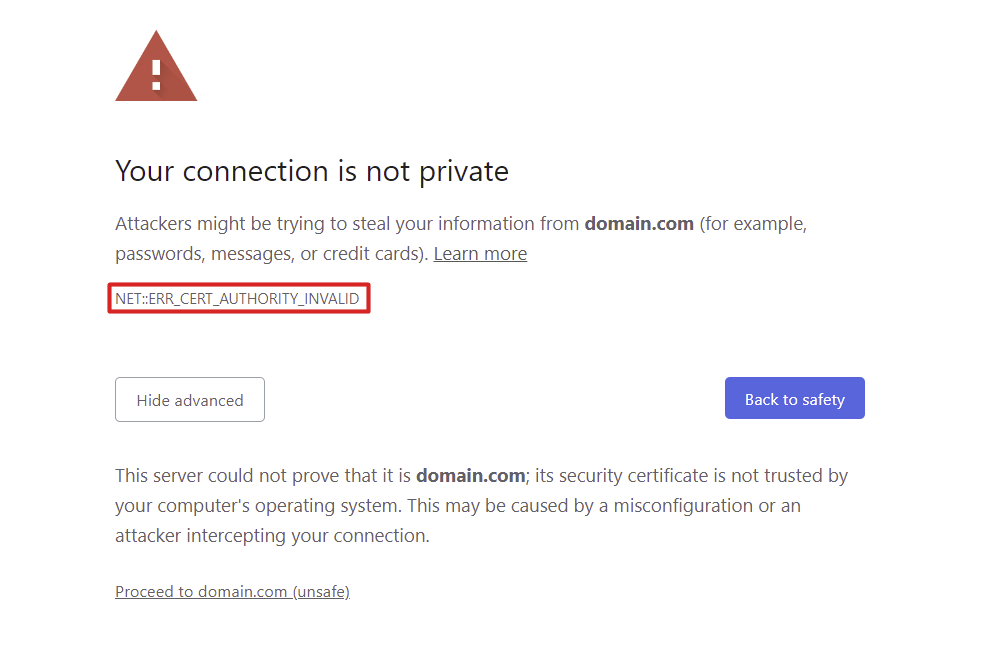
When accessing a website with SSL errors, the Google Chrome browser will display a message saying, “Your connection is not private.” Users can still access the website at their own risk by clicking Proceed to [domain name].
Other error messages indicating this SSL issue include:
- NET::ERR_CERT_COMMON_NAME_INVALID
- NET::ERR_CERT_INVALID
- NET::ERR_CERT_DATE_INVALID
- NET::ERR_CERT_WEAK_SIGNATURE_ALGORITHM
- NET::ERR_CERTIFICATE_TRANSPARENCY_REQUIRED
- SSL CERTIFICATE ERROR
Each SSL error code variation hints at the actual issue. For instance, NET::ERR_CERT_COMMON_NAME_INVALID indicates that the domain name doesn’t match the SSL certificate.
Safari
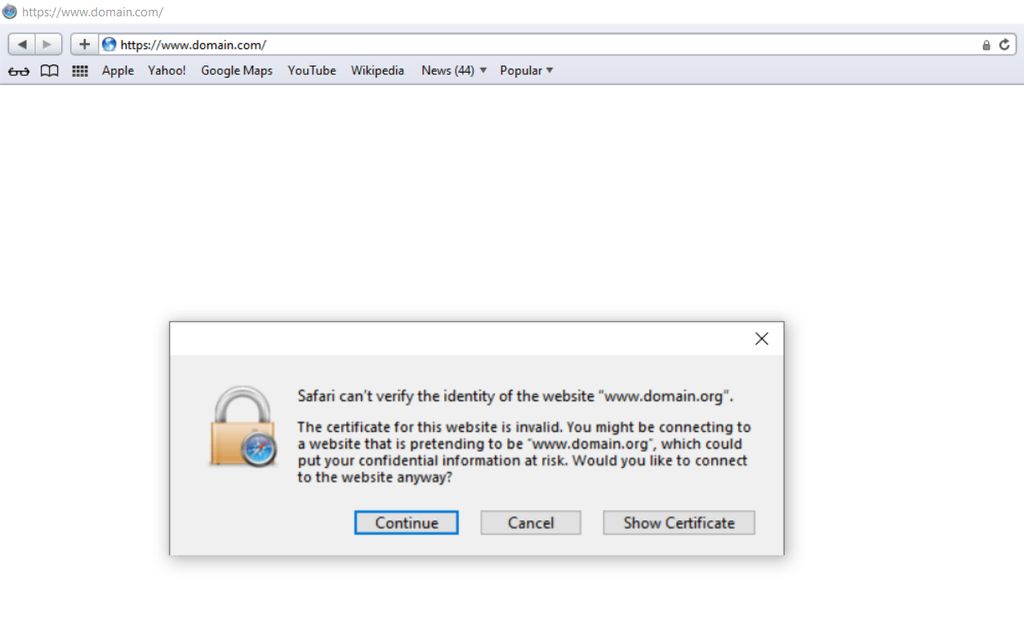
When Safari encounters an issue validating an SSL certificate, a warning may pop up about the risk of accessing a potentially fraudulent site.
The Show Certificate option offers more details about the SSL certificate’s issuer, allowing users to decide whether to proceed with caution to the website.
Microsoft Edge
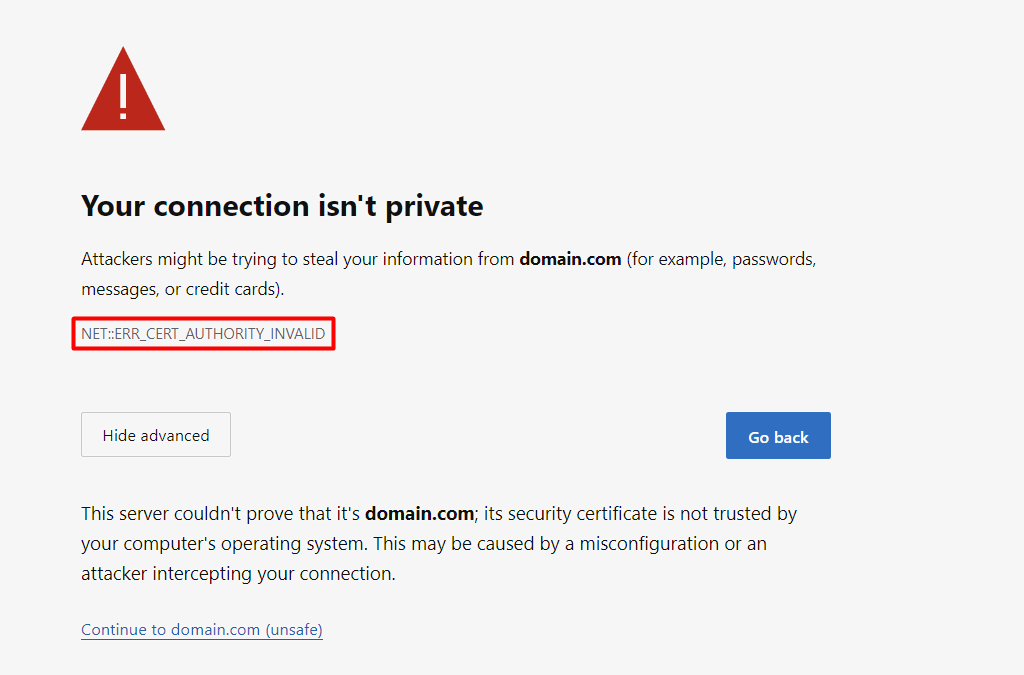
Like Google Chrome, Microsoft Edge displays SSL error codes that help identify the cause of SSL issues. Common error code variations include:
- NET::ERR_CERT_COMMON_NAME_INVALID
- NET::ERR_CERT_DATE_INVALID
- NET::ERR_CERT_AUTHORITY_INVALID
- NET::ERR_CERT_REVOKED
Mozilla Firefox
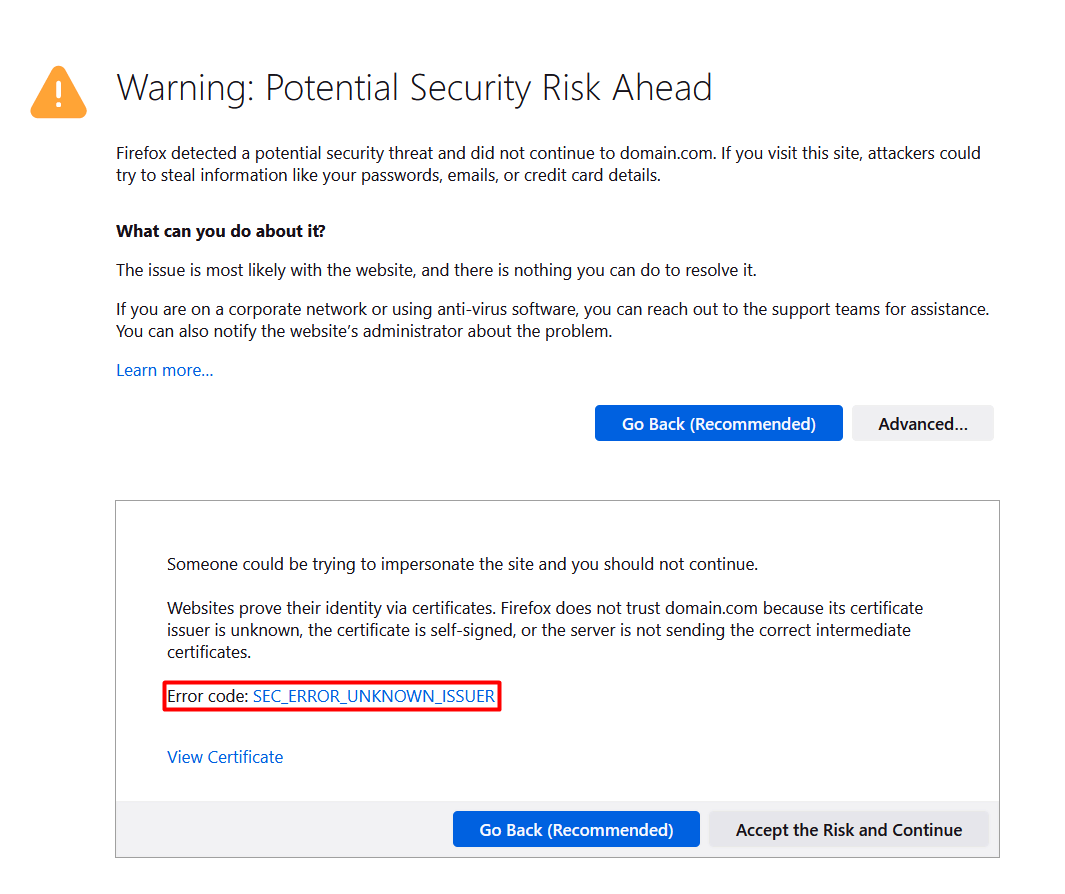
Mozilla Firefox displays a “Warning: Potential Security Risk Ahead” message explaining possible triggers for the SSL error. There’s an option to check the SSL certificate information as well, empowering users to make informed decisions.
This browser has its set of error codes, such as:
- SEC_ERROR_UNKNOWN_ISSUER
- SEC_ERROR_REUSED_ISSUER_AND_SERIAL
- SSL_ERROR_RX_MALFORMED_HANDSHAKE
- SSL_ERROR_UNSUPPORTED_VERSION
- MOZILLA_PKIX_ERROR_KEY_PINNING_FAILURE
How to Fix the NET::ERR_CERT_AUTHORITY_INVALID Error
While various factors can trigger this particular error, it’s completely fixable. We’ll walk you through the solutions to fix the NET::ERR_CERT_AUTHORITY_INVALID error, starting with the easiest.
1. Clear Browser Cache and Cookies
Browsers use cache and cookies to speed up web page loading. However, these files can become outdated or corrupted, causing SSL errors.
If the website is accessible through incognito mode, you might be dealing with an expired browser cache. Clearing your browser’s cache should resolve the issue.
Cache flushing in popular browsers follows a similar process. Here’s how to clear your browser cache and cookies in Google Chrome:
- Click the three dots menu on the top right and select Clear browsing data.
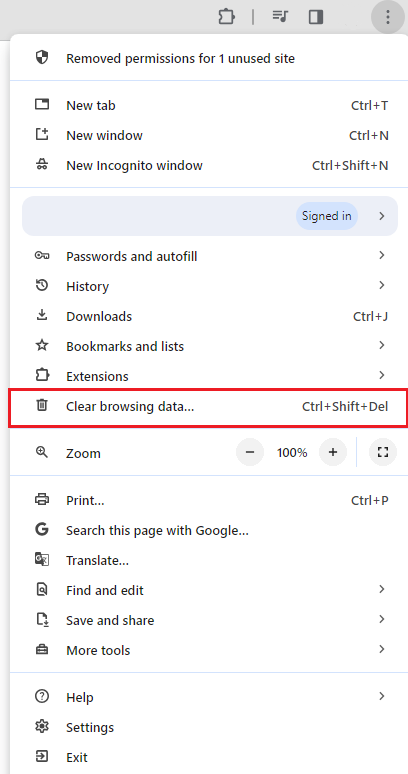
- Select the time range and check all elements for removal. Click Clear data to remove the browser’s cached files.

2. Adjust the Time and Date Settings on Your Computer
Battery issues, time zone misconfiguration, and daylight saving time can alter system time settings. Having the wrong date and time can cause the browser to mark a valid SSL certificate as expired.
Here’s how to readjust the time and date on Windows devices:
- Open the Start menu and search for Date and time settings.
- Under the Additional settings section, click Sync now.

- Turn on the Set time zone automatically option to keep your device’s time accurate, especially when traveling.
If you’re on macOS, follow these steps:
- Open the Apple menu.
- Go to System Settings → General → Date & Time.
- Toggle on the Set date & time automatically option.
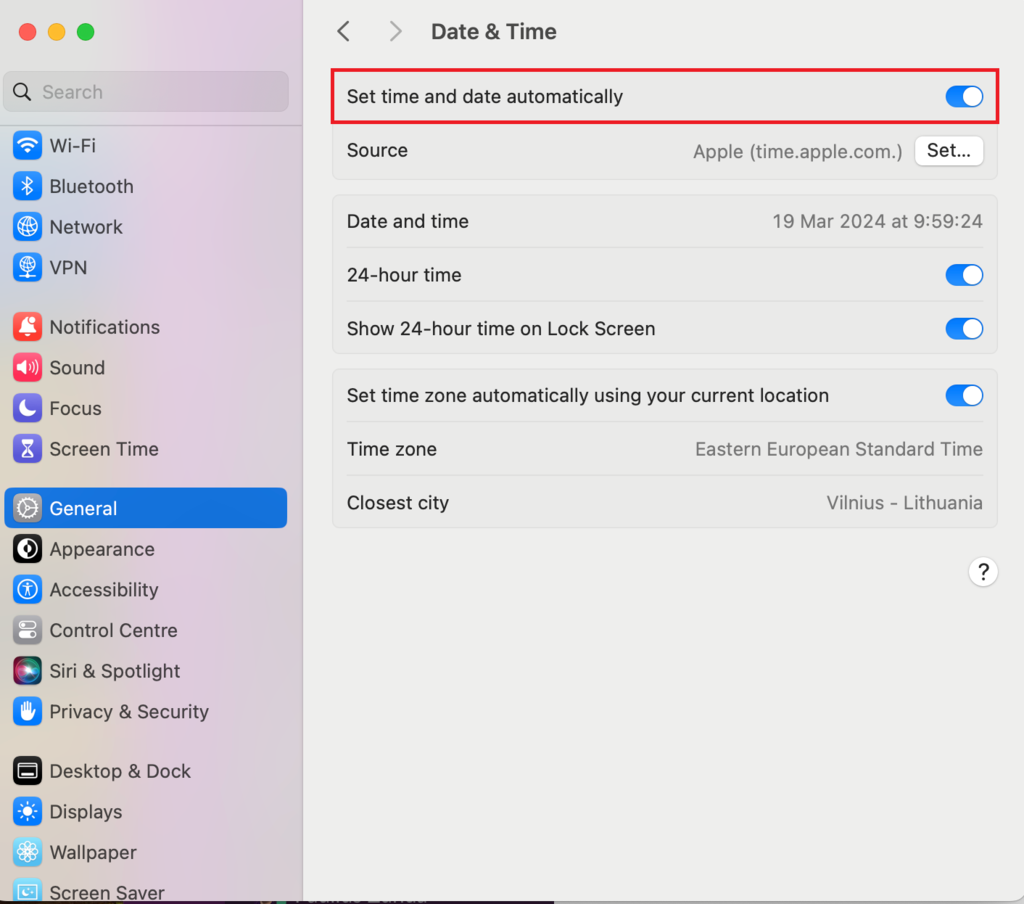
- Go to Time Zone and check whether you’re using the correct time zone.
Once you’ve set the time and date on your operating system, refresh the browser to check if the error disappears.
3. Temporarily Disable Browser Extensions
Browser extensions enhance the functionality and user experience of web browsing. However, some of them can change how browsers load pages, potentially causing SSL errors.
Deactivating browser extensions can help determine if they cause the NET::ERR_CERT_AUTHORITY_INVALID error.
Deactivating browser extensions follows a similar process across popular browsers. Here’s how it’s done in Google Chrome:
- Open the three dots menu on the top right and select Extensions → Manage Extensions.
- Toggle off all of your active extensions.
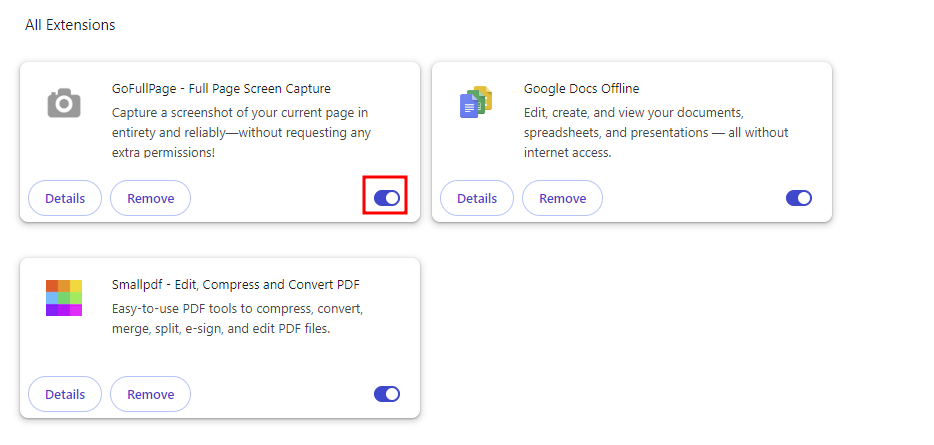
- Reload the web page to check if the error persists. If this resolves the issue, activate the extensions one by one to identify the culprit.
4. Update Your Browser
Outdated browsers often lack support for the latest security protocols or contain unresolved bugs, causing issues like the NET::ERR_CERT_AUTHORITY_INVALID error. If that’s the case, updating your browser should fix the error.
Follow these steps to check for and update Google Chrome:
- Access the three dots menu on the top right and select Settings -> About Chrome.
- If your browser is up to date, you’ll see a “Chrome is up to date” message.
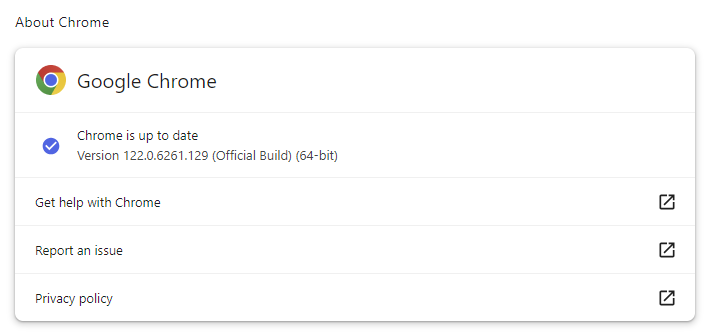
- If an update is available, the Update Google Chrome button will appear. Click it to download the update, then select Relaunch to complete the process.
5. Clear the SSL State
Similar to browser cache, SSL state stores information related to secure connections. Sometimes, your computer might save incorrect or outdated SSL certificate information from websites you visit, causing the NET::ERR_CERT_AUTHORITY_INVALID error. Clearing the SSL state removes these cached certificates.
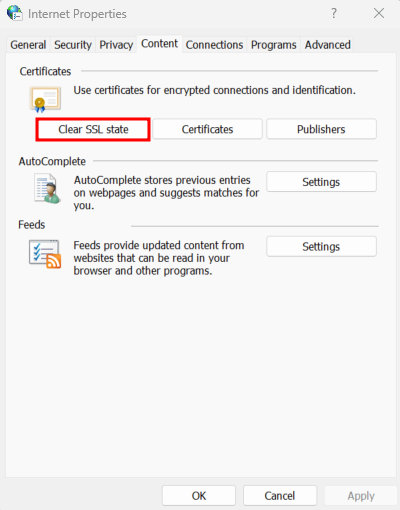
Here is how to clear the SSL state on Windows:
- Open the Start menu and search for Internet Options.
- In the Internet Options section, go to the Content tab.
- Click Clear SSL State.
On macOS, follow these steps to remove any untrusted certificates:
- Click on the Spotlight search icon at the top of your screen and search for Keychain Access.
- Within the System category, select Certificates.

- Look for untrusted certificates marked with a red “X” icon.
- Right-click on the problematic certificate and choose Delete.
Important! Be careful when deleting certificates from Keychain Access, as you can’t recover them from the Trash folder. If you’re unsure about a certificate, consult with an IT professional before deletion to prevent system or application issues.
6. Deactivate VPN
A virtual private network (VPN) enhances online privacy and security by encrypting your connection and masking your IP address for safer browsing and access to geo-restricted content.
However, it can disrupt SSL certificate validation due to routing methods or security protocols, triggering the NET::ERR_CERT_AUTHORITY_INVALID error message.
Try deactivating your VPN to troubleshoot the error. If the error disappears, contact the VPN’s support team for assistance or try different VPN providers.
Important! Be careful when turning off your VPN, especially on public internet access. Instead, perform this method from your home or mobile network to minimize potential security risks.
7. Disable Firewall or Antivirus
If no method has worked so far, let’s look into your system security by temporarily deactivating your firewall or antivirus software. Sometimes, their security protocols can disrupt SSL certificate validation, leading to the NET::ERR_CERT_AUTHORITY_INVALID error.
Follow these steps to deactivate Windows Firewall:
- Navigate to the Control Panel from the Start menu.
- Go to System and Security → Windows Defender Firewall.
- Click Turn Windows Defender Firewall on or off on the sidebar.
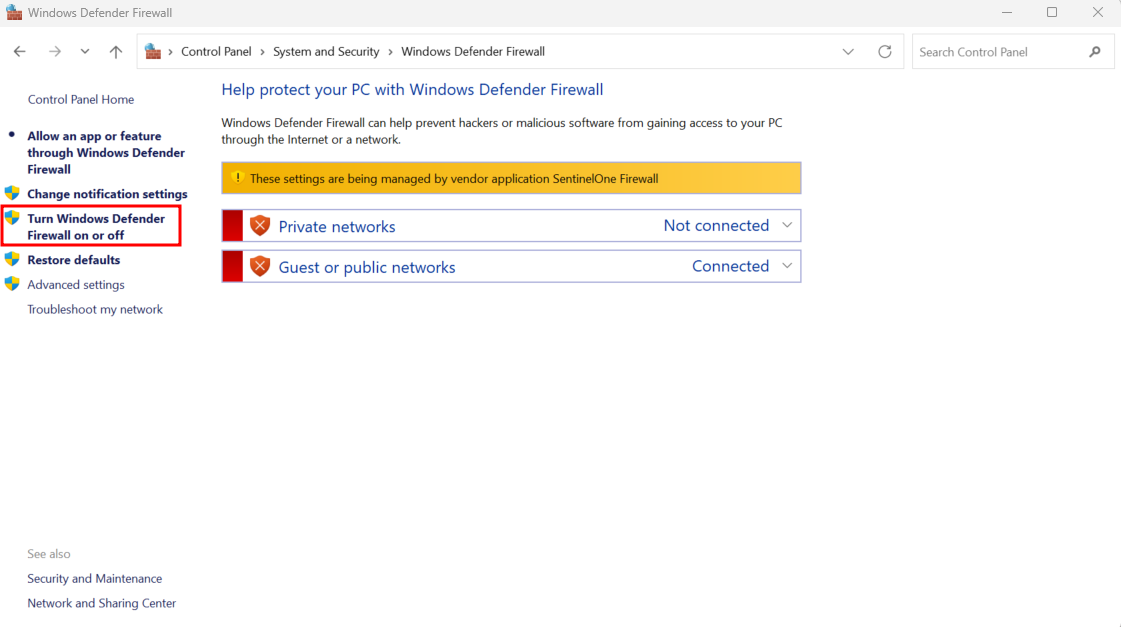
- Select Turn off Windows Defender Firewall (not recommended) for both private and public network settings.
Here’s how to turn off the firewall on macOS:
- Open the Apple menu.
- Head to System Settings → Network.

- Access the Firewall section and toggle it off to disable the feature.

The antivirus deactivation process varies depending on the software. Look for a temporary disable option in the software’s settings or consult the software’s help resources.
After disabling these security measures, restart your browser and try reaccessing the website. If the error message disappears, enable the firewall and antivirus software one by one to determine the cause of the NET::ERR_CERT_AUTHORITY_INVALID error.
Here’s what you can do if one of them is at fault:
- Allow the website to go through your firewall or antivirus settings.
- Contact your antivirus support team for assistance.
- Look for alternative firewalls or antivirus software.
Important! Reactivate your firewall and antivirus software immediately after testing. For added safety, conduct this test on a secure network.
8. Run an SSL Test
After ruling out client-side issues, let’s examine the server side.
Start by running an SSL server test to identify any problems with your site’s SSL certificate. Free SSL testing tools like SSL Shopper provide a detailed analysis in a few clicks.
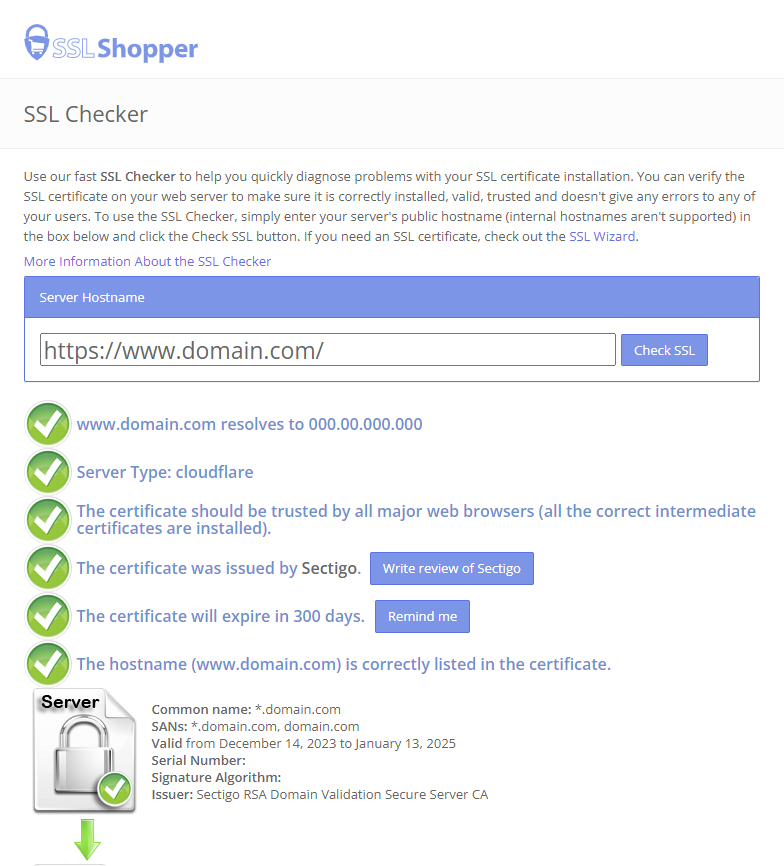
The SSL check report offers detailed insights into your website’s SSL certificate setup, including the IP address, expiration date, and whether the certificate correctly includes your domain name.
Green check marks indicate a clean report, confirming that:
- Your website has a valid certificate.
- Major web browsers trust the SSL certificate.
- The SSL certificate is intended for your website.
If the tool flags issues like an expired certificate or a mismatched domain name, keep reading to learn how to resolve them.
9. Get a Trusted SSL Certificate
If the SSL check report shows that your SSL certificate is invalid or self-signed, get a new one from a trusted Certificate Authority.
Reputable hosting providers bundle hosting plans with free SSL certificates. Hostinger users on basic web hosting and cloud hosting plans get free lifetime SSL certificates for all their domains and subdomains. Our auto-renewal feature keeps your certificate valid all the time.
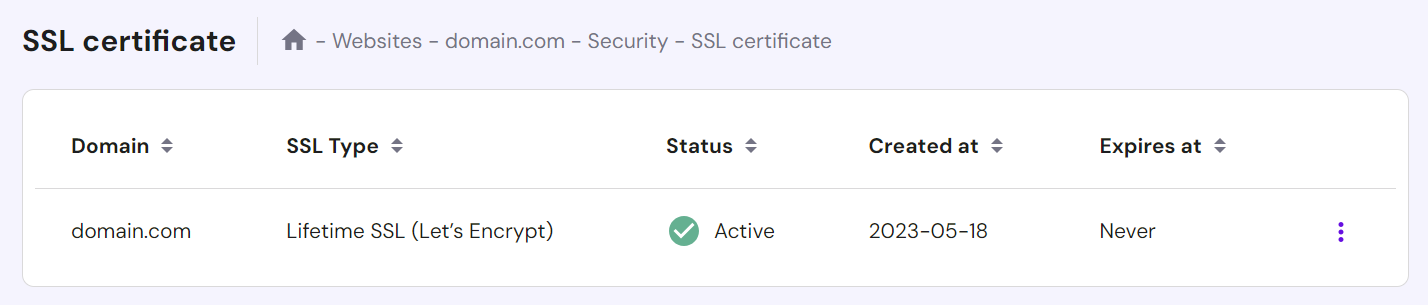
Check out our guide for other ways to get an SSL certificate for your website.
As there are different types of SSL certificates, pick the one that best fits your website needs. For example, large organizations may opt for Extended Validation (EV) SSL certificates because they go through a more detailed validation process, offering a higher level of trust.
For WordPress users, implementing WordPress SSL keeps the site data secure from cyber attacks and boosts its search engine optimization (SEO) ranking.

10. Renew the SSL Certificate
The validity of SSL certificate validity periods varies among providers, with the maximum being 397 days or 13 months. Keeping your SSL certificate updated ensures your website’s security.
If your SSL certificate, including free ones, doesn’t have an automatic renewal setup, renew it manually at least 30 days before the expiration date.
Follow these steps to verify the certificate’s expiration date in Google Chrome:
- Hit the View site information or padlock icon in the address bar.

- Select Connection is secure → Certificate is Valid. A new window will display the website’s certificate details, including the validity period.
If you have an expired SSL certificate, contact the issuer for renewal instructions. The process usually involves purchasing a new certificate, generating a certificate signing request (CSR), and then installing the certificate on your web server.
Other Errors Related to NET::ERR_CERT_AUTHORITY_INVALID
Your Connection Is Not Private Error
NET::ERR_CERT_COMMON_NAME_INVALID Error
ERR_SSL_VERSION_OR_CIPHER_MISMATCH Error
Understanding HTTP Status Codes
Conclusion
The NET::ERR_CERT_AUTHORITY_INVALID error can stem from client and server-side issues, ranging from an outdated browser cache to the use of a self-signed certificate. To enhance user experience and maintain the site’s credibility, website owners should promptly address this issue.
Let’s recap the 10 proven solutions to fix NET::ERR_CERT_AUTHORITY_INVALID:
- Clear your web browser’s cache and cookies
- Sync your computer’s time and date settings
- Temporarily disable browser extensions
- Update your web browser
- Clear cached certificate
- Keep your VPN temporarily disabled
- Deactivate your firewall or antivirus software
- Run an SSL test
- Get a new SSL certificate from a trusted Certificate Authority
- Renew the SSL certificate
We hope this article helped you troubleshoot the NET::ERR_CERT_AUTHORITY_INVALID error. If the issue persists, contact your web host or SSL provider.
For Hostinger users, our Customer Success Team is available 24/7 to assist you. Good luck!
ERR_CERT_AUTHORITY_INVALID FAQ
This section answers common questions about the ERR_CERT_AUTHORITY_INVALID error.
Is ERR_CERT_AUTHORITY_INVALID a Common Error?
Yes, ERR_CERT_AUTHORITY_INVALID is a common error that occurs when a browser doesn’t recognize a website’s SSL certificate. Failed verification can occur due to SSL and browser-related issues like expired or self-signed certificates and outdated operating systems.
What Is the Difference Between an ERR_CERT_AUTHORITY_INVALID Error and a Certificate Authority Error?
ERR_CERT_AUTHORITY_INVALID specifically indicates trust issues with the SSL certificate’s issuer, a type of certificate authority error. It covers problems like expired, invalid, or self-signed certificates. Certificate authority errors are broader and include issues like revoked certificates or chain errors.
What Are the Potential Risks Associated With the ERR_CERT_AUTHORITY_INVALID Error?
The ERR_CERT_AUTHORITY_INVALID error flags potential security risks, such as data interception or a compromised connection. It suggests the website might not encrypt user data properly, leaving passwords and credit card details vulnerable to hackers during transmission. For business websites, this error can negatively impact customer trust and credibility, leading to revenue loss and a damaged reputation.
All of the tutorial content on this website is subject to Hostinger's rigorous editorial standards and values.

Brian is a Content Writer who loves telling complex stories in a simple way. He has written all types of content, including tutorials, blog posts, landing pages, social media posts, white papers, infographics, and YouTube scripts. Follow him on LinkedIn.

Jordana is a Senior Content Writer with a background in Information Systems. She has over five years of experience in WordPress and is casually dabbling with PHP and MySQL. Her passion for writing and technology drives her to create tutorials for anyone wanting to build their online presence. Follow her on LinkedIn.


