How to create a professional email address
May 19, 2026
/
Justina B.
/
8 min Read

To create a professional email address, register a custom domain, and choose an email hosting provider. Then set up your mailbox with a clean format, such as firstname.lastname@yourbusiness.com, and configure security records, such as SPF and DKIM, to ensure reliable delivery.
A professional email address uses your own domain instead of a generic provider. It ties directly to your brand and signals to clients or employers that you take your work seriously.
Creating a professional email address takes seven steps:
- Pick a format.
- Decide between a free or a custom domain.
- Register your domain.
- Choose a hosting provider.
- Create the mailbox.
- Connect it to your devices.
- Run a final test.
The whole process takes under an hour. You’ll use the same address across every job, project, and business deal that follows. Whether you’re job hunting, freelancing, or running a business, a custom email address builds credibility from the first message.
1. Choose a professional email address format
Your email format shapes the first impression you make, so clarity beats creativity here. A good format is simple, easy to type, and consistent with how you present yourself elsewhere. The wrong format, on the other hand, can look amateurish before anyone reads a single word you’ve written.
Think of your email address as part of your brand. It works alongside your website, business cards, and any email marketing campaigns you plan to send out. Consistency across all of these channels makes you look organized and trustworthy.
Standard professional email formats
Three professional email formats work well for most people:
- firstname.lastname@domain.com is the most common and works for almost any context, from corporate roles to freelance work.
- firstinitiallastname@domain.com is shorter and more useful when your full name creates a long address.
- firstname@domain.com feels personal and works best for solo founders, freelancers, or small teams.
Pick one and stick with it. Mixing formats across team members looks messy.
Alternatives when your name is taken
If your preferred format is already taken, you have a few clean options.
- Add a middle initial. An address like john.r.smith@domain.com keeps your full name visible while making the address unique. This works well if you share a common first and last name combination.
- Include a profession keyword. Using johnsmith.designer@domain.com tells recipients what you do before they even open the message. This is especially useful for freelancers and consultants.
- Use a shortened version of your name. Initials or a partial name, like jsmith@domain.com, keep the address short and easy to type. This format works best when your full name makes for a long or awkward email address.
- Add your location or specialty. Try johnsmith.nyc@domain.com or johnsmith.copy@domain.com if you want to stand out in a crowded field with many people sharing your name.
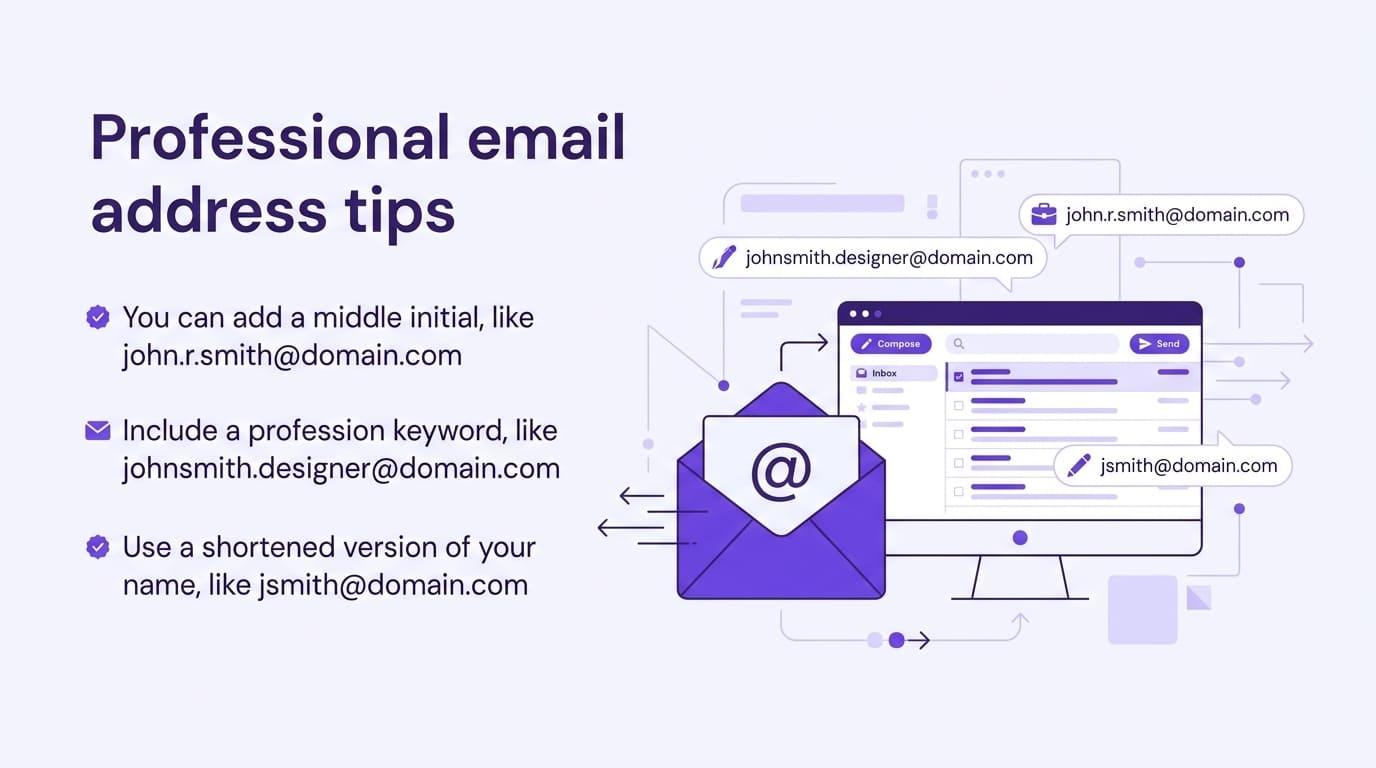
Whatever you choose, keep it readable. Skip nicknames, numbers, or anything that looks like a username from a gaming forum.
Business and generic inbox formats
Some email addresses are built for teams rather than individuals. These work well when several people need to handle the same kind of message:
- info@domain.com for general inquiries.
- contact@domain.com for public-facing communication.
- support@domain.com for customer service requests.
These addresses help you organize incoming messages and let multiple team members respond without confusion.
2. Decide between free and custom domain email
The choice between a free email service and a custom domain comes down to what you’re trying to achieve. Free providers like Gmail or Outlook are quick to set up, but they put their brand in your address. A custom domain email puts your name front and center.
Cost and effort also play a role. A free account takes two minutes and costs nothing, while a custom domain email requires you to purchase a domain and hosting plan. The trade-off is credibility, since a custom address looks more professional in every message you send.
Both have their place. The right pick depends on whether you’re representing yourself personally or building a business identity.
When to use a free email provider
A free provider works fine for personal use, job applications, or early-stage personal branding. If you’re applying for jobs and don’t run a business, a clean Gmail address with your real name is perfectly acceptable.
Free email also makes sense if you’re freelancing on the side or exploring a new project. There’s no need to commit to a domain until you know the idea is worth pursuing.
Keep the username professional. A firstname.lastname@gmail.com address is fine, but partygirl1995@gmail.com on a resume is not.
When to use a custom domain email
A custom domain email is the right choice for businesses, freelancers, and startups. It signals that you’re serious, makes your brand more memorable, and scales with your team’s growth.
The branding advantage shows up in small ways, too. Every message you send puts your brand in front of the recipient, with your domain name reinforcing recognition each time it lands in someone’s inbox.
It also builds trust. Clients are more likely to open an email from sarah@yourcompany.com than from a generic free email address.
3. Register a domain name
A domain name is your unique web address, and you need one before you can create a custom email. The domain becomes the part after the @ symbol, so picking the right one matters for both your email and your future website.
Here’s how to do it:
- Choose a domain name that matches your full name, business name, or brand.
- Check availability through a registrar’s search tool.
- Pick an extension. The .com extension remains the most trusted, but options like .co or .io work well for tech-focused brands.
- Purchase the domain. Most domains cost between $10 and $20 per year.
Keep it short, easy to spell, and easy to say out loud. If you’re not sure where to start, this guide on how to get a domain name walks you through the full process.
4. Choose an email hosting provider
An email hosting provider stores your messages and routes them through your custom domain. You need one because owning a domain alone doesn’t give you a working inbox; the provider handles the actual sending and receiving.
A few popular options:
- Google Workspace starts at around $7 per user per month and includes Gmail plus the full Google suite.
- Microsoft 365 starts at $6 per user per month and includes Outlook, Word, Excel, and 1 TB of OneDrive storage.
- Zoho Mail has a free tier for small teams and paid plans starting at $1 per user.
- Hostinger Business Email hosting offers professional inboxes at a low monthly cost, which works well for small businesses and solo professionals just getting started.
If you want a simple, affordable setup without extra software you won’t use, Hostinger’s option keeps things simple. For larger teams that already use Google Docs or Microsoft Word every day, sticking with that ecosystem makes more sense.

5. Create your professional email address
Once you have a domain and a provider, creating your actual email address takes about 15 minutes. Most providers walk you through the process, but the core steps are the same everywhere.
- Verify domain ownership. Your provider will give you a code or DNS record to add, which proves the domain belongs to you.
- Configure MX records. These records tell the internet where to deliver mail sent to your domain. Your provider supplies the exact values.
- Add SPF and DKIM records. These help your emails reach the inbox rather than the spam folder by proving your messages are legitimate.
- Create your mailbox using the format you picked before.
- Set a strong password and turn on two-factor authentication. These are the single most important security steps you can take.
Once these are in place, your email is ready to send and receive. If you plan to use this address for outreach, learning the basics of email copywriting will help your messages actually get read.
6. Connect your email to devices and apps
Connecting your new email to your phone, laptop, and other devices means you can read and reply from anywhere. Most email clients walk you through setup with a few prompts.
Here’s the standard process:
- Open your email client (Outlook, Apple Mail, the Gmail app, or another email app).
- Add a new account and enter your full email address and password.
- Use IMAP settings rather than POP3 to keep messages in sync across all your devices.
- Repeat the setup on each device you use.
If something doesn’t connect on the first try, double-check your IMAP server address and port number. Your hosting provider lists these in your account dashboard.
7. Test and finalize your email setup
Before you start handing out your new address, send a few test messages to make sure everything works. This catches small issues before a missed reply costs you a job interview or a client.
Run through this quick checklist:
- Send a test email to a personal account, then reply from that account back to your new one.
- Check that the message lands in your inbox, not your spam folder.
- Send a message to a different provider (Gmail, Outlook, Yahoo) to confirm deliverability across services.
- Set up a professional email signature with your name, title, and contact details.
A clean signature ties everything together. It should include your full name, role, company name, and a phone number or website link. If you’ll be sending marketing messages later, brushing up on email compliance basics now will save you headaches down the line.
What are the best professional email address formats?
The best formats are simple, readable, and consistent. A firstname.lastname@domain.com is the format most professionals use because it’s instantly recognizable and works in any context.
The same name can look very different depending on the format:
✅ Good: sarah.chen@designstudio.com. The full name is clear, easy to type, and instantly tells the recipient who they’re emailing. The dot separator keeps it readable without adding clutter.
✅ Good: schen@designstudio.com. A shortened format like this works well when the full name creates a long address. It’s still recognizable and looks clean on a business card or email signature.
❌ Poor: sarah_chen_1987@designstudio.com. The birth year adds noise, hints at the recipient’s age, and looks more like a personal account than a work address. Underscores also feel dated and harder to read than dots.
❌ Poor: sarahthebestdesigner@designstudio.com. Self-promotional usernames come across as unprofessional and try too hard. The address should let your work speak for itself, not your email handle.
The good examples tell you exactly who you’re emailing. The poor ones add noise without adding clarity.
Common mistakes to avoid when creating a professional email address
The most common mistakes turn an otherwise good email into one that looks unprofessional. Watch out for these:
- Using nicknames or hobbies like coolguy or gamerjohn. Your email is for work, not your weekend identity.
- Adding birth years or random numbers like sarah92 or mike2024. These signal your age to employers and look like a backup account.
- Picking unclear formats that mix letters and numbers in confusing ways.
- Using inconsistent naming across a team, where one person is firstname.lastname, and another is just a first initial.
- Skipping security setup, like two-factor authentication, leaves your account vulnerable.
Avoid these when planning your professional email address. Changing what’s been registered means registering a new domain name, creating a new email address, and updating it everywhere it appears.
What are the benefits of using a professional email address?
A professional email address builds trust, strengthens your brand, and improves how reliably your messages get delivered. It does the quiet work of making you look credible before anyone reads what you’ve written.
The main benefits:
- Trust. Clients and employers take you more seriously when your email matches your domain.
- Brand identity. Every message you send promotes your business name.
- Clear communication. A clean format is easier to read, type, and remember.
- Better deliverability. Custom domains are less likely to be flagged as spam, since SPF and DKIM records verify your messages as legitimate.
These advantages compound over time. The longer you use a professional address, the more recognizable it becomes. If you want to measure the impact of your messages once you start sending campaigns, this guide on email marketing performance breaks down what to track.
How to use a professional email for business communication
Creating a professional email address is the first step. The real value comes from using it consistently to build relationships, share updates, and grow your business.
For freelancers, that means clean client communication and timely follow-ups, ideally within 24 hours of a first conversation. For businesses, it covers everything from invoices and order confirmations to product updates and customer support replies.
Once your address is set up, the natural next move is structured outreach:
- Send welcome emails to new subscribers within the first hour. Open rates are highest right after someone signs up, so a quick, friendly hello sets the tone.
- Group your contacts by what they care about, like past purchases, location, or signup source. Segmented sends consistently outperform generic blasts.
- Write subject lines under 50 characters and keep the main message above the fold. Most people decide whether to read on within a couple of seconds.
Pair these habits with a clear email marketing strategy, and your inbox becomes one of your most reliable growth channels.
All of the tutorial content on this website is subject to Hostinger's rigorous editorial standards and values.

Justina is a Content Writer passionate about marketing, with a background in social media and customer success management. She also loves reading books, traveling and exploring new places as well as cooking, and trying out new recipes. Follow her on LinkedIn.


