How to Create a Website With Gutenberg in 6 Steps + Useful Tips to Improve Your Workflow
Mar 23, 2025
/
Akshay K.
/
8 min Read
Building a website is now easier than ever, thanks to a wide array of user-friendly website-building tools. Among these, Gutenberg stands out as a powerful and flexible solution to build a stunning block-based WordPress website.
Whether you’re a beginner building your first business website or a seasoned web agency, Gutenberg empowers you to unleash your creativity and bring your vision to life.
In this comprehensive WordPress guide, we’ll walk you through building a website with the Gutenberg editor and a block theme. We’ll also explore the simplicity and flexibility of the Gutenberg block editor and share some useful tips to streamline your workflow.
What Is Gutenberg?
Gutenberg is the official and default WordPress editor. With its block-based approach, the WordPress plugin replaced the classic editor by transforming the content creation and editing processes.
Now, Gutenberg offers a full site editing (FSE) experience, meaning you can build a custom WordPress website right within the platform.
How to Create a WordPress Website With Gutenberg
Now that we know what Gutenberg is, let’s take a deep dive into how WordPress users can build a website with it.
Our experts have carefully curated these steps to help you create a custom WordPress website by harnessing the full potential of the block editor.
1. Get a Managed WordPress Hosting Plan and a Domain Name
Building the foundation for your online presence starts with securing a hosting plan and a memorable domain name.
When it comes to selecting hosting providers, Hostinger has you covered through its diverse range of managed WordPress packages.
The plans have been thoughtfully designed to ensure a smooth and seamless website-building experience to take your business online.

If you decide to purchase your WordPress web hosting plan from Hostinger, follow the steps below:
- Research and choose a managed WordPress hosting plan that fits your budget and website requirements.
- Create your hosting account and set your WordPress login credentials.
- Install WordPress on your hosting account. Don’t worry, installing WordPress is easy with Hostinger’s one-click installation feature.
- During your WordPress onboarding, be sure to choose a block theme. Otherwise, you won’t be able to customize your site’s appearance using Gutenberg blocks. If you want to browse more block themes, explore the WordPress theme directory.
- While you’re at it, take advantage of our in-house AI tools to generate ready-to-publish blog posts to launch your WordPress website with a head start.
2. Select a WordPress Block Theme
Most WordPress themes are compatible with the block editor, but Gutenberg’s powerful editing features work best with block themes to deliver seamless customization capabilities.
WordPress blocks empower you to effortlessly create visually stunning and responsive websites, all without the need for complex coding.
Here’s how you can use WordPress block themes to elevate your website’s design:
Explore the Theme Directory
Start by exploring the WordPress theme directory by going to your WordPress dashboard and clicking on Appearances → Themes → Add New → Block Themes.
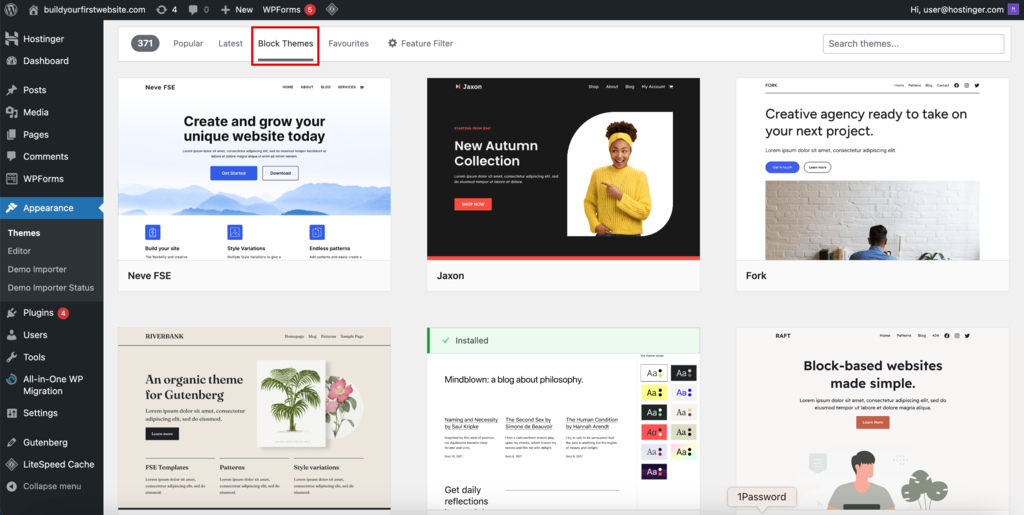
Here, you’ll find a diverse collection of block themes. Take your time browsing through the options and choose a theme that perfectly aligns with your website’s niche, style, and branding.
Consider Customization Options
We recommend opting for block themes that offer extensive customization options to unlock the full potential of the WordPress block editor. This way, you will be able to personalize the theme to suit your preferences.
Check for Compatibility
Make sure the block theme is compatible with the latest version of WordPress and Gutenberg. It will ensure a smooth and hassle-free website-building experience.
Choosing a block theme that complements Gutenberg’s capabilities will give you the flexibility to create a great-looking and fully-functional website.
3. Customize Your Site Using the Gutenberg Site Editor
Customizing a WordPress website with Gutenberg blocks is easy, thanks to its powerful page builder features. This intuitive tool enables you to personalize every aspect of your WordPress site, all through a user-friendly interface.
Customize Global Styles
Global styles in Gutenberg refer to style settings that apply across your entire website. They include default settings like font choices, color schemes, spacing, and other design elements that ensure a cohesive and professional look.
You can test out the pre-defined style variations provided by your chosen block theme and select one that you like.
Alternatively, customize the global style components by following these steps:
- Head to your WordPress dashboard and click on Appearance → Editor.
- Click on Styles to access the global style settings.
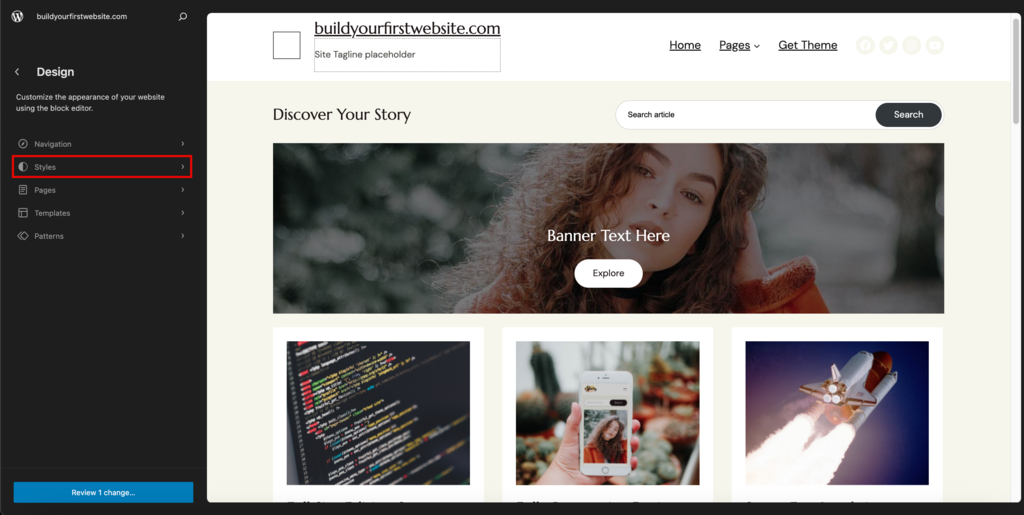
- Here, you will find options to modify various style attributes, including font sizes, colors, and line heights.
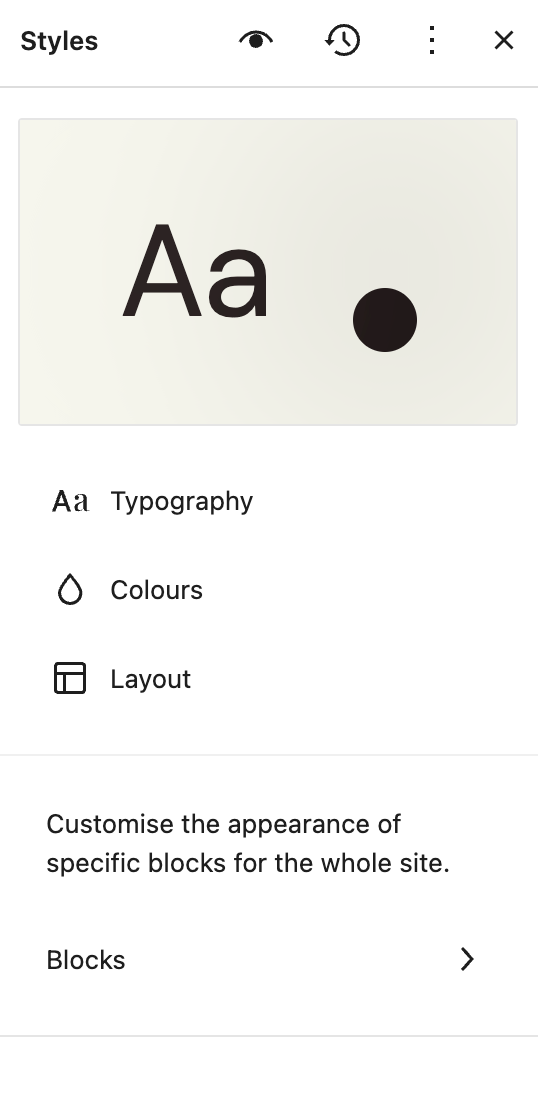
- In Layout, explore other style attributes like padding, margins, and background settings to further customize the block content.
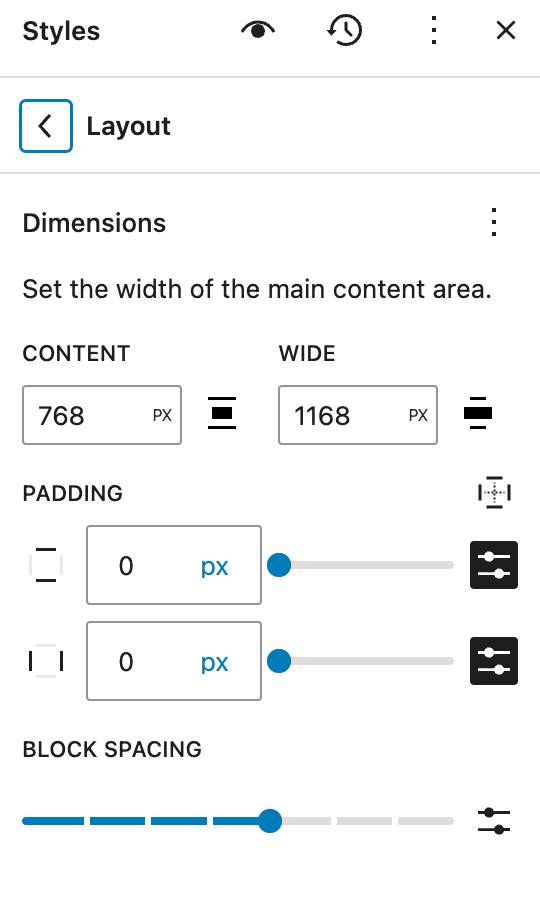
5. Utilize the live preview feature to see real-time updates on how your modifications impact the overall design.
6. Once you are satisfied with the result, save your changes to apply them to your website.
Customize Template Parts
Template parts, such as the header and footer, serve as the building blocks for the layout of your WordPress site.
Customizing these parts enables you to shape the structure and design of your site. For instance, you can add components, like your site logo, navigation menu, social media icons, and more, to establish your brand identity.
If your website requires an additional section or a unique columns block, the Gutenberg editor allows you to create and add more template parts as needed.
Here’s a step-by-step guide on how you can do it:
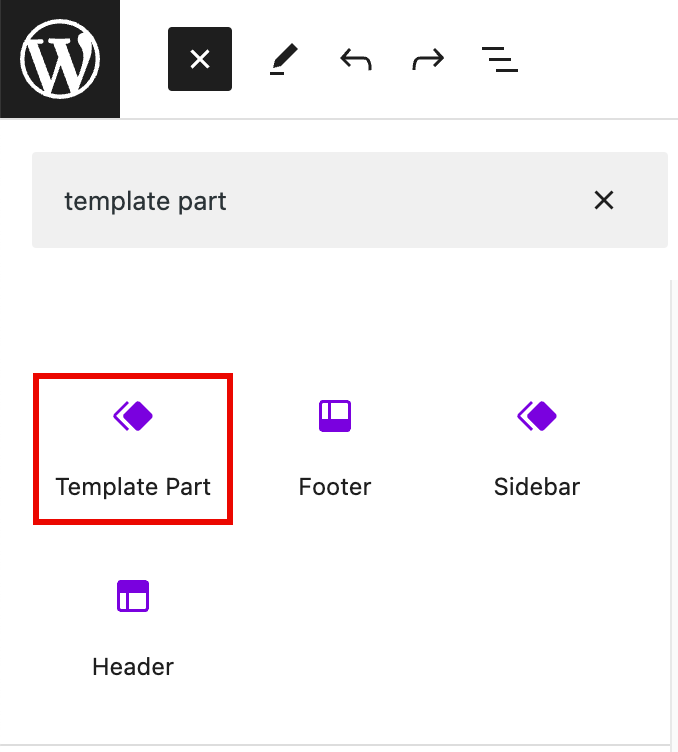
- Search for the Templates Part option in the editor by going to Block Inserter.
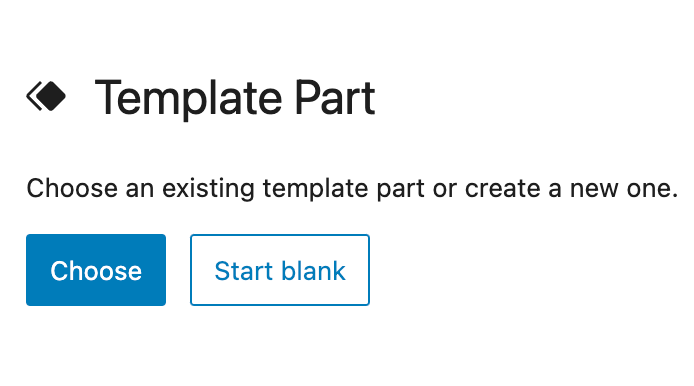
- For this tutorial, we will choose Start blank.
- Choose a descriptive and relevant name for the new section you are creating. For example, if you’re creating a part that showcases customer reviews, name it Testimonials.
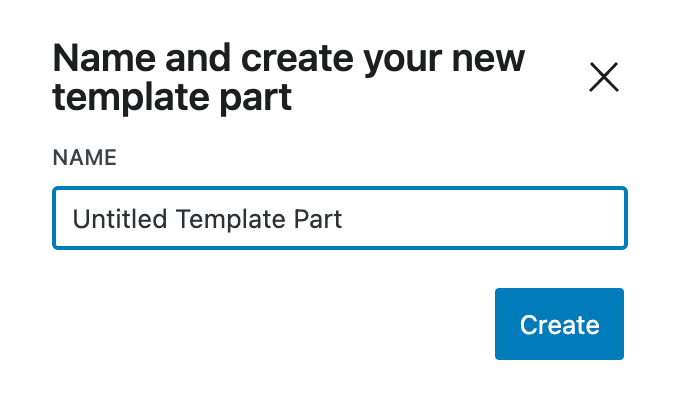
- Once you’ve named the template part, the Gutenberg editor will open, allowing you to design and customize the layout of the new section.
- You can add more blocks, such as the heading block, paragraph block, image block, cover block, and buttons, to create the desired structure.
- Customize each block’s content and style to match your preferences and the overall look of your website.
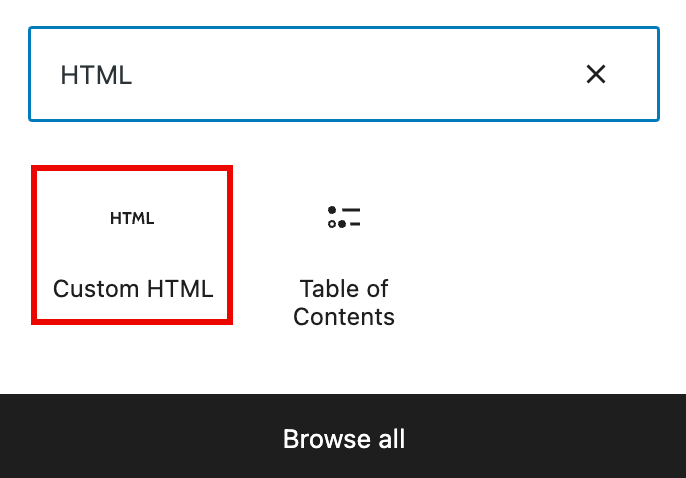
- If you have technical knowledge, use custom HTML tags with the default editor to customize the layout further.
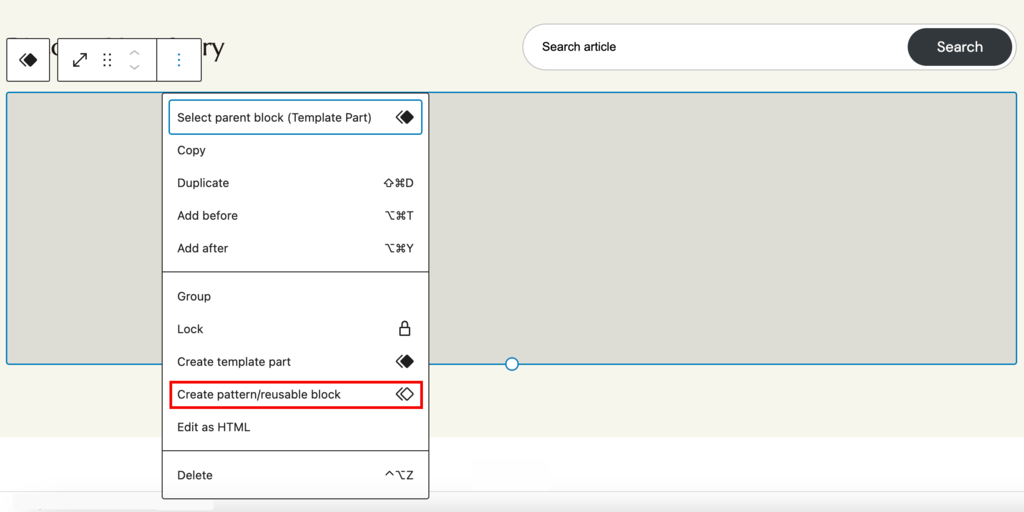
- If you want to reuse the same block on multiple pages, turn it into a synced pattern. To do so, click on the three dots menu of the template part block and select Create pattern/reusable block.
- Once you are satisfied with the design and content of the template part, save your changes.
The newly created template part will now be available throughout your website. To add it to a page or a post, simply access the Gutenberg editor for that specific page, search for the template part in the Add Block option, and insert it into your page.
As you continue building your custom WordPress website, you can create and add multiple template parts to change its layout.
Customize Templates
Gutenberg blocks offer extensive template customization options to help you craft compelling pages. The basic templates that users commonly customize include the Homepage, Pages, Single Posts, and the 404 page.
If your website requires other specific templates, you can select any existing template or create a new one to begin the customization process.
The WordPress block editor also gives you the freedom to include various template parts inside your templates.
These parts can be previously customized sections that ensure consistent design elements throughout your site, giving it a professional appearance.
Here’s how you can do it:
- Open the WordPress block editor for the page or post you want to customize the template for.
- Inside the editor, navigate to the Templates section.
- You’ll find a list of available templates you can use. These can be pre-designed starter templates or previously customized sections you can easily incorporate into your templates.
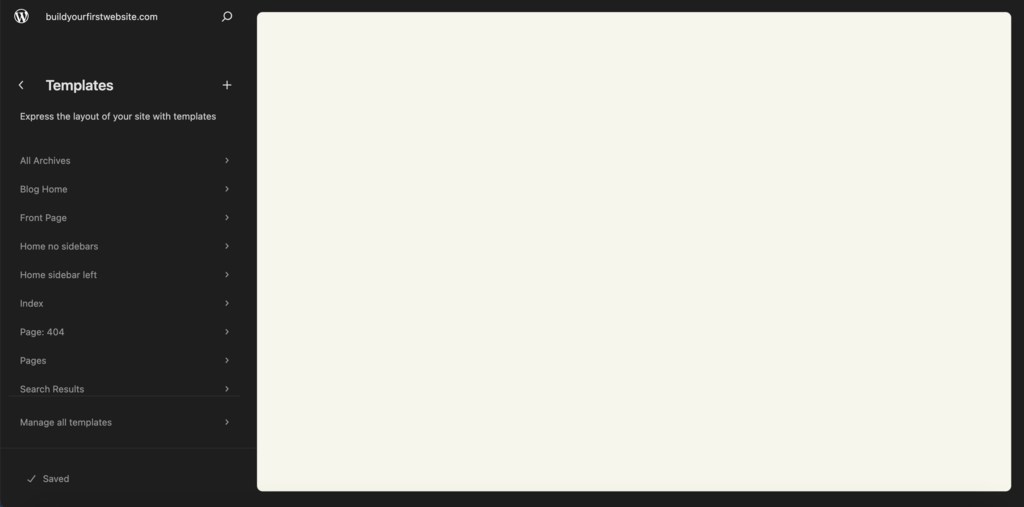
- To add a template part, simply click on the desired one from the list. The Gutenberg editor will automatically insert the template part into your content.
- Once the template part is added, you can modify the content, adjust the styling, and add new blocks or rearrange old ones within the template part.
- If you want to use the same template part multiple times, turn it into a synced pattern.
You can also use patterns to customize templates using the Gutenberg page editor to create visually appealing functional layouts for your pages. To do so, follow the steps below:
- Access the Gutenberg block editor and open the template you want to customize. You can do this by selecting the relevant page or post on the dashboard and clicking on the Edit option.
- Within the editor, select the Patterns option from the block inserter to explore the library of available patterns.
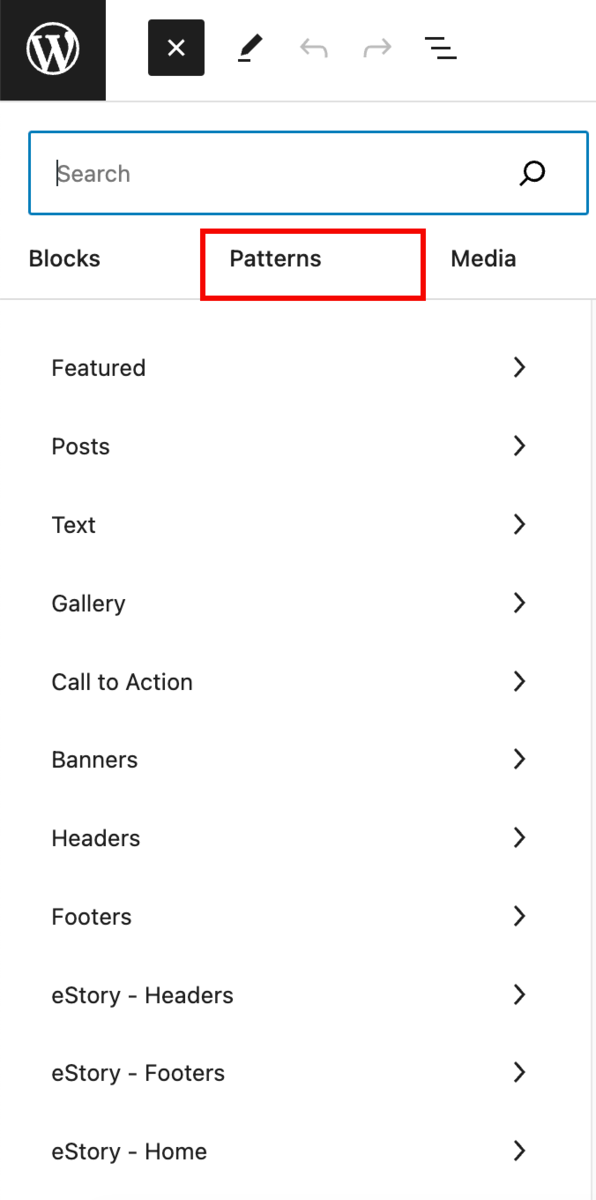
- Browse through the patterns library to find one that matches the design and layout you envisioned for your template.
- Once you’ve chosen a pattern, simply click on it to insert it into your template. The Gutenberg editor will automatically apply the pattern’s configuration to your content.
- After inserting the pattern, you can further customize it to suit your needs. Adjust the styling and rearrange the blocks as you prefer.
- If you want to use the same layout of the customized pattern across multiple templates, turn it into a synced pattern.
Suggested Reading
Follow this tutorial to edit your WordPress header in Site Editor.
4. Create Pages
Creating pages with Gutenberg, like About Us, Blog, and Contact, is easy and simple. Here’s how you can do so:
- Go to Pages → Add New to start creating a new page.
- Select a template that suits the page’s purpose. If you’ve customized your homepage template, it’s essential to select the Pages template to ensure a consistent layout.
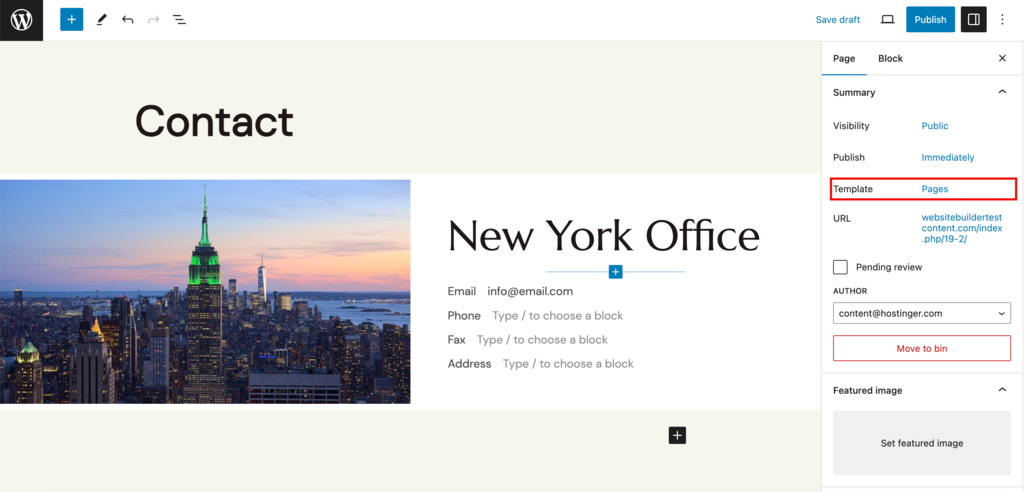
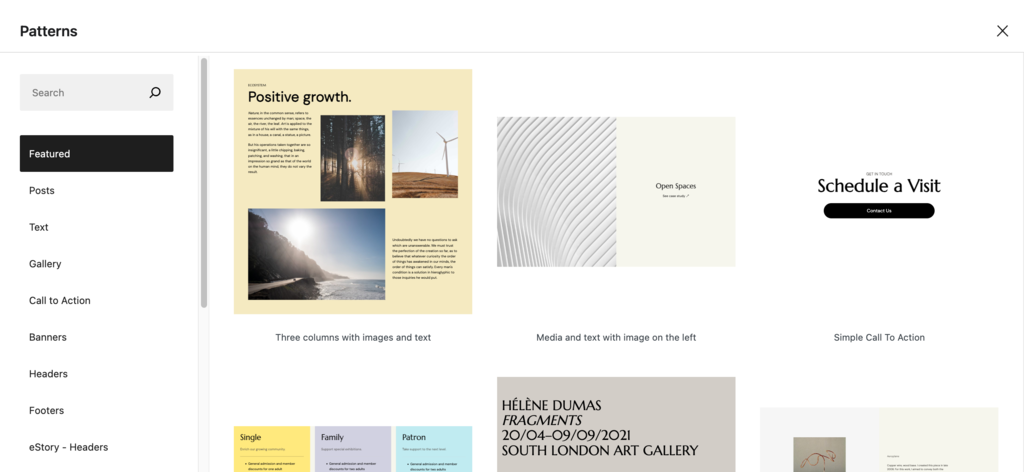
- To use patterns, go to the Patterns tab inside the block inserter and select a desired pattern.
- You can also expand the Patterns tab by clicking on Explore all patterns. The expanded tab also comes with a search bar to help you search.
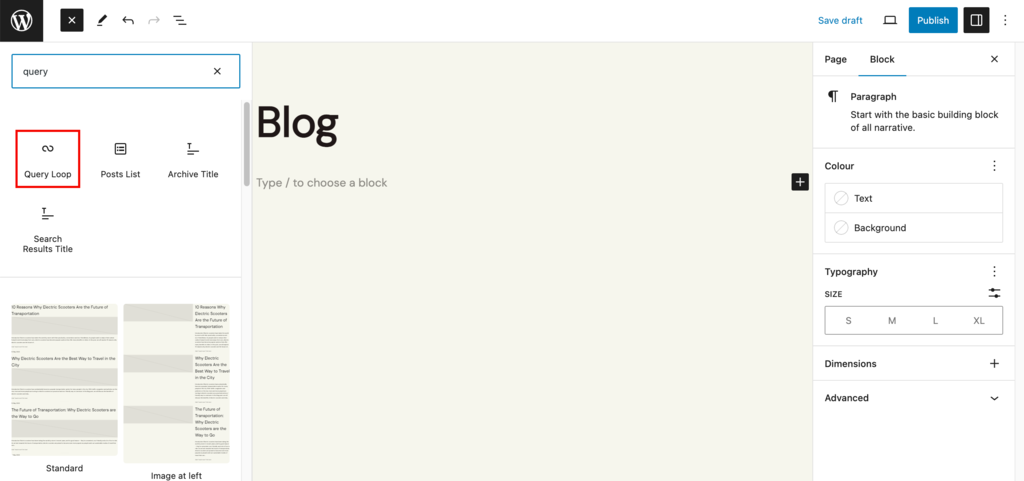
- If you’re creating a blog page, the patterns tab also offers various Query Loop blocks to add to your page. This block will automatically display your latest blog posts on top of the page.
Pro Tip
To streamline the page creation process, you can browse the patterns library for pre-designed block patterns. These patterns combine multiple blocks to create visually appealing and cohesive layouts.
5. Write Your Posts
After you design your website, you can use the new Gutenberg block editor to effortlessly create WordPress posts that captivate your audience and convey your message with impact.
Here’s how you can create content for your new WordPress website:
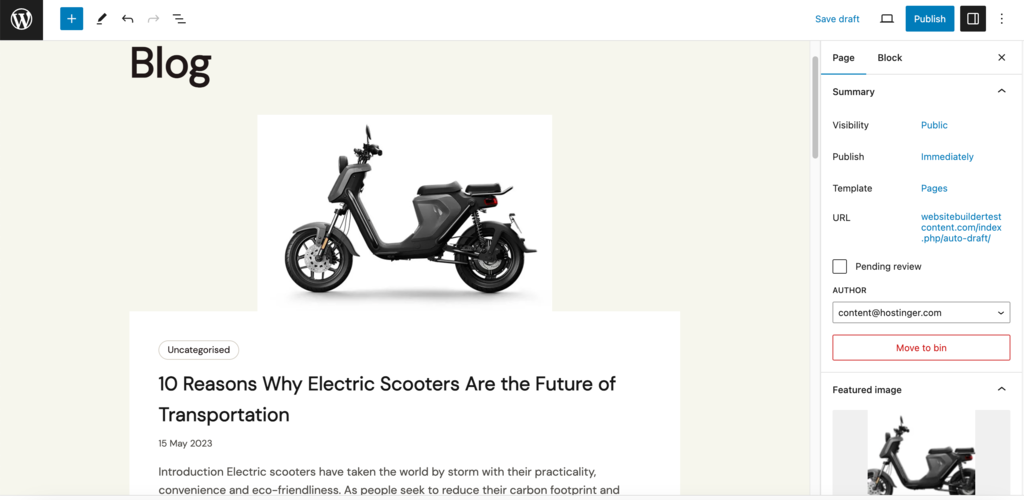
- Navigate to Posts → Add New to start writing a new blog post.
- Select the appropriate template for your blog post.
- If you’ve previously customized a template specifically for blog posts, choose that template to maintain a consistent layout across all your articles.
- To create posts for non-blog pages, leverage elements such as the text block, paragraph block, heading block, and image gallery block.
Alternatively, you can use the Single Post template or any other template dedicated to blog posts to ensure your articles have a tailored design.
6. Install WordPress Plugins to Expand Functionality
When building a website with Gutenberg, you might want to integrate various elements and features like PDF readers and sliders that go beyond the editor’s capabilities.
Furthermore, utilizing SEO tools, caching, and enhancing its security are critical steps when scaling your business website.
Thankfully, installing WordPress plugins is a straightforward solution to extend the capabilities of the block editor.
To select the best plugins for your website, check out the following tutorials:
Best WordPress Plugins
WordPress Block Plugins
Reliable AI Plugins for WordPress
Best WordPress Contact Form Plugins
Top WordPress Slider Plugins
Best WordPress Instagram Plugins.
However, remember to be cautious – installing too many plugins can worsen your user experience, slowing the website down.
Conclusion
The right mix of essential WordPress themes, plugins, and patterns with Gutenberg’s powerful features makes website creation easier and more accessible. In this comprehensive guide, we’ve walked you through the steps to create an impressive website using Gutenberg.
Let’s quickly recap the key steps on how to build a website with Gutenberg:
- Decide on the right managed WordPress hosting service and acquire a domain name.
- Select a block theme.
- Use the default WordPress customizer to edit the look and feel of your website.
- Create pages for your website.
- Write posts and other content.
- Install plugins to expand functionality.
- Utilize patterns if you don’t want to start from scratch.
From customizing themes and starter templates to utilizing patterns and plugins, you now have the knowledge to unleash your creativity and build a business website that truly represents your vision.
If you have any questions, feedback, or additional insights to share, please leave them in the comments below.
Further Reading
Check out our article on How to Design a Website to take your website design and performance to new heights.
How to Create a WordPress Website Using Gutenberg FAQ
Let’s address some common questions about using Gutenberg as your website builder.
What Is the Difference Between a WordPress Page Builder and Gutenberg?
Gutenberg is the official block editor of WordPress that focuses on a block-based approach, simplifying content creation. Meanwhile, WordPress page builders are third-party plugins that offer advanced layout options and more design customization possibilities.
Will Changing Themes Affect My Website?
Switching themes can impact the appearance and layout of your website. Luckily, Gutenberg and its block templates enable you to retain the structure and content when changing themes with just some minor adjustments.
Can I Build a Website Using Gutenberg Without Installing Any Plugin?
Yes, Gutenberg is a powerful editor to design your website’s content without installing additional plugins. However, we recommend installing relevant plugins for essential website elements like security and SEO.
Can I Add Custom Templates Using Gutenberg?
Gutenberg enables you to create custom WordPress templates for your pages and posts. With block templates and patterns, you have the flexibility to design unique layouts and save them for future use, streamlining your website creation process.
Can I Use Gutenberg for Classic Themes?
While Gutenberg is optimized for block-based themes, you can still use it with classic themes. However, to fully leverage Gutenberg’s potential, consider adopting block themes that offer greater flexibility and design options.
All of the tutorial content on this website is subject to Hostinger's rigorous editorial standards and values.

Akshay is a Senior Content Writer who loves writing about technology. As a Computer Engineering graduate and a certified digital marketer, he aims to make tech easier for everyone. He also enjoys cooking, traveling, and learning new languages. Follow him on LinkedIn.


