Top 15 software prototyping tools: Key features and pricing
Apr 10, 2026
/
Simon L.
/
14min read
Software prototyping is one of the most effective ways to reduce development risk, test usability early, and get stakeholders aligned before committing to production code.
A good prototype lets you validate assumptions, spot friction in user flows, and iterate cheaply rather than discovering problems after you’ve already built the thing.
Picking the right tool is where most teams get stuck. Low-fidelity wireframing tools are great for early ideation, but they won’t help you test realistic interactions. High-fidelity design platforms deliver pixel-perfect results, though they come with steeper learning curves and higher price tags.
AI-powered prototyping has changed the equation significantly. Tools that let you create a software prototype from a text prompt can compress days of work into minutes, which is especially valuable for founders and non-technical teams who want to validate ideas fast.
Here’s a quick look at the top picks:
- Best for AI-powered prototyping: Hostinger Horizons, generate functional web apps from text prompts with hosting included.
- Best for collaborative design: Figma, real-time multiplayer editing with a massive plugin ecosystem.
- Best for complex enterprise prototypes: Axure RP, conditional logic and detailed specs for large-scale UX projects.
- Best for low-fidelity wireframing: Balsamiq, fast sketch-style layouts that keep teams focused on structure.
- Best open-source option: Penpot, a self-hostable design tool with native CSS and SVG output.
1. Hostinger Horizons
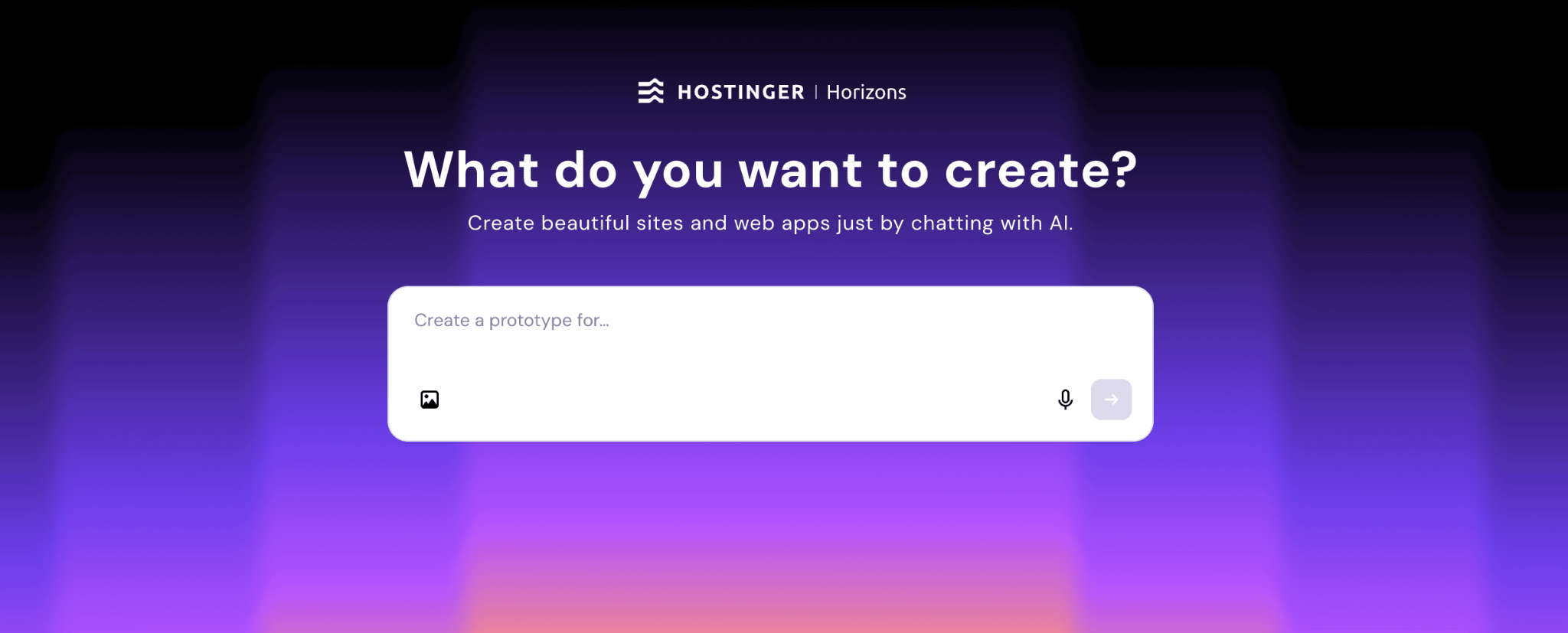
Hostinger Horizons is an AI-driven app-building platform built for founders, small businesses, and product teams. You type what you need in plain language, and the AI generates a functional web application with responsive design.
The primary use cases include turning rough product ideas into interactive demos, validating concepts with real users, and iterating quickly based on feedback.
What makes Horizons different is that the output isn’t just a clickable mockup. It produces working web apps with real logic behind them. You can set up user authentication, store data and files, and send automated emails like registration confirmations, all without leaving the platform.
This is possible thanks to Horizons’ integrated backend. Instead of separately setting up a database, auth system, file storage, and email service through third-party tools, everything is built in.
You describe what you need (“I want users to log in” or “save form responses”), and the system handles the technical infrastructure automatically. No extra accounts, no API configuration, no additional cost.
Teams choose Horizons because it removes the gap between concept and functional product. You can build a prototype, test it live, and even publish it to a custom domain with hosting included.
For early-stage startups and non-technical founders, that’s a significant advantage over tools that only produce static designs.
Hostinger Horizons pros:
- Builds fully functioning web applications with front-end and backend logic, not just static visual mockups.
- Integrated backend handles authentication, data storage, file uploads, and automated emails without external services.
- Goes from text prompt to working app in minutes, with a low enough technical barrier that non-developers can drive the process.
- Hosting, SSL, custom domain, and publishing are all bundled into the subscription, so there’s no separate infrastructure to manage.
Hostinger Horizons cons:
- Advanced UI customization is more limited compared to dedicated design tools like Figma or Sketch.
- Payment processing still requires a third-party integration like Stripe, though integrated payments are on the roadmap.
Hostinger Horizons pricing:
Subscription plans start at ₹989.00/month, with access to AI features, hosting, and publishing. A free trial with five messages is available without requiring a credit card. Higher-tier plans offer more AI credits and additional features.
2. Figma
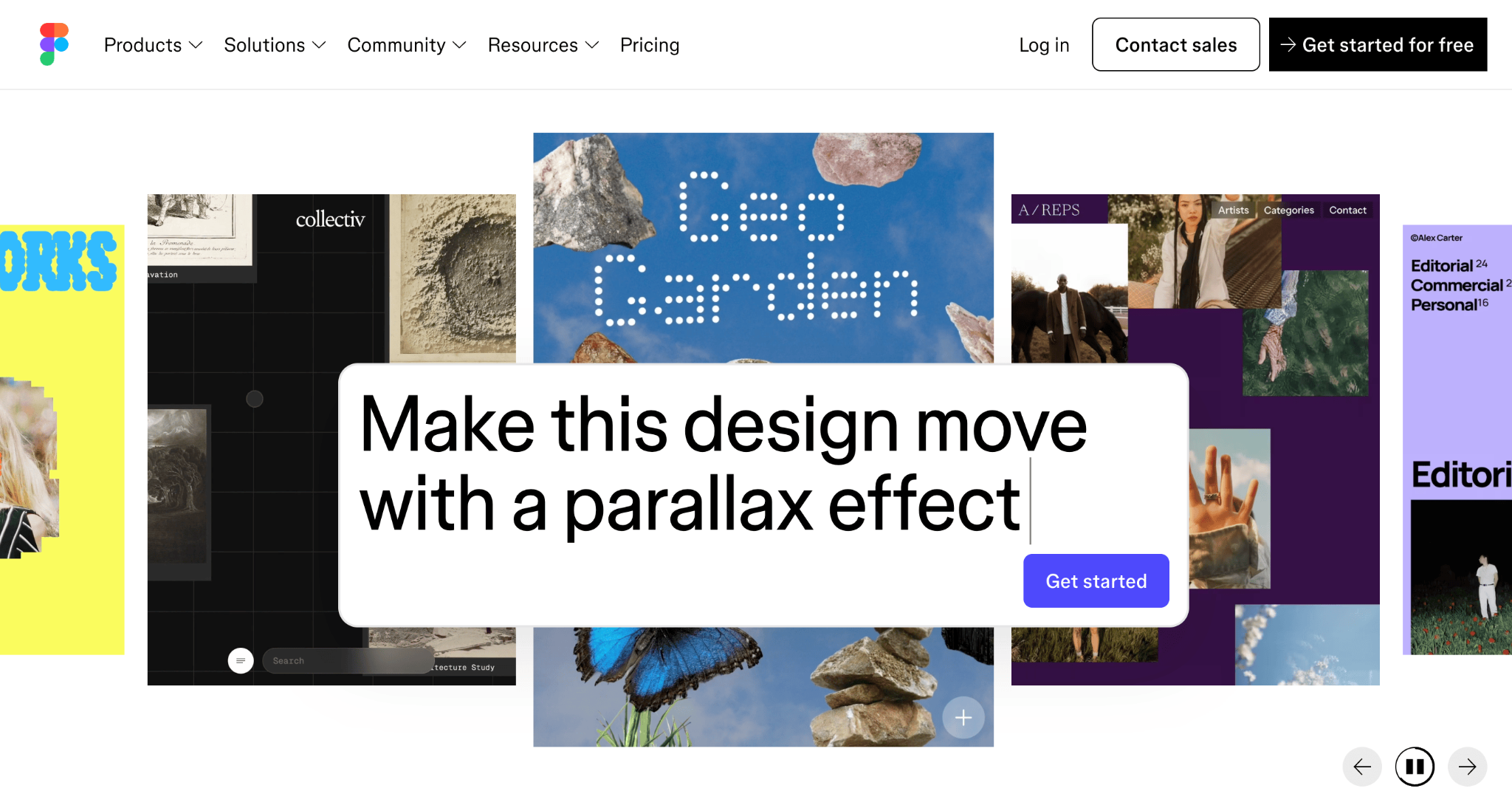
There’s a reason Figma has become the industry standard for product design teams. This browser-based platform handles UI/UX design, interactive prototypes, and stakeholder feedback all in one place.
The platform is widely adopted because it was designed from the ground up for cross-functional collaboration. Multiple team members can work on the same file simultaneously, which makes it especially valuable for remote and distributed teams.
Figma’s plugin ecosystem and design system features help teams maintain consistency across projects.
Figma pros:
- Real-time multiplayer collaboration lets multiple designers and stakeholders edit the same file simultaneously.
- Huge plugin library and robust design system support for maintaining consistency across large projects.
- Runs entirely in the browser, so there’s nothing to install and your team can access files from any device.
- Free tier includes up to three design files, which is generous enough for personal projects and freelancers.
Figma cons:
- Performance degrades noticeably with large, complex files, especially those with many nested components.
- Pricing scales quickly for larger teams, especially once you factor in Full seats at $12+ per editor on top of Dev and Collab seats.
- Dev Mode and some features that were previously free now sit behind paid tiers, which has frustrated some long-time users.
Figma pricing:
Figma uses a freemium model. The Starter plan is free with limited features. Professional plans start at $3/seat/month, with Enterprise plans starting at $90/editor/month. Figma uses three seat types (Full, Dev, and Collab), so costs depend on your team’s role mix.
If you’re still figuring out whether you need a design-only prototype or something more functional, understanding the difference between a prototype and an MVP can help clarify your investment.
3. Adobe XD
Built for wireframing, interactive design, and developer handoff, Adobe XD was Adobe’s answer to the growing UX/UI tool market. For teams already using Photoshop, Illustrator, or other Creative Cloud products, XD offered a familiar environment with tight integrations.
That said, you should know that Adobe XD is in maintenance mode. Adobe stopped active feature development and removed XD as a standalone purchasable product. Existing users with Creative Cloud All Apps subscriptions can still access it, but no new features or significant updates are in the pipeline. If you’re starting fresh, this isn’t the tool to bet on.
Adobe XD pros:
- Smooth integration with Photoshop, Illustrator, and other Creative Cloud apps for asset sharing.
- Auto-animate makes it easy to create transitions between artboards without manual keyframing.
- Familiar interface for existing Adobe users, so the onboarding time is minimal.
Adobe XD cons:
- No longer receiving new features or active development, so it will only fall further behind competitors over time.
- Not available for purchase as a standalone application, meaning you need the full Creative Cloud subscription.
- Community and ecosystem are shrinking as designers migrate to Figma and other actively developed tools.
Adobe XD pricing:
Adobe XD is available only as part of the Creative Cloud subscription, which starts at around $35/month. It cannot be purchased separately anymore.
4. Sketch
Long before Figma took the spotlight, Sketch earned a loyal following among designers as the go-to macOS-native UI design app. It’s known for lightweight performance, a clean interface, and an extensive third-party plugin ecosystem.
Designers use Sketch for interface design, creating reusable component libraries, and building prototypes with plugin-driven workflows. It remains a solid choice for design-focused teams that work primarily on Mac.
Sketch pros:
- Fast and lightweight native Mac performance, even with complex multi-artboard files.
- Extensive plugin ecosystem that covers everything from icon libraries to animation exports.
- Clean, minimal interface that keeps design tools accessible without visual clutter.
- More affordable than most competitors, with a perpetual license option for solo designers.
Sketch cons:
- macOS only, which means cross-platform teams can’t give everyone access without workarounds.
- Collaboration features lag behind browser-based tools like Figma, especially for real-time co-editing.
- Smaller market share means fewer third-party integrations with modern dev and handoff tools.
Sketch pricing:
Sketch uses subscription-based pricing per editor seat. The Standard plan starts at $12/editor/month, while a Business plan with SSO, unlimited storage, and priority support is available at a higher tier. A Mac-only perpetual license option also exists for solo designers who prefer a one-time payment.
5. Miro
Most teams know Miro as a whiteboard for brainstorming and workshops, but it has grown into a legitimate visual platform with built-in wireframing and AI-powered design features.
You can go from messy sticky notes to clickable flows without ever leaving the canvas, which makes it a strong pick for cross-functional teams that need alignment more than pixel perfection.
Miro shines when product managers, designers, and engineers need to collaborate in the same space. Its facilitation tools (voting, timers, anonymous input) make it especially effective for remote workshops and stakeholder feedback sessions.
The AI features can generate wireframes from text prompts or existing board content, speeding up early-stage exploration.
Miro pros:
- Excellent real-time collaboration with live cursors, comments, voting, and built-in video chat.
- AI wireframe generation turns text prompts or sticky notes into clickable flows in minutes.
- Over 5,000 templates and 160+ integrations with tools like Jira, Slack, Figma, and Zoom.
- Free plan lets individuals and small teams work across up to three editable boards.
Miro cons:
- Not built for high-fidelity, pixel-perfect UI design, so you’ll still need a dedicated tool like Figma for polished screens.
- Performance can slow down on very large boards with lots of embedded content and sticky notes.
- Advanced AI features, guest access, and deeper integrations require paid plans or add-ons.
Miro pricing:
Miro offers a free plan with up to three editable boards. The Starter plan runs $8/member/month, and the Business plan is $20/member/month. Enterprise pricing is custom. AI wireframing and advanced collaboration features are available as add-ons on paid plans.
6. Axure RP
When you need to prototype detailed interactions with conditional logic, variables, and dynamic content, Axure RP is built for exactly that. It goes far beyond simple click-throughs, which is why enterprise UX teams and business analysts tend to reach for it.
Where most prototyping tools focus on visual design, Axure focuses on behavior. You can simulate form validation, build multi-state interfaces, create adaptive views, and generate detailed functional specifications alongside your prototypes.
Axure RP pros:
- Unmatched depth for conditional logic, variables, and data-driven interactions that simulate real app behavior.
- Built-in documentation features let you generate functional specifications directly from your designs.
- Co-authoring and team project support through Axure Cloud with version history.
- Free for students and educators at accredited institutions.
Axure RP cons:
- Steep learning curve, especially for designers coming from visual-first tools where drag-and-drop is the norm.
- Interface feels dated compared to modern alternatives, which can make onboarding new team members slower.
- Higher price point than most competitors, particularly for smaller teams that don’t need enterprise-grade features.
Axure RP pricing:
Axure RP Pro starts at $29/user/month. The Team plan, which includes co-authoring and version history, starts at $49/user/month. Enterprise pricing with SSO and on-premise hosting is available on request.
7. Balsamiq
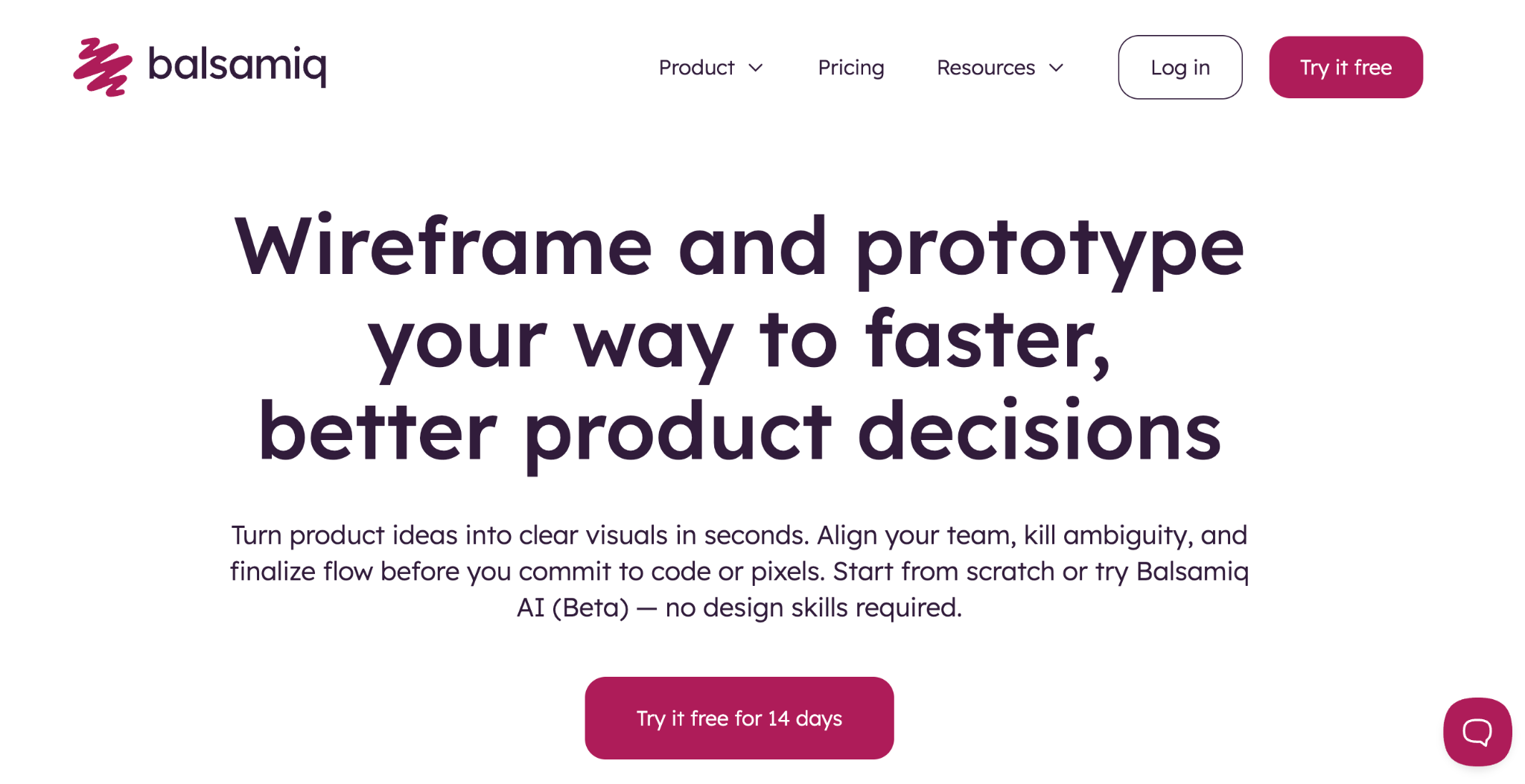
Sometimes you need to sketch out an idea fast without worrying about how it looks. That’s exactly what Balsamiq is for.
This dedicated low-fidelity wireframing tool keeps teams focused on structure and user flow rather than visual polish. Its hand-drawn, sketch-like aesthetic is intentional. It forces conversations about functionality instead of colors and fonts.
Teams use Balsamiq for early ideation sessions, quick layout validation, and stakeholder alignment before committing to high-fidelity design. It’s fast, simple, and deliberately limited in scope.
Balsamiq pros:
- Simple enough that anyone on the team can start wireframing within minutes, no design experience needed.
- Sketch-style output deliberately keeps discussions focused on structure and flow, not aesthetics.
- Great for brainstorming sessions and early-stage concept validation before committing to high-fidelity work.
Balsamiq cons:
- No high-fidelity capabilities at all, so you’ll need a separate tool once you move past the wireframing stage.
- Limited interactivity means you can’t test realistic user flows or simulate dynamic behavior.
- Not suitable for later stages of the design process where visual polish and developer handoff matter.
Balsamiq pricing:
Balsamiq Cloud starts at $12/month for two projects. Desktop licenses are available as a one-time purchase. Pricing scales based on the number of projects and users.
8. ProtoPie
Most design tools let you simulate taps and swipes. ProtoPie goes much further, covering sensor-driven interactions like device tilting, multi-touch gestures, and sound triggers that go beyond what screen-based tools can simulate.
It’s the go-to for teams that need to test complex user flows on actual devices, particularly in mobile, IoT, and automotive UX.
ProtoPie pros:
- Deep interaction capabilities including sensor support (gyroscope, camera, sound).
- Test your designs directly on real iOS and Android devices to get authentic feedback.
- No coding required despite the advanced interaction modeling, so designers can own the entire process without developer support.
- Supports multi-device experiences for connected products, useful for automotive and cross-device app flows.
ProtoPie cons:
- Higher price point than simpler tools, which can be hard to justify if your team only needs basic click-throughs.
- Steeper learning curve due to the depth of interaction options, so expect some ramp-up time for new users.
- Not designed for early-stage wireframing or ideation; it’s best brought in once you know what you’re building.
ProtoPie pricing:
ProtoPie offers tiered plans per seat. Individual plans start at $25/month for one seat only, while the Enterprise plan (custom pricing) includes collaboration features, cloud sharing, and advanced integrations.
9. Marvel
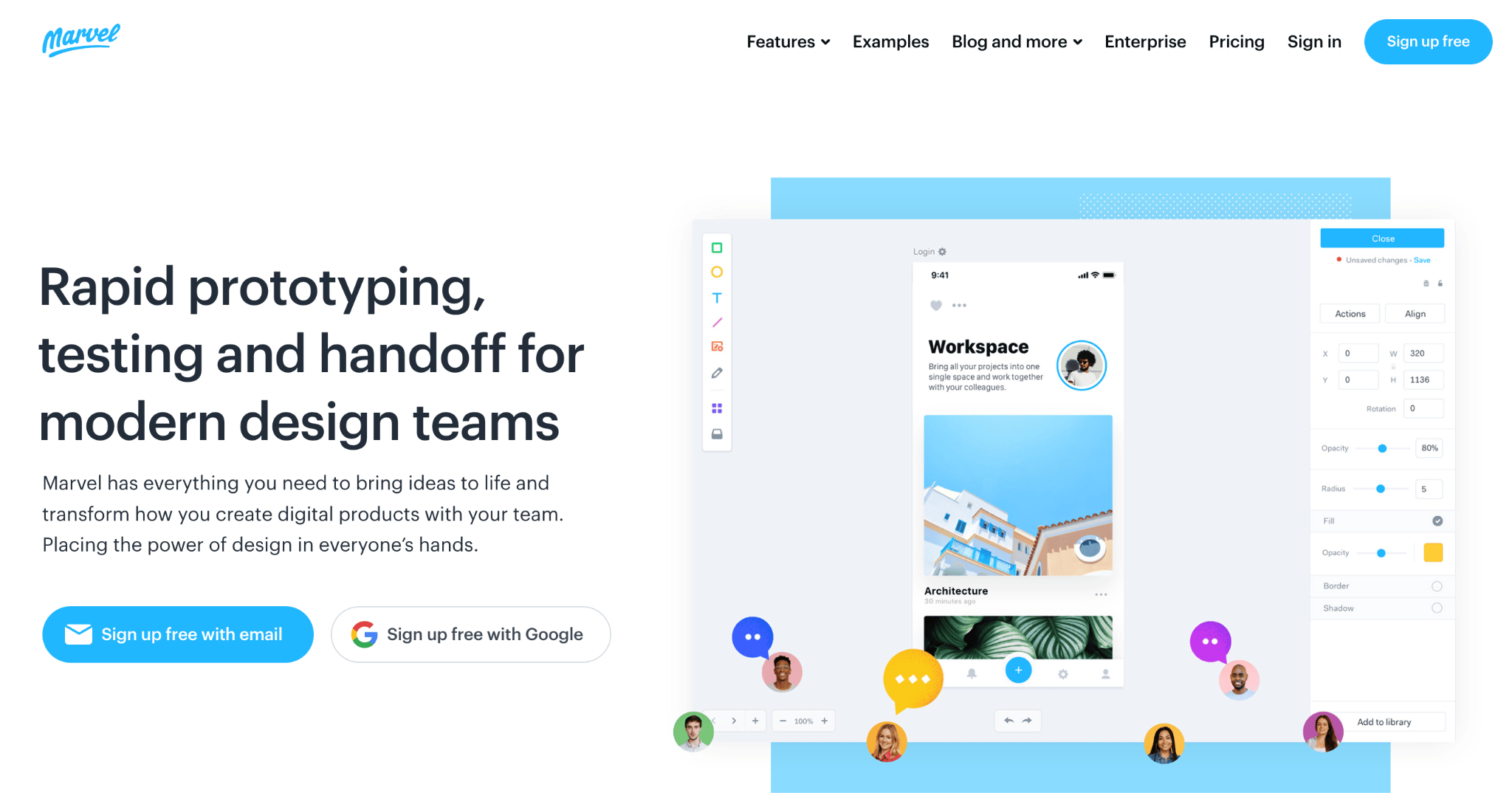
Need a clickable demo in 10 minutes? Marvel keeps things simple. It’s aimed at small teams and startups that need clickable demos quickly without a complex setup process.
You can upload static screens, link them with hotspots, and share interactive previews for feedback within minutes. Marvel also includes built-in user testing features, which let you observe how testers navigate your designs.
Marvel pros:
- Minimal learning curve means you can go from uploaded screens to a shareable demo in minutes.
- Built-in user testing lets you record how testers navigate your designs and collect feedback in one place.
- Clean, focused interface that doesn’t overwhelm people who are new to design tools.
Marvel cons:
- Limited advanced interaction options compared to tools like ProtoPie or Axure, so complex flows aren’t really possible.
- Design capabilities are basic; it works best when you import screens from another tool rather than creating from scratch.
- Less suitable for teams that need high-fidelity output at scale or detailed developer handoff specs.
Marvel pricing:
Marvel offers a free plan with limited projects. Paid plans start at around $12/month per user, scaling with team size and feature needs.
10. UXPin
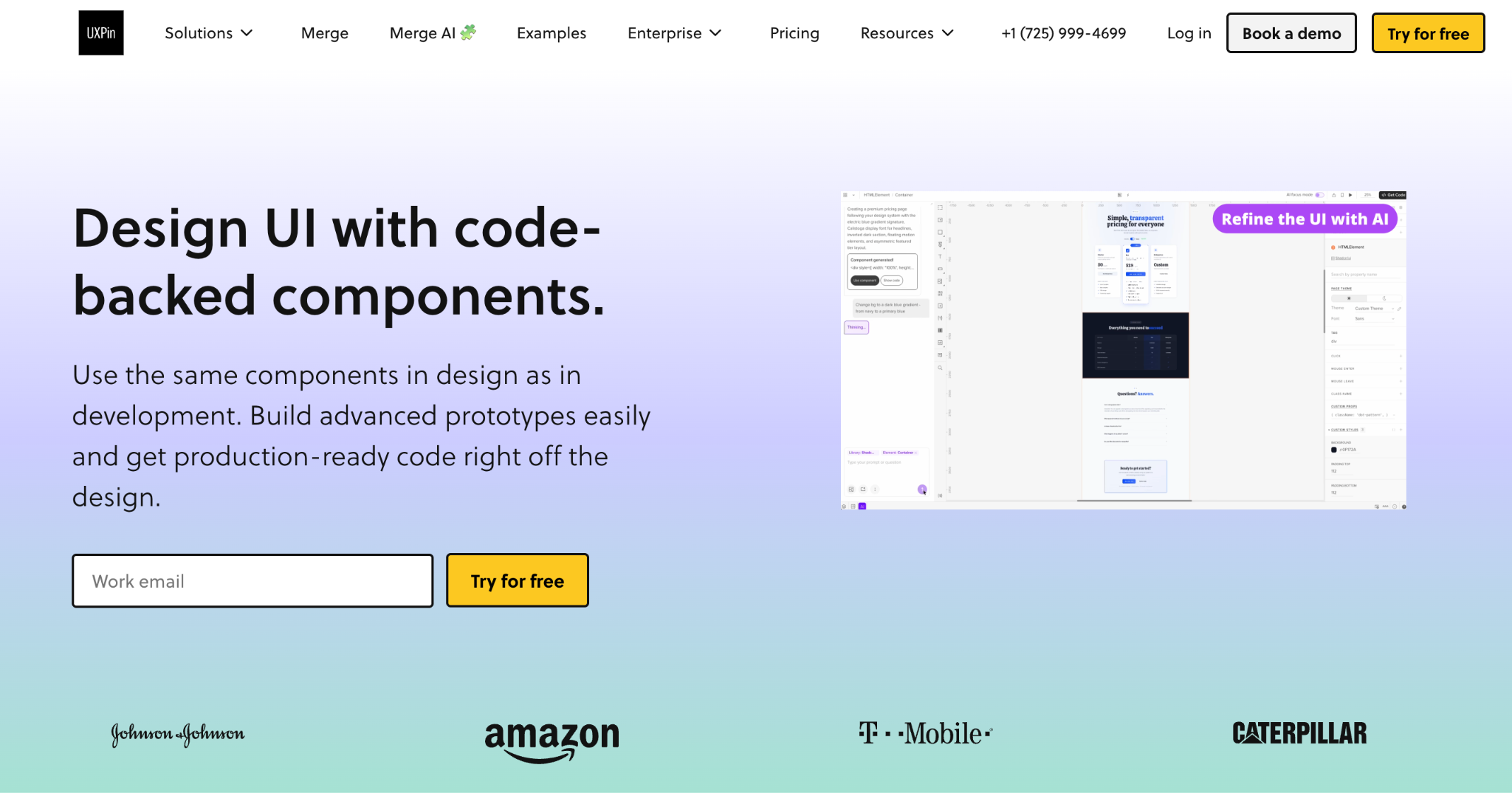
What if your design tool used the same components your developers ship? That’s UXPin’s approach.
Instead of working purely with visual layers, teams can use actual React, Storybook, or npm components directly in their designs. This ensures that what gets designed matches what gets built.
This makes UXPin particularly well-suited for mature product teams with established design systems who want consistency between design and development.
UXPin pros:
- Component-driven design using React, Storybook, or npm ensures design-dev consistency.
- Strong support for design systems and UI libraries, making it easy to enforce standards across teams.
- Conditional logic and state management let you simulate realistic user interactions within your designs.
- Built-in accessibility checks help catch compliance issues before developer handoff.
UXPin cons:
- Higher cost than most alternatives, which can be a tough sell for smaller teams or early-stage projects.
- More complex setup than visual-first tools, especially when integrating live code components from your codebase.
- Overkill for early-stage wireframing or simple mockups where speed matters more than code accuracy.
UXPin pricing:
UXPin offers tiered plans. The basic plan starts around $34/user/month. Enterprise pricing with advanced integrations and single sign-on is available on request.
11. Framer
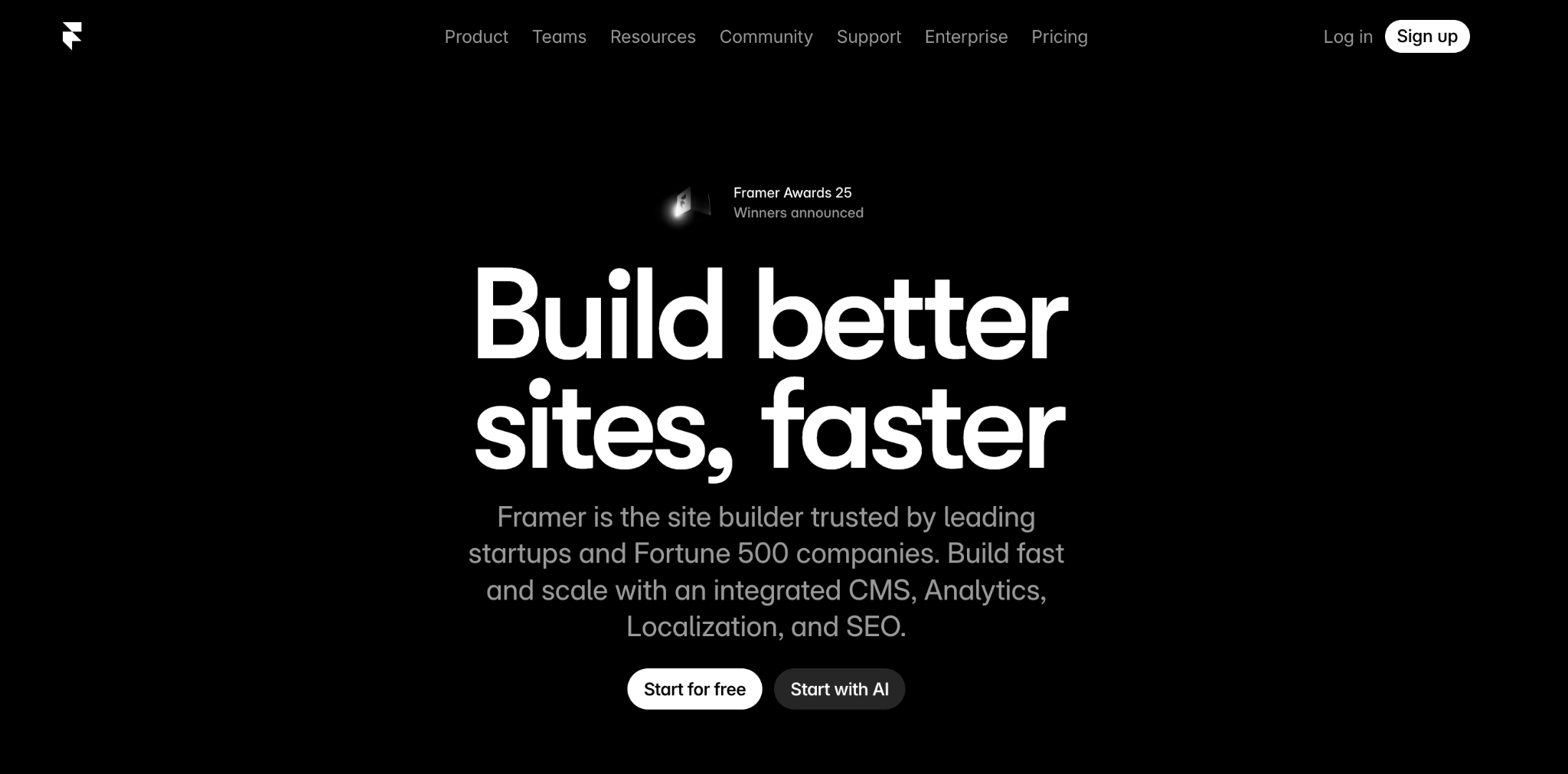
Framer has evolved from a developer-focused tool into a full design-to-code platform. You can create highly realistic, responsive designs that transition directly into production-ready websites.
For web app prototyping where the end goal is a live, shippable product, it’s one of the most direct paths from concept to deployment.
Designers who are comfortable with basic code concepts will find Framer particularly powerful, as it produces real React-based output that can be published as a live site.
Framer pros:
- Designs translate directly to production-ready responsive sites, so nothing gets lost in handoff.
- Realistic interactions and animations that closely mirror the final product experience.
- Built-in CMS and hosting mean you can publish and manage content without external tools.
- Growing template ecosystem and active community for inspiration and starting points.
Framer cons:
- Steeper learning curve for non-technical users who aren’t comfortable with layout logic or responsive design concepts.
- More complex than pure design tools if all you need is a simple mockup or early-stage wireframe.
- Some advanced features like custom code overrides require at least basic familiarity with React.
Framer pricing:
Framer offers a free plan with basic features and Framer branding. Paid plans start at $10/month per site for personal projects, with Pro and Team plans at higher tiers that include custom domains, CMS, and collaboration features.
12. Mockplus
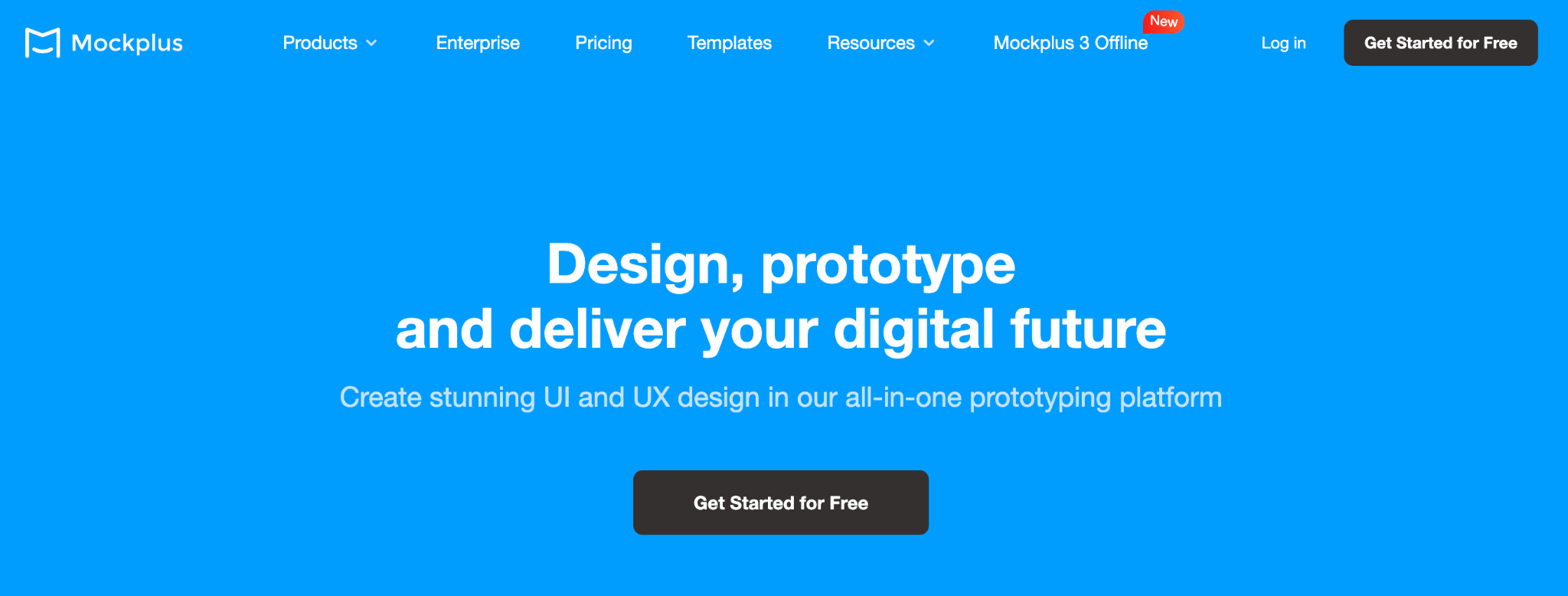
For teams that want design, handoff, review, and feedback in a single environment, Mockplus bundles it all together. It combines a drag-and-drop editor with collaboration tools, and it’s designed for rapid iteration with a focus on team workflows.
It’s particularly useful for distributed teams that need design specs, collaboration, and quick mockups without switching between multiple tools.
Mockplus pros:
- Rapid prototyping with a drag-and-drop editor and pre-built component libraries to speed up early iterations.
- Integrated collaboration tools handle team feedback, design specs, and developer handoff in one place.
- Entirely cloud-based, so your team can access projects from any browser without local installs.
- Competitive pricing for teams that need collaboration features without enterprise-level costs.
Mockplus cons:
- Design flexibility is more limited than tools like Figma or Sketch, so highly custom UI work may feel constrained.
- Interaction depth doesn’t match ProtoPie or Axure for complex use cases like conditional logic or sensor-based flows.
- Smaller community and plugin ecosystem, which means fewer third-party resources and templates to draw from.
Mockplus pricing:
Mockplus offers tiered subscription plans. Individual plans are available for solo users, while team plans include collaboration features. Plans start at $12.45/user/month, with bundle pricing for the full platform.
13. Origami Studio
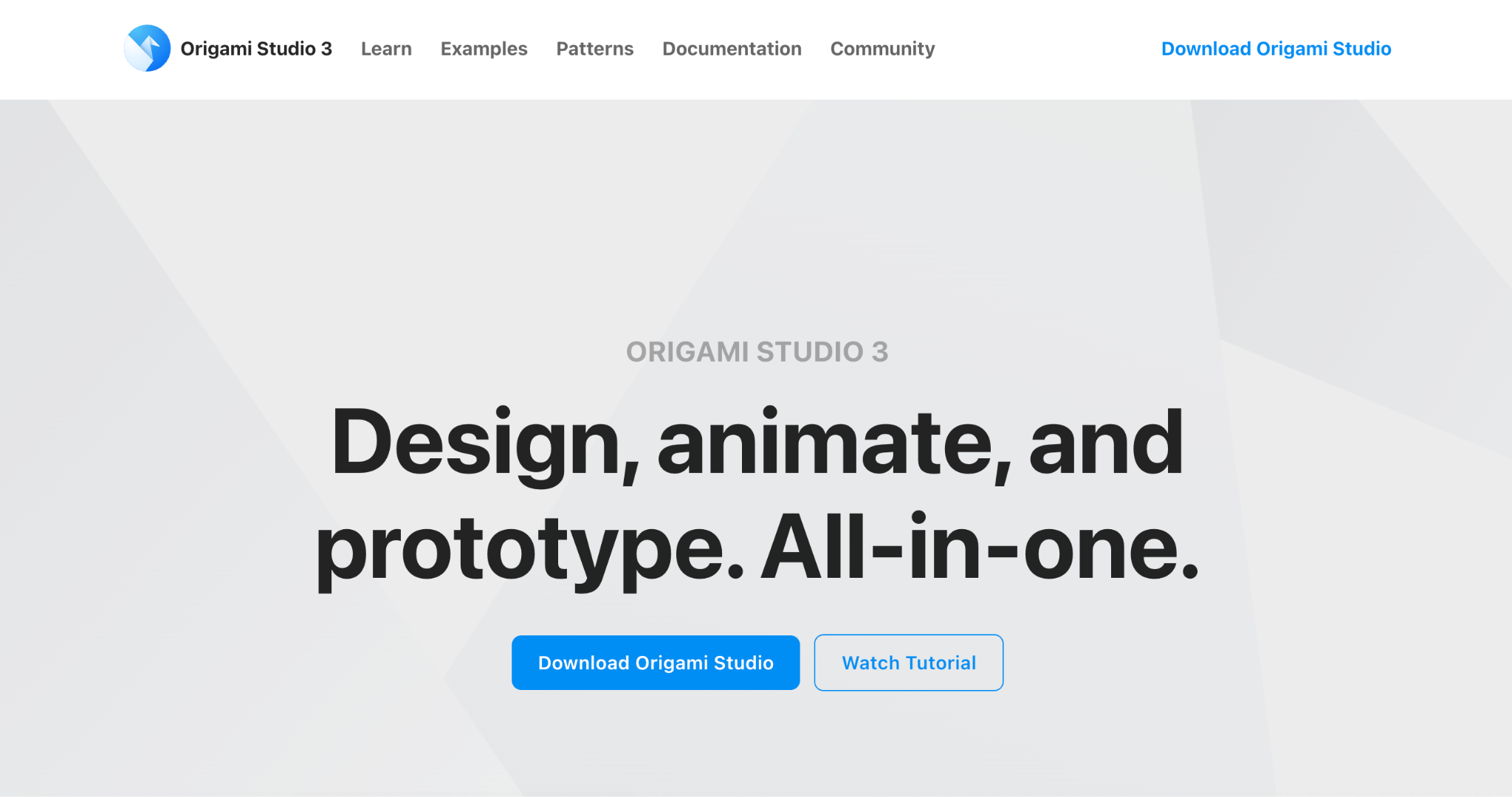
Origami Studio is a free tool built by Meta for creating advanced, interaction-rich designs. It uses a patch-based visual programming model to define interactions, making it powerful for experimental UIs and complex motion design.
Many of the interactions you see in Meta’s products (Facebook, Instagram, Messenger) were prototyped in Origami first. It’s popular among interaction designers who want to push the boundaries of interface design.
Origami Studio pros:
- Extremely powerful patch-based interaction modeling for behaviors that other tools can’t replicate.
- Excellent for motion design, micro-interactions, and experimental UI concepts.
- Tight integration with device preview on iOS and Android for testing on real hardware.
- Completely free with no feature gates, seat limits, or paid tiers.
Origami Studio cons:
- Steep learning curve, especially the patch-based visual programming model that’s unlike anything in traditional design tools.
- macOS only, so Windows and Linux users are out of luck.
- Limited collaboration features; it’s primarily a solo design tool with no real-time co-editing.
- Smaller community compared to mainstream alternatives, which means fewer tutorials and shared resources.
Origami Studio pricing:
Origami Studio is completely free to download and use.
14. Justinmind
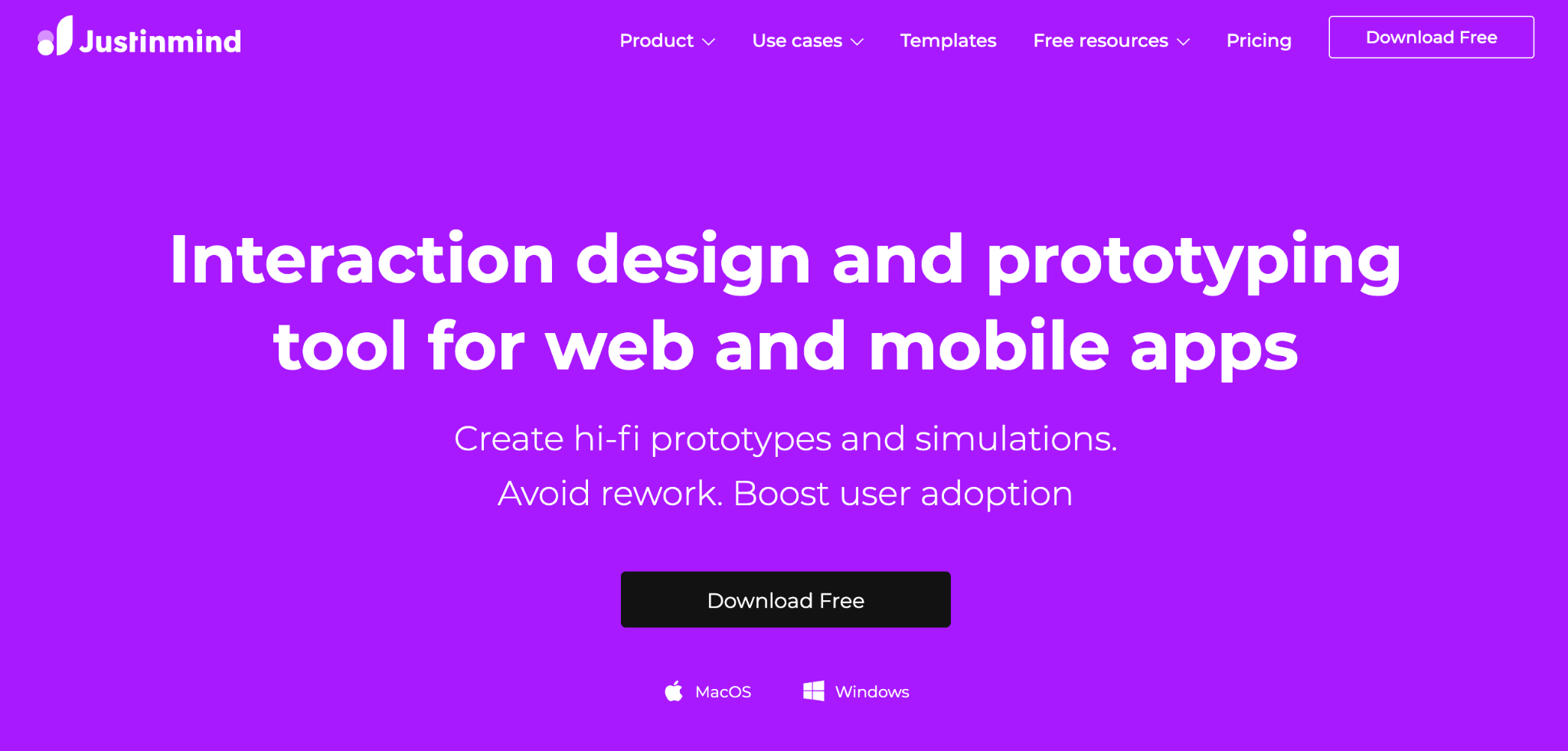
Enterprise teams and business analysts who need to validate requirements with real-looking data tend to gravitate toward Justinmind. It’s built for creating detailed, data-driven mockups of web and mobile applications.
Justinmind offers features like data lists, conditional navigation, and form simulations, making it a good choice for complex enterprise applications where realistic data handling matters.
Justinmind pros:
- Strong data simulation capabilities let you populate designs with realistic lists, forms, and conditional content.
- Built-in user testing and integrations with platforms like UserTesting and Lookback.
- Well-suited for enterprise-grade requirement validation where stakeholders need to interact with realistic flows.
- Available for both Windows and macOS, unlike several competitors that are platform-locked.
Justinmind cons:
- Interface can feel complex for new users, with a steeper onboarding curve than lighter tools.
- UI looks less modern compared to newer competitors, which can make the tool feel clunky despite its capabilities.
- Smaller ecosystem of community templates and shared resources, so you’ll be building more from scratch.
Justinmind pricing:
Justinmind offers a free plan with basic features. The paid plans start at $19/editor/month for Standard, while the Enterprise plan costs $59/editor/month and is suitable for teams needing advanced collaboration, integrations, and support.
15. Penpot
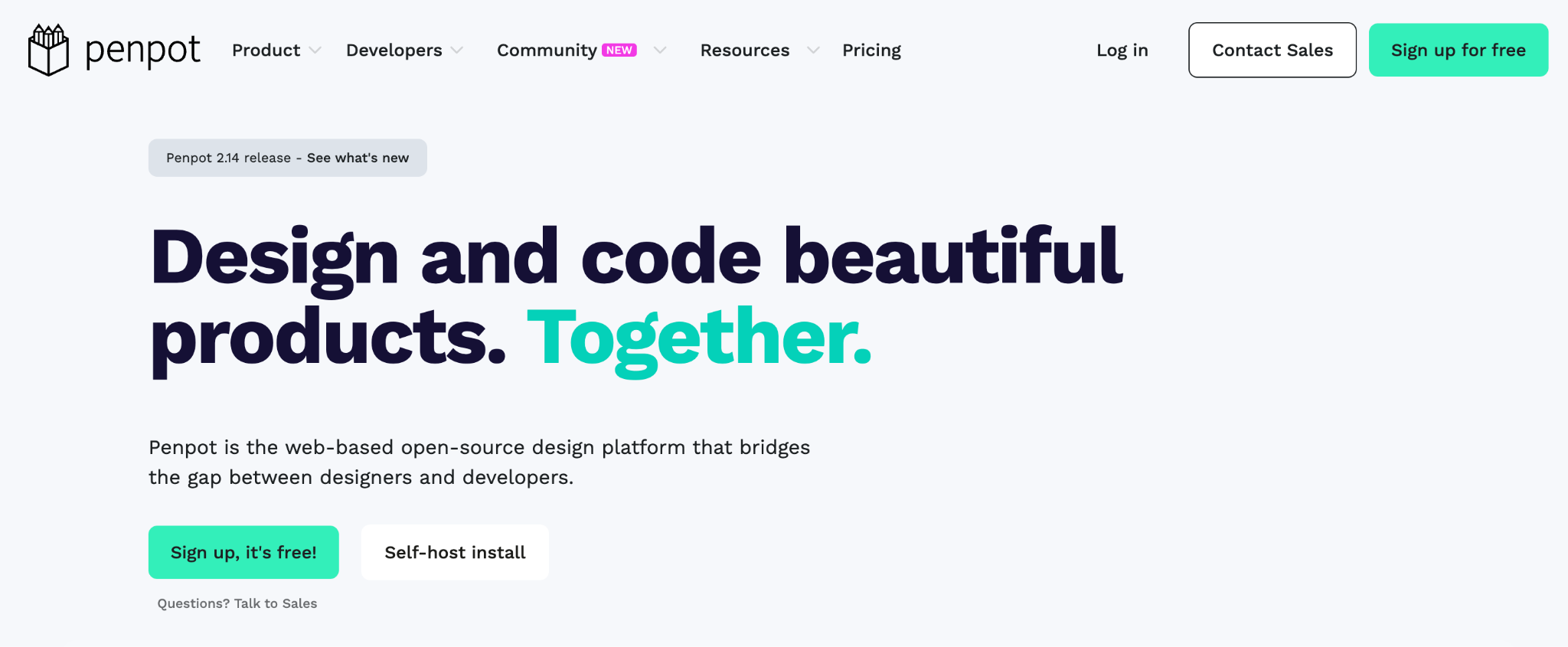
If vendor lock-in makes you uneasy, Penpot offers a genuine alternative. It’s an open-source design platform that’s browser-based and can be self-hosted.
This makes it a compelling pick for organizations with strict data sovereignty requirements or a preference for open-source solutions.
Penpot uses open web standards (SVG, CSS, HTML) natively, so designs translate naturally into code. It includes CSS Grid Layout, components, variants, and native design tokens.
Penpot pros:
- Completely open-source with no vendor lock-in, so you own your designs.
- Self-hosting option gives you full control over where your data lives, which matters for regulated industries.
- Native CSS, SVG, and HTML output means developers can inspect and grab code without extra export steps.
- Active community and rapid development pace, with major feature releases arriving regularly.
Penpot cons:
- Smaller plugin and template ecosystem compared to Figma, so you won’t find as many ready-made resources.
- Some advanced features are still catching up to established competitors, though the gap is closing quickly.
- Self-hosting requires technical setup and ongoing maintenance, which not every team has the capacity for.
Penpot pricing:
Penpot is free for individual users on the cloud version and the self-hosted option. Paid plans start at $7/user/month for the Unlimited plan, while the Enterprise one, with unlimited storage and a capped monthly bill, costs $950/month.
How to choose the right software prototyping tool
Picking the right tool depends on what stage you’re at and what your team actually needs.
Low-fidelity vs high-fidelity. If you’re in the early concept phase, a tool like Balsamiq forces you to focus on structure and user flow without getting distracted by visual details. Once you’ve validated the basic concept, move to a high-fidelity tool like Figma or ProtoPie for polished, interactive results.
Want to skip the manual design phase entirely? AI-powered prototyping tools like Hostinger Horizons let you jump straight to a functional app from a text description.
Collaboration and feedback. If your team is distributed or you regularly involve non-designer stakeholders, tools like Figma, Penpot, and Mockplus will save you significant back-and-forth. Think about how stakeholders will review and comment on designs, and choose accordingly.
Learning curve and team skills. A powerful tool that nobody on your team can use effectively isn’t worth the investment. Tools like Marvel and Balsamiq have minimal learning curves, while Axure and Origami Studio require serious time to master.
Match the tool’s complexity to your team’s actual skill set and the time you’re willing to invest in training.
Common mistakes teams make with prototyping tools
The most common mistakes teams make with prototyping tools are over-investing in high fidelity too early, skipping usability testing, and choosing tools that don’t scale with team growth.
Over-investing in high fidelity too early. It’s tempting to jump straight into pixel-perfect designs, but if you haven’t validated the core user flow, you’re polishing something that might need to be rebuilt. Start scrappy, validate, then refine.
Ignoring usability testing during the design phase. A prototype that looks great but hasn’t been tested with real users is just an assumption. Build testing into your process, not as an afterthought once the design is “finished.”
Choosing tools that don’t scale with team growth. A tool that works well for a team of three may become a bottleneck at fifteen. Think about version control, permissions, design system support, and pricing per seat before committing.
These are the kinds of software development mistakes that seem small at first but compound quickly as your team grows.
When to combine multiple prototyping tools
There’s no rule that says you have to pick just one tool. In fact, many effective workflows combine two or more.
A common approach is to start with a low-fidelity tool like Balsamiq for initial wireframing and concept validation, then move to Figma for high-fidelity design and team collaboration.
If you need to test advanced mobile interactions, you might bring in ProtoPie specifically for that phase.
AI-driven and design-led tools complement each other well, too. You could use Hostinger Horizons to generate a working functional prototype quickly, then refine the visual design in Figma or Sketch.
Prototyping with AI handles the speed side of things, while traditional design tools give you the pixel-level control for polish.
The key is matching the tool to the task. Use lightweight tools when speed and iteration matter most, and switch to specialized tools when fidelity and precision become the priority.
As software development trends continue pushing toward AI-assisted workflows and faster validation cycles, teams that mix the right tools at the right stages will have a real edge.
All of the tutorial content on this website is subject to Hostinger's rigorous editorial standards and values.

Simon is a dynamic Content Writer who loves helping people transform their creative ideas into thriving businesses. With extensive marketing experience, he constantly strives to connect the right message with the right audience. In his spare time, Simon enjoys long runs, nurturing his chilli plants, and hiking through forests. Follow him on LinkedIn.


