What is WHM? Features, uses, and how to access it
Oct 14, 2026
/
By Irfan F.
/
6 min Read
WHM (WebHost Manager) is a server management interface used to create and manage cPanel accounts, allocate hosting resources, and monitor server activity. Unlike cPanel, which website owners use to manage individual hosting accounts, WHM provides administrative control over multiple accounts.
WHM is primarily used by hosting resellers, agencies managing client websites, and administrators of VPS or dedicated servers. It helps users create hosting packages, manage account access, configure security settings, and monitor server resources, depending on their permissions.
To access WHM, you need a hosting environment with cPanel & WHM installed and the appropriate administrator or reseller credentials.
WHM vs. cPanel: What’s the difference?
The main difference between WHM and cPanel is their level of control. WHM manages the server and hosting accounts, while cPanel manages individual hosting accounts and their websites.
Both are part of the cPanel & WHM software suite, but they serve different users and purposes.
| Feature | WHM | cPanel |
|---|---|---|
| Primary purpose | Server and hosting account administration | Individual hosting account management |
| Typical users | Server administrators and hosting resellers | Website owners and developers |
| Account management | Creates, suspends, and manages cPanel accounts | Manages files, domains, email, and databases within an account |
| Server settings | Configures server services and settings based on permissions | Provides account-level configuration options |
| Access level | Root or reseller access, with permissions depending on the account | Access to an individual hosting account |
For example, a hosting reseller can use WHM to create separate cPanel accounts for clients. Each client then uses cPanel to manage their website, email accounts, and databases without accessing the other clients’ accounts.
If you’re managing a single website, cPanel may provide all the tools you need. WHM becomes useful when you need to administer multiple hosting accounts or manage server-level settings.
Who uses WHM?
WHM is primarily used by hosting resellers, web development agencies, and server administrators who need to manage multiple cPanel accounts or configure server-level settings.
The most common WHM users include:
- Hosting resellers: Create and manage separate cPanel accounts for customers, allocate hosting resources, and configure hosting packages. Depending on their permissions, resellers can also customize branding and manage customer accounts.
- Web development agencies: Manage client websites through separate hosting accounts, making it easier to organize resources, control access, and maintain individual accounts.
- VPS and dedicated server administrators: Configure server services, monitor resource usage, manage hosting accounts, and apply security settings when cPanel & WHM is installed.
WHM also helps keep hosting accounts separate, reducing the risk of problems in one account affecting others. However, account separation doesn’t guarantee complete security isolation, so server-level protection and regular updates are still necessary.
If you only manage one website through a standard hosting account, you generally don’t need WHM. cPanel provides the tools needed to manage website files, databases, domains, and email.
How to access WHM
You can access WHM through your server’s IP address or hostname using port 2087, provided cPanel & WHM is installed and you have root or reseller credentials.
To log in to WHM:
- Open your browser and enter
https://your-server-ip:2087, replacingyour-server-ipwith your server’s IP address. - Enter your WHM username and password. Server administrators typically use the root account, while resellers use their assigned credentials.
- Click Log in and complete two-factor authentication if enabled.
- Once logged in, you’ll see the WHM dashboard, where you can manage hosting accounts and available server settings.
Hostinger VPS users can install the cPanel & WHM VPS template, which requires a separate cPanel license. After setup, you can find the WHM login URL in your VPS dashboard under Panel access → Login URL.
What does WHM do?
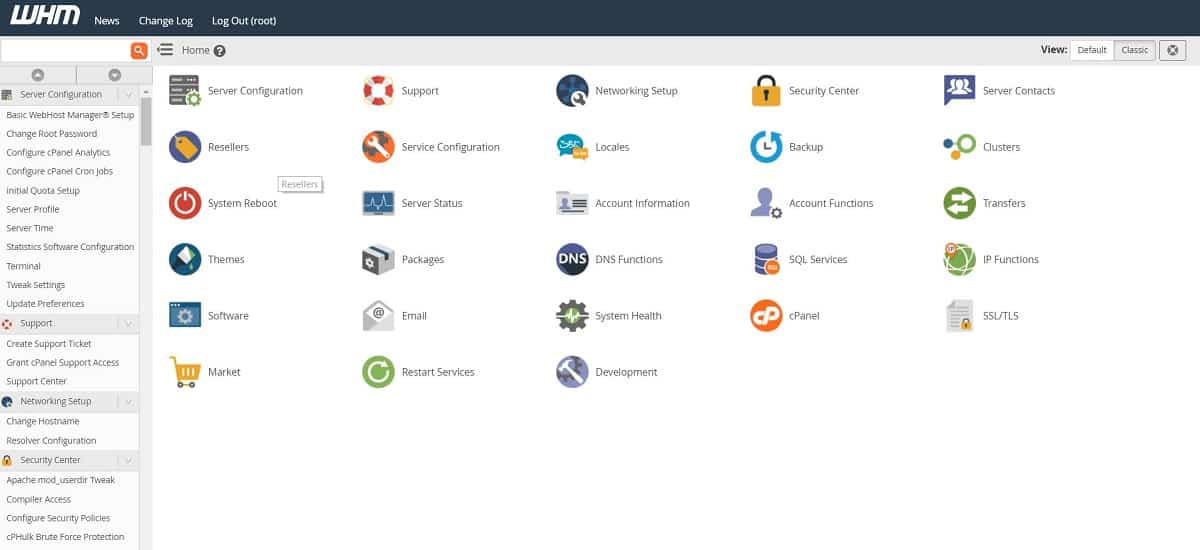
WHM provides tools for managing hosting accounts, allocating server resources, monitoring performance, and configuring server settings. Available features depend on whether you have root access or reseller permissions.
How does WHM create and manage cPanel accounts?
WHM allows administrators and resellers to create, suspend, and terminate individual cPanel accounts, making it easier to manage multiple websites and customers separately.
To create an account, navigate to Account Functions → Create a New Account. Enter the domain name, account credentials, and hosting package. You can also review the account’s DNS settings and email configuration before creating it.
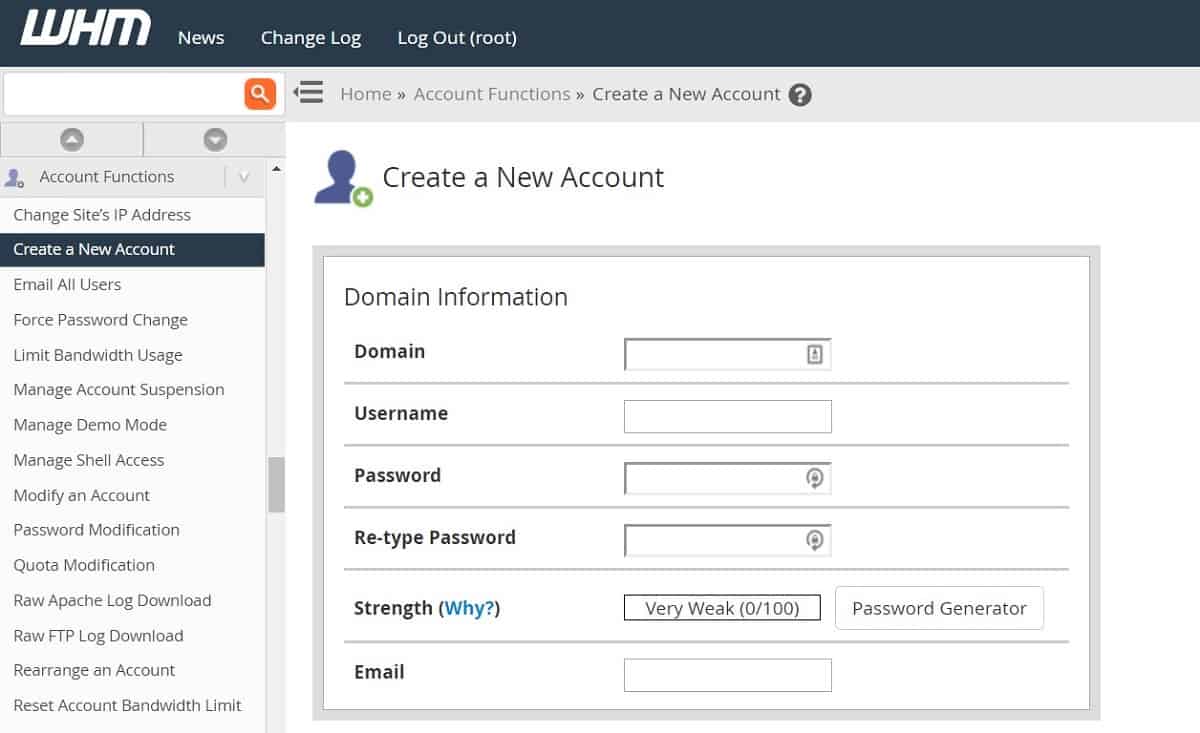
To manage existing accounts, use List Accounts to find them or Manage Account Suspension to temporarily disable access. Available actions depend on your WHM permissions.
How can WHM monitor server performance?
WHM provides monitoring tools that help administrators track server activity, resource consumption, and service availability.
For example:
- Process Manager: Displays active server processes and their CPU and memory usage.
- Service Status: Shows the status of important server services, along with system resource information.
- Show Current Disk Usage: Displays disk and partition usage to help identify storage capacity issues.
These tools help administrators identify resource-intensive processes and potential server performance problems.
How can you create hosting packages in WHM?
WHM lets hosting administrators and resellers create hosting packages with predefined resource limits for different customer requirements.
Under Packages → Add a Package, you can configure limits for disk space, monthly bandwidth, email accounts, databases, and other available features.
Once created, these packages can be assigned to cPanel accounts. You can also modify existing packages as your customers’ requirements change.
How does WHM transfer hosting accounts between servers?
WHM provides tools for moving cPanel accounts between compatible hosting servers. This is useful when migrating customer websites from another hosting provider or consolidating accounts onto one server.
Administrators with the required permissions can use Transfers → Transfer Tool to copy accounts, hosting packages, and supported configurations from another server.
Unlike a standard file transfer, this process can also migrate account settings and associated data, reducing the amount of manual configuration required after migration.
How can you customize cPanel branding with WHM?
WHM allows hosting resellers and administrators with the appropriate permissions to customize the cPanel interface that their customers use.
Under cPanel → Customization, you can upload your company logo, change interface colors, add a favicon, update help and documentation links, and configure public contact information.
These settings help hosting resellers present a consistent brand to customers. However, they customize the cPanel interface, not the WHM dashboard itself.
How can you manage products through WHM?
WHM’s Market Provider Manager allows administrators to control which products customers can purchase through their cPanel accounts.
For example, you can enable or disable providers offering SSL certificates, manage available products, and mark certain products as recommended.
The interface also supports product pricing and commission settings for participating providers. Available options depend on the providers configured on your server and your WHM permissions.
How can you manage SSL certificates in WHM?
WHM provides tools for installing and managing SSL certificates across hosting accounts, helping administrators maintain secure HTTPS connections.
Under SSL/TLS, you can use Manage SSL Hosts to review installed certificates and manage certificate installations.
WHM also provides Manage AutoSSL, which automates certificate issuance and renewal for eligible domains. Administrators can configure AutoSSL settings, review logs, and control which accounts use the feature.
Available SSL management options depend on your WHM permissions and server configuration.
How does WHM protect against brute-force attacks?
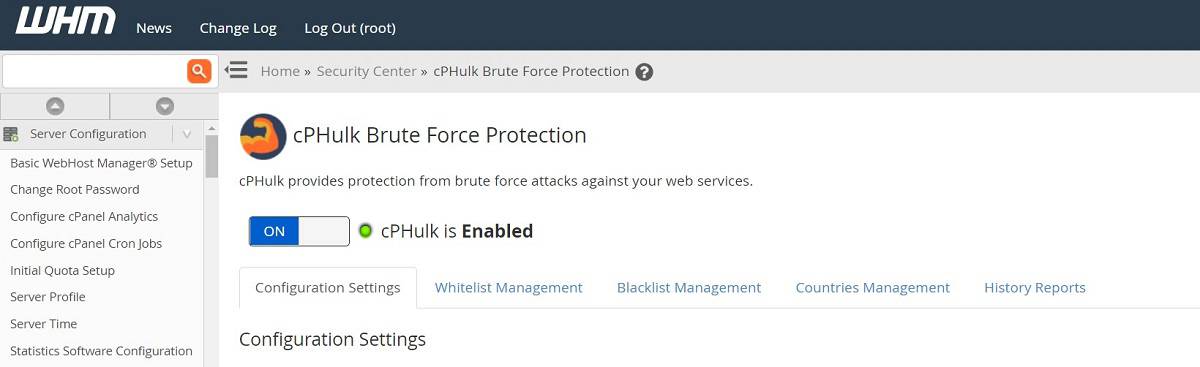
WHM includes cPHulk Brute Force Protection, a security feature that helps prevent unauthorized access by detecting and blocking repeated failed login attempts.
Under Security Center → cPHulk Brute Force Protection, administrators can enable protection, configure login attempt limits, and manage blocked or trusted IP addresses.
cPHulk protects access to services such as cPanel, WHM, email, FTP, and SSH. However, it doesn’t protect websites against every type of cyberattack, so additional server security measures are still necessary.
How can you back up and restore hosting accounts in WHM?
WHM allows administrators to schedule automatic backups and restore cPanel accounts when data needs to be recovered.
Under Backup → Backup Configuration, you can configure backup schedules, retention periods, and storage destinations. Depending on your configuration, backups can be stored locally or transferred to remote destinations such as Google Drive, SFTP, and Amazon S3.
To recover an account, use Backup → Backup Restoration to select an available backup and restore its data.
Regular backups help protect customer data against accidental deletion, configuration errors, and other issues that may require recovery.
How can WHM manage WordPress installations?
WHM supports WordPress management through WP Toolkit, which allows administrators to install, configure, and manage WordPress websites on their servers.
Under Plugins → WP Toolkit, administrators can manage WordPress installations, while cPanel users can access the available tools for their individual accounts.
This is especially useful for hosting resellers whose customers use WordPress as their content management system (CMS).
WP Toolkit availability and features depend on the server’s configuration, installed components, and user permissions.
How can you configure server settings in WHM?
WHM provides Tweak Settings, an interface for adjusting how cPanel and server services operate.
Under Server Configuration → Tweak Settings, administrators can manage settings related to security, email, PHP, logging, notifications, and other server functions.
These options offer greater control over the hosting environment, but incorrect changes can affect server functionality. Review each setting before modifying its default value.
How can you manage plugins in WHM?
WHM supports plugins that extend its server management capabilities. Depending on the server configuration, administrators can add tools for security, monitoring, and application management.
Under cPanel → Manage Plugins, you can install or remove supported plugins available on your server.
For example, ClamAV provides malware scanning capabilities, while other plugins can add monitoring or management features.
Available plugins vary by server, and some require additional configuration or permissions.

Next steps: Decide whether WHM is right for you
WHM is a practical choice if you need to manage multiple cPanel accounts, resell hosting, or configure server-level settings. However, if you only manage one website, cPanel alone may be sufficient.
Before getting started with WHM:
- Check your hosting environment. Confirm that your server supports cPanel & WHM and whether you need to purchase a separate license.
- Determine your access requirements. Decide whether you need root access for server administration or reseller permissions to manage customer accounts.
- Compare your options. WHM isn’t the only server management solution. Other hosting control panels may better suit your technical requirements, budget, and preferred workflow.
Once you’ve confirmed that WHM meets your needs, you can install it on a compatible server and start configuring your hosting accounts.
This article is a localized version of What is WHM? Features, uses, and how to access it, originally published in English.

Irfan believes that technology and the internet can help improve our lives significantly. That's why he shares his experience as a WordPress blogger to educate others. In his free time, Irfan enjoys good films and books.