How to clear cache in WordPress
Oct 16, 2026
/
By Nabilla R.
/
5 min Read
To clear cache in WordPress, open your caching plugin’s settings and select the option to purge or delete cached files. If you’re not using a caching plugin, you can usually clear the cache through your hosting provider’s control panel.
Clearing WordPress cache helps resolve issues where recent changes to your website aren’t appearing. Depending on your setup, you may need to clear different types of cache, including plugin, server, CDN, or browser cache.
The steps depend on how your WordPress website handles caching. This guide covers six methods using popular caching plugins and hosting tools, along with instructions for clearing your browser cache when needed.
How to clear cache in WordPress
You can clear WordPress cache using a WordPress caching plugin, your hosting provider’s control panel, or a content delivery network (CDN). The right method depends on how caching is configured on your website.
Use the table below to identify which method applies to your setup.
| Method | Choose this method if… | How to clear the cache |
|---|---|---|
| LiteSpeed Cache | You have the LiteSpeed Cache plugin installed and want to clear cached pages or specific content. | Go to LiteSpeed Cache → Toolbox → Purge and select Purge All or a more specific purge option. |
| Hostinger dashboard | Your WordPress website is hosted with Hostinger and you want to clear its hosting-level cache. | Open Hostinger dashboard → WordPress → Overview and select Flush Cache. |
| Without a plugin | You don’t use a WordPress caching plugin, but your hosting provider offers server-level caching. | Find the cache-clearing option in your hosting control panel. |
| WP Super Cache | You have WP Super Cache installed and want to remove cached page versions. | Go to Settings → WP Super Cache → Easy and select Delete Cache. |
| W3 Total Cache | You have W3 Total Cache installed and want to clear all caches or specific cache types. | Go to Performance → Dashboard and select Empty All Caches. |
| WP Fastest Cache | You have WP Fastest Cache installed, particularly if recent page, CSS, or JavaScript changes aren’t appearing. | Go to WP Fastest Cache → Delete Cache and choose the appropriate clearing option. |
| Cloudflare | Your website uses Cloudflare CDN and visitors are still seeing outdated content. | Open Cloudflare → Caching → Configuration and select Purge Everything or Custom Purge. |
Keep in mind that your WordPress website may use multiple caching layers simultaneously. For example, clearing your caching plugin’s cache won’t necessarily clear the CDN or browser cache.
Learn how to clear WordPress cache to optimize your website speed with this video tutorial.


Clear cache using LiteSpeed Cache
If your WordPress website uses the LiteSpeed Cache plugin, you can clear cached pages directly from the WordPress dashboard without changing your caching settings.
- Once you install and activate the plugin, access your WordPress admin dashboard. Then, go to LiteSpeed Cache.
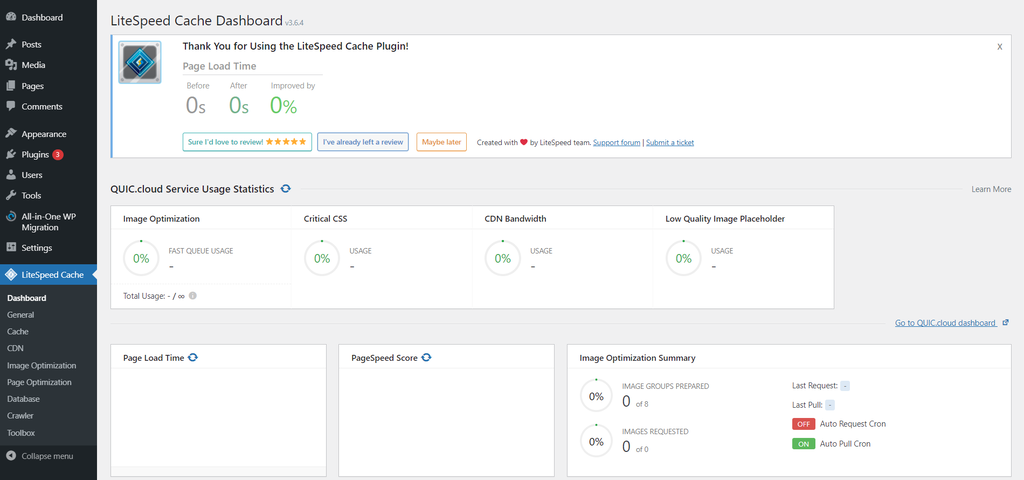
- Choose the Toolbox menu, and the LiteSpeed Cache Toolbox window will appear.
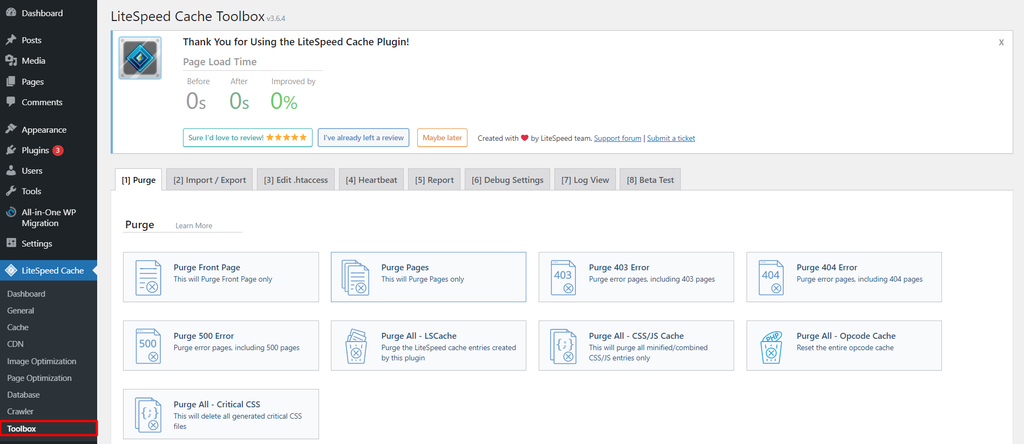
- There are various types of cache you can purge, from page cache to CSS/JS cache. Choose which type of cache purge you want to perform.
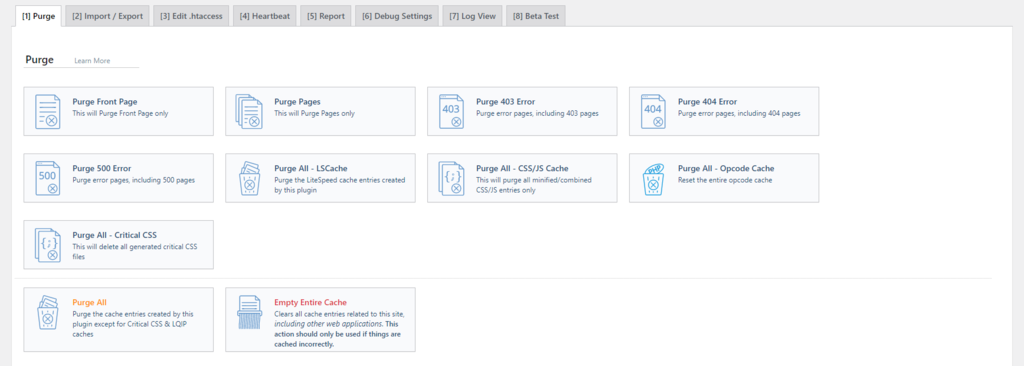
If you want to clear your WordPress cache entirely, choose Purge All. Note that it won’t delete critical data on your WordPress website – you can go ahead and clear the cache.
However, if you only want to empty the cache from certain parts of your site, scroll down to the Purge By section. From there, input your content using a category, tag, or URL.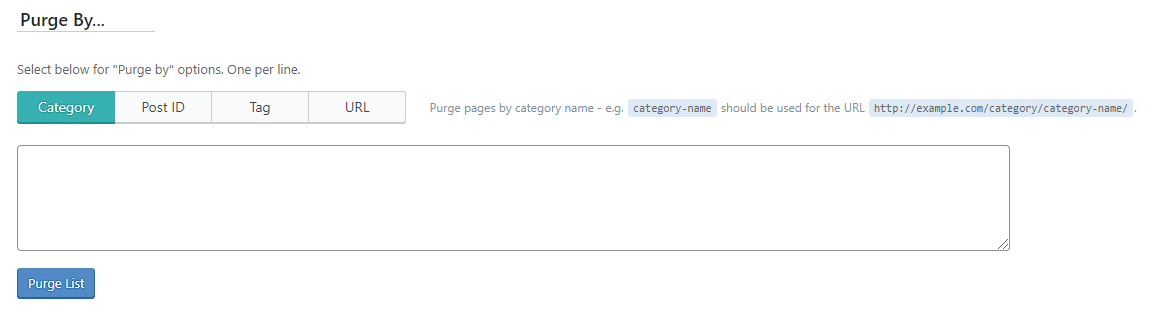
To clear the cache for a specific page, open that page while logged in as a WordPress administrator. Hover over the LiteSpeed Cache icon in the admin toolbar and select Purge this page. This removes the cached version of that page without clearing the entire site’s cache.

Clear cache with the Hostinger dashboard
If your WordPress website is hosted with Hostinger, you can clear its cache directly from the Hostinger dashboard without accessing the WordPress dashboard.
Navigate to Websites → Dashboard → WordPress → Overview and click Flush Cache in the Core section.
For other caching options, including clearing the CDN cache, follow our guide on how to clear cache in Hostinger.
Clear WordPress cache without a plugin
If you’re not using a WordPress caching plugin, your hosting provider may still cache website content at the server level. You can usually clear this cache through your hosting control panel without installing additional plugins.
To clear WordPress cache without a plugin:
- Log in to your hosting provider’s control panel.
- Look for a caching option under your website’s performance, optimization, or hosting settings.
- Select Clear Cache, Purge Cache, or a similar option, depending on your provider.
- Reload your website to check whether the latest changes appear.
The exact steps vary by hosting provider, and some hosting plans don’t offer server-level caching. If you can’t find a cache-clearing option, check your provider’s documentation to confirm whether server-side caching is enabled.
If your website also uses a CDN, you may need to clear its cache separately.
Clear cache with WP Super Cache
If your WordPress website uses the WP Super Cache plugin, you can delete cached pages directly from its settings.
Follow these steps:
- Log in to your WordPress dashboard.
- Navigate to Settings → WP Super Cache.
- Open the Easy tab and click Delete Cache.
- Reload your website to check whether the latest changes appear.
Alternatively, you can open the Contents tab and select Delete Cache to remove cached files.
Clearing the cache removes stored page versions without disabling the plugin or changing your caching configuration.
Clear cache with W3 Total Cache
If your WordPress website uses W3 Total Cache, you can clear its cached content directly from the plugin’s dashboard.
Follow these steps:
- Log in to your WordPress dashboard and navigate to Performance → Dashboard.
- Click Empty All Caches to clear the cached content.
- Wait for the confirmation message indicating that the cache has been cleared.
Alternatively, you can use the individual cache-clearing options in the W3 Total Cache dashboard to purge specific cache types without clearing everything.
Clear cache with WP Fastest Cache
If your WordPress website uses WP Fastest Cache, you can manually clear cached files directly from the plugin’s settings.
Follow these steps:
- Log in to your WordPress dashboard and navigate to WP Fastest Cache → Delete Cache.
- Click Delete Cache to remove the cached files.
- If you’ve recently modified your website’s CSS or JavaScript files, select Delete Cache and Minified CSS/JS to clear the cached versions of those files as well.
Once the cache is cleared, reload your website to check whether the latest changes appear.
Clear cache with Cloudflare
If your WordPress website uses Cloudflare CDN (content delivery network), you can clear its cached content directly from the Cloudflare dashboard. This is useful when website changes aren’t appearing because Cloudflare is serving outdated files.
Follow these steps:
- Log in to your Cloudflare dashboard and select your website’s domain.
- Navigate to Caching → Configuration.
- Select Purge Everything to clear all cached content, or choose Custom Purge to clear the cache for specific URLs.
Once the cache is cleared, reload your website to check whether the latest changes appear.
Keep in mind that purging Cloudflare’s cache doesn’t clear your WordPress plugin or hosting server cache. You may need to clear those separately if outdated content is still displayed.

Clear cache in a browser
Clearing your own browser cache also helps troubleshoot loading and formatting issues. It will remove outdated files, allowing your browser to fetch a new version of your site.
Keep in mind that removing the browser cache might also delete your browser data, such as bookmarks and setting preferences. Thus, be sure to export your data from the browser and import it back once you finish clearing the cache.
The following steps will show you how to clear the cache in Google Chrome. Note that the same steps apply to other browsers as well.
- Open your Chrome application.
- Click on the three-dot (⋮) menu at the top right corner of your screen.
- Choose More tools -> Clear browsing data.
- It will take you to a page where you can perform Basic or Advanced cache clearing.
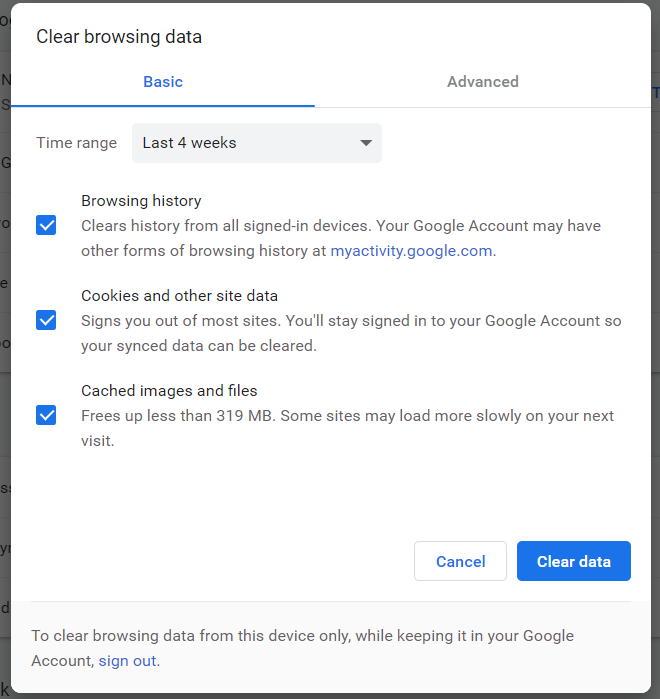
- Choose your preferred method, set the time range, and check the boxes as you need. Leave the Passwords and other sign-in data option unchecked to keep your login credentials.
- Finally, click on the Clear data button.
Next steps: Troubleshoot persistent WordPress errors
After clearing your WordPress cache, reload your website to verify that recent changes appear correctly. If your website still displays outdated content, check whether another caching layer or a WordPress configuration issue is responsible.
If your website displays a 502 Bad Gateway error, clearing the cache alone may not resolve it. To fix a 502 Bad Gateway error, identify the underlying cause, such as server communication failures, plugin conflicts, or CDN misconfigurations, and apply the appropriate troubleshooting steps.
This article is a localized version of How to clear cache in WordPress, originally published in English.

Nabilla is a website hosting and development enthusiast. She loves to share her knowledge with others in order to help them grow their online presence. When she's not busy writing, Nabilla enjoys exploring nature and going on adventures. She is passionate about helping people achieve their online goals.


