How to sell digital downloads with WooCommerce
Mar 10, 2026
/
By Larassatti D.
/
9 min Read
Selling downloadable products is one of the simplest ways to make money online – no inventory, no shipping hassles, just pure digital convenience.
And if you’re considering WooCommerce as a platform to sell downloadable products, you’re on the right track. Being the most popular WordPress ecommerce plugin, WooCommerce has unmatched flexibility to help you grow a digital product business.
In this guide, we’ll walk you through the steps to set up WooCommerce for digital downloads. Plus, we’ll share practical strategies to market your digital products. Let’s start!
Why use WooCommerce for selling digital products
As you explore the platform options for selling digital products in WordPress, here are the top reasons to consider WooCommerce:
- Built-in support for digital products – WooCommerce has built-in functionality to start selling digital goods, including ebooks, WordPress plugins or themes, online course videos, music files, digital art, or downloadable templates.
- Versatile – WooCommerce is a powerful ecommerce tool for selling physical and digital products. So, if you ever want to add items requiring shipping setup, you won’t need to switch platforms.
- Scalable – WooCommerce is the most popular WordPress ecommerce plugin, so it benefits from compatibility with thousands of other plugins in the ecosystem. Whether you want to add membership functionality, software licensing, or any other features, there’s likely a plugin or an extension for it, making it possible to scale your store in nearly any direction.
- Highly customizable – there are tons of WooCommerce themes in the WordPress library and third-party marketplaces. Plus, the plugin works seamlessly with popular page builders, so you can easily design every store element. And if you’re comfortable with coding, customizing your store can be even more flexible with hooks.
- Low start-up costs – you can start selling online by paying only for hosting and a domain name, as the core WooCommerce plugin is entirely free. The additional costs of running a WooCommerce store will depend on the extra features you want to integrate.
- Large community support – WooCommerce’s active community makes finding your way around the platform easier. With numerous online forums, video tutorials, articles, and official documentation, help is always close at hand.
How to sell digital downloads with WooCommerce
So, how do you actually start selling digital products with WooCommerce? It’s easier than you might think – let’s break down the process.
1. Set up a WooCommerce site
Pro tip
Follow this step if this is your first time building an ecommerce website with WordPress. In case your online store is already up and running, feel free to skip it.
First things first, you’ll need to set up a WordPress site and install the WooCommerce plugin. Then, you’ll see the plugin’s initial setup wizard, which will guide you through the basic store configuration.
If your site is hosted with us, every WooCommerce installation includes the Hostinger Easy Onboarding plugin, which will overwrite WooCommerce’s default wizard.
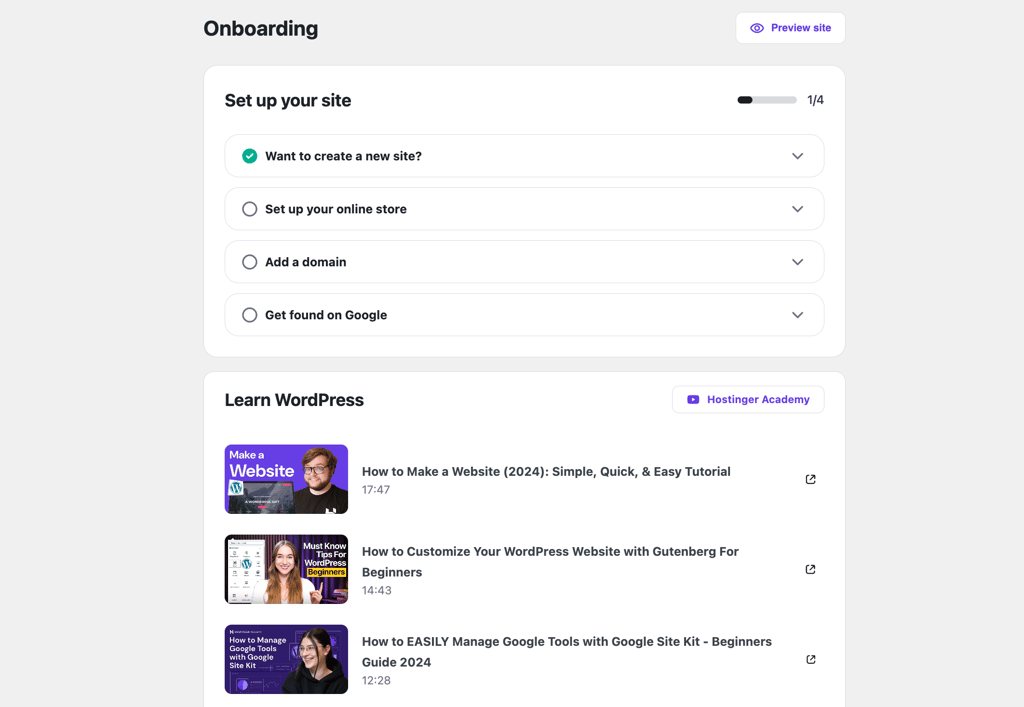
With the Hostinger Easy Onboarding plugin, you’ll be guided to complete this store setup checklist:
- Designing your site – choose to keep your existing theme or explore pre-built templates for a simpler way to personalize your store’s design.
- Setting up your online store – fill in essential business details like your store’s name, location, and industry.
- Adding your first product item – you can create digital products right away or skip it for later.
- Integrating a payment gateway – choose the payment methods you want to offer and how you’d like to get paid. WooCommerce supports popular options like PayPal, Stripe, and Square via extensions, while WooPayments comes as the built-in solution.
- Connecting a custom domain name – if you haven’t already, secure a unique domain to give your store a professional identity. Already got a catchy name in mind right now? Check its availability with our domain name checker tool.
- Setting up Google Site Kit (optional) – connect your store to Google services like Analytics and Search Console to monitor traffic, track performance, and make data-driven decisions.
If you want a detailed step-by-step guide to set up your online store, head to our comprehensive WooCommerce tutorial.
2. Configure the downloadable product settings
With your storefront ready, it’s time to configure your product download settings. Navigate to WooCommerce → Settings → Products → Downloadable products from your WordPress dashboard.
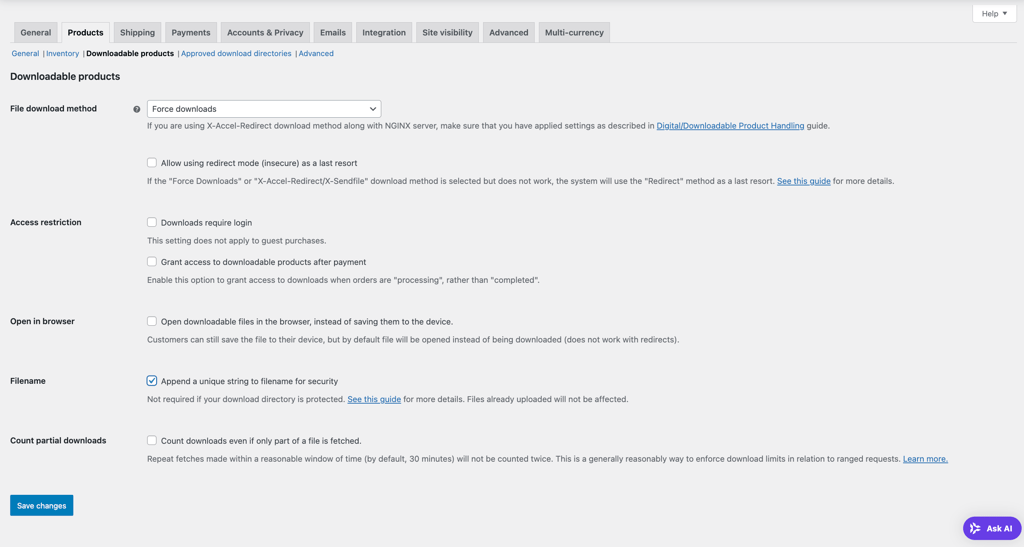
Here’s a breakdown of the settings you’ll see on the page:
File download method
You’ll see a drop-down menu to choose how WooCommerce should handle file downloads on your online store.

There are three different options:
- Force downloads – WooCommerce uses PHP behind the scenes to handle the download securely. This method works best for smaller file sizes or when your hosting has a well-optimized server. It also requires a specific PHP setting called allow_url_fopen to be turned on, which is already enabled by default for every website hosted with us, so no extra steps are needed. Otherwise, you may want to double-check with your hosting provider’s support team.
- X-Accel-Redirect/X-Sendfile – best for selling products with larger file sizes. It lets the server handle downloads directly, which makes the process much faster and safer. This method requires the X-Accel-Redirect or X-Sendfile modules to be installed and activated on your server. If you’re in one of our WordPress or WooCommerce hosting plans, rest easy – you’re all set.
- Redirect only (Insecure) – choosing this option means anyone with the link can download your file, whether they have already paid for it or not. So, this is the least secure method that we don’t recommend.
You’ll also see an option to use the Redirect only method as a last resort if your chosen one doesn’t work as intended. Check the box if you agree.
Access restriction
This menu consists of two options to restrict download access:
- Downloads require login – check the box to limit access for guest checkout.
- Grant access to downloadable products – if you sell digital and physical products, this option lets customers access their digital products right after payment, without waiting for the physical item to be shipped (order completed status).

Open in browser
When this option is enabled, files will open directly in your customers’ browsers instead of downloading right away. They can still choose to save the file afterward if they want.

This option won’t work if you choose the Redirect only download method.
Filename
You’ll see the Append a unique string to filename for security option checked by default. It adds a random set of characters to the end of your uploaded file’s name. For instance, instead of ebook.pdf, it will become ebook-vn32d9f8w7.pdf. This helps protect your files by making the download links harder to guess.

Count partial downloads
Enabling this option is especially helpful for larger files. If a customer’s connection gets interrupted and they restart the download within 30 minutes, it won’t be counted as a new download. This way, you can track the number of downloads more accurately.

Once you’re done configuring the settings, make sure to click Save changes to apply them.
Pro tip
If you want to keep your product files in a third-party cloud storage, bear in mind that WooCommerce doesn’t automatically trust the source. You need to list your preferred directory by going to WooCommerce → Settings → Products → Approved download directories. Click Add new, input the directory URL, and finish by hitting Save changes.
3. Add your digital download products
Moving on to the main part, it’s time to list your digital products and make them available for purchase. Here’s how:
- Navigate to Products → Add new product from your WordPress dashboard.
- Give your digital product a name. WooCommerce will automatically create a permalink for the product page.
- Write an enticing product description to attract customers. With our hosting for WooCommerce, you’ll get access to our AI Content Creator tool to help you with this.
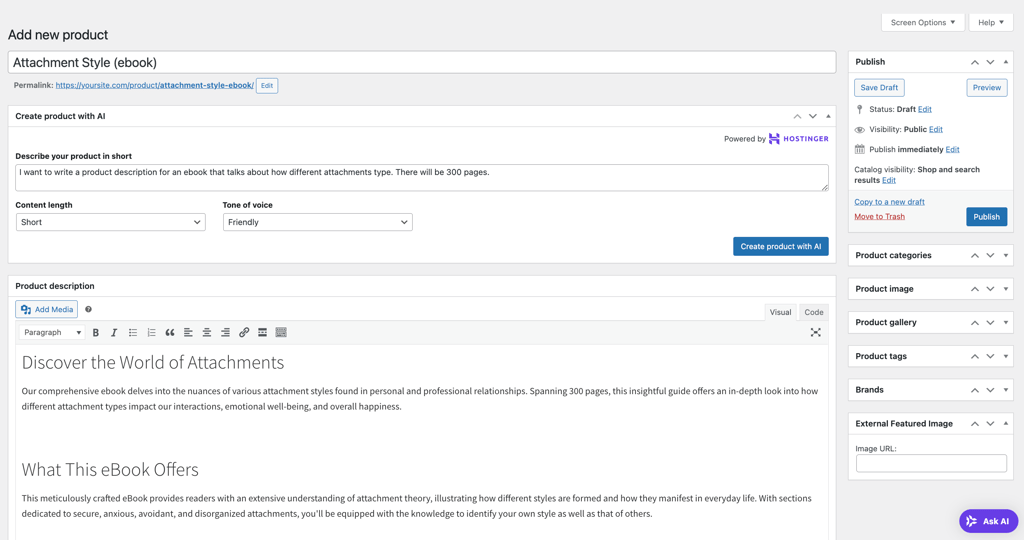
- Set a featured image to describe your digital product visually.
- Assign categories and tags to help with your store’s product organization.
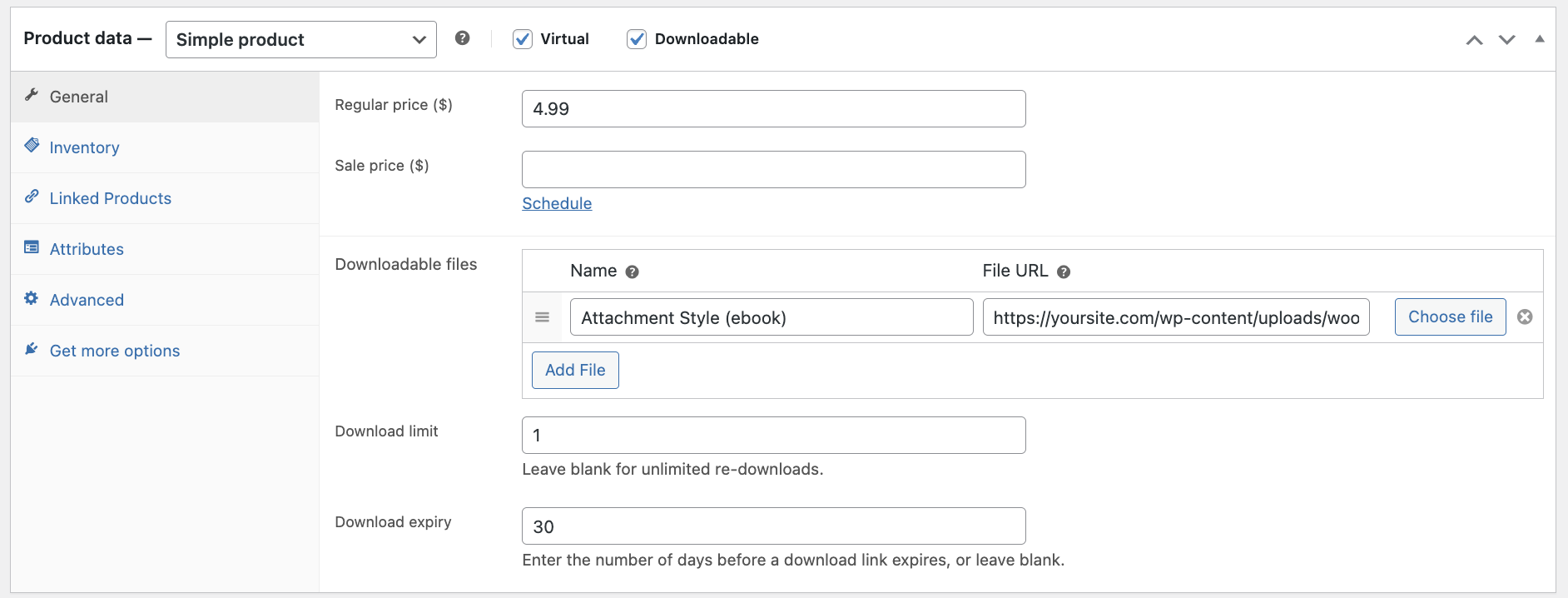
- Scroll down to the Product data section, check the Virtual and Downloadable options.
- Set your product price. You can also put a discounted price and schedule a promotional period.
- In the Downloadable files field, click Add File to upload your digital product. You’ll need to write the file name in the box, while the file URL will be auto-generated.
- Set a Download limit, or leave the field blank to allow unlimited downloads.
- Set an expiry period, so no one can access the file when the download link expires.
11. Once you’ve entered all your information, click Publish to make the product live on your store.
Pro tip
In case you want to list a free digital download product, simply fill in the Regular price field with 0.
4. Track your digital download sales
Monitoring sales performance is the next step after publishing your digital products. Fortunately, WooCommerce has a comprehensive analytics tool that makes it easy to track sales data.
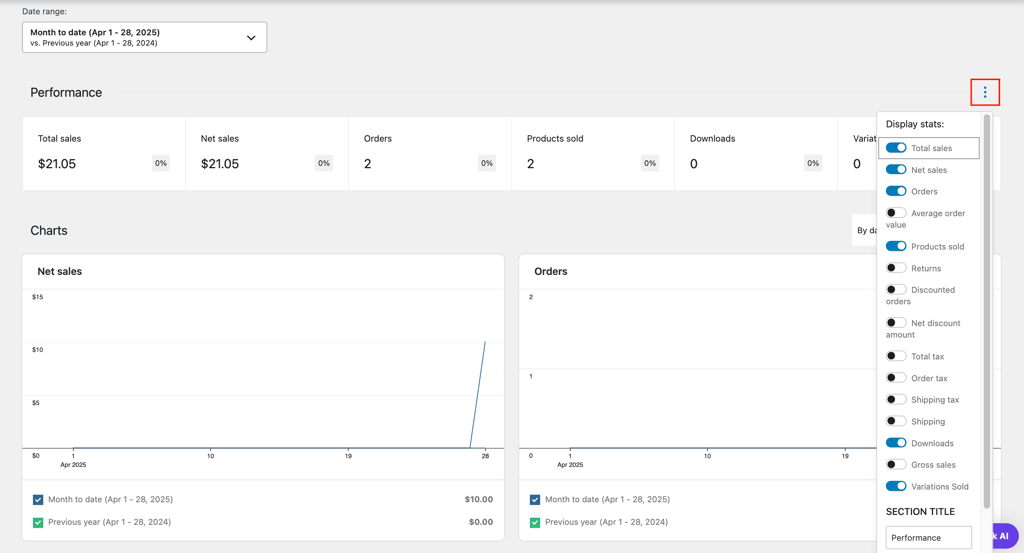
Head to the Analytics menu in your WordPress dashboard to see an overview of your store’s performance, presented in numbers and graphs.
To personalize the main analytics dashboard, click the three-dot menu in the top right corner of the Performance or Charts section. A list of data-tracking options will appear, and you can simply toggle each one on or off to show or hide it from your dashboard.
Beyond the main overview, there are several sub-menus under Analytics to dive deeper into specific sales data. For example, you can navigate to Analytics → Downloads to track only the downloaded digital files from your store.
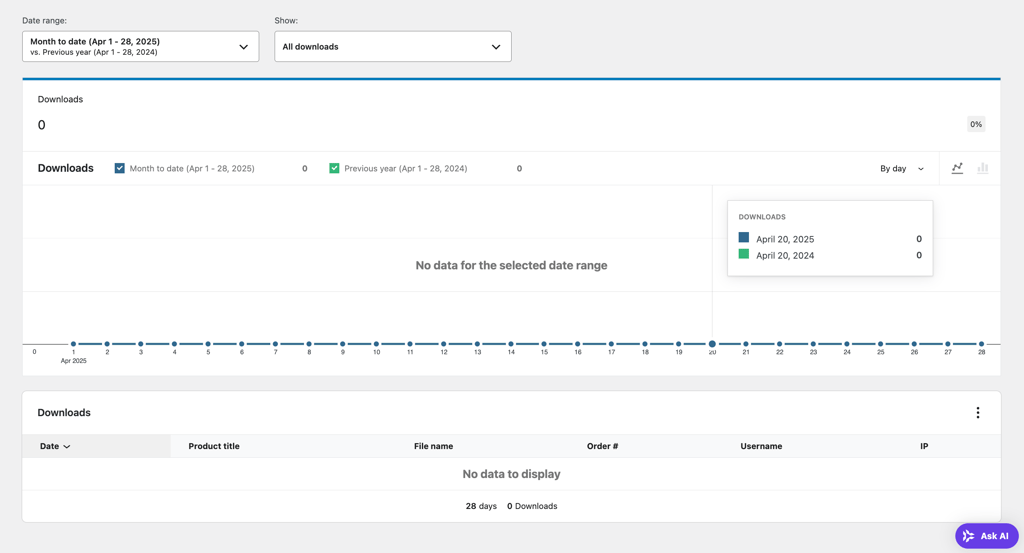
This way, you can easily monitor your total sales, identify your best-selling digital products, and view your revenue trends over time.
To complement this WooCommerce built-in feature, consider integrating Google Analytics into your WordPress site for even deeper insights.
Tips to market your digital products
Whether you’re launching something new or trying to expand an existing store, here are some practical strategies to market your digital products with WooCommerce:
Release a free version of your product
Get people interested in buying your digital product by releasing a free version. This strategy lets your potential customers experience the product value firsthand, increasing the likelihood of a conversion.
You can offer a stripped-down plugin, a sample chapter of an ebook, or a trial version of your software – just make sure to include a call to action that directs users to purchase the full version.
Leverage email marketing campaigns
Email marketing is a powerful way to promote digital products. Since customers can purchase and download instantly, well-crafted promotional emails can drive quick conversions with just a few clicks.
Start by building your mailing list by attracting visitors with free downloads, discount codes, or exclusive content. Plugins like MailPoet, Omnisend, or MailChimp make capturing leads and creating automated email sequences easier.
You can also set different emails to engage multiple customer segments. For example, send welcome emails with free product offers to new subscribers, recovery emails for abandoned carts, or launch announcements for new digital releases.
Use exit-intent popups
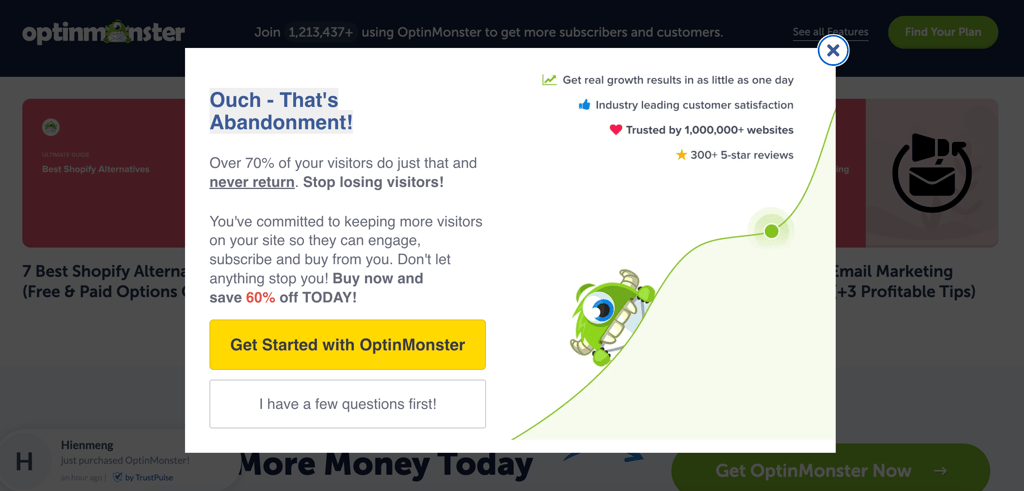
Many visitors leave your site without making a purchase, especially during their first visit. You can encourage them to stay longer with exit-intent popups that appear when they’re about to leave.
If you want to go with this strategy, OptinMonster and OptiMonk are popular plugins that can help you implement exit-intent popups. Be sure to set the timing and placement thoughtfully to avoid irritating your customers.
Suggest similar or complementary items
WooCommerce lets you display related products, which can encourage customers to explore more of your collections. Simply put, you’re making it easier for customers to find add-ons, updates, or bundles they might like.
For example, if you’re selling an ebook, you could suggest related guides or complementary products like worksheets or templates. This strategy can also enhance the customer experience by making product browsing more personalized and relevant.
Offer limited-time discounts or product bundles
Bundling is especially effective for digital products. For instance, you can offer a complete design toolkit instead of individual templates. This increases the perceived value and encourages customers to spend more.
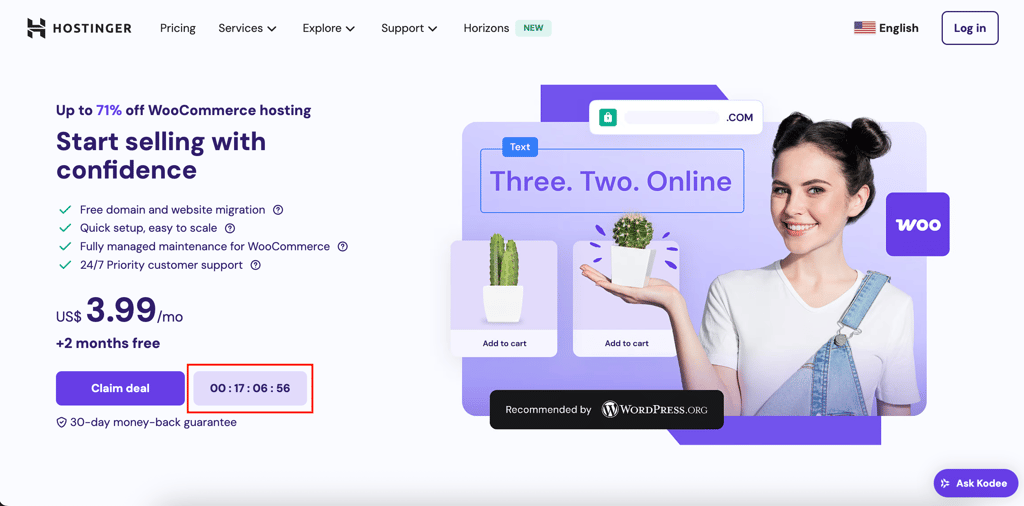
Top it off with creating a sense of urgency, a tried-and-true way to increase sales. You can use WooCommerce’s built-in coupon system or plugins like Advanced Coupons to set up limited-time discounts or special bundle offers.
To capture more attention, highlight the deals on your homepage, product pages, or through announcement bars. For added impact, consider using countdown timers to visually emphasize the urgency.
Optimize product pages for search engines
Implementing search engine optimization (SEO) for WooCommerce helps bring long-term, organic traffic to your store. When creating a new product, optimize your product titles, descriptions, and image alt text with relevant keywords. Installing an SEO plugin can make this process easier by guiding you through best practices.
Support your digital store with content marketing
Beyond product pages, creating helpful blog content – like tutorials, comparisons, or use-case scenarios can help improve your store’s SEO.
This strategy enhances your search rankings and positions your brand as helpful and trustworthy. Add links to your products in the blog posts and include internal calls to action to guide readers toward purchasing.
To further expand your reach, repurpose your content to suit the tone and format of the social media platforms where your target audience is most active. Consistently sharing relevant, engaging posts can increase brand awareness and eventually lead to more sales conversions.
Highlight customer reviews and testimonials
Building trust is crucial when selling digital products, especially when the clients can’t physically experience what they’re purchasing. Featuring reviews, testimonials, or star ratings on your product pages helps to build your store’s credibility and influence customers’ purchasing decisions.
While WooCommerce supports product reviews out of the box, you can take it a step further with plugins like Customer Reviews for WooCommerce. With these plugins, you can automate feedback requests, follow up with reminders, and enhance the look of your review section.
Conclusion
WooCommerce is an ecommerce platform that makes selling digital downloads scalable and flexible. It’s built to support both digital and physical products, giving you the freedom to expand your business however you want.
Even better, you can use WooCommerce for free, and with its vast ecosystem of plugins and themes, customizing your store to meet your specific needs can be easy.
To sum up, here are the four simple steps to start selling digital downloads in WooCommerce:
- Set up WooCommerce on your WordPress site.
- Configure the WooCommerce downloadable product settings.
- Start listing your digital products.
- Monitor your sales performance.
From there, stay updated with product trends and leverage content marketing to drive traffic. Also, explore different marketing strategies like bundling, upselling, limited-time offers, and email campaigns to drive more sales.
We hope this guide helps you understand the process of selling digital products on WooCommerce. By pairing it with Hostinger’s WooCommerce hosting, you’ll enjoy an even smoother setup process, with guided onboarding, optimized performance, and expert support to help you build a successful store.
WooCommerce digital downloads FAQ
Can WooCommerce do digital downloads?
Yes. There’s a built-in ecommerce feature for selling digital products on WooCommerce.
How do I protect my digital downloads in WooCommerce?
Navigate to WooCommerce → Settings → Products → Downloadable products, and make sure the chosen File download method is Force downloads or X-Accel-Redirect/X-Sendfile. Additionally, you can limit the number of downloads and set a link expiration period when adding a new product.
What is the difference between virtual and downloadable products?
WooCommerce virtual products can be anything that doesn’t require shipping, like a service, an online course, or downloadable files. So, in simple words, virtual products aren’t necessarily downloadable, but all downloadable products are virtual.
This article is a localized version of How to sell digital downloads with WooCommerce, originally published in English.

Larassatti Dharma is a content writer with 5+ years of experience in the web hosting industry. She has populated the internet with over 100 YouTube scripts and articles around web hosting, digital marketing, and email marketing. When she's not writing, Laras enjoys solo traveling around the globe or trying new recipes in her kitchen. Follow her on LinkedIn



Comments
0 responses