A WordPress database search and replace lets you find and update specific text, URLs, or other stored values across multiple database tables at once. It’s particularly useful when changing your domain name, migrating a website, or replacing outdated information without editing each record manually.
You can perform a WordPress database search and replace using a plugin, WP-CLI via SSH, or a MySQL query in phpMyAdmin. This tutorial explains all three methods, including how to back up your database and preview changes to avoid data loss.
When should you use WordPress database search and replace?
WordPress database search and replace is useful when you need to update the same value across multiple database records. It’s particularly helpful during website migrations, domain changes, and other bulk updates that would take too long to perform manually.
Common use cases include:
- Changing your domain name. Replace references to an old domain with the new one in WordPress database records after a domain change.
- Migrating a WordPress website. Update stored URLs when moving a website from a staging environment to a live domain or changing its address.
- Switching from HTTP to HTTPS. Replace outdated HTTP URLs with HTTPS URLs to help prevent mixed-content issues after enabling SSL.
- Updating repeated text or URLs. Correct outdated links, image paths, or other values stored across multiple database records.
For changes affecting only one page or post, use the WordPress editor instead of modifying the database.
Important! Keep in mind that any changes made cannot be undone! You should consider backing up your WordPress site before making any changes in your database to prevent possible data loss.
What to do before running a WordPress database search and replace
Before replacing values in your WordPress database, create a backup and identify exactly what needs to change. Incorrect replacements can break links, alter website settings, or corrupt stored data. For additional safety, you can test database changes in a local WordPress environment before applying them to your live website.
Follow these precautions:
- Back up your database. Create a complete database backup so you can restore the original values if something goes wrong.
- Identify the old and new values. Check the exact URLs, text, or other strings you want to replace. Pay attention to spelling, capitalization, and URL formats.
- Run a dry run. If you’re using WP-CLI or Better Search Replace, preview the changes before applying them. Review the number of matches and affected tables.
- Protect serialized data. WordPress stores some settings and metadata in serialized formats. Use a serialization-aware tool such as WP-CLI or Better Search Replace for database-wide changes. Avoid raw SQL replacements on columns that may contain serialized values.
After making the replacement, check your website’s pages, links, images, and important settings to confirm everything works correctly.
How to perform search and replace on a WordPress database?
There are three ways to perform a search and replace on a WordPress database — using a plugin, WP-CLI via SSH, or a MySQL query.
The plugin method is ideal if you prefer a visual interface. WP-CLI works well if you have SSH access and want a single command that covers the entire database. The MySQL query gives you the most control, letting you target specific tables and fields.
Using a plugin
This method is ideal for users with no programming experience. With a plugin, you get to run a search and replace operation as many times as needed without dealing with a single line of code.
In this tutorial, we’re going to use Better Search Replace, one of the best WordPress plugins for this purpose.
Better Search Replace supports PHP-serialized data, lets you select specific database tables, and includes a dry-run feature to preview how many fields would be updated.
The free version includes these essential features. The Pro version adds options such as viewing individual changes, backing up and importing the database, and saving search-and-replace profiles.
- From your WordPress admin dashboard, navigate to the Plugins → Add New section.
- Search for the Better Search Replace plugin, then select Install Now.

- Click on the Activate button to activate the plugin.
- From your WordPress admin dashboard, navigate to the Tools -> Better Search Replace section.
In the Search/Replace section, you will need to enter all of the following:
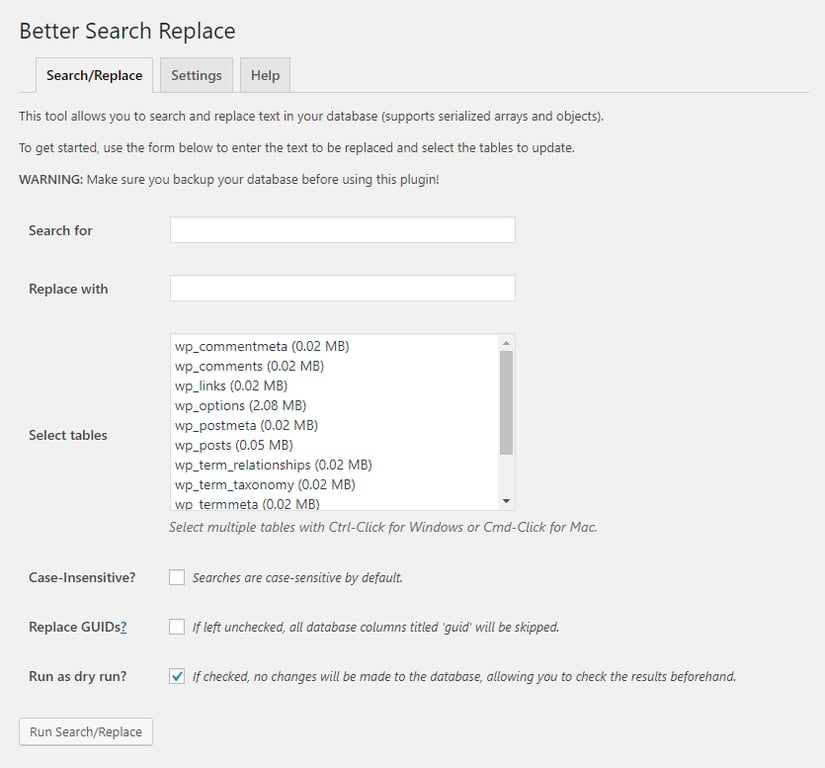
- Search for should have the word or phrase that you want to change.
- Replace with should hold the word or phrase that will replace the original.
- Select tables: choose the database tables you want to search. Select only the relevant tables when you know where the values are stored. For site-wide URL changes, you may need to include multiple tables, including those used by plugins.
- Replace GUIDs? – Leave this unchecked for a typical WordPress URL replacement. WordPress post GUIDs are persistent identifiers and generally shouldn’t be changed when moving a website to another domain.
- Run as dry run? – Keep this option enabled for the first run. The plugin will report how many database fields would be updated without saving changes.
Pro Tip
If you want to select all the tables in the column, you can press CTRL+A. You can also select individual tables by holding CTRL and clicking one table at a time. If you want to perform a case-insensitive data search, make sure to tick the Case-Insensitive? box.
Click Run Search/Replace with Run as dry run? enabled. Review the results to confirm the expected tables and number of changes.
If the results look correct and you’ve backed up your database, uncheck Run as dry run? and click Run Search/Replace again to apply the replacements.
Afterward, check the affected pages, links, and website settings to make sure everything works as expected.

If you run the plugin without the dry run option, it will immediately make changes to your database.
Using WP-CLI via SSH
WP-CLI is a command-line tool for managing WordPress installations. Its search-replace command searches WordPress database tables without requiring you to identify individual columns. It also supports dry runs and handles PHP-serialized data safely.
This method requires SSH access and WP-CLI installed on your server. Hostinger managed WordPress hosting plans include both by default.
Follow these steps to run a search and replace with WP-CLI:
- In Hostinger dashboard, navigate to Websites → Dashboard (next to the site you want to modify) → Advanced → SSH Access.
- If the SSH status shows INACTIVE, click Enable to activate SSH access for your account.
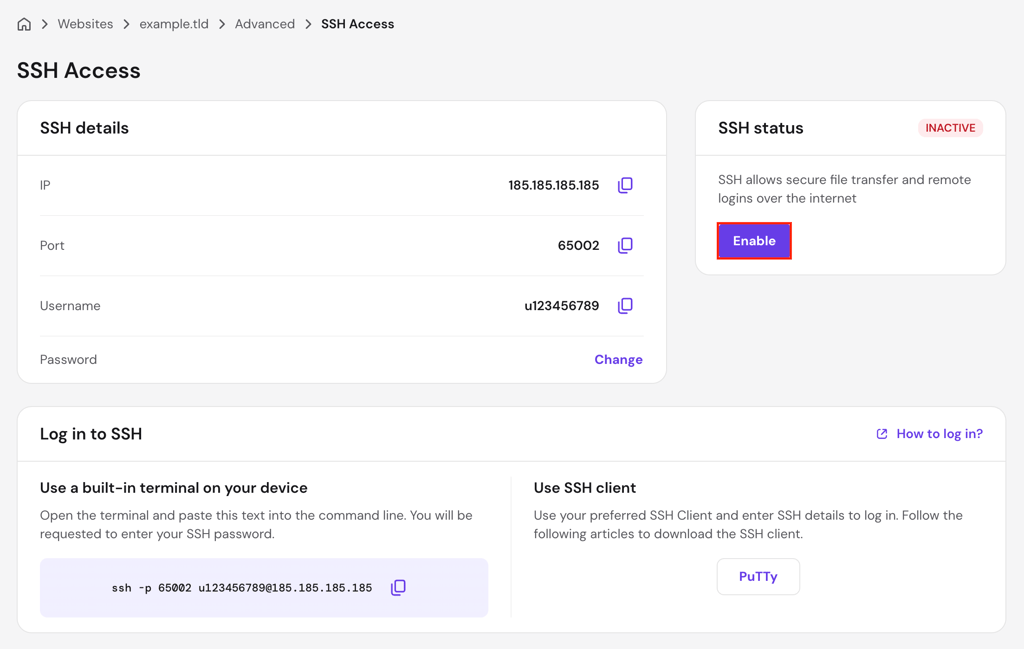
- Under Log in to SSH, choose one of the following connection methods:
- Option A – Use your device’s terminal. Open Terminal (macOS/Linux) or PowerShell (Windows), then paste the SSH command provided in Hostinger dashboard.
- For example:
ssh -p 65002 u123456789@185.185.185.185
- For example:
- Option B – Use PuTTY. Open PuTTY, enter your server’s IP address in the Host Name field and your SSH port in the Port field. Select SSH as the connection type, then click Open.
- Enter your SSH credentials when prompted to establish the connection.
- Option A – Use your device’s terminal. Open Terminal (macOS/Linux) or PowerShell (Windows), then paste the SSH command provided in Hostinger dashboard.
- Use SSH client — click PuTTY to download the client. Open PuTTY, enter the server IP in the Host Name field, the port in the Port field, select SSH as the connection type, and click Open. Enter your username and password when the terminal window appears.
Enter your SSH password when prompted.
- Navigate to your WordPress root directory. On Hostinger, the path follows the domains folder structure:
cd domains/domain.tld/public_html
Replace domain.tld with your actual domain name.
- Run a dry run first to preview the changes without modifying the database:
wp search-replace 'old-text' 'new-text' --dry-run
Replace old-text with the word or phrase you want to find, and new-text with its replacement. The –dry-run flag shows how many replacements would be made in each table without executing them.
- Review the output. WP-CLI displays a table listing every affected database table and the number of replacements found.
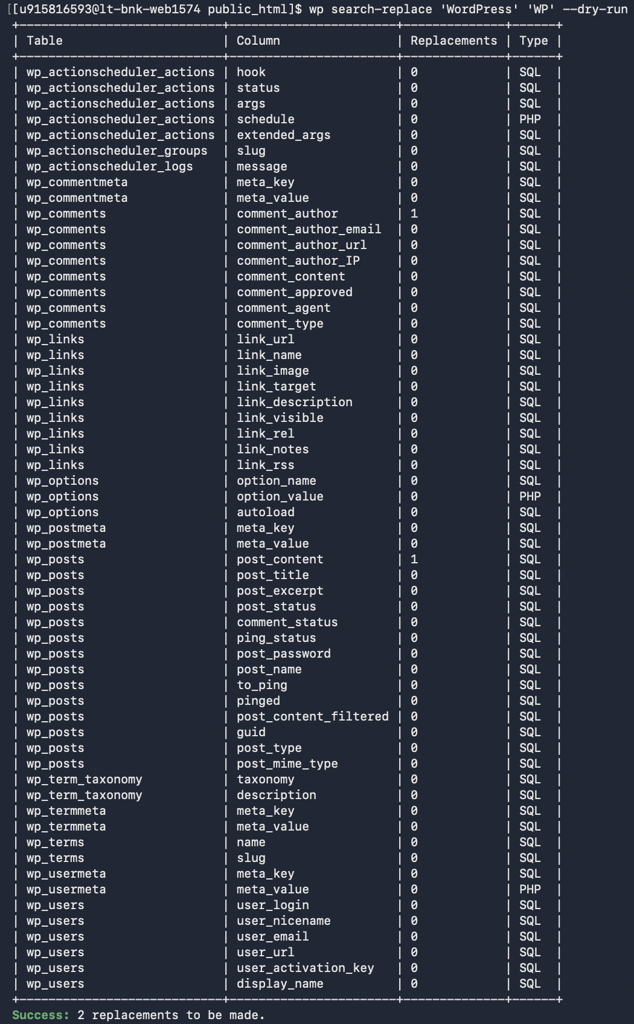
- Once you’re satisfied with the results, run the command without the –dry-run flag:
wp search-replace 'old-text' 'new-text'
By default, WP-CLI searches the WordPress tables registered with $wpdb. To include additional tables that use the same WordPress database prefix, such as certain plugin-created tables, add the --all-tables-with-prefix flag:
wp search-replace 'old-text' 'new-text' --all-tables-with-prefix --dry-run
Review the results before removing --dry-run to apply the changes.
Avoid using --all-tables unless you specifically need to modify every table in the database, including tables that don’t belong to the current WordPress installation.
If you’re managing a WordPress Multisite network, be especially careful when selecting database tables, since individual sites have separate tables within the same database.
Pro tip
WP-CLI safely handles PHP-serialized data, including values commonly stored in WordPress settings and metadata. The Better Search Replace plugin also supports serialized data, making both methods suitable for site-wide replacements.
Unlike these tools, direct MySQL REPLACE() queries don't account for serialized string lengths and can corrupt stored values. For domain migrations or other database-wide changes, use WP-CLI or a serialization-aware plugin instead.

Using MySQL query
It’s also possible to perform a search and replace in WordPress database using MySQL query via phpMyAdmin.
Important: Direct SQL search-and-replace queries are not safe for serialized WordPress data. WordPress stores some settings, widget configurations, and other values in serialized formats that include string-length information. Changing those strings with MySQL’s REPLACE() function can corrupt the serialized values.
Use this method only for known plain-text columns that don’t contain serialized data. For database-wide changes, especially when changing website URLs or domains, use a serialization-aware tool such as Better Search Replace or WP-CLI instead.
Always create a database backup before running an SQL update.
First, we’ll discuss how to identify your WordPress database name, which is worth reading if you have more than one database under your account. Then, we will uncover how to perform a search and replace in the database.
Here are the steps to locate your WordPress database name:
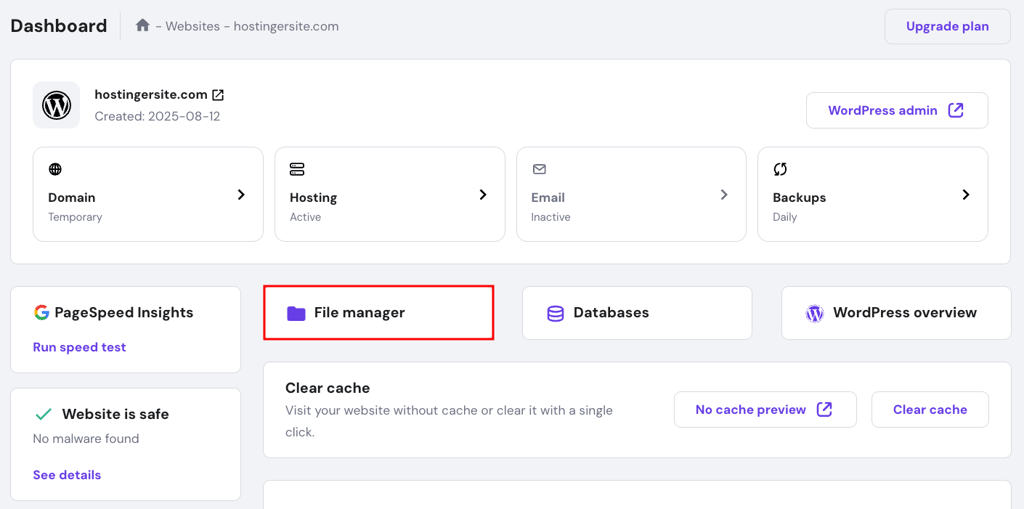
- Navigate to the File Manager section from your Hostinger dashboard.
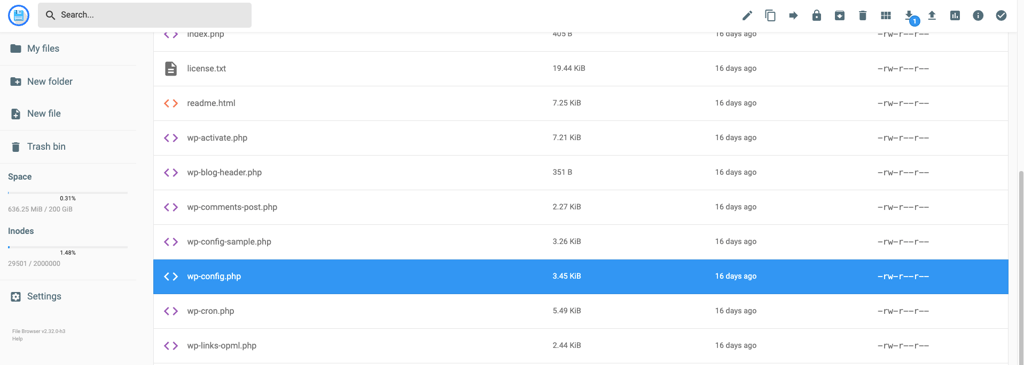
- Access the public_html folder and double-click the wp-config.php file to open it.
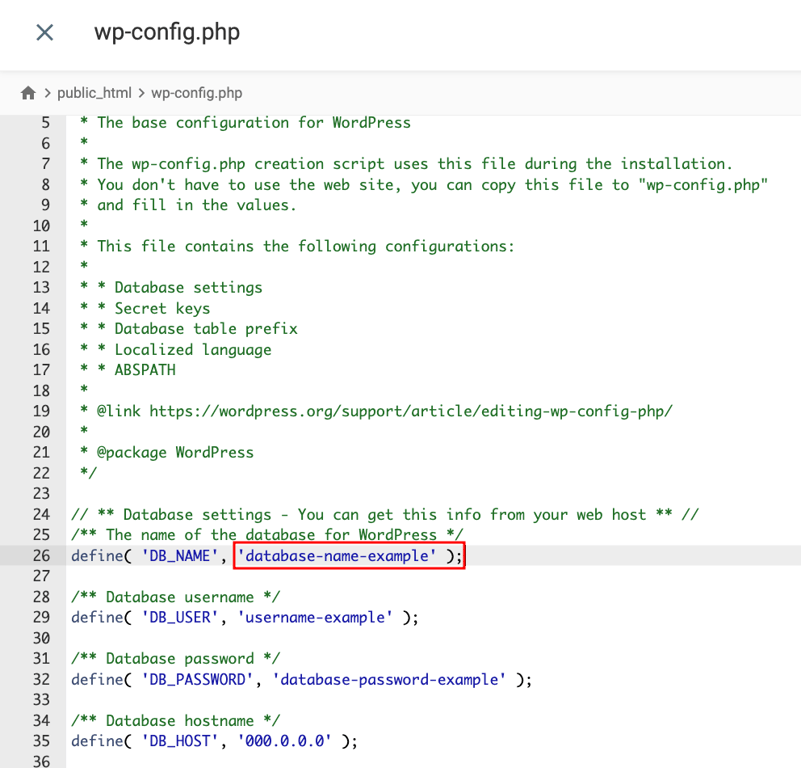
- Locate the DB_NAME value. Your WordPress database name is the value that appears next to it. In this example, the name is “database-name-example.”
Our tutorial on finding WordPress database name offers more information and shows the steps using an FTP client.
After locating the database name, follow these steps to perform a search and replace in the database:
- From your Hostinger dashboard, navigate to the Databases → phpMyAdmin section.

- Locate your WordPress database, then select Enter phpMyAdmin.

- In the phpMyAdmin page, navigate to the SQL tab at the top menu bar.

- Add the following code snippet to the available space
UPDATE TABLE_NAME
SET FIELD_NAME = REPLACE(FIELD_NAME, ‘old-text’, ‘new-text’)
WHERE FIELD_NAME LIKE ‘%old-text%’;
This query replaces matching text only within the specified column and rows. Replace TABLE_NAME and FIELD_NAME with the appropriate table and column names.
Before executing the query, confirm that the selected column contains plain-text values rather than serialized data. The WHERE clause limits which rows are updated, but it doesn’t prevent serialized-data corruption.
Be sure to replace the placeholder texts with the correct information:
- TABLE_NAME – The name of the database table you want to modify.
- FIELD_NAME – The column containing the text you want to replace.
- old-text – The existing word, phrase, or value you want to find.
- new-text – The new word, phrase, or value that will replace it.
Once you are done writing the query, click on the Go button to execute it.
What to do after a WordPress database search and replace
After running a search and replace in your WordPress database, check that the changes were applied correctly and your website still works as expected.
Start by reviewing the affected pages, links, images, and WordPress settings. If you changed your domain or website URLs, also check for broken links, missing images, and mixed-content warnings.
If you notice unexpected changes, restore your database from the backup you created before the replacement. You can also rerun a dry run with the original search value to check for remaining matches, but remember that some old values may be intentional.
For future database-wide updates, use a serialization-aware tool such as WP-CLI or Better Search Replace to reduce the risk of corrupting stored WordPress data.

This article is a localized version of How to perform a WordPress search and replace in the database, originally published in English.

Domantas leads the content and SEO teams forward with fresh ideas and out of the box approaches. Armed with extensive SEO and marketing knowledge, he aims to spread the word of Hostinger to every corner of the world. During his free time, Domantas likes to hone his web development skills and travel to exotic places.