You can automatically share WordPress posts to a Facebook Page using a social sharing plugin like Jetpack Social. Once connected, the plugin can publish updates to your Facebook Page whenever you publish new blog posts.
This saves time, keeps your social media audience informed, and helps bring visitors back to your website.
In this tutorial, you’ll learn how to connect WordPress to Facebook, set up automatic sharing with Jetpack Social, and compare alternative tools for managing your posts.
How to automatically share WordPress posts to Facebook with Jetpack Social
To explain how to automatically share a WordPress post to your Facebook page, we will use Jetpack. It is a beginner-friendly plugin that is also integrated into Hostinger’s WordPress plans.

Thus, you can quickly start using it to share your WordPress content to Facebook.
1. Install and activate Jetpack Social
There are different methods for installing WordPress plugins, such as using your Hostinger control panel (Hostinger dashboard), an FTP client, or doing it manually.
Jetpack Social lets you automatically share new WordPress posts to connected social media accounts, including Facebook Pages.
To install it:
- Open your WordPress dashboard and navigate to Plugins → Add New Plugin.
- Search for Jetpack Social.
- Click Install Now, then Activate.
If you already have the main Jetpack plugin installed, you can use its built-in Social feature instead of installing the standalone plugin.
2. Connect your Facebook page
Once Jetpack Social is active, connect your Facebook Page:
- From your WordPress dashboard, navigate to Jetpack → Social.
- Under the social network connections section, click Connect an account.
- Find Facebook and click Connect.
- Log in using the Facebook profile that manages your Page.
- Approve the required permissions and select the Facebook Page you want to connect.
- Complete the connection process and confirm that your Facebook Page appears under the connected accounts.
If your Page isn’t available, review the connection requirements described earlier.
3. Enable automatic sharing
After connecting your Facebook Page, go to Jetpack → Social → Settings and enable Automatically share your posts to your connected social accounts.
You can also control sharing for individual posts from the WordPress editor. Open the Jetpack or Social panel in the post settings sidebar, select your connected Facebook Page, and enable the Auto-share post option.
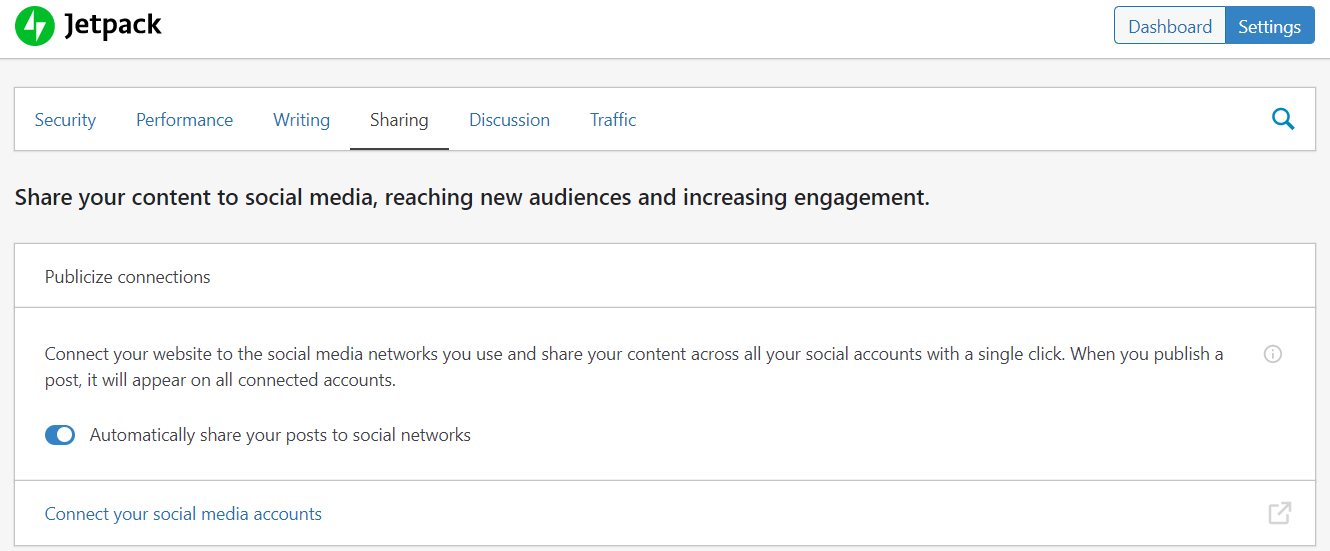
It’s also a good idea to edit other items on Jetpack’s settings page, like adding social sharing buttons.
4. Publish and test a shared post
To confirm automatic sharing works, create a new WordPress post and check that your Facebook Page is selected in the Jetpack Social panel.
Publish the post and review the sharing confirmation. Then open your Facebook Page to verify that the post appears correctly.
If the post doesn’t appear, check Jetpack Social’s sharing history and make sure your Facebook connection is still active.
6 other tools for sharing WordPress posts to Facebook
Besides Jetpack Social, several tools can help you automatically share WordPress posts to Facebook and manage your social media content.
- IFTTT – An automation platform that connects WordPress to Facebook Pages and other applications. You can create automated workflows that share new blog posts on your Facebook Page whenever they’re published.
- Buffer – A social media management tool for scheduling posts across multiple platforms, including Facebook. Using the WordPress to Buffer plugin, you can automatically add new blog posts to your publishing queue and manage them alongside other social content.
- CoSchedule – A marketing calendar that combines WordPress content planning, social media scheduling, and team collaboration. It lets you organize blog posts and schedule promotional messages for your Facebook Page from one dashboard.
- Social Media Auto Publish – A WordPress plugin that automatically shares posts to Facebook, LinkedIn, and other supported platforms. You can customize messages and filter which posts get shared based on categories or post types.
- Blog2Social – A WordPress plugin for sharing, customizing, and scheduling content across multiple social networks. It supports personalized messages and social media scheduling, although some automatic publishing features require a premium plan.
- WP2Social Auto Publish – A plugin designed specifically for automatically sharing WordPress content to Facebook Pages. It supports text, images, and links, with options to customize messages and filter posts by category or post type.
Next steps: Test your Facebook sharing setup
Once you’ve connected your WordPress website to Facebook, publish a test post to confirm that automatic sharing works correctly.
Check that the post appears on your Facebook Page with the expected title, image, and link. If you’re using Jetpack Social, review the sharing history to confirm whether the post was published successfully.
After testing, you can continue using Jetpack Social or compare the alternative tools listed above if you need additional scheduling and social media management features.
This article is a localized version of How to automatically share WordPress posts to Facebook, originally published in English.

Klara is an eCommerce enthusiast. She has a passion for developing content and building websites. In her spare time, she enjoys traveling to experience different cultures. Klara is always looking to learn new things in the IT field, and she loves sharing her knowledge with others.