To transfer web hosting, move your website’s files and database to a new hosting provider, test the migrated site, and update your domain’s DNS settings. You can handle the migration manually, use a WordPress migration plugin, or request assistance from your new hosting provider.
The best method depends on your website, technical experience, and whether your new host offers migration services.
In this guide, we’ll compare the three options and walk through the manual transfer process, including backups, database migration, DNS updates, and post-migration checks.
Which website migration method should you use?
There are three main ways to transfer your website to a new hosting provider. The best option depends on your website’s platform, size, and how much control you want over the process.
| Method | Best for | What to consider |
|---|---|---|
| Hosting migration service | Beginners or anyone who wants assistance | Your new host handles the transfer, but availability and eligibility vary by provider. |
| WordPress migration plugin | WordPress websites and self-service transfers | Plugins simplify file and database transfers, although some have import-size or feature restrictions. |
| Manual migration | Custom websites or users who need more control | You transfer files, databases, and configuration settings yourself. Requires more technical knowledge. |
For most beginners, a hosting migration service is the easiest option when available. WordPress plugins are a practical alternative for self-service transfers, while manual migration offers more control.
If you’re moving to Hostinger from another provider, eligible websites can use its free migration service. However, email accounts and certain server settings may need to be transferred separately.
1. Set up your new hosting account
Before transferring your website, activate a hosting plan with enough storage and resources to support your existing site. Make sure the new provider supports your CMS, PHP version, database, and other technical requirements.
If you haven’t chosen a hosting provider yet, consider its performance, security, and support alongside migration assistance.
Once your new hosting account is ready, make sure you have access to its control panel and the tools needed to upload files and databases. Keep your previous hosting account active until the migration is complete and your website works correctly on the new server.
2. Export your website’s backup files
The first step to manually transfer hosting is to create an entire site backup and save your website files. The goal here is to set it up on the new hosting account without errors or missing parts.
Doing this ensures that when your website goes live on the new hosting account, all its content, plugins, and themes remain the same.
Important! It’s crucial not to alter your site files or database once you download them. Doing so risks compromising the website’s structure, which can lead to errors and broken links.
Back Up Your Files via Hostinger dashboard
In most cases, the control panel on your old hosting account should offer a full backup export option, which is the easiest way to do this. For example, Hostinger dashboard has a feature that enables users to create a full backup in just a few clicks.
To download your website files on Hostinger dashboard:
- In your Hostinger dashboard, go to Websites, click the website, then go to Files → Backups.
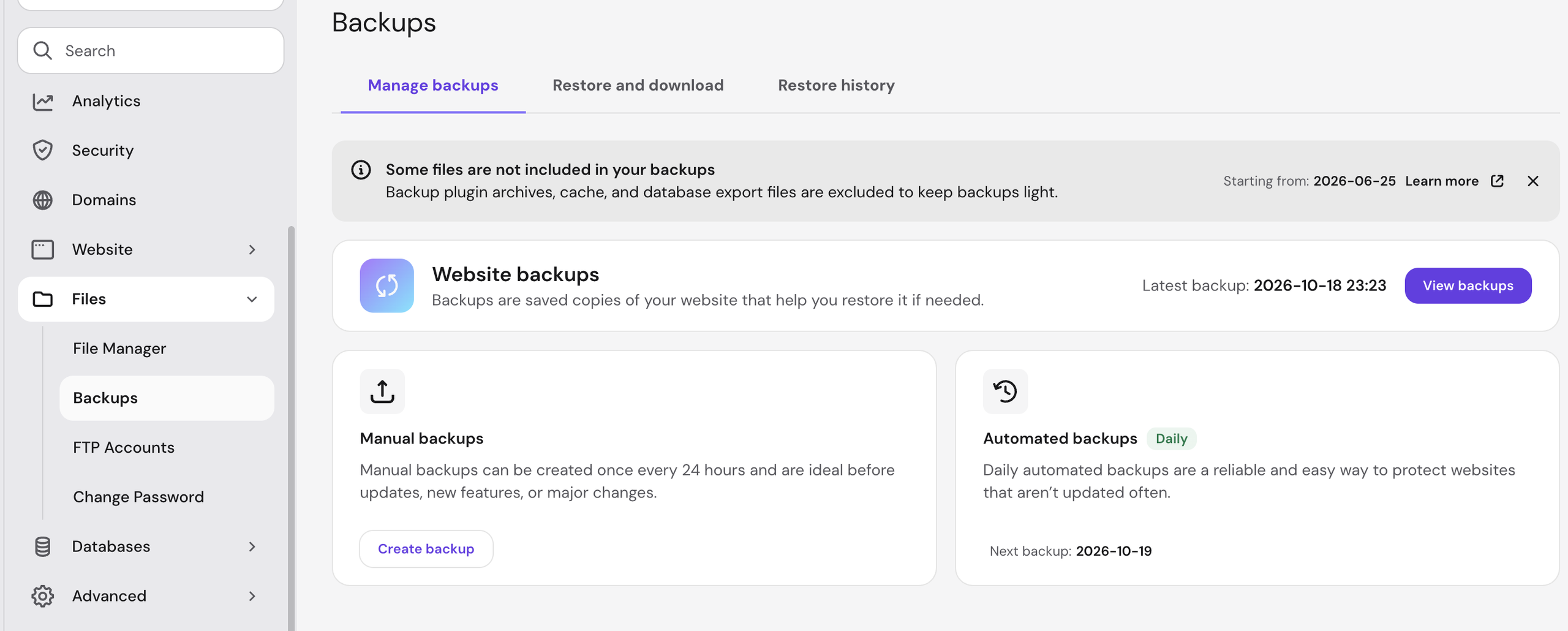
- Click View backups.
- Navigate to Files backups, select the most recent date in the drop-down menu and click Download files.
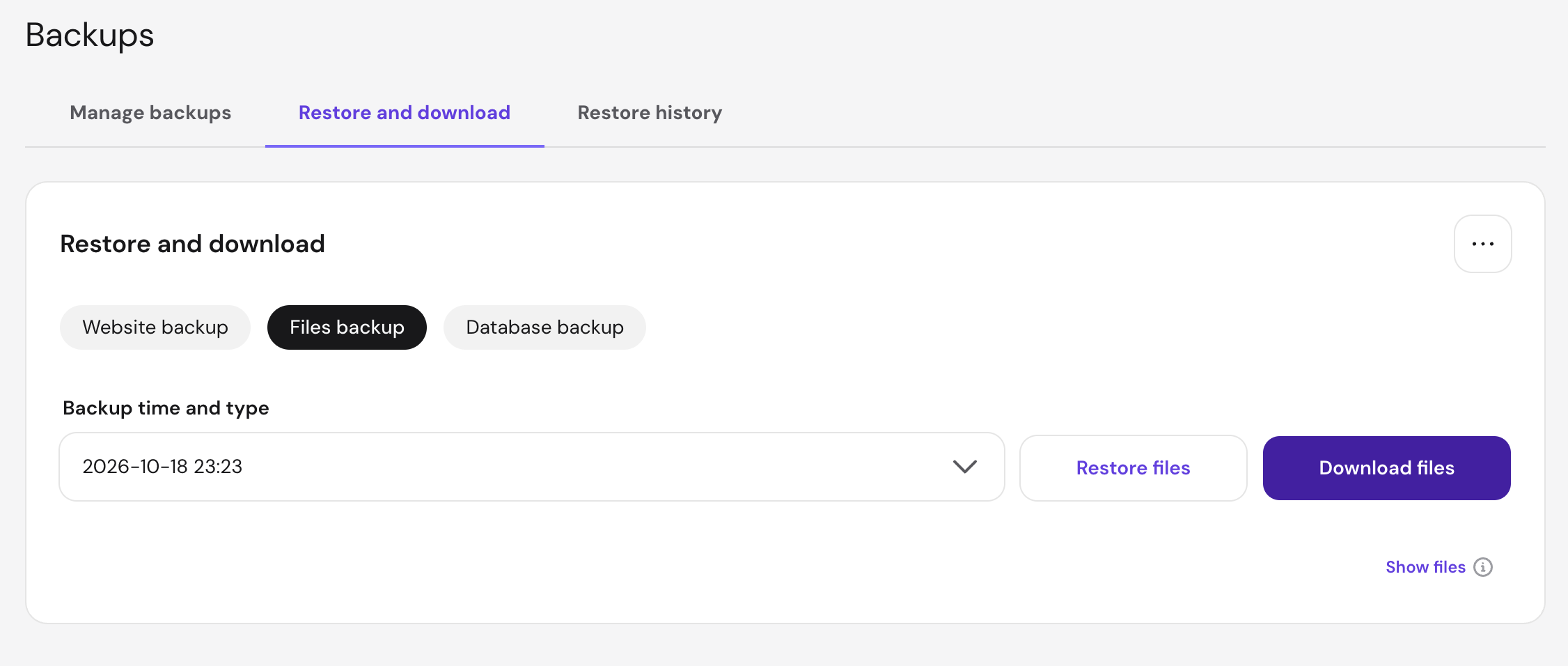
- Once the files are ready, you’ll receive a notification that will prompt you to download them.
Back Up Your Website Files Manually
If your current hosting provider doesn’t offer a simple backup feature, you’ll have to conduct a manual website backup. Before proceeding, make sure that you have access to a File Transfer Protocol (FTP) client, like FileZilla, to download the website files.
First, connect to the FTP server via an FTP client. Today, we will be using FileZilla.
- In Hostinger dashboard, go to Websites, click the website, then go to Files → FTP Accounts and gather your hosting account’s FTP details.
- Open FileZilla, go to File → Site Manager → New Site.
- Set Logon Type to Normal. Then, fill in your website’s FTP account details:
- Host – your site’s domain name.
- User – FTP account username.
- Password – FTP account password.
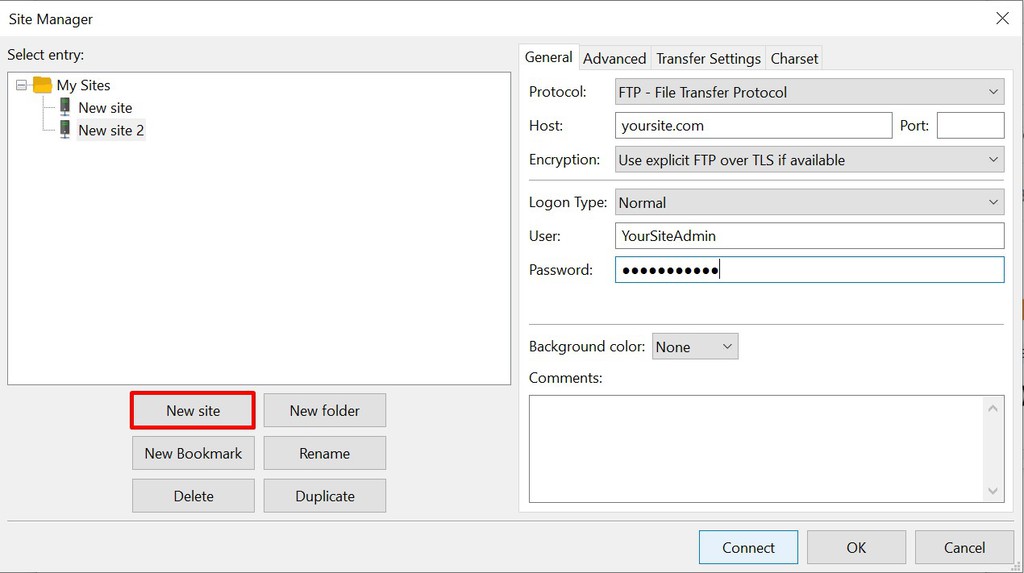
- Double-check the information and click Connect, then click OK.
Second, download the website files to your local computer.
- On FileZilla, under Local site, select Desktop or a file in your computer that will store your website files.
- Right-click the chosen file and select Create directory and enter it. Then, name this new directory – for example, “website backup.” This will become the folder where your downloaded website files are stored.
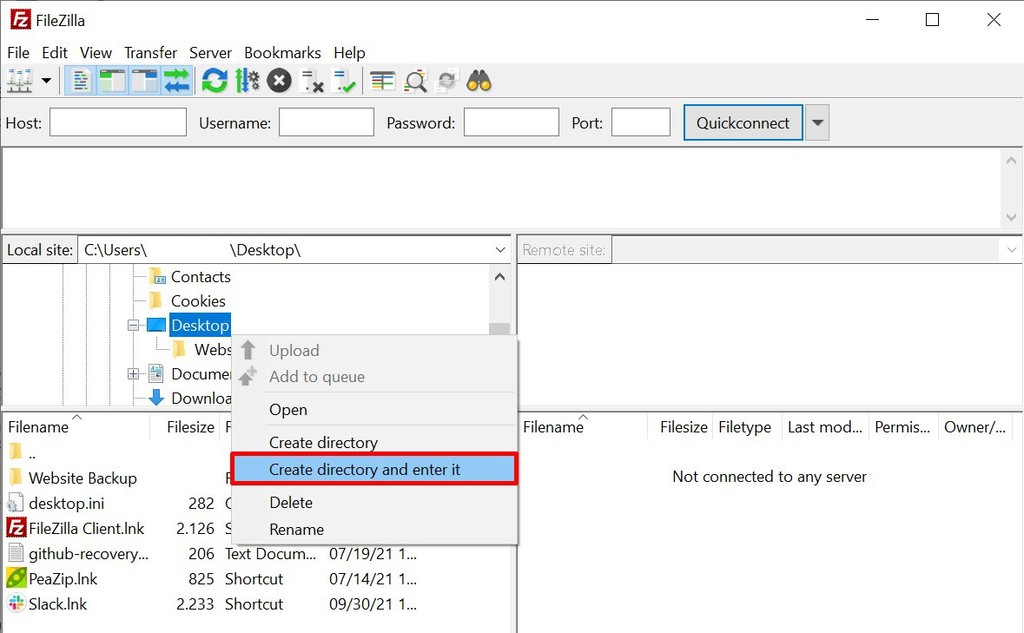
- Navigate to Remote site and find your website’s public_html folder.
- Drag and drop the public_html folder to the Website Backup folder.
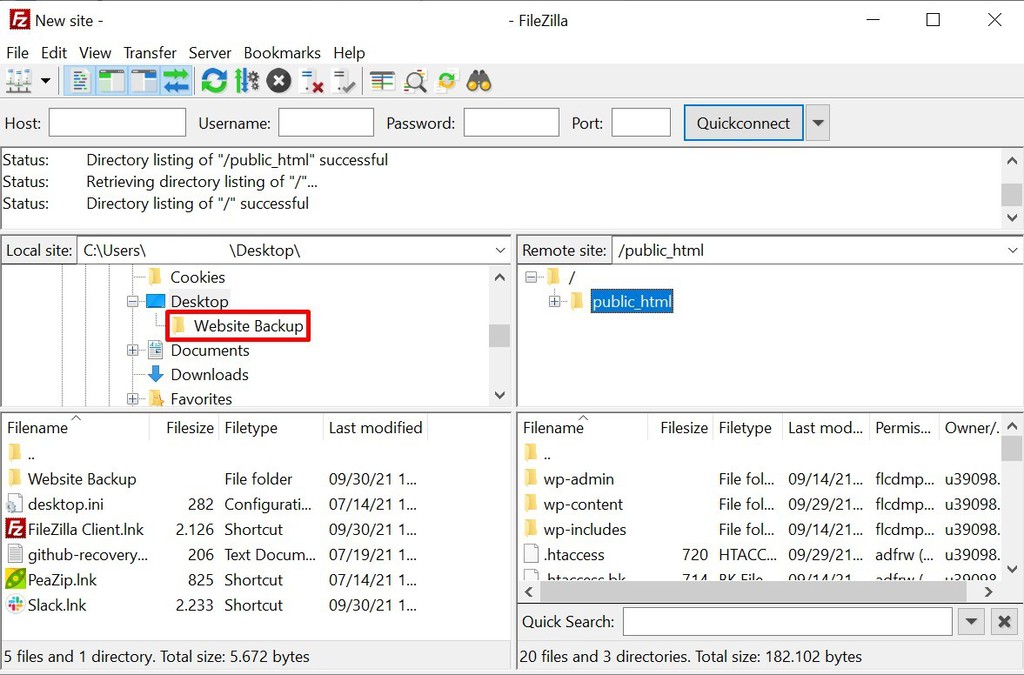
- Wait until the download is complete.
You should now be able to find the Website Backup folder containing the downloaded website files on your computer desktop.
3. Download your database backups
Equally as important as your website files is its database. Here, we’ll share two methods on how to backup and download your database – manually and via Hostinger dashboard.
Back Up Your Database on Hostinger dashboard
Just like with files, navigate to your Hostinger dashboard’s Files section and click Backups. Then to download your website database:
- Navigate to Database backups.
- Choose which backup data to download and which database to use.
- Select the most recent backup date and click Download database.
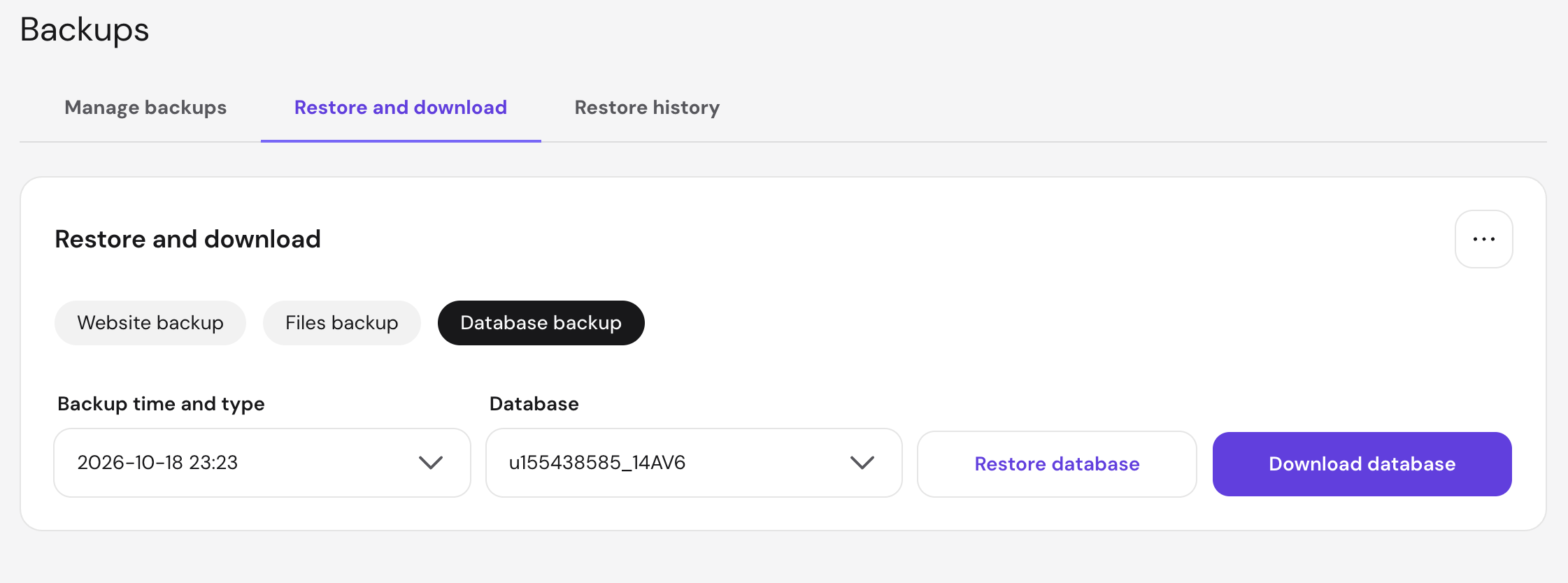
- Wait for a notification to appear, then click on it to download the database.
Back Up Your Website Database Manually
To do this step, you need access to your site’s phpMyAdmin, which can be found in the control panel of your old hosting account.
To demonstrate, we will use Hostinger dashboard.
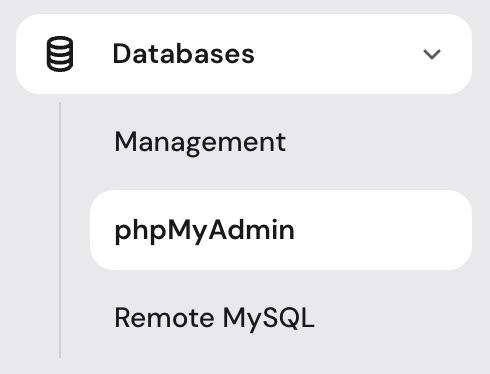
- In your Hostinger dashboard, go to Websites, click the website, then go to Databases → phpMyAdmin.
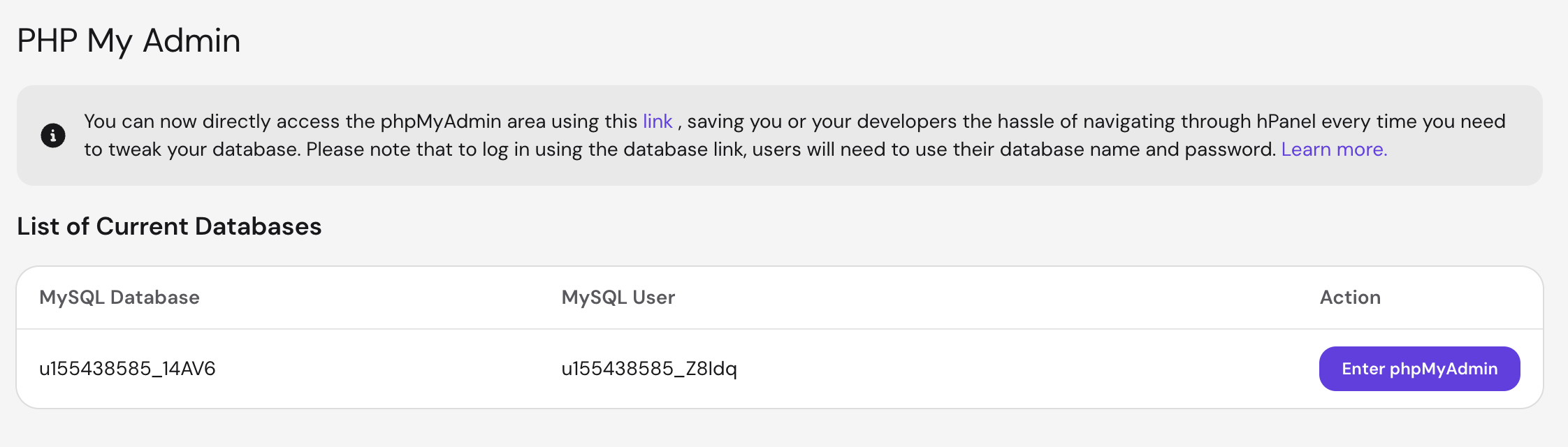
- Under the List of Current Databases, find your site database and click Enter phpMyAdmin.
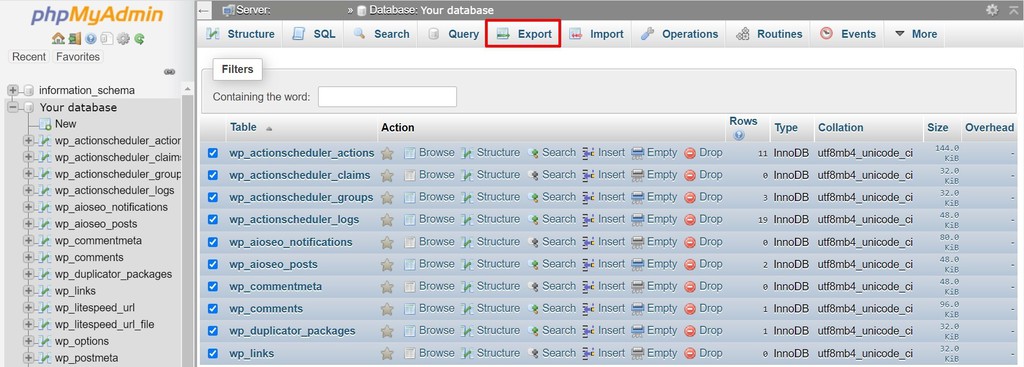
- The phpMyAdmin screen will appear. Here, select all the files that make up your website database, then click Export.
- Select Quick for the Export method and SQL in the drop-down menu under Format.
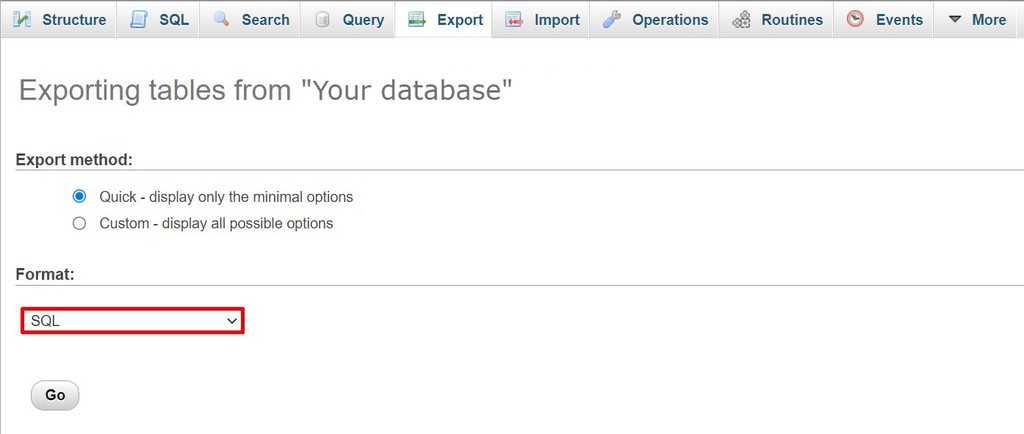
- Click Go to download the zipped file of your site’s SQL database.
4. Move the files and database to the new host
The next step is to manually migrate your website’s files and database to the new provider. To do this, you’ll need access to your new hosting account’s FTP client.
Pro Tip
Since the database files are in a .zip format, decompress or unzip the files before continuing.
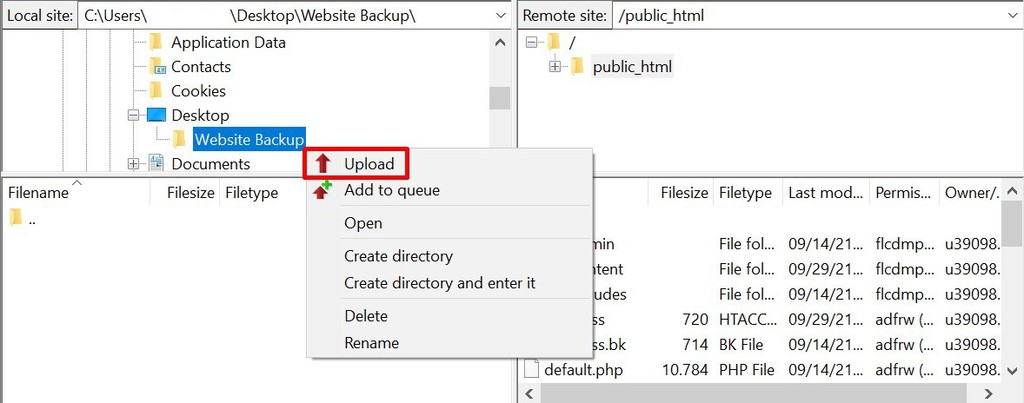
- Connect FileZilla to your new hosting account and navigate to the public_html folder in the Remote Site column.
- In the Local Site column, locate the folder with the site files you want to upload. In our case, this folder is Website Backup.
- Right-click the folder and select Upload.
To upload your website database to Hostinger:
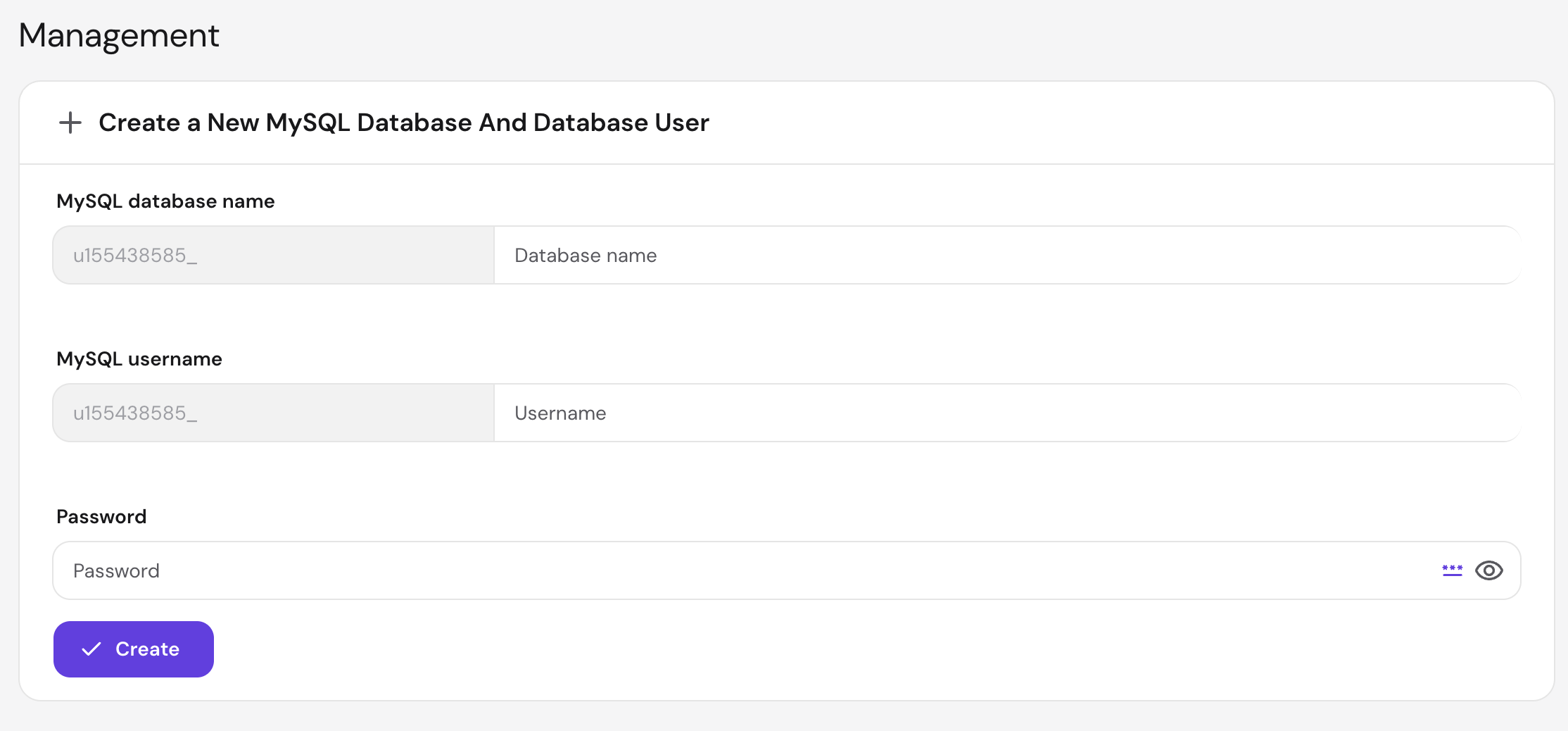
- Open your new account’s Hostinger dashboard and navigate to Databases → Management.
- Create a new database by entering the new database name, username, and password in the corresponding fields and click Create. Take note of these new credentials and make sure not to forget them.
- Head back to Databases and click on phpMyAdmin. Find your newly created database and click Enter phpMyAdmin.
- On the phpMyAdmin page, click the Import tab located at the top of the page.
- Click Choose File and select your website’s unzipped database files to upload.
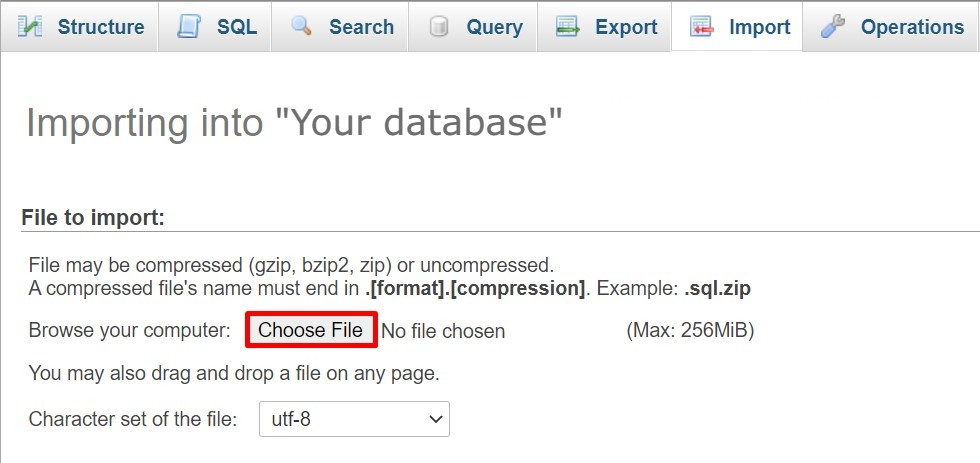
- Leave all settings as is and click Go.
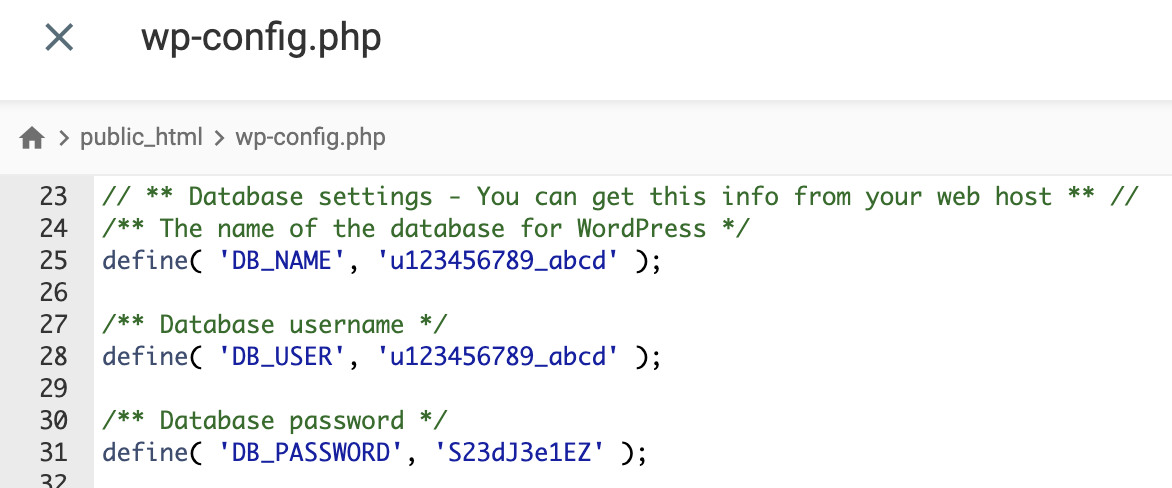
If you are transferring a WordPress site, you need to update wp-config.php with your new database details. The information is available in your web hosting account’s root directory:
- On Hostinger dashboard, navigate to Files → File Manager.
- Access the public_html folder, right-click the wp-config.php file, and select Edit.
- Add your new database details in these lines of code:
DB_NAME– database name.DB_USER– admin username.DB_PASSWORD– admin password.DB_HOST– database hostname. This is usually localhost, but may vary depending on the hosting provider.
- Save the changes.
5. Point your domain name to the new server
Before pointing your domain to the new hosting provider, preview your migrated website using the temporary URL or preview tools provided by your host.
Check that important pages, images, forms, and other website features work correctly. This helps you identify migration problems while your original website remains available.
Once everything works, update your domain’s DNS settings to direct visitors to the new server. Depending on your setup, this may involve updating DNS records or changing nameservers.
If you’re changing nameservers, make sure any email-related and other necessary DNS records are configured at the new DNS provider before switching.
Find the New Nameservers
Your new hosting provider usually has one or two nameservers. Access this information by navigating to Hosting → Plan details in your Hostinger dashboard.
For example, Hostinger’s nameservers are:
- ns1.dns-parking.com
- ns2.dns-parking.com
Take note of these nameservers because you’ll need to enter them into your domain registrar’s control panel.
Replace Your Domain’s Old Nameservers
- Log in to the domain registrar where you bought the site’s domain.
- Look for the settings to configure the domain’s nameservers. It varies depending on each registrar, but you can often find this under Domain Management or Domain Overview.
- In your new account’s Hostinger dashboard, go to Domains → [your domain name] → DNS / Nameservers and click Change Nameservers. Here, you have two options:
- Fill in the fields manually.
- Select Use Hostinger nameservers to use Hostinger’s default nameservers.
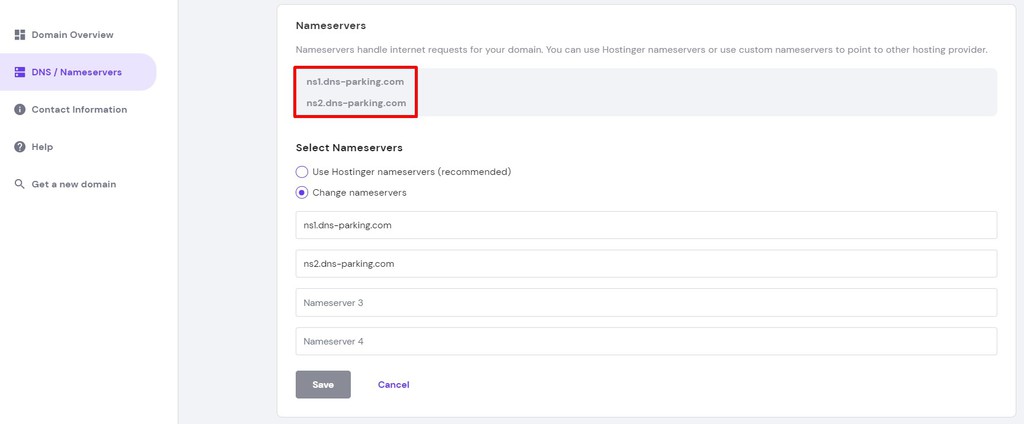
- Click Save.
Note that if there’s a discrepancy between the number of nameservers your new host provides, you should follow these tips:
- If your new host has two nameservers, but your registrar has four nameserver fields, simply enter the first two fields and leave the rest blank.
- If your hosting provider gives three nameservers, but your registrar only has two nameserver fields, simply enter the first two nameservers.
Pro Tip
You can also move your domain to Hostinger to keep everything in one place. For guidance, check out our domain migration guides on
Wait for DNS Propagation
Now it’s a matter of waiting for the new changes to take effect, which typically takes a few hours. However, note that DNS changes can take up to 24 hours to propagate.
To speed up the process, you can flush your DNS cache. This is especially useful after transferring hosting accounts to clear any corrupted or outdated DNS cache records.
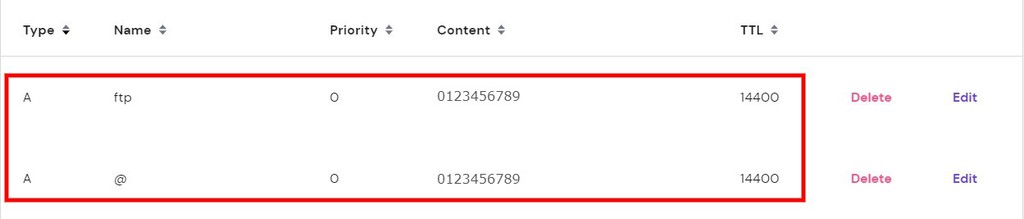
You can see if your site’s domain is already pointing to the correct nameservers by checking its DNS A record. Do this to see if your domain has the same IP address as the one provided by your new hosting provider:
- Access the Hostinger dashboard and find your host’s IP address on the left sidebar. Take note of this.
- Then, head to Advanced → DNS Zone Editor.
- Under the Type column, navigate to A and check your domain’s A record value under Content. Make sure it has the same value as the IP address given by your web host.
6. Test and review
After updating your DNS settings, test the website again using its regular domain name.
Check that pages, images, contact forms, and login functionality work correctly. Also verify that HTTPS, redirects, and any email services associated with the domain function as expected.
Keep your previous hosting account active until you’ve confirmed that the website is working correctly on the new server.
Now, look around and check that both the front and back-end of your site work seamlessly. Doing this also helps to avoid website downtime and identify errors so you can fix them before the site goes live.
On your hosting dashboard, navigate and explore the different sections to get a feel of your new control panel. Ensure that all the settings are configured to your website’s specifications, and maybe even move your email services to Hostinger while you’re at it.
From the front-end, browse all of your website’s pages. Make sure that all content such as images, text, and videos loads smoothly and correctly. Also, check if every feature, like contact forms, works properly.
If you find no errors, you are officially done with the manual hosting transfer process. Congratulations!
Other ways to transfer your website
In the following sections, we’ll cover how you can transfer hosting with a plugin if you run a WordPress website, or by requesting a migration service from your new host.
How to transfer a WordPress website using a plugin
There are numerous WordPress migration plugins we recommend, like All-In-One WP Migration and Duplicator. Although the features vary with each plugin, they all work to simplify the website migration process.
Using a migration plugin is an excellent option for beginners and those with little to no technical knowledge. For example, All-In-One WP Migration enables you to upload databases, files, themes, and plugins to another server with just a few clicks. It even offers a drag-and-drop import function to further simplify the transfer process.
Similarly, Duplicator has a function that enables you to copy and clone your website to another host or staging area with no website downtime.
This plugin also offers a backup solution by bundling site files into a .zip format to optimize mobility and efficiency. Moreover, it comes with a file pre-configuration feature to simplify backups and transfers.
Here’s an example of how you can transfer hosting for an existing website using Duplicator:
- Install the plugin on your old hosting account’s WordPress dashboard. There are two ways to do this:
- Conduct a manual install by downloading the plugin’s .zip file and uploading it to your dashboard by clicking Plugins → Add New → Upload Plugin.
- Install it via your WordPress dashboard by navigating to Plugins → Add New. Simply search for the plugin in the field on the top-right side of the screen and click Install Now.
- Click Activate on the plugin once it’s installed. Alternatively, Activate the plugin via Plugins → Installed Plugins.
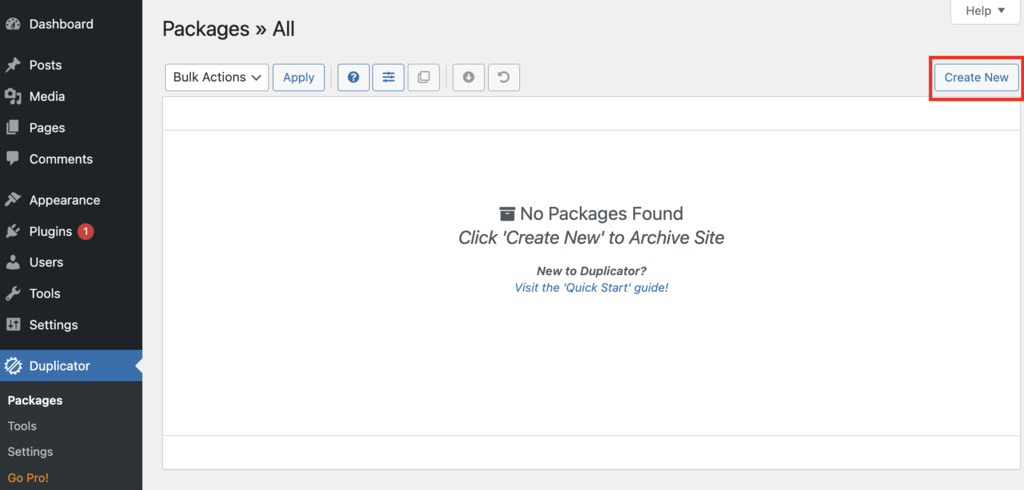
- Once activated, go to Duplicator → Packages on your WordPress dashboard’s left sidebar and click Create New.
- Name your package and then click Next. Duplicator will scan for potential issues before going to the next step.
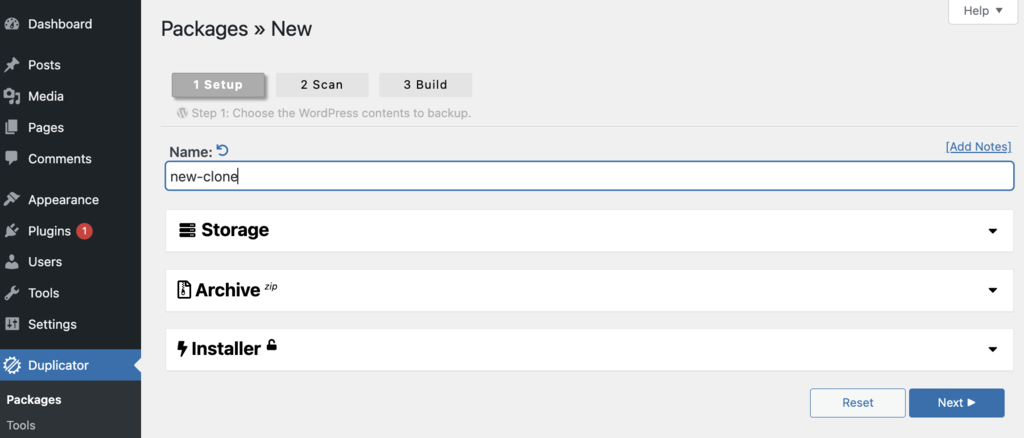
- Once the scan is done, click Build to let Duplicator create your package.
- Wait until this process is complete, then select the Download Both Files option to download a website backup .zip file and an installer.php file to your computer. They will enable you to upload the website to the new hosting account.
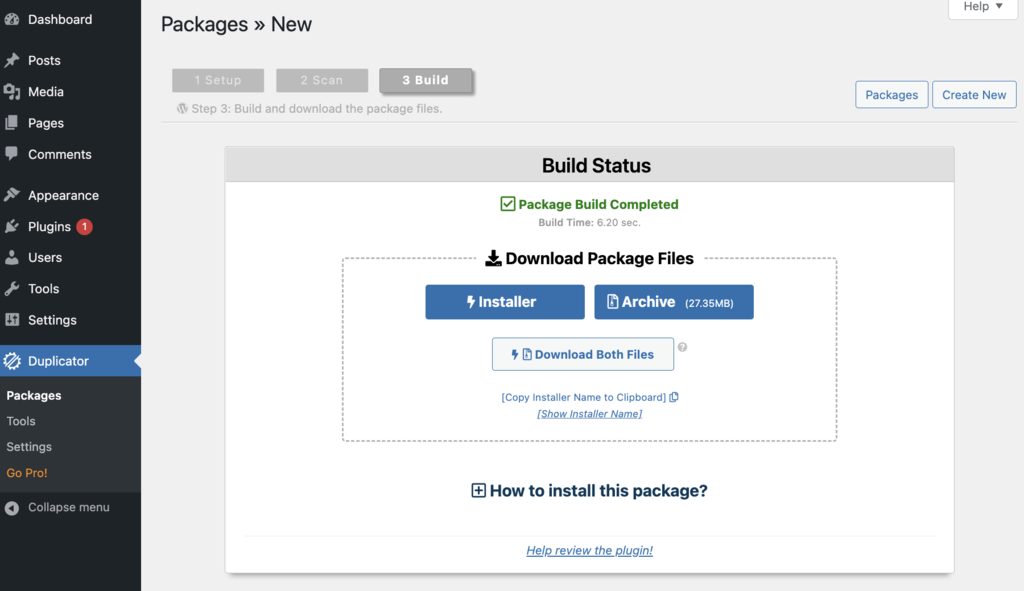
Next, upload the .zip and installer.php files to your new hosting account’s root directory or public_html folder. You can do this via an FTP client such as FileZilla, which we covered in step three of this article.
On the other hand, this step becomes much simpler if you’re transferring to Hostinger:
- On the Hostinger dashboard, go to Website → Import Website.
- Click Choose a file and select the website backup .zip file.
- Follow the prompts given to configure and complete the migration.
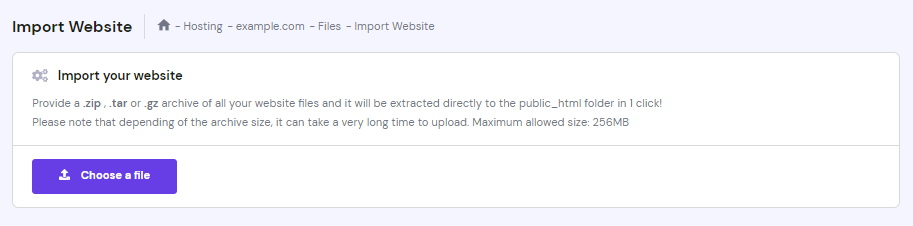
This process extracts your website’s files directly to the public_html folder, so you don’t have to worry about going through the extra steps of manual migration.
How to request a hosting migration service
The simplest way to transfer website hosting is by picking a new web host that offers a free migration service. However, note that not all hosting providers offer this service, and even less provide it for free.
If you run a WordPress site, you’ll have more luck finding hosting providers who offer website migration at no extra charge. For non-WordPress sites, however, the availability of free migration services decreases significantly.
At Hostinger, we offer site migration services at no additional cost for those who purchase any of our website hosting plans.
After activating your hosting plan, log in to your Hostinger account. Open the Websites section and select Migrate Website, or access your migration requests from the Migrations section.
Follow the prompts to provide your existing website details, choose the appropriate migration option, and submit the request. You can monitor its progress in your Hostinger dashboard.
Next steps: Complete your hosting migration
Before canceling your previous hosting plan, verify that your website works correctly on the new server. Check important pages, forms, database connections, redirects, and email functionality.
Keep a recent website backup in case you need to restore any missing files or data.
Once your domain points to the new host and you’ve confirmed everything works as expected, you can safely close your previous hosting account.
This article is a localized version of How to transfer web hosting to a new provider, originally published in English.

Tamara is a Content Editor and digital marketing enthusiast with 2+ years of experience in the IT industry. She loves sharing tips and tricks about SEO, web development, and eCommerce to help others navigate the online sphere. In her spare time, Tamara enjoys exploring new cities. Follow her on LinkedIn.

As VP of Product at Hostinger, Saulius oversees Web Hosting Platform & Tools, Managed WordPress, and WebPro Experience. Saulius enjoys observing users through their daily life activities, looking for problems to solve, and building products that make users more efficient online, help them spend more time on the things they love, and leave all the rest for technology to solve. Follow him on LinkedIn.