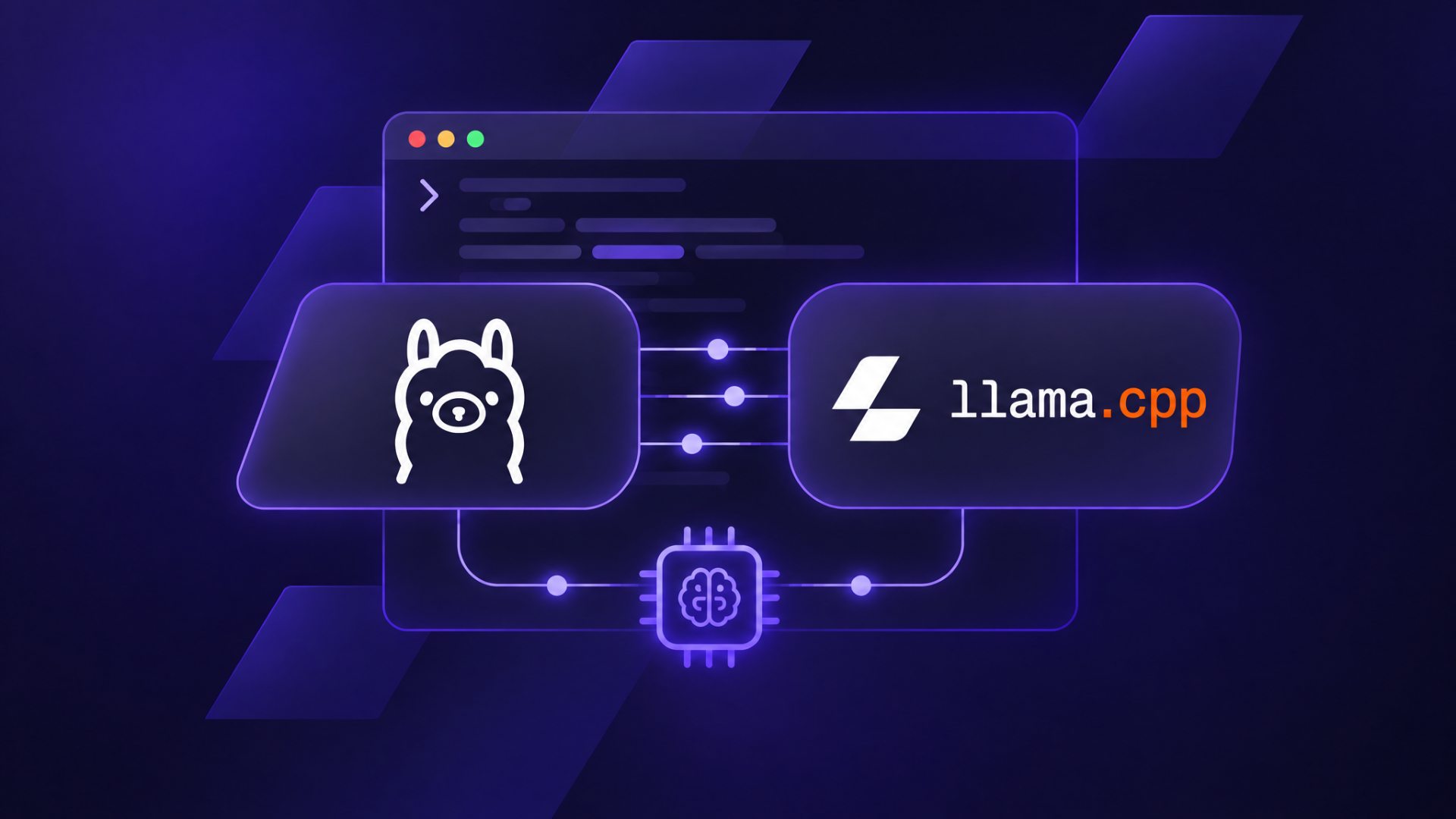
When comparing Ollama vs. llama.cpp, start with Ollama if you want an easier way to download, run, and switch between local AI models. Choose llama.cpp when you need more control over model files, GPU memory, or server settings.
Both tools run many of the same AI models. The better fit depends on your setup and what you’re building.
For example, a personal assistant on your laptop has very different memory and speed requirements than an app answering questions for several people at once.
Feature | Ollama | llama.cpp |
Model management | Downloads and switches models from a named library | Runs downloaded models or opens existing model files directly |
Performance | Matches or exceeds llama.cpp in some tests | Faster in some tests, including the cited multi-user benchmark |
Ease of setup | One-command install; start chatting with a model name | One-command install or app; run a model file or Hugging Face repo |
Hardware controls | Automatically manages CPU and GPU use, with adjustable settings | Automatic allocation plus detailed manual controls |
API setup | Local API available through the Ollama service | Local API through Llama app or a configurable server |
Best for | Beginners, personal assistants, and model experimentation | Hardware tuning, direct GGUF access, and custom deployments |
What are Ollama and llama.cpp?
Ollama and llama.cpp are open-source tools that let you download, manage, and run Large Language Models (LLMs) on your own computer or server. These LLMs generate answers to your questions locally instead of relying on an online AI service. Your prompts stay completely private because they never leave your device or server.
Ollama simplifies running and managing local AI models. You can download a model, chat with it, or connect it to other applications without setting up the engine yourself.
Llama.cpp runs AI models directly, so you get more control over how they use your central processing unit (CPU), graphics processing unit (GPU), and memory. You also manage the model files yourself, which helps when you need to tune performance or customize a server setup.
The tools are connected. When Ollama runs a model in GGUF format, a common file format for local AI models, it uses llama.cpp behind the scenes to process your questions and generate answers. On Apple Silicon, it can also use MLX for some models. Either way, Ollama manages the engine for you, so you never have to set up or configure llama.cpp yourself.
Is Ollama or llama.cpp faster?
llama.cpp is faster in some setups, while Ollama matches or beats it in others. The difference depends on how much of the model runs on your GPU and whether you’re answering one question or handling several requests together, and settings such as speculative decoding.
What do the benchmarks show?
In June 2026, llama.cpp was faster on both computers tested. In October, both tools performed almost equally well on an RTX 5090 when answering one question with Ollama’s speculative decoding turned off. llama.cpp was much faster with 32 requests at once (Ollama queued the requests on the tested Qwen model). Turning speculative decoding on increased Ollama’s speed, but llama.cpp wasn’t tested with the same feature.
June 2026: Testing two different computers
InventiveHQ tested both Ollama and llama.cpp using the same Qwen2.5-Coder-7B Q4 model on an NVIDIA RTX 5060 Ti and an Apple M3 Max*.
Speed was measured in tokens per second (tok/s). Tokens are small pieces of text, and higher numbers mean faster output, or more text delivered per second.
Computer used | Ollama | llama.cpp |
NVIDIA RTX 5060 Ti | 69.1 tok/s | 77.0 tok/s |
Apple M3 Max | 46.2 tok/s | 53.5 tok/s |
Ollama delivered around 10–14% less text per second on both computers. These results include the time to complete each response, not just how long it takes to generate the text itself.
October 2026: One question versus 32 at once
ComputingForGeeks tested both tools using Qwen3.8-27B on an NVIDIA RTX 5090*. The testers compared performance for one question and 32 copies of the same question submitted together.
The Qwen3.8-27B model includes a multi-token prediction head that can guess several pieces of text ahead to speed up answers. This is called speculative decoding, and the researchers tested Ollama with it switched on and off.
What was tested | Ollama | llama.cpp |
One question – Ollama’s speculative decoding switched off | 76.8 tok/s | 77.8 tok/s |
One question – Ollama’s speculative decoding switched on | 129.7 tok/s | Not tested with the same feature |
32 questions – total text generated per second, speculative decoding switched off | 74 tok/s | 369 tok/s |
32 questions – median wait before an answer starts, speculative decoding switched off | 54.1 seconds | 6.6 seconds |
With one question, Ollama and llama.cpp ran at almost the same speed when Ollama’s speculative decoding was turned off. Switching it on gave Ollama a speed boost. But when the testers sent 32 instances of the same question at once, llama.cpp generated more text and started answering sooner.
Why such a big difference? The tested Ollama version had to handle those questions one by one because of a restriction affecting the Qwen model. llama.cpp could process several together and save time by reusing parts of the identical questions. Speculative decoding was also turned off for Ollama in this test, so the results don’t necessarily reflect how the tools would perform with other models or settings.
* The June and October studies used different models and testing methods, so their speed figures aren’t directly comparable. The June Apple test also didn’t cover Ollama’s separate MLX engine.
💻 My Ollama vs. llama.cpp speed test: Trying both tools with the same model

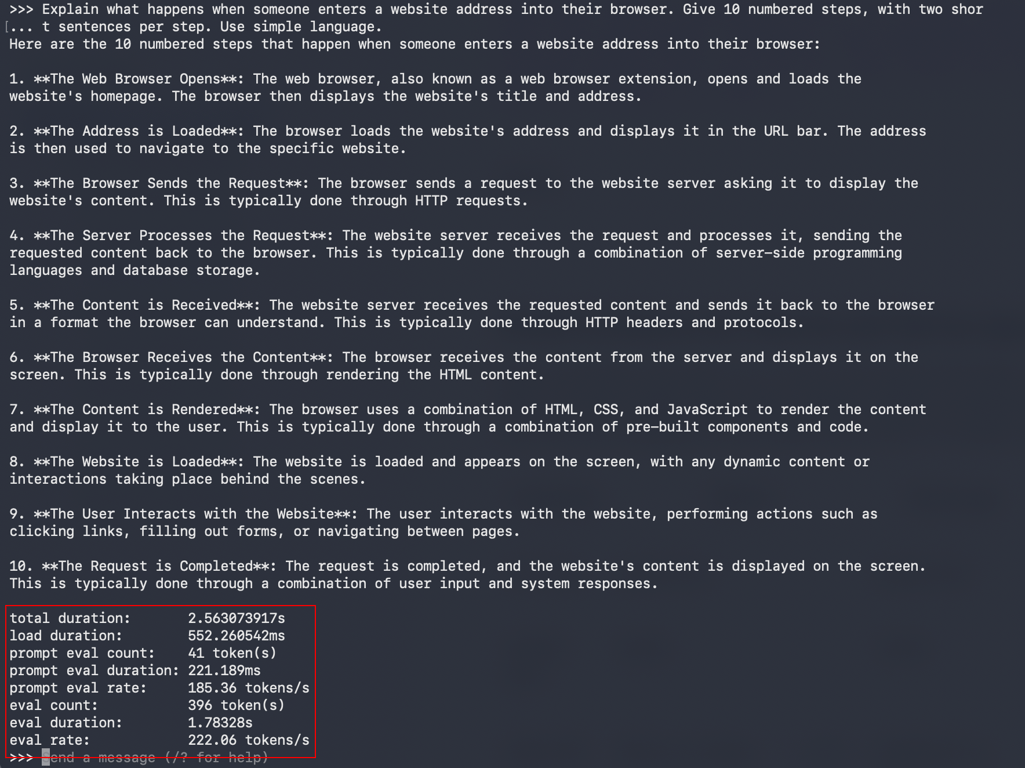
I was curious whether I’d notice a speed difference with a smaller model, so I tried both tools myself. I used Llama 3.2 1B Instruct (Q4_K_M) on a MacBook Pro with an Apple M4 Pro chip and 24GB of unified memory, running Ollama 0.40.13 and llama.cpp 0.8.0.
I asked each tool the same question three times:
Explain what happens when someone enters a website address into their browser. Give 10 numbered steps, with two short sentences per step. Use simple language.
Ollama’s average generation speed was slightly higher across all three runs.
Tool | Average speed across 3 runs |
Ollama | 220.2 tok/s |
Llama.cpp | 207.9 tok/s |
Ollama generated 222.06 tokens per second in the first run.
Using the same model and question, llama.cpp generated 207.5 tokens per second.
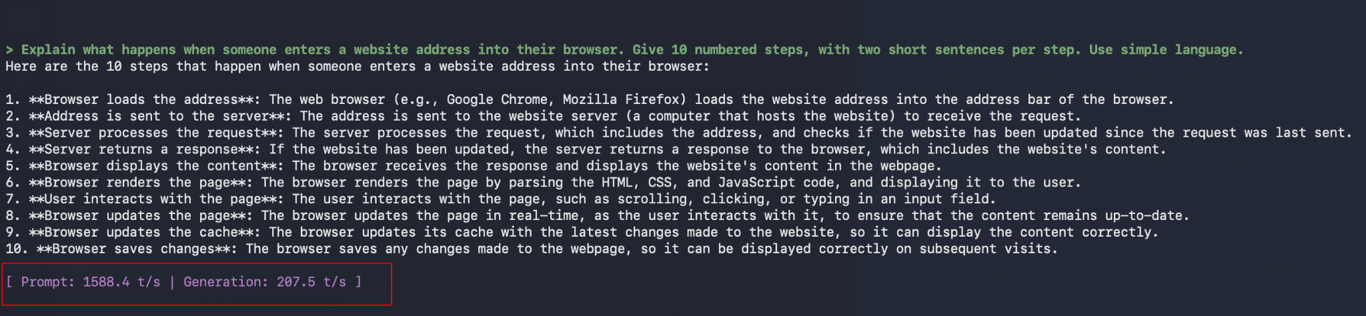
Across all three runs, Ollama generated text about 6% faster than llama.cpp. While that’s different from the June benchmark, I used a smaller model on an M4 Pro instead of an M3 Max, measuring text generation speed rather than time to complete a full response.
To put that 6% into perspective, a 400-token answer would take about 1.8 seconds to generate with Ollama and 1.9 seconds with llama.cpp at the recorded speeds. That’s barely a tenth of a second apart, so it’s unlikely to make much difference when you’re casually chatting with an AI assistant.
These tests used only one question at a time and didn’t match every setting, so they don’t prove that Ollama is faster overall. But they did show something useful: when the speed difference is this small, how easy a tool is to use matters more than which one wins the benchmark.
What hardware do Ollama and llama.cpp need?
Ollama and llama.cpp both run on CPUs and support NVIDIA, AMD, and Intel GPUs, as well as Apple Silicon Macs. Neither requires a dedicated graphics card, but your available memory determines which AI models can run.
Hardware | Ollama | llama.cpp |
CPU only | Supported | Supported |
NVIDIA GPU | CUDA | CUDA |
AMD GPU | ROCm or Vulkan | HIP/ROCm or Vulkan |
Apple Silicon | Metal or MLX for supported models | Metal |
Intel GPU | Vulkan | Vulkan or SYCL |
CUDA, Metal, and Vulkan are different methods these tools use to run AI models on your graphics card. Check which one your GPU supports before installing. An unsupported GPU setup will fall back to the CPU, which is slower.
How much RAM and VRAM do Ollama and llama.cpp need?
Both tools need around 6–7GB of GPU memory (VRAM) to run a typical 8B model with 4-bit compression and an 8K context. Without a GPU, a computer with 16GB of regular memory (RAM) can run the same model on its CPU, as long as enough RAM remains free for the operating system and other applications.
Memory needs change with model size and quantization (which compresses a model to reduce memory use). An 8B model has around eight billion parameters, or numerical values used to generate responses.
Here are estimates for Q4_K_M quantization, an 8K context (roughly 8,000 tokens of text), and one active request:
Model size | Approximate VRAM used | GPU memory to aim for* |
3B–4B | 3–4GB | 4–6GB |
7B–8B | 6–7GB | 8GB |
12B–14B | 10–12GB | 16GB |
20B–32B | 19–24GB | 24–48GB |
70B–72B | 47–52GB | 80–96GB |
* These recommended GPU capacities leave additional memory for longer conversations and processing multiple requests.
You can see how model size and quantization affect GPU memory requirements by comparing two versions of Llama 3.1 8B. Its Q4_K_M file takes about 4.9GB, while Q8_0 takes 8.5GB. The larger file won’t fit entirely on an 8GB GPU, even before accounting for memory used during processing.
On Apple Silicon Macs, the CPU and GPU share the same memory, so you don’t need a separate graphics card with its own VRAM.
What happens when you don’t have enough GPU memory?
Both tools can offload some of the processing to the CPU and use regular RAM instead. This lets you run a larger model when you have enough system RAM available, but responses get slower. Without enough RAM, the model might fail to load.
Ollama handles GPU allocation automatically, while llama.cpp also lets you set the CPU/GPU split manually. To see where Ollama loaded your model and how much memory it’s using, run ollama ps.
I tested this with Llama 3.1 8B (Q4_K_M) and an 8K context. Ollama reported 6.0GB under SIZE and 100% GPU under PROCESSOR, which means the model was loaded entirely onto the GPU.
The RUNNER column also showed llamacpp, confirming that Ollama used the llama.cpp engine for this model.

Both tools can run the same GGUF model, so neither necessarily uses less memory to load it. However, total memory use also depends on context length, CPU and GPU allocation, and how many questions are asked at once. Ollama handles more of these settings automatically, while llama.cpp gives you direct control.
Test both tools with the same model and context length to compare their memory use. This will help you find the better fit for your computer, although larger models may still require more resources than your hardware can comfortably provide.
A cloud GPU gives you access to those extra resources without buying new hardware. Hostinger GPU hosting offers NVIDIA L40S GPUs with 48GB of VRAM, enough for many 20B–32B models at 4-bit quantization with an 8K context.
You can deploy Ollama using a preconfigured setup or install llama.cpp through SSH. Running both tools on the same GPU lets you compare generation speed and memory usage before choosing the best option for your application.
Hostinger GPU instances continue using credits even when idle. To stop charges, you must destroy the instance. Save your files elsewhere first, since anything only stored on the instance will be permanently deleted.
Which is easier to use, Ollama or llama.cpp?
Ollama is easier to use for managing and switching between local AI models. Both tools are straightforward to install and run, so the main difference is how you work with models afterward.
On Windows and macOS, both tools have desktop apps with built-in chat. You can install the Ollama app or Llama app, choose a model, and start asking questions without opening Terminal.
The Windows version of the Llama app requires Windows 11. On Linux, you can install either tool from Terminal.
For Ollama:
curl -fsSL https://ollama.com/install.sh | sh
For llama.cpp:
curl -LsSf https://llama.app/install.sh | sh
Both commands install the command-line tools, so you can download and run models without a desktop app.
Setting up Ollama on a remote server takes a little more time. When installing Ollama on a Linux server, you also need to make sure its service is running and configure how other applications will connect to it.
I used Terminal for my hands-on tests because it let me check downloaded models and measure their speed. You can follow the same steps using Terminal on macOS or Linux, or PowerShell on Windows.
The commands below download and start the same small Llama 3.2 1B model.
Ollama:
ollama run hf.co/bartowski/Llama-3.2-1B-Instruct-GGUF:Q4_K_M
llama.cpp (Llama app installation):
llama cli -hf bartowski/Llama-3.2-1B-Instruct-GGUF:Q4_K_M
For my tests, I installed llama.cpp through Homebrew using brew install llama.cpp. This installation uses llama-cli, while the Llama app uses llama cli. The model options work with either command.
Both commands download the model the first time you run them and start an interactive chat where you can ask questions.
Managing several models is where the two tools start to differ. Ollama keeps models in a library. Run ollama ls to see their names, sizes, and last-modified dates, or use ollama run model-name to switch between them.
Llama.cpp also saves downloaded models for reuse. You can list cached models with llama cli -cl or open an existing GGUF file directly using llama cli -m model.gguf. This is useful when you already have a specific model file you want to run.
💻 My Ollama vs. llama.cpp usability test: Chatting with the same model
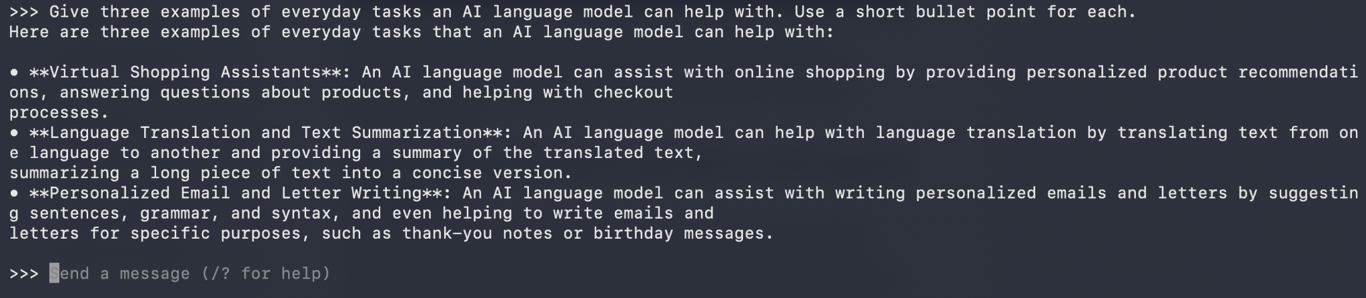
I tried both tools through Terminal using Llama 3.2 1B Instruct (Q4_K_M). This time, I asked each to give three examples of everyday tasks an AI model could help with, using short bullet points.
Ollama suggested online shopping, translation, and writing emails. It answered my question, but the response was quite detailed despite my request for short bullet points.
Llama.cpp gave different examples: translation, meal planning, and summarizing articles. Its answer was also useful, but like Ollama, it included more detail than I’d asked for.
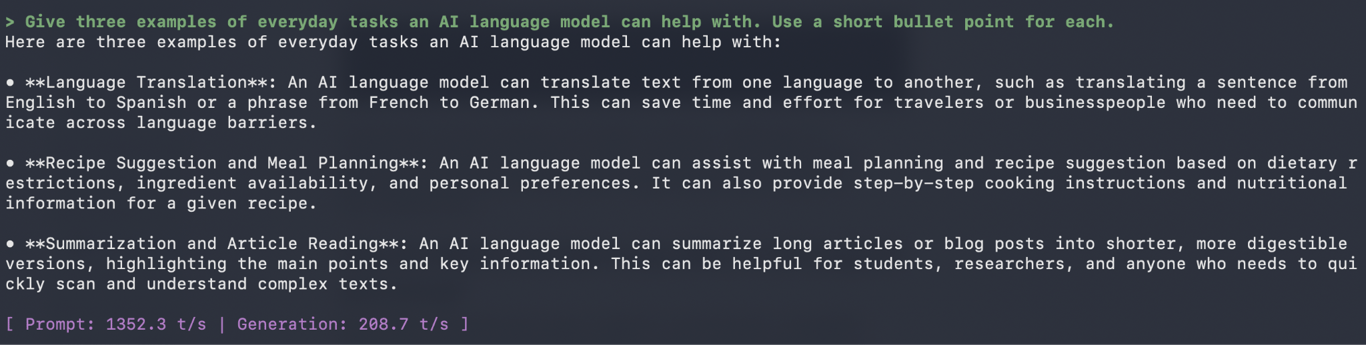
Once both tools were set up, using them was straightforward. I typed a prompt into Terminal and got an answer from each without changing any settings. Despite its extra controls, llama.cpp was no harder than Ollama for a simple chat.
How do Ollama and llama.cpp differ in API support and setup?
Both Ollama and llama.cpp let other applications send questions to an AI model running on your computer or server. They do this through an application programming interface (API), which lets one program communicate with another.
Ollama manages models through its local service, while llama.cpp offers more detailed controls for running a model server.
For example, connecting locally hosted models to an AI agent lets OpenClaw send requests to Ollama running on your server instead of relying on a hosted AI model provider. The API handles the requests and returns the responses from the local model.
Feature | Ollama | llama.cpp |
API setup | Available when the Ollama service is running | Available through Llama app or the llama servecommand |
OpenAI-compatible server address | http://localhost:11434/v1 | http://localhost:9931/v1 |
Additional controls | Download and manage models through the API | Adjust server settings and monitor active requests |
The command for starting the llama.cpp server depends on your installation. The Llama app uses llama serve, while the Homebrew version uses llama-server. Both use port 9931 by default in the current version, although you can change it in your server settings.
To connect a compatible application, enter the server address and select your local model in its settings. The addresses above point to services on your own computer. Requests to a downloaded local model don’t need an online AI provider.
Before you allow remote connections to your model server, set up authentication and restrict network access. Otherwise, anyone who can reach the API could send requests to your model.
Which tool offers more customization, Ollama or llama.cpp?
Llama.cpp gives you more control over how AI models use your CPU, GPU, and memory. Ollama also lets you customize model settings and response behavior, but handles more of the hardware configuration for you.
Say you’re setting up an AI assistant to help with writing tasks. With Ollama, you can save your preferences in a text file called a Modelfile:
FROM hf.co/bartowski/Llama-3.2-1B-Instruct-GGUF:Q4_K_M
PARAMETER num_ctx 8192
PARAMETER temperature 0.3
SYSTEM Keep answers brief and use plain language.
This uses Llama 3.2 1B Instruct (Q4_K_M). The num_ctx setting gives the model an 8,192-token context window, while temperature 0.3 makes its answers less varied. The SYSTEM instruction guides the model to keep responses short and easy to understand.
Save the file as Modelfile, then run these commands in the same folder to create and start your customized assistant:
ollama create writing-helper -f Modelfile
ollama run writing-helper
With llama.cpp, you can adjust similar settings while controlling how much processing your GPU handles. For example:
llama-cli -hf bartowski/Llama-3.2-1B-Instruct-GGUF:Q4_K_M -c 8192 --temp 0.3 -ngl 8
This runs the same model with an 8,192-token context window and a temperature of 0.3. The -ngl 8 setting tells llama.cpp to place up to eight model layers on the GPU. This leaves the remaining layers on the CPU.
That control is useful when your graphics card doesn’t have enough dedicated memory to run the entire model. Moving some processing to the CPU reduces the need for GPU memory. However, it can slow responses down.
Llama.cpp also lets you adjust CPU threads and split models across multiple GPUs when you need more control over how your hardware is used.
Should you use Ollama or llama.cpp?
For a personal AI assistant or local experiments, Ollama is the easier starting point. For a custom model server or tighter GPU limits, llama.cpp is the better choice.
My own speed test showed only a small difference between the two. However, the published benchmark showed a much larger gap when handling 32 questions at once. This suggests your workload matters more than which tool wins a single speed test.
Your goal | Better choice | Why |
Try local AI models for the first time | Ollama | Easy model downloads and management |
Build a personal AI or coding assistant | Ollama | Built-in local API and straightforward model switching |
Work directly with GGUF files | llama.cpp | Opens existing model files without importing them |
Adjust GPU memory use or work with multiple GPUs | llama.cpp | More direct control over hardware allocation |
Run an AI model for several users | Test both | Both support parallel requests; performance depends on your setup |
Run models on a CPU-only or low-VRAM computer | llama.cpp | More control over CPU threads and GPU layer allocation |
Configure a custom model server | llama.cpp | More direct control over server settings and parallel requests |
Still unsure which tool to choose? Try both with the same AI model, just like I did. Start by running models through Ollama’s command line using Llama 3.2 1B, then try the same model in llama.cpp.
It’s easy to start a chat, ask a question, and get an answer. You could ask both to explain how a website works or help draft an email. You can also try asking a follow-up question.
Compare the experience of using each tool rather than judging which answer sounds better. You’re choosing how to run the AI model, not which model gives better answers.
Ollama and Llama.cpp can both run the same GGUF model, so your first choice doesn’t have to be permanent. Start with whichever feels easier for your needs, and try the other when you want more control over how your models run.

This article is a localized version of Ollama vs. llama.cpp: Which local AI tool should you use?, originally published in English.

Alma is an AI Content Editor with 9+ years of experience helping ideas take shape across SEO, marketing, and content. She loves working with words, structure, and strategy to make content both useful and enjoyable to read. Off the clock, she can be found gaming, drawing, or diving into her latest D&D adventure.