How to check your PHP version
Oct 26, 2026
/
By Bruno S.
/
11 min Read
To check your PHP version, open your hosting control panel or WordPress Site Health for a live website, or run the php -v command in a terminal on a server or your own computer. There are five main methods.
- Hosting control panel. Open the PHP information page, such as PHP Info in Hostinger dashboard.
- WordPress. Go to Tools → Site Health → Info → Server.
- phpinfo() file. Upload a one-line PHP file to your site and open it in a browser.
- Command line. Run php -v in a terminal (the app where you type commands).
- Local development environment. Run the PHP program that comes with your local tools.
Your live website, a server you manage remotely, and your own computer each have their own PHP, and the version a terminal shows doesn’t always match the one serving your site.
Once you know your version, compare it with the PHP versions that still receive security fixes and with your host’s security notices. Confirm that your site supports a newer version, such as 8.4, before you switch away from an outdated one.
We tested every method on October 22, 2026, on a Hostinger Unlimited web hosting plan with WordPress 7.1.3, a CloudPanel virtual private server (VPS) running Ubuntu 22.04, and a Mac.
How to check your PHP version in a hosting control panel
To check your PHP version in a hosting control panel, open the PHP information or PHP version page for your website. The menu name and location depend on your hosting provider and panel, so look for a dedicated PHP page or the PHP settings of each website.
Control panels read the version straight from the hosting server because PHP (Hypertext Preprocessor) is a server-side scripting language that runs on the server, not in your visitor’s browser. This makes the panel a quick check that needs no code or commands.
Whichever panel you use, the version number has two parts. In 8.3.35, 8.3 is the branch, which sets the features and support dates, and 35 is the release, which increases with each round of bug and security fixes.
Hostinger dashboard and cPanel (a third-party panel) keep the version in different menus.
Check your PHP version in Hostinger dashboard
In Hostinger dashboard, go to the PHP Info section of your website management, and the PHP version appears at the top of the page. You can check the PHP version in Hostinger this way for every website on your plan, except those built with Hostinger AI Builder.
- Open Websites and click Dashboard next to your site.
- In the sidebar, go to Advanced → PHP Info, or type PHP Info in the sidebar search.
- Check PHP Version at the top of the page. A few rows below, Build Date shows when this copy of PHP was built.
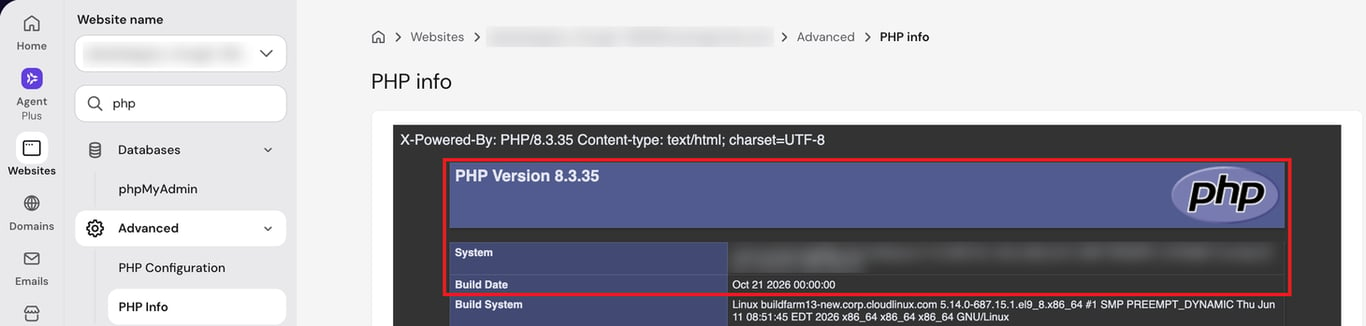
In the same Advanced menu, PHP Configuration shows only the branch you selected, such as PHP 8.3. Use PHP Info when you need the exact release and build date, for example, to confirm that a security fix reached your site.
For WordPress sites, WordPress → Overview shows the branch on the PHP Version card, so you can check it without opening the WordPress admin dashboard. When Hostinger recommends a newer version, the card shows it with a Change button.
See how to check and change your PHP version in Hostinger dashboard in this video:


Check your PHP version in cPanel
In cPanel, check your PHP version under Software → MultiPHP Manager or Software → Select PHP Version, depending on which tool your hosting provider enables.
- MultiPHP Manager. Lists each domain in your account next to its PHP version. Inherited means the domain takes its PHP version from an .htaccess settings file in its folder or a parent folder. The domain uses the server’s default when no file sets one.
- Select PHP Version. Shows the PHP version selected for your cPanel account in the Current PHP version dropdown menu. A domain uses this version only when its MultiPHP Manager setting matches the server’s default. Hostinger’s cPanel hosting uses this tool, which comes with the CloudLinux server operating system.
Both tools list versions by branch, such as 8.3, and neither shows a build date. For the exact release, open a phpinfo() file in the website’s folder.
How to check your PHP version in WordPress
To check your PHP version in WordPress, open Site Health from the Tools menu, where the Server section lists the PHP version that runs your site. We tested these steps on WordPress 7.1.3.
- Log in to the WordPress admin dashboard with an administrator account, because only administrators can open Site Health.
- Go to Tools → Site Health and open the Info tab.
- Expand the Server section and find the PHP version row.
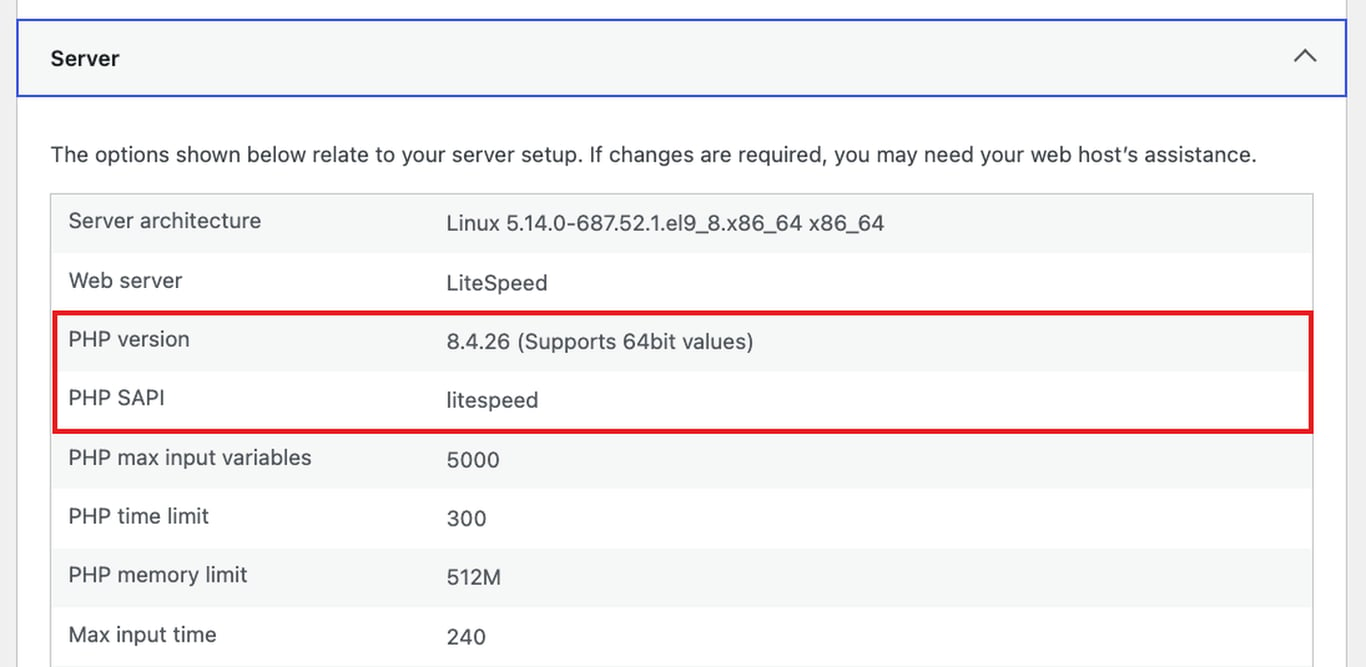
The PHP version row shows the exact release, such as 8.4.26. It doesn’t show the build date, so use PHP Info or a phpinfo() file when you need it.
Site Health reads these values from the PHP that loads your dashboard, so they match your live website. The PHP SAPI row confirms it by naming the Server Application Programming Interface (SAPI), which is how PHP connects to your web server, such as litespeed or fpm-fcgi.
The Status tab on the same screen also flags outdated PHP versions and lists a version that no longer receives security updates as a critical issue.
WP-CLI, WordPress’ command-line tool, reports a different PHP: its wp cli info command shows the PHP WP-CLI runs on. On our test site, the command-line PHP version was 8.3.35, while Site Health showed 8.4.26.
How to check your PHP version in a web browser using phpinfo()
To check your PHP version with phpinfo(), upload a one-line PHP file to your website’s folder and open it in a browser. The PHP Version line sits at the top of the page.
phpinfo() is a built-in PHP function that prints your PHP settings. It works on any host that lets you upload and run PHP files, unless the host turns the function off. Use it as a fallback when your hosting panel doesn’t show PHP information, or when you need to check a folder or subdomain that runs its own PHP version.
- Open your website’s folder, such as public_html, in your host’s File Manager or a File Transfer Protocol (FTP) client.
- Create a phpinfo file and add random characters to its name, such as info-7f3k.php. Avoid common names like info.php or phpinfo.php, because automated scanners look for them.. Add this code:
<?php
phpinfo()- Open https://domain.tld/info-7f3k.php in your browser, replacing domain.tld with your domain.
- Check PHP Version at the top and Build Date in the table under it.
- Delete the file.
Delete the phpinfo file as soon as you finish. The page shows folder paths, installed add-ons, and server settings that can include passwords, and attackers use exact version details to find servers that lack security fixes.
<?php
echo PHP_VERSION;
The page then shows a single line, such as 8.3.35, without your server’s settings. Delete this file after the check as well.
How to check your PHP version using SSH or the command line
To check your PHP version using Secure Shell (SSH) or the command line, run php -v in a terminal on your computer or in an SSH session on your server:
php -vThe first line of the output shows the version, how PHP is running, and the build date, for example, PHP 8.3.35 (cli) (built: Oct 21 2026 00:00:00). Here, cli stands for command-line interface (CLI), the PHP program your terminal runs.
On a remote server, connect through SSH first, which gives you an encrypted command line on that server. On Hostinger web hosting, search for SSH Access in your website’s sidebar, turn it on, and copy the IP address, port, and username shown there.
Then connect from your terminal, replacing the placeholders with those values, and run php -v:
ssh -p port-number username@server-ipTurn on SSH Access before connecting; otherwise, the connection closes right after you enter your password with the message “/sbin/nologin: No such file or directory.” We ran into this during testing, and enabling SSH Access fixed it.
To print only the version number, for example in an automated task, use this command instead:
php -r 'echo PHP_VERSION, PHP_EOL;'Both php -v and php -r check only the command-line PHP. Tools like Composer (which installs PHP code libraries) and WP-CLI use the same PHP, as do scheduled tasks that run a PHP command.
Your website doesn’t necessarily use the same PHP. A separate program called a PHP handler serves your website’s visitors by running PHP for your web server. Tasks triggered through a web address use it too.
Examples include PHP-FPM (short for FastCGI Process Manager) and the LiteSpeed Web Server’s own PHP, which Hostinger web hosting uses. The handler and the CLI are separate programs, so each runs its own PHP version.
Servers often keep several PHP versions side by side: our CloudPanel VPS had 10, and our Hostinger web hosting server had 17. On Debian and Ubuntu (two Linux systems for servers), list the PHP settings folders, then run a specific version by name to confirm it’s installed:
ls /etc/php
php8.4 -vOn Hostinger web hosting, php -v over SSH didn’t follow the version selected in PHP Configuration during our test. After we switched a Unlimited web hosting site to PHP 8.4, the site ran 8.4.26, but php -v returned 8.3.35, even in a new SSH connection 10 minutes later.
To run a specific version on Hostinger web hosting, use its full folder path. The folders in /opt/alt list the extra PHP versions installed on the server:
ls /opt/alt | grep php
/opt/alt/php84/usr/bin/php -v
Pro tip
To use another version in this SSH session, run export PATH=/opt/alt/php84/usr/bin:$PATH, replacing php84 with your branch. This puts that folder first in PATH (the list of folders your terminal searches for programs). Composer followed it in our test, but tools tied to one PHP file won't. Run php -v to confirm.
Check the PHP version your web server uses on a VPS
On a VPS that runs PHP-FPM, find which PHP-FPM version your site’s web server settings point to, then run that version with -v to see its exact release. That version, not the command-line PHP, runs your website.
This matters on servers with several PHP versions installed. On our test VPS, which runs the CloudPanel control panel, php -v returned 8.2.31, while the website ran on PHP-FPM 8.0.30, a branch that no longer receives security fixes from the PHP project.
These steps apply to Debian or Ubuntu servers where the nginx web server connects to PHP-FPM on the same machine, as in our test VPS.
- Find which PHP-FPM address nginx uses by searching your site’s nginx settings for the fastcgi_pass line. The sudo prefix runs a command with administrator rights:
sudo grep -RHn '^[[:space:]]*fastcgi_pass' /etc/nginx/sites-enabled/The result is either a socket file, such as /run/php/php8.3-fpm.sock, or a local address and port number, such as 127.0.0.1:15001. A socket file is how nginx and PHP-FPM talk on the same machine. Some setups use a server name or a group of servers instead.
Run sudo nginx -T to print all nginx settings and find your site’s fastcgi_pass line if the first command returns nothing for your site. That happens when the configuration file is located outside /etc/nginx/sites-enabled.
- Match that address to a PHP-FPM version. For a socket, the default names on Debian and Ubuntu include the branch, such as php8.3-fpm.sock. For a port, run this command, replacing 15001 with your port number:
sudo ss -ltnp 'sport = :15001'The process name in the result shows your branch when it includes a version, such as php-fpm8.0. Check the site with a phpinfo() file instead if the name has no version or your socket has a custom name.
- Check the exact release of the installed PHP-FPM program:
php-fpm8.0 -v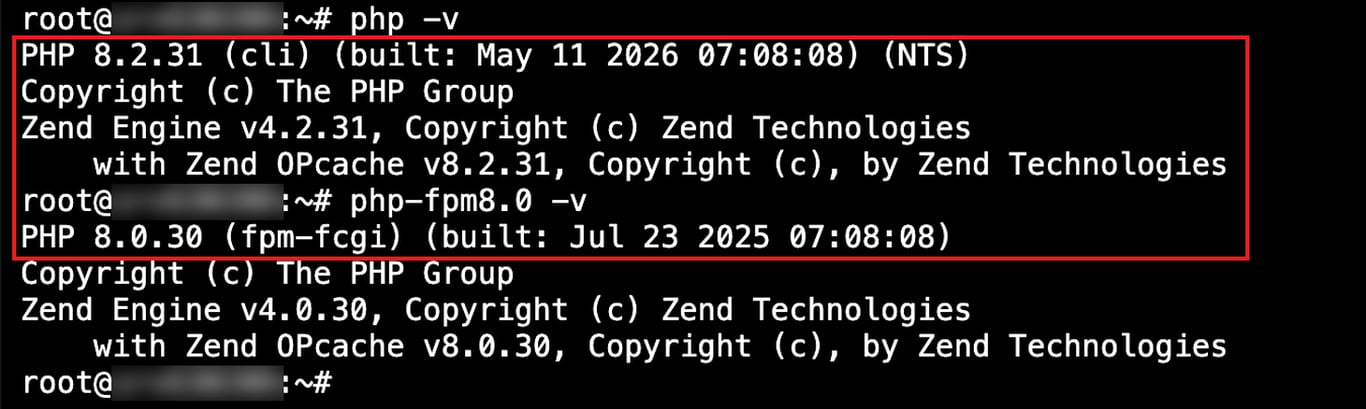
These commands read the server’s settings and installed programs. To see the version your pages actually run on, open a phpinfo() file in the site’s folder.
How to check your PHP version in a local development environment
In a local development environment, run php -v with the PHP program that comes with your local stack (the tools that run websites on your computer), such as C:xamppphpphp.exe -v for XAMPP. XAMPP, MAMP, and Docker containers set up for PHP each come with their own copy, separate from any PHP installed on the rest of your computer.
Environment | Command | Notes |
Windows, Command Prompt | php -v | where php shows which php.exe runs |
Windows, PowerShell | php -v | Use where.exe php, because where is a shortcut for a different command in PowerShell |
macOS and Linux | php -v | which php shows which PHP runs |
XAMPP on Windows | C:xamppphpphp.exe -v | Path for the default installation folder |
MAMP on macOS | /Applications/MAMP/bin/php/php8.3.9/bin/php -v | Replace php8.3.9 with a folder from /Applications/MAMP/bin/php |
Docker | docker compose exec app php -v | Replace app with the service name from your Docker Compose file to check PHP inside the running container (Docker’s isolated environment for your app) |
A “command not found: php” message on macOS, or “‘php’ is not recognized as an internal or external command” on Windows, means PHP isn’t installed or its folder isn’t in your PATH.
According to the PHP manual’s macOS installation page, macOS hasn’t included PHP since macOS 12 Monterey. Our test Mac returned the same “command not found” message.
A local version tells you nothing about the PHP on your live website. Check the hosting side separately before you publish code that needs a newer branch.
Which PHP version is your website actually using?
Your website uses the PHP version your web server runs, which is the one your hosting panel, WordPress Site Health, or a phpinfo() file shows, not always the one php -v reports.
Each environment needs its own check:
- A live website. Use your hosting panel, WordPress Site Health, or a phpinfo() file.
- A server you manage. Run php -v for the CLI, then check the PHP handler configured for your website, such as PHP-FPM.
- Your computer. Run the PHP program from your local stack, such as XAMPP’s php.exe.
Only three methods show both the exact release and the build date, the two details that help you confirm a security fix.
Method | What it reports | Exact release | Build date |
Hostinger dashboard, PHP Configuration | The branch you selected | No | No |
Hostinger dashboard, WordPress → Overview | The selected branch and any recommended update | No | No |
Hostinger dashboard, PHP Info | The PHP version set for your hosting plan | Yes | Yes |
cPanel, Select PHP Version or MultiPHP Manager | The version per account or domain | No | No |
WordPress Site Health | The PHP running your WordPress site and its SAPI | Yes | No |
phpinfo() file | The PHP serving that folder and its handler | Yes | Yes |
php -v | The command-line PHP | Yes | Yes |
In our Hostinger web hosting test, three checks reported PHP 8.3.35 with the same build date, but each used a different server API.
SSH showed Command Line Interface, the dashboard’s PHP Info showed CGI/FastCGI, and the phpinfo() file showed lsapi V8.3 CloudLinux 1.3, which is LiteSpeed’s connection. Of these three, only the phpinfo() file went through the same connection as your visitors, making it the closest check of how your live site runs.
Why does the PHP build matter for security patches?
The PHP build matters because a security fix doesn’t always raise the version number. so On Hostinger and Ubuntu, the build date or installed package version is the only sign that a fix is in place. Compare them with the security notice from your host or your server’s operating system vendor.
For example, PHP2Shell is the name for two critical PHP security flaws disclosed on October 21, 2026. The public Common Vulnerabilities and Exposures (CVE) list tracks them as CVE-2026-109618 and CVE-2026-109619.
According to the PHP project’s security advisory, PHP 8.5.12, 8.4.27, 8.3.36, and 8.2.35 fix both flaws, and every PHP installation that serves web pages is at risk until it runs a fixed build.
On Hostinger web hosting, the build date is the detail to check. Our test site ran PHP 8.3.35, one release below the PHP project’s fix, and its Build Date read Oct 21 2026, the day the PHP project released the fix. The server’s PHP 8.4.26 build showed the same date.
According to Hostinger’s PHP2Shell update, managed hosting received the fix in each existing version, and a build date of October 21, 2026, or later confirms this.
Ubuntu’s own PHP packages work the same way. It installs software as packages, and Ubuntu’s PHP2Shell notice lists the fixed package for Ubuntu 24.04 as version 8.3.6-0ubuntu0.24.04.13, so php -v on a patched server still shows 8.3.6.
Pro tip
To confirm a fix in a Debian or Ubuntu package, compare its full version, shown by dpkg-query -W php8.3-fpm, with your vendor's security notice. You can also search its change log for both CVE IDs with zgrep -E "CVE-2026-(109618|109619)" /usr/share/doc/php8.3-common/changelog.Debian.gz.
This command lists newer PHP packages available from your software sources on a Debian or Ubuntu server you manage. The list doesn’t say which updates contain a fix, so compare their versions with the security notice:
sudo apt update && apt list --upgradable 2>/dev/null | grep phpPackage versions depend on where your server gets PHP. Ubuntu’s own packages keep the original version number, while third-party package sources often use the PHP project’s numbers.
On our CloudPanel VPS, the list showed 8.2.35, 8.3.36, 8.4.27, and 8.5.12 waiting to be installed. Those are the PHP project’s fixed releases. Nothing appeared for the website’s PHP 8.0.
After installing an update, restart PHP-FPM so its running processes load the new build, replacing 8.3 with your branch:
sudo systemctl restart php8.3-fpmThen check the version through your website again, because php -v alone doesn’t confirm what your pages run on.
What to do if your PHP version is outdated
To update an outdated PHP version, confirm that your site supports a newer branch, then switch to a branch that still receives security fixes.
According to PHP’s supported versions page, four branches receive security fixes from the PHP project as of October 2026:
Branch | PHP project security support until | First release with the PHP2Shell fix |
8.5 | December 31, 2029 | 8.5.12 |
8.4 | December 31, 2028 | 8.4.27 |
8.3 | December 31, 2027 | 8.3.36 |
8.2 | December 31, 2026 | 8.2.35 |
8.1 and older | Ended | No new release, only code fixes for 7.4 to 8.1 that you build yourself |
PHP 8.2 stops receiving security fixes on December 31, 2026, so moving to PHP 8.3 or newer gives you more time before the next upgrade.
For WordPress sites, the WordPress requirements page recommends PHP 8.3 or greater.
Check four things before you switch branches:
- CMS core. Update WordPress or your other content management system (CMS) to its latest version.
- Themes and plugins. Check each developer’s documentation or release notes for support of your target branch. The Requires PHP field on WordPress.org only lists the minimum version.
- Custom code. Check the PHP requirement in your project’s composer.json file, where Composer lists it, and any code written for an older branch.
- Backup. Back up the site and, where possible, test the new branch on a staging copy (a private duplicate of your site).
Once these checks pass, change your PHP version in your control panel, or install the newer branch’s packages on a VPS.
On Hostinger web hosting, PHP Configuration offers PHP 8.2 to 8.5, and the version you select applies to every website on your hosting plan except those built with Hostinger AI Builder.
The dashboard warns that switching stops all running processes on your site and takes 1–2 minutes to complete.
Hostinger installs security fixes, such as the PHP2Shell patch, for your current version on every plan except VPS, but updating to a newer branch is up to you. On a VPS, you install all PHP updates yourself.
After switching, check the version again using Site Health, PHP Info, or a phpinfo() file to confirm that your website is running the new branch.

This article is a localized version of How to check your PHP version, originally published in English.

Bruno is a Content Writer at Hostinger, focused on creating and optimizing helpful, engaging articles about web development and marketing. With a background in journalism, he combines storytelling with practical insights to make complex topics easier to understand. He has also contributed to publications like MacMagazine and Jornal A Tarde. Outside of work, Bruno enjoys exploring art, cooking, and technology.