How to send an email in Claude
Sep 15, 2026
/
By Justina B.
/
9 min Read

To send an email through Claude, connect it to your email provider using a built-in connector. Cowork and Claude Code both work with Gmail and Outlook. The Claude.ai chat interface can also send emails when you connect a supported service, such as Hostinger Mail.
The best method depends on your volume and the level of automation you need. Copying a draft from Claude.ai into Gmail works for a few daily messages. Automation platforms like Zapier or n8n handle repetitive sends, like form replies.
For AI agents that need to send and receive on their own, Hostinger Agentic Mail is included in all Business Email plans starting at A$ 0.59/month. Each agent gets a dedicated mailbox with contact controls, keeping agent traffic separate from your personal email.
Can Claude send emails?
Yes, Claude can send emails through supported email connectors. Hostinger Mail, for example, has an official connector in Claude’s directory, letting you search, read, send, and manage email directly from a Claude conversation without manually configuring an MCP server.
To use Claude.ai’s email features, connect your Gmail account by going to Customize → Connectors and signing in. For Team and Enterprise plans, an Owner or Primary Owner must first enable the connector at the organization level.
Once connected, Claude detects when your question involves email and pulls in the right information. The Gmail connector lets you:
- Search your inbox using everyday language, like “find the last email from Sarah about the budget”.
- Summarize email threads and extract key details, including deadlines, names, and action items.
- Access email metadata, including sender info, timestamps, subject lines, and attachment details.
- Write replies with proper formatting and save them as drafts in your Gmail account.
- List your saved drafts so you can pick up where you left off.
- Manage email organization with labels and threads.
Claude also works with Microsoft 365, covering Outlook, SharePoint, OneDrive, and Teams. You’ll need a business Microsoft account tied to a Microsoft Entra tenant, so personal accounts like @outlook.com or @hotmail.com won’t work.
The Microsoft 365 connector lets Claude search and read your Outlook messages, calendar, and files. If your admin enables write tools, Claude can also send emails, manage calendar events, and create or update files on your behalf.
For a more hands-on Outlook experience, the Claude for Outlook add-in works directly inside your inbox. It drafts replies, summarizes threads, and triages unread messages. Drafts land unsent in Outlook’s compose pane, so you always review before hitting send.
These connectors only work while you’re actively chatting. They can’t watch your inbox in the background or respond to new messages while you’re away. If you need automatic replies, you’ll need an automation tool or a dedicated agentic email service.
Setting up a Claude email integration takes a few minutes. Anthropic’s Google Workspace connectors and Microsoft 365 connector setup pages cover each provider.
How to send an email using Claude
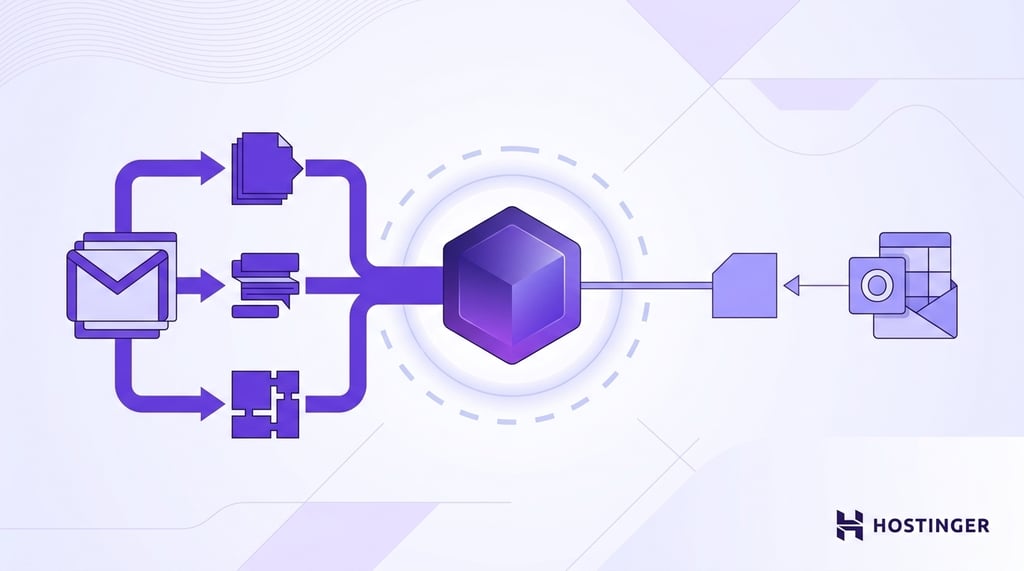
There are four main ways to send emails through Claude, from fully manual to fully automated. The simplest option is to copy Claude’s draft into your email client and press send. Each method from there adds more automation.
1. Draft in Claude, send from your email client
You tell Claude what you need, it writes the email, and you paste the text into your email app. This is the quickest way to get started and works well if you send a handful of emails a day.
Be specific with your request. Something like “Write a polite follow-up to a client who hasn’t responded in a week about the project timeline” gives Claude enough context to generate a full email with a subject line, greeting, body, and sign-off.
If you’ve enabled the Gmail connector, you can skip the copy-paste step. Ask Claude to draft a reply to a specific thread, and it saves the response directly in your Gmail drafts folder. Open Gmail, review the draft, and hit send.
It’s worth reading through the draft before sending. Claude handles tone and structure well, but it might miss small details or context that only you’d know.
2. Use Claude with email connectors
Connectors let Claude read your recent emails and use them as background when writing a response. Without a connector, you’d have to copy and paste entire email threads into the chat. With one connected, Claude pulls that information when you ask.
If you use Hostinger Mail, its Claude connector also supports write actions. You can ask Claude to search your mailbox, read messages, send emails, and manage message state directly from the chat.
Say a client sent three emails over the past week about a project deadline. Instead of copying those messages, you ask Claude to find them, summarize the key points, and draft a follow-up. The draft lands in your Gmail account, ready to review and send.
You can also use this for meeting prep. Ask Claude to pull together all the emails related to an upcoming product launch, summarize the open questions, and draft an agenda.
Available actions depend on the connector you use. The Hostinger Mail connector can send emails directly from Claude, while Microsoft 365 can send emails when your administrator enables write tools.
3. Use automation tools to trigger sending
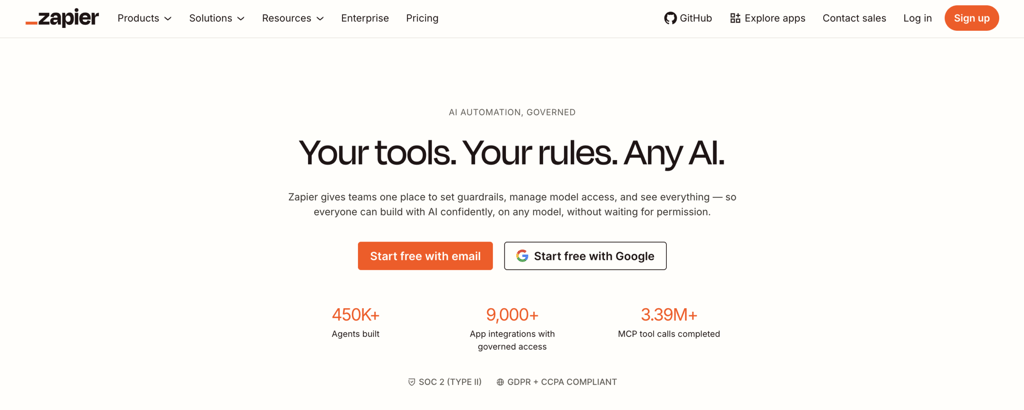
Automation platforms like Zapier, Make, and n8n connect different apps to transfer data between them without your involvement. You set up a rule once, and the platform runs it from there.
A typical setup works like this:
- Something triggers the workflow, like a new form submission, a Slack message, or a new row in a spreadsheet.
- The automation tool sends the relevant details to Claude, which generates an email.
- The tool then sends that email through your connected Gmail, Outlook, or other email account.
For example, you could set up a workflow where every time someone fills out a contact form, Claude writes a personalized reply, and Zapier sends it from your business email address.
Another common use case is lead follow-ups, where a new lead enters your CRM and the automation tool asks Claude to write a welcome email based on the lead’s name, company, and interest.
This method takes more setup up front. You’ll need an account on the automation platform and connections to both Claude and your email provider. The good news is that both platforms let you start for free.
Make, an AI workflow automation software, offers a free cloud tier with 1,000 credits per month. n8n is free to self-host, though you’ll need your own server, and it also offers paid plans starting at $12/month.
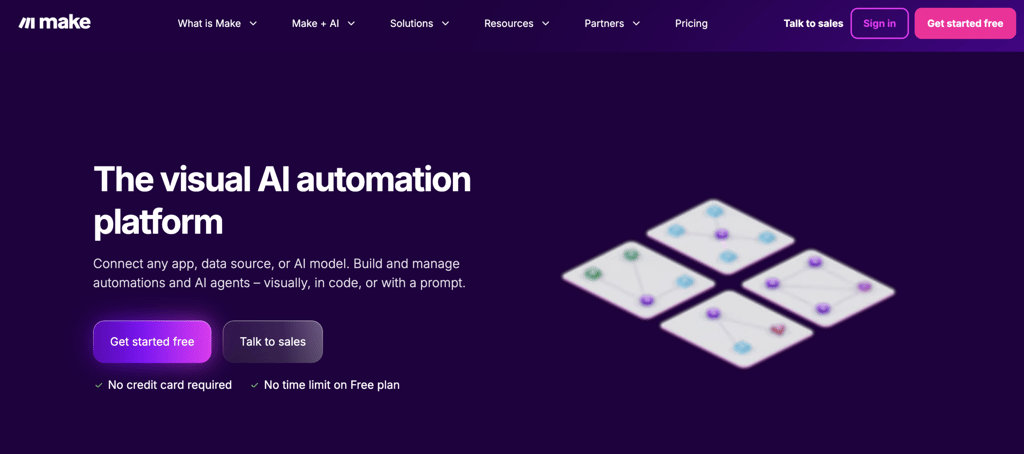
Zapier’s free plan covers two-step automations, but a Claude email workflow usually requires at least three steps, so a paid plan is required.
4. Build a custom workflow with Claude Code and APIs
This method gives developers full control over how emails are generated and sent. Instead of using a visual automation tool, you write code that talks to Claude, generates emails, and sends them through an email service.
An API is a way for two programs to communicate. Claude’s API lets your code send a prompt and get a response, just like chatting with Claude, but done by software instead of you typing it.
A basic setup includes three pieces:
- A server to run your code. A VPS, or virtual private server, works well because it stays on 24/7.
- Claude’s API for generating email content based on the data your code sends.
- An email-sending service to deliver messages. For one-to-one transactional emails, services like SendGrid or Mailgun are common. For AI agent workflows, Hostinger Agentic Mail provides dedicated agent inboxes with API access, an MCP server, webhooks, and allow and block lists.
You can add custom logic like routing different email types to different addresses, pulling customer data from a database, or requiring a manager’s approval before certain messages go out.
Hostinger offers Claude Code VPS hosting starting at A$ 9.39/month with the resources to run these workflows. You can also install Claude Code on a VPS and set up the environment yourself.

How to send an email with Claude using Hostinger Mail
To send an email with Claude using Hostinger Mail, connect the official Hostinger Mail connector from Claude’s directory. It links Claude directly to your mailbox, so you can search, read, send, and manage emails without manually configuring an MCP server.
Here’s how to connect it:
- Open the Hostinger Mail connector. Go to the Hostinger Mail connector in Claude’s directory.
- Select Connect. Claude will start the authorization process.
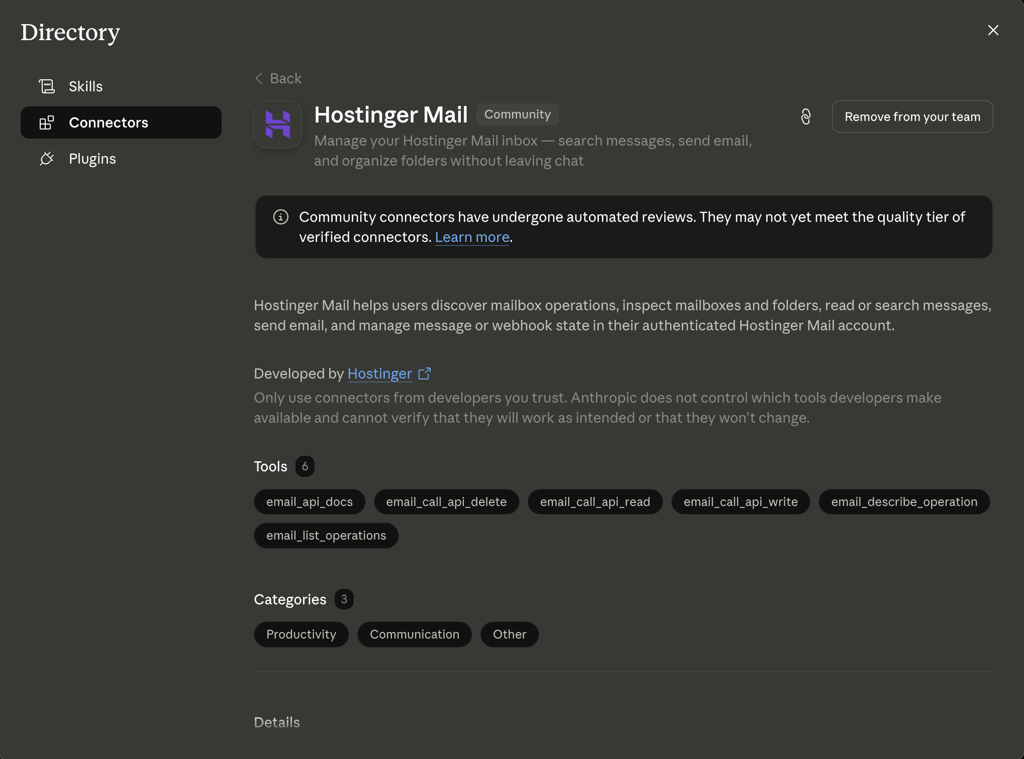
- Authorize your Hostinger account. Sign in to Hostinger and grant Claude access to the mailbox you want to use.
- Ask Claude to send an email. For example, enter: “Send an email from support@example.com to customer@example.net with the subject ‘Order update’ and tell them their order will arrive on Friday.”
Once connected, you can also ask Claude to search your inbox, read messages, inspect folders, and manage messages without leaving the conversation.

When should you use Agentic Mail’s advanced options?
The Claude connector works best when you want to manage Hostinger Mail while actively using Claude. For workflows that need to run automatically, Hostinger Agentic Mail also provides tools for building autonomous email agents.
These include:
- Webhooks that notify your agent when a new message arrives.
- Allow and block lists that control which addresses or domains an agent can contact.
- Dedicated mailboxes that keep agent email separate from personal or team inboxes.
- MCP server support for connecting other MCP-compatible AI tools.
- API access for reading, sending, and managing email programmatically.
For example, you could build a support agent that reacts to incoming customer emails or an outreach workflow that follows up automatically when someone replies.
You can use Agentic Mail in Hostinger dashboard when you need these advanced options. For a manual MCP connection, go to Emails → [your domain] → Agentic Mail → MCP Server and follow the setup instructions.
Agentic Mail also works with OpenClaw, an open-source AI agent platform available as a managed, 1-click deployment on Hostinger. The Managed OpenClaw plan includes an agentic email already configured, so you can build automated email workflows without setting up the mailbox separately.
Agentic email vs. email marketing
Agentic email and email marketing serve different purposes. Agentic email handles one-to-one messages triggered by specific events, like a support reply or a booking confirmation. Each message is unique, and the AI writes it from scratch based on context.
Email marketing is a marketing strategy that sends one-to-many campaigns, such as newsletters, product announcements, and promotions. These go to subscriber lists and usually follow a template with some personalization, like the recipient’s name or past purchase history.
If you’re just getting started, email marketing for beginners covers the basics and how to build your first campaign.
| Agentic email | Email marketing | |
| Recipients | One person at a time | Subscriber lists |
| Trigger | Events, automations, or AI logic | Scheduled sends, manual campaigns, or subscriber actions |
| Content | Fully personalized per message | Templated with light personalization |
| Tools | Agentic Mail, APIs, automation platforms | Email marketing platforms |
| Use cases | Support replies, verification, follow-ups | Newsletters, promotions, announcements |
Many businesses use both. You might use Agentic Mail to handle support replies and order confirmations while running a separate platform for your monthly newsletter.
For newsletters and branded campaigns, Hostinger Reach supports automated sequences, such as welcome emails, abandoned cart reminders, and post-purchase follow-ups, triggered by subscriber behavior.
There’s a free plan covering up to 100 recipients and 200 emails per month, which is enough to test your first campaign. Paid plans start at A$ 2.89/month when you commit to 24 months and raise the limits for growing lists.
Reach connects with WordPress, WooCommerce, and popular form builders like WPForms, Contact Form 7, and Elementor. It doesn’t have native 1-click CRM integrations, but it supports API-based contact syncing and works with n8n for workflow automation.
How to keep AI-sent emails secure
You need to protect your domain reputation when an AI handles your outbox. If it sends something inaccurate or to the wrong person, it reflects on you. Here are a few safety steps worth taking.
Review emails before they go out
Start by having your workflow save drafts for you to check. Once you’re confident the output is consistent, you can remove the approval step for low-risk emails, such as booking confirmations. Keep the review step for anything sensitive, like customer complaints or financial messages.
Set up allow and block lists
Define which email addresses and domains your agent can contact. This prevents it from emailing the wrong person and limits damage if something breaks. Agentic Mail includes this at both the domain and individual address levels.
Give your agent only the permissions it needs
Match each agent’s access to its actual role. If it only sends outbound messages, don’t let it delete emails or change inbox rules. If it only reads incoming tickets, hold off on send access until you’ve tested the responses.
Keep sensitive information off the AI
Don’t include passwords, payment details, or personal data in your prompts. If your workflow handles sensitive information, process it on your own server first, and pass only the cleaned text to Claude.
Watch for prompt injection
If your agent reads incoming emails before responding, attackers can embed hidden instructions in those messages to change their behavior. The OWASP Top 10 for LLM Applications ranks prompt injection as the number one risk for LLM-based tools.
It can lead to unauthorized actions and data exposure. Validate and clean incoming content before passing it to your AI model.
Log every email your agent sends
Keep a record of what was sent, when, and to whom. This helps you spot problems early and gives you a clear trail if something needs investigating. If you’re running multiple agents, log each one separately so you can trace issues back to the right workflow.
Secure your API tokens
Treat tokens like passwords. Use a separate token for each integration so you can revoke one without breaking everything else. Anthropic recommends rotating tokens every 90 days and revoking any that belong to workflows you’ve stopped using.
Test with a small group first
Send automated emails to a few test recipients and check for formatting issues, incorrect content, or delivery problems. Try edge cases too, such as unusually long replies or messages containing special characters. Fix what you find, then expand gradually.
How to choose the right method
Cowork and Claude Code send emails directly when connected to your email provider through MCP. For the Claude.ai chat interface, pairing it with the Gmail connector and sending from your inbox covers everyday use.
If you want emails to go out without manual sending, automation platforms like Zapier and n8n connect Claude to your email provider and handle delivery. They work well for straightforward workflows like contact form replies or welcome emails.
If you use Hostinger Mail, the official Hostinger Mail connector is the simplest way to send emails through Claude.ai. Connect your account from Claude’s directory, authorize access, and Claude can search, read, send, and manage email directly from the chat.
Agentic mail approach is ideal to provide AI agents with their own inbox. However, note that the exact setup varies between agentic email services. Agentic email services such as Hostinger and Robotomail can provide similar API and webhook capabilities while differing in MCP connectivity, developer tools, mailbox access, and how accounts are provisioned.
For more control, you can build a custom workflow on a Hostinger VPS using tools like n8n, LangChain, Claude Code, or your own code.
This article is a localized version of How to send an email in Claude, originally published in English.

Justina is a Content Writer passionate about marketing, with a background in social media and customer success management. She also loves reading books, traveling and exploring new places as well as cooking, and trying out new recipes. Follow her on LinkedIn.