How to increase the WordPress memory limit
Oct 15, 2026
/
By Domantas G.
/
4 min Read
To increase the WordPress memory limit, you can adjust the PHP memory settings through your hosting control panel or edit the wp-config.php file to define a higher WP_MEMORY_LIMIT value. Depending on your server configuration, you may also be able to change the limit using the .htaccess file.
The WordPress memory limit determines how much memory PHP can use when running WordPress scripts. By default, WordPress requests 40 MB for single-site installations and 64 MB for multisite installations, although the actual available memory depends on your hosting configuration.
If your website displays a “Fatal error: Allowed memory size exhausted” message, increasing the limit may resolve the problem. However, high memory usage can also indicate issues with plugins, themes, or other resource-intensive processes.
How to increase the WordPress memory limit using an FTP
You can edit the wp-config.php or .htaccess file using an FTP client such as FileZilla.
Before proceeding with either method, connect FileZilla to your website using your FTP account credentials.
Modify the wp-config.php file
- Open your site’s public_html folder or root directory, locate the wp-config.php file, then right-click it and select View/Edit.
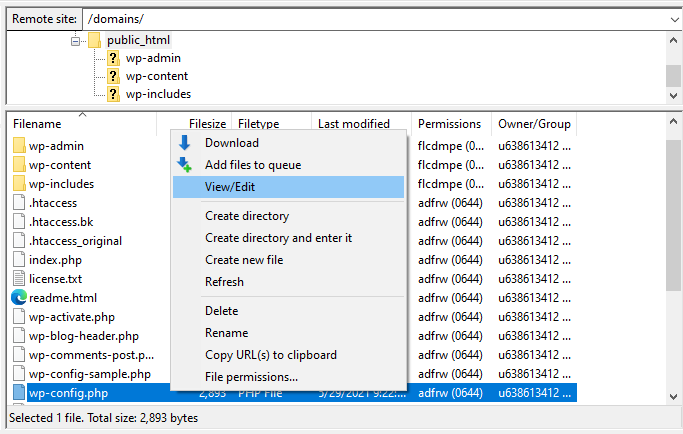
- Find the line containing WP_MEMORY_LIMIT and change 64M to 256M.
- If it doesn’t exist, insert the following code above the line:
define('WP_MEMORY_LIMIT', '256M');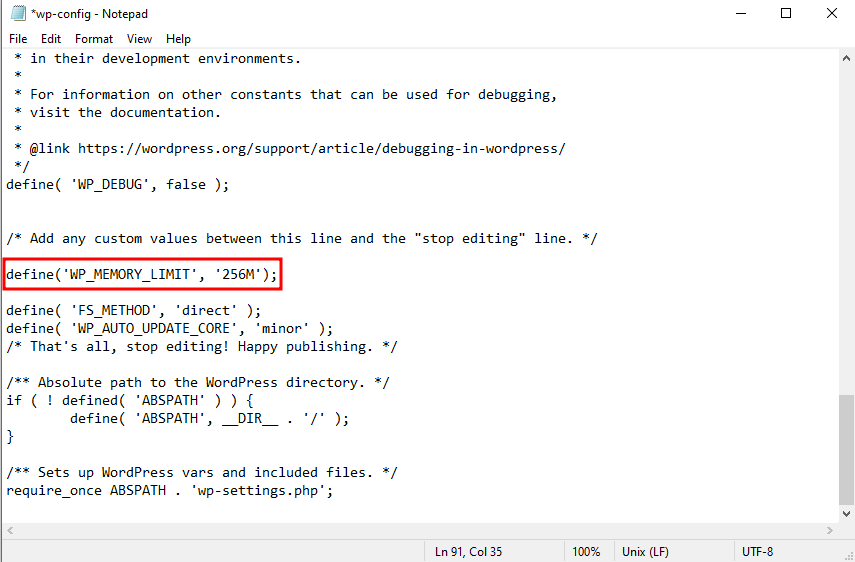
- Save the changes and upload the file.
When visiting the site, you shouldn’t experience the “memory limit exhausted” error again.
Edit the .htaccess file
- In the root folder, locate the .htaccess file.
- Right-click on the file and select View/Edit to be directed to the text editor.
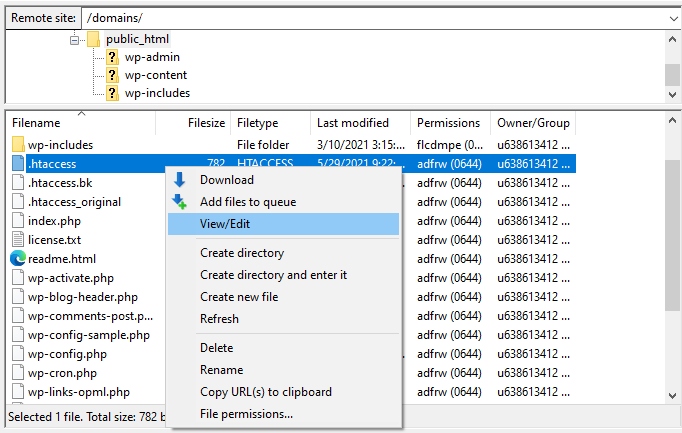
- Look for the line:
# END WordPress
Add the following code beneath it:
php_value memory_limit 256M
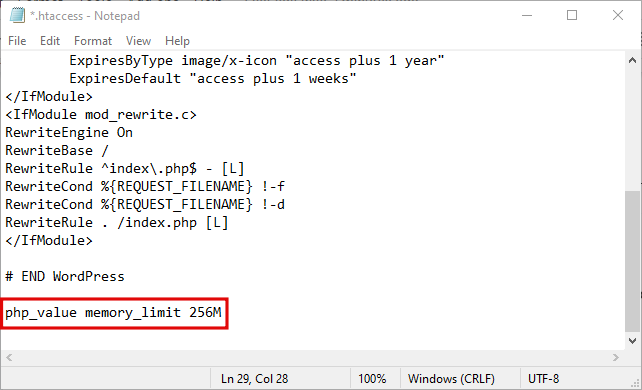
- Save the file and close the editor.
- Click Yes when FileZilla asks whether to upload the modified file, then reload the site.
How to increase the WordPress memory limit using the file manager
A more straightforward method to modify the .htaccess or wp-config.php file is via the file manager on your control panel. For this tutorial, we’ll be using Hostinger dashboard:
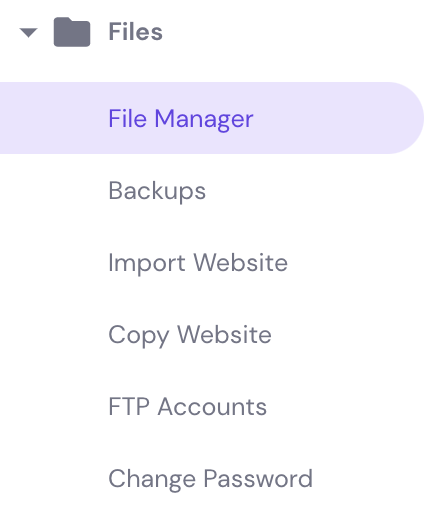
- Access Hostinger dashboard, navigate to the Files section, and select File Manager.
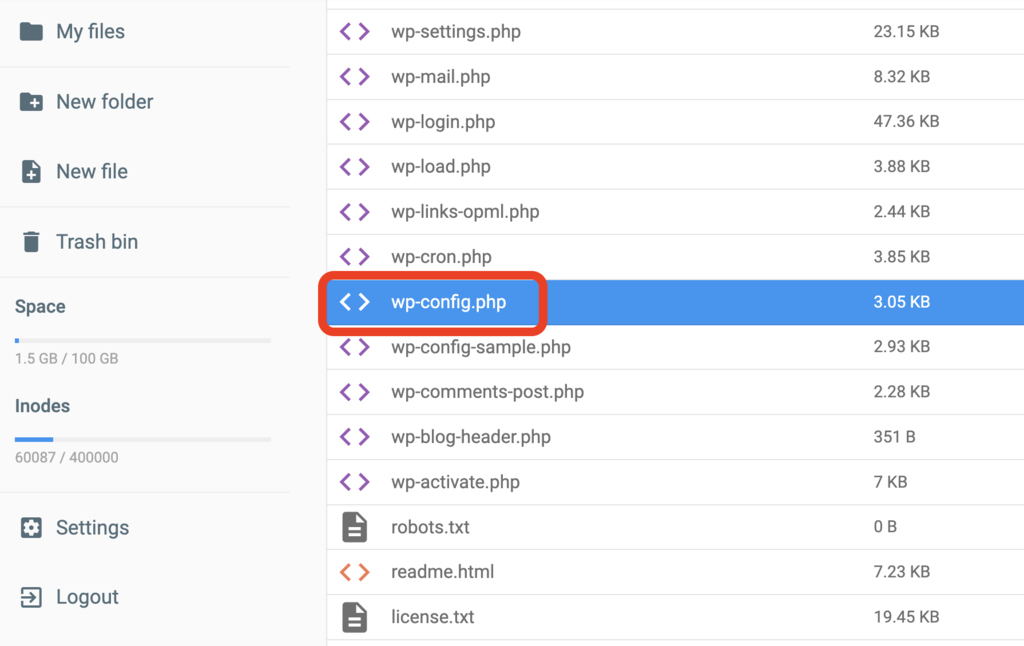
- Open the public_html folder or root directory, and double-click on the wp-config.php file.
- Insert the code mentioned on the FTP tutorial based on the file chosen, then press SAVE & CLOSE when done.
Though you won’t be making any significant changes using the methods above, you should back up your site before editing it. This ensures you won’t lose your WordPress site if something goes wrong.
How to increase the WordPress memory limit from the Hostinger dashboard
An alternative solution for Hostinger clients is to set the memory limit via PHP Configuration on the Hostinger dashboard:
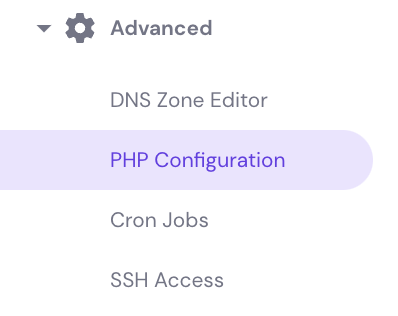
- Log in to Hostinger dashboard, scroll down to the Advanced section, and select PHP Configuration.
- Choose PHP Options and find the memory_limit field.
- Click on the dropdown menu and pick the highest amount.

If the memory limit is already at the maximum, then the last option is to upgrade your hosting plan to get more RAM.
For example, our WordPress Business and Cloud Startup plans provide more RAM compared to the Premium plan.

How to check your WordPress memory limit
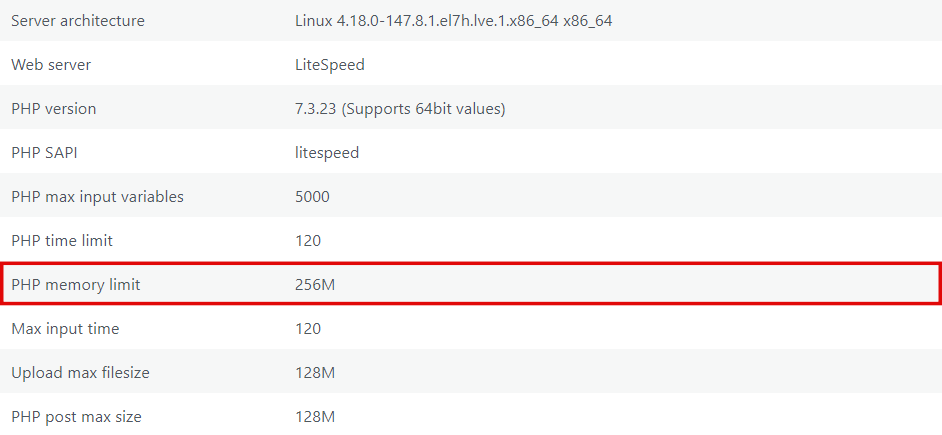
Once you’ve configured the memory limit, you might want to see if it worked. The following steps apply to users who are running WordPress 5.2 and above:
- Access the WordPress dashboard, hover on Tools, and select Site Health.

- Choose the Info tab and click on Server.
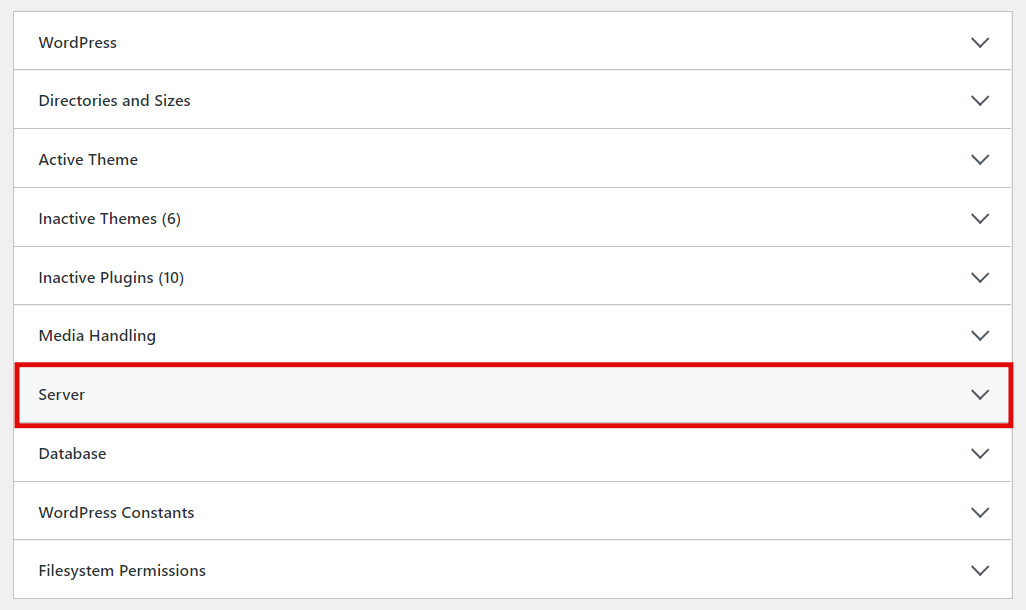
- Scroll down through all server settings until you find the PHP memory limit.
What is the recommended WordPress memory limit?
For most WordPress websites, 128 MB to 256 MB is a reasonable starting point, while resource-intensive websites may benefit from 512 MB or more.
The recommended PHP memory limit depends on your website’s plugins, theme, and workload.
| Website type | Suggested PHP memory limit |
|---|---|
| Small WordPress website or blog | 128 MB |
| Business website or website using a page builder | 256 MB |
| WooCommerce store, membership site, or other resource-intensive website | 512 MB, if needed |
These values are general guidelines, not fixed requirements. WordPress itself normally requests 40 MB for single-site installations and 64 MB for multisite installations, but many plugins and themes require more memory.
Start with a limit appropriate for your website, then monitor whether memory-related errors continue. Increasing the limit unnecessarily won’t improve performance on its own or fix inefficient plugins and scripts.
Your hosting provider may also restrict the maximum PHP memory limit available to your website.
What causes the “WordPress Memory Limit Exhausted” error?
The most common cause is that the memory limit may still be set to the default value instead of the highest option. Hence, it’s important to check it before you start fixing the problem.
If that’s not the case, then you might be outgrowing the hosting resources. As your WordPress website grows, the size of its database, plus the number of scripts and files, also increases. In addition, there might be plugins or themes that need extra memory to run as well.
Hosting providers allocate only a certain amount of resources, including the RAM limit, for different types of hosting plans. When starting your WordPress journey, you might have chosen a plan with limited RAM due to affordable prices, but it might be time to upgrade it.
Other than the memory limit exhausted error, you may also encounter the following issue:
yourfile.png exceeds the maximum upload size for this site
In this case, visit our How to Increase the Maximum File Upload Size article to find solutions other than increasing the memory limit to fix that specific issue.
Next step: Verify your WordPress memory limit
After increasing your WordPress memory limit, return to Tools → Site Health → Info → Server and check the PHP memory limit to see whether your changes took effect.
Next, repeat the action that previously triggered the memory error, such as updating a plugin, editing a page, or importing content. If the error no longer appears, your website may now have enough memory for that operation.
If the error persists, check whether your hosting environment is enforcing a lower memory limit. You can also debug your WordPress website to identify plugins, themes, or scripts that may be consuming excessive resources.
Avoid repeatedly increasing the memory limit without investigating the underlying cause. Resolving excessive memory usage can be more effective than allocating additional resources.
This article is a localized version of How to increase the WordPress memory limit, originally published in English.
All of the tutorial content on this website is subject to Hostinger's rigorous editorial standards and values.

Domantas leads the content and SEO teams forward with fresh ideas and out of the box approaches. Armed with extensive SEO and marketing knowledge, he aims to spread the word of Hostinger to every corner of the world. During his free time, Domantas likes to hone his web development skills and travel to exotic places.