How to find and create the .htaccess file
Oct 27, 2026
/
By Tomas A.
/
4 min Read

The .htaccess file is a hidden server configuration file typically found in your website’s root directory, such as public_html. It’s used by Apache and compatible web servers to manage redirects, URL rewriting, and access restrictions.
You can locate it through your hosting control panel, FTP/SFTP, or SSH. If the file is missing, you can create one manually, provided your website requires it. Below, we’ll cover the common file locations, access methods, and safe configuration steps.
Where is the .htaccess file located?
The .htaccess file is usually located in your website’s root directory, alongside files such as index.php. On many hosting accounts, this directory is named public_html. However, the exact location depends on your hosting environment and website configuration.
Here are the most common locations:
| Hosting environment | Typical .htaccess location |
|---|---|
| Hostinger web hosting | public_html/.htaccess |
| cPanel hosting | public_html/.htaccess or the domain’s document root |
| WordPress | Website root directory, usually alongside index.php |
| FTP/SFTP | Website’s document root on the server |
| VPS with Apache | Configured document root, such as /var/www/html/.htaccess |
| Local XAMPP installation | Inside the website folder under htdocs |
On WordPress websites, the file often contains permalink and URL rewrite configuration, which controls how the web server processes requests for individual pages and posts.
Important: Files beginning with a dot are commonly hidden, so you may need to enable hidden-file visibility in your file manager or FTP client. If the file still doesn’t appear, it may not exist yet.
The .htaccess file is supported by Apache and compatible web servers such as LiteSpeed. Servers running Nginx don’t process .htaccess files, so their configuration rules must be managed differently.
How to find and open the .htaccess file
You can locate and open the .htaccess file using your hosting control panel, an FTP/SFTP client, or SSH. The best method depends on how you access your website files.
Before editing the file, download a backup of the original version. Incorrect configuration rules can cause redirects to fail or make your website inaccessible.
Using Hostinger File Manager
Hostinger File Manager displays hidden files by default, so you can find .htaccess directly in your website’s root directory.
- Log in to your Hostinger dashboard, navigate to Websites, and select Dashboard next to your website.
- Open File Manager, navigate to
public_html, and locate.htaccess. - Right-click the file and select Edit to view its contents.
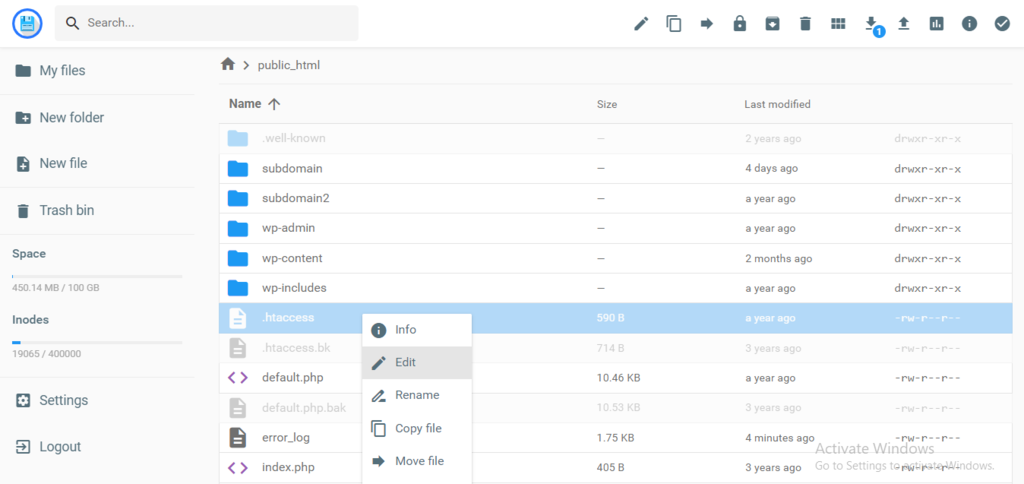
If the file isn’t listed, it may not exist yet. You can create one using the instructions in the next section.
Using cPanel File Manager
If your hosting provider uses cPanel, you can access .htaccess through its built-in File Manager.
- Log in to cPanel and open File Manager under Files.
- Navigate to
public_htmlor the document root configured for your domain. - If
.htaccessisn’t visible, click Settings in the upper-right corner, enable Show Hidden Files (dotfiles), and save your preferences. - Locate
.htaccess, right-click it, and select Edit to open the file.
Using FTP or SFTP
An FTP client such as FileZilla lets you access website files without opening your hosting control panel.
- Connect to your hosting server using the connection details provided by your hosting provider. Use SFTP when it’s supported.
- Navigate to your website’s document root, typically
public_html. - If you’re using FileZilla and can’t see
.htaccess, select Server → Force showing hidden files. - Locate the file and use your client’s View/Edit option to open it in a text editor.
Make sure to upload any saved changes if your FTP client asks you to synchronize the edited file with the server.
Using SSH
If you have SSH access to your hosting server, you can locate .htaccess directly from the terminal.
- Connect to your server using SSH.
- Navigate to your website’s document root. For example, run
cd /var/www/htmlif that’s the configured location. - Run
ls -lato display all files, including hidden files. - Open
.htaccessusing a text editor such as Nano by runningnano .htaccess.
If the file doesn’t exist, Nano may open an empty buffer instead. Exit without saving if you only want to check whether the file is present.
On a local development environment
If you’re developing a website locally with XAMPP, the .htaccess file is usually located inside the website folder under htdocs.
For example, common locations include:
- Windows:
C:xampphtdocsmywebsite.htaccess - Linux:
/opt/lampp/htdocs/mywebsite/.htaccess
Replace mywebsite with your actual project folder name. The location may differ if you’ve changed the local server’s document root.
You can open the file using a text editor such as VS Code or Notepad++. Make sure hidden files are visible in your file browser.
How to create a .htaccess file if it’s missing
If your website doesn’t have an .htaccess file, you can create one manually in the website’s document root. However, not every website needs this file. Create it only when your application or a specific server configuration requires it.
The following method works with Hostinger File Manager and cPanel.
- Open your hosting account’s File Manager and navigate to your website’s root directory, typically
public_html. - Click New File or + File, depending on your control panel.
- Enter
.htaccessas the filename, including the period at the beginning. - Create the file, then open it with the built-in text editor.
- Add the configuration rules required by your application and save your changes.
You can also create the file with an FTP/SFTP client by uploading a plain-text file named .htaccess to your website’s document root. If you’re using SSH, navigate to the correct directory and run touch .htaccess to create an empty file.
Important: Back up any existing configuration before making changes. An empty .htaccess file doesn’t change your website’s behavior until you add supported directives.
Creating a default .htaccess file for WordPress
WordPress uses .htaccess rules to manage permalinks on compatible web servers. If your WordPress .htaccess file is missing, first open Settings → Permalinks in your WordPress dashboard and click Save Changes. WordPress may regenerate the file automatically if the server configuration allows it to write to the file.
If you need to restore the default configuration manually, the following example applies to a standard single-site WordPress installation in the domain’s root directory:
# BEGIN WordPress
<IfModule mod_rewrite.c>
RewriteEngine On
RewriteRule .* - [E=HTTP_AUTHORIZATION:%{HTTP:Authorization}]
RewriteBase /
RewriteRule ^index.php$ - [L]
RewriteCond %{REQUEST_FILENAME} !-f
RewriteCond %{REQUEST_FILENAME} !-d
RewriteRule . /index.php [L]
</IfModule>
# END WordPress
These rules direct requests for URLs that don’t correspond to existing files or directories to WordPress.
Don’t use this configuration for non-WordPress websites. WordPress Multisite installations, subdirectory installations, and websites with custom rewrite rules may require different configurations. Avoid overwriting rules added by plugins or your hosting provider.
How to safely edit .htaccess rules
Once you’ve located or created your .htaccess file, you can use it to configure website redirects, access restrictions, and other supported server settings.
Before making changes, follow these precautions:
- Back up the original file. Keep a copy so you can restore the previous configuration if something goes wrong.
- Check server compatibility. Apache and compatible servers such as LiteSpeed support
.htaccess, but Nginx doesn’t process these files. - Test your changes. After saving the file, check important pages and URLs for unexpected redirects or server errors.
One common use is redirecting visitors to a different domain when moving a website. You can configure these redirects through supported .htaccess rules without modifying every page individually.
If your website returns a 500 Internal Server Error after editing .htaccess, restore your backup and review the new directives for syntax errors or unsupported settings.
This article is a localized version of How to find and create the .htaccess file, originally published in English.
All of the tutorial content on this website is subject to Hostinger's rigorous editorial standards and values.

Tomas provides top-notch technical advice on a daily basis to our valued customers. He also likes to create websites and do various coding side projects.