
To create a TeamSpeak 3 server, install the server software on a VPS or computer, configure the required firewall ports, and connect using the TeamSpeak client.
This tutorial covers TeamSpeak 3 server setup on Ubuntu Linux, Windows, and macOS. You’ll learn how to install and start the server, allow incoming connections, and optionally point a domain name to it.
If you’re hosting the server on your home network, you may also need to configure port forwarding on your router.

How to set up a TeamSpeak 3 server on Ubuntu
To begin, let’s set up a TeamSpeak server on Linux VPS running Ubuntu 22.04 operating system.

Start the process by accessing your VPS via SSH. This procedure can be broken down into six simple steps:
- Create a new user in the system.
- Using the wget command, download and extract the TeamSpeak server.
- Accept the TeamSpeak 3 license agreement.
- Instruct the TeamSpeak server to start when the system boots up.
- Get the privilege key.
- Connect via the TeamSpeak client.
Before continuing, check if your system is up-to-date by entering the following command into the terminal:
sudo apt-get update && apt-get upgrade
1. Create a new system user
First of all, add a new user by executing the following command:
adduser --disabled-login teamspeak
You will be requested to enter personal user details and confirm the information is correct. Keep in mind that all fields can be left blank.
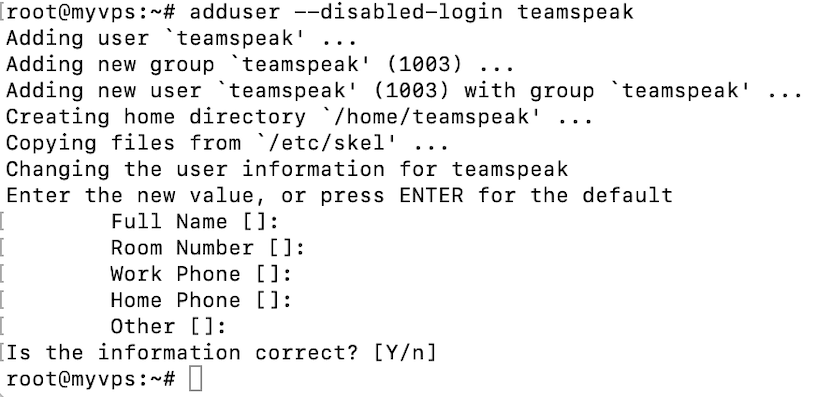
Switch to the newly created user:
sudo su teamspeak
Pro Tip
If you end up in the root directory after running the sudo su teamspeak command, use cd .. before running the command again.
Lastly, navigate to the home directory:
cd /home/teamspeak
2. Download and extract TeamSpeak 3 Server
Download the current stable TeamSpeak 3 Server release from the official TeamSpeak website. The example below uses version 3.13.8, which addresses security vulnerabilities affecting earlier releases.
Before running the commands, check the official download page and update the TS_VERSION value if a newer version is available.
wget "https://files.teamspeak-services.com/releases/server/${TS_VERSION}/teamspeak3-server_linux_amd64-${TS_VERSION}.tar.bz2"Once finished, extract the file:
tar -xjf "teamspeak3-server_linux_amd64-${TS_VERSION}.tar.bz2"All of the contents will appear in the teamspeak3-server_linux_amd64 folder. We can then safely remove the unnecessary archive:
rm "teamspeak3-server_linux_amd64-${TS_VERSION}.tar.bz2"

cd teamspeak3-server_linux_amd64
Check your TeamSpeak software version and enter the commands accordingly. If you enter an incorrect version number, TeamSpeak will simply not run.
Execute the ls command. You should see an output similar to the example below:

3. Accept the TeamSpeak 3 License Agreement
Since the release of TeamSpeak server version 3.1.0, it’s mandatory to accept the license agreement. The quickest way to do that is by running the touch command. However, make sure you are in the teamspeak3-server_linux_amd64 directory first:
touch .ts3server_license_accepted
This will create a new empty file called .ts3server_license_accepted, meaning you have accepted the license terms.
4. Start the TeamSpeak Server on Startup
To start your TeamSpeak server automatically when your VPS boots, create a systemd service.
If you’re still logged in as the teamspeak user from the earlier steps, return to your original account with sudo privileges:
exit
Next, create a service configuration file using the nano text editor:
sudo nano /etc/systemd/system/teamspeak.service
Add the following configuration to the file:
[Unit]
Description=TeamSpeak 3 Server
After=network.target
[Service]
WorkingDirectory=/home/teamspeak/teamspeak3-server_linux_amd64
User=teamspeak
Group=teamspeak
Type=forking
ExecStart=/home/teamspeak/teamspeak3-server_linux_amd64/ts3server_startscript.sh start inifile=ts3server.ini
ExecStop=/home/teamspeak/teamspeak3-server_linux_amd64/ts3server_startscript.sh stop
PIDFile=/home/teamspeak/teamspeak3-server_linux_amd64/ts3server.pid
RestartSec=15
Restart=always
[Install]
WantedBy=multi-user.target
Save the configuration file and exit the text editor.
Next, reload systemd to recognize the new service, enable TeamSpeak to start automatically at boot, and start the server:
sudo systemctl daemon-reload
sudo systemctl enable --now teamspeak.service
Verify that the TeamSpeak server is running:
sudo systemctl status teamspeak.service
If the service starts successfully, its status should display active (running). If it fails, review the service logs to identify the problem:
sudo journalctl -u teamspeak.service -n 50 --no-pager
5. Retrieve the Privilege Key
While the TeamSpeak server is now running, you still need the privilege key. You will need to paste it when connecting to the server for the first time. First, switch to the teamspeak user:
sudo su teamspeak
Then, view the privilege key using the following command:
cat /home/teamspeak/teamspeak3-server_linux_amd64/logs/ts3server_*
Find the ServerAdmin line and copy the token. It will look something like this:
ServerAdmin privilege key created, please use the line below
token=ZyQqAIGrZyQqAIGrZyQqAIGrZyQqAIGrZyQqAIGr
6. Open the required TeamSpeak ports
Before connecting to your TeamSpeak server, make sure its firewall allows incoming traffic on the required ports.
| Port | Protocol | Purpose |
|---|---|---|
| 9987 | UDP | Voice connections |
| 30033 | TCP | File transfers |
| 10011 | TCP | Optional ServerQuery access |
For Ubuntu servers using UFW, first check whether the firewall is active:
sudo ufw status
If UFW is active, allow the TeamSpeak voice and file-transfer ports:
sudo ufw allow 9987/udp
sudo ufw allow 30033/tcp
Run sudo ufw status again to confirm that the rules have been added.
If UFW is inactive, you don’t need to enable it solely for this procedure. If you choose to enable it, make sure SSH access is allowed first to avoid losing your server connection.
For Hostinger VPS users: Open your Hostinger dashboard and navigate to VPS → your server → Security → Firewall. Create or edit your firewall group and add inbound accept rules for UDP port 9987 and TCP port 30033. Make sure SSH access is also permitted before activating the firewall group.
You only need to open TCP port 10011 if you’re using the ServerQuery interface. Restrict this port to trusted IP addresses whenever possible.
If you’re hosting TeamSpeak from a computer on your home network, configure your router to forward the required ports to that computer’s local IP address.
7. Connect using the TeamSpeak client
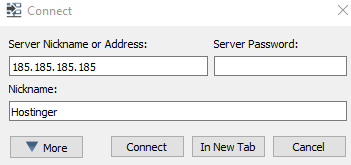
The last step is to connect to the newly created TS3 server and apply the privilege key. Use the server address of your dedicated VPS when connecting.
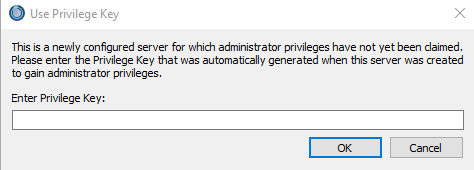
You will be immediately prompted to enter the server admin token:
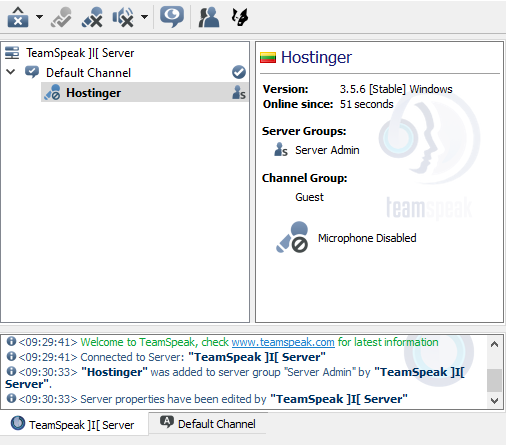
Great work – you have successfully created and connected to a TeamSpeak server on Ubuntu.
How to set up a TeamSpeak 3 server on Windows
Setting up a TeamSpeak server on Windows is easy. In fact, it can be done in three easy steps:
- Download and extract the TeamSpeak server from their website
- Initiate the TeamSpeak server installation
- Use the TeamSpeak client to connect
Let’s start with the TeamSpeak server.
1. Download and Extract the TeamSpeak Server
First of all, download the TeamSpeak server files for Windows. Then, extract it in the desired location.
2. Run the TeamSpeak Server Installer
Open the extracted TeamSpeak server files and run the ts3server.exe executable file.
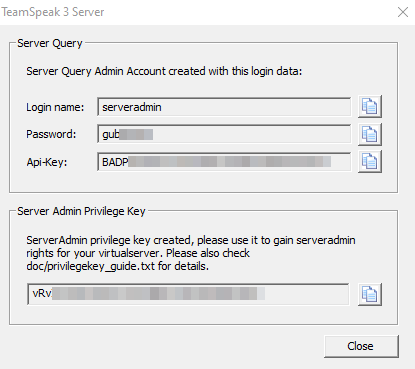
You will be prompted to accept the license agreement and asked if the Windows firewall should safelist the software. After that, you will receive your login name, server password, API key, and server admin token. Copy all four values to an empty .txt file for later use.
3. Connect via the TeamSpeak Client
Once the installation process is finished, the last step is connecting to the TS3 server.
Download the TeamSpeak client from the official website and run the .exe installer.
Next, open the client and go to Connections -> Connect.
In case you’re not sure what IP address to use for connecting, open the Command Prompt and execute the following:
ipconfig
Look for the IPv4 Address value, as we will use it when connecting.

Lastly, you will need to paste the privilege key to gain admin rights.

That’s it – you have successfully set up a TeamSpeak server on Windows.
How to set up a TeamSpeak 3 server on macOS
Making a TeamSpeak 3 server on the macOS operating system is also possible. The whole setup can be completed in four simple steps:
- Download and extract the TeamSpeak server
- Accept the license agreement for TeamSpeak 3
- Launch the TeamSpeak server and obtain your privilege key
- Use the TeamSpeak 3 client to connect
Let’s proceed with the steps.
1. Download and Extract the TeamSpeak Server
Start by downloading the TeamSpeak server software setup file for Mac. Once finished, double-click to extract it.
2. Accept the TeamSpeak 3 License Agreement
Open the terminal and execute the following command to accept the license agreement:
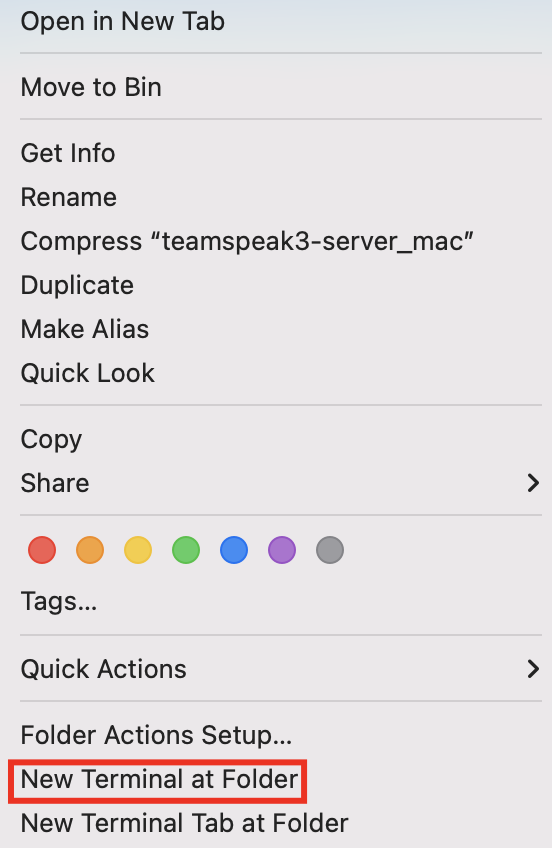
touch .ts3server_license_accepted
3. Start the TeamSpeak Server and Retrieve Your Privilege Key
Start the server by entering the following:
./ts3server
If you get a warning about TeamSpeak not being recognized as an identified developer, make sure to override the security settings in System Preferences temporarily.
Wait a few moments for the process to finish. You will receive your privilege key:

4. Connect via the TeamSpeak Client
You’re now ready to use the TeamSpeak server. When connecting, use the IP shown in the System Preferences -> Network section. You might have to override your security settings once more to launch the TeamSpeak application.
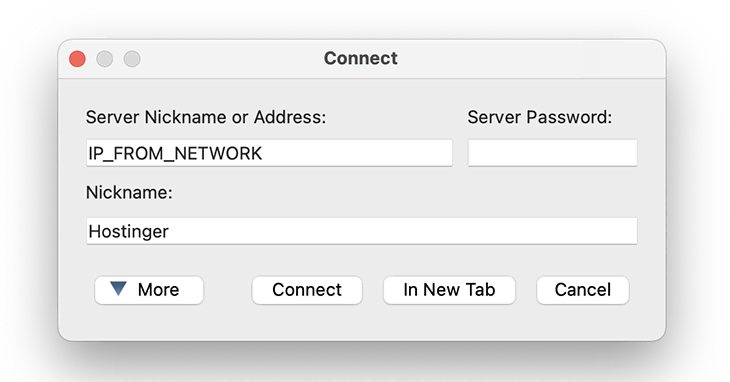
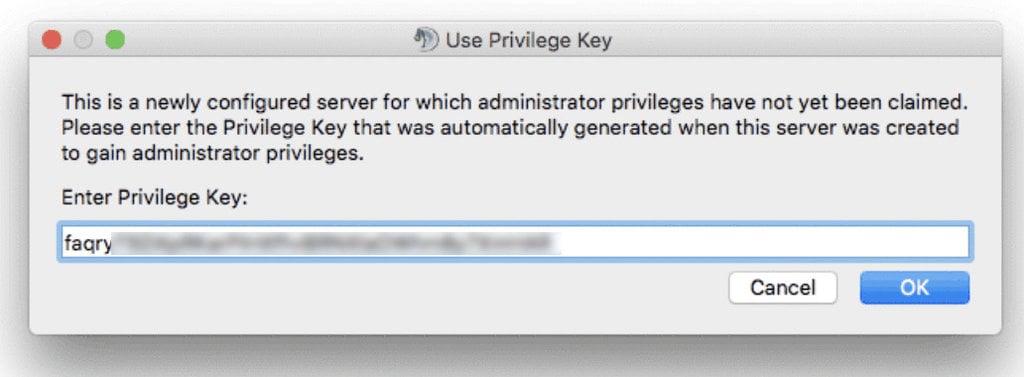
Don’t forget to paste the privilege key to gain server admin rights.
Congratulations, you have created a TeamSpeak server and connected to it on macOS operating system.
How to Point a Domain to a TeamSpeak Server
This section will teach you how to point your existing domain to the TeamSpeak server you created.
This will make the process of logging into the server easier because you won’t have to remember the IP address and port combination – just the domain name.
Before proceeding with the next step, go to the DNS Zone Editor on your domain registrar account. In this example, we will use a domain name registered via Hostinger. However, the steps should be similar using other registrars as well.
The process can be completed in two simple steps:
- Create a subdomain with A records
- Create an SRV record
Let’s start with a subdomain.
1. Create a Subdomain Using A Records
Log into Hostinger dashboard and navigate to Domains. Click on the desired domain name and select DNS / Nameservers.
Next to the Manage DNS records section, create a subdomain and point it to the TeamSpeak server.
- Type – choose A.
- Name – specify the subdomain name.
- Points to – enter the IP of your TeamSpeak 3 server, removing the sample 185.185.185.185 address.
- TTL – this stands for time-to-live, which limits the lifetime of the record. Leave the default value.

Finally, click Add Record.
Ensure that the A record is pointed correctly and propagated well before proceeding to the next step.
2. Create an SRV record
Under the same Manage DNS records section, add a new SRV record.
- Type – choose SRV.
- Name – specify the service name _ts3 and protocol _udp, separated by a full stop mark. The final result should look similar to the following:
_ts3._udp.teamspeak.domain.tld
- Weight – for records with the same priority, set it to 5.
- Port – enter your server’s port. Alternatively, the default TeamSpeak 3 server port is 9987.
- Target – instead of teamspeak.yourdomain.com, enter the subdomain you created in Step 1.
- Priority – set the value to 0.
- TTL – leave the default value here.
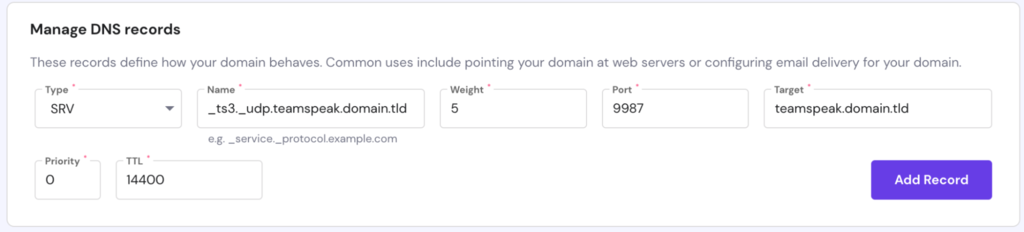
Finally, click Add Record.
Important! Note that it can take up to 24 hours for the new DNS records to propagate worldwide. You can also try to clear your DNS cache.
That’s it – you have pointed a domain to the TeamSpeak 3 server via the DNS SRV record. You can easily connect to your server using a simple subdomain.
Next steps: Test and secure your TeamSpeak server
After setting up your TeamSpeak 3 server, connect to it using the TeamSpeak client and verify that voice communication works. If possible, test the connection from another network to confirm that your firewall and port-forwarding settings are correct.
Keep your server administrator privilege key secure and check the official TeamSpeak downloads page regularly for security updates.
If you want to make connecting easier for other users, you can also configure a domain name to point to your TeamSpeak server.
This article is a localized version of How to make a TeamSpeak 3 server on Linux, Windows, and macOS, originally published in English.
All of the tutorial content on this website is subject to Hostinger's rigorous editorial standards and values.

Ignas takes great satisfaction in helping people tackle even the most complex technical issues. His current goal is to write easy-to-follow articles so that these issues will not happen at all. During his free time, Ignas likes to play video games and fix up things around his house.