How to create a WordPress sitemap: 3 methods
Oct 14, 2026
/
By Domantas G.
/
7 min Read

WordPress automatically generates an XML sitemap at yourdomain.com/wp-sitemap.xml on public websites running WordPress 5.5 or later. This means you don’t need to install a plugin or manually create a sitemap to help search engines discover your website’s content.
If you need more control over which pages appear in your sitemap, you can use an SEO plugin such as Yoast SEO or a dedicated sitemap plugin. These tools provide additional configuration options beyond WordPress’s built-in functionality.
This guide explains how to find your default WordPress sitemap, generate one using plugins, and submit it to Google and Bing. You’ll also learn how to create an HTML sitemap to help visitors navigate your website.
What is a WordPress sitemap?
A WordPress sitemap is a file or webpage that lists important URLs on a WordPress website. It helps search engines discover content and can make website navigation easier for visitors.
There are two main types: XML sitemaps for search engines and HTML sitemaps for visitors. Both serve different purposes, as explained in our guide to website sitemaps.
A WordPress sitemap provides three main benefits:
- Content discovery: XML sitemaps help search engines find important pages, including newly published or updated content that might be difficult to discover through internal links.
- Easier navigation: HTML sitemaps organize links to important pages and posts, helping visitors explore a website and find specific content.
- SEO support: XML sitemaps support search engine optimization by making important URLs easier for crawlers to discover. However, they don’t prevent duplicate content or guarantee higher rankings.

What’s the difference between XML and HTML WordPress sitemaps?
The main difference between XML and HTML sitemaps is their purpose. XML sitemaps help search engines discover content, while HTML sitemaps help visitors navigate a website.
An XML sitemap is a machine-readable file that lists important URLs and may include information such as when pages were last modified. An HTML sitemap is a regular webpage built with HTML that provides clickable links to important pages and posts.
Here’s how they compare:
| Feature | XML sitemap | HTML sitemap |
|---|---|---|
| Primary audience | Search engines | Website visitors |
| Main purpose | Help search engines discover URLs | Help visitors find website content |
| Format | Structured XML file | Regular webpage with clickable links |
| Typical URL | /wp-sitemap.xml | /sitemap/ or another custom page URL |
| WordPress support | Generated automatically since WordPress 5.5 | Usually created manually or using a plugin |
| SEO benefits | Supports URL discovery and crawling | Can support internal navigation and content discovery |
Most WordPress websites only need an XML sitemap. Consider adding an HTML sitemap if your website has extensive content that visitors may have difficulty finding through the main navigation.
Neither sitemap guarantees indexing or higher search rankings.
Want to see the process in action? This video walks through creating a sitemap with Yoast SEO, checking the WordPress default sitemap, and submitting it to Google Search Console:


How to find your built-in WordPress XML sitemap
WordPress automatically creates an XML sitemap for public websites running version 5.5 or later. You can access it without installing a plugin or manually generating an XML file.
To find your WordPress sitemap:
- Open your web browser.
- Enter
https://yourdomain.com/wp-sitemap.xmlin the address bar, replacingyourdomain.comwith your website’s domain. - Check whether the sitemap index loads. It should contain links to individual sitemaps for your posts, pages, categories, and other supported content types.
WordPress automatically updates these sitemaps as you publish or remove content.
If the sitemap doesn’t load, check Settings → Reading in your WordPress dashboard. The Discourage search engines from indexing this site option should be unchecked for a public website.
Also, check whether an SEO plugin has replaced the default sitemap. For example, Yoast SEO typically generates a sitemap index at yourdomain.com/sitemap_index.xml.
Limitations of the default WordPress sitemap
Although the built-in sitemap works for many websites, it has some limitations:
- Limited customization: WordPress doesn’t provide a built-in settings interface for excluding individual pages or customizing sitemap content.
- Basic sitemap features: Advanced options, such as dedicated image and video sitemaps, generally require additional tools or plugins.
- Technical configuration: Customizing the default sitemap’s behavior typically requires WordPress filters or custom code.
For most websites, the default sitemap is sufficient for helping search engines discover public content. Consider an SEO plugin if you need more control over sitemap entries or additional sitemap features.
How to create a WordPress XML sitemap using a plugin
WordPress sitemap plugins offer more control over which URLs appear in your sitemap. They can also provide additional features, such as image and video sitemaps, without requiring you to create XML files manually.
After installing a WordPress plugin, you can manage your sitemap directly from the WordPress dashboard. Here are two options.
How to create a WordPress sitemap using Yoast SEO
Yoast SEO is one of the most popular WordPress SEO plugins and automatically generates an XML sitemap for your website. It also lets you control which content types appear in search results and your sitemap.
To create a WordPress sitemap with Yoast SEO:
- Navigate to Plugins → Add Plugin in your WordPress dashboard.
- Search for Yoast SEO, then click Install Now and Activate.
- Open Yoast SEO → Settings → Site features.
- Under Technical SEO, find XML sitemaps and make sure the toggle is enabled.
- Click View the XML sitemap to open your sitemap index.
You can also access the sitemap directly at https://yourdomain.com/sitemap_index.xml.
Yoast SEO automatically updates the sitemap as you publish, modify, or remove content. It also excludes content marked as noindex from its XML sitemap.
How to create a WordPress sitemap using XML Sitemap Generator for Google
XML Sitemap Generator for Google, previously known as Google XML Sitemaps, is a dedicated plugin for creating and managing XML sitemaps.
It offers additional configuration options, including control over which content types and URLs appear in the sitemap.
To generate a sitemap using this plugin:
- Navigate to Plugins → Add Plugin in your WordPress dashboard.
- Search for XML Sitemap Generator for Google, then install and activate the plugin.
- Open Settings → XML-Sitemap to access the sitemap configuration.
- Review the sitemap URL and adjust the available settings if necessary.
- Open the sitemap URL to confirm that it loads correctly.
The plugin can update your sitemap when website content changes. You can then submit the sitemap URL through Google Search Console or Bing Webmaster Tools.
Important: You generally only need one active XML sitemap generator. If you’re already using Yoast SEO to manage sitemaps, there’s no need to install a second sitemap plugin.
How to create a WordPress XML sitemap manually
You can create a WordPress XML sitemap manually by writing an XML file containing the URLs you want search engines to discover. This approach provides direct control over sitemap entries but requires updating the file whenever your website content changes.
Manual sitemap creation is best for small websites with only a few URLs or custom requirements. For most WordPress websites, the built-in sitemap or an SEO plugin is easier to maintain.
To create an XML sitemap manually:
- Open a text editor, such as Notepad on Windows or Nano on Linux and macOS.
- Create an XML file using the sitemap protocol. Include your website’s canonical URLs inside
<loc>tags. - Save the file as
sitemap.xmlusing UTF-8 encoding. - Upload the file to your website’s root directory, typically
public_html, using your hosting control panel or FTP client. - Check your sitemap by opening
https://yourdomain.com/sitemap.xmlin your browser.
Here’s a basic XML sitemap example:
<?xml version="1.0" encoding="UTF-8"?>
<urlset xmlns="http://www.sitemaps.org/schemas/sitemap/0.9">
  <url>
    <loc>https://www.example.com/</loc>
  </url>
</urlset>
The example contains three essential elements:
<urlset>: Defines the sitemap and references the sitemap protocol.<url>: Contains the information about an individual webpage.<loc>: Specifies the full URL of the webpage.
You can also include <lastmod> to indicate when a page was last significantly updated, provided the date is accurate. Google ignores <priority> and <changefreq> values, so you don’t need to add them.
Once uploaded, use a sitemap validator to check the XML structure before submitting it to search engines.
Remember to update your manually created sitemap whenever you add, remove, or change the URLs you want included. Unlike WordPress’s automatically generated sitemaps, a static XML file doesn’t update itself.
How to submit a WordPress XML sitemap to search engines
Submitting your WordPress XML sitemap helps search engines discover your website’s URLs and monitor changes to your content. You can submit your sitemap through Google Search Console and Bing Webmaster Tools.
Sitemap submission doesn’t guarantee indexing or higher rankings. However, it helps search engines discover URLs that might otherwise be difficult to find and allows you to monitor sitemap processing errors.
Before submitting, make sure your sitemap is accessible. Depending on how it was generated, its URL may be:
- WordPress default:
https://yourdomain.com/wp-sitemap.xml - Yoast SEO:
https://yourdomain.com/sitemap_index.xml - Manually created:
https://yourdomain.com/sitemap.xml
How to submit a WordPress sitemap to Google
You can submit your WordPress sitemap through Google Search Console, which also provides information about sitemap processing and indexing issues.
Follow these steps:
- Sign in to Google Search Console and select your website property. If you haven’t added your website yet, add and verify ownership first.
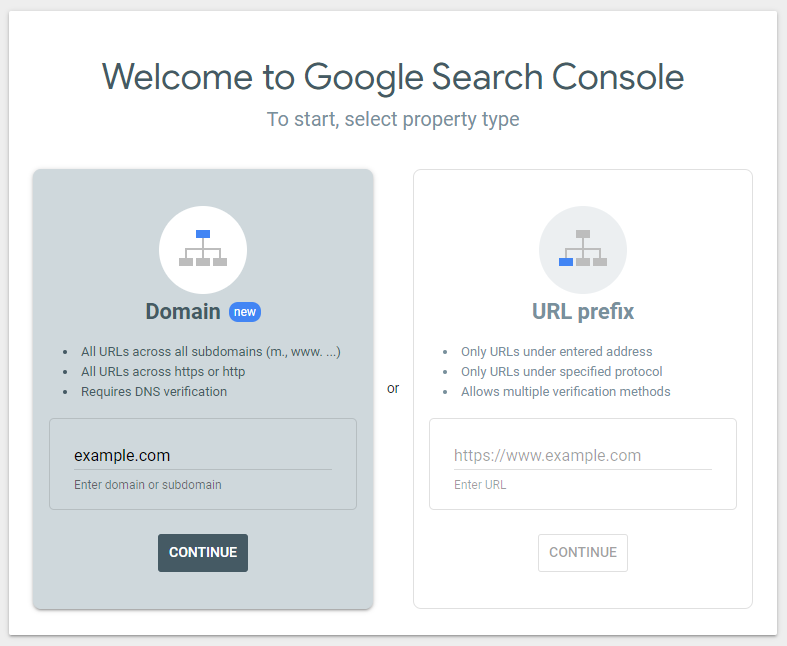
- If you’re verifying a domain property using a TXT record, copy the verification value provided by Google. You can add this record through Hostinger’s DNS Zone Editor if your domain uses Hostinger’s nameservers.
- Once your property is verified, navigate to Indexing → Sitemaps in the left sidebar.
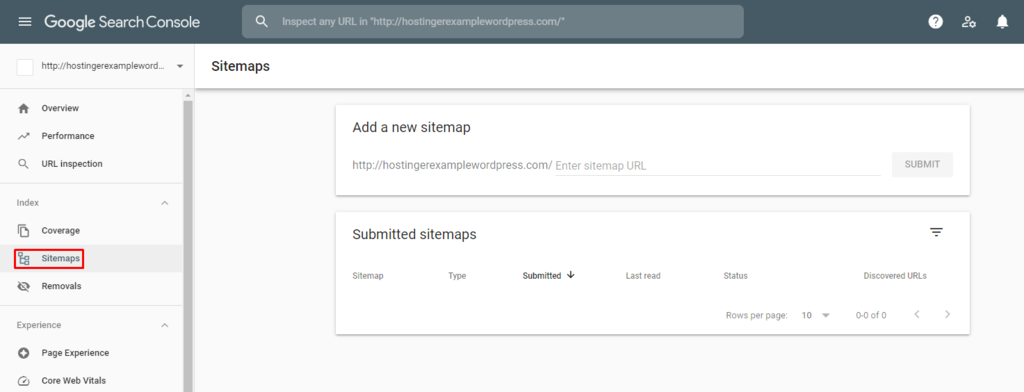
4. Enter your sitemap URL in the Add a new sitemap field and click Submit.
5. Check the Submitted sitemaps section to confirm whether Google successfully processed your sitemap.
Google Search Console displays the sitemap’s processing status and any detected errors. A successful submission means Google can process the sitemap, not that every listed page will be indexed.
How to submit a WordPress sitemap to Bing
Bing Webmaster Tools lets you submit your XML sitemap and monitor how Bing processes your website’s URLs.
To submit your WordPress sitemap:
- Sign in to Bing Webmaster Tools using your Microsoft, Google, or Facebook account.
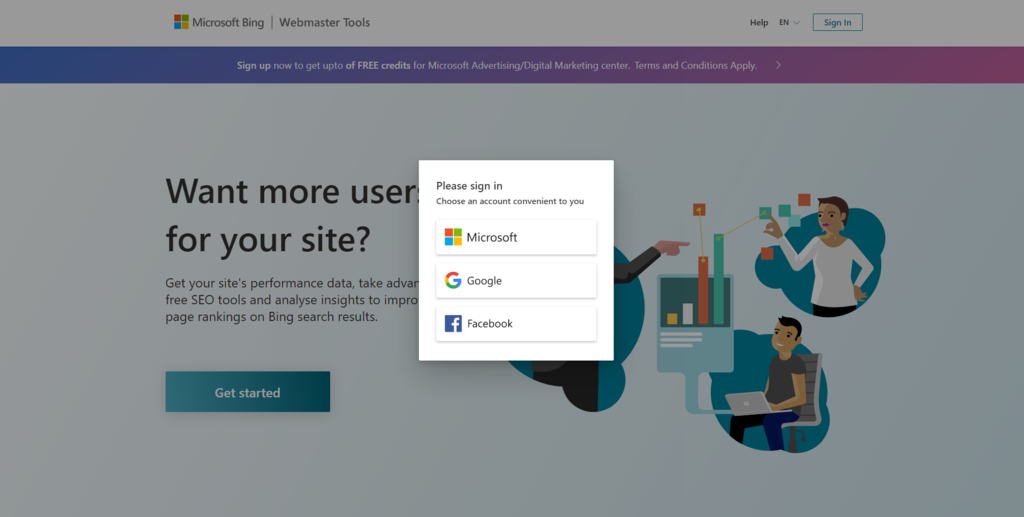
- Add your website manually or import a verified property from Google Search Console. Complete website ownership verification if necessary.
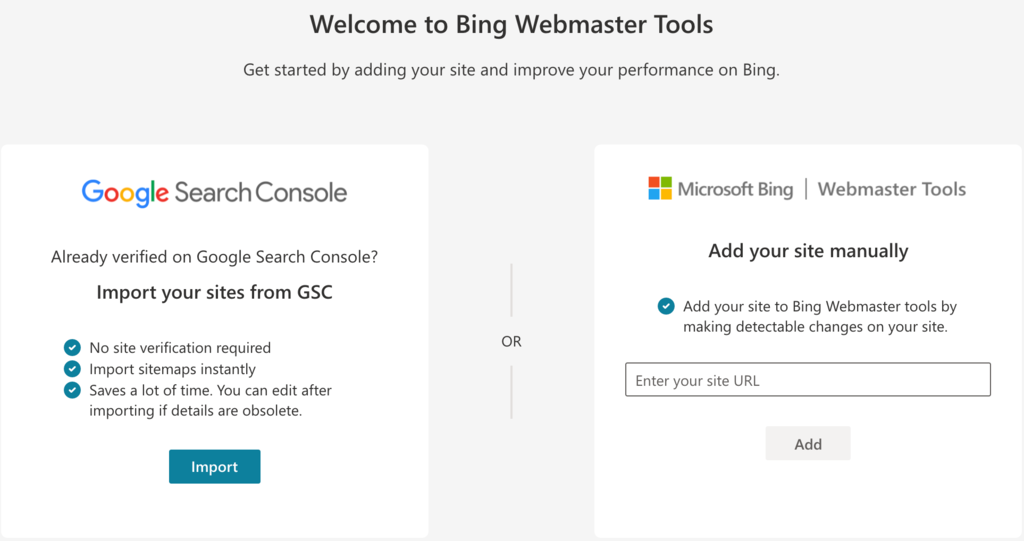
- Select your website and navigate to Sitemaps.
- Click Submit sitemaps, enter your XML sitemap URL, and submit it.
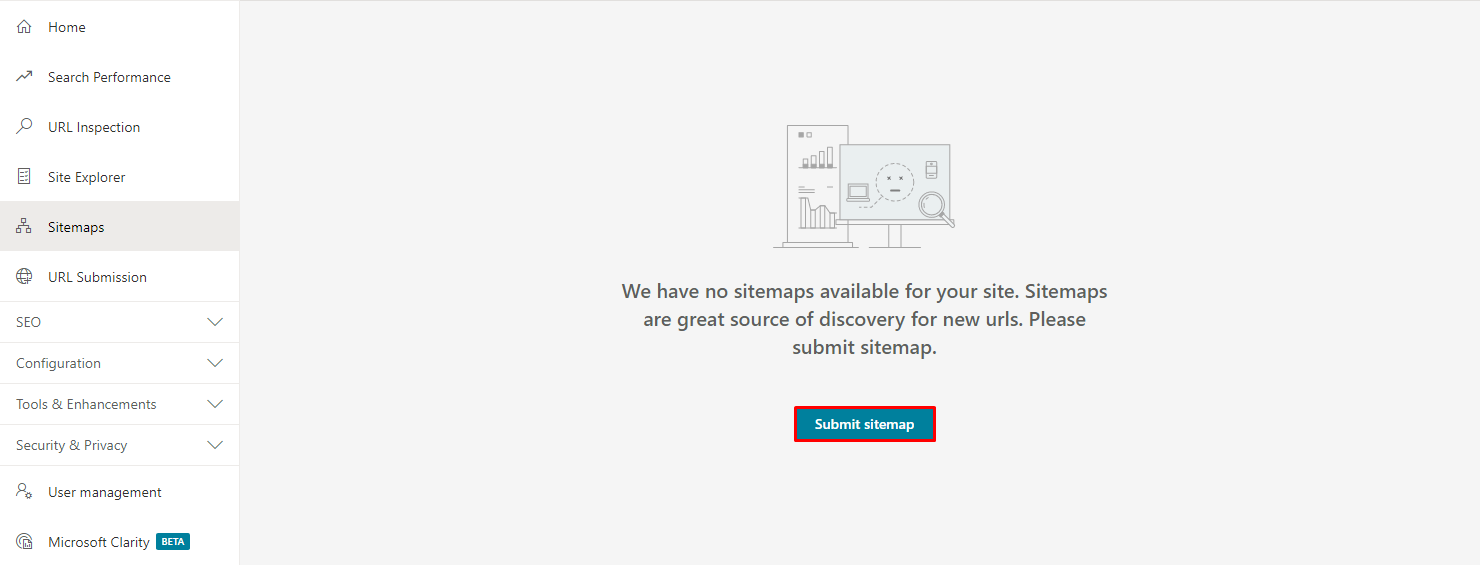
5. Check the sitemap’s processing status in the Sitemaps dashboard.
Bing displays information about discovered URLs, processing dates, and any errors that need attention.
You can also include your sitemap URL in your website’s robots.txt file to help search engines discover it automatically. For most WordPress websites, you only need to submit your sitemap once because the automatically generated sitemap stays updated as your content changes.
How to create an HTML sitemap in WordPress
An HTML sitemap is a webpage that lists links to your website’s content, helping visitors find pages and posts more easily. Unlike an XML sitemap, which is designed for search engines, an HTML sitemap primarily supports website navigation.
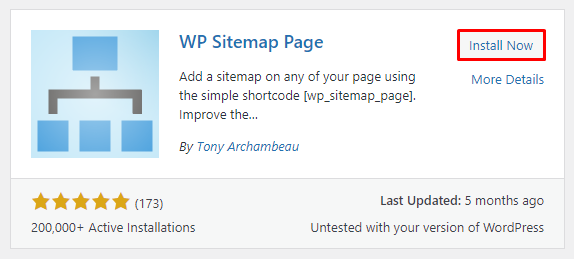
You can create an HTML sitemap using the WP Sitemap Page plugin, which automatically generates a list of your published content.
- Go to Plugins → Add Plugin in your WordPress dashboard. Search for WP Sitemap Page, then install and activate it.
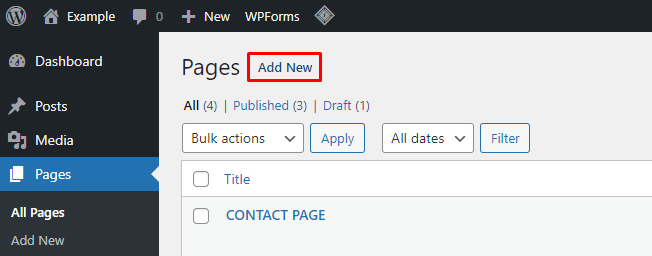
- Navigate to Pages → Add New to create a page for your sitemap. You can also edit an existing page.
- Add a Shortcode block in the WordPress editor and enter the following WordPress shortcode:
[wp_sitemap_page]
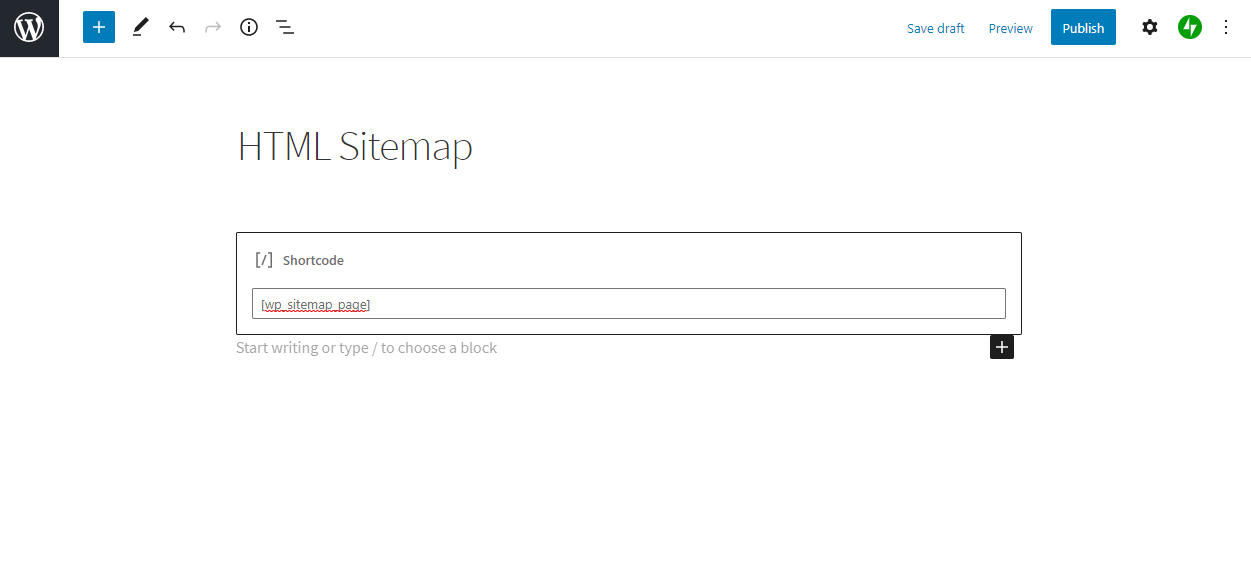
- Click Publish or Update to save the page.
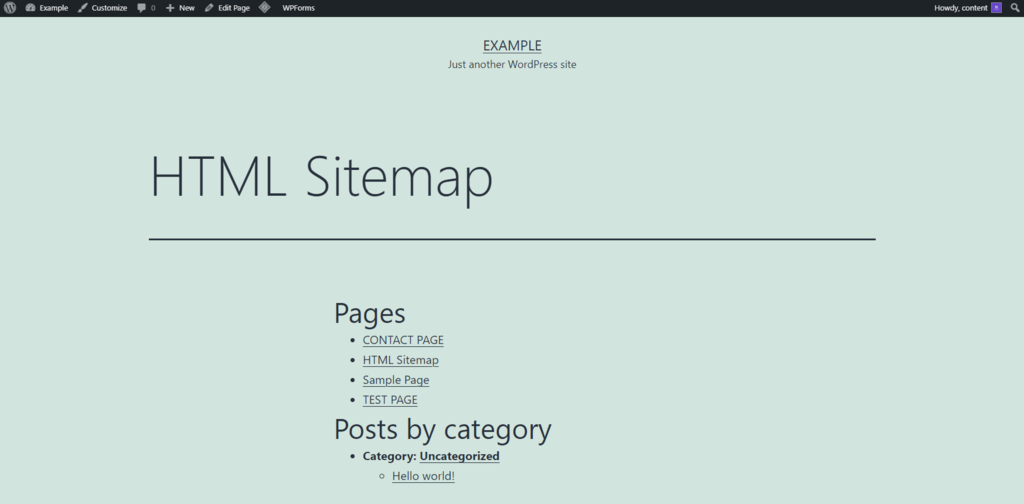
5. Open the published page to confirm that your HTML sitemap displays links to your website’s content.
WP Sitemap Page also lets you customize which content appears in the sitemap, including pages, posts, and categories.
An HTML sitemap doesn’t replace your XML sitemap, and not every WordPress website needs one. It’s most useful for websites with extensive content that visitors may have difficulty finding through the main navigation.
How to check and maintain your WordPress sitemap
For most WordPress websites, the built-in XML sitemap is sufficient. You don’t need to create one manually or install an additional plugin unless you require more control over sitemap content.
Once your sitemap is available, take these steps:
- Verify your sitemap. Open
/wp-sitemap.xmlor your SEO plugin’s sitemap URL and confirm that it loads correctly. - Review the included URLs. Check that your sitemap contains the pages you want search engines to discover and excludes content that shouldn’t appear in search results.
- Monitor sitemap performance. Submit your sitemap to Google Search Console and Bing Webmaster Tools, then check for processing errors and indexing issues.
If search engines have trouble discovering your content, also review your WordPress robots.txt file to ensure important pages aren’t blocked from crawling.
Remember that submitting a sitemap helps search engines discover your content, but doesn’t guarantee indexing or higher rankings.
This article is a localized version of How to create a WordPress sitemap: 3 methods, originally published in English.
All of the tutorial content on this website is subject to Hostinger's rigorous editorial standards and values.

Domantas leads the content and SEO teams forward with fresh ideas and out of the box approaches. Armed with extensive SEO and marketing knowledge, he aims to spread the word of Hostinger to every corner of the world. During his free time, Domantas likes to hone his web development skills and travel to exotic places.