The best WYSIWYG website builders include Hostinger AI Builder, Wix, Squarespace, Webflow, Shopify, Framer, WordPress.com, Duda, Webnode, and GoDaddy.
Hostinger AI Builder is best for AI-assisted visual website creation, while Wix suits users who want detailed control over their design.
Shopify stands out for ecommerce, Webflow for advanced visual design, and Duda for agencies managing client websites.
WYSIWYG stands for “what you see is what you get.” These builders let you create and edit pages visually, so the published website looks close to what you see in the editor.
Some use freeform drag-and-drop editing, while others organize pages through blocks, grids, theme sections, or AI-generated designs that you customize visually.
The best ones give you the right level of design control, keep layouts reliable on mobile, and include the tools a website needs beyond the editor. Many now offer AI tools, templates, hosting, ecommerce, and SEO features on a single platform.
Here’s how the ten options compare:
Builder | Best use case | AI features | Ecommerce | Hosting/domain | Design flexibility | Main limitation |
Hostinger AI Builder | Service-based business websites | Website generation, content and image tools, Agentic mode | Add-on | Hosting and SSL included; domain options | High | Less granular than advanced visual-development tools |
Wix | Granular design control | AI website generation and editing assistance | Yes | Managed hosting; custom domains on paid plans | Very high | Extensive controls can make editing more involved |
Squarespace | Business and portfolio websites | Website, content, and image generation | Yes | Hosting and SSL included; custom domains | High | More structured than freeform editors |
Shopify | Ecommerce websites | Storefront generation, content tools, Sidekick | Built in | Hosting and SSL included; custom domains | Moderate | Theme structure limits freeform positioning |
Webflow | Advanced visual web design | Site, section, content, and code generation | Separate plan | Managed hosting; custom domains on paid plans | Very high | Steeper learning curve |
Framer | Marketing sites and portfolios | Design generation, AI agents, code components | No native ecommerce | Hosting and SSL included; custom domains on paid plans | Very high | Not designed for complex ecommerce |
WordPress.com | Content-heavy websites | AI website generation and editing assistance | Plugins or Commerce plan | Managed hosting; custom domains on paid plans | High | More configuration as functionality expands |
Duda | Agency and client websites | Section, content, and SEO generation | Add-on | Hosting and SSL included; domain support | High | Agency features may be unnecessary for one site |
Webnode | Simple multilingual websites | Website generation, content, and translation assistance | Standard and above | Hosting included; domain and email options | Moderate | Less granular design control |
GoDaddy | Quick small-business websites | Airo site generation and prompt-based editing | Paid plan | Hosting and SSL included; domain services | Moderate | Free projects can’t be published |
Prices checked in November 2026.
1. Hostinger AI Builder – best for service-based business websites
- Best fit: Business websites, portfolios, blogs, and AI-built web projects.
- Editor: Drag-and-drop + Agentic mode.
- Free plan: No.
- Ecommerce: Yes, as an add-on.
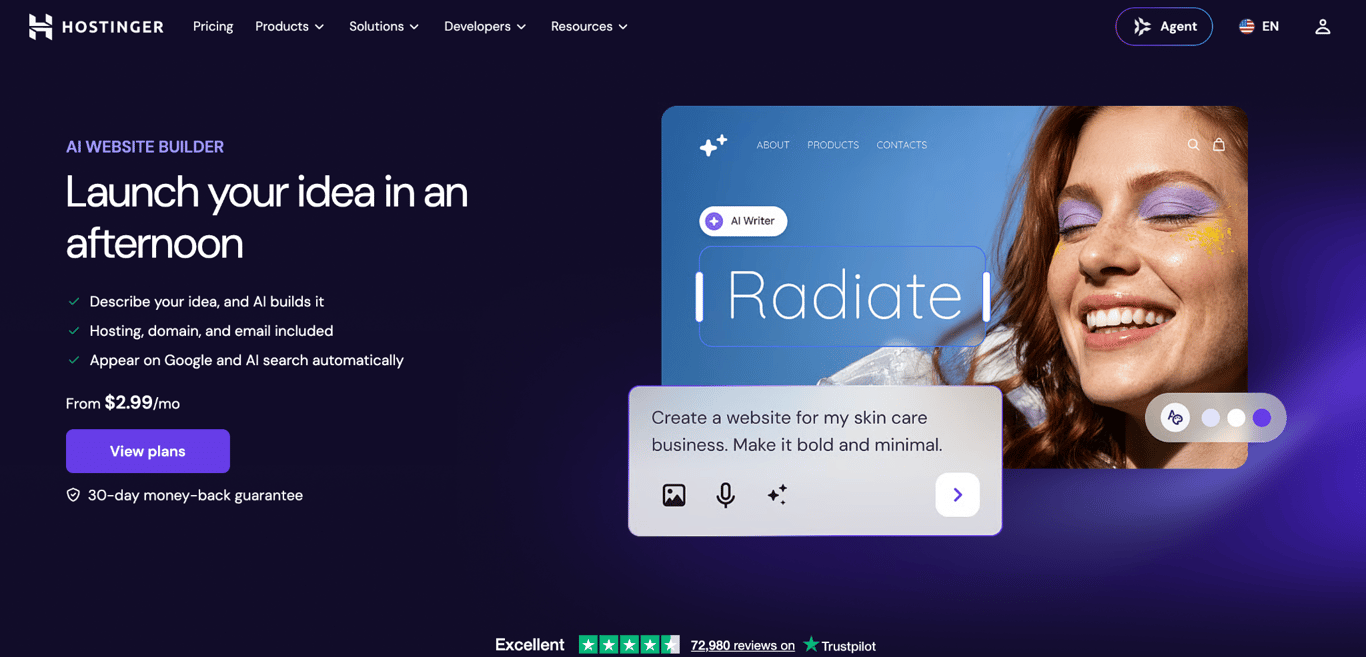
Hostinger AI Builder gives you two ways to build a website from scratch, depending on how involved you want to be in the process.
Manual mode works like a traditional WYSIWYG builder. Start with one of the pre-designed templates or generate a site with AI Builder, then shape the result directly on the page with drag-and-drop controls.
Agentic mode starts with a conversation. Describe the website or web app you want, then keep prompting the AI as the project takes shape. You can still step in to edit individual elements or work directly with the generated code when you need more control.
The same account also gives you access to Hostinger Reach for creating AI-assisted email campaigns.
Hostinger AI Builder pros
- AI helps with content, not just layout. Create website copy, images, logos, and ecommerce product titles, descriptions, and images without moving to separate tools.
- SEO and marketing tools come built in. SEO features and integrations with Google Analytics, Google Ads, and Meta Pixel cover visibility, traffic analysis, and advertising.
- Hosting is included. You don’t need to purchase or configure a separate hosting service, and eligible plans include a free domain and email mailboxes for the first year.
- No platform transaction fees. Hostinger doesn’t take a cut of your sales, although payment provider fees may still apply.
Hostinger AI Builder cons
- No free publishing option. You need a paid subscription to publish your website.
- Low usage limits on Premium. The plan supports three websites and includes 250 one-time AI credits, which can be restrictive for multiple projects or frequent AI use.
- Ecommerce costs extra. Online selling requires a separate subscription, adding to the overall cost of running a store.
Hostinger AI Builder pricing
Hostinger AI Builder offers three plans:
- Premium – £1.79/month. Supports up to three websites, with 250 one-time AI credits, two email mailboxes per website, and a domain for free for the first year.
- Unlimited – $2.79/month. Supports unlimited websites, with 500 one-time AI credits, unlimited email mailboxes per website free for the first year, Hostinger Reach email marketing, and priority 24/7 support.
- Cloud Startup – £7.99/month. Includes unlimited websites, 1000 one-time AI credits, priority support, Hostinger Reach, and 20 credits for Hostinger Agent, along with additional hosting resources.
All three plans include hosting and access to both visual and AI-assisted website creation. Ecommerce is available as an add-on at checkout.
2. Wix – best for multi-purpose business websites
- Best fit: Business websites, portfolios, service websites, and custom visual designs.
- Editor: Freeform drag-and-drop + AI.
- Free plan: Yes.
- Ecommerce: Yes, Core and above.
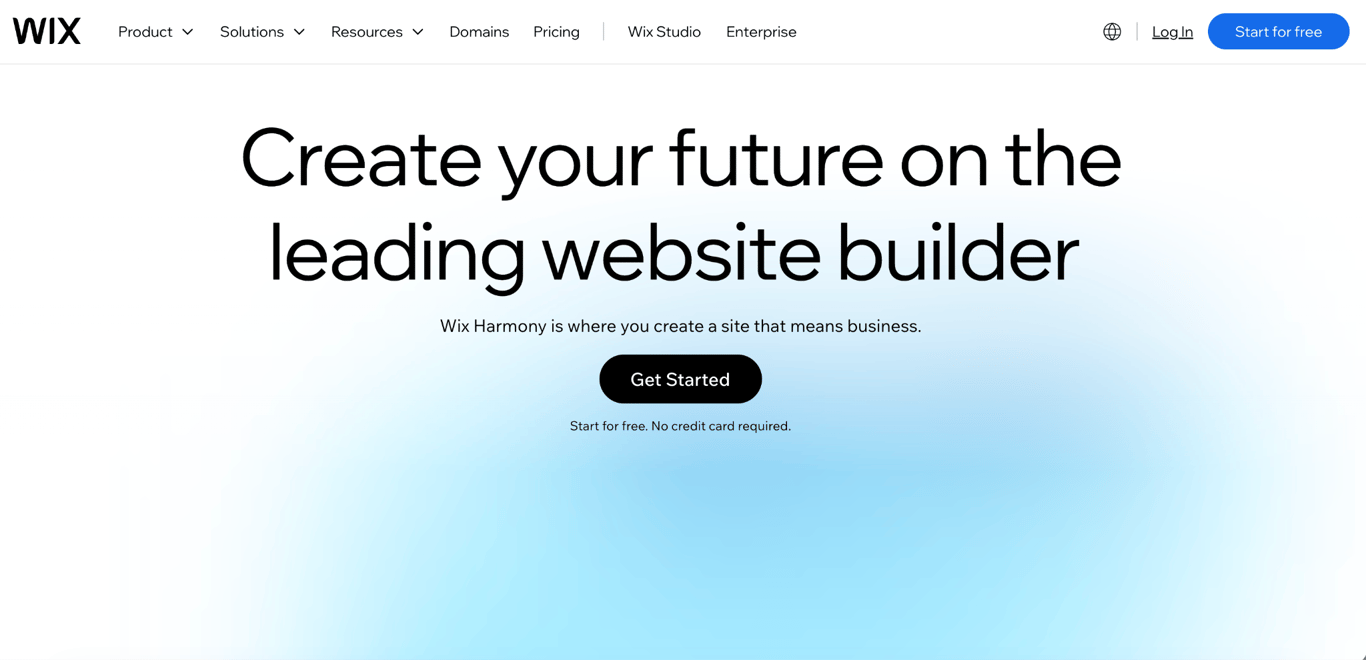
Wix gives you freeform control over the page, so you can drag text, images, buttons, and other elements into position and adjust their size directly in the editor.
Site-wide controls handle recurring styles such as fonts and colors, so changes don’t have to be made page by page.
You start with one of 2,000+ templates or ask Wix Harmony, Wix’s AI website builder, to generate an initial website using AI. Both routes lead to the same visual editor, where you continue shaping the design yourself.
Wix pros
- Large selection of design elements. Add components, graphics, animations, and other visual elements when the starting layout doesn’t cover what you need.
- One platform for bookings, events, and courses. Built-in tools cover appointments, events, blogs, online courses, ecommerce, and payments.
- Marketing and customer tools in the same dashboard. Wix combines CRM, email marketing, SEO, and analytics with the website itself.
- AI assistance for ongoing work. Aria can help with website and business tasks after the initial site has been created.
Wix cons
- No custom domain on the free plan. You need a Premium subscription to connect your own domain and remove Wix branding.
- Limited features on the entry-level paid plan. Light includes 2 GB of storage but doesn’t support ecommerce or online payments.
- You can’t move a Wix-built site to another host. Wix sites rely on Wix’s proprietary technology and must run on Wix’s servers, so moving to another hosting provider means rebuilding the site rather than transferring the existing Wix site.
Wix pricing
Wix offers five main plans:
- Free – $0/month. Includes web hosting, the drag-and-drop editor, no-code design features, and access to templates.
- Light – $17/month. Includes 2 GB of storage, multi-cloud hosting, a light marketing suite, two collaborators, and a free domain for the first year.
- Core – $29/month. Increases storage to 50 GB, supports five collaborators, and adds payment acceptance, basic ecommerce, and scheduling.
- Business – $39/month. Includes 100 GB of storage, standard ecommerce and marketing features, and up to 10 collaborators.
- Business Elite – $159/month. Provides unlimited storage, advanced ecommerce and marketing features, an advanced developer platform, and up to 100 collaborators.
3. Squarespace – best for professional portfolio websites
- Best fit: Business websites, portfolios, creative services, and online stores.
- Editor: Grid-based drag-and-drop + AI.
- Free plan: No.
- Ecommerce: Yes, all plans.
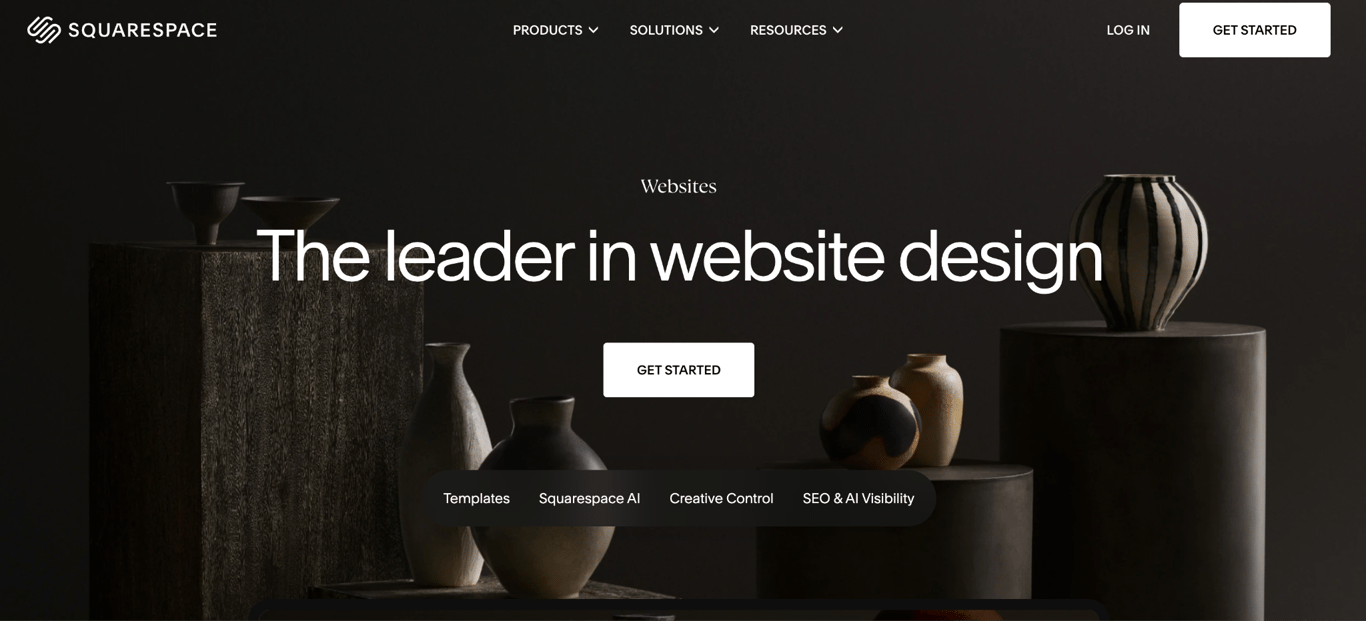
Squarespace pairs professionally designed templates with a visual editor, making it a strong fit for portfolios and business websites built around showcasing work, such as photography, design, or architecture projects.
Choose a template as your foundation, then move and resize content directly on the page. Adjust fonts, colors, buttons, and spacing across the site, and fine-tune desktop and mobile layouts separately.
Add animations and movement effects directly in the visual editor when the design calls for more motion.
Squarespace pros
- AI can create and refine the website. Describe your business or idea to generate a personalized starting site, then use AI to create elements and images or request further changes.
- Supports different ways to sell online. Ecommerce tools cover products, services, digital content, and memberships across the current range of plans.
- Includes tools for improving visibility. SEO tools help people find your site, analytics tracks its performance, and AI Visibility shows whether your business appears in AI-generated answers.
- Hosting requires no separate setup. Website plans include hosting, SSL security, and unlimited bandwidth.
Squarespace cons
- Basic limits collaboration. The entry-level plan supports up to two contributors, so teams that need more people working on the site will need Core or higher.
- Higher selling costs on Basic. The Basic plan charges a 2% online store transaction fee and a 7% transaction fee for digital content and memberships.
- Advanced customization starts with Core. Features such as full CSS and JavaScript customization are available on the Core plan and above.
Squarespace pricing
Squarespace offers four main plans:
- Basic – $19/month. Includes website templates, AI tools, a free custom domain for the first year with eligible annual subscriptions, and up to two contributors. Online store sales carry a 2% transaction fee, and digital content and memberships carry a 7% fee.
- Core – $29/month. Adds unlimited contributors, advanced analytics, CSS and JavaScript customization, and a free first year of Google Workspace email with eligible annual plans. Removes online store transaction fees and adds basic tools for limited-release products.
- Plus – $49/month. Lowers payment-processing rates and fees for digital content and memberships. Adds advanced limited-release tools, including cart reservations and countdown timers.
- Advanced – $99/month. Offers the lowest listed Squarespace Payments processing rates and removes transaction fees for digital content and memberships.
4. Shopify – best for ecommerce websites
- Best fit: Online stores, retail businesses, multichannel sellers, and B2B ecommerce.
- Editor: Section-based visual editor + AI.
- Free plan: No.
- Ecommerce: Yes, built in.
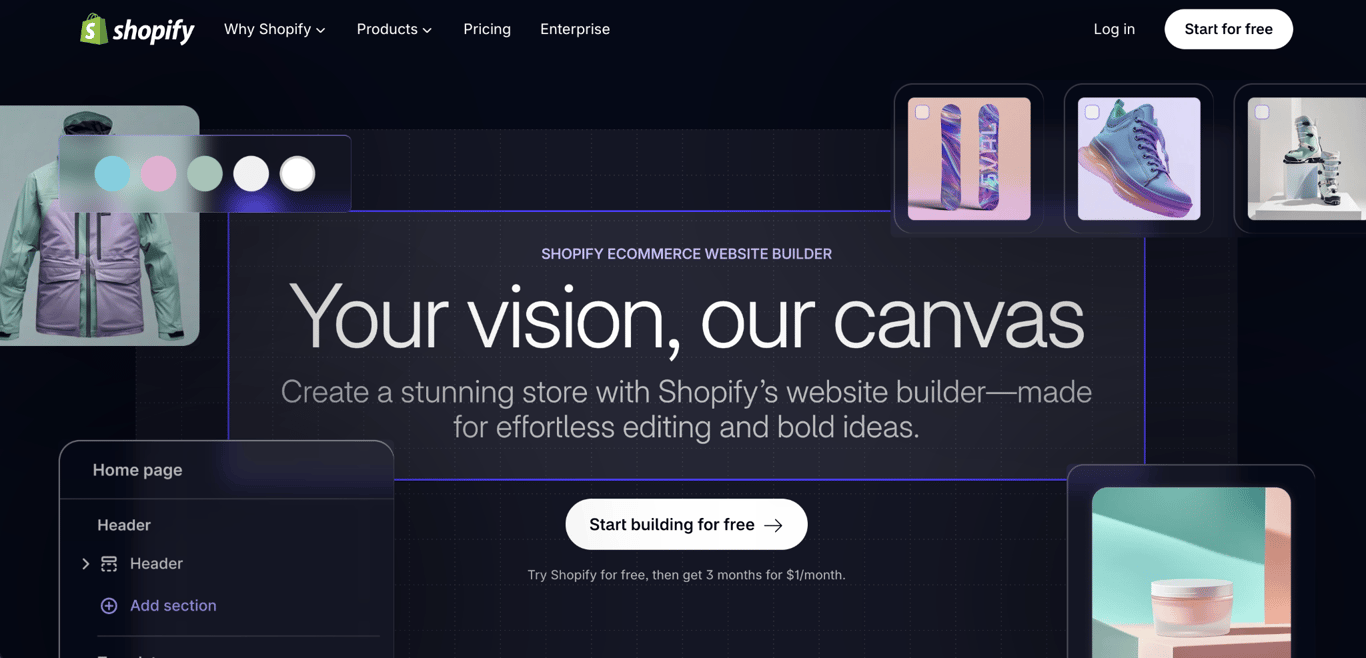
Shopify is designed primarily for online stores, so its visual editor works within the structure of an ecommerce storefront.
Start with one of hundreds of themes or generate a design with AI, then rearrange page sections and edit their text, images, and settings directly in the editor.
Fonts, colors, and other store-wide design choices are managed through theme settings, while responsive layouts adjust the design for different screen sizes.
How far you can change the layout depends on the theme you choose, and more customized designs may require editing the theme or its code.
Shopify pros
- Centralizes day-to-day store management. Manage products, orders, inventory, checkout, payments, shipping, and analytics from Shopify Admin.
- AI assists with ongoing store work. Edit product photos and use Sidekick for tasks such as writing product descriptions, headlines, blog posts, and customer chat replies.
- Supports additional sales channels. Manage online and in-person sales through the same Shopify account.
- Extensive app ecosystem. More than 13,000 apps add specialized functionality beyond Shopify’s built-in features.
- Includes essential store infrastructure. Hosting, SSL certificates, and PCI compliance come with the platform.
Shopify cons
- Additional fees for third-party payments. Shopify charges transaction fees of 2% on Basic, 1% on Grow, and 0.6% on Advanced when using third-party payment providers.
- Limited staff access on Basic. Adding staff accounts requires Grow or a higher plan, although Basic supports third-party collaborators.
- Third-party carrier rates aren’t available on Basic. Showing live rates from your own carrier account at checkout requires Advanced or Plus. On Grow, it’s included with annual billing or available for an extra monthly fee.
Shopify pricing
Shopify offers four main plans:
- Basic – $29/month. Includes website creation, ecommerce management, and Sidekick AI assistance.
- Grow – $89/month. Supports up to five staff accounts and adds features for businesses with a growing team.
- Advanced – $359/month. Supports up to 15 staff accounts and adds third-party-calculated shipping rates and tools for customizing the store experience by region.
- Plus – Starts at $2,300/month. Adds advanced checkout customization, B2B capabilities, and features designed for more complex businesses. This plan is available only with monthly billing.
5. Webflow – best for custom marketing websites
- Best fit: Custom marketing sites, content-driven websites, interactive designs.
- Editor: Advanced visual canvas + AI.
- Free plan: Yes.
- Ecommerce: Yes, separate ecommerce plan.
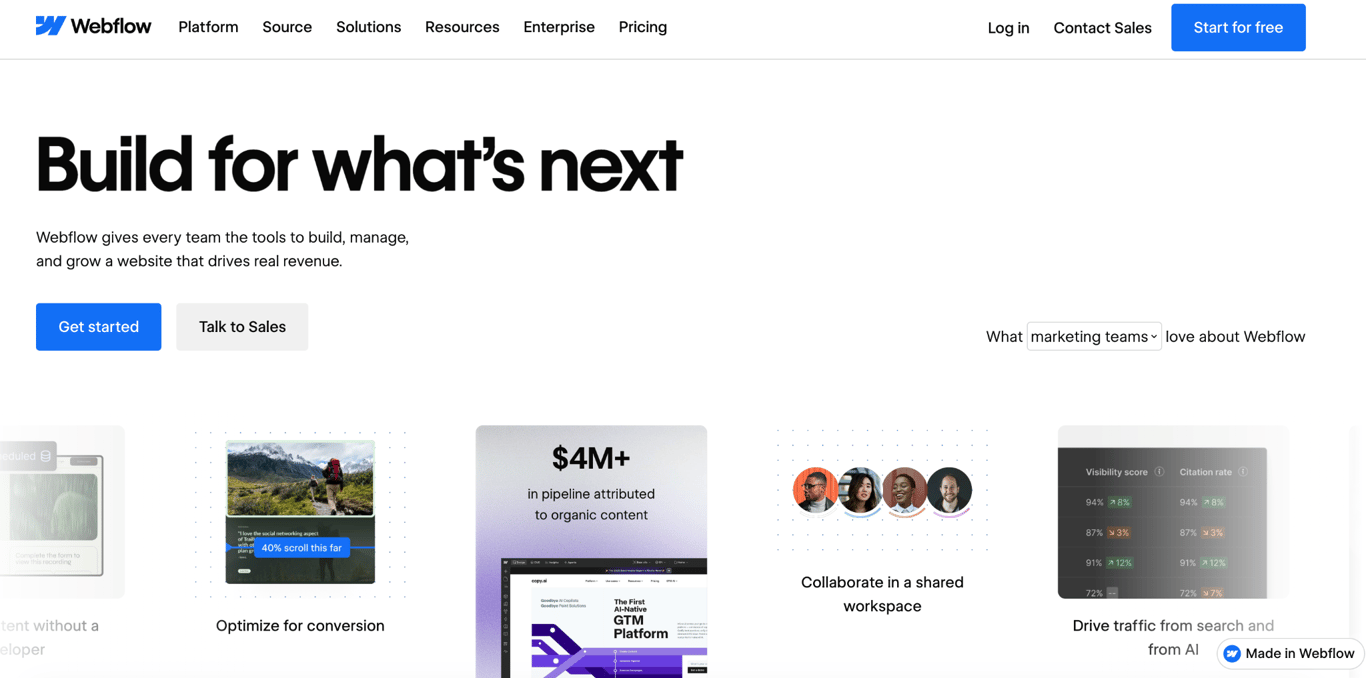
Webflow gives you much more control over the underlying page layout than a typical drag-and-drop builder.
Templates and AI-generated websites provide ready-made foundations, while a blank site lets you build from the ground up.
In the visual editor, you can adjust sizing, spacing, typography, positioning, and responsive behavior in detail.
That level of control comes with a steeper learning curve. You don’t need to write code, but more advanced layouts require an understanding of how page elements are structured, sized, and positioned in relation to one another.
Webflow pros
- Reusable components simplify site-wide changes. Create elements such as navigation bars, footers, and call-to-action sections once, then update the main component to apply changes wherever it appears.
- Content management system (CMS) handles repeating content efficiently. Create one layout for articles, case studies, projects, or similar content, then populate each page with different text, images, and other information.
- Supports advanced animations and interactions. Add movement and interactive effects without manually coding each one.
- AI assists with both design and development tasks. Generate website sections, draft content, and create code components for functionality beyond the standard design tools.
- Detailed SEO control. Edit meta titles, descriptions, and other SEO settings for each page, then publish through Webflow’s hosting.
Webflow cons
- Limited free publishing. Starter allows two static pages and publishing on a Webflow subdomain. Connecting a custom domain requires a paid Site plan.
- Collaboration can increase the overall cost. Paid Workspace plans and additional editor seats may be needed as more people work on Webflow projects.
- Ecommerce costs extra. Site plans don’t include native selling tools, so running a store means paying for a separate ecommerce plan.
Webflow pricing
Webflow offers four main Site plans:
- Starter – $0/month. Includes two static pages, limited CMS functionality, 1 GB of bandwidth, 50 form submissions, and publishing on a Webflow subdomain.
- Basic – $15/month. Supports a custom domain, up to 300 static pages, 10 GB of bandwidth, unlimited form submissions, and password protection. CMS functionality isn’t included.
- Premium – $25/month. Adds Webflow CMS, code components, site search, and file uploads through forms.
- Team – $2,500/month. Adds localization, publishing workflows, enhanced security, and collaboration controls. Enterprise plans use custom pricing.
Webflow charges separately for collaboration and ecommerce. Workspace plans start at $19/month for collaboration, while ecommerce plans start at $29/month.
6. Framer – best for landing pages
- Best fit: Marketing websites, portfolios, landing pages, and interactive visual sites.
- Editor: Freeform visual canvas + AI agents.
- Free plan: Yes.
- Ecommerce: No native ecommerce.
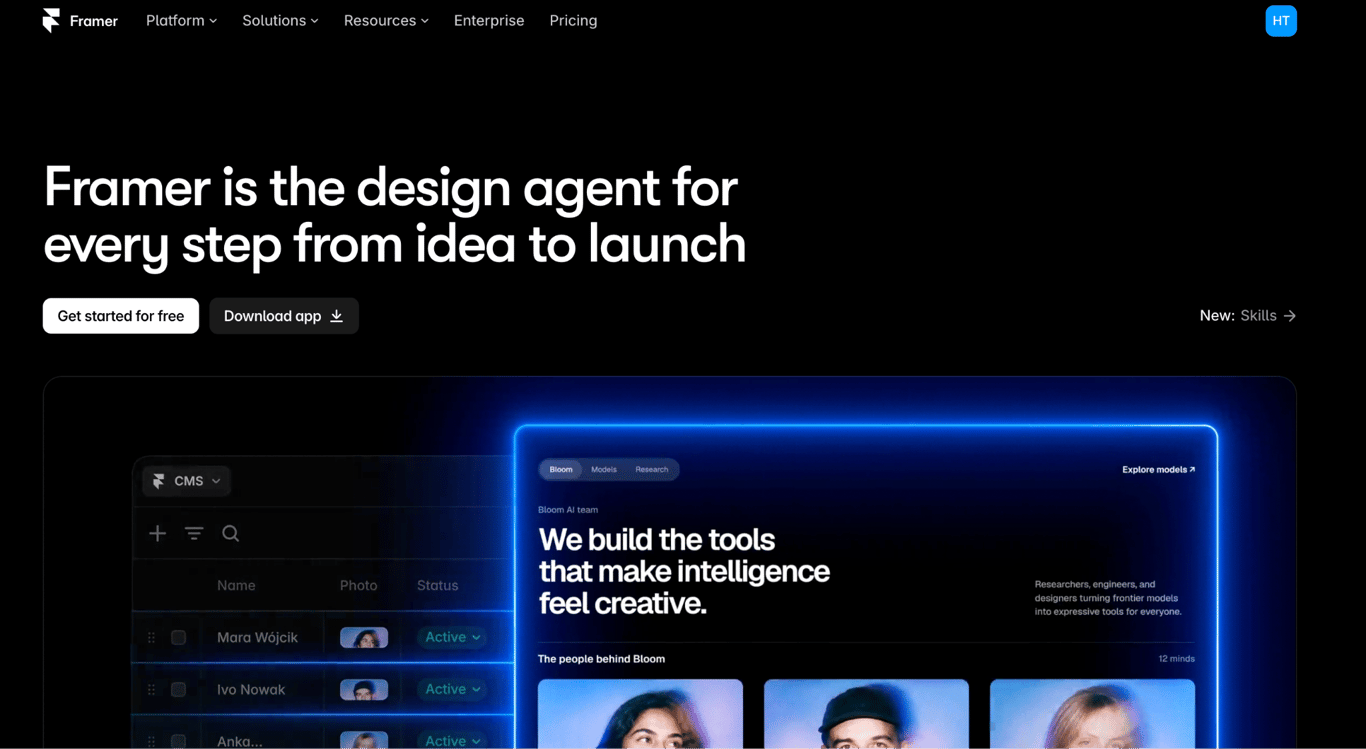
Framer gives you a freeform canvas for visually designing websites, which makes it well-suited to landing pages built around a single campaign or product. You can build from scratch, customize a template, or generate an initial design using AI.
Elements sit directly on the canvas, where you adjust their position, size, typography, spacing, animations, and interactions. Separate controls for desktop, tablet, and mobile let you refine the layout for different screen sizes.
This level of visual control suits highly customized websites, but it also leaves more layout decisions in your hands, making complex designs harder to build.
Framer pros
- Reusable components keep repeated elements consistent. Update a shared navigation bar, footer, or other component once and apply the change everywhere it appears.
- Safer updates on larger sites. On the Pro plan, staging and branching let you prepare and review changes before they go live.
- AI agents help as the site grows. Framer’s agents also help update CMS content and create custom code components as the website develops.
- Built-in publishing tools cover the essentials. Hosting, SSL, SEO tools, and analytics are included within the platform.
Framer cons
- Free sites use a Framer domain. Connecting your own domain requires a paid plan.
- Basic limits larger websites. The entry-level paid plan allows 30 custom-designed pages and two CMS collections.
- Additional editors increase the cost. Extra design editors cost $20/month each, while content editors cost $10/month each.
Framer pricing
Framer offers four main plans:
- Free – $0/month. Lets you design and publish a website on a Framer domain, with 1 GB of bandwidth and 500 AI credits to try when your workspace has no active subscriptions.
- Basic – $10/month. Includes a custom domain, 30 custom-designed pages, two CMS collections, 50 GB of bandwidth, and built-in SEO tools.
- Pro – $30/month. Increases the limits to 150 pages, 10 CMS collections, and 100 GB of bandwidth.
- Enterprise – Custom pricing. Provides tailored usage limits, unlimited editors, enterprise security features, and an uptime guarantee.
7. WordPress.com – best for content-heavy websites
- Best fit: Blogs, publications, and content-heavy websites.
- Editor: Block-based visual editor + AI.
- Free plan: Yes.
- Ecommerce: Yes, via plugins or Commerce plan.
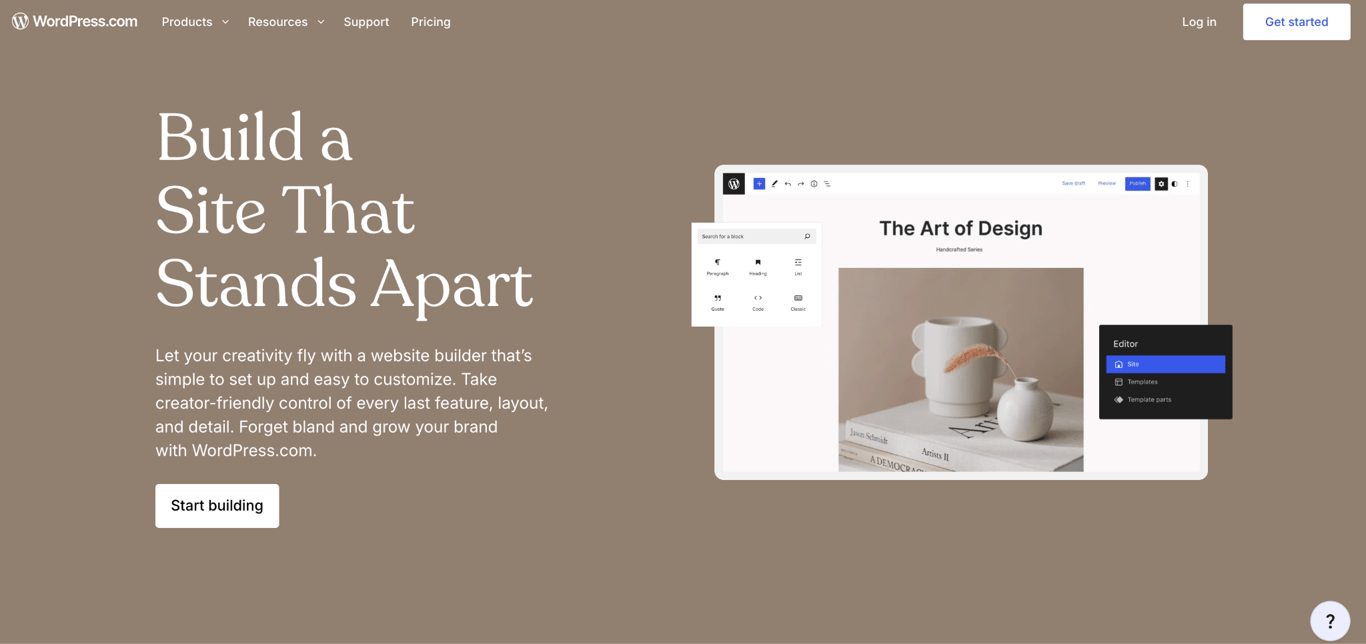
WordPress.com builds pages from individual content blocks. Text, images, videos, buttons, and other elements each sit in their own block, which you arrange on the page and customize separately.
Pre-built patterns group blocks into ready-made layouts for sections like galleries, calls to action, and headers, while theme settings control broader design choices such as fonts and colors.
This approach gives you flexibility without requiring every part of the page to be designed from scratch.
Its roots as a publishing platform also show in how the website is organized. Posts, pages, and media are managed separately, making WordPress.com practical for blogs, publications, and other websites that regularly add new content.
WordPress.com pros
- AI provides another route to building the site. Generate an initial website from a description, then refine it manually or request changes through AI prompts.
- Built-in tools help distribute new content. Newsletters and social sharing extend publishing beyond the website itself.
- Plugins provide substantial room to expand. More than 60,000 options add features such as forms, integrations, and other specialized functionality, with plugin installation available on paid plans.
- Technical maintenance is handled for you. Hosting, SSL security, a global content delivery network (CDN), and managed WordPress updates come with every plan.
- Ready-made online store setup. The Commerce plan bundles WooCommerce with tools for managing an online store.
WordPress.com cons
- Free storage is limited to 1 GB. Image-heavy and video-heavy websites may outgrow the allowance quickly.
- Advanced management tools require Business or higher. Real-time backups, one-click restores, SFTP/SSH access, and WP-CLI aren’t included with lower-tier plans.
- A custom domain requires a paid plan. Free websites publish on a WordPress.com subdomain.
WordPress.com pricing
WordPress.com offers five main plans:
- Free – $0/month. Includes 1 GB of storage, unlimited pages and posts, basic visitor statistics, hosting, and a WordPress.com subdomain. Sites display ads, and plugin installation isn’t available.
- Personal – $4/month. Includes 6 GB of storage, plugin installation, premium themes, an ad-free visitor experience, and a custom domain free for the first year.
- Premium – $8/month. Increases storage to 13 GB and adds more detailed website statistics and analytics.
- Business – $25/month. Includes 50 GB of storage, real-time backups, one-click restores, developer tools, and priority 24/7 support.
- Commerce – $45/month. Adds an integrated WooCommerce setup with inventory management, abandoned cart emails, discounts, and tools for international selling.
8. Duda – best for agencies managing client websites
- Best fit: Agencies, freelancers, client websites, and multi-site projects.
- Editor: Drag-and-drop visual editor + AI.
- Free plan: No.
- Ecommerce: Yes, as an add-on.
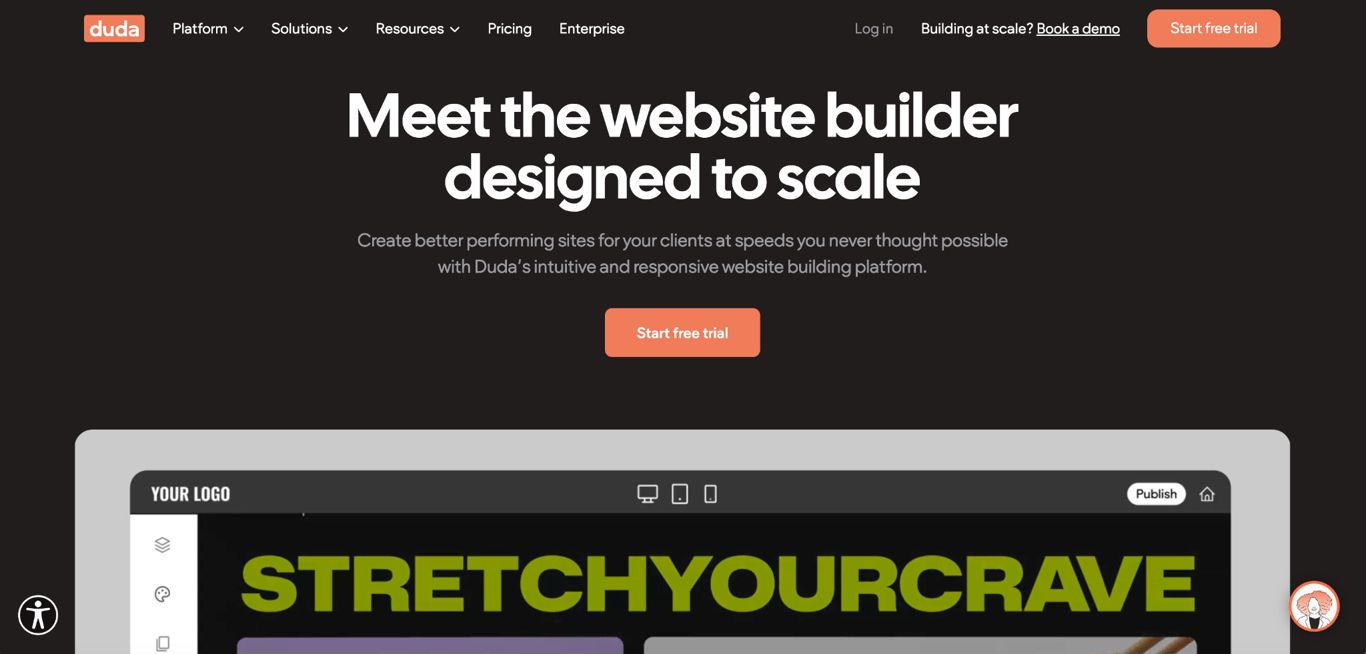
Duda is designed for agencies and freelancers who build websites for clients. Its visual editor uses customizable templates and drag-and-drop controls, while a single dashboard keeps multiple client sites together.
Global colors and typography keep each site consistent, and separate controls let you refine layouts for desktop, tablet, and mobile screens.
Dynamic pages also reduce repetitive work on websites that need many pages with the same layout. A restaurant chain, for instance, could design a single location page and reuse that structure across all branches, changing only details such as the address, opening hours, and contact information.
Duda pros
- Clients can review the website directly. Invite them to leave comments on specific parts of a page and control which parts of the site they’re allowed to edit.
- Reusable sections speed up similar projects. Save sections and other design assets, then use them again when another client site needs the same structure.
- AI handles some routine content work. Generate website sections, copy, and SEO metadata while building the site.
- White-label options support agency branding. Eligible plans replace Duda branding in client-facing areas with your own.
- Hosting and maintenance are included. Duda provides hosting and SSL and handles updates to the platform and underlying infrastructure.
Duda cons
- Basic includes only one website. Agencies managing several client projects need to pay for additional sites or move to a plan with a higher site allowance.
- Online stores are a paid add-on. Adding an online store requires a separate ecommerce subscription in addition to the website plan.
- Agency features depend on the plan. More advanced client management, team access, and white-label options require higher-tier subscriptions.
Duda pricing
Duda offers four main plans:
- Basic – $19/month. Includes one website hosted on AWS, unlimited storage and bandwidth, email support, and Duda’s website-building tools.
- Team – $29/month. Includes one website, three team members, client management tools, and dynamic pages connected to internal collections.
- Agency – $52/month. Includes four websites, up to six team members, client export, custom widgets, and additional client management features.
- White Label – $149/month. Includes four websites, up to 10 team members, a branded client login screen, a custom platform domain, and additional white-label features.
9. Webnode – best for simple multilingual websites
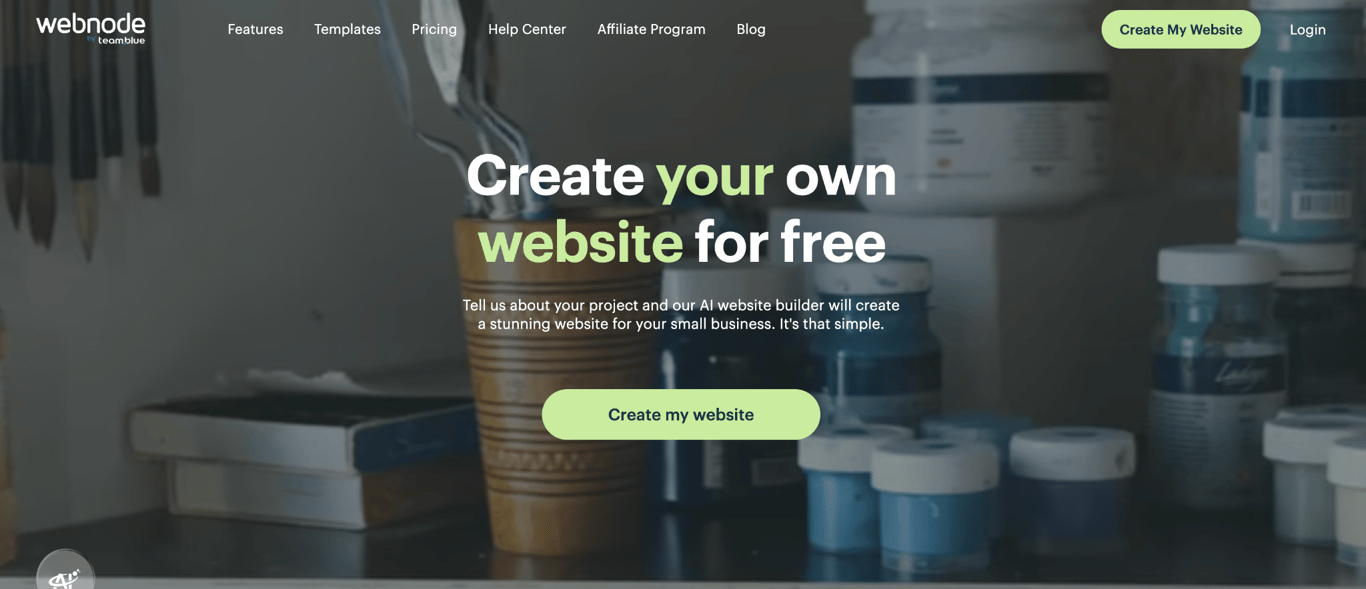
- Best fit: Small business websites, multilingual websites, blogs, and simple online stores.
- Editor: Visual editor + AI.
- Free plan: Yes.
- Ecommerce: Yes, Standard and above.
Webnode combines visual website building with multilingual support. Create the initial site with AI, then customize it in the visual editor, where you add, move, and edit content directly on the page.
Adding another language doesn’t mean rebuilding the site. Webnode copies the existing pages and layout into the new language version, leaving the text ready to translate while preserving the original structure.
Translate each text field yourself or use the AI Assistant to help with individual translations.
Webnode pros
- Free publishing gets a basic site online without a subscription. Build and publish on a Webnode subdomain before deciding whether you need a paid plan.
- Includes tools for running a business website. Add contact forms, website statistics, and SEO settings without relying on separate services for the basics.
- Supports online selling. Add products, accept payments, and configure shipping from the same editor.
- Branded email is built into eligible plans. You can create an email address using your own domain without setting up a separate email service.
Webnode cons
- Additional languages require Standard or higher. Standard supports two language versions, while Profi removes the language limit.
- Translations still require work. Adding another language copies the existing pages and content, but it doesn’t automatically translate everything you’ve written.
- Key features start at Standard. On Limited and Mini, your site shows Webnode branding, and you can’t open an online store or use the AI Assistant.
Webnode pricing
Webnode offers five plans:
- Free – $0/month. Includes the AI website generator, visual editor, and publishing on a Webnode address. You need a paid plan to connect a custom domain.
- Limited – $4.50/month. Includes 500 MB of storage, 1 GB of bandwidth, and the option to connect your own domain. It doesn’t support additional language versions or email accounts.
- Mini – $8.50/month. Increases storage and bandwidth to 3 GB each and adds website statistics, one email account, and a free domain for the first year.
- Standard – $12.90/month. Supports two language versions and includes 10 GB of storage, 20 email accounts, an online store, Google Analytics integration, and five website backups.
- Profi – $22.90/month. Supports unlimited language versions and provides 50 GB of storage, unlimited bandwidth, 100 email accounts, site search, and unlimited backups.
10. GoDaddy – best for appointment-based business websites
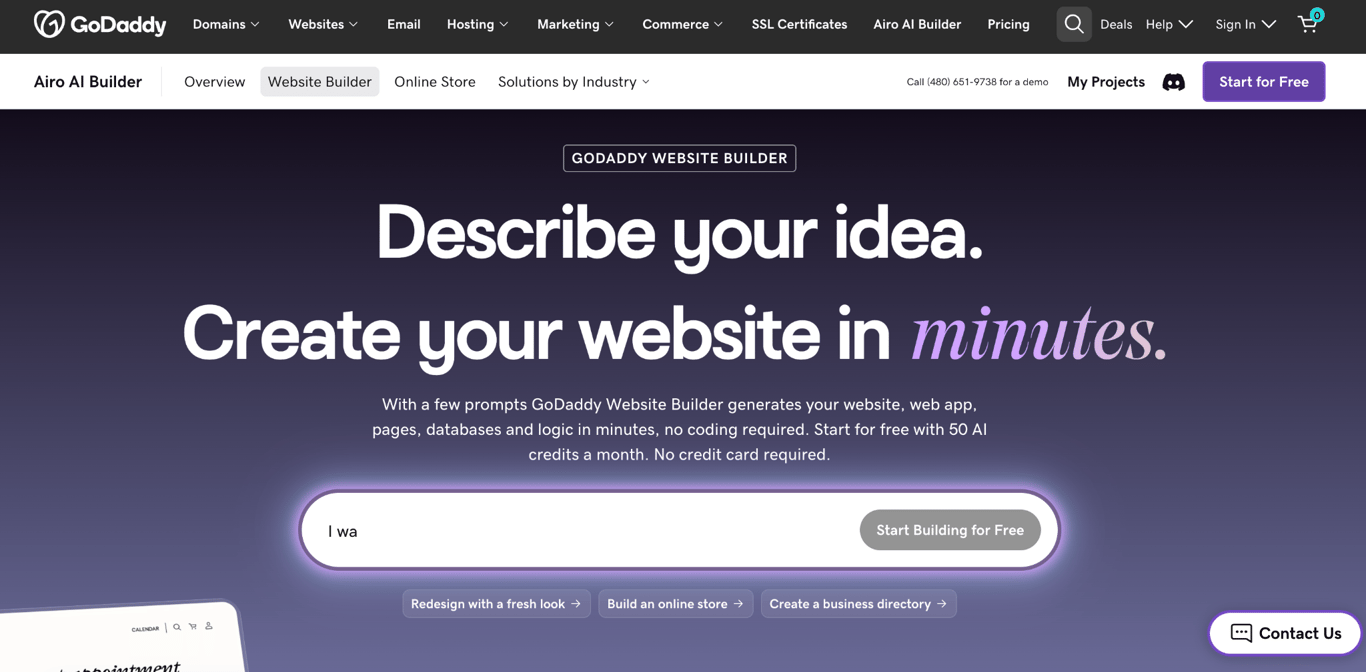
- Best fit: Small business websites, service websites, appointment-based businesses, and simple online stores.
- Editor: Visual editor + Airo AI.
- Free plan: Preview only.
- Ecommerce: Yes, Professional and above.
GoDaddy’s Airo AI Builder turns a description of your business and website into an initial design.
From there, refine the result by prompting the AI to change the layout, text, or visuals, or edit individual elements directly on the page.
The AI also handles changes that go beyond the design. Ask it to add functionality such as an appointment-booking system, or to build more advanced, database-driven features as the project develops.
This mix of prompting and direct editing gives you room to shape the generated website without having to regenerate it whenever one part needs changing.
GoDaddy pros
- Take payments online. Accept payments for services and products directly on the site, so customers can book and pay in one visit.
- Marketing tools sit alongside the website. Create social media content and marketing campaigns from the same platform.
- Generated code remains accessible. View and edit the underlying code when a project needs customization beyond the visual and AI editing tools.
- Publishing infrastructure is included. Hosting, SSL, and analytics are handled within GoDaddy.
GoDaddy cons
- Publishing requires a paid plan. The free option is limited to building and previewing the project.
- AI usage is credit-based. Plans include a monthly AI credit allowance, so heavier use may require purchasing additional credits.
- Starter limits you to one published project. Publishing multiple websites or apps under one subscription requires a higher-tier plan.
GoDaddy pricing
GoDaddy has four Airo AI Builder plans:
- Free – $0/month. Includes 50 AI credits per month. You can build and preview projects, but you need a paid plan to publish them.
- Starter – $9.99/month. Includes 150 AI credits per month, one published website or app, and SEO and marketing tools.
- Professional – $24.99/month. Includes 300 AI credits per month and up to 10 published websites or apps. Adds more advanced analytics and features such as online selling, appointments, and payments.
- Ultimate – $99.99/month. Includes a larger AI credit allowance and higher publishing limits for businesses managing more extensive projects.
AI credits reset each billing cycle and don’t roll over.
How to choose the best WYSIWYG website builder
Start with the website’s purpose and the amount of visual control you need, then compare the features and total cost required to run it.
From there, focus on the requirement that will shape your website the most:
- Getting AI and visual editing in one plan → Hostinger. Generate a site with AI, refine it visually or through prompts, and get hosting, a domain, and email in the same subscription.
- Running several parts of the business through one site → Wix. Bookings, events, payments, ecommerce, courses, and marketing tools make it a strong option when the website has several jobs to handle.
- Showcasing work to potential clients → Squarespace. Photographers, designers, architects, writers, and other professionals can present projects within polished, structured layouts.
- Building the business around online sales → Shopify. Products, inventory, checkout, payments, shipping, and orders all sit within the same commerce system.
- Getting advanced design control → Webflow. Its detailed responsive controls, CMS, animations, and interactions suit custom marketing sites, while simpler editors are a better fit when ease of use matters more than granular customization.
- Launching a product or campaign → Framer. Its flexible canvas and interaction tools work particularly well for focused landing pages designed around a specific conversion goal.
- Scaling a content-heavy website → WordPress.com. Built-in publishing tools support a growing library of content, while plugins let you add functionality as the website’s requirements expand.
- Managing websites for clients → Duda. Client permissions, on-site feedback, reusable elements, and multi-site management support both the build and the ongoing relationship.
- Managing SEO for a multilingual website → Webnode. Manage language versions within a single project while keeping their page structure aligned, with SEO settings for optimizing individual pages.
- Taking appointments through the website → GoDaddy. Combine service information with booking and payment tools so customers can move from finding a service to scheduling it online.
Once you’ve narrowed the list, compare the editors themselves. Build a representative page and adjust it for mobile, where a free plan, trial, or demo is available.
Pay attention to how easily you can make the changes you’ll perform regularly, not how many design controls the editor offers.
Finally, compare the full cost of each option before you decide. Check which plan includes the features you need, then account for paid extras such as a custom domain, email, ecommerce, apps or plugins, and additional collaborators.
When comparing the cost of a website builder and hosting, check whether hosting is included in the subscription or billed separately.
What to check before publishing your WYSIWYG website
Before publishing, check that visitors can reach your website, navigate it, and complete its main actions without problems. Then review how it looks across devices, its SEO setup, content, performance, and analytics.
A WYSIWYG editor shows you how a page looks while you build it, but that doesn’t tell you whether everything works once someone visits the site.
Links can lead to the wrong page, forms can fail, customers can get stuck at checkout, and layouts can break across different screen sizes.
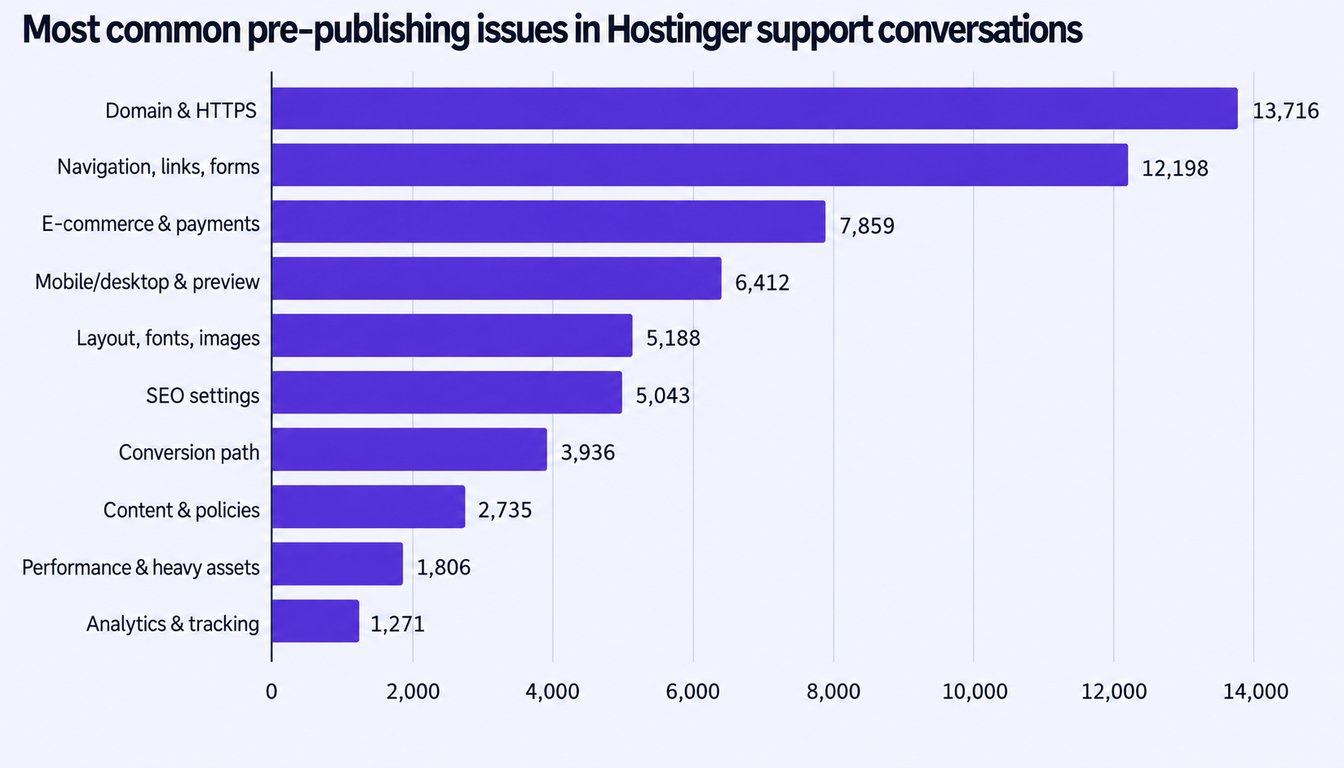
Hostinger’s support data shows a clear gap between looking ready and being ready to publish.
Domain and HTTPS problems appeared in 13,716 pre-publishing conversations, making them the most common issue in our analysis.
The next largest category, navigation, links, and forms, surfaced 12,198 times. In other words, some of the biggest obstacles emerge when the website has to move beyond its design and actually connect visitors to pages, forms, and services.
The same pattern continues further down the journey. Ecommerce and payment issues appeared in 7,859 conversations, where a problem can interrupt a purchase, while 6,412 conversations involved mobile, desktop, or preview issues that may only become apparent when the design is tested beyond the editor.
Start where problems most often occur: getting visitors onto the site and ensuring they can use it:
- Verify your domain and HTTPS. Open your custom domain and confirm that the correct website loads securely. Test any redirects visitors might use before moving further into the site.
- Follow the main visitor journey. Use the navigation, click important links and buttons, open menus, and submit a form. Keep going until you complete the site’s main action, whether that’s sending an inquiry, booking an appointment, or creating an account.
- Complete a test purchase. For online stores, add a product to the cart, complete checkout and payment, and check shipping, taxes, order details, and confirmation messages. This tests the purchase as one connected process rather than a set of individual pages.
- Repeat the journey on desktop and mobile. Check the pages you just used for broken layouts, awkward spacing, unreadable text, cropped images, and menus or buttons that become difficult to use on smaller screens.
- Make sure search engines can find and understand your pages. Check that important pages are indexable, then review their URLs, page titles, meta descriptions, and image alt text. Pay particular attention to indexing settings left over from development or staging, since they can prevent finished pages from appearing in search results.
- Finish with content, performance, and tracking. Verify prices, contact details, policies, and other business information visitors rely on. Optimize unnecessarily heavy images and videos, then confirm that analytics and conversion tracking are recording activity correctly.
Once the site is ready, publish it and repeat the main visitor journey on the live domain. Keep a website launch checklist for this final review so you don’t miss checks such as backups, redirects, forms, analytics, and other settings that can only be fully verified around launch.
This article is a localized version of 10 best WYSIWYG website builders, originally published in English.
All of the tutorial content on this website is subject to Hostinger's rigorous editorial standards and values.

Ksenija is a digital marketing enthusiast with extensive expertise in content creation and website optimization. Specializing in WordPress, she enjoys writing about the platform’s nuances, from design to functionality, and sharing her insights with others. When she’s not perfecting her trade, you’ll find her on the local basketball court or at home enjoying a crime story. Follow her on LinkedIn.