How to generate a website from a URL
Sep 15, 2026
/
By Bruno S.
/
9 min Read
To generate a website from a URL, paste it into an AI website builder that supports URL input; it reads the live site’s publicly visible content and produces a new, editable draft. The process captures layout, color scheme, and fonts without requiring file exports or platform cooperation, and typically produces a first draft in under 10 minutes.
The approach works best for updating an outdated site, moving away from a platform that makes it difficult to export your data, or quickly previewing how a site could look on a new platform. If your website has a database, user accounts, booking systems, or member logins, a website migration is the better choice – it moves your existing content and features across, while this approach only rebuilds the design.
Several AI builders support generating a site from URL. They differ in how editable the result is, how they handle images, and whether hosting is included.
To generate a website from a URL:
- Choose an AI website builder that accepts URL input.
- Enter the URL and describe your request in the prompt field.
- Review the generated draft for content accuracy.
- Edit content and replace AI-generated placeholder images.
- Connect your domain and publish.
How does generating a website from a URL work?
Generating a website from a URL works by entering a live web address into an AI builder, which reads the publicly visible content of that page and produces an editable site from it. The builder captures layout, color scheme, fonts, navigation, and any text visible on the page.
The output is a new, editable draft in the builder’s own environment. It isn’t a copy of the source site’s code or database. The builder recreates what the AI observed from the public-facing page, which means any content behind a login, a paywall, or that only loads after you interact with the page isn’t captured.
Can you generate a website from any URL?
You can generate a site from any publicly accessible URL, but only use URLs of sites you own or have rights to recreate. Generating from a URL you don’t control raises copyright and other intellectual property concerns, regardless of what the builder technically allows.
The builder also depends on content being visible to any visitor. Pages behind a login won’t be captured at all, and content that only loads when you scroll or click may be captured incompletely.
Does URL generation copy the whole website?
Usually not. Most tools rebuild only the page you enter, though some also recreate the pages linked from its main navigation, up to a set number. Pages that aren’t in the main navigation generally won’t be picked up – you can generate them by entering their URLs separately, or rebuild them by hand.
1. Choose an AI website builder that generates from a URL
Look for an AI website builder that accepts a URL directly as input and lets you edit the draft before publishing.
Not every AI website builder includes URL generation – most create from a text prompt or a short questionnaire, building a new site from scratch rather than reading an existing one. Check that the builder you choose specifically offers this feature.
Hostinger AI Builder lets you generate a website from a URL directly from its creation prompt, with hosting included on every paid plan.

2. Enter the URL and describe your request
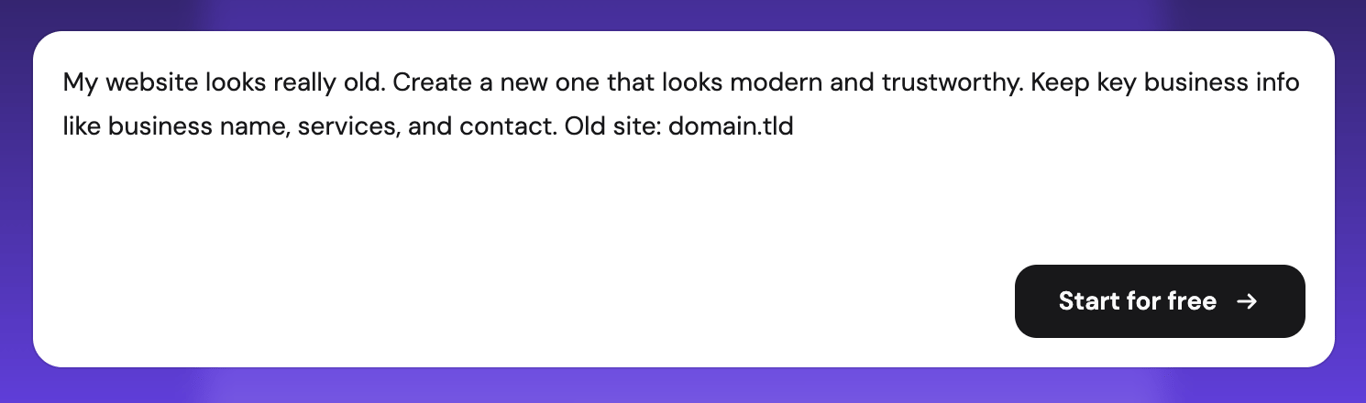
In your builder’s prompt field, enter your site’s URL and describe what you want. In Hostinger AI Builder, this is the large prompt field on the start page – click Start for free when ready.
Some builders skip the prompt and offer a dedicated URL field instead, where you paste the address directly. Others ask follow-up questions before generating, such as how many pages to build or whether store features should work or only appear as a design.
The more context you give, the closer the first draft is to what you need. Adjust your prompt to match your goal:
Goal | Example of basic prompt |
Recreate the site as-is | Recreate this website: domain.tld |
Modernize an outdated design | My website looks really old. Create a new one that looks modern and trustworthy. Keep key business info like business name, services, and contact. Old site: domain.tld |
Recreate with specific changes | Recreate this website: domain.tld, but switch to a dark color scheme and remove the blog section |
The builder reads the source page, then begins generating the draft. It applies your instructions during generation rather than leaving it all for you to edit afterward, so be descriptive and detailed here.
3. Review the generated draft
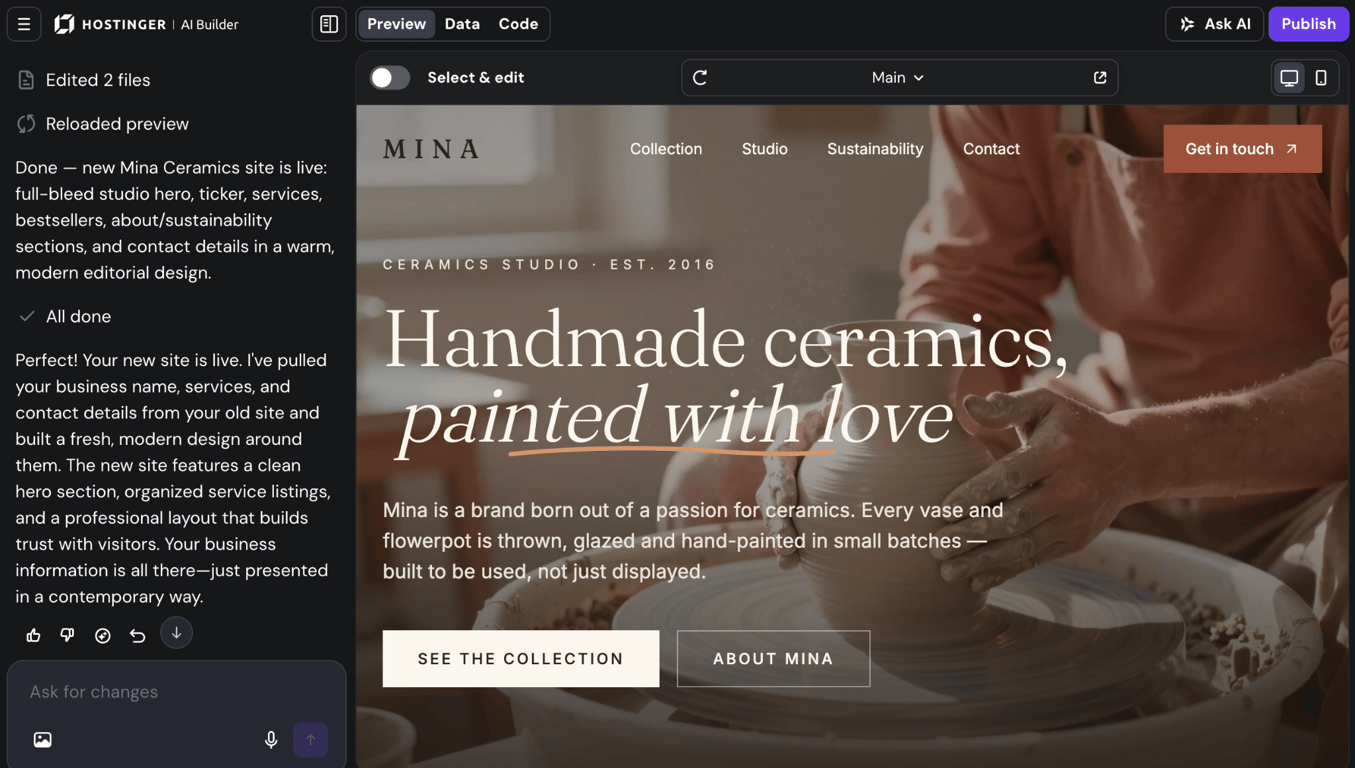
Once generation finishes, the builder opens the draft in its visual editor. Check each page for content accuracy and image placeholders before editing anything.
Depending on the tool, the generated site uses either AI-created images that match the original site’s style, or images reused from the source site.. Any content the builder couldn’t read from the source page gets filled in with generated text that matches the style of the original content.
AI-generated content looks like real content in the editor, with no marker to distinguish it from accurate data. Review everything before publishing.
The most error-prone areas are:
- Product prices and names (gap-filling can merge or invent them).
- Blog post bodies (real excerpts continue with generated text).
- Team bios and About page content.
- Pages that didn’t fully load on the source site.
4. Edit the content and replace placeholder images
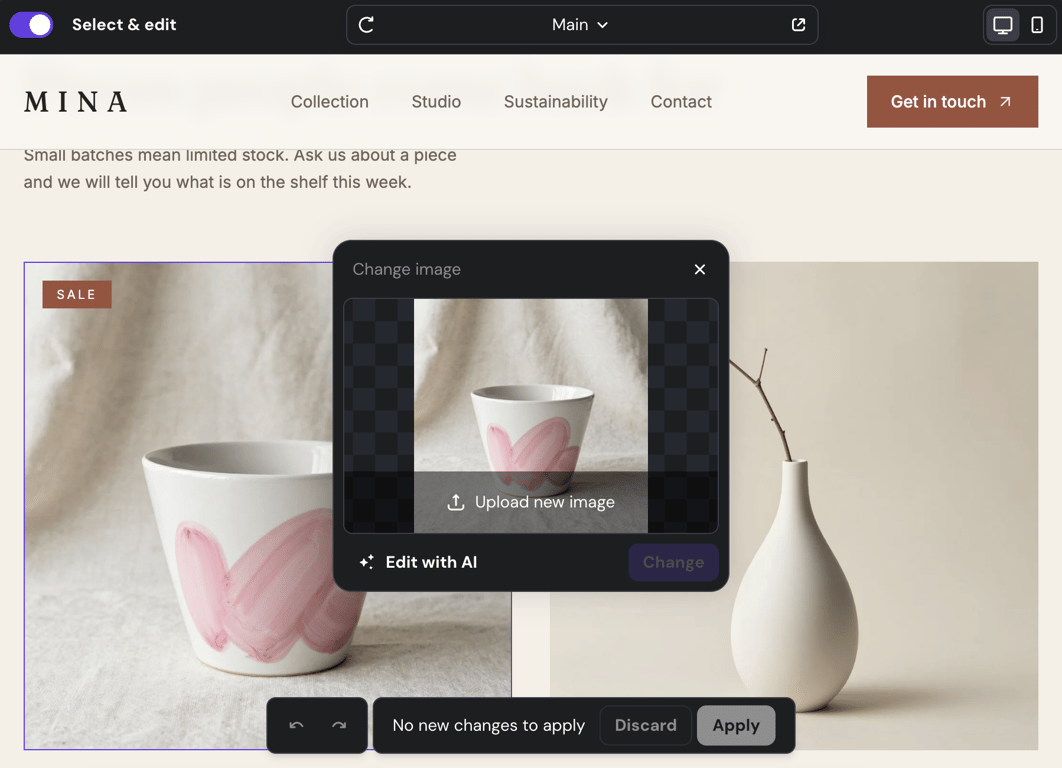
Turn on Select & edit, then click any element in the visual editor to edit it directly. Start with the content most likely to contain errors: product listings, pricing, team bios, and content that only loads after scrolling or clicking.
Replace placeholder images by clicking the image element and uploading your actual photos. If your builder carried images over from the source site instead of generating stand-ins, confirm you own the rights to each one before publishing.
Interactive features aren’t carried over: contact forms, booking systems, ecommerce checkout, and any connected tools need to be set up again in the builder’s settings before they work.
5. Connect your domain and publish
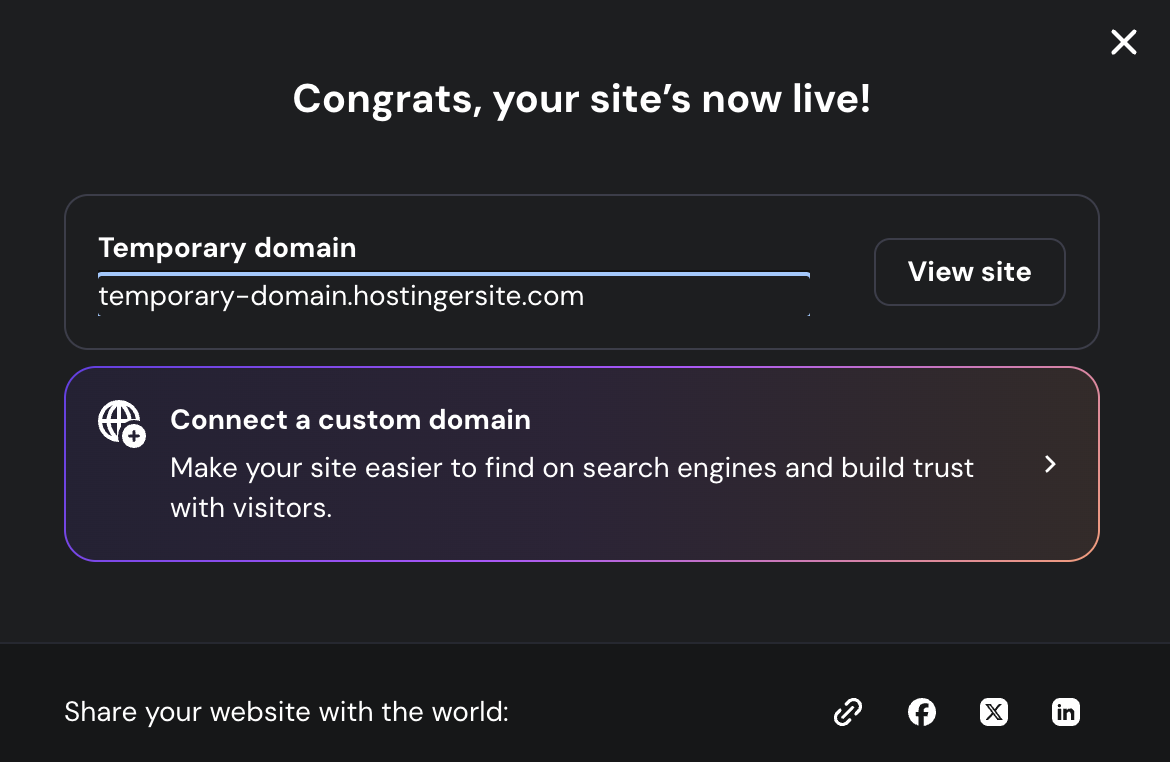
Once your edits are complete, publish the site to make it live. Most builders assign a temporary address automatically and let you connect your own domain at this stage or later.
In Hostinger AI Builder, click Publish – the site goes live with a temporary address, and the confirmation screen offers to Connect a custom domain right away. To do it later instead, open the Publish dropdown and select Connect domain. Either path leads to a screen where you type the domain name you want to use.
If your domain is registered elsewhere, connect your domain through your registrar’s settings. Before taking the old site down, set up redirects from its URLs to the new ones.

When should you generate a website from a URL?
Generate a website from a URL when the design needs modernizing, you can’t export your existing site’s content directly, you’ve lost access to the original editor, or you want to preview how a site would look on a new platform before committing to a move.
- Modernizing an outdated website. If your site is years old and looks dated, describe the changes you want in the prompt along with the URL. The AI rebuilds it with a modern design while keeping your business name, services, contact details, and other key information intact.
- No export path from the source platform. Wix and Squarespace don’t offer a full-site export: page designs and website structure stay locked in, and content exports only cover individual items like blog posts or contacts, not page designs or site structure. URL generation reads what’s publicly visible instead.
- Lost editor access to a site you own. If a freelancer built the site on a platform you no longer control, URL generation produces a working, editable version without needing the original login details.
- Testing a platform move before committing. Generating a draft of your current site on a new platform takes minutes and gives you a concrete starting point rather than making you rebuild from scratch just to evaluate the move.
What are the benefits of generating a website from a URL with AI?
The main benefits of generating from a URL, compared with rebuilding manually are speed, not needing access to the original platform, and a fully editable first draft.
- Speed. A draft that matches the original design takes under ten minutes. Recreating the same layout, navigation, and content page by page manually takes hours.
- Works across platforms. The process works regardless of what the source site was built on. There’s no reliance on the source platform’s export tools or migration support.
- Full editability from the start. Every element in the generated output – layout, sections, colors, and copy – is adjustable in the visual editor.
Does a website generated from a URL keep its SEO?
Not automatically. Generating a new site doesn’t reset rankings on its own – Google ranks content and URLs, not servers. The bigger risk is that the new site has different content and likely different page URLs from the original, which can shift individual page rankings even if the domain stays the same.
What preserves rankings is continuity. Set up 301 redirects – instructions that permanently forward visitors and search engines from your old addresses to the new ones – before taking the old site down. Keep page titles and headings close to the originals where the content stayed the same.
What are the limitations of generating a website from a URL?
Generating from a URL reads only what’s publicly visible on the source page, and not everything it reads is reproduced exactly. Private content is missed entirely, while images, text, and dynamic features are approximated or left out.
- Private content. Anything that requires a login – member areas, stored user accounts, and private product catalogs – isn’t captured.
- Source images and text. Tools handle these differently: some generate new images styled to match the original instead of copying files; others carry the source site’s images and copy over almost verbatim. Reused assets are only safe to publish if you own them or hold the license.
- Gap-filled text. Content that the builder can’t read gets replaced with generated text that matches the surrounding copy’s style. That text isn’t flagged in the editor, so inaccurate information is easy to miss.
- Dynamic features. Contact forms, booking systems, ecommerce checkout, and any tools you had connected aren’t recreated. Each needs to be set up again after generation. Review every page before publishing.
Can AI recreate an online store from a URL?
AI can recreate an online store’s visible pages – product names, descriptions, and prices as any visitor sees them – but not the systems behind them. Accuracy depends on how clearly the source site displays those details, and filled-in text produces errors, such as merged product names and incorrect prices.Some tools rebuild a store’s cart and checkout so they work in the browser. However, you still need to connect a payment provider like Stripe before customers can make real payments. Other connected services, such as shipping tools and email marketing platforms, also need to be set up again after generation.
What are the best tools to generate a website from a URL?
Four AI builders stand out for URL generation: Hostinger AI Builder, 10Web, and Readdy offer it as a built-in option, while Replit handles it through a prompt to its coding agent. All of them accept a live web address as input, but the tools differ in how editable the output is, how they handle images, and whether hosting comes with the result:
Tool | Editable output | Hosting included | Free option | Starting price |
Hostinger AI Builder | Visual editor | ✓ | Free trial (upgrade to publish) | From £3.49/month |
10Web | Drag-and-drop editor (WordPress) | ✓ | Free trial | From $10/month |
Readdy | No-code visual editor | ✓ | Free plan (upgrade to publish) | From $15/month |
Replit | AI chat plus code editor | ✓ | Free plan (1 published project) | From $18/month |
Starting prices are for annual billing at the time of writing.
All four include hosting, so the generated site can go live without setting up a separate provider. Hostinger AI Builder suits owners who want the site and hosting handled in one place, 10Web fits people staying on WordPress, Readdy works for a quick no-cost draft, and Replit is built for users comfortable working with code.
What should you look for in a URL-to-website generator?
The three most important factors when choosing a URL-to-website generator are editability, image handling, and hosting.
- Editability. Some tools deliver a hosted page with no editing interface. A visual editor lets you fix content and replace images before the site goes live.
- Image handling. Tools differ here: Hostinger AI Builder generates AI stand-ins styled to match the source, while in our tests 10Web, Readdy, and Replit carried the original page’s images over. Check what ends up in your draft, especially if you don’t own or hold the license to the source images.
- Hosting integration. A tool that includes hosting means one fewer platform to configure. A standalone generator requires you to export the website and publish it through a separate hosting provider.
When is manually rebuilding a website better?
Manually rebuilding, or running a proper migration, is better when you need the source site’s actual files, database, or working features. If you need a complete copy of a website ,including the files, database, and media, cloning the website is the right approach.
Moving a WordPress site between hosting providers is a dedicated process with its own tooling. Migrating a WordPress site transfers your database, theme, and plugins directly, preserving everything URL generation would miss.
Redesigning your WordPress website with theme switching or a page builder is more targeted than URL generation if you’re updating the site’s look without changing platforms.
Platform-specific migration paths are more thorough when accurate content transfer matters:
- Migrating from SiteGround to Hostinger transfers your files and database without having to rebuild from scratch.
- Migrating from Squarespace to WordPress handles content export and WordPress setup.
- Moving from Wix to WordPress covers content transfer and domain migration.
What to do after generating your website from a URL
After generating a website from a URL, four tasks separate the draft from a launch-ready site: a content review, image replacement, tool reconnection, and redirects. Work through them in order before sharing the site publicly.
- Review every page for content accuracy before going live. Product listings, pricing, team bios, and content that only load when you interact with the source site are the most likely to contain generated content that doesn’t match your real information.
- Replace placeholder images with your actual photos and brand assets. If you use licensed stock photography, source replacements from a licensed provider.
- Reconnect your tools and services one at a time: contact forms, email marketing, payment processors, and analytics. Test each one after connecting it.
- Set up redirects from the old site’s URLs to the new ones before taking the old site down. This applies whether you’re keeping the same domain or moving to a new one, so visitors and search engines land on the new pages instead of dead links.
A generated site is a starting point, not a finished product. Generation handles the structure and design in minutes; the accuracy of what gets published is still your job.
Once the review is done and the redirects are live, submit the new sitemap in Google Search Console and check the site on a phone. After these checks, you can start adding new pages, connecting marketing tools, and improving the site’s search visibility.
All of the tutorial content on this website is subject to Hostinger's rigorous editorial standards and values.

Bruno is a Content Writer at Hostinger, focused on creating and optimizing helpful, engaging articles about web development and marketing. With a background in journalism, he combines storytelling with practical insights to make complex topics easier to understand. He has also contributed to publications like MacMagazine and Jornal A Tarde. Outside of work, Bruno enjoys exploring art, cooking, and technology.