How to build a WhatsApp CRM
Aug 25, 2026
/
By Simon L.
/
10 min Read
A WhatsApp CRM connects WhatsApp Business API access to a system that stores customer chats, contacts, tickets, leads, notes, and follow-ups.
Instead of scrolling through chat threads trying to remember who asked what last week, every customer interaction gets logged, assigned, and tracked in one place.
The regular version of WhatsApp can’t support this kind of integration. You need WhatsApp Business tools or API-based access.
From there, you have four main approaches: the WhatsApp Business app for very small teams, no-code automation through tools like Make or Zapier, ready-made WhatsApp CRM software, or a fully custom WhatsApp CRM that you own and control.
1. Choose the best way to build your WhatsApp CRM
Each of these approaches fits a different stage of business, so it’s worth understanding what you get and what you give up with each one.
The WhatsApp Business app is the simplest starting point. If you’re a solo owner or run a very small team, it gives you a business profile, product catalog, labels, quick replies, automatic messages, broadcasts, and entry points like QR codes and click-to-WhatsApp ads. It covers the basics of WhatsApp customer management well.
Where it struggles is scale: you’re limited to 10 linked devices, there’s no real CRM database, the label system is basic, and there’s no built-in sales pipeline or deal tracking. Once message volume picks up, things start falling through the cracks.
No-code automation works well if you already use a popular CRM software like HubSpot, Zoho CRM, Salesforce, or Pipedrive and you want WhatsApp messages flowing into your existing setup.
Tools like Make and Zapier can connect WhatsApp to your CRM without writing code. The tradeoff is that you’re stitching systems together, and complex workflows can get fragile.
Ready-made WhatsApp CRM platforms like respond.io, Kommo, WATI, Interakt, AiSensy, Zoko, TimelinesAI, and Leadsales give you shared inboxes, labels, chatbots, broadcasts, pipelines, team assignment, and reporting out of the box.
The downside is that you’re renting someone else’s system with fixed features and fixed pricing that grows with your team.
A custom WhatsApp CRM gives you total control. With a no-code AI app builder, you create your own dashboard, define your ticket statuses, set up the exact customer fields you need, and create lead stages that match your sales process.
This is the route we’ll focus on because it lets small business owners build around their real workflow instead of adapting to rigid WhatsApp CRM software.
2. Get WhatsApp Business API access
WhatsApp Business API access is what lets your CRM send and receive WhatsApp messages through software rather than through the app on your phone. Without it, you can’t build a proper WhatsApp CRM integration.
You can get WhatsApp Cloud API access directly through Meta, or go through a provider like Twilio, which is what the Hostinger AI Builder WhatsApp CRM uses.
The setup involves creating a Meta Business account, verifying your business identity (Meta reviews your business name, website, and documentation, which typically takes a couple of days), connecting a phone number, generating API credentials, and getting your message templates and sender approved.
The verification step is worth understanding upfront because it can slow things down if you’re not prepared. Meta wants to confirm that your business is real, so have your business website, legal name, and any relevant documentation ready before you start.
If you go through Twilio, they handle some of this process on your behalf, but you’ll still need a verified Facebook Business Manager account.
Once API access is in place, your CRM can receive incoming messages, send replies, log full conversations, and track message delivery status automatically. That’s the difference between managing WhatsApp chats manually and running a proper WhatsApp CRM integration.
3. Define the custom CRM workflow
Your WhatsApp CRM workflow should match how your business already handles customer conversations. Pick one workflow to build first, get it working reliably, and add more later.
Trying to handle support tickets, sales pipelines, and order tracking all at once before anything is tested is how custom CRM projects stall out.
A basic support flow looks like this: a customer sends a WhatsApp message, the CRM automatically creates a ticket, the owner or agent replies from the CRM dashboard, and the ticket status gets updated as the conversation progresses. Simple, but it means no message gets lost in a personal chat thread.
A basic sales flow works similarly: a lead asks about a product or service over WhatsApp, the CRM saves their contact information, adds interest details and notes, sets a lead stage, and creates a follow-up reminder so the owner doesn’t forget to check back in.
Both of these workflows solve the problems that plague small businesses running everything through WhatsApp chats. Messages stop getting missed. Leads stop being forgotten. Team members stop asking customers to repeat themselves because the full conversation history is right there.
And when someone’s out sick or on vacation, anyone can pick up where they left off because every ticket has a clear owner and status.
4. Build the core CRM dashboard
Focus on getting a simple, functional custom CRM dashboard working before adding anything fancy.
The essential sections are a login screen, a ticket list, a ticket detail page, a customer profile, message history, a reply field, status updates, and user roles if more than one person will use it.
For ticket statuses, keep them straightforward: new, open, pending, waiting for customer, resolved, and closed. You can always add more later once you see how your team actually uses them.
The most useful CRM fields to include from the start:
- Customer name and phone number
- Latest message and full conversation history
- Ticket status and assigned agent
- Priority level and tags
- Date created and last updated
These give you enough to find any customer quickly, see where things stand, and pick up any conversation without context-switching.
If you’re building with Hostinger AI Builder, this is where things get interesting. You describe your CRM layout in plain language, something like “I need a support dashboard with a ticket list, customer profiles, message history, and agent assignment,” and Hostinger AI Builder generates a working web application.
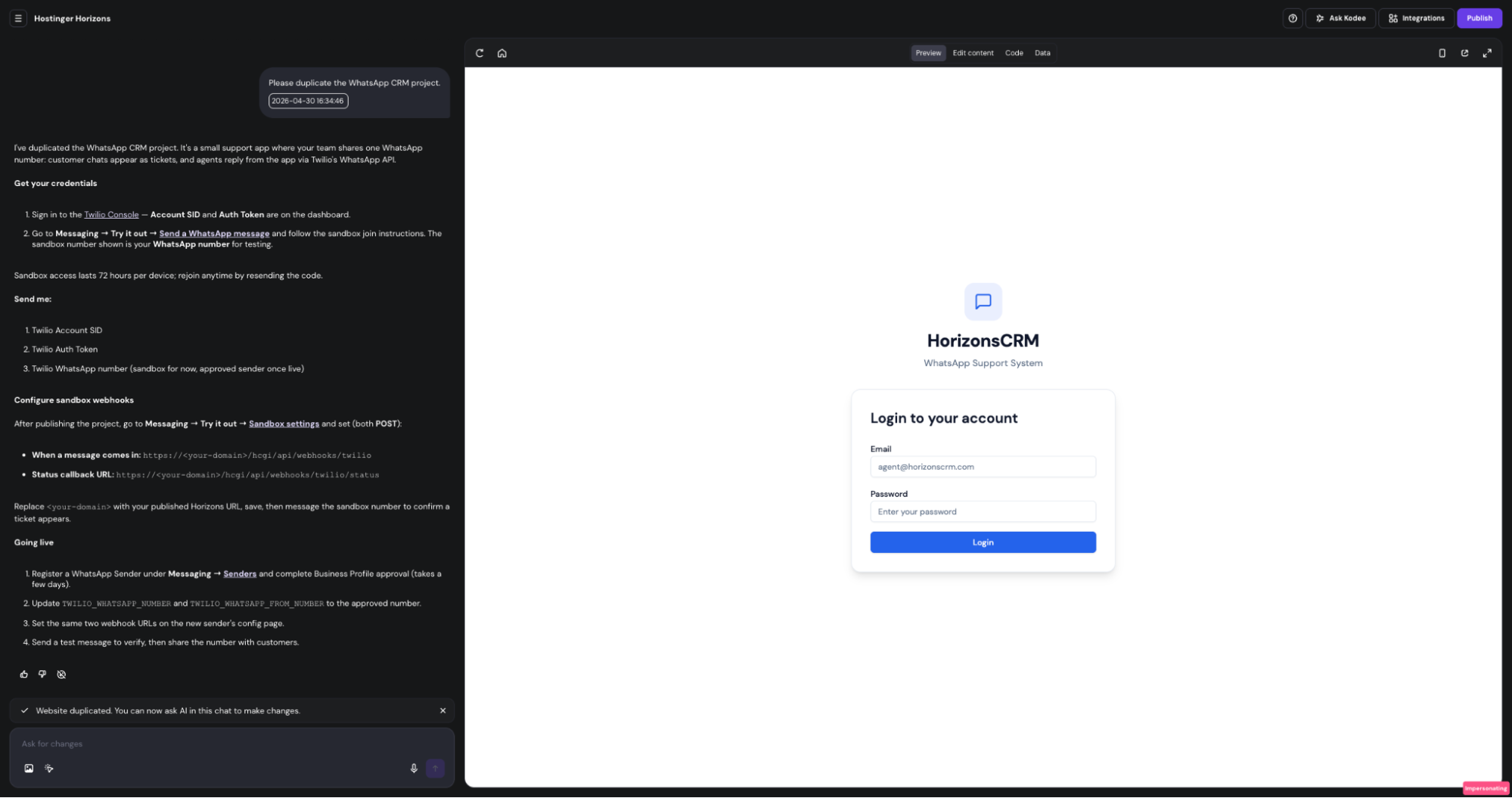
Or you can start from the Hostinger AI Builder WhatsApp CRM template, which already has the core dashboard, ticket system, and message handling built in, and customize it to fit your workflow from there.
Either way, you can iterate by describing changes (“add a priority dropdown to each ticket” or “show unresolved tickets first”), publish it, and start using it the same day.
5. Connect WhatsApp messages to the CRM
When a customer sends a WhatsApp message, it passes through Twilio and hits a webhook on your CRM. The CRM receives the message data, creates or updates a ticket, and displays it in the dashboard. When an agent types a reply in the CRM, the response travels back through Twilio’s API and lands in the customer’s WhatsApp chat.
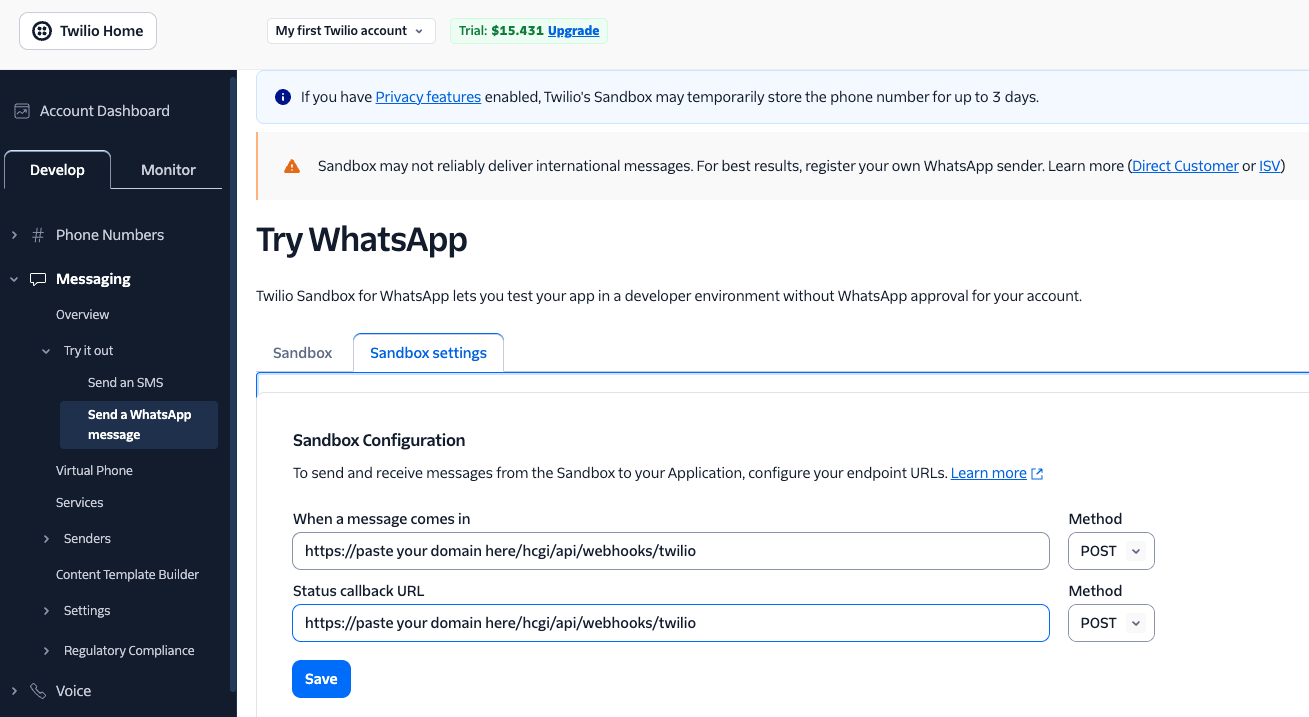
Think of “webhooks” as a URL that your CRM listens to. When Twilio has a new message to deliver, it sends the message data to that URL, and your CRM knows what to do with it. You set up two of these: one for incoming messages and one for delivery status updates.
The setup process starts with Twilio’s WhatsApp sandbox, which lets you test this entire flow before going live. You configure the sandbox to point at your CRM’s webhook URLs, send a test message, and confirm it appears as a ticket in your dashboard.
The webhook URLs and credentials are specific to your published domain and Twilio account, so you’ll need to plug in your own values during setup.
6. Test the message flow
To confirm that the whole chain works before real customers start using it, you need to test the message flow.
Send realistic test messages to your CRM the way a customer would: ask about pricing, check delivery timelines, request an appointment, ask for a refund, or report an issue.
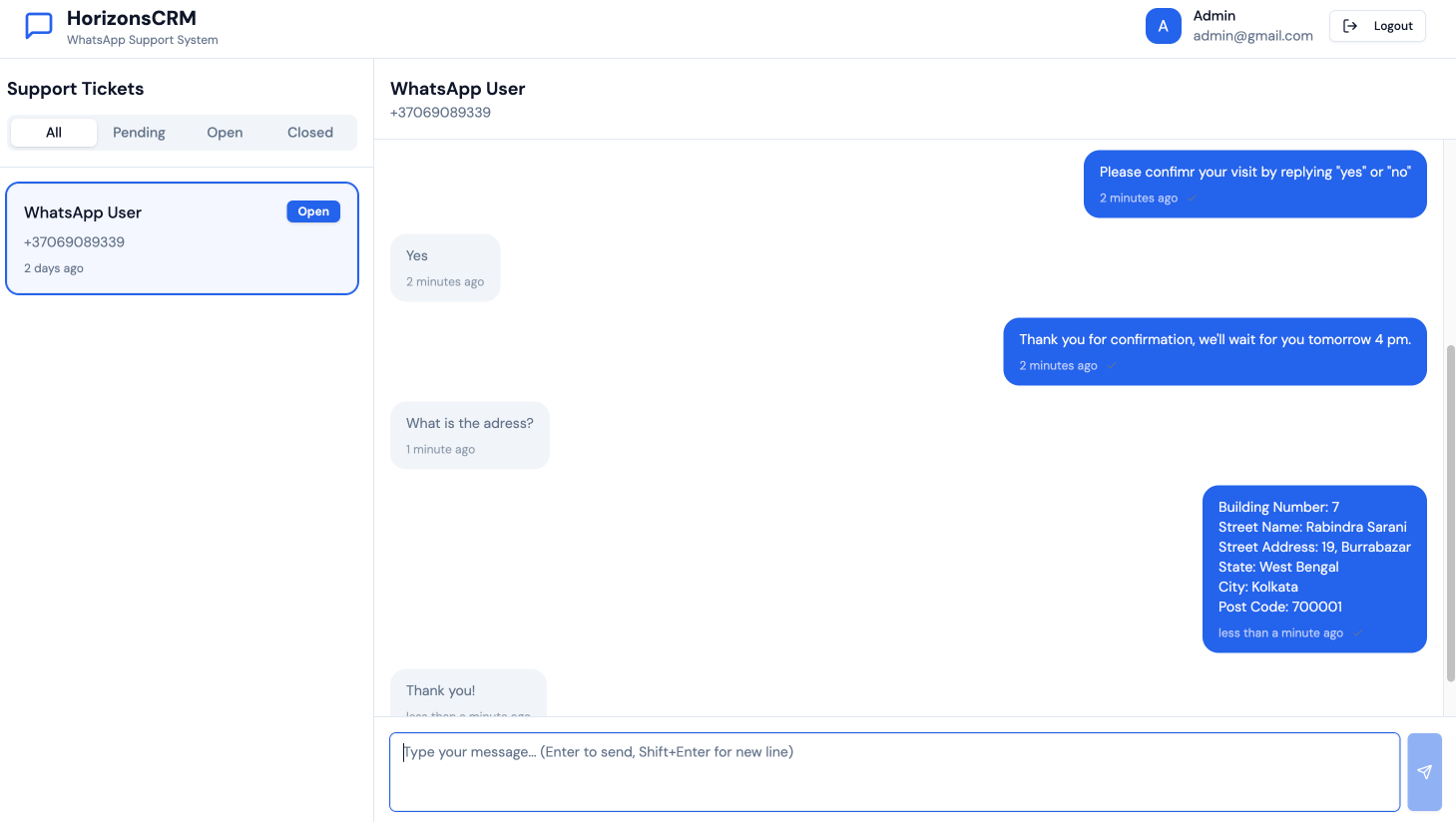
A successful test should show four things clearly:
- The WhatsApp message appears in your CRM as a new ticket.
- The customer profile is saved with their name and phone number.
- You can change the ticket status from the dashboard.
- When you reply from the CRM, the response actually arrives on WhatsApp.
If something breaks, check the most common culprits first. Sandbox access expires every 72 hours per device, so you may need to rejoin by resending the join code or scanning the QR code.
After that, verify your API credentials are correct, confirm your webhook URLs match your published CRM URL exactly, make sure you can log in to the CRM admin, and check that sender approval hasn’t stalled.
Run the full customer-to-CRM-to-customer loop multiple times before moving on. End-to-end testing is the one step that saves you from launching a broken system to real people.
7. Launch the live WhatsApp CRM
The transition from sandbox to production involves a few key steps. Update the environment variables in your CRM project to swap the sandbox number for your approved sender number. Then set the same two webhook URLs (incoming messages and status callbacks) on the approved sender’s configuration page in Twilio.
Run one more end-to-end test with the production number to make sure everything still works.
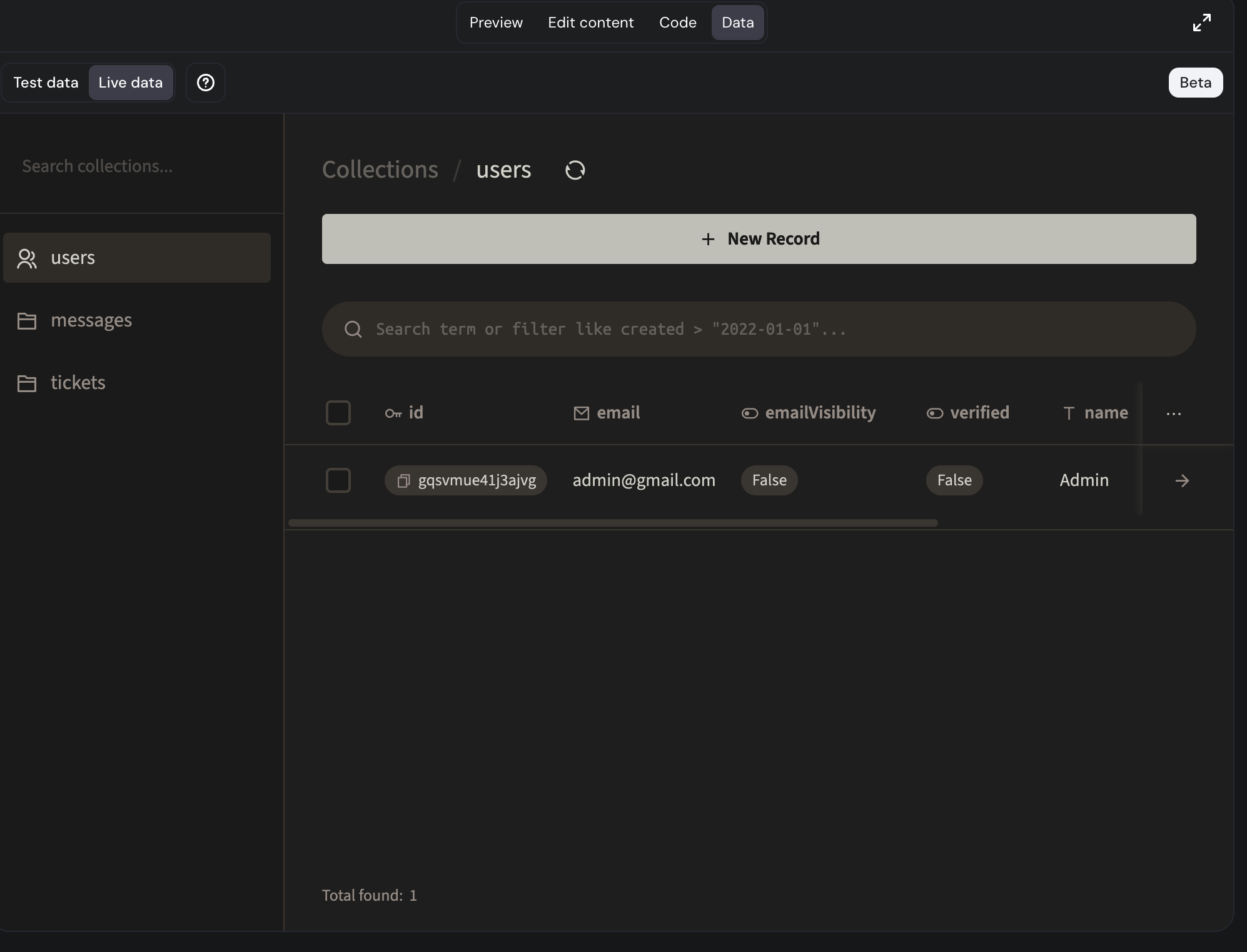
Before sharing the number with customers, get your team ready. Prepare quick replies for the five or ten questions you hear most often. Make sure ticket statuses and ownership rules are clear so no one wonders, “Is this mine or yours?”
Agree on a target response time, even if it’s informal, something like “all new tickets get a first reply within two hours during business hours.”
Don’t promote the live number until you’ve personally confirmed that an incoming message creates a ticket and a CRM reply reaches WhatsApp. A soft launch to a small group of existing customers is a good way to catch any remaining issues before going wide.
8. Add automation and AI carefully
Good beginner automations include welcome messages when a customer first reaches out, away messages during off-hours, basic ticket routing to the right team member, and follow-up reminders for tickets that have been open too long.
Once those are running smoothly, you can layer in lead qualification questions for new inquiries and post-resolution feedback requests.
AI adds another level. It can suggest replies based on conversation context so agents spend less time typing repetitive answers. It can summarize long message threads so someone picking up a ticket doesn’t have to read 50 messages to get caught up. It can classify incoming messages by intent or priority, and it can flag tickets that haven’t received a response yet.
The important thing is to keep humans in the loop for sensitive, urgent, or high-value conversations. Automating a welcome message is great. Automating a response to a frustrated customer asking for a refund is a recipe for making things worse.
9. Protect customer data and follow WhatsApp rules
WhatsApp compliance starts with consent. You need customer opt-in before sending proactive messages. Common opt-in sources include website forms, checkout pages, QR codes, click-to-WhatsApp ads, in-store signs, and direct customer requests during a conversation.
There’s an important timing rule to understand. When a customer messages you first, WhatsApp opens a 24-hour customer service window where you can reply freely.
Outside that window, you can only reach out using pre-approved message templates. WhatsApp reviews these templates before you can use them, so plan for a review period if you intend to send follow-ups, reminders, or promotions proactively.
WhatsApp also assigns your sender a quality rating based on how recipients react to your messages. If people block you or report your messages frequently, your rating drops, and WhatsApp can restrict your messaging limits or suspend your sender entirely.
This makes consent and relevance more than just best practices; they directly affect whether you can keep using the channel.
Avoid bulk messaging people who haven’t asked to hear from you, unofficial automation tools that bypass WhatsApp’s API, and exposing your API credentials in public code or shared documents. Losing your WhatsApp number means losing your customer channel.
On the CRM side, set up user permissions so not everyone has admin access. Store API credentials securely, restrict dashboard access to authorized users, maintain basic audit trails of who changed what, and run regular data backups.
None of this needs to be complicated, but skipping it entirely is asking for trouble down the road.
Best practices for building WhatsApp CRM
The best WhatsApp CRM for a small business is one the team will actually use every day. That sounds obvious, but it’s where most custom builds go wrong. The system gets over-engineered, packed with fields nobody fills in, and abandoned within a month.
Design the CRM around your real business habits. If you’re a hair salon, your CRM should make booking and rescheduling fast. If you run an ecommerce shop, order status and delivery updates should be front and center.
Keep the daily experience fast: find a customer’s history in one search, reply without switching apps, see who owns each ticket at a glance, and get reminded about leads that need follow-up. If any of those things take more than a few seconds, something needs simplifying.
Review how the team uses the CRM every week. Which fields are getting filled in? Which are being ignored? Do the quick replies cover the most common questions? Where is time being wasted on repetitive tasks that automation could handle?
Most popular WhatsApp CRM use cases
How you use a WhatsApp CRM depends on your business model, but most small businesses fall into a few common patterns.
Lead management is one of the most common. A boutique clothing store, for example, gets dozens of WhatsApp messages asking about new arrivals, sizes, and prices. With a CRM, each inquiry automatically becomes a contact with a lead stage, interest details, and follow-up reminders.
Instead of scrolling through chat history trying to remember who asked about the blue dress last Tuesday, the owner can pull up the lead, see the full conversation, and send a quick message when the item is back in stock.
Customer support turns incoming questions into structured tickets with statuses, assigned owners, message history, and resolution tracking.
A home services company fielding requests about plumbing repairs, quotes, and scheduling can assign each conversation to the right technician, track whether the job was completed, and send a follow-up the next day to make sure the fix held up.
Order management suits ecommerce sellers, food businesses, boutiques, and local sellers who need to track product questions, delivery updates, payment confirmations, and repeat purchases.
A home-based bakery taking orders over WhatsApp can log each order as a ticket, update the status from confirmed to baked to out for delivery, and notice when a regular customer’s usual Saturday cake order hasn’t come in this week.
Appointment management works well for clinics, consultants, tutors, and service providers. Booking requests, reminders, rescheduling, cancellations, and customer notes all live in one place.
A freelance makeup artist can see upcoming appointments, send reminders the day before, keep notes on each client’s style preferences, and quickly pull up what products they used in the last session if the client asks.
Customer retention uses tags, quick replies, feedback requests, and follow-up workflows to keep customers engaged after the first interaction.
A fitness studio can tag clients by membership type, send re-engagement messages to members who haven’t checked in for two weeks, and request feedback after classes to catch small issues before they turn into cancellations.
Scale your WhatsApp CRM after launch
The first version of your WhatsApp CRM doesn’t need to be perfect but it does need to work reliably for the workflow you built.
After a few weeks of real usage, the next improvements will be obvious. Certain questions keep coming up and could be handled with quick replies you haven’t written yet. Some tickets sit too long because there’s no automatic follow-up reminder. Response times lag on certain days because ticket assignment rules aren’t clear enough.
These are the problems worth solving next, and the solutions will feel natural because you’ve seen the gaps firsthand.
That’s also when it makes sense to add a second workflow. If you started with support tickets, your sales pipeline is a natural next step. If you started with lead tracking, adding a post-sale support flow keeps customers from falling off after they buy.
From there, you can gradually layer in more structure. Add tags to categorize conversations by topic or urgency. Build simple reports to track response times and resolution rates.
Introduce AI reply suggestions for the repetitive questions your team answers ten times a day. Set up lead scoring to prioritize high-value conversations over casual inquiries.
The advantage of a custom WhatsApp CRM is that you own it. You can adjust fields, add statuses, change routing logic, and build new features whenever your business needs them.
You’re not waiting for a software vendor to ship an update or paying for a higher pricing tier to unlock something basic.
The CRM you launch today is a starting point, and six months from now it should look noticeably different because you’ve shaped it around the way your business actually works.
All of the tutorial content on this website is subject to Hostinger's rigorous editorial standards and values.

Simon is a dynamic Content Writer who loves helping people transform their creative ideas into thriving businesses. With extensive marketing experience, he constantly strives to connect the right message with the right audience. In his spare time, Simon enjoys long runs, nurturing his chilli plants, and hiking through forests. Follow him on LinkedIn.