The Failed to build the application error occurs when the Hostinger deployment engine cannot complete the build scripts defined in your project.
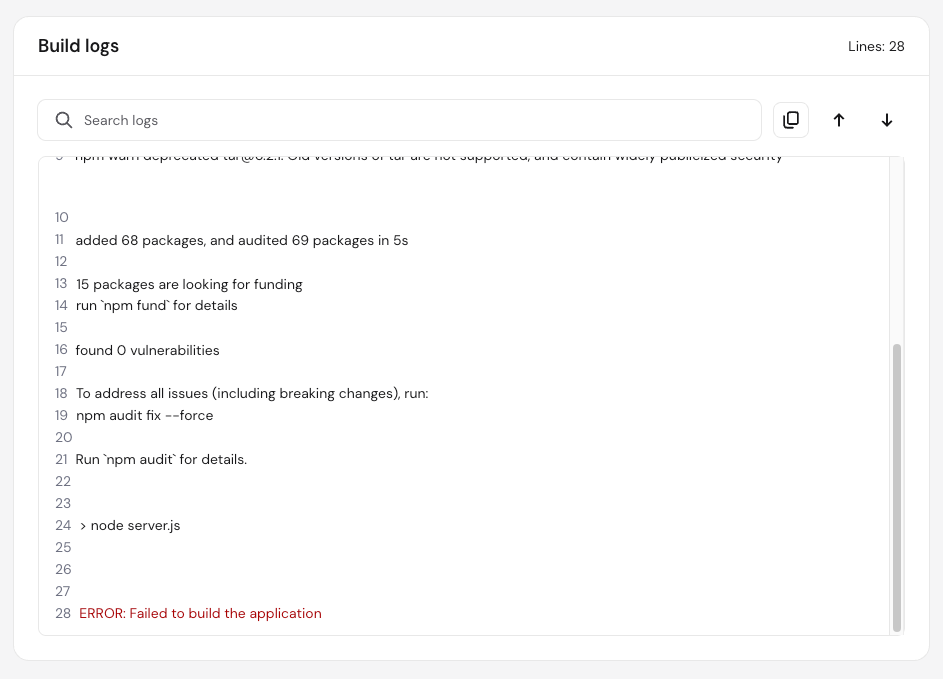
This is a general error message. The exact cause is usually related to configuration mismatches, missing dependencies, or incorrect environment settings, and can be identified in the build logs.
Step 1 – Verify the Node.js parameters in Hostinger dashboard
A common cause for build failures is a parameter mismatch between your local development environment and the configuration in Hostinger dashboard.
- Go to Hostinger dashboard → Websites.
- Click on Dashboard next to your Node.js website.
- Open the Deployments section.
- Click the arrow (❯) next to the failed deployment.
Check the following:
- Ensure the Node.js version displayed matches the engines field in your
package.jsonfile and that your project is created in a supported version (18.x, 20.x, 22.x, or 24.x). - Verify that the framework and root directory match with your settings.
If you find a mismatch:
- Click Redeploy.
- Update the configuration as needed.
- Reupload or syng your project.
- Click Save and redeploy.
Step 2 – Configure Hostinger environment variables
Missing or incorrect environment variables can cause the build to fail.
- Go to Deployments → Redeploy.
- Scroll to Environment Variables.
- Ensure all required variables (such as database URLs or API keys) are defined correctly Add, update or removed variables as needed. You can also import variables in bulk by clicking on import .env.
- Click Save and redeploy to apply the changes.
Step 3 – Check the build command and dependencies
Ensure your project is configured correctly for deployment.
- Build and start scripts: Verify that your
package.jsonincludes valid scripts and that the start command points to the correct entry file. Supported package managers includenpm,yarn, andpnpm. - Dependencies: If the error appeared after recent changes, check whether new packages were added. Do not include the
node_modulesfolder in ZIP uploads or repositories, as dependencies are installed during deployment. - Port configuration: Ensure your application listens on port 3000.
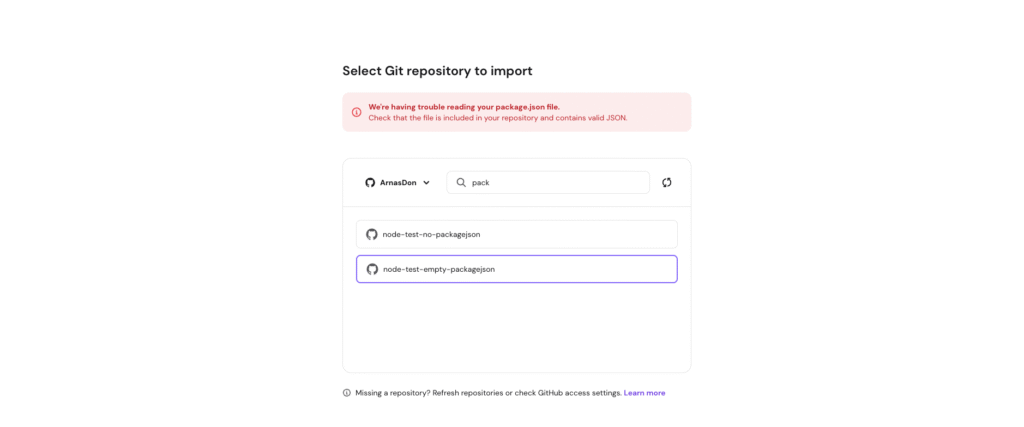
- package.json not found: If the build log shows a
package.jsonnot found error, Hostinger’s build system could not locate the file it uses to configure your Node.js app. Verify thatpackage.jsonexists at the root of your project.

If deploying via GitHub, confirm the file is committed to the repository. If uploading a ZIP, confirmpackage.jsonis at the root level of the archive (not inside a subfolder). After fixing, click Redeploy.
Most “Failed to build the application” errors can be resolved by aligning your Node.js settings, environment variables, and project configuration with your application requirements. After correcting these, redeploy your application and review the build logs to confirm the issue is resolved.
Additional resources
- For a broader overview of how to read and interpret deployment logs, refer to the guide on troubleshooting Node.js deployment failures.
- If your application builds successfully but fails at runtime, see how to use Node.js runtime logs at Hostinger.
- If your stderr.log file appears empty, see understanding empty stderr.log in Node.js applications.