If you’ve lost access to your email account, refer here: How to recover access to a Hostinger without having access to the currently linked email account 💡
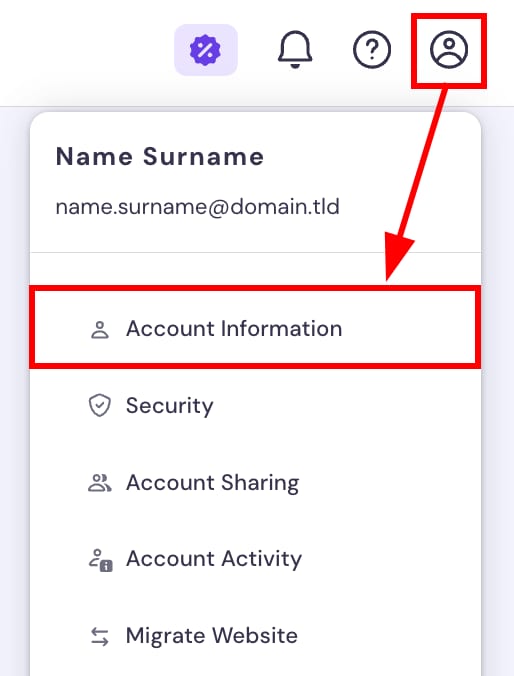
You can easily change your Hostinger account email address. Once you’re logged in to your Hostinger account, click on the profile icon in the top-right and choose the Account Information option:
Once there, scroll down to the Account settings section and click on the Email field:
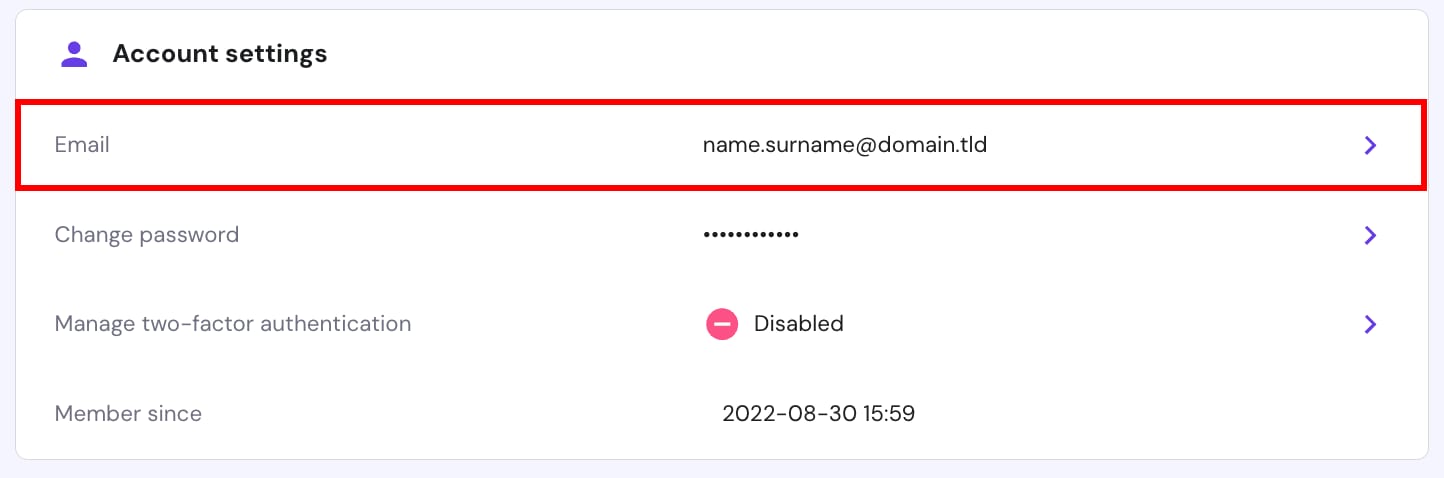
Enter your new email address and click on Continue. Next, confirm by entering your password.
Once the change is applied, you will be requested to verify it via email or your two-factor authentication method if enabled.
yourdomain.com in your Hostinger account, you cannot set you@yourdomain.com as your account email or recovery email. This prevents account lockout in the event the domain expires and the associated mailbox stops working. Use an external email provider (e.g., Gmail, Outlook) for your account and recovery email.NOTE
-
If you need to change your domain’s contact information (e.g., to move a domain between Hostinger accounts), follow this guide instead: How to change domain contact details
- You cannot change your profile email or add a backup email if the target email address uses a domain purchased within that same Hostinger account. This restriction does not affect new account registrations.