You can reset your Hostinger Email mailbox password using either hPanel or Webmail.
Option 1 – Reset via hPanel
This is the best option if you don’t remember the current password:
-
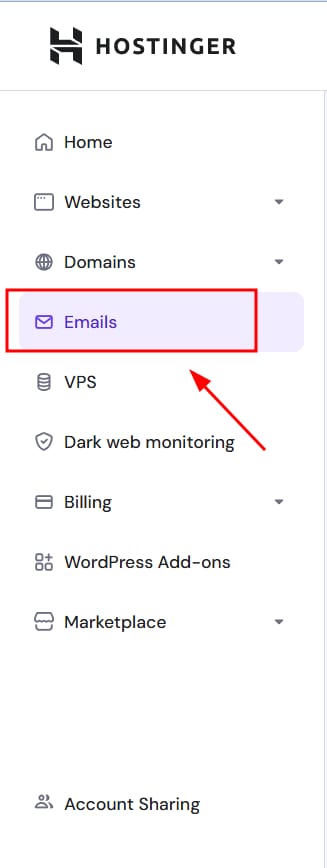
Go to the Emails section of hPanel.
-
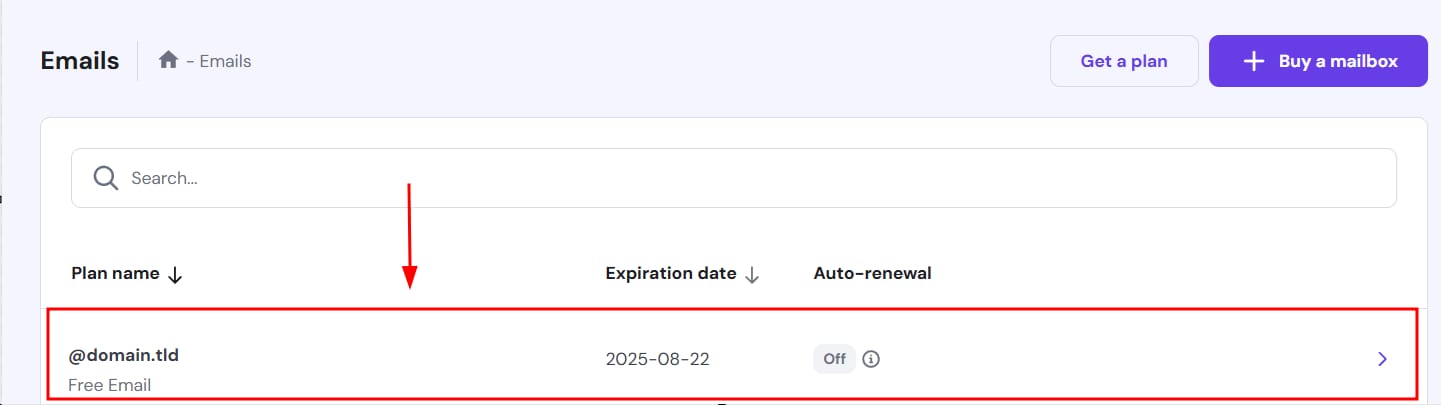
Click anywhere next to the domain name you want to manage

-
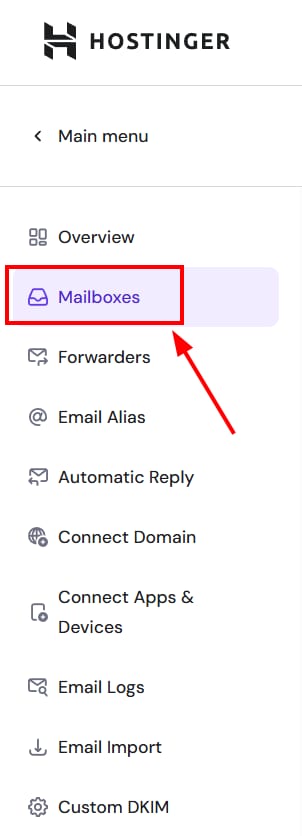
Click on Mailboxes on the left sidebar.

-
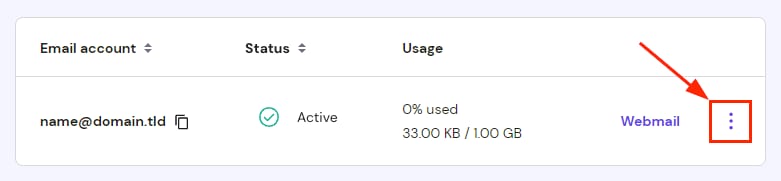
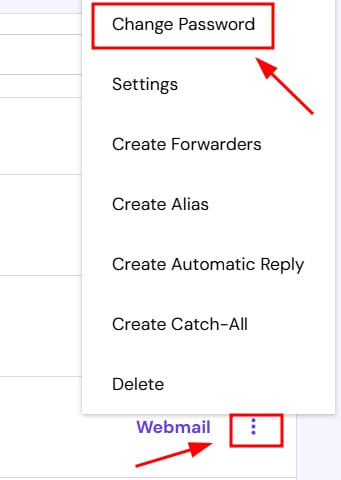
Find the mailbox in question and click the Options (⋮) button:

-
Select Change Password.

-
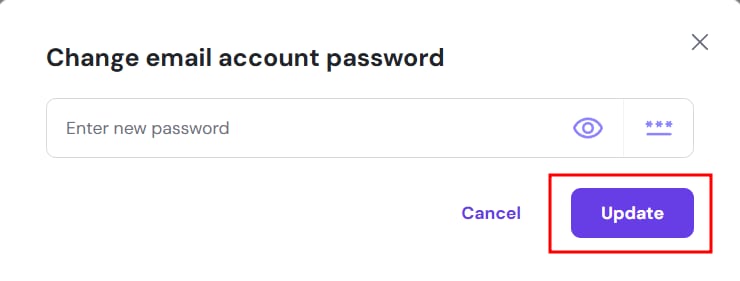
Enter a new password manually or use the password generator. If setting your own password, ensure it:
-
Is 8-50 characters long.
-
Includes at least one number, one lowercase letter, one uppercase letter, and one symbol.
-
Uses only Latin letters.
-
-
Click Update—your new password is now set. You can use it to log in to Webmail or configure an email client.

Option 2 – Reset via Webmail
If you remember your current password, you can change it from in Webmail:
-
Log in to Hostinger Webmail.
-
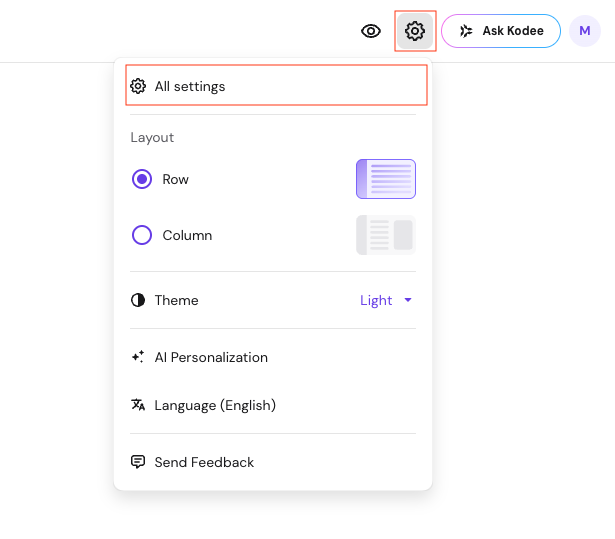
Open All Settings under Settings icon in the top right corner

-
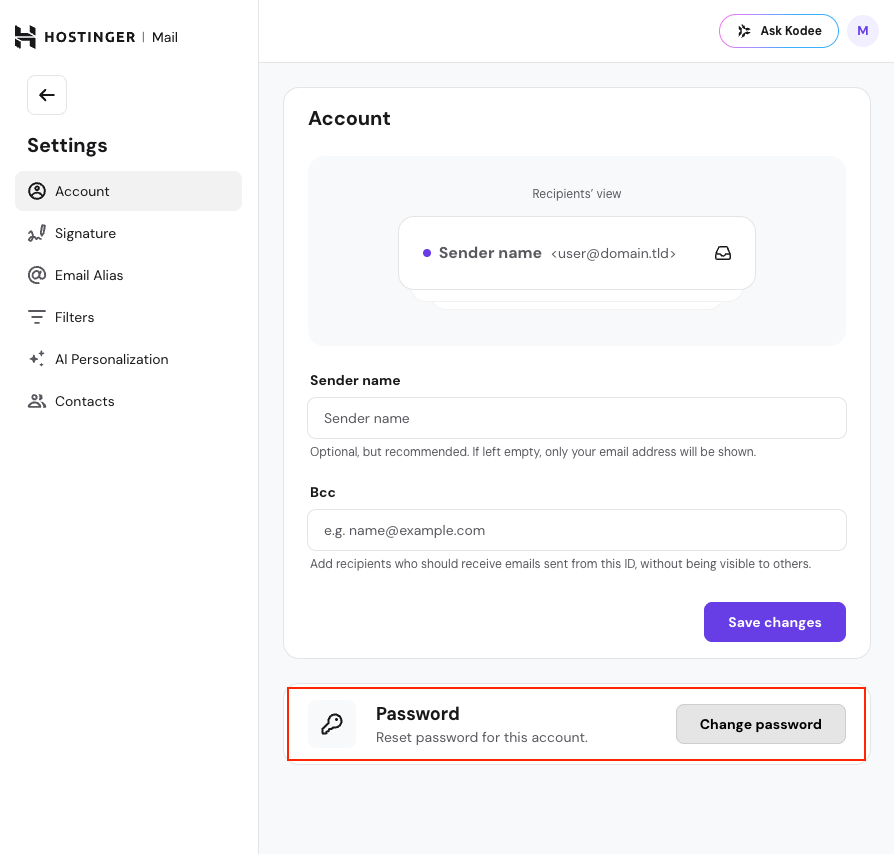
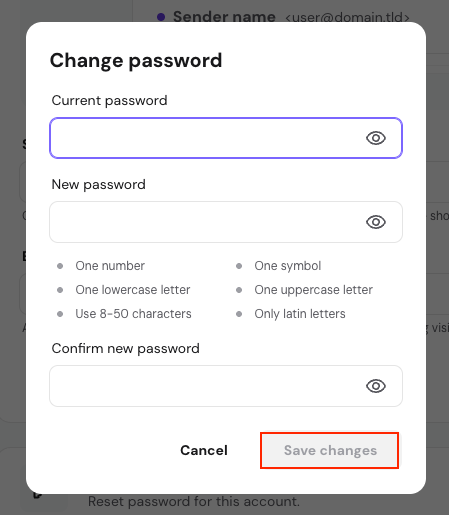
click Change password under Account settings page.
-
Enter your current password.
-
Type your new password and confirm it by entering it again.
-
Click Save changes—your email password is now updated.
For security, always use a strong password that includes a mix of letters, numbers, and symbols 🔒
After resetting your password, remember to update it in your email client if you have one.