If you encounter a 403 Forbidden error when opening your website, it means that the server was not able to authorize your request. This may be due to a few different reasons:
Incorrect A Record
Go to your domain’s DNS Zone and make sure that the A record is set to the IP of your hosting plan:
-
If your domain is pointing to Hostinger, follow this guide: How to manage A records
-
If your domain is pointing elsewhere by nameservers, you will need to go to your domain’s active DNS Zone and check the A record there
After making any changes to your DNS records, allow up to 24 hours for them to propagate fully, and your website should start working! 😊
Malware affected files
Your website might be affected by malware. In such cases, you can use Malware Scanner, which is already included to your hosting plan and is available directly in hPanel.
To see if that’s the case, you need:
- Open your website’s dashboard in hPanel and navigate to Security → Malware Scanner in the left sidebar.
- If no threats are detected, the panel will show that no malware was found.
- If infections are found, the scanner lists each affected file and describes what action was taken to address it.
If your website is built with WordPress, you can follow a guide: How to remove WordPress malware: manual and automatic malware removal.
Incorrect File Structure or Permissions
You may have incorrect file or folder permissions. If that’s the case, you can easily fix the permissions of your files.
Alternatively, the public_html folder is missing or empty. Go to Websites → Manage and open the File Manager:
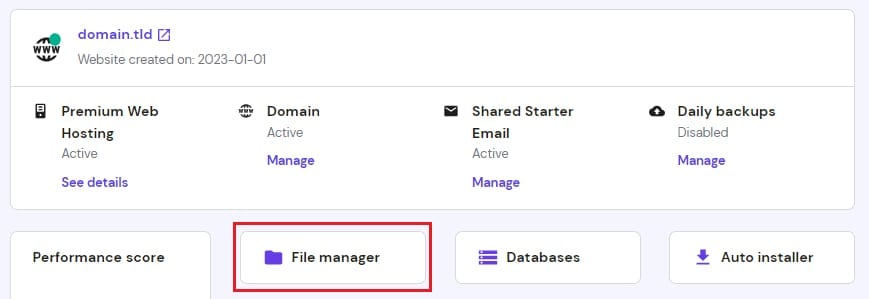
If the folder is missing, create a new directory named public_html, and make sure to upload your website files in this location. In case your files are in a different folder, move them to the correct path.
Issues on the .htaccess File
To check if the .htaccess file may be corrupted or have some incorrect configurations, go to the public_html folder of your domain using the File Manager, locate the .htaccess file, and rename it, e.g., to .htaccess-disabled:
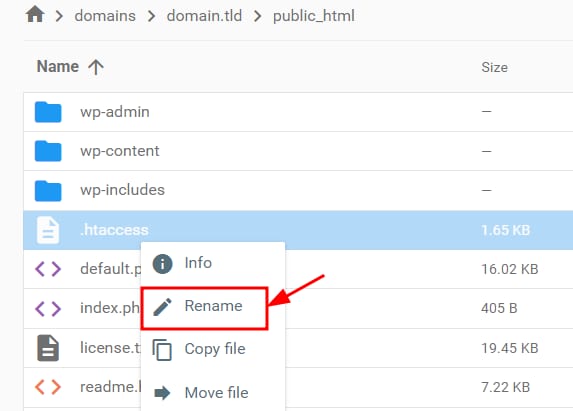
Clear your browser cache and try accessing your website – if it works, it means you need to double-check the code within your .htaccess file. Some common issues are:
-
Deny rules
-
Incorrect rewrite rules
-
Improperly set redirections
For WordPress-based websites, some security plugins can add Deny from All rules to your .htaccess files:
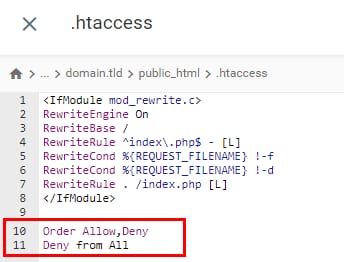
In that case, look for these lines and remove them if necessary.
NOTE
-
These WordPress plugins can also create .htaccess files with deny rules in directories like wp-admin and prevent you from reaching them
Missing /public folder redirect (Laravel and similar frameworks)
If your website is built with Laravel or another framework that serves files from a /public subdirectory, a 403 error can appear when there is no .htaccess file redirecting traffic to that folder.
To fix this, open the File Manager, navigate to your public_html folder, and locate or create an .htaccess file. You can follow this guide if needed: How to Create an .htaccess File.
Then, add the following code to the file:
<IfModule mod_rewrite.c>
RewriteEngine On
RewriteRule ^(.*)$ public/$1 [L]
</IfModule>
Once saved, your website will automatically route requests to the /public folder and the 403 error should be resolved.
Further Steps
While these are the most common reasons for the 403 error, there still may be other factors that you can consider, such as a missing index page, a faulty WordPress plugin, or a malware infection.
For detailed information on any 403 errors encountered on your website, you can check the Access Logs 💡
You can find more information about these cases and how to fix them in this comprehensive tutorial: What Is the 403 Forbidden Error and How to Fix it, as well as by checking the following video tutorial: