Migrating your website from a VPS plan to Web Hosting on Hostinger is a straightforward process. This guide will walk you through each step to ensure a smooth transition.
Step 1 – Prepare for migration
Before you start the migration process, make sure to:
-
Check resource requirements to ensure that your website can perform optimally on a Web Hosting plan.
-
Review limitations of Web Hosting to confirm compatibility (e.g., software compatibility, resource limits).
VPS offers full control and flexibility, while Web Hosting may have restrictions on certain scripts and resource-intensive applications.
Step 2 – Download files and databases from VPS
-
Connect to your VPS via SSH:
in your terminal enter this command, with your VPS IP address.ssh root@your-ip-address -
Find your website directory:
To locate your directory, use this command:find / -type d -name "your_website_directory" -
Compress your website files:
Compress all website files into a .zip file:zip -r file_name.zip path/to/your/directoryIf you see
zip: command not found, install zip with:sudo apt-get install zip -
Download the compressed file to your local device:
Run this command on your local machine’s terminal (not on the VPS), changingyour_vps_ipwith your actual IP:scp root@your_vps_ip:/path/to/file_name.zip /local/path/ -
Export your database:
Create a backup of your database:mysqldump -u root -p database_name > backup_name.sqlYou will be prompted to enter your password, you should enter your mysql password for the specified user.
While you are entering the password, it will seem that nothing is being typed in the terminal. It’s a common security practice. -
Download the database backup:
Again, on your local machine’s terminal (not on the VPS), run:scp root@your_vps_ip:/path/to/backup_name.sql /local/path/
Step 3 – Set up your web hosting environment
Option A – Create migration request
-
Log in to Hostinger dashboard and open your Web Hosting plan.
-
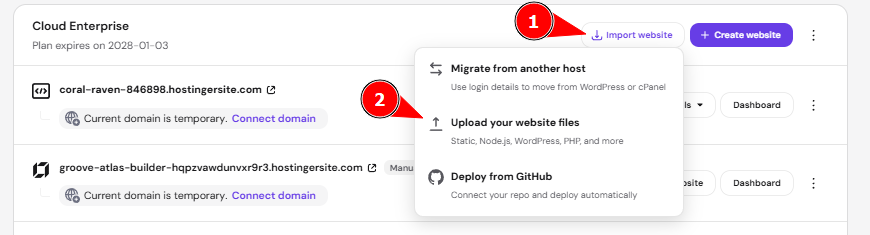
Go to the Website section then click Import Website, choose Upload your website files.
-
Upload your website backup files (don’t forget the database file)

Option B – Upload files and import database manually
-
Log in to Hostinger dashboard and open your Web Hosting plan.
-
Go to File Manager and upload your website files to the
/public_htmldirectory. -
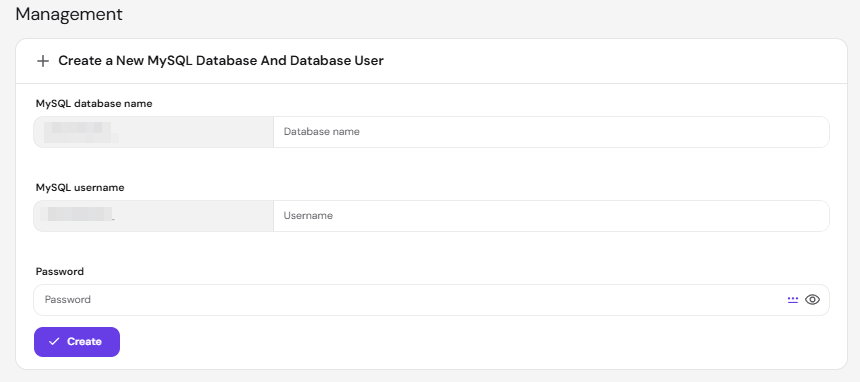
Create a new database for your website by going to Databases in the side menu, then Management, then by creating new database name, username and password.
-
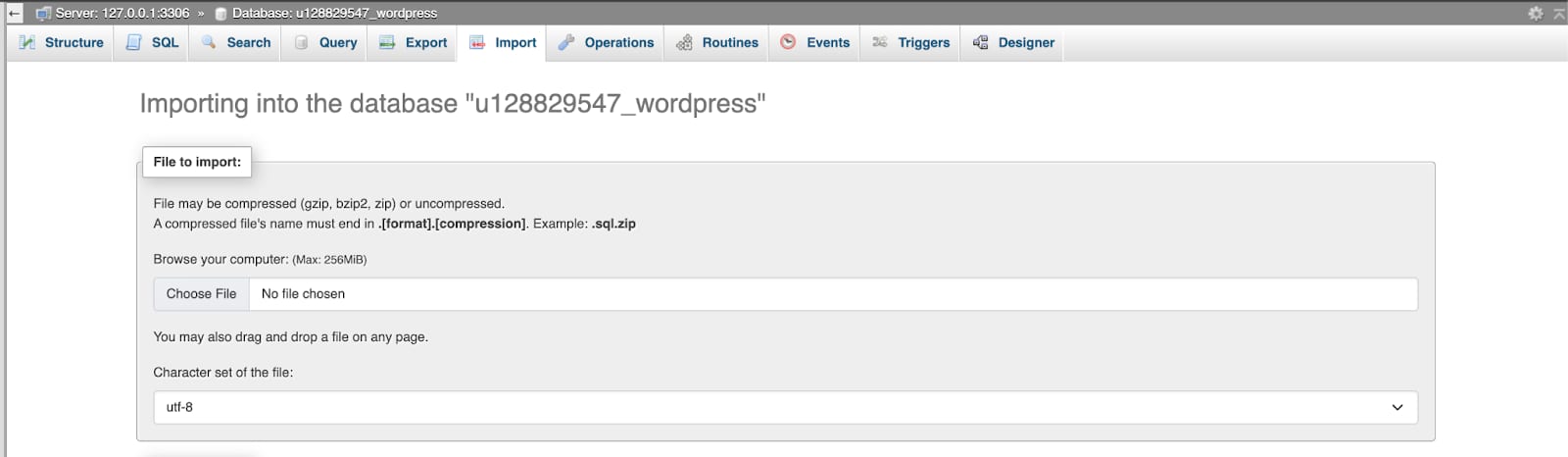
Go to phpMyAdmin in Hostinger dashboard.
-
Select your newly created database and import the
.sqlfile from your local device.
Step 4 – Update configuration files
Edit your configuration file (e.g., wp-config.php for WordPress or config.php for other CMSs) to reflect the new database details:
Update database name, username, and password with the one’s created in Hostinger dashboard.
Step 5 – Final checks
Monitor your website’s performance to ensure it’s stable on Web Hosting. If everything looks good, you’re all set!