How to connect PHP to a MySQL database using PDO or MySQLi
Oct 15, 2026
/
By Domantas G.
/
6 min Read

To connect PHP to a MySQL database, use MySQLi or PDO with your database hostname, username, password, and database name. MySQLi is designed for MySQL, while PDO provides a consistent interface for connecting to different database systems.
Both methods support prepared statements for executing SQL queries securely.
In this tutorial, you’ll learn how to choose between MySQLi and PDO, connect PHP to MySQL using either method, and test your database connection.
Creating a MySQL Database (Optional)
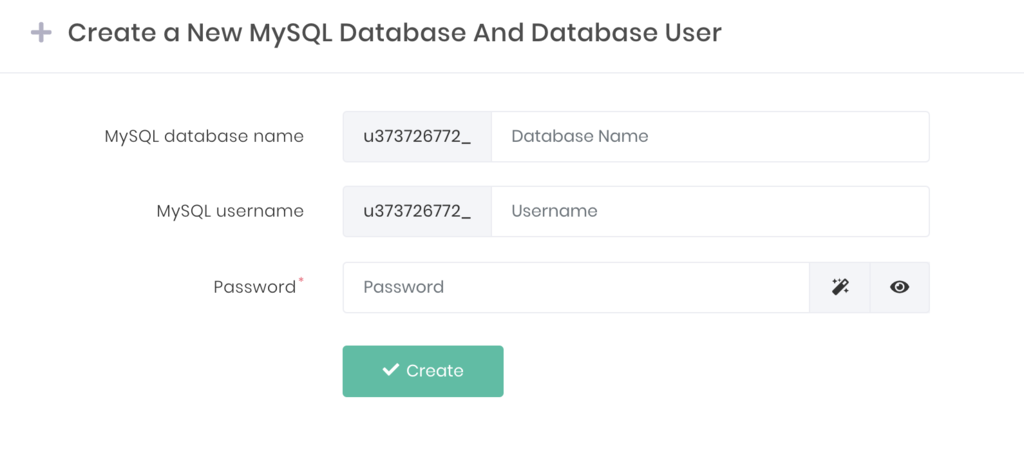
This step is required if you do not have a MySQL database. If you are a Hostinger user, you can easily make a new one via Hostinger dashboard in a few steps:
- Locate MySQL Databases menu under the Databases section.
- Fill in the necessary fields and hit Create.
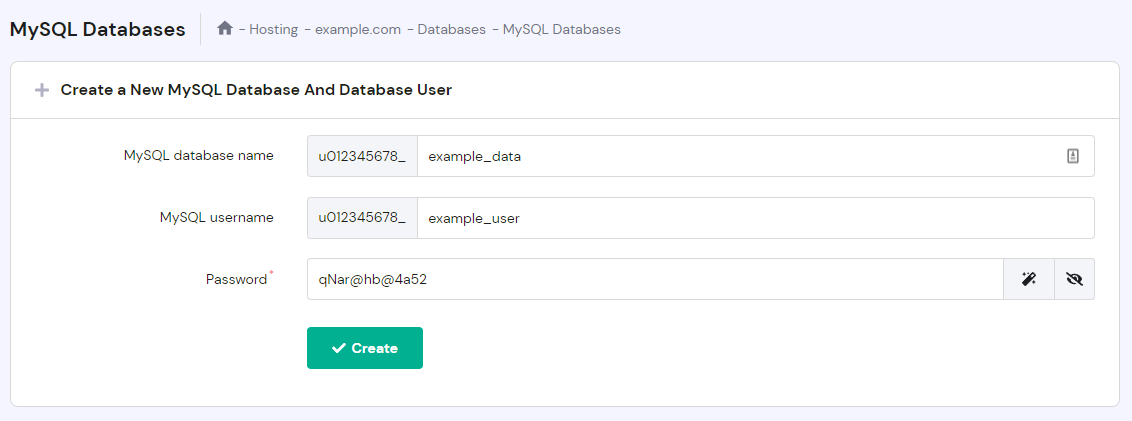
Important! Write down the credentials of the MySQL database you just created for the next step. Don’t forget to remember the database username and username password as well!
PDO vs. MySQLi: Which should you use?
There are two methods to connect to a MySQL database using PHP: MySQLi and PDO.
MySQLi stands for MySQL Improved. It is a MySQL-exclusive extension that adds new features to a MySQL database’s interface. MySQLi is both procedural and object-oriented, with the former being the attribute inherited from the older version of MySQL.
The original MySQL breaks down a task into linear, step-by-step procedures, which makes it difficult to modify because you have to edit the code from the top. Meanwhile, MySQLi sees data as a set of interchangeable objects with functions, allowing users to add or remove data easily.
PDO stands for PHP Data Object. Unlike MySQLi, PDO is only object-oriented and supports a number of different database types that use PHP, such as MySQL, MSSQL, Informix, and PostgreSQL.
Important! The original mysql_ functions are deprecated and should not be used as they are unsafe and no longer being maintained or developed.
One of the most important features they both support is prepared statements, which accelerates the time needed for MySQL to execute the same query multiple times. It is also used to prevent SQL injection attacks when making changes to the database or inserting user-supplied input into a database query or statement.
Whichever method you use, you will need the correct information so you can connect to the MySQL database you have made. This is where the MySQL database details you have previously saved come in handy.
You also need the correct server name or hostname for the configuration. Hostinger uses “localhost” as its MySQL server’s hostname. In general, this is the name that you’ll want to use if you uploaded your PHP script to the same server as the database.
In contrast, if you’re using a MySQL remote connection to connect to a database, you will have to use the IP address of the MySQL server. For more details, contact your hosting provider so they could provide you with the correct information on what to use as the hostname.
Which should you choose? PDO is a practical default for new PHP projects, especially if you want a consistent way to work with different database systems. MySQLi is equally suitable when your application specifically uses MySQL or already relies on MySQLi.
Both support prepared statements, so neither is inherently less secure. Security depends on how you write and execute your database queries.
The examples below demonstrate both methods so you can choose the one that fits your project.
How to connect PHP to MySQL using MySQLi
Follow these steps to use MySQLi to connect a PHP script to MySQL:
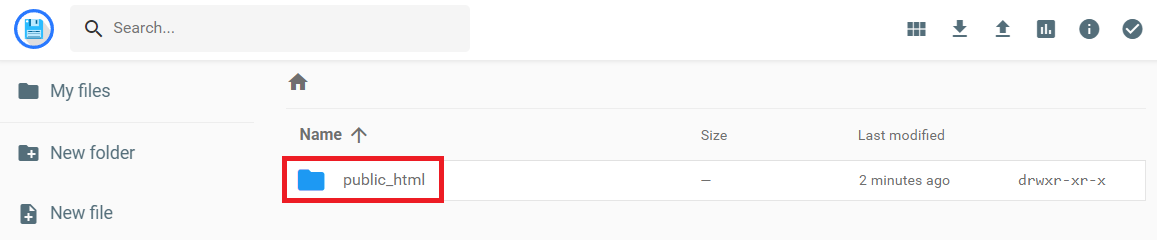
- Head over to File Manager -> public_html.
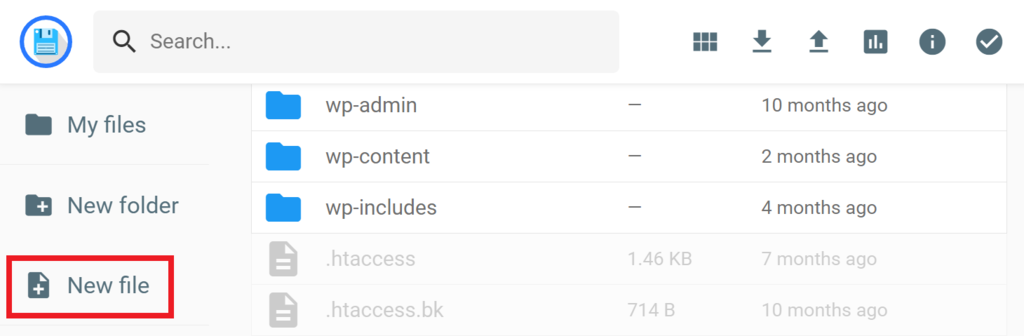
- Create a New File by clicking the icon from the sidebar menu.
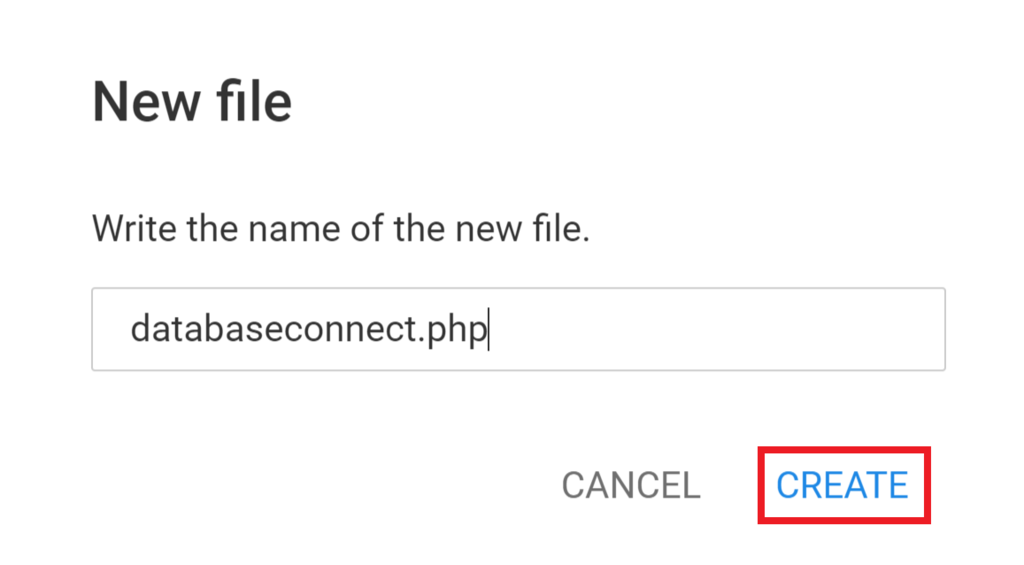
- Save the file as databaseconnect.php. You can replace the name with whatever you like, just make sure it is using php as the extension.
- Double-click to open the file and copy-paste the following lines of code into it. Change the first four values below <?php with the credentials you noted earlier:
<?php
$servername = "localhost";
$database = "your_database";
$username = "your_username";
$password = "your_password";

mysqli_report(MYSQLI_REPORT_ERROR | MYSQLI_REPORT_STRICT);

try {
    $conn = mysqli_connect($servername, $username, $password, $database);
    mysqli_set_charset($conn, "utf8mb4");

    echo "Connected successfully";
    mysqli_close($conn);
} catch (mysqli_sql_exception $e) {
    error_log($e->getMessage());
    http_response_code(500);
    echo "Database connection failed.";
}
How the MySQLi connection works
This example uses MySQLi’s procedural interface. The mysqli_connect() function establishes a connection using your database hostname, username, password, and database name.
The mysqli_set_charset() function configures UTF-8 encoding, while the try...catch block handles connection errors. If the connection succeeds, the script displays a confirmation message. Otherwise, it logs the error and displays a general failure message.
MySQLi also supports an object-oriented approach using new mysqli(). Both styles can establish database connections and execute queries.
For queries that include user-provided values, use prepared statements with mysqli_prepare() to help prevent SQL injection.
How to connect PHP to MySQL using PDO
The other method using PHP script to connect to MySQL is by using PDO. This is similar to the previous method, but with a slight variation:
- In the public_html, create a file named pdoconfig.php and insert the following code. As always, don’t forget to replace the placeholder values with your database information. Save and Close it once you’re done:
<?php
$host = "localhost";
$dbname = "u123456789_DatabaseName";
$username = "u123456789_User";
$password = "MyStr0ngPa$!";
- Create another file named databaseconnect.php in the same directory, but with the following code. If you named the previous file differently, make sure to change the value of require_once.
<?php
require_once 'pdoconfig.php';

try {
    $conn = new PDO(
        "mysql:host=$host;dbname=$dbname;charset=utf8mb4",
        $username,
        $password,
        [PDO::ATTR_ERRMODE => PDO::ERRMODE_EXCEPTION]
    );

    echo "Connected successfully";
} catch (PDOException $e) {
    error_log($e->getMessage());
    http_response_code(500);
    echo "Database connection failed.";
}
How the PDO connection works
A PDO database connection requires you to create a new PDO object with a Data Source Name (DSN), Username, and Password.
The DSN defines the type of database, the name of the database, and any other information related to the database if required. These are the variables and values we stated inside the pdoconfig.php file, referenced one time by the line require_once in the databaseconnect.php.
In the latter, you will find the try…catch.. code. This means that the script will try to MySQL connect using the code provided, but if there is a problem, the code in the catch section will run. You can use the catch block to display connect error messages or run alternate code if the try block fails.
If the connection is successful, it will print out the message “Connected to $dbname at $host successfully.” However, if the attempt fails, the catch code will show a simple error message and kill the script.
Unlike when using MySQLi, after you’re finished using a PDO script, you don’t need to manually close the connection. It is automatically closed when the PDO object is destroyed, or your script ends.
How to test your PHP MySQL connection
To check whether the connection is successful, access your domain like so: yourdomain/databaseconnect.php. If you name the PHP file with something different, make sure to change it accordingly.
You will see “Connected successfully” or variants of this message if everything is running without any issue.
If the connection fails, verify your database credentials, hostname, and database name. Also make sure the required MySQLi or PDO MySQL extension is enabled in your PHP environment.
For additional details, check your PHP error logs through your hosting control panel or server configuration. The location of these logs depends on your hosting environment and PHP settings.
Once you’ve confirmed that the connection works, remove the standalone test script or restrict access to it. Avoid displaying detailed database errors or exposing credentials on a live website.
Incorrect Password Error
This error happens if we change the password or any credential in the PHP code (but do not change it in the actual database).
In case you see an “Access denied” or “Could not connect to database” message accompanied by “(using password: YES)” at the end, the first thing to do is to check the database details. There could be a typo or a part that’s missing.
Cannot Connect to MySQL Server
If you get “Can’t connect to MySQL server on ‘server’ (110)” in MySQLi, it means the script did not get a response from a server. This happens when we set “server” instead of “localhost” as the $servername, and this name is not recognized.
The error message in PDO will look like “Connection failed: SQLSTATE[Hy000] [2002]” followed by more details stating that the My SQL host was not found. But the way to troubleshoot it is the same as the above.
And of course, it is always important to remember one golden rule of troubleshooting an error: checking your site error log.
The log can be found in the same folder where the script is running. For example, if we are running a script in public_html, we will find the error_log in the same folder.
Next steps: Run your first MySQL query
Once your PHP script successfully connects to MySQL, the next step is to retrieve or update data in your database.
Start with a simple SELECT query to retrieve records from an existing table. When working with user input, use prepared statements through MySQLi or PDO instead of inserting values directly into SQL queries. This helps protect your application against SQL injection.
Before deploying your application, make sure your database credentials are stored securely, remove unnecessary connection-test scripts, and review your database user’s permissions.
This article is a localized version of How to connect PHP to a MySQL database using PDO or MySQLi, originally published in English.
All of the tutorial content on this website is subject to Hostinger's rigorous editorial standards and values.

Domantas leads the content and SEO teams forward with fresh ideas and out of the box approaches. Armed with extensive SEO and marketing knowledge, he aims to spread the word of Hostinger to every corner of the world. During his free time, Domantas likes to hone his web development skills and travel to exotic places.