How to add meta description in WordPress
Oct 16, 2026
/
By Leonardus N.
/
5 min Read

To add a meta description in WordPress, install an SEO plugin like Yoast SEO, open the post or page you want to optimize, and enter your description in the plugin’s SEO settings. Save your changes to apply the description.
A meta description is a short summary of a webpage that search engines may display in search results. While it isn’t a direct Google ranking factor, a relevant, well-written description can encourage users to click through to your website.
Here’s how to add a meta description in WordPress:
- Install and activate an SEO plugin.
- Open the post or page you want to optimize.
- Find the meta description field in the plugin’s SEO settings.
- Write your description and save the changes.
You can also customize meta descriptions for your homepage and configure default settings for different content types.
How to add a meta description in WordPress?
The easiest way to add a meta description in WordPress is by using an SEO plugin like Yoast SEO. It lets you customize meta descriptions for individual posts, pages, and your homepage without editing your website’s code.
To get started, install the plugin and activate it from Plugins → Add New Plugin in your WordPress dashboard. Then, open the post or page you want to optimize and find the Yoast SEO settings in the editor.
Add a meta description to WordPress posts and pages
To write a meta description using Yoast SEO, navigate to the list of all posts or pages and select the blog post or page you want to work on.
The meta box to add a meta description is in the same Yoast SEO section as the meta title. You’ll find it under the SEO Title and Slug fields.
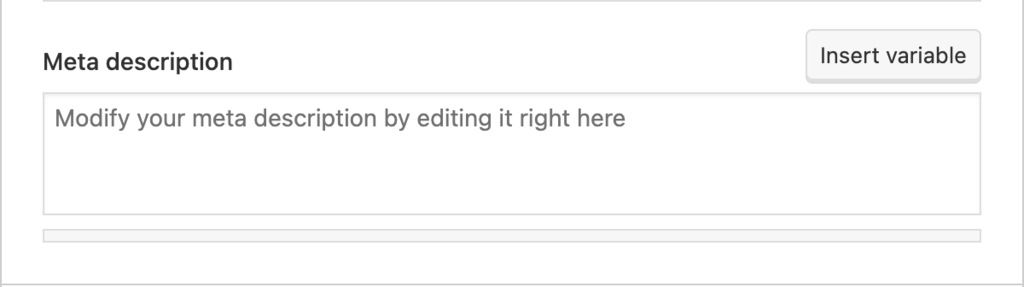
Start writing your description of the post or page. Aim for approximately 150–160 characters when writing a meta description. This is a practical guideline rather than a strict limit, as Google may truncate descriptions based on the available display space.
A short meta description won’t provide enough information to attract people. On the other hand, if it’s too long, search engines will cut off your description on the SERPs.
Pay attention to the bar underneath the meta box to see when it turns green – it will indicate that you’ve reached the ideal length.
Again, you have the option to use the Insert variable feature to insert meta tags that will generate meta descriptions automatically. However, these descriptions may not be good enough, and search engines will replace them with their versions.
Once you’ve added your meta description, check Yoast SEO’s search preview to see how your page title and description may appear in Google results. Keep in mind that Google can generate a different snippet based on the user’s search query.
Add a meta description to your WordPress homepage
Since a homepage should shine some light on a website’s purpose, you’ll have to provide concise and understandable information about your business in its meta description.
- Go to the Pages -> All Pages section of your WordPress admin area.
- Find Homepage and click Edit.
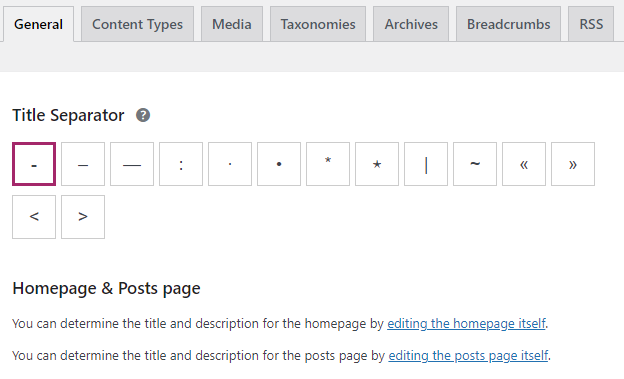
Alternatively, you can go to the Yoast SEO dashboard and click on the editing the homepage itself link in the General tab. This link will automatically take you to the homepage’s editor.
- Once you’re in the editor, navigate to the bottom section, where you can find the Yoast SEO section. Click on Google preview to add the meta description in WordPress.
Aim for approximately 150–160 characters for your homepage meta description. Clearly explain what your website offers and what makes it relevant to your target audience.
How to add a meta title and focus keyphrase in WordPress
Besides adding a meta description, you can use Yoast SEO to customize your SEO title and set a focus keyphrase. The SEO title helps users understand your page’s topic in search results, while the focus keyphrase helps Yoast analyze how well your content targets a specific search term.
Add a meta title using Yoast SEO
To add a meta title using the Yoast SEO plugin, you have to go to the specific post you want to work on and compose it there. Here’s how:
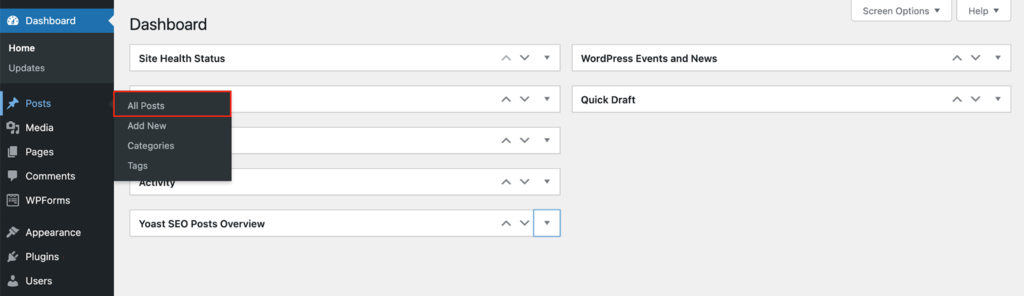
- From your WordPress admin sidebar, navigate to Posts -> All Posts. You should see the list of posts on your WordPress sidebar. Choose one and select Edit.
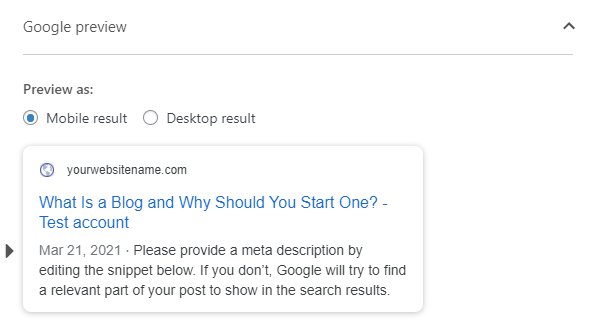
- Once you’re in the post editor, scroll down to the Yoast SEO plugin section and open the Google Preview drop-down section.
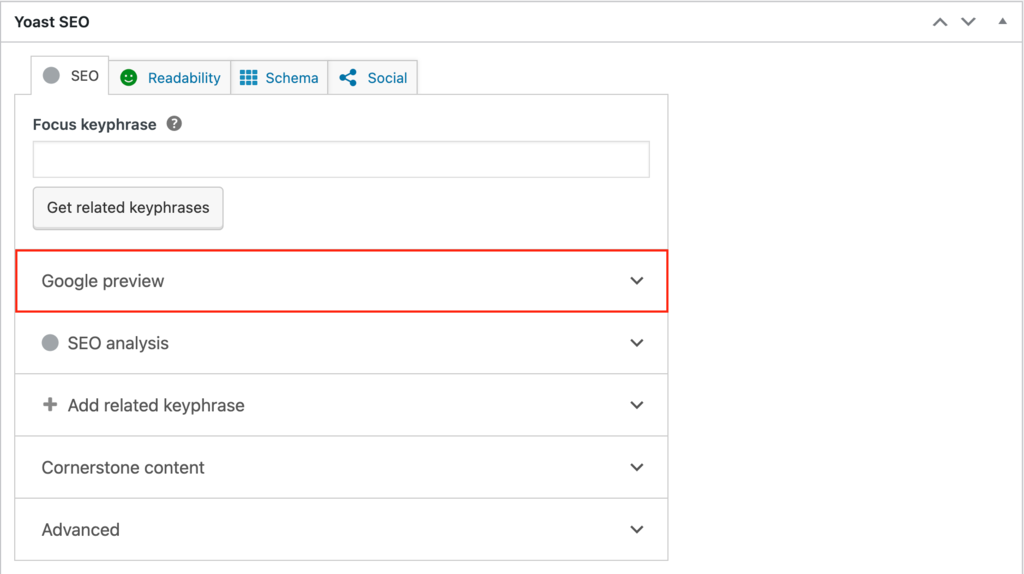
- You’ll see the SEO title meta box – this is where you should type in your meta title. We recommend less than 55 characters to prevent the name from being abruptly cut. A bar underneath will be colored either orange or green, indicating how good your meta title is. Make sure that this bar is green.
 Alternatively, you can use the Insert variable function to include such variables as site title, title, primary category, and separator. This way, Yoast SEO will generate a meta title according to the arrangement of these variables.
- Finally, see how your meta title snippet appears in the Google Preview section.
Set a focus keyphrase using Yoast SEO
Setting up the focus keyphrase using Yoast SEO will allow the plugin to analyze your content based on the keyword you want to rank for. It will also provide you with suggestions to optimize the site content. Here’s how to achieve that:
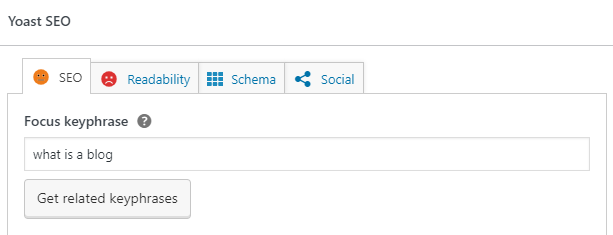
- Type your focus keyphrase in the focus keyphrase box at the top of the SEO tab. Choose a focus keyphrase that reflects the main topic and search intent of your content. Avoid creating multiple pages that target the same search intent without offering distinct value, as they may compete for similar search queries.
Once you have filled in the focus keyphrase, go to the SEO Analysis drop-down menu. You should see three sections – problems, improvements, and good results.
The good results section will show the correct SEO practices, while the problems and improvements are some aspects and suggestions you can work on to further improve SEO.
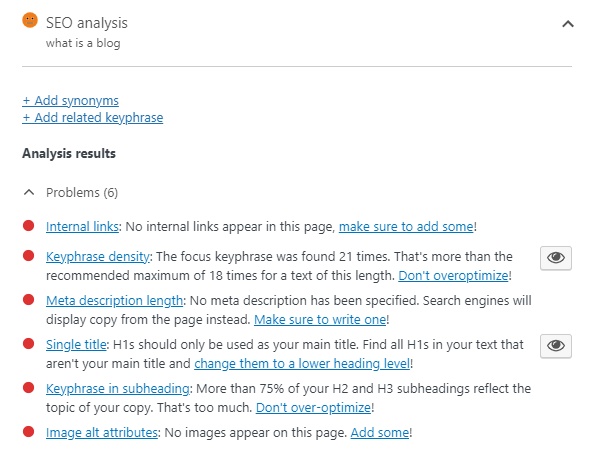
Review Yoast SEO’s recommendations and address any issues that are relevant to your content. A green indicator means you’ve met the plugin’s analysis criteria, but it doesn’t guarantee higher search rankings or overall content quality.
How to write an effective WordPress meta description?
A good WordPress meta description summarizes the page’s content, matches the user’s search intent, and gives people a reason to visit your website. Although meta descriptions aren’t a direct Google ranking factor, relevant descriptions can encourage clicks from search results.
Follow these best practices when writing your meta descriptions:
- Match search intent. Consider what users want to find when searching for your target keyword. Explain how your page answers their question or addresses their needs.
- Aim for 150–160 characters. Keep descriptions concise and informative. Google doesn’t enforce a fixed character limit, and snippets may be truncated depending on the available display space.
- Include your primary keyword naturally. Use the main keyword when it accurately describes your content. Avoid repeating keywords unnecessarily, as this makes descriptions harder to read.
- Highlight the page’s value. Mention what readers will learn, find, or accomplish. For example, a tutorial description can briefly explain the task and the steps involved.
- Use a call to action when relevant. Phrases like “Learn how,” “Explore,” or “Discover” can encourage users to visit your page, provided they fit naturally.
- Write unique descriptions for important pages. Avoid using identical descriptions across multiple pages. Each description should reflect the specific content of its page.
Keep in mind that Google may generate a different search snippet based on the user’s query, even when you’ve added a custom meta description.
Expert Tip
Align your meta description with your content to provide a preview for the audience and increase the chance of getting clicks. For a top list-based product review, list some products for a quick snapshot. For a how-to guide, briefly mention the steps you’ll cover.

Leonardus Nugraha
Content Specialist (WordPress Category)
Next step: Complete your WordPress SEO checklist
Now that you’ve added meta descriptions to your WordPress posts and pages, the next step is to optimize the other elements that influence your website’s search visibility.
Start by reviewing your SEO titles, headings, and internal links. Then, use our WordPress SEO checklist to work through other important tasks, including configuring your sitemap, improving website performance, and making sure search engines can access your content.
Following these steps will help you build on your meta description improvements and create a more complete SEO strategy for your WordPress website.
This article is a localized version of How to add meta description in WordPress, originally published in English.
All of the tutorial content on this website is subject to Hostinger's rigorous editorial standards and values.

Leo is a Content SEO Specialist and WordPress contributor. Armed with his experience as a WordPress Release Co-Lead and Documentation Team Representative, he loves sharing his knowledge to help people build successful websites. Follow him on LinkedIn.