WordPress tags: What they are and how to use them
Oct 15, 2026
/
By Dina F.
/
6 min Read

WordPress tags are optional labels that group blog posts by specific topics, helping visitors find related content. Unlike categories, tags don’t follow a hierarchy and can connect posts across different categories.
You can add tags directly in the WordPress editor, manage them from your dashboard, and use tag archive pages to organize related posts.
In this guide, you’ll learn how WordPress tags work, how to add and manage them, how many tags to use, and how to avoid common SEO issues.
WordPress categories vs. tags
Technically, both categories and tags are WordPress’ taxonomy. Simply speaking, they sort your posts.
However, we use tags and categories in a different way. Here are the main differences:
1. Broad vs. specific
The main distinction between categories and tags is the size of the topic they cover. Categories group broad topics of your posts while tags describe a specific detail in your content.
To make it clear, let’s say you have a food blog. The categories you have might be Culinary Trip, Recipes, Tips, and Food News.
If you have an article titled “The Most Delicious Beef Wellington Recipe”, this article will be included in the Recipes category. And you can use beef, Gordon Ramsay, pastry, etc. as the tags.
Pro Tip
It is not advisable to use something as “Gordon Ramsay” for your category since it doesn’t cover a broad topic of your blog posts. Unless you plan to create a lot of content discussing him, his name should stay a tag, not a category.
2. Necessary vs. optional
Another difference between these two taxonomies is how mandatory they are for your post. Categories are necessary, while tags are optional.
If you don’t assign a category to a post, WordPress will automatically set it to the default category, which is Uncategorized.
Pro Tip
The default category name can be changed by accessing Settings -> Writing from your dashboard admin.
3. Parent-child relationship vs. standalone entity
Lastly, categories and tags have different hierarchical relationships. Categories are hierarchical, which means that you can put child categories or subcategories to the parent.
For example: under the Recipes category, you can add more subcategories such as Appetizer, Main Course, Desserts, and Diet Food Plan.
Under Diet Food Plan, you can include other subcategories such as Low Carbs Food, Low Sugar Food, and Low Fat Food.
Unlike categories, tags don’t have a parent-child relationship. Each tag you add is a standalone item that has no level.
Besides the three differences above, categories and tags also produce a different permalink. You need to use a custom permalink structure to see the difference. Once the custom permalink structure is enabled, your base prefix will look like:
http://examplewebsite.com/category/recipes/
or
http://examplewebsite.com/tag/recipes/
Although these two taxonomies are different in their practical uses, you can use both of them in your posts. A post may have one or two categories and numerous tags.
How to add tags in WordPress
Adding tags to your post is fairly easy. However, remember that only posts can have tags.
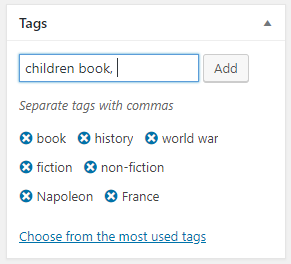
There are two ways to add tags in WordPress. First, you can add the tags for new blog posts. To do so, follow the steps below.
- From your WordPress dashboard, go to Posts → All Posts and open an existing post, or select Posts → Add New.
- Open the post settings sidebar and find the Tags section.
- Enter a relevant tag name and press Enter. You can also select an existing tag from the suggestions.
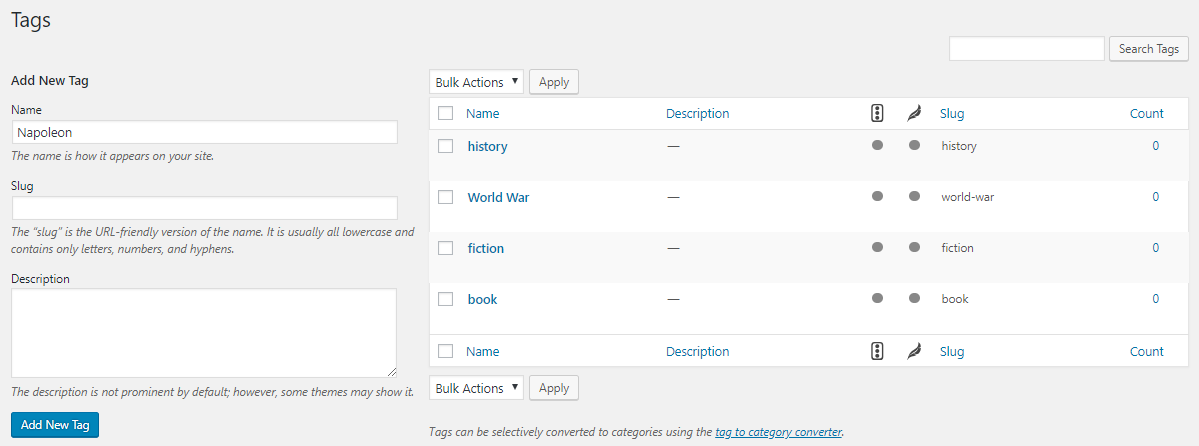
Alternatively, go to Posts → Tags to create a reusable tag and configure its name, slug, and description. However, creating a tag here doesn’t automatically assign it to a post.
- From your admin dashboard, go to Posts → Tags.
- Add a new tag on a name form.
- Add the slug for your tag.
How to edit, delete, and manage WordPress tags
You can manage existing tags from Posts → Tags in your WordPress dashboard. Hover over a tag and select Edit to change its name, slug, or description. To remove a tag, select Delete. Deleting a tag won’t delete the posts associated with it.
To delete multiple tags, select them from the list, choose Delete from the Bulk actions menu, and click Apply.
You can also add tags to multiple posts at once. Go to Posts → All Posts, select the posts you want to update, and choose Bulk actions → Edit. Enter the tags you want to add and click Update. The built-in bulk editor can add tags, but it can’t remove them from multiple posts.
WordPress doesn’t have a built-in option for merging tags. To consolidate duplicates, assign the preferred tag to the affected posts before deleting the old one. If the old tag archive has backlinks or receives traffic, consider redirecting its URL to the relevant replacement.
How to display a tag cloud in WordPress
Using tags in WordPress not only arranges your posts but also improves your site’s usability and accessibility. Therefore, tags create a better user experience.
Additionally, creating a tag cloud widget will improve your user experience even further.
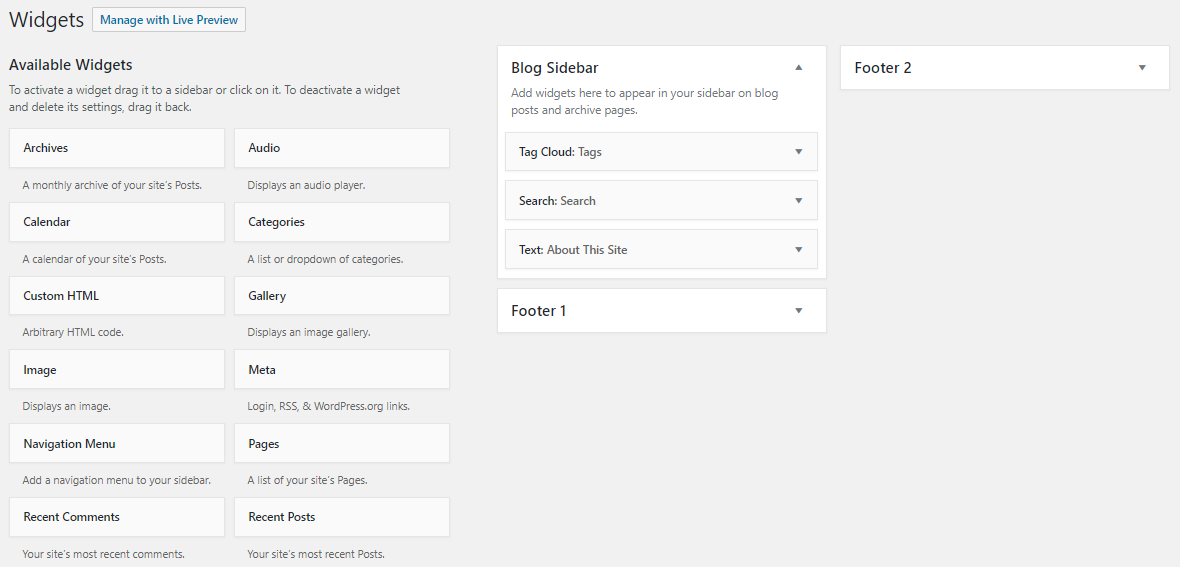
Tag cloud widget helps you to show all the tags you’ve set. With a 1-click action, visitors can skim through your tags and find their favorite subject.
Your website may be very common in your niche. But, with a tag cloud, visitors can find interesting subjects that they can’t find in your competitors’ sites quickly.
Moreover, you can also set a larger font size for more popular tags.
Follow these simple steps to add the tag cloud widget:
- From your admin dashboard, go to Appearance -> Widgets
- Find Tag Cloud widget and drag it to the widget area where you want to display it. Usually, it is located on the sidebar.
- Give it a title and how many tags you want to include in the cloud. The maximum number is 75.
Adding a tag cloud in WordPress 5.9 involves different steps as this WordPress version uses a block editor for the entire site:
- Go to Appearance -> Editor to open the site editor.
- Hover over the area where you want to add the tag cloud, then click the Plus (+) icon to add a new block.
- Search for tag cloud and click on the block to add it to the page.

- The tag cloud will appear on the page.
- To modify it, open the block settings by clicking on the tag cloud block and clicking the Settings icon at the top-right corner of the screen.

Toggle the Show post counts to show the tag count on the page and adjust the Number of tags slider to set the maximum number of tags to display.
Sometimes, you may want to exclude a tag from the tag cloud regardless of its popularity. To exclude a tag, follow the steps below:
- Go to Posts -> Tags. Choose the tag you want to exclude.
- Now, take a closer look to your browser’s address bar and find the Tag ID. It is a number following tag_ID=.
- Copy the tag ID and go back to Customizer -> Widgets.
- Click on the tag cloud widget settings and open its settings.
- Paste the tag ID into the Exclude box.
- Click Save button to finish the process.
Pro Tip
While tags create a better user experience organizing your content, optimized hosting further improves your website by ensuring faster loading times and better overall performance. Consider opting for a managed WordPress host while choosing a platform for your new project.
WordPress tag best practices for SEO
WordPress tags can improve navigation by connecting posts about related topics, but adding more tags doesn’t automatically improve search rankings. Poorly organized tags can also create overlapping or low-value archive pages.
How many tags should you use in WordPress?
There isn’t a universal SEO limit for how many tags a WordPress post should have. Instead of aiming for a specific number, use only tags that accurately describe the content and help readers discover related posts.
A few relevant, reusable tags are generally better than dozens of highly specific tags that apply to only one post.
How to name and organize WordPress tags
Choose descriptive, consistent tag names that can be reused across multiple posts.
For example, avoid creating separate tags for “recipe” and “recipes” when they cover the same topic. Similarly, using identical names for categories and tags can create overlapping archive pages.
Before adding a new tag, check whether an existing one already covers the topic. This keeps your site’s navigation organized and helps prevent unnecessary tag archive pages.

Should you noindex WordPress tag archive pages?
Not all WordPress tag archive pages need to be noindexed. If a tag archive groups useful, related posts and helps visitors discover content, keeping it indexable may benefit your website.
However, consider noindexing tag archives that contain very little content or significantly overlap with other archive pages.
If you decide to noindex all tag archives using Yoast SEO:
- Open your WordPress dashboard and navigate to Yoast SEO → Settings.
- Under Categories & tags, select Tags.
- Disable the option to show tags in search results.
- Click Save changes.
This setting prevents your tag archive pages from appearing in supported search engines’ results once the noindex directive is processed. It doesn’t prevent search engines from crawling those pages.
Review your tag archives before applying this setting across your entire website.
Next steps: Review your WordPress tags
Start by reviewing the tags you’ve already created in Posts → Tags. Look for duplicate names, unused tags, and tags that group unrelated content. Consolidate overlapping tags and make sure your most useful ones connect multiple relevant posts.
Next, review your tag archive pages to see whether they help visitors discover related content. Keep your naming consistent as you publish new posts, and only create new tags when they serve a clear purpose.
A well-organized tagging system makes your content easier to navigate and maintain as your website grows.
This article is a localized version of WordPress tags: What they are and how to use them, originally published in English.
All of the tutorial content on this website is subject to Hostinger's rigorous editorial standards and values.

Dina has years of experience in digital marketing and website creation. She seeks to help Hostinger users learn more about internet marketing and WordPress. When she's not pounding away at her keyboard, she enjoys taking short city tours and exploring new local food places.