How to create a website with your phone using Hostinger mobile editor
May 21, 2026
/
Matleena S.
/
9 min Read
Creating a website with your phone in India is a fast and cost-effective way to launch an online presence without hiring a developer or using a laptop. With Hostinger Website Builder’s mobile editor, you can design, customize, and publish a fully responsive website directly from your smartphone, even on a basic Android device.
You can build different types of websites using your phone, including business websites for restaurants, tuition centers, and local services, portfolios for freelancers, or small eCommerce stores to sell products online. The process involves choosing a template, customizing your design, adding content, optimizing it for search engines, and publishing your site with a custom domain.
This guide explains what a mobile editor is, how to create a website step by step using your phone, and how to optimize it for mobile users in India with practical design and performance tips.
What is a mobile editor?
A mobile editor is a website builder that lets you create, edit, and manage a website directly on your smartphone, without a computer.
In India, mobile editors are widely used by beginners and small business owners who rely on their phones for most online activities. For example, a café owner in Mumbai can create a menu website, a tuition teacher in Delhi can launch a class landing page, and a freelancer can build a portfolio, all from a mobile device.
Earlier, mobile website builders had limited functionality, forcing users to switch to desktops for design or publishing. Hostinger Website Builder’s mobile editor removes this limitation by offering a full-featured, browser-based editing experience that works smoothly even on entry-level Android phones.
This means you can build, customize, and publish a professional website on the go without investing in a laptop or hiring a developer, saving anywhere from ₹5,000 to ₹50,000 in initial setup costs.
Hostinger’s mobile editor features
Hostinger Website Builder’s mobile editor includes all the essential tools you need to create a website from your phone, even if you’re building your first site for a small business or side hustle in India.
- Sidebar editing menu. Access all editing tools from a single sidebar without switching tabs. This makes it easier to manage your website on smaller mobile screens and speeds up the building process on smartphones.
- Drag-and-drop interface. Move, resize, and edit elements visually without coding. You can quickly set up pages for a tuition center, local shop, or freelance service without technical skills.
- On-page editing. Add text, images, videos, contact forms, and maps directly to your pages. For example, you can embed your shop location or add a WhatsApp contact button for customer inquiries.
- Customization. Adjust colors, fonts, buttons, and animations to match your brand. This helps small businesses create a professional look without hiring a designer, saving ₹5,000–₹20,000 in design costs.
- Navigation management. Create and organize pages, menus, and dropdowns easily. This is useful for structuring service pages, pricing sections, or product categories.
- AI Writer. Generate SEO-friendly content tailored to your business. You can create location-based content like “home bakery in Bangalore” or “math tuition classes in Pune” to attract local customers.
- Analytics. Track visitor behavior and traffic trends directly from your phone. You can monitor which pages perform best and identify visitors from specific cities or regions in India to improve your content strategy.
Build a website fast and get online with ease
How to build a website with a phone
Creating a website with your mobile phone is straightforward with Hostinger Website Builder’s mobile editor. Here’s how to do it in eight easy steps:
1. Log In to hPanel
To start with smartphone web development, log in to hPanel.
If you’re not yet a user, purchase any of our web hosting or cloud hosting plans to get started, then follow these steps:
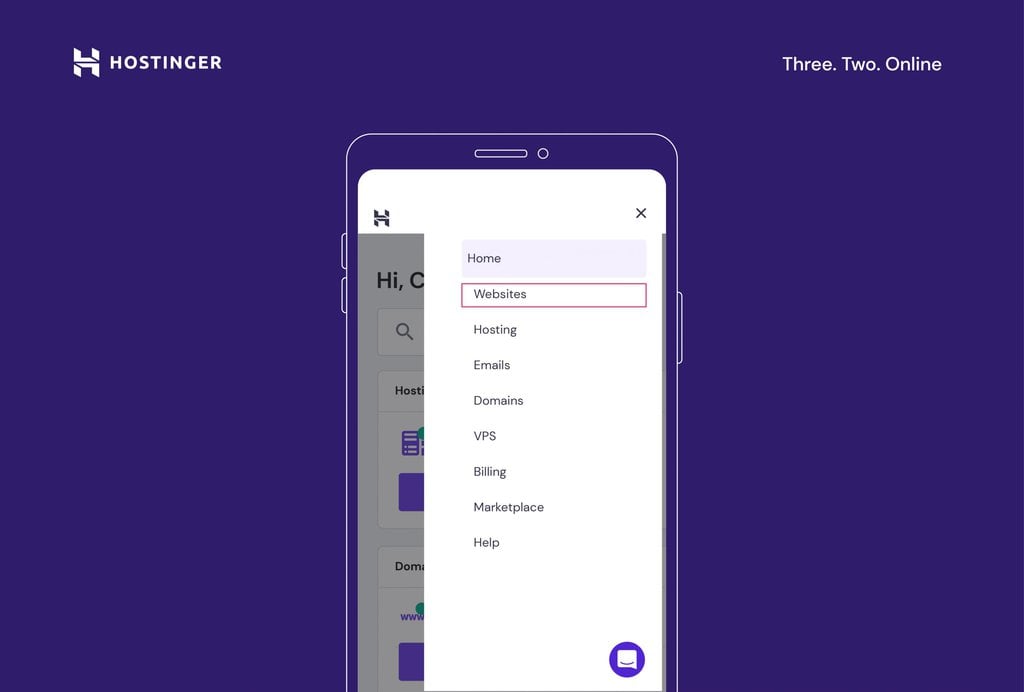
- Navigate to the three lines at the top-right corner and tap Websites.
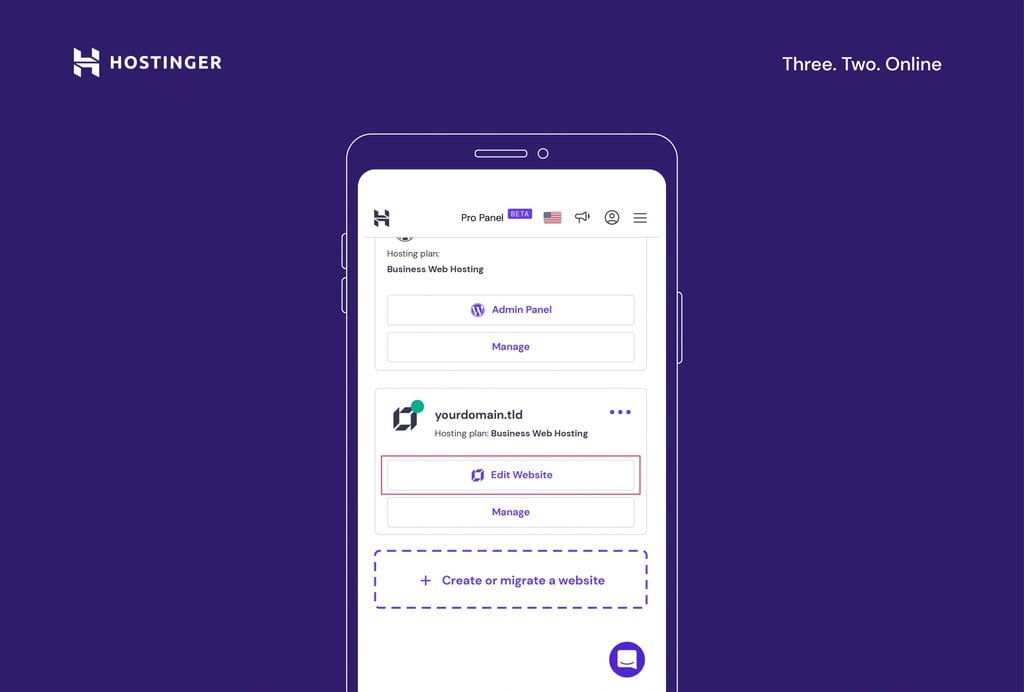
- Select the website you want to work on. To edit a website built with Hostinger Website Builder, hit Edit Website below its domain name.
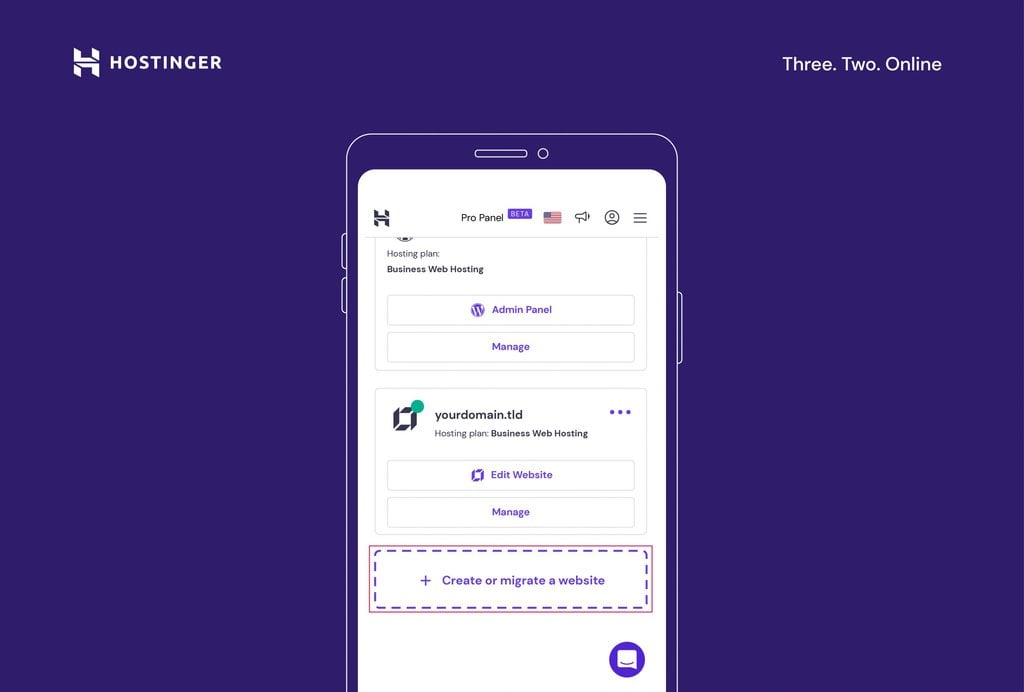
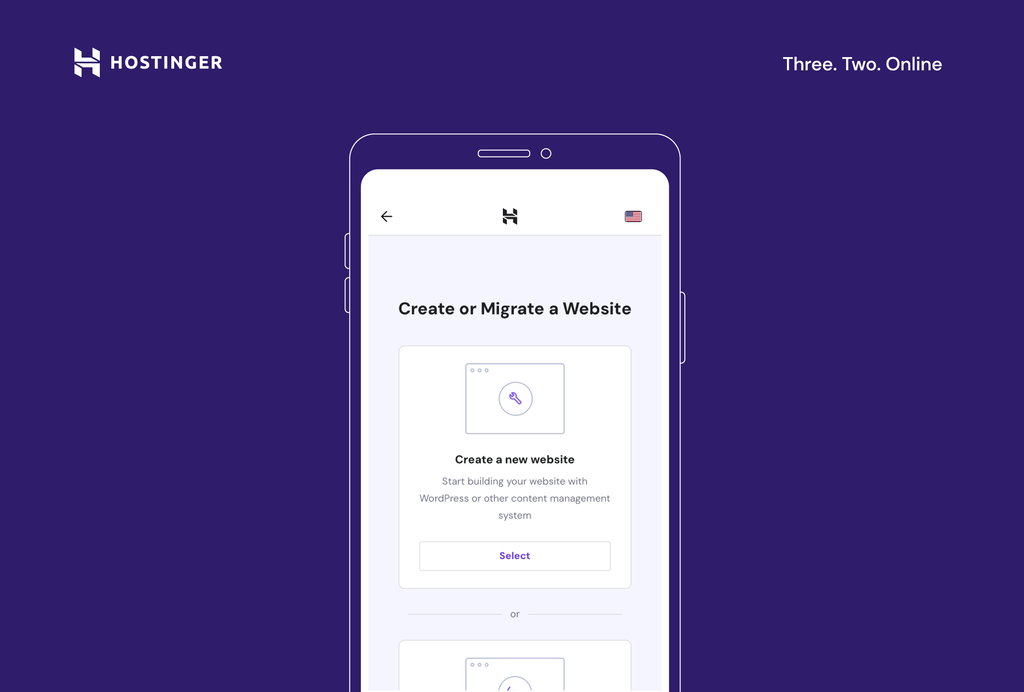
- If you don’t have a website yet, tap Create or migrate a website.
- Select Create a new website.
- Choose Hostinger Website Builder as your mobile web builder app.
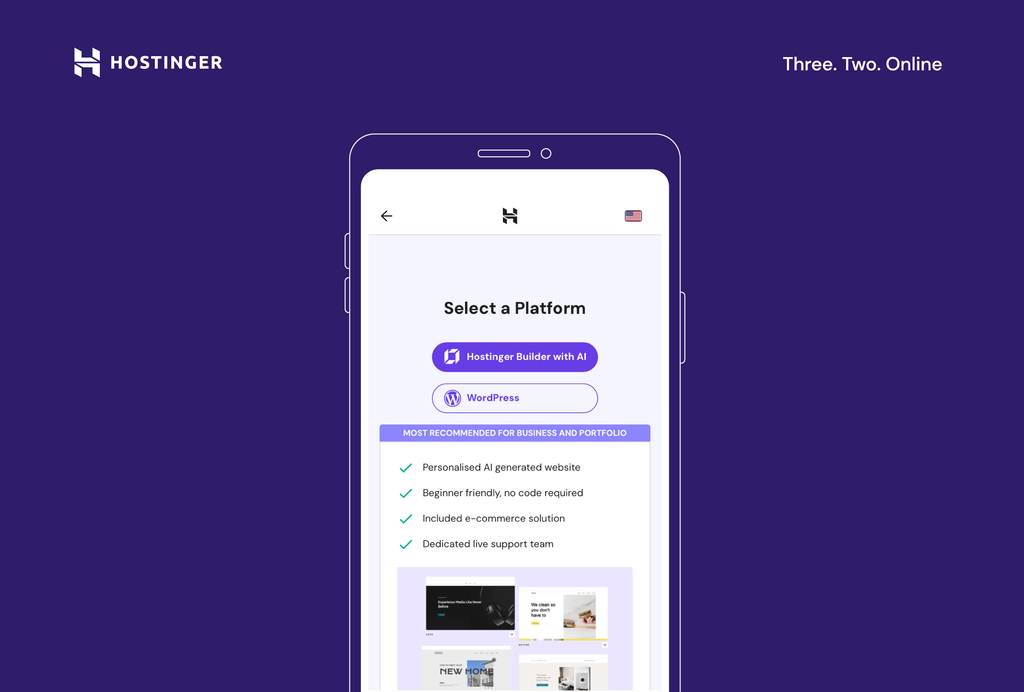
Important! To launch a website, you need a domain name. After choosing your site-building tool, you will be prompted to select an existing domain or register a new one. It is also possible to start building your website from your phone without a domain name. This means you need to publish your site with a temporary domain. You can connect a custom domain later.
2. Choose a template
The next step in creating your site is choosing a template. Hostinger offers a wide range of designer-made templates that are both mobile-friendly and customizable. You can either select a new template or use AI to generate a custom website template based on your needs.
Selecting a designer-made template
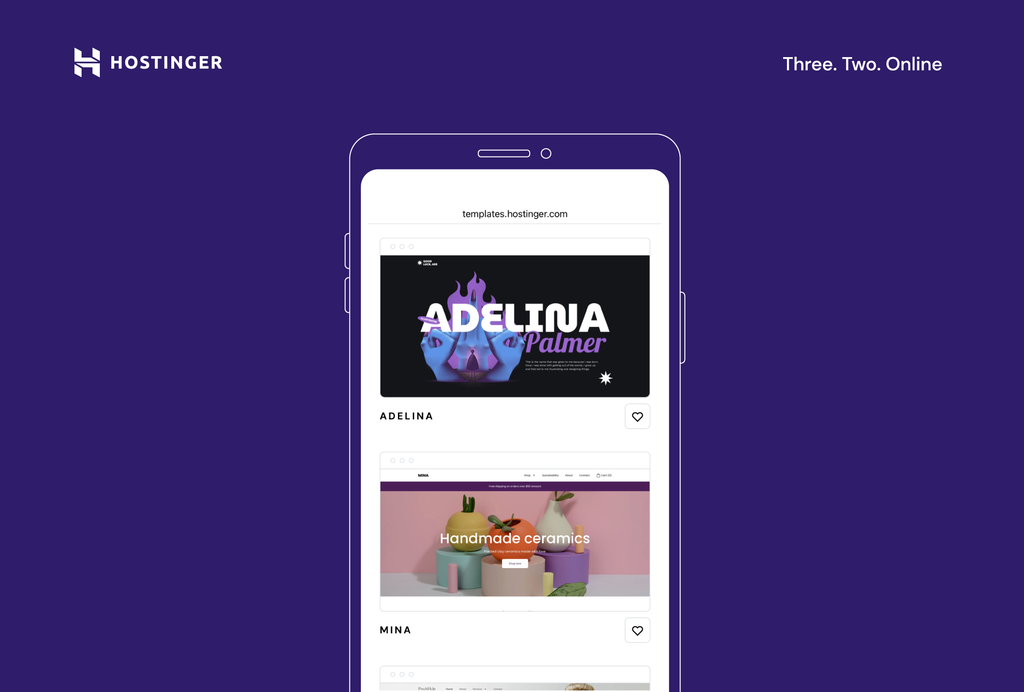
- On the interface, choose the pre-made template option.
- Browse all the available templates by scrolling through the Templates page.

- Use the search bar to look for templates for particular niches or keywords, or view all the template categories by expanding the All templates sub-menu.

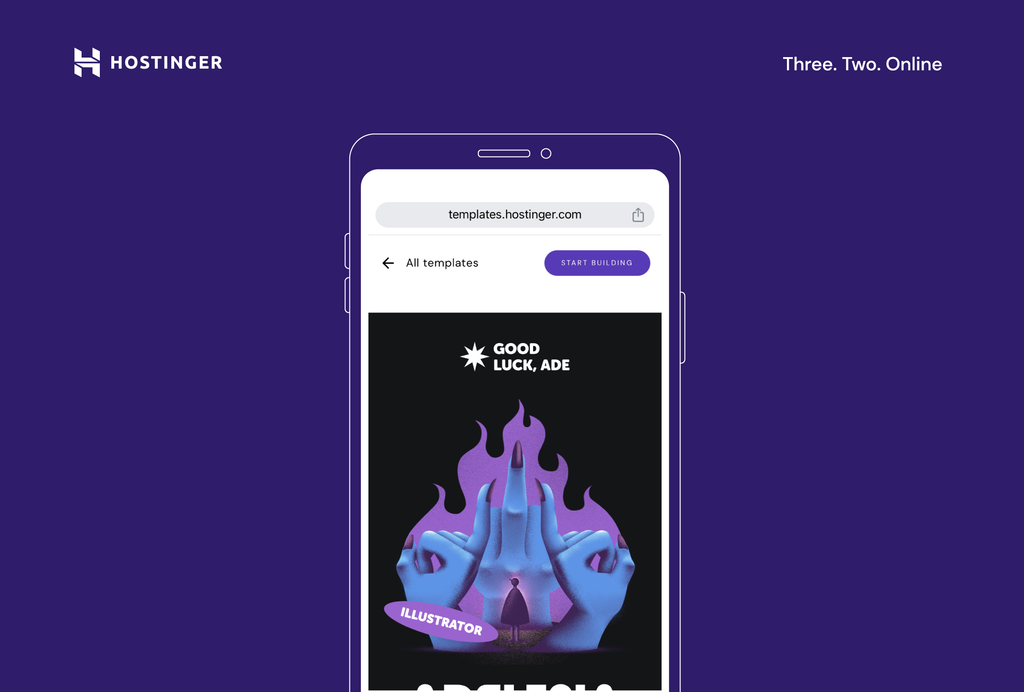
- Tap on the template to see how it looks in action. If you want to save it for later, use the heart icon to mark a template as a favorite. This way, they’ll appear in the Favorites section at the top of the page, under the All templates sub-menu.
- Once you find a template that fits your site idea, tap Start building.
Using AI to create a template
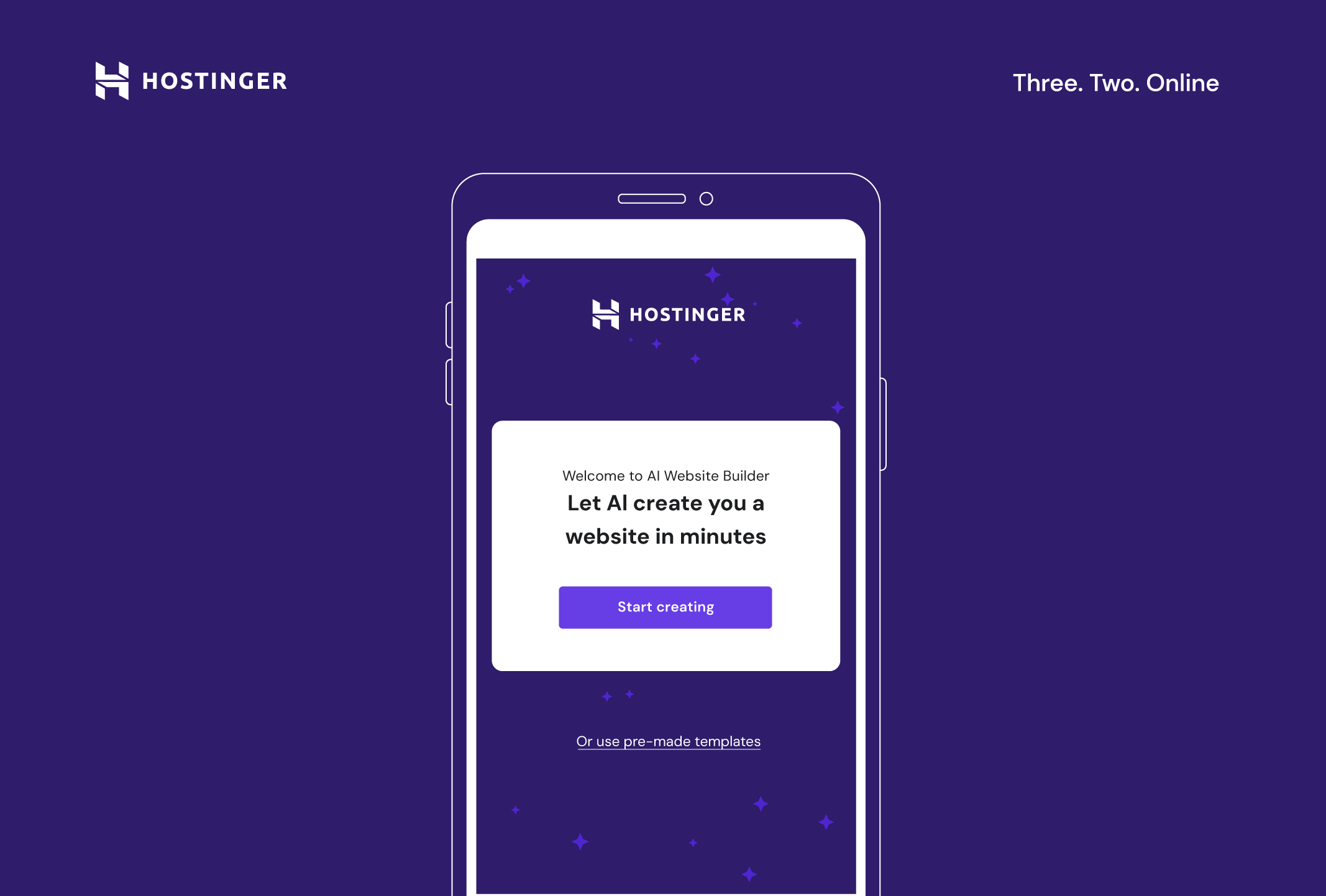
- On the Hostinger Website Builder screen, tap Start creating.
- Begin by answering three simple questions about your site. Be as descriptive as possible – the progress bar will help you understand if you need to provide more information.
- Once you finish filling out the form, tap Create a website and the AI will create your personalized website template along with relevant content, like copy and images.
3. Add and arrange elements on the page
The next step is to add and arrange elements on your pages. The editor enables you to drag and drop text boxes, images, and buttons to the desired place on the page. You can also resize and move them around to fit the design.
Additionally, it’s possible to duplicate, copy, and paste elements and move them forward and backward in the design to add more depth to your site. These tools help you create a responsive website that provides a high-quality experience on multiple devices.
Here’s how you can add elements to your website from your phone:
- Select a page section you want to edit. Access the main editing menu by tapping the icon in the bottom-right corner (round icon with three squares and a + sign).
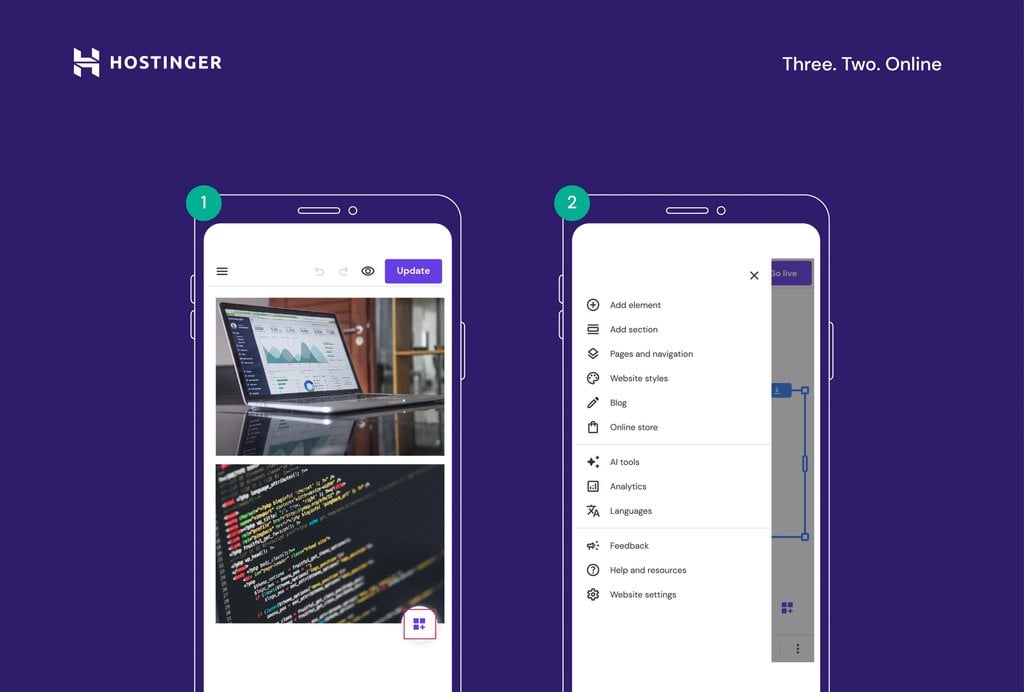
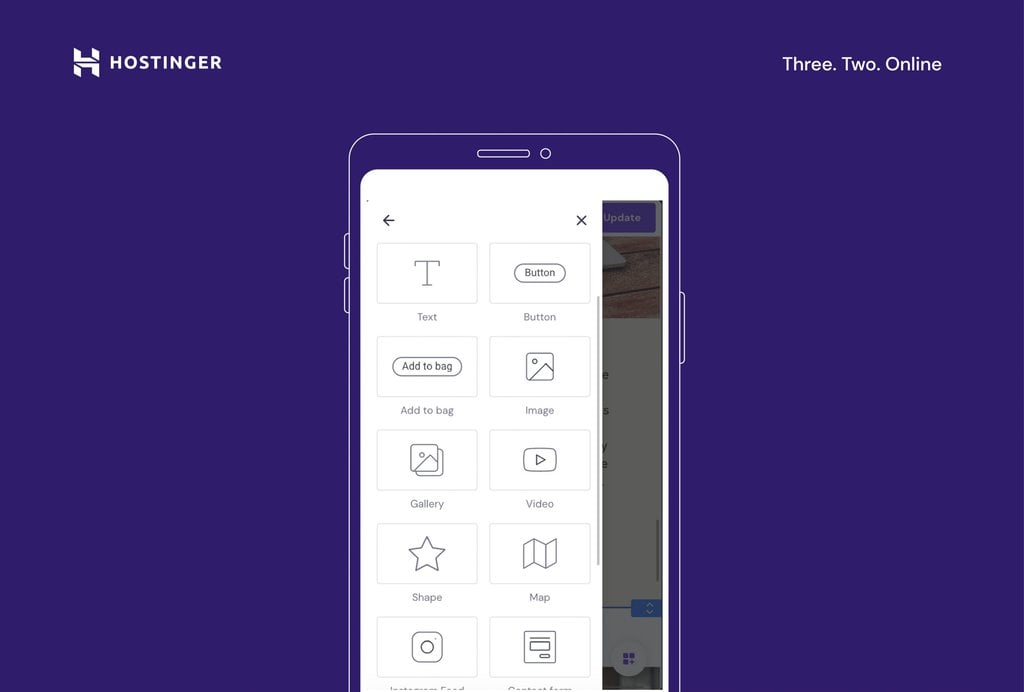
- Tap Add element to insert new elements to the page, like text boxes, buttons and icons, images, videos, contact forms, and maps.
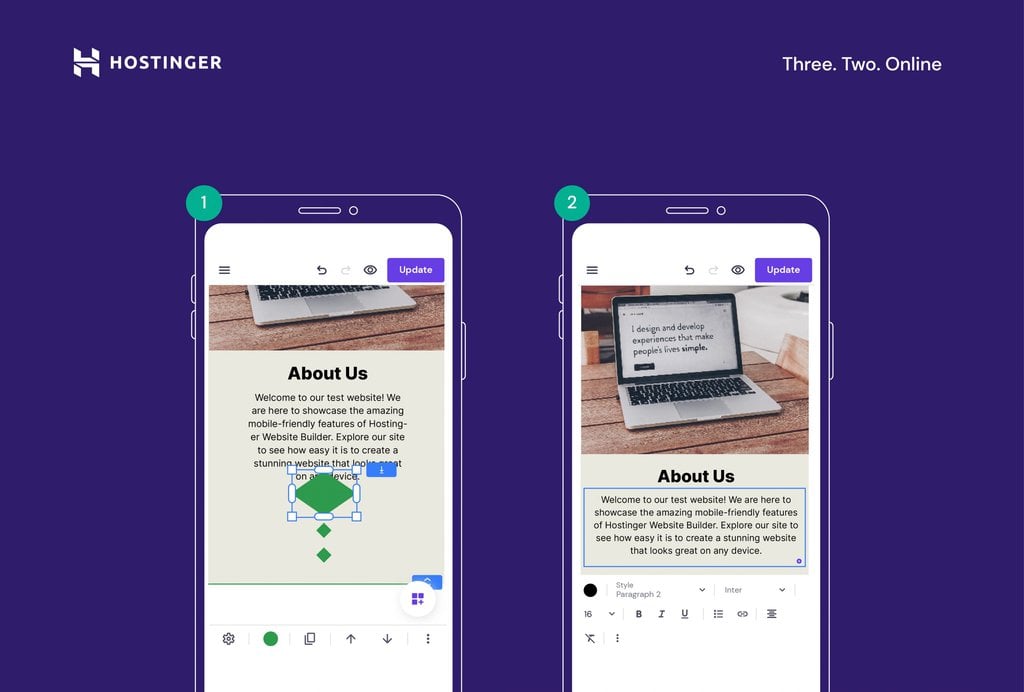
- Move, resize, and edit website elements and sections as needed. Drag and drop them into place or use the arrow buttons in the bottom menu bar.
4. Customize the Website Design
Once you’ve added the necessary elements to the pages, it’s time to customize the design of your site. The mobile editor offers a variety of customization tools that let you change colors, fonts, and animations.
Start editing your site’s design by following these steps:
- Open the main editing menu by tapping the icon in the bottom-right corner (round icon with three squares and a + sign).
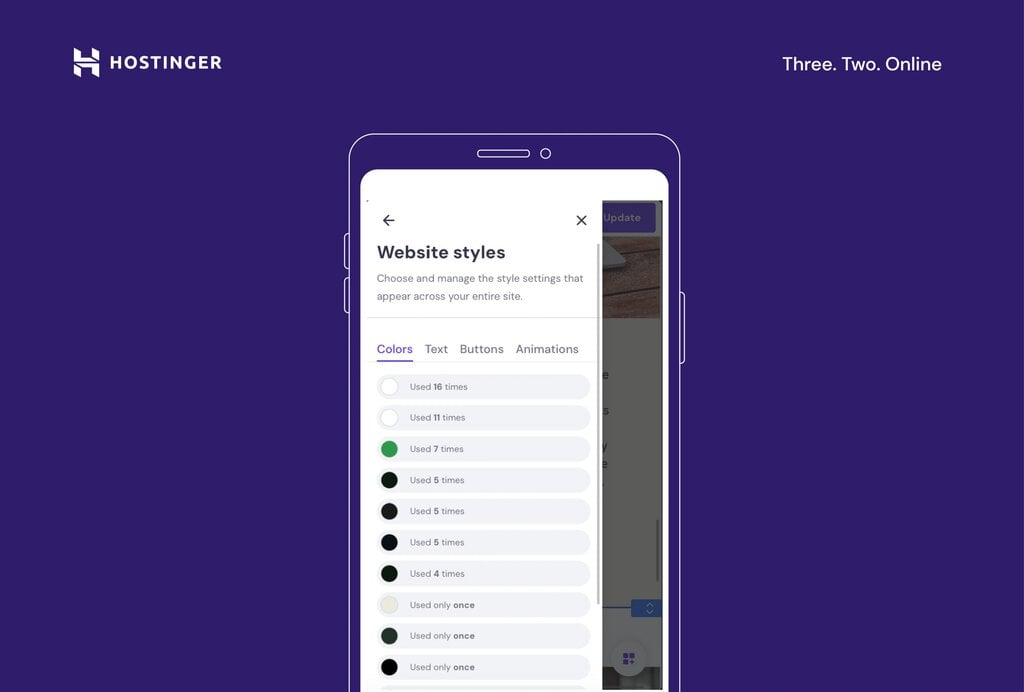
- Navigate to the Website styles menu and make changes to your website’s design and style.
Pro Tip
In the Colors tab, you can see how many times different colors have been used in your overall web design. The Website Styles menu also lets you change the headline and body copy typography and define a primary button and element animation style. That way, you can ensure the site reflects your brand accurately.
5. Create and manage site navigation
Managing your site’s navigation is crucial for a good user experience.
Hostinger Website Builder’s mobile editor makes adding or removing pages, creating dropdown menus, and adding links to your social media profiles easy:
- Head to the main editing menu by tapping the icon in the bottom-right corner.
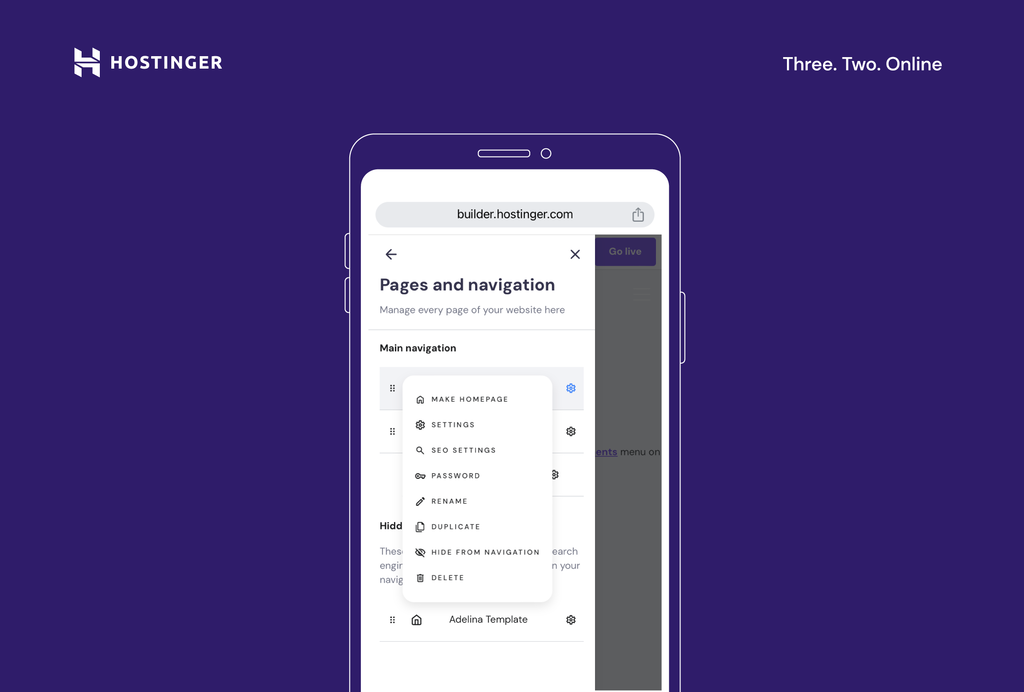
- Select Pages and navigation to manage your website pages, menus, and overall site navigation.
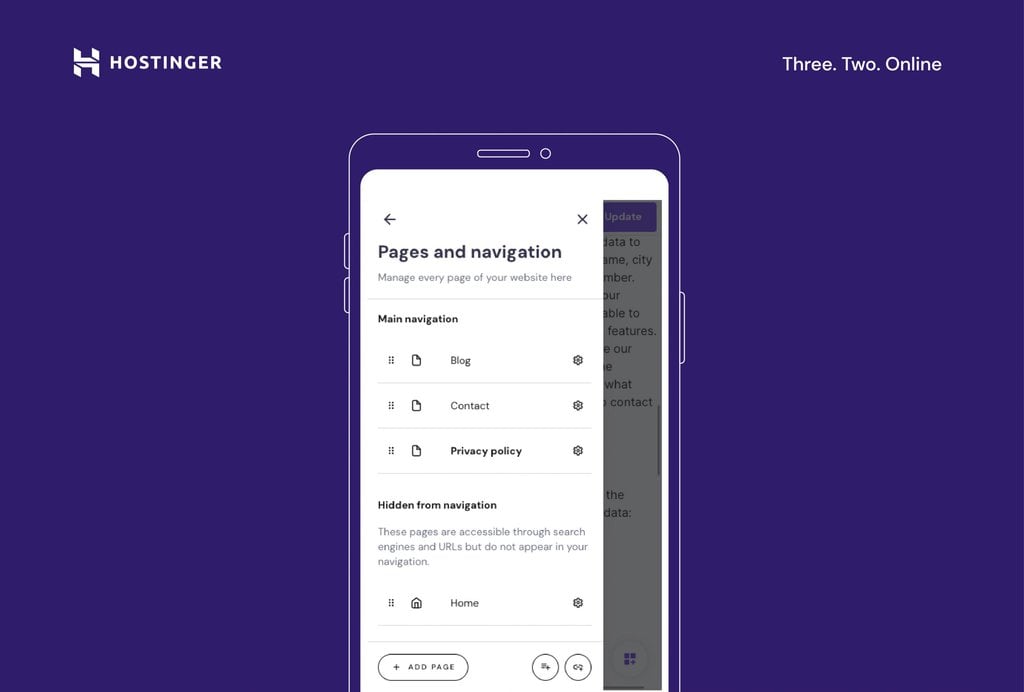
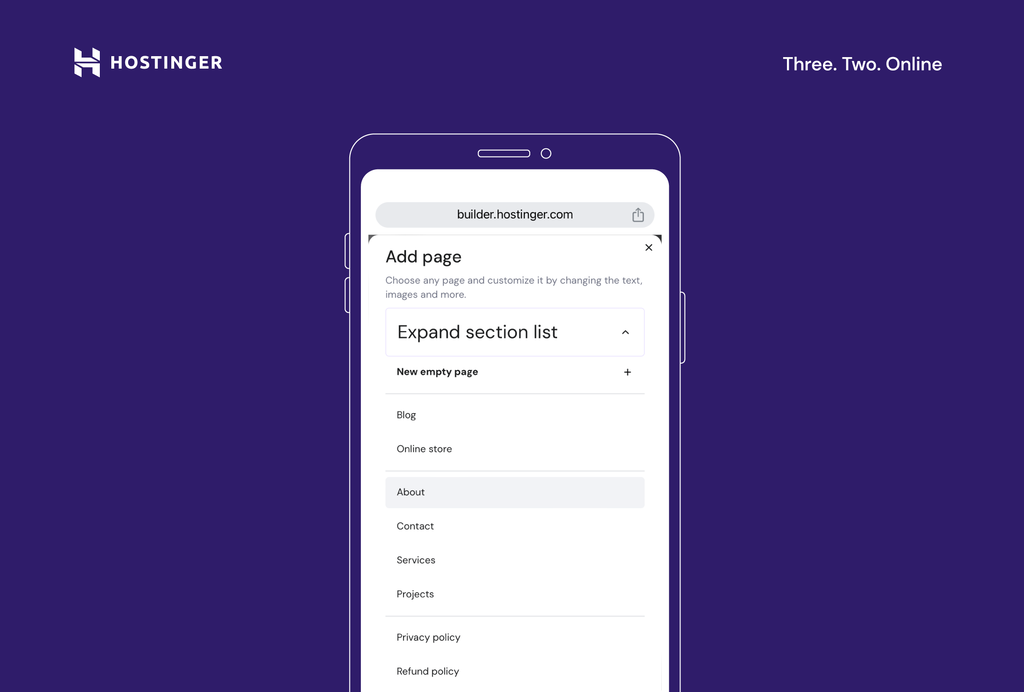
- Add new pages to your site by tapping the Add page button. You can select from existing page templates or create a new empty page.
- Edit the order in which your pages appear in the site menu by dragging the pages listed under Main navigation to the desired order.
- You can also create dropdown menus by clicking on the round icon with three lines and a + sign.
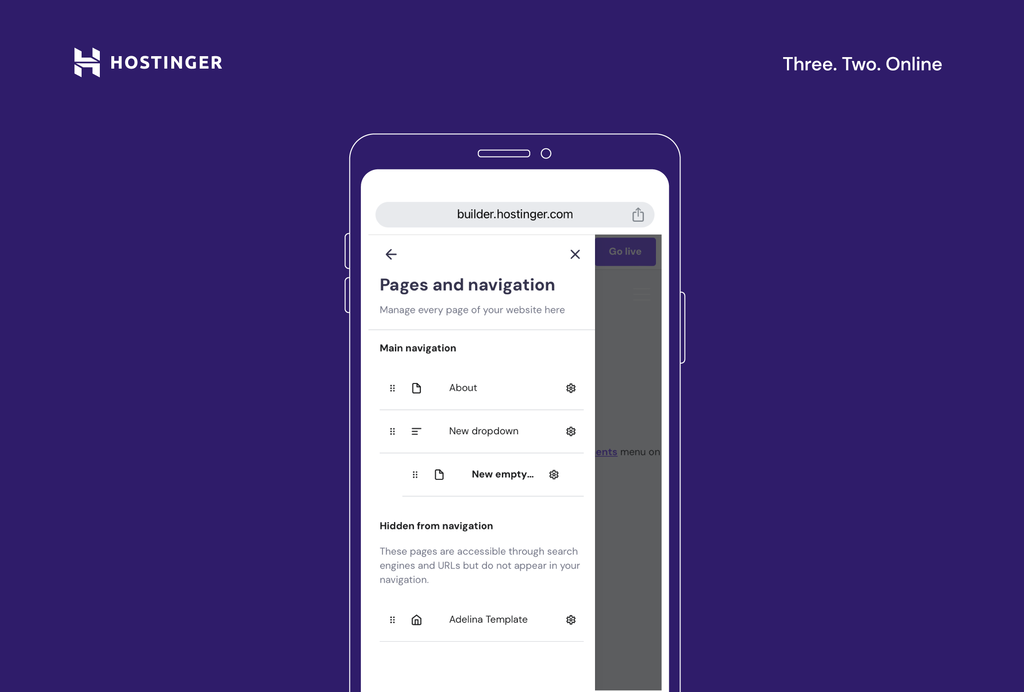
- Manage settings, like SEO metadata and page URLs, by clicking on the gear icon. You can also add passwords to restrict page access.
6. Write and optimize website content with AI Writer
Creating and optimizing content is a central part of any website. Hostinger’s AI Writer tool helps you create SEO-friendly content that ranks well on search engines.
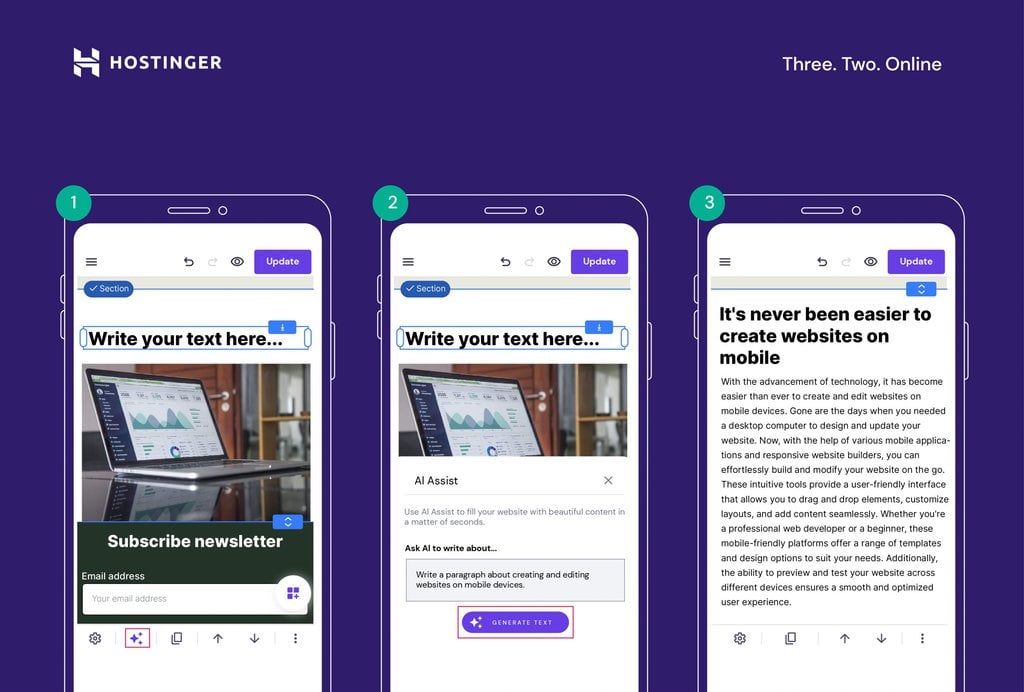
Start using the AI Writer to generate SEO-friendly content with minimal effort. On the editing interface of the mobile builder, add a text box element or select an existing one.
Then, tap the AI icon, describe your content, and generate the text. Note that your description needs to be at least 10 characters long, so be as detailed as possible to get the best results.
7. Add a blog
Creating a blog for your site helps enhance content marketing and brand-building efforts. With Hostinger’s mobile editor, adding a blog to your website from your phone is easy:
- Open the main editing menu by tapping the icon in the bottom-right corner. Then, select Blog.
- Tap Start a blog.
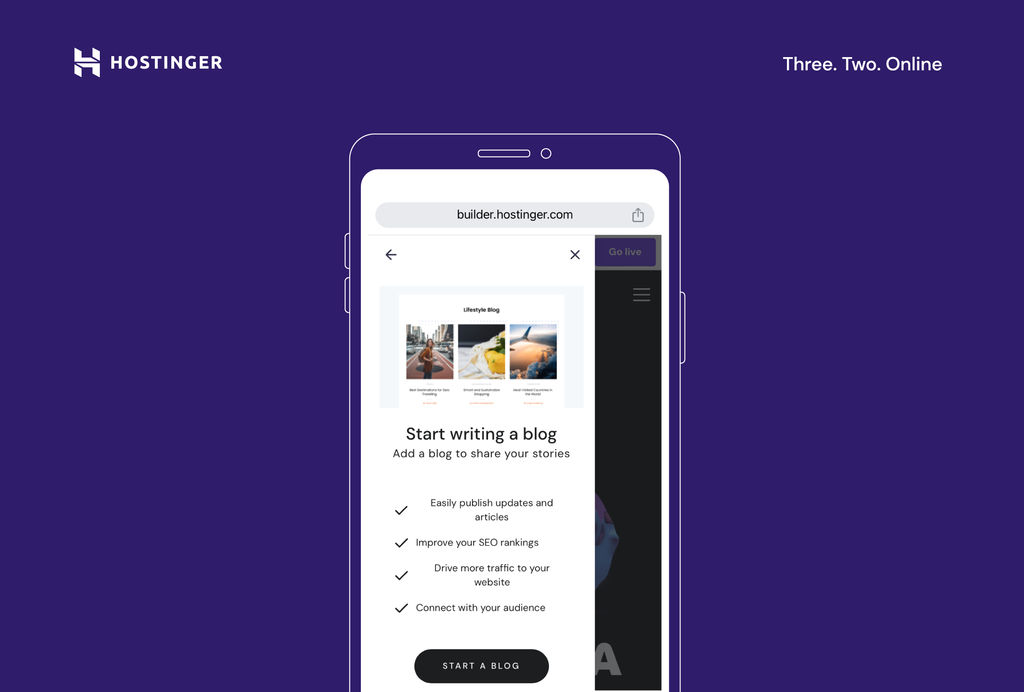
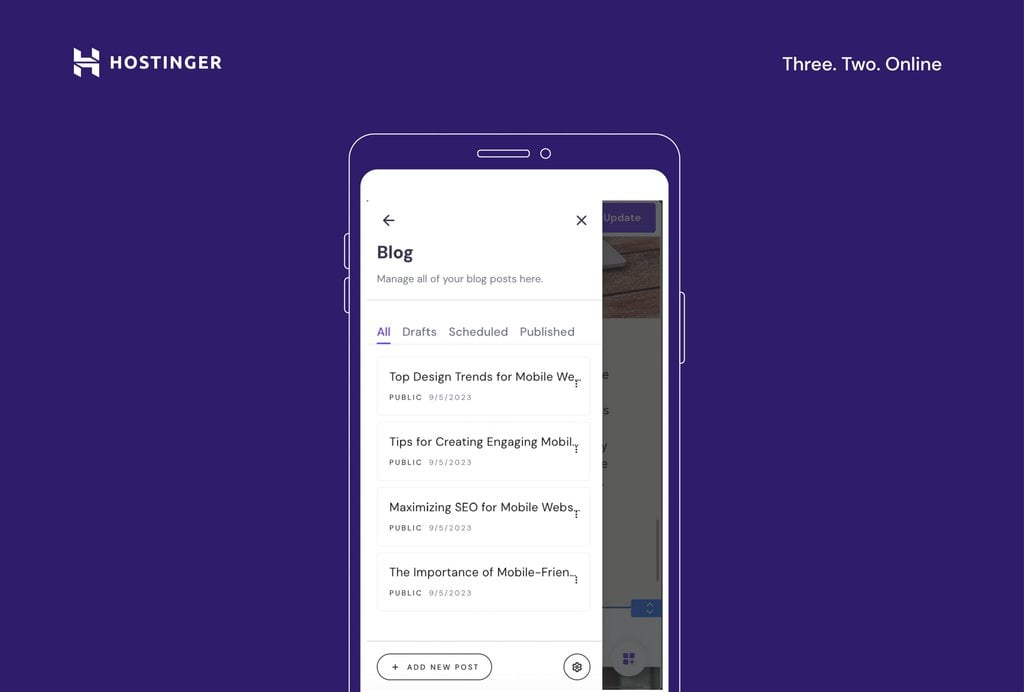
- The builder will generate a couple of empty blog posts in the Blog editor. Each mobile blog post acts as a new page on your site, so you can edit them like any other page.
- Click on the three dots to manage the post settings and edit, duplicate, delete, or unpublish a blog post.
8. Publish your site
Once you’re done editing, it’s time to publish your site. Use the preview function to check your site’s appearance before publishing. Simply tap the circular eye icon in the top menu bar.
When you are happy with the results, click the Go live button in the top-right corner.
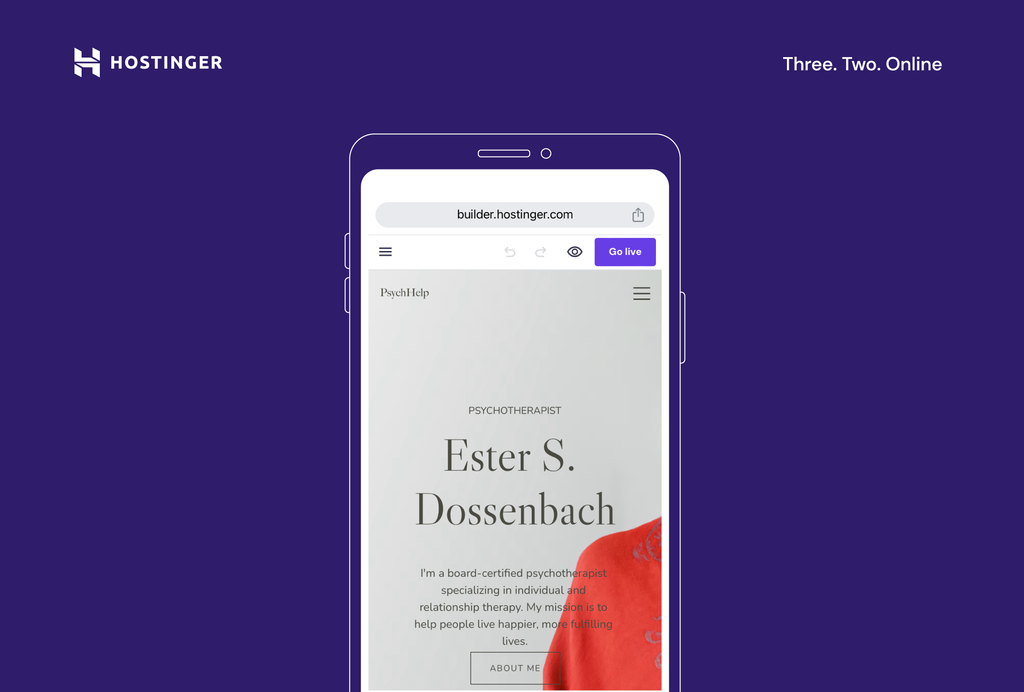
You can publish your site with a temporary domain or connect a custom domain for a professional result.
If you need to make any changes to your site even after it’s live, simply open the editor and adjust the page. When you finish with the updates, tap Update in the top-right corner to make the changes live.
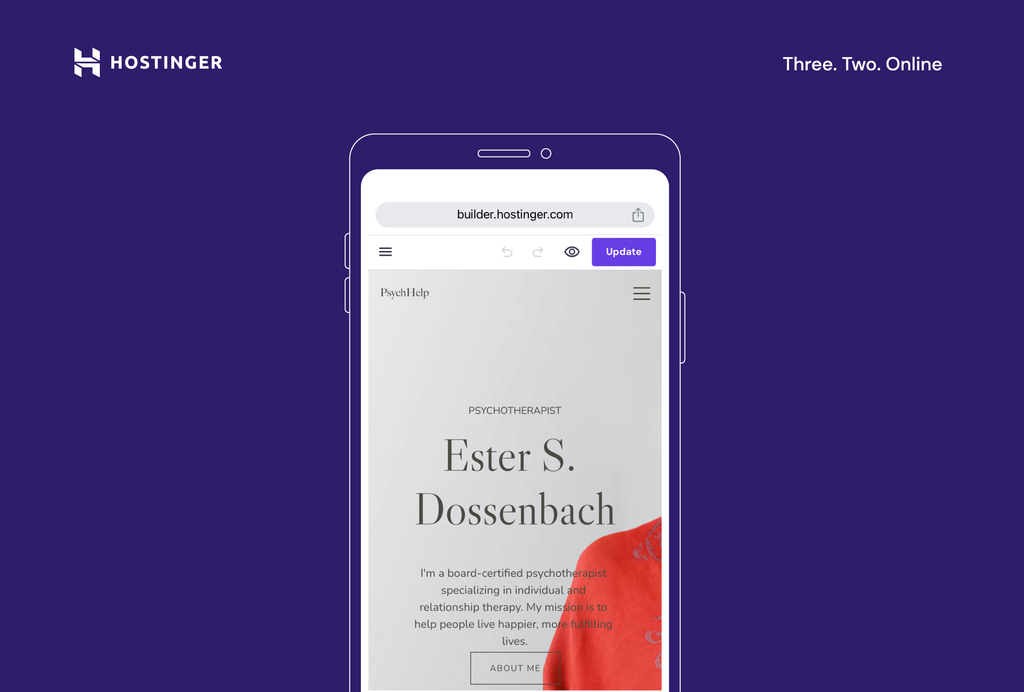
Note that while you are editing your site, any changes are saved automatically.
Once you have followed these steps and are familiar with the process of building a website using a mobile editor, you might also want to understand the expected timeframe for creating your own website. Knowing this will help you plan your project more effectively and set realistic goals.
Mobile web design tips for a successful mobile website
Creating a successful mobile website involves more than just adding elements and publishing your site. Good mobile-friendly website design is, first and foremost, user-centric.
Follow these best web design practices to ensure your site is both user and mobile-friendly:
Prioritize mobile website UI/UX
A mobile-responsive design ensures your website looks good and functions well on all devices. This is particularly important given the increasing number of mobile internet users who browse the web on their mobile devices.
Optimize images and media
Large images and media files can slow down your site, leading to a poor user experience. Compress your images and videos to improve load times. Faster website speed can boost user browsing times and contribute positively to search engine rankings.
Use readable fonts and adequate font sizes
Readability is paramount when it comes to mobile website optimization. Choose legible fonts for smaller screens and maintain a font size that doesn’t require users to pinch and zoom. This results in a smoother navigation experience on mobile devices.
Create concise navigation menus
Simplicity is key in mobile-first website design. This is especially true when designing navigation menus for mobile websites. Use clear and straightforward labels for each menu item, as a cluttered menu can overwhelm users. Consider implementing a hamburger menu format for mobile navigation to conserve valuable screen space.
Ensure touch-friendly interactions
The interactive elements on your site, such as buttons and links, should be designed with touchscreens in mind. They should be easy to tap and not placed too closely together to prevent unintended clicks. This design approach guarantees a smooth experience for users navigating your site on touchscreen devices.
Optimize for portrait mode
Most users hold their phones vertically, so optimizing your site for portrait mode is essential. Ensure that your site’s layout and content are well-aligned with this orientation. This results in a comfortable and intuitive browsing experience, catering to how users naturally hold their phones.
Minimize intrusive pop-ups
On smaller screens, pop-ups can disrupt the user experience. Avoid such elements to maintain a seamless browsing experience on your site. By reducing interruptions, you can extend user engagement and decrease the bounce rate, keeping visitors on your site longer.
Frequently update and maintain
Keep your website fresh by inspecting it for broken links, outdated content, and compatibility issues. A site that’s consistently updated and well-maintained not only contributes to a positive user experience but also reinforces a favorable brand image.
Conclusion
Creating a website with your phone gives you a fast and affordable way to start online, especially if you are launching a small business, freelance service, or personal brand in India. You avoid upfront developer costs and can go live within a few hours using only your smartphone.
To get real results from your website, focus on three next steps. First, connect a custom domain like a .in domain to build trust with local customers. Second, optimize your pages for local search terms such as your city or service (for example, “photographer in Hyderabad” or “home bakery in Delhi”). Third, add clear contact options like WhatsApp, call buttons, or Google Maps to convert visitors into enquiries.
Once your site is live, you can expand it by adding a blog, service pages, or an online store to start generating traffic and sales. A mobile-built website is not limited in growth — you can scale it into a full business website as your needs increase.
If you want to grow further, focus on learning how to attract visitors, sell products online, and improve your website’s visibility in search engines.
All of the tutorial content on this website is subject to Hostinger's rigorous editorial standards and values.

Matleena is a seasoned Content Writer with 5 years of content marketing experience. She has a particular interest in emerging digital marketing trends, website building, and AI. In her free time, Matleena enjoys cups of good coffee, tends to her balcony garden, and studies Japanese. Follow her on LinkedIn


Comments
December 17 2023
I need a shoping website
December 19 2023
Certainly! We can help you get started. If you have specific questions or need assistance, feel free to contact our Customer Success Team and we'll guide you through the process ?
June 26 2024
I love this article. Just guide me develope a website of choice
June 27 2024
Hi there! We're glad you enjoyed the article. If you're looking to develop a website of your choice, we recommend starting with a clear plan for your site's purpose and content. From there, you can explore our tutorials and tools to help you build and customize your website step by step ;)
November 04 2024
I want to create sample website with code on my phone I can it?
November 06 2024
The Hostinger Website Builder is designed for ease of use with a drag-and-drop interface, but it doesn’t directly support custom coding (HTML, CSS, or JavaScript). If you want to create a sample website with your own code on your phone, you can use a hosting plan other than the Website Builder plan ;)