How to change password in Linux + password management tips
Apr 28, 2025
/
Aris S.
/
7 min Read
System administrators often create multiple accounts to manage a Linux virtual private server (VPS). While this feature makes collaboration simpler and more efficient, it can present security risks if you don’t manage the accounts properly.
That’s why changing user passwords in Linux is so important for VPS security. It prevents cyber criminals from accessing your server and stealing sensitive data if they obtain an account’s old credentials.
This tutorial will guide you on how to change passwords in Linux via Terminal. We will also explore best practices for managing account credentials in your VPS to ensure optimal system security.
Prerequisites
You need to open Terminal to change user accounts’ passwords on your Linux machine. The steps to do so differ depending on your operating system type.
In the desktop version, access it by pressing Ctrl + Alt + T. If you are using a Linux server, connect via SSH with your local computer’s Terminal or an application like PuTTY.
Alternatively, Hostinger VPS hosting users can access their server directly from a web browser with hPanel’s Browser terminal feature. Regardless of the tool, use the credentials from the SSH access tab on your VPS overview menu.

Important! You will log in as root by default. If you want to change your own password, switch to your account user using the su command.
How to change your own Linux password
To change your current account’s password, run the following command:
passwd
Terminal will ask for your old password to confirm the request. Once authenticated, you should see a prompt to enter the new credential.

Enter your new password twice. If the change is successful, Terminal will print the “Password updated successfully” message. Otherwise, an error will show up, indicating the issue.
How to change another user’s password as a root user
The root has the highest privilege in Linux and can modify any settings, including other accounts’ passwords. To do so, switch to the account using this command:
su root
Enter your root password. Then, specify the username after the passwd command like the following:
passwd username
As an example, if you want to change JohnDoe’s user password, use this command:
passwd JohnDoe
Since you logged in as root, you don’t need to enter the account’s password. If the process is successful, your command-line interface will print a confirmation message.
In addition to root, you can use another superuser account to change Linux passwords by adding the sudo prefix to your command:
sudo passwd JohnDoe
Important! As a superuser, you’re also able to change the root password. Therefore, ensure you properly manage sudo users to restrict administrative access and maintain optimal system security.
How to reset a forgotten password using root
You can use a superuser or the root user to reset forgotten passwords. However, it might not work if your system uses the lightweight directory access protocol (LDAP) since you must enter the old credentials.
To get around this, you can directly edit the user password in /etc/shadow – the file containing information about all account credentials in your system. Here’s how to do so:
- Open the file by running this command:
nano /etc/shadow
- You will see encrypted passwords after the usernames within the first two colons. Find an account whose credentials you remember.
- Highlight the encrypted password by pressing Shift + arrow key. Hit Alt + 6 to copy it.
- Using the arrow keys, navigate to the account for which you want to change the password. Highlight the password and hit Delete.
- Paste the copied password by pressing Ctrl + U.
- Press Cltr + X, Y, and Enter to save the changes.
- Once you return to the main shell, enter the following command to change the user’s password:
passwd username
- Enter the temporary password you copied and fill in the new one.
That’s it! If you encounter a permission issue, ensure you are logged in as root. Remember to add sudo before your commands if you’re using superuser access.
How to reset the root password
You can only reset the root password with sudo. If you don’t have access to a superuser account, recover the credential via Linux’s GNU unified bootloader (GRUB), which you can access by holding Esc or Shift during the system boot.
Since the steps to recover the root password differ depending on the Linux distro, check your operating system documentation to learn more about them. For example, the Red Hat Enterprise Linux page explains how to do so for CentOS and AlmaLinux.
However, some VPS hosting providers don’t let users access the GRUB menu or reboot the system themselves. In this case, contact customer support for assistance.
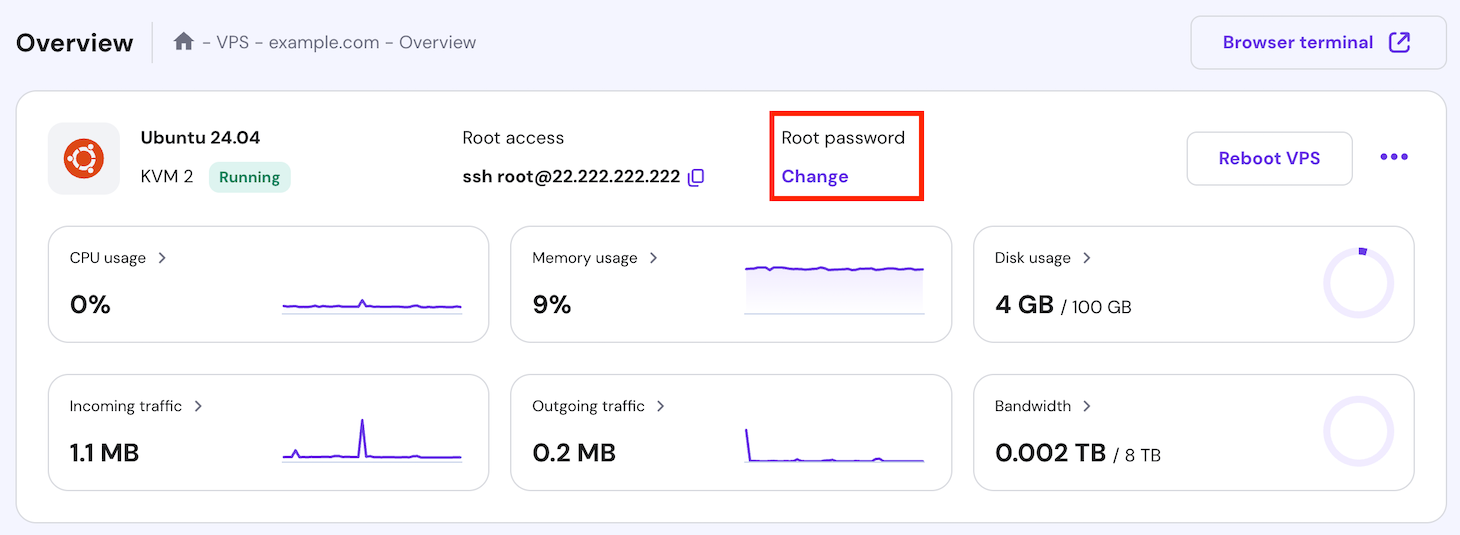
At Hostinger, however, you can reset the root password easily via the hPanel. To do so, navigate to the VPS overview menu and click Change on the Root password. Enter the new credentials and hit Save.
Linux password management best practices
In this section, we’ll review some best practices to improve your Linux system’s password security.
Use strong passwords
A strong password is significantly more difficult to guess, improving your system’s security. Hackers can crack 11-character lowercase passwords in minutes, while ones with letters and symbols take years.
Here are several tips to make a stronger password:
- Add symbols and numbers – extra characters increase possible password combinations, making it more difficult to guess.
- Make the password longer – your password should ideally be 12 characters or longer.
- Always use a unique password – a shared credential enables cyber criminals to exploit a single entry point to access different accounts and platforms.
- Use a passphrase – a passphrase is a combination of words that are easy to remember but difficult to guess, like ILikeLinuxForThePenguin.
- Use password management software – a tool like NordPass helps generate and store randomized passwords in an encrypted location.
Pro Tip
According to experts, password length is more important for security than the complexity.
Set up a secure password policy
Linux doesn’t have a password requirement by default, which can be unsafe since users might set up an easy-to-guess credential. To minimize security risks, enforce a policy in your Linux system.
You can do so by adding the libpam-pwquality setting to the common-password file. Here are the steps:
- Update your system repository using this command:
sudo apt update
- Install the libpam-pwquality module by running:
sudo apt install libpam-pwquality
- Open the common-password file using nano:
sudo nano /etc/pam.d/common-password
- Add the following line at the top of the file. We will explain the setting parameters in a bit.
password requisite pam_pwquality.so minlen=12 ucredit=1 lcredit=1 ocredit=1 minclass=3
- Add a hash (#) symbol at the beginning of each line to disable other settings.
- Press Ctrl + X, Y, and Enter to save the changes.
Now, check if the policy works by changing a user’s password. If the new one doesn’t fit the requirement, Terminal will print a warning message.

You can adjust the password policy by changing the parameters after pam_pwquality.so. Here are some of the settings and what they define:
- minlen – the number of characters in a password.
- ucredit – the number of uppercase letters.
- lcredit – the number of lowercase letters.
- ocredit – the number of other characters.
- minclass – the number of minimum character types.
Check the pam_pwquality module documentation to learn more about other parameters and their values.
Audit users and passwords
The /etc/shadow file contains information about all users in your system and their password status. For example, you can identify the latest modification and expiration date.
Regularly check this file to ensure all users update their passwords periodically. Also, review if unauthorized accounts exist in your system, which hackers often create to infiltrate your server.
While you can inspect each entry manually, it will take a lot of time if your system has many users. To simplify the process, back up the file at a specific time and compare it with the current version.
Use a cron job to schedule an automatic backup. Then, check for discrepancies using the diff command like so:
sudo diff /etc/shadow_old /etc/shadow
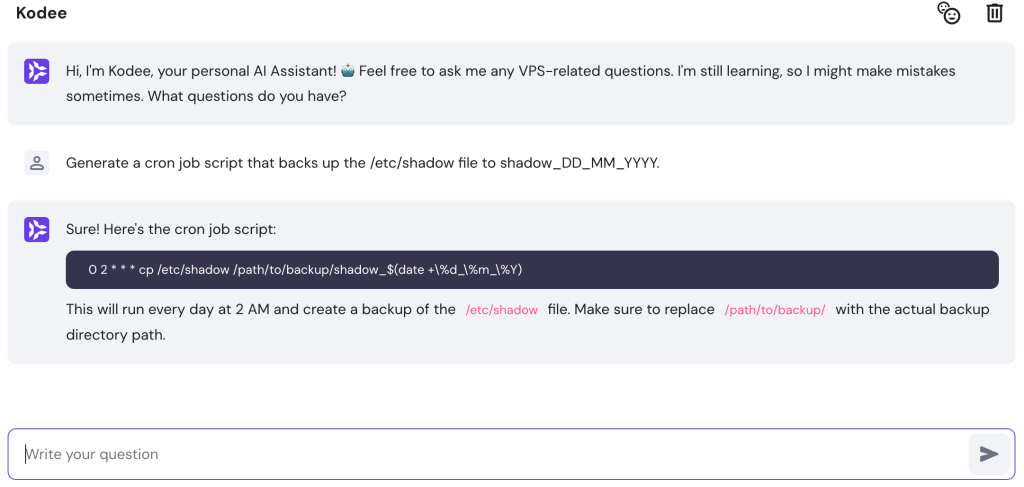
If you need help with writing the automation script, use the Kodee AI assistant to generate it. Simply enter, “Generate a cron job script that backs up the /etc/shadow file to shadow_DD_MM_YYYY.”
We also recommend checking the activity logs for failed login attempts. To do so, print the content of the auth.log file using the cat command:
sudo cat /var/log/auth.log
To check specific activity or user logs, pass the output to the grep command. For example, we will print entries containing the phrase “could not identify password” using the following:
sudo cat /var/log/auth.log | grep "could not identify password"
Set password expiration
Updating account credentials frequently is crucial for maintaining optimal system security. You can force a password change for a specific user by setting the expiration date to zero using chage or passwd –expire commands.
The chage utility lets you change a user’s password expiration date, the modification date, and the maximum interval between the renewal. Before modifying these details, let’s review them using this command. Replace username with the account you want to check:
sudo chage -l username
To change the expiration deadline, use the -E option instead, followed by the date in YYYY-MM-DD format
sudo chage -E 2025-12-20 username
Meanwhile, use the -M option to set how many days are left until the password expires. For example, the following will force the user to update their credentials after 90 days:
sudo chage -M 90 username
Important! Since Linux commands are case-sensitive, be careful when using -M and -m. To check other options, run chage –help.
Alternatively, you can force a password reset using the passwd command:
sudo passwd --expire username
In the next login, the user will see a warning that their password has expired and they need to enter a new one. You can also do so with chage by setting the remaining days to zero:
Sudo chage -M 0
Conclusion
Regularly changing your Linux system’s account password helps minimize security risks. To do so, log in to your machine via Terminal or SSH, run the passwd command, and enter the new credential.
You can also change another user’s password by logging in as root or a superuser and specifying their account name after the passwd command. It is also useful for resetting forgotten credentials.
To improve security, your new password should be at least 12 characters long and contain combinations of symbols. We recommend setting up a password policy in your Linux distribution by adding the rule into the /etc/pam.d/common-password file.
Regularly check all accounts and their passwords by opening the /etc/shadow file to ensure the credentials are up to date. You can force Linux users to update theirs using the passwd –E or chage -M 0 command.
How to change password in Linux FAQ
How do I change my password in Linux?
To change your current user’s password, use the passwd command. Enter the current password and then the new one. To change another user’s password, log in as root and run the same command followed by their username. You can also use superuser with sudo.
Can I change my password from the Linux Terminal?
Yes, you can change your account’s password by entering Terminal and running the passwd command. You can access it on the desktop version by pressing Ctrl + Alt + T. For servers, connect via SSH using PuTTY or Hostinger Browser terminal.
Are there any requirements for creating a new password in Linux?
By default, Linux distributions don’t have any requirement for a new password. However, you can set up a rule by adding the libpam-pwquality module to the common-password file. You can adjust settings like minimum characters and symbols.
All of the tutorial content on this website is subject to Hostinger's rigorous editorial standards and values.

Aris is a Content Writer specializing in Linux and WordPress development. He has a passion for networking, front-end web development, and server administration. By combining his IT and writing experience, Aris creates content that helps people easily understand complex technical topics to start their online journey. Follow him on LinkedIn.

