16 best VS Code extensions for developers
Sep 15, 2026
/
By Alma
/
13 min Read
The best VS Code extensions for developers include GitHub Copilot for AI-assisted coding, Prettier for formatting, ESLint for code quality, GitLens for Git workflows, and language-specific tools such as Python and Tailwind CSS IntelliSense. The right combination depends on your stack and workflow, but the most useful extensions generally improve coding speed, debugging, testing, version control, remote development, and deployment.
VS Code, or Visual Studio Code, is a free code editor from Microsoft. It already includes a terminal, Git tools, debugging, and basic support for several programming languages. Extensions add more specialized tools when your project or workflow needs them.
That means you can keep VS Code focused instead of loading it with tools you won’t use. Fewer unnecessary extensions also mean less chance of duplicate warnings, formatting conflicts, or background processes slowing the editor down.
Some extensions are project-specific, so only install them where they’re useful. Python tools belong in Python projects, while Tailwind CSS IntelliSense only helps in projects that use Tailwind CSS.
Extension | Best for | Main benefit | Main drawback |
GitHub Copilot | General AI coding | Suggests, explains, and edits code | Generated code still needs review |
Cline | Agent-based AI coding | Can edit files, run commands, and work through multi-step coding tasks | Model usage can add cost |
Prettier | Formatting | Keeps supported files consistently formatted | Doesn’t check code quality |
ESLint | JavaScript and TypeScript | Finds code that breaks project rules | Needs project configuration |
Error Lens | Errors and warnings | Shows diagnostic messages beside the affected code | Can make noisy files harder to read |
Microsoft Edge Tools | Browser inspection | Brings Edge DevTools into VS Code | Requires Microsoft Edge |
Playwright Test for VS Code | Browser testing | Runs and debugs repeatable browser tests | Requires Playwright in the project |
Postman | API development | Sends and tests API requests from VS Code | Requires a Postman account |
GitLens | Git history | Adds detailed line, file, and commit history | Built-in Git covers everyday Git tasks |
GitHub Pull Requests | Code reviews | Reviews GitHub pull requests inside VS Code | Limited to GitHub and GitHub Enterprise |
Remote – SSH | Remote development | Lets you work directly on another computer | The remote computer needs to be trusted |
Dev Containers | Repeatable development environments | Keeps project tools and software versions together | Requires Docker or a compatible setup |
Container Tools | Container development | Builds, runs, inspects, and debugs containers | Doesn’t handle the full deployment process |
Hostinger Connector | Hostinger deployment and management | Connects AI coding assistants to Hostinger services | Requires the relevant Hostinger service |
Python | Python development | Adds Python editing, debugging, testing, and environment tools | Unnecessary outside Python projects |
Tailwind CSS IntelliSense | Tailwind CSS | Suggests and checks Tailwind classes | Only useful in Tailwind projects |
Best AI coding extensions
The best AI coding extensions help you write, understand, edit, and test code with AI inside VS Code.
1. GitHub Copilot
Best for: General AI-assisted coding.
Pricing: Free; paid individual plans start at $10 per user/month.
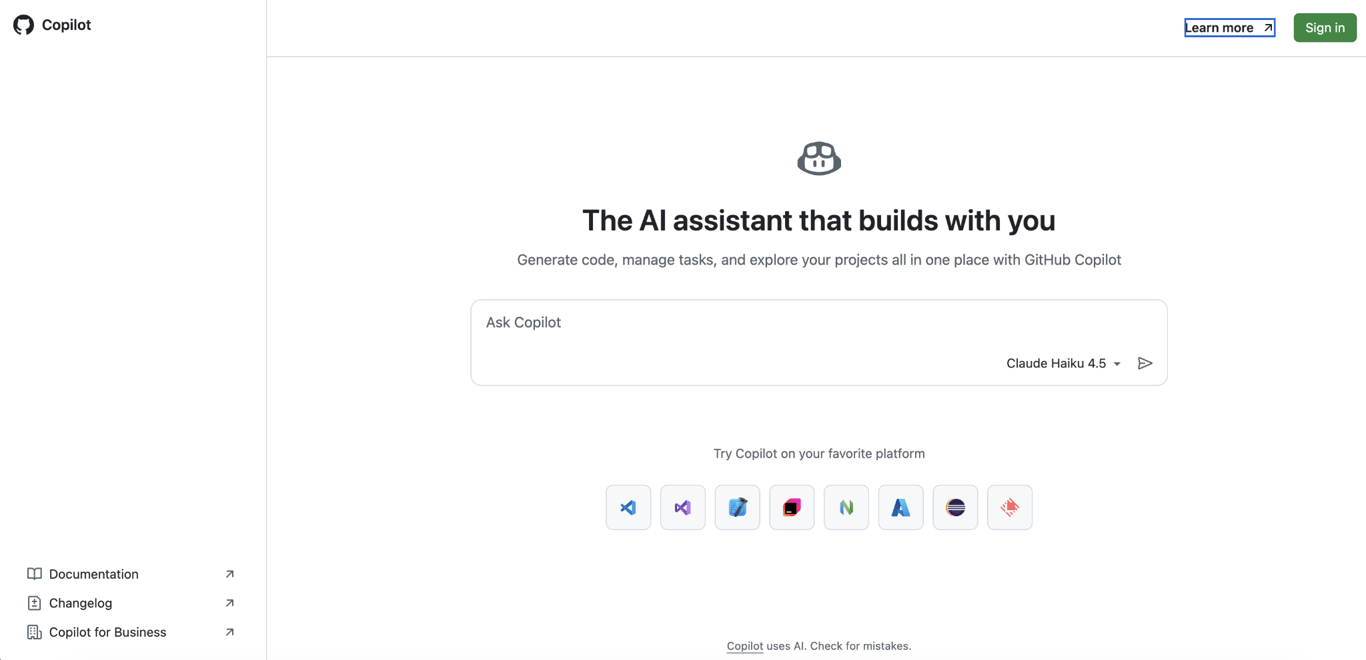
GitHub Copilot combines code completion, chat, file editing, and multi-step coding tasks in one VS Code assistant.
For smaller tasks, it can complete code as you type or explain a function you don’t understand. Agent mode handles work with several connected steps, such as changing multiple files, running tests, and responding to failures.
Say you want to add validation to a signup form. Copilot can update the form, adjust the related tests, run them, and use any failures to guide the next change.
You still need to review what it writes. AI-generated code can contain incorrect logic or weak security checks, so run your tests and take extra care with authentication, permissions, payments, and other code that handles sensitive data.
Copilot also overlaps with many AI tools for vibe coding in areas such as code generation and editing. If you already use another AI assistant, compare what each one adds before running several tools that solve the same job.
The Free plan includes up to 2,000 code completions per month and a limited chat and agent usage. Paid individual plans start with Copilot Pro at $10 per user/month, which includes unlimited code completions and 1,500 monthly AI Credits. Pro+ and Max provide larger AI Credit allowances for heavier use.
2. Cline
Best for: AI-assisted multi-step coding tasks.
Pricing: Free for individual developers; AI model usage may cost extra.

Cline is useful when a coding task involves more than generating a few lines of code. It can inspect your project, edit files, run terminal commands, and keep working through a task as it finds new information.
Say you’re fixing a bug that appears in several parts of an app. Cline can search for the relevant code, update the affected files, run the tests, and use any failures to work out what still needs fixing.
Because it can make changes and run commands on your computer, Cline keeps you involved by default. You can review actions before they happen, or use Auto Approve to let selected actions run without asking every time.
You also get more choice over the AI model than you do with many coding assistants. Cline works with providers such as Anthropic, OpenAI, Google, OpenRouter, and AWS Bedrock, and you can connect local models through tools like Ollama.
That extra control is useful if you already have a preferred model or want different models for different jobs. It also means Cline takes more setup. If you mainly want code completion, chat, and straightforward edits without having to choose providers or permissions, Copilot is easier to get started with.
Cline itself is free for individual developers. You can bring your own API key or pay for model usage through Cline. There’s also an optional ClinePass subscription at $9.99/month, which gives you higher included usage on selected open-weight models.
Best formatting and code quality extensions
The best formatting and code quality extensions keep code consistent and flag rule violations while you work.
3. Prettier
Best for: Consistent code formatting.
Pricing: Free.

Prettier handles formatting, so you don’t have to keep adjusting indentation, line breaks, quotes, and spacing by hand.
It supports formats including JavaScript, TypeScript, JSON, CSS, HTML, Markdown, and YAML. Once a project has agreed on a configuration, everyone gets the same output.
That becomes especially helpful in shared repositories. Developers spend less time changing each other’s formatting, and code reviews contain fewer changes that affect appearance but not behavior.
Use the Prettier version and configuration stored in the project when possible. VS Code, command-line checks, and automated builds will then apply the same formatting rules.
Prettier stops at formatting. It won’t warn you about an unused variable, an incorrect import, or a coding rule your team wants to enforce. For those checks, you’ll need a linter such as ESLint.
Prettier and its VS Code extension are free and open source. The project also accepts financial support from companies and individual contributors to help fund ongoing maintenance.
4. ESLint
Best for: JavaScript and TypeScript code checks.
Pricing: Free.
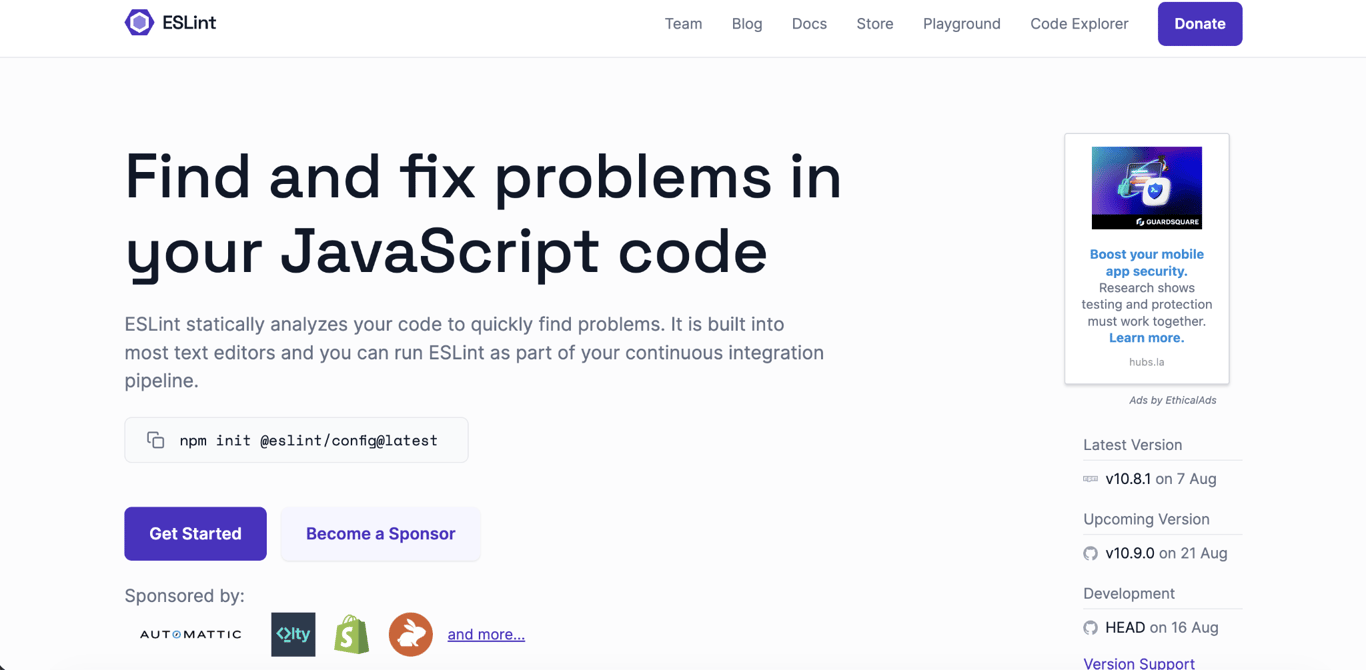
ESLint catches JavaScript and TypeScript code that breaks rules defined for your project.
A tool that performs these checks is called a linter. Depending on your configuration, ESLint can flag unused variables, unreachable code, and other disallowed patterns; import-specific checks may require additional rules or plugins.
The VS Code extension brings those warnings into the editor while you’re working. Install ESLint in the project as well, and the checks you see in VS Code will match the ones developers run from the terminal or during automated testing.
ESLint and Prettier can work together, but give them separate jobs. Let Prettier handle formatting, and avoid ESLint rules that rewrite the same lines. Otherwise, saving a file can trigger conflicting changes.
ESLint is free and open source. The project is supported by sponsors and donations, which help keep development going.
Best debugging and web development extensions
Debugging and web development extensions help you surface code errors, inspect rendered pages, automate browser tests, and send API requests.
5. Error Lens
Best for: Seeing errors and warnings beside the affected code.
Pricing: Free.
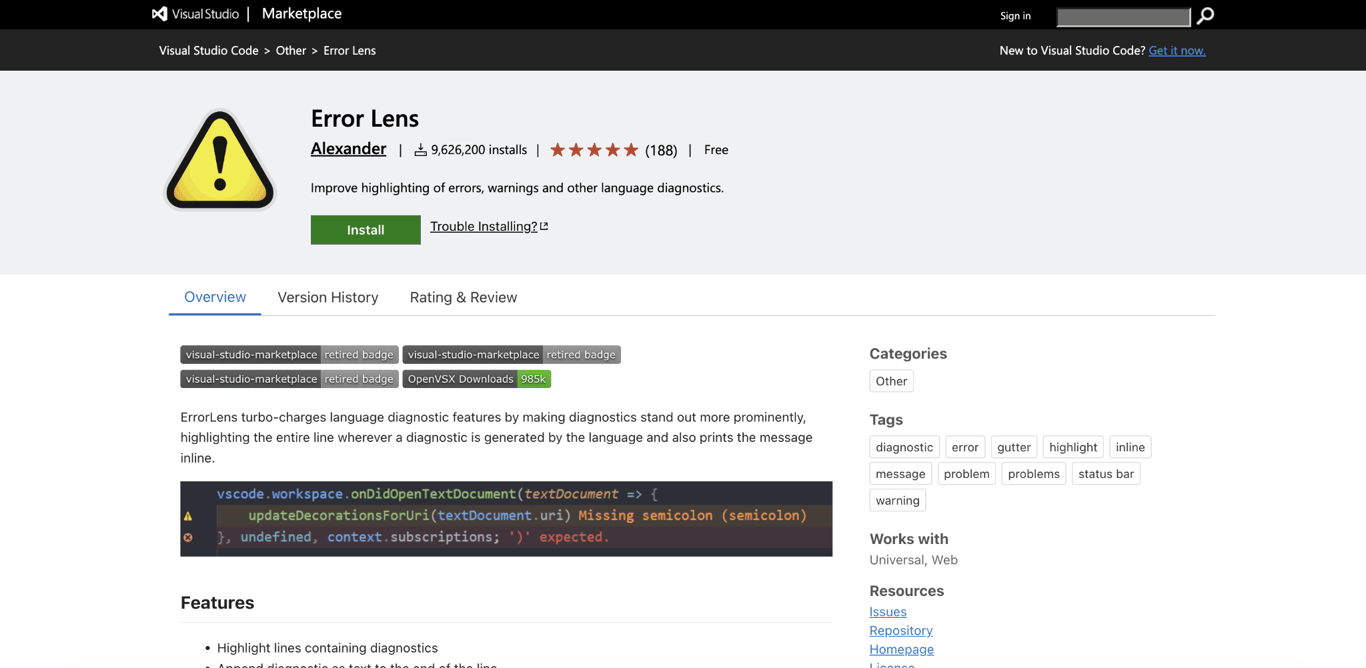
Error Lens makes VS Code’s existing errors and warnings easier to notice by putting their messages directly beside the affected code.
VS Code normally underlines a line and puts the full explanation in the Problems panel. Error Lens puts that explanation beside the code instead, so you can see what’s wrong without repeatedly switching between the editor and another panel.
It doesn’t detect new errors itself. The messages come from tools such as ESLint, compilers, and programming-language extensions.
That makes it especially useful when you’re working through several errors and want the explanation right where you’re making the fix. In a file with dozens of warnings, though, all that extra text can get distracting. You can limit which messages Error Lens shows, or disable it, for projects where inline warnings make the code harder to read.
Error Lens is free and has no paid extension tier. Its Marketplace listing and GitHub repository contain the extension documentation, settings, and source code.
6. Microsoft Edge Tools for VS Code
Best for: Inspecting a web page while editing its source.
Pricing: Free.
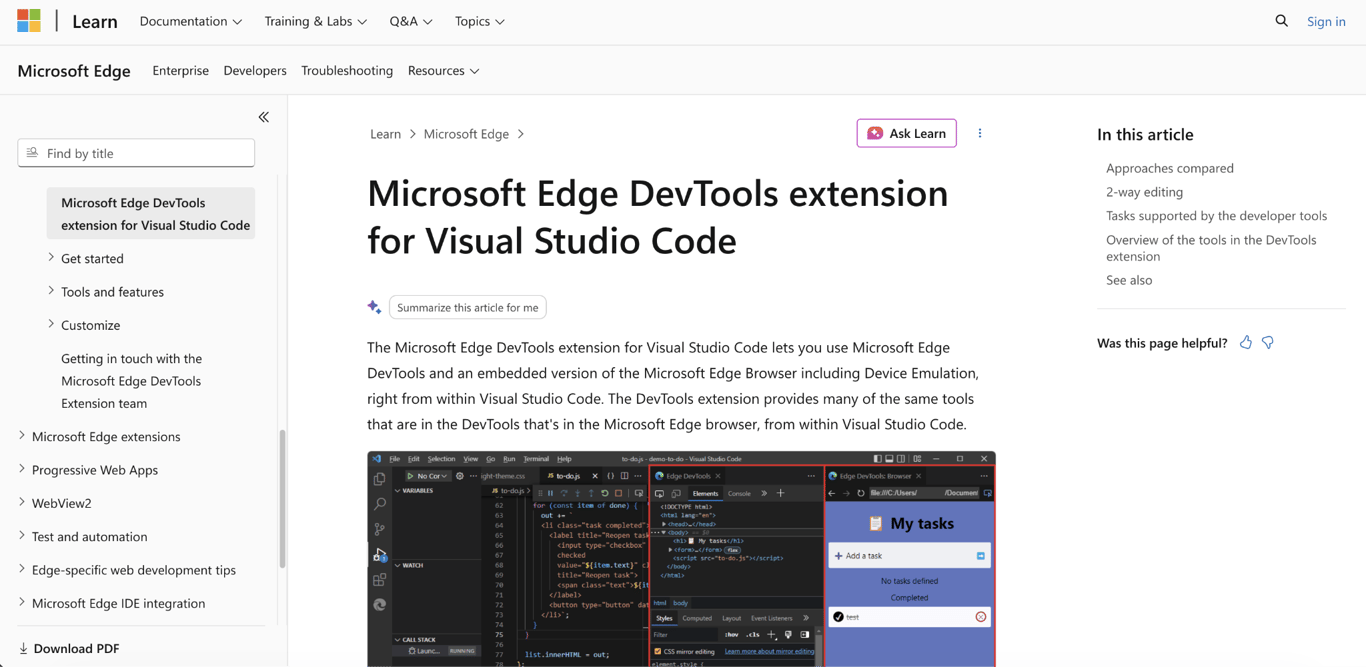
Microsoft Edge Tools brings Edge’s browser developer tools into VS Code, so you can inspect a running page without constantly moving between the editor and a separate DevTools window.
You can preview a page, inspect its HTML, test CSS changes, read console messages, and work with breakpoints.
For example, if a button has too much space around it, you can select it in the preview, find the CSS property responsible, and test another value while keeping the related source file open.
VS Code already includes browser debugging for JavaScript, so you don’t need Edge Tools just to set a breakpoint. The extension is most useful when you also want an embedded Edge browser, plus DOM, CSS, network, storage, and accessibility inspection, all inside VS Code.
The tradeoff is straightforward: it requires Microsoft Edge. If most of your browser work happens elsewhere, you may prefer using that browser’s own developer tools.
Microsoft Edge Tools is free, with no separate paid plan for the extension.
7. Playwright Test for VS Code
Best for: Automated browser testing.
Pricing: Free.
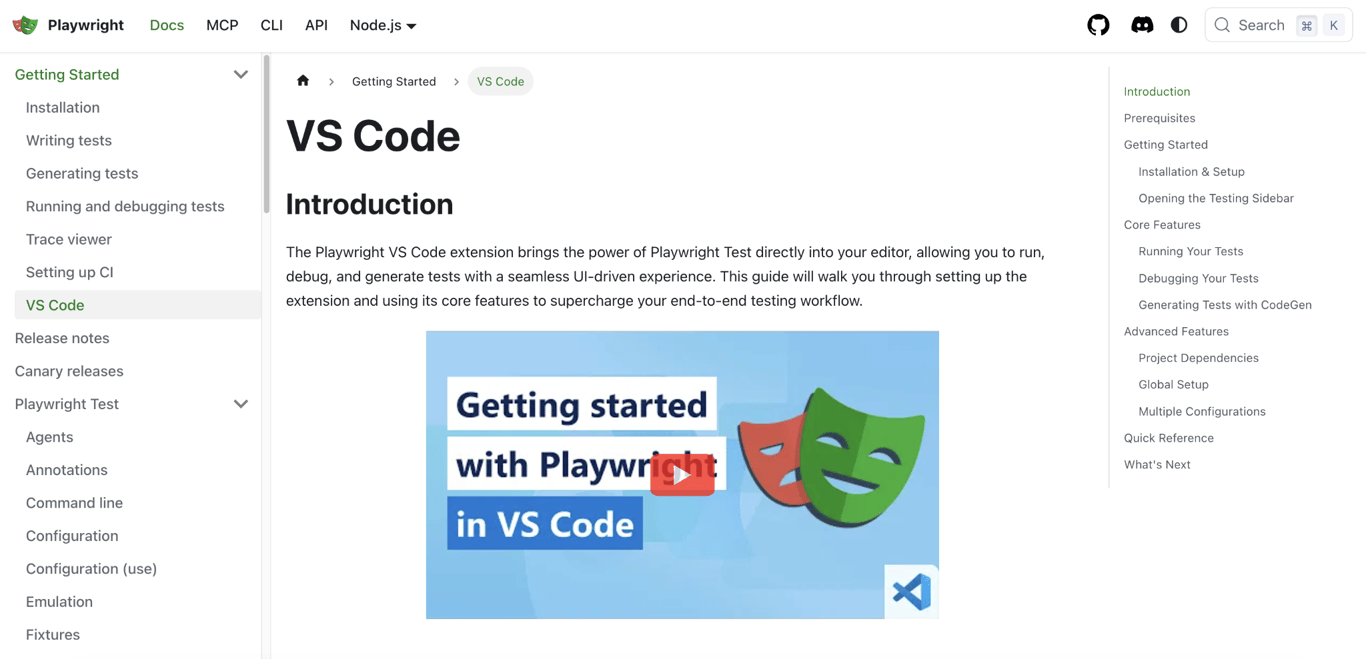
Playwright Test for VS Code helps you repeat browser tests without leaving the editor.
A browser test follows actions a user would take, such as opening your site, signing in with a test account, submitting a form, and checking whether the expected page appears.
Once you’ve written that test, you can run it again after changing the application, rather than manually repeating every step. The extension can also use Playwright’s test generator to turn browser actions into test code, show the browser while a test runs, inspect page elements, and pause where a failure occurs.
That makes it useful for behavior you need to check again and again. It doesn’t replace manual inspection, though. A test can confirm that a button works, but a visual problem, such as another element covering it, can be missed.
That’s why automated browser tests are only one part of testing a web application. Use them for repeatable behavior, then check layout and usability in the browser yourself.
Playwright Test for VS Code is free. Playwright itself is also open source, so there’s no separate paid tier required to run these tests.
8. Postman
Best for: Building and testing APIs.
Pricing: Free; Solo costs $9/month, billed annually.

Postman lets you send API requests and inspect the responses beside the code you’re working on.
An API, or application programming interface, lets one piece of software request data or an action from another. An online store, for example, could request /orders/123 from its server to retrieve order 123.
The main advantage of the VS Code extension is that you can test an endpoint beside the code that handles it. If you’ve just changed an API route, you can send a request, inspect the returned status and data, and make the next change without switching to the Postman desktop app.
You can also save requests, reuse variables, keep separate values for local and production servers, and add tests for API responses. Postman supports HTTP, WebSocket, and gRPC requests.
The main inconvenience is that Postman requires an account. API requests can also contain passwords, tokens, or customer data, so use test credentials when real information isn’t needed and follow your company’s data rules before saving confidential information.
Postman’s free plan includes its main API client and testing tools, so you don’t need to pay for basic request testing. The Solo plan costs $9/month when billed annually and adds higher usage limits, more AI credits, and additional automation features for individual users.
Best Git extensions
Git extensions add tools for investigating previous code changes and reviewing new ones before they’re merged.
9. GitLens
Best for: Investigating code history.
Pricing: Free Community plan; Pro currently starts at $6/month for the first seat on annual billing.
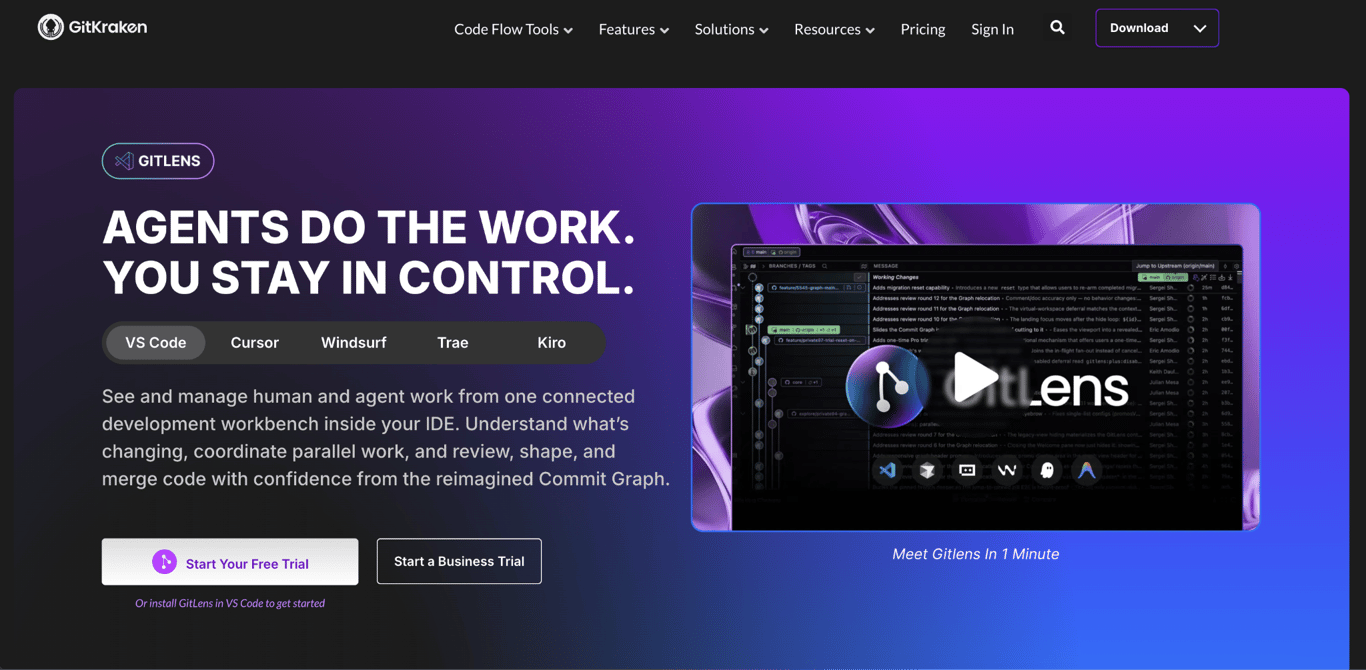
GitLens by GitKraken is most useful when you need to understand how a piece of code changed over time and why.
It adds detailed line, file, and commit history beyond VS Code’s built-in Git tools. If a function behaves unexpectedly, you can see who last changed a particular line, open the commit behind it, and check what else changed at the same time.
That context is most useful when you’re debugging unfamiliar code, tracing when a regression appeared, or returning to a project after several months.
You don’t need GitLens for everyday Git work, though. VS Code’s built-in features already handle staging files, commits, branches, merge conflicts, and commit history. If that’s all you need, GitLens adds more interface than value.
The Community plan is free and covers local repositories and public remotes. Pro adds private-repository access and other productivity features. Its current $6 first-seat price is a promotional offer, so check the live pricing before upgrading.
10. GitHub Pull Requests
Best for: Reviewing GitHub pull requests.
Pricing: Free.
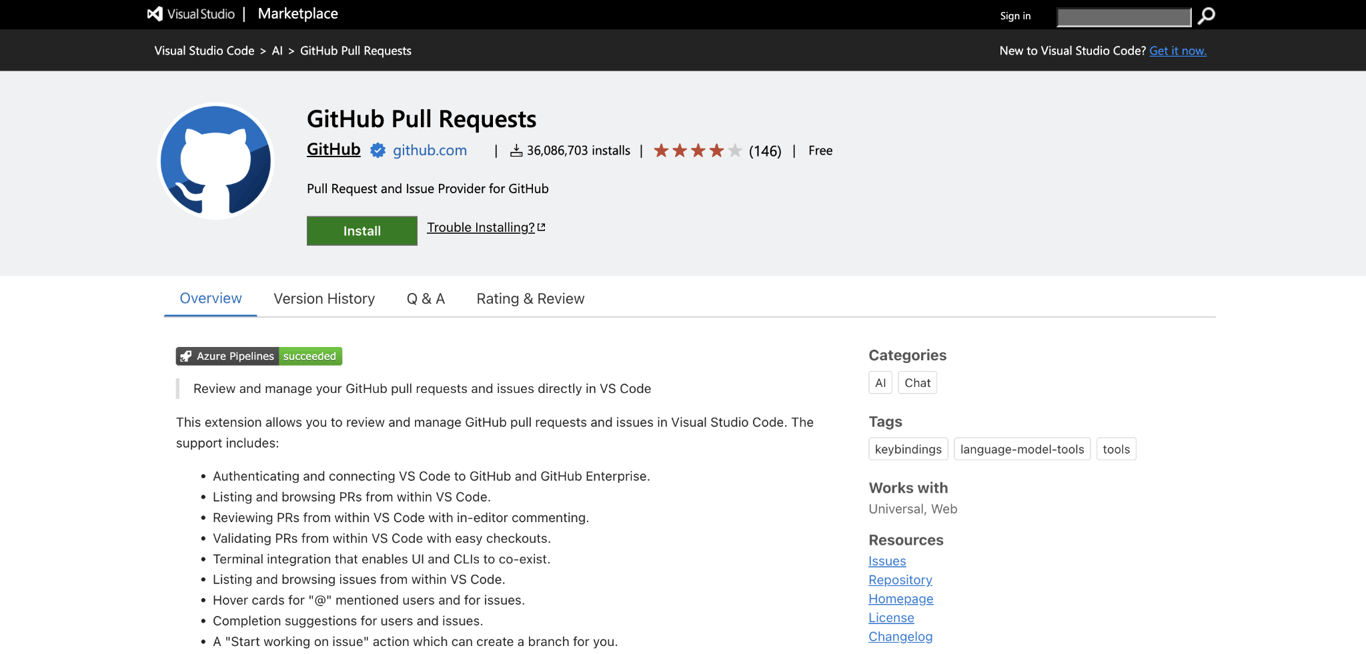
GitHub Pull Requests brings GitHub’s review process into the editor, which is useful when reviewing a change that requires more than just reading a diff.
A pull request asks other developers to review a set of changes before they’re merged into another branch.
From VS Code, you can browse open pull requests, inspect changed files, leave comments, and check out the proposed code locally.
That last option is where the extension becomes particularly useful. You can run the application, reproduce a reported bug, or debug the new code before deciding whether it’s ready to merge.
The limitation is the platform itself. The extension works with GitHub and GitHub Enterprise, so teams using GitLab, Bitbucket, or another service will need an integration built for that platform.
GitHub Pull Requests is free to install and use. Any GitHub plan your team pays for is separate from the VS Code extension.
Best remote development extensions
The best remote development extensions let you edit and run code on another computer or inside a separate development environment.
11. Remote – SSH
Best for: Developing directly on a server or remote computer.
Pricing: Free.
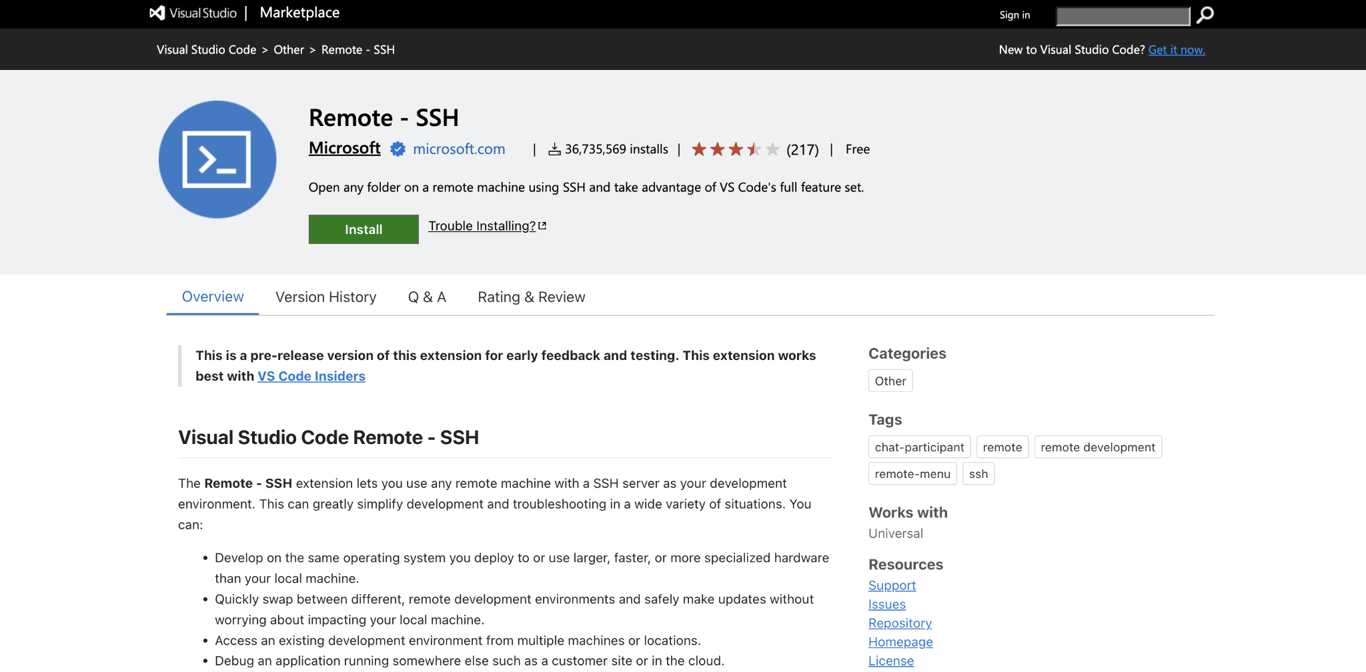
Remote – SSH lets you work on code that lives on another computer without copying the whole project onto your own machine.
SSH, short for Secure Shell, creates an encrypted connection between the two computers. VS Code stays open on your device, while project files, terminal commands, and many extensions run remotely.
That helps when a project needs Linux, more CPU or memory than your laptop has, or access to databases and services available only on a private network.
If the remote machine uses Ubuntu, setting up VS Code Server on Ubuntu gives VS Code the server-side components it needs to work with files, terminals, debugging, and extensions there.
Because project commands and remote extensions run on the remote host, only connect to machines you trust. A compromised server could expose project files, credentials, or services available through that environment.
Check the server address before connecting, use SSH keys or another secure sign-in method, and review any ports you forward to your local computer.
Remote – SSH itself is free. You’ll still pay separately for any server, virtual machine, or cloud resources you connect to.
12. Dev Containers
Best for: Giving a project a repeatable development environment.
Pricing: Free.
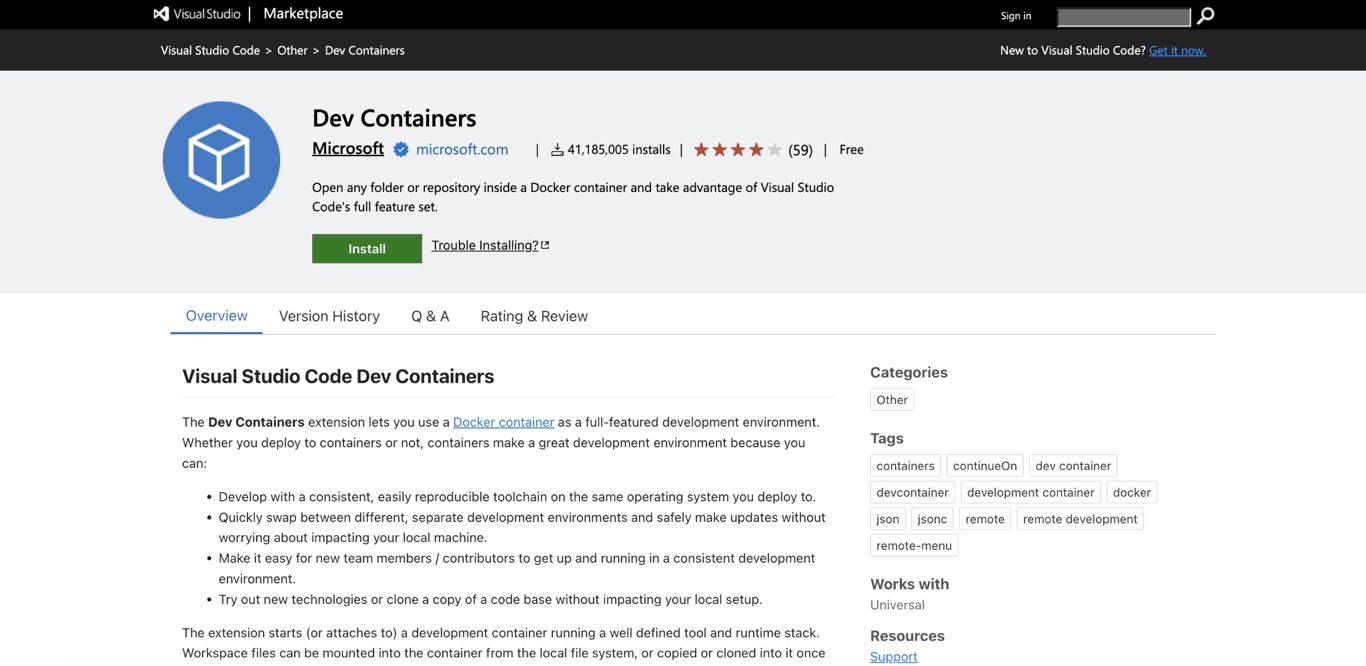
Dev Containers helps when a project needs a specific set of tools and versions that every developer should use.
It lets you open the project inside a Docker container configured with its own software and dependencies. Instead of asking everyone to install the same Node.js version, system packages, command-line tools, and VS Code extensions by hand, the project can define them together.
For example, one project can use Node.js 20 while another uses a different version. Each keeps its own environment, so you don’t have to keep changing the software installed on your computer.
This also shows the difference between a code editor and an IDE in practical terms. VS Code provides the editor, while the container provides the runtime and other tools the project needs.
There is some setup involved. Dev Containers works with Docker installed locally or remotely, and the project needs a Dev Container configuration, usually stored in a devcontainer.json file.
The container also doesn’t guarantee that your development environment matches production. Your live application can use different databases, permissions, secrets, network rules, or computing resources, so you’ll still need to test it in an environment that reflects how it’ll actually run.
The Dev Containers extension is free. Any costs or licensing tied to your container software, remote machine, or cloud infrastructure are separate.
Best deployment and container extensions
Deployment and container extensions help you package applications, manage containers, or connect projects to the services where they run.
13. Container Tools
Best for: Building and managing containers.
Pricing: Free.
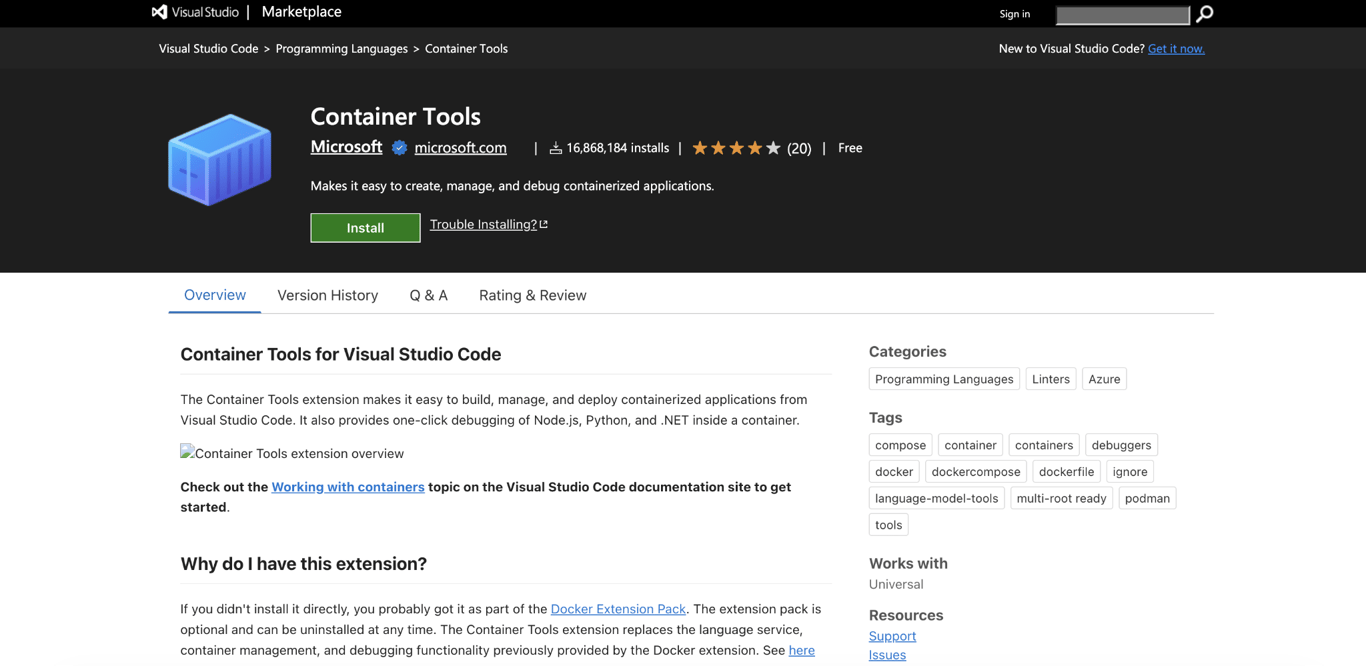
Container Tools is useful if you work with Docker or Podman regularly and don’t want every container task to happen in the terminal. Microsoft now positions it as the replacement for the older Docker extensions.
From VS Code, you can check which containers are running, inspect logs, work with images and registries, and edit Dockerfiles and Compose files alongside your application code.
It serves a different purpose from Dev Containers: Dev Containers gives a project its own development environment, while Container Tools helps you work with the containers your application actually uses.
Even then, containers are only one part of releasing an application. Deploying a Node.js application also means deciding where the app runs, where environment variables are stored, how users reach it, and where you can check logs when something fails.
Container Tools is free and has no separate paid tier. Any registry or infrastructure costs are separate.
14. Hostinger Connector
Best for: Deploying and managing projects hosted on Hostinger.
Pricing: Free to install; requires an eligible Hostinger plan.
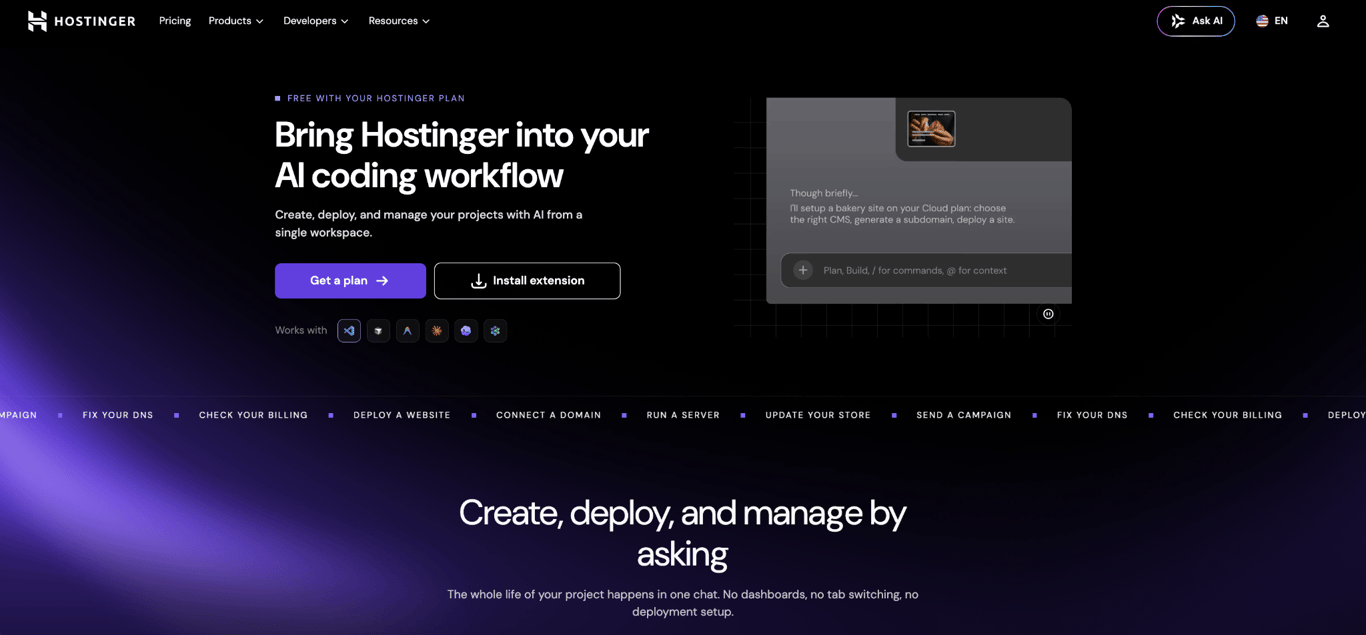
Hostinger Connector connects a supported AI coding assistant to Hostinger through MCP, so you can deploy and manage supported hosting resources from the same editor workflow instead of repeatedly switching to Hostinger dashboard.
For example, once a web app is ready, you can ask your AI coding assistant to deploy it, connect a domain, or manage supported hosting resources without leaving the editor workflow.
Setup takes one click from the VS Code Marketplace. You can connect through Hostinger’s browser sign-in flow without creating API keys, though an API token is available as an alternative.
Hostinger Connector handles the Hostinger side of a release, not everything around it. You’ll still need source control, tests, environment variables, and deployment checks before publishing changes.
Connector can help with deployment, but you still need to choose the right hosting setup for the application. Hosting a web application involves decisions such as the runtime, storage, networking, and computing resources the project needs.
The Hostinger Connector is free to install and use. You still need an active Hostinger service for the resource you want the assistant to manage, such as hosting for website deployment or a VPS plan for VPS actions.
Best language- and framework-specific extensions
Language- and framework-specific extensions provide development tools for the technologies used in a particular project.
15. Python
Best for: Python projects.
Pricing: Free.
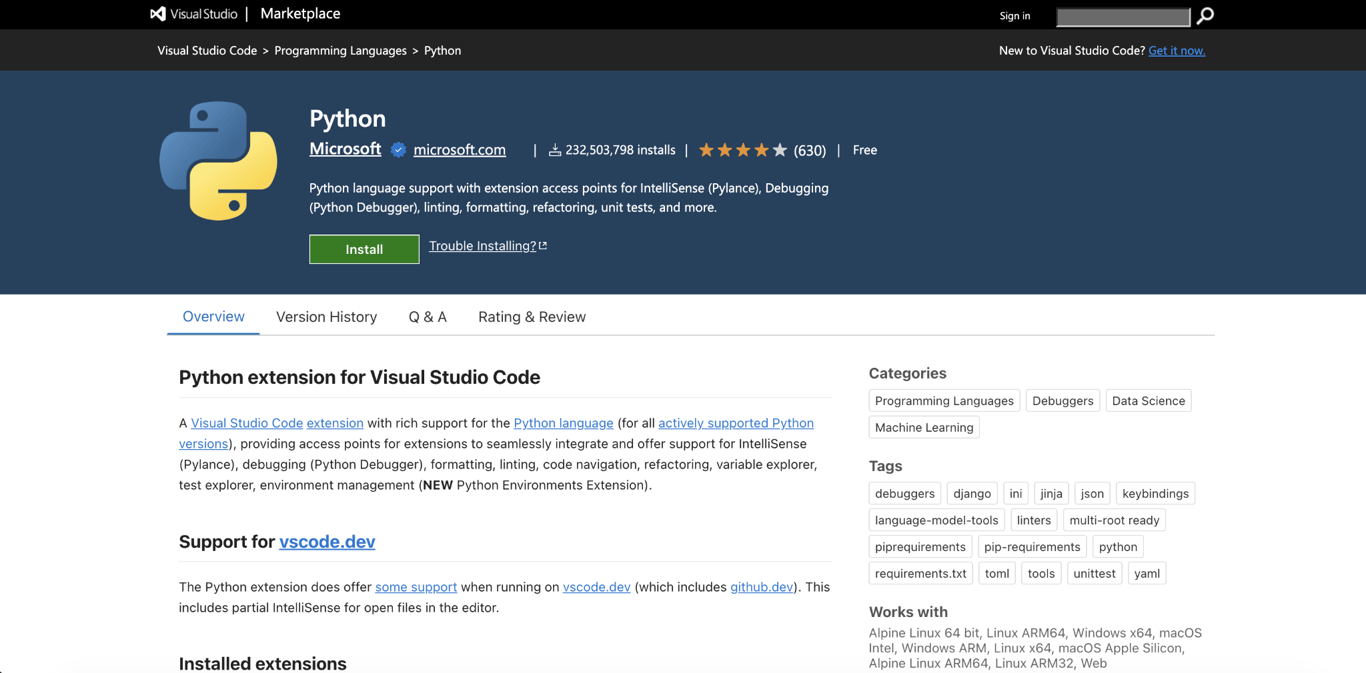
Microsoft’s Python extension is the main starting point for working with Python in VS Code. It connects the editor to the Python tools you need to write, run, test, and debug a project.
That becomes useful as soon as a project has more than one Python environment or dependency setup. You can choose which Python interpreter VS Code should use, run tests from the editor, add breakpoints, inspect variables while the program is running, and get code completion and navigation while you work.
For example, if a test fails, you can open it in VS Code, run it again, stop execution at the affected function, and inspect the values that led to the failure instead of adding temporary print() statements throughout the code.
If you’re new to Python, it helps to understand the three parts involved:
- VS Code is the editor.
- The Python extension connects Python development tools to VS Code.
- A Python interpreter actually runs your Python code.
Installing the extension doesn’t install Python itself, so you’ll still need an interpreter on your computer or in the development environment.
Microsoft also uses companion extensions such as Pylance, Python Debugger, and Python Environments for features like code completion, debugging, and environment management.
The downside is that all of this is specific to Python. If you’re working on a project that only uses HTML, CSS, and JavaScript, there’s no reason to load Python tooling in that VS Code profile.
The Python extension is free, with no paid extension tier.
16. Tailwind CSS IntelliSense
Best for: Projects that use Tailwind CSS.
Pricing: Free.
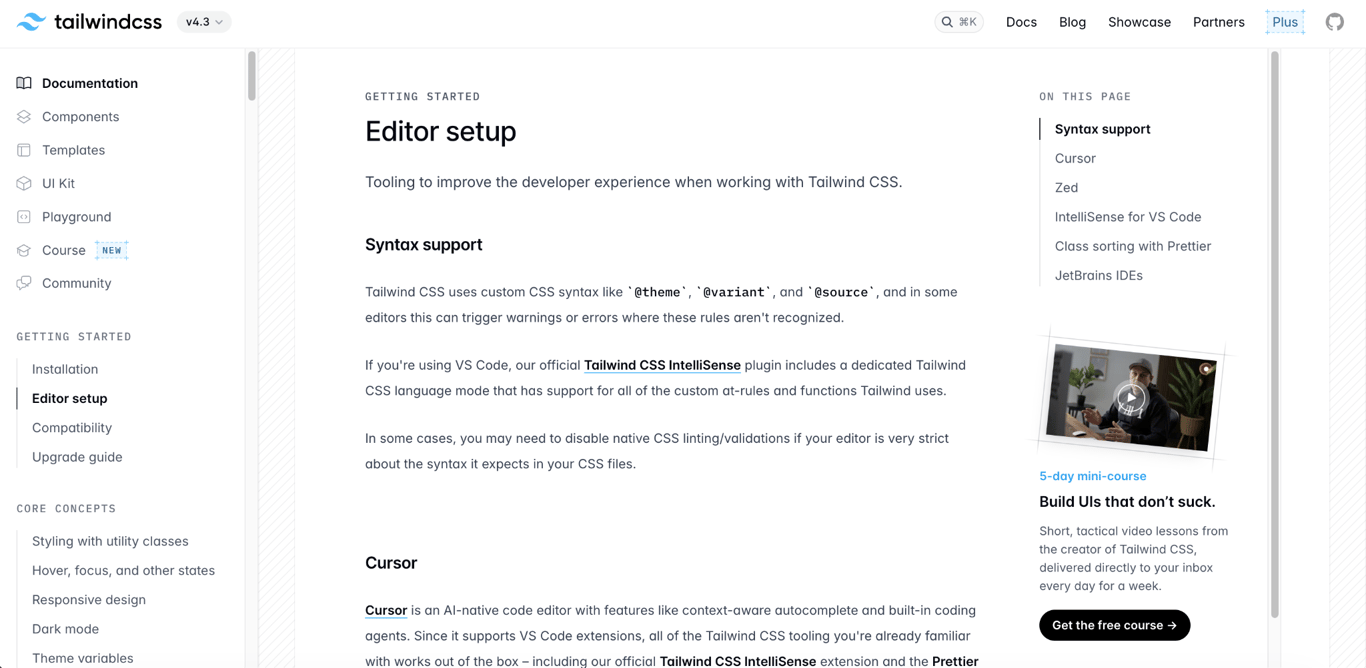
Tailwind CSS IntelliSense makes Tailwind class names much easier to write and understand inside VS Code.
Tailwind styles pages with utility classes such as flex, text-center, and p-4. The extension suggests classes as you type, highlights Tailwind syntax, and shows the CSS behind a class when you hover over it.
It can also flag invalid or conflicting Tailwind usage, so you can catch some class mistakes before opening the page in a browser.
The extension only activates when it detects Tailwind in the project. Tailwind CSS v4 projects need a CSS file that imports Tailwind, while older projects use a Tailwind configuration file or a linked stylesheet.
That limitation is also what keeps the extension focused. If the project doesn’t use Tailwind, it has nothing useful to add.
When choosing a frontend framework, decide on the styling stack separately. Tailwind CSS IntelliSense belongs only in projects where Tailwind is part of the stack.
Tailwind CSS IntelliSense is free and has no separate paid extension tier.
How to choose safe and efficient VS Code extensions
Choose VS Code extensions based on the job they solve, the access they need, and whether another tool already does the same work.
Before installing one:
- Check for overlap. VS Code already includes source control, debugging, infrastructure, a terminal, and other VS Code’s built-in features. Add an extension only when it gives you something useful beyond what you can get from it.
- Check the publisher and access. Prefer well-known or verified publishers, review the extension’s repository and update history, and consider whether it needs to read files, make network requests, run processes, connect to remote machines, or change external services.
- Keep project tools separate. VS Code profiles let you load Python, front-end, or other project-specific extensions only when you need them.
If VS Code slows down or behaves unexpectedly, open the project with an Empty Profile to see whether extensions are responsible. If performance returns, use Extension Bisect or re-enable extensions gradually to isolate the extension causing the problem.
Keep extensions that save you time or catch mistakes. Disable the ones that duplicate another tool or don’t add clear value to your projects.

This article is a localized version of 16 best VS Code extensions for developers, originally published in English.

Alma is an AI Content Editor with 9+ years of experience helping ideas take shape across SEO, marketing, and content. She loves working with words, structure, and strategy to make content both useful and enjoyable to read. Off the clock, she can be found gaming, drawing, or diving into her latest D&D adventure.