How to Add a Post to a Page in WordPress Using Classic Themes and Gutenberg
Mar 10, 2026
/
By Brian
/
6 min Read
When you publish a new blog post on your WordPress website, it will automatically appear on the homepage. If you want to keep your homepage as is and create a dedicated blog page, you have come to the right place.
In this WordPress tutorial, we will learn how to add blog posts to pages in WordPress with a classic theme and the Gutenberg editor. We’ll also show you how to add posts to the footer or sidebar area using a widget.
How to Add Blog Posts to a Page in Classic Themes
If you’re using a classic WordPress theme, follow these steps to add posts to a specific page:
Suggested Reading
Before we go any further, make sure you know the difference between a WordPress page and a post.
1. Create New Pages
To add posts to pages in WordPress, your website needs at least two pages – one as a static homepage and another as a blog page.
Luckily, adding a page in WordPress is easy:
- Log in to your WordPress dashboard.
- Navigate to Pages on the left menu and click Add New.
- Enter Homepage as the page title and edit the URL accordingly.
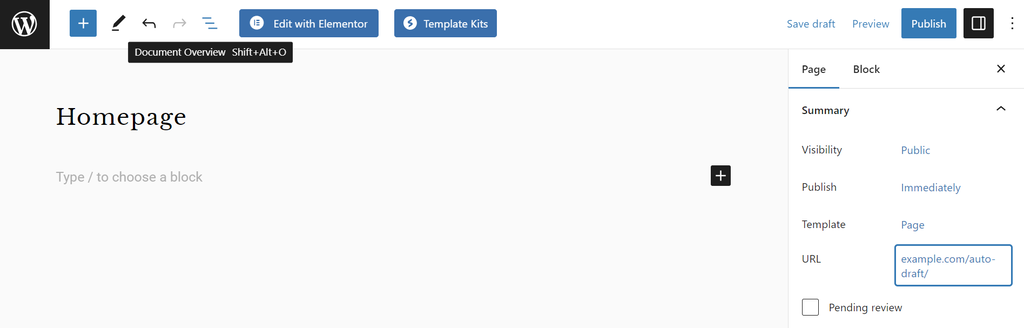
- Personalize the homepage to your preferences.
- Once everything looks good, hit the Publish button.
Suggested Reading
Want to transform your homepage into a high-converting landing page? Learn the process of creating a landing page in WordPress.
Repeat the same process to create a blog and other necessary pages.
Leave the blog page empty, as it will automatically fetch and display blog posts once you’ve configured the settings.
2. Change the WordPress Settings
By default, your latest posts will be shown on the homepage instead of any other page. To move them to the blog page, follow these settings:
- Go to Settings → Reading and set your homepage to a static page.
- Next to Homepage and Posts page, select the preferred pages from the drop-down menus.
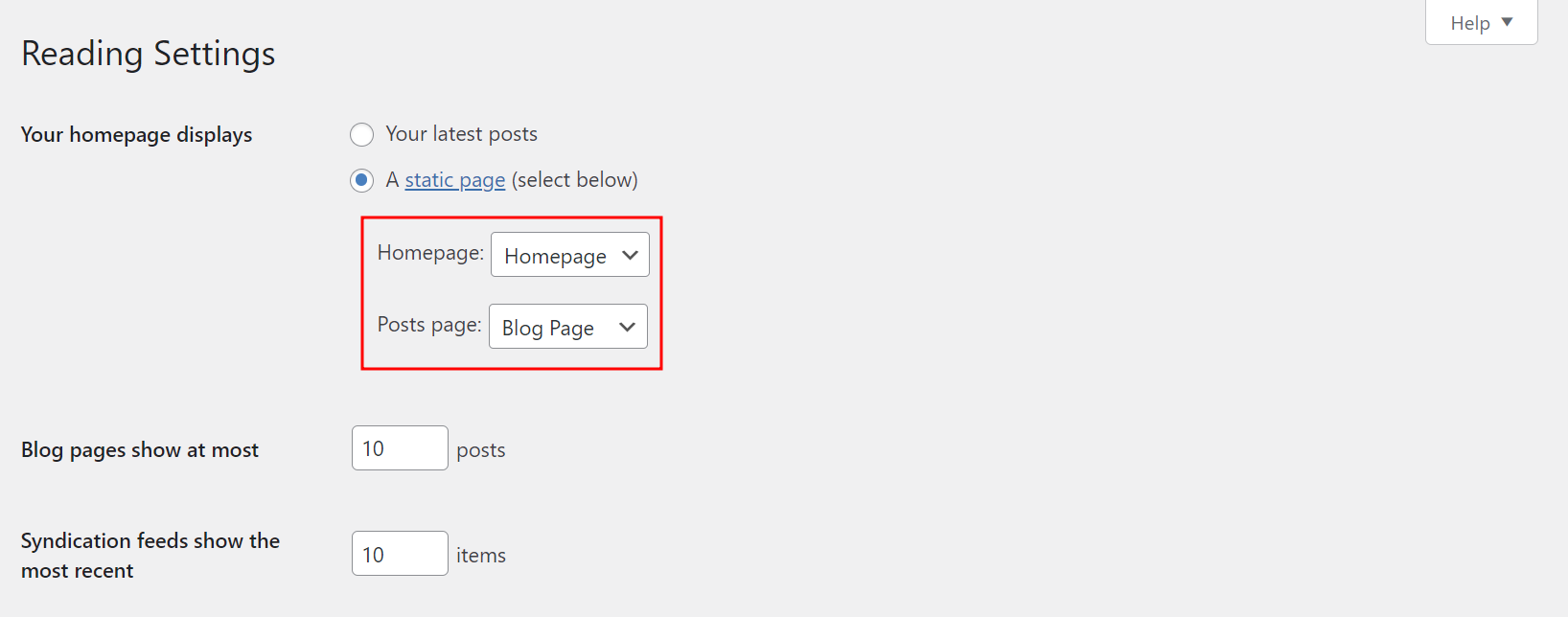
- Next to Blog pages show at most, choose how many posts you want to display on each page.
- Click Save Changes.
Pro Tip
Don't pick the same page for the Homepage and Posts page options to prevent errors.
3. Add the Pages to the Menu
Next, add your custom homepage and blog page to the navigation menu:
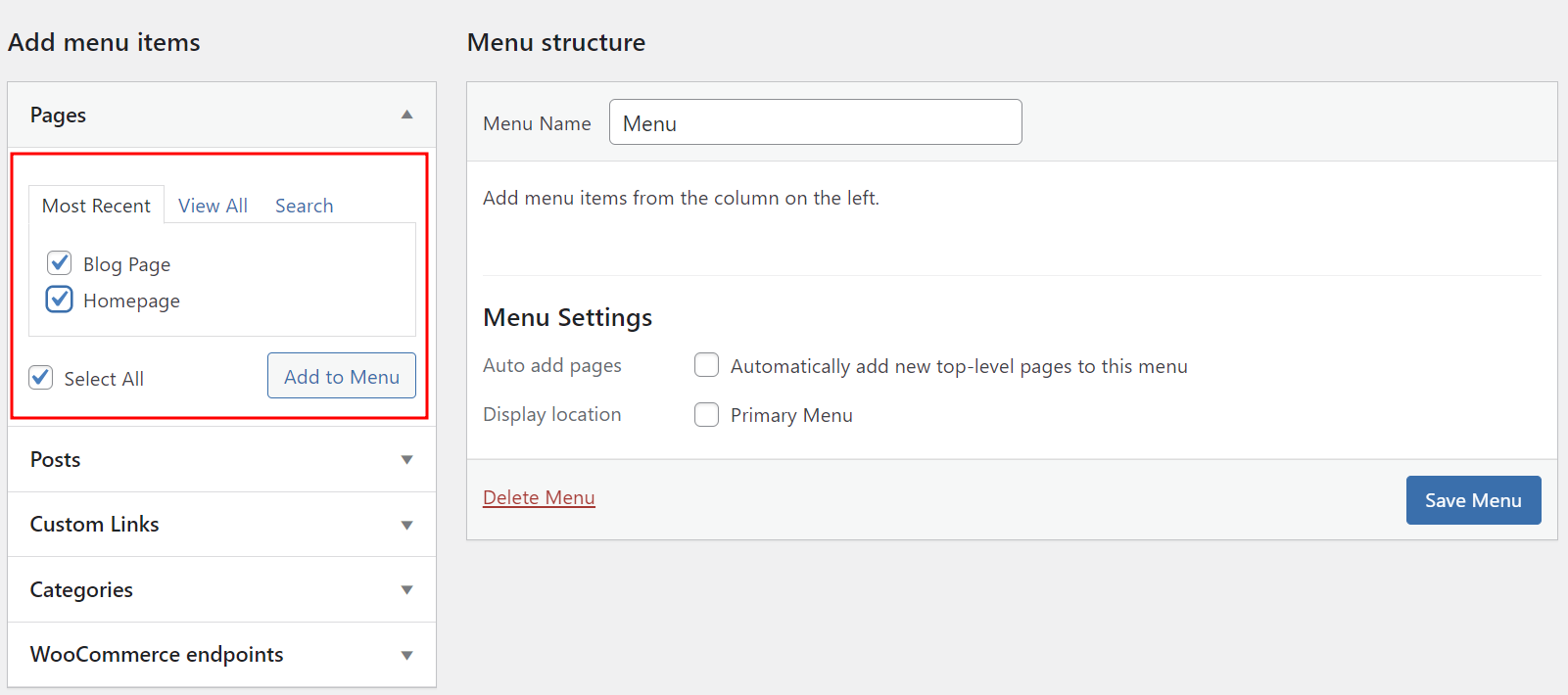
- Access Appearance → Menus.
- Under Add menu items, tick the Select All box.
- Click Add to Menu.
- Make sure to save the changes.
Once everything is set, all the posts should automatically appear on the blog page. If you haven’t published any articles yet, follow these steps to add a new post in WordPress:
- Navigate to Posts → Add New.
- Once the post editing screen appears, write the post title and content.
- Click Publish.
You can view and edit all the published blog posts in the Posts section.
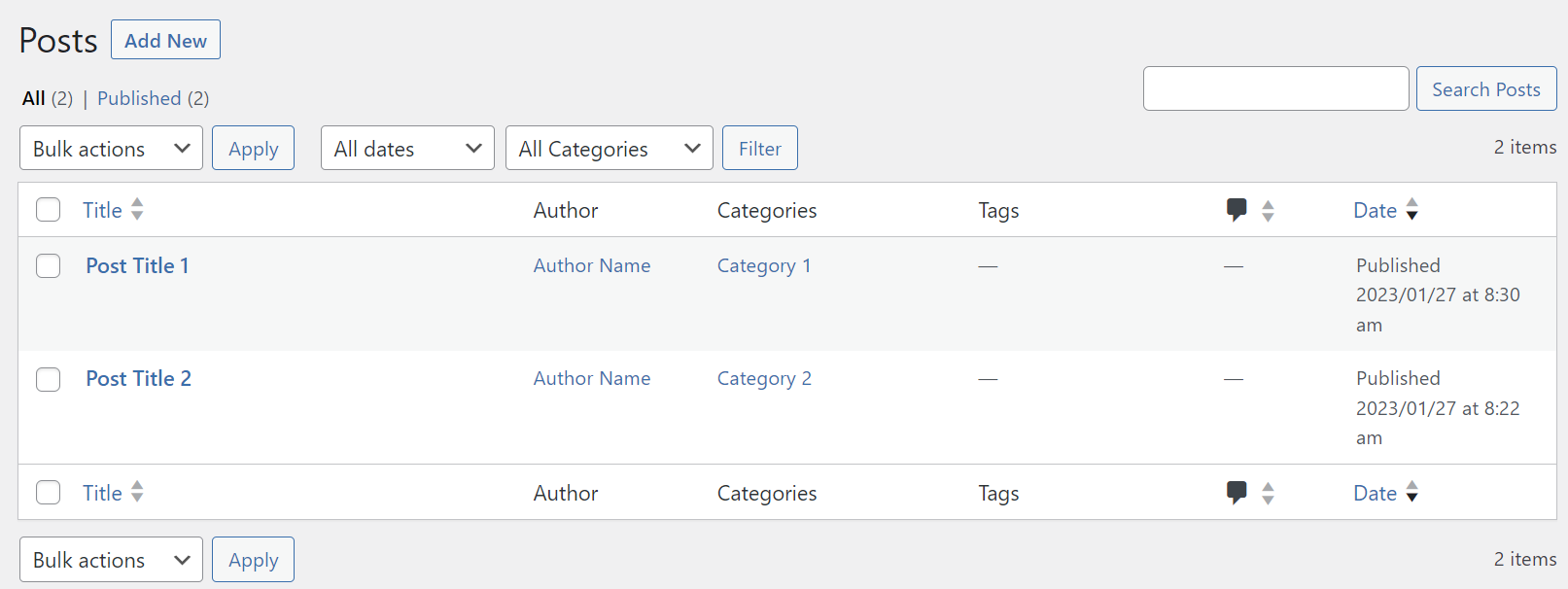
If you want to save time writing post content and searching for relevant images, try our WordPress Business hosting plan.

Both packages come pre-installed with WordPress AI tools, allowing you to instantly generate multiple blog posts and featured images.
How to Add Blog Posts to a Page Using Gutenberg
For block themes, use the Gutenberg site editor to customize your homepage and create a dedicated section for posts.
1. Customize the Homepage
Some block themes have a Query Loop block added to their homepage template by default. The WordPress Query Loop is a block for displaying posts in a specific order.
The block will show your latest posts on the front page when using an existing Query Loop block pattern. However, you can also choose Start Blank to manually customize the layout and block structure.
To keep the homepage of your WordPress site static, you have to remove the Query Loop block. Here’s how:
- Open the WordPress Site Editor by going to Appearance → Editor.
- Select all Query Loop block elements.
- Open the Options menu on the block toolbar by clicking the three-dot icon.
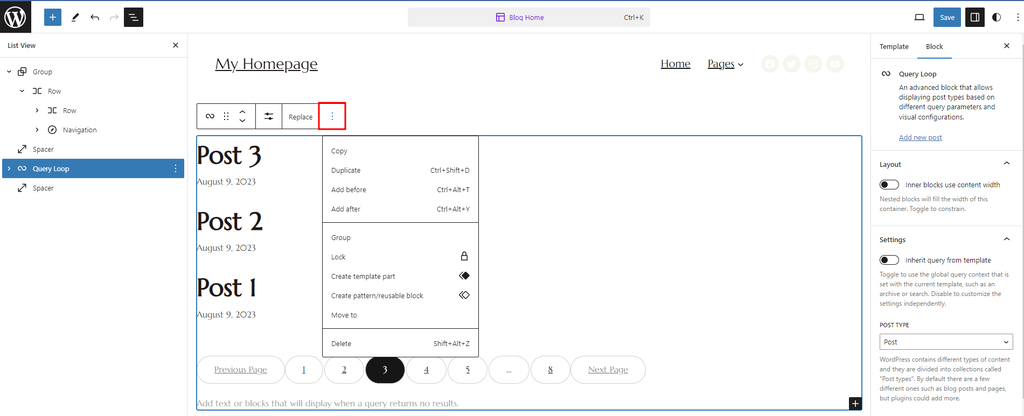
- Press Delete to remove the Query Loop block.
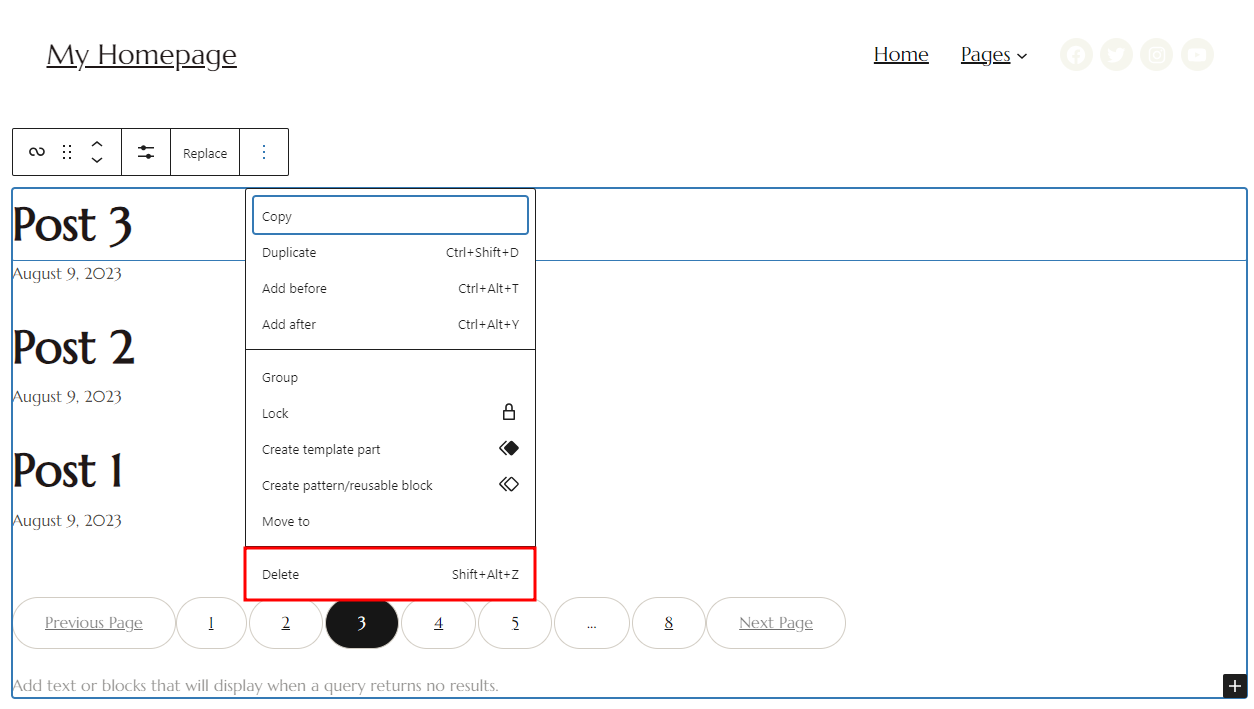
- Hit the Save button at the top right.
Pro Tip
Make sure you have selected the right block by checking the Settings section on the right sidebar. Under the Block tab, it should say "Query Loop" at the top.
2. Create a New Page and Add the Query Loop Block
Once done, create a new blog page and add posts using the Query Loop block:
- Head to Pages → Add New.
- Hit the Add block (+) button to insert a new block.
- Enter Query Loop in the search bar and click it.
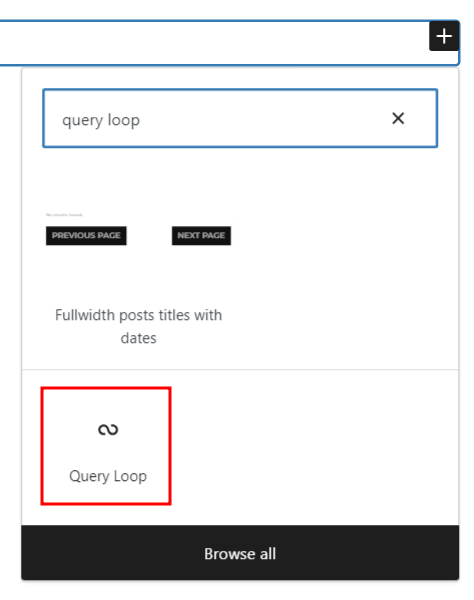
To add blog posts quickly, click Choose and pick one of the available patterns.
On the other hand, selecting Start Blank gives you more flexibility in customizing the block. With this option, you will find several content variations to choose from:
- Title and post-date
- Title and excerpt
- Title, date, and excerpt
- Featured image, date, and title
After choosing a layout, navigate to the right-side menu. Under Block, you can perform several tasks, such as:
- Select a WordPress blog post type – Post, Page, or Product.
- Arrange the posts’ order.
- Include, exclude, or only show sticky posts.
3. Add the Page to the Navigation Menu
After creating a custom menu, you must access the Site Editor by clicking Appearance → Editor. From the left menu, access Patterns → Template Parts → Header.
The header layout will be different from one theme to another. Some themes also come with a pre-determined page list that may include a blog page.
If your theme builder doesn’t have one, here’s how to add a page to the navigation menu:
- Select the navigation menu block.
- Click the Add block (+) icon.
- Choose your blog page and make sure the URL is correct.
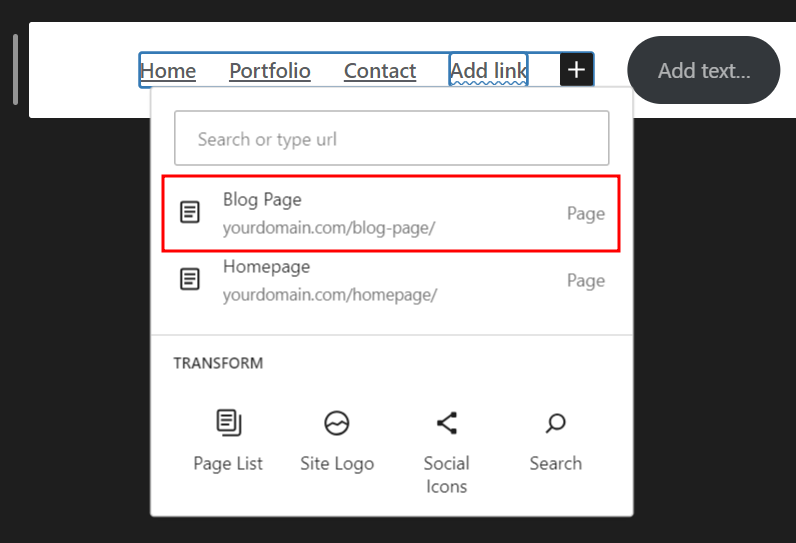
- Save the changes.
This method also lets you add other pages to the navigation menu, including About and Contact Us.
How to Add Blog Posts to a Page Using Widget
Another method of adding a WordPress post list to static pages is using a widget. This approach lets you showcase blog posts in the footer or sidebar widget area as part of the page content.
The following sections will explain the complete steps using classic and block themes.
Classic Themes
If your theme uses the classic editor, add a widget to the footer or sidebar directly from the WordPress dashboard:
- Navigate to Appearance → Widgets.
- Look for the Latest Posts widget in the search bar.
- Drag and drop it into your preferred area.
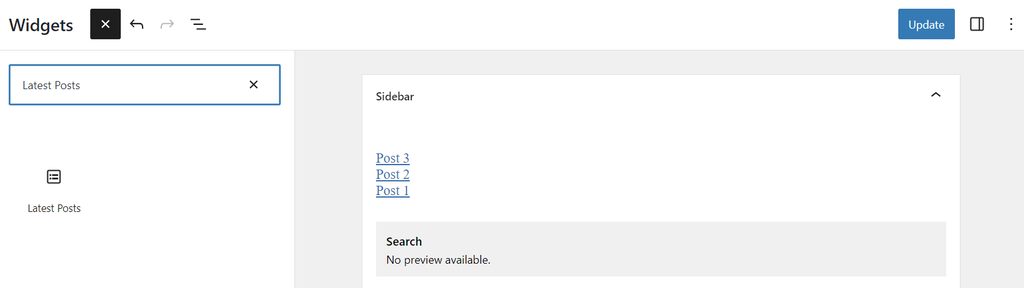
- Customize the widget settings, including the number of posts to display and the post order.
- Save the changes.
Block Themes
Block themes usually come with template parts for different sections of your website, such as the header, footer, or sidebar.
Therefore, if you’re using a block theme, the process is slightly different:
- Go to Appearance → Editor to open the block editor.
- On the left menu, select Patterns and find the template part where you want to display your blog posts, such as the footer.
- Click the Add block (+) icon and search for the Latest Posts block.
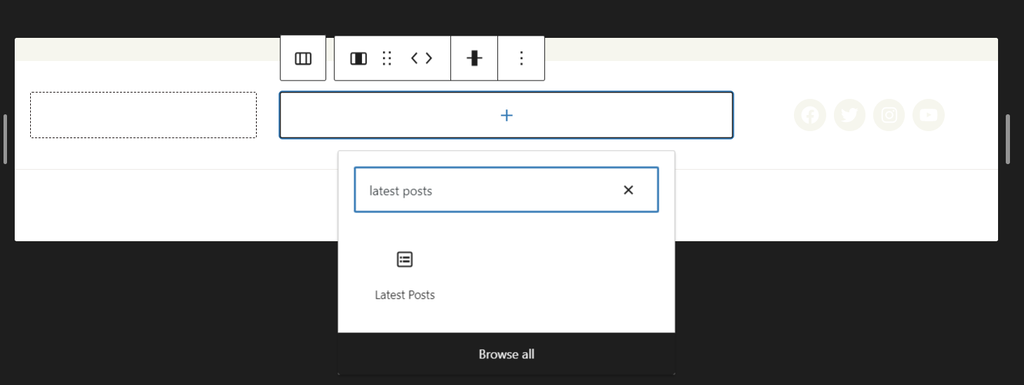
- Customize the block settings from the right sidebar – adjust the number of posts and manage each post’s content, author, date, and featured image.
- Save your changes.
Why Do You Need a Separate Page to Display Blog Posts?
Instead of displaying your blog posts on the homepage, adding posts to another page offers several benefits:
- Enhanced user experience. Displaying all blog posts on the homepage can clutter the layout and overwhelm visitors, potentially leading them to miss valuable content. A separate blog page helps visitors access your content more easily.
- Better focus on the homepage. Use the homepage to showcase your products or services, highlight your key selling points, and encourage visitors to take specific actions. Those include making a purchase and signing up for a newsletter.
- Customization flexibility. By separating your home and blog pages in WordPress, you can personalize each page’s design and elements to your liking.
- Search engine optimization. Customizing the blog page’s meta title, description, and URL structure specifically for blog-related keywords can improve its ranking on search engines.
Conclusion
The default setting of WordPress is to display posts on the homepage. However, many websites prefer to have a separate page for their posts. Fortunately, there are multiple ways of creating a blog page in WordPress.
If your WordPress website uses a classic theme, setting up a static homepage and a separate posts page might be ideal. Meanwhile, the Gutenberg block editor is great for more modern, block-based themes, allowing dynamic layout designs.
Another option is to use widgets to add posts to sidebars or footers, enhancing navigation and accessibility.
Understanding your site’s theme and specific needs will guide you to the most suitable method. We hope this article has helped you in adding posts to specific pages. If you have further questions, don’t hesitate to comment below.
How to Add Posts to a Page in WordPress FAQ
This section will answer the most common questions on how to add posts to a page in WordPress.
How Do I Show Posts on the Homepage in WordPress?
Log in to your WordPress dashboard and go to Settings → Reading. Next to Your homepage displays, select Your latest posts. Customize your homepage using widgets or a page builder to make it more attractive.
Why Don’t My Posts Show Up on the WordPress Blog Page?
If your posts aren’t showing up on the blog page, it’s likely due to incorrect settings. Head to Reading, and make sure you’ve set the correct dedicated page as your Posts page. Also, check whether the posts are published and not in draft or private mode. Verify your theme’s template files, and make sure they support displaying posts.
What Is the Difference Between a Post and a Page in WordPress?
A page is a section on your website like About Us, Contact, and Home. Meanwhile, a post is a piece of content you add to these sections. Posts are frequently published and updated, while pages usually tend to be static.
This article is a localized version of How to Add a Post to a Page in WordPress Using Classic Themes and Gutenberg, originally published in English.

Brian is a Content Writer who loves telling complex stories in a simple way. He has written all types of content, including tutorials, blog posts, landing pages, social media posts, white papers, infographics, and YouTube scripts. Follow him on LinkedIn.



Comments
0 responses