WordPress file manager: top plugins and how to create one on your site
Dec 02, 2025
/
By Yoga K.
/
5 min Read
A WordPress file manager is a plugin that enables users to perform file management tasks from the WordPress dashboard. Instead of logging in to your control panel or File Transfer Protocol (FTP) client, you can access the WordPress website files from a single location.
WordPress file managers have all the basic features that users need to copy, move, upload, and delete files. Many of these plugins also have an intuitive user interface for easier navigation.
This article will share our recommendations of the top five WordPress file manager plugins to help you decide on the right one. We will also cover the steps on how to use a file manager to upload files.
What Is WordPress File Manager?
A WordPress file manager is a plugin that helps users handle WordPress file management easily. With it, site owners can manage their website files and upload documents directly without accessing their web hosting’s control panel or an FTP client.
5 Best WordPress File Manager Plugins
WordPress offers various plugins, including file managers, to add features and functions to your WordPress website.
Before we get to the recommendations, consider the following aspects when choosing a WordPress file manager plugin:
- Features – ensure that the plugin offers the essential functions for users to manage files and folders. It is also important to check whether they offer more advanced features such as a database or code editor.
- Compatibility – check the last updated version of the file manager. We recommend a plugin that has received an update within the last three months. Ensure that the plugin is also compatible with the latest version of WordPress.
- Reliability – ensure that the plugin is listed on the WordPress Plugins’ official directory. We also recommend checking if the plugin has positive customer reviews.
Now that you know what to look out for before choosing a file manager, here are our five recommended file manager plugins.
1. File Manager
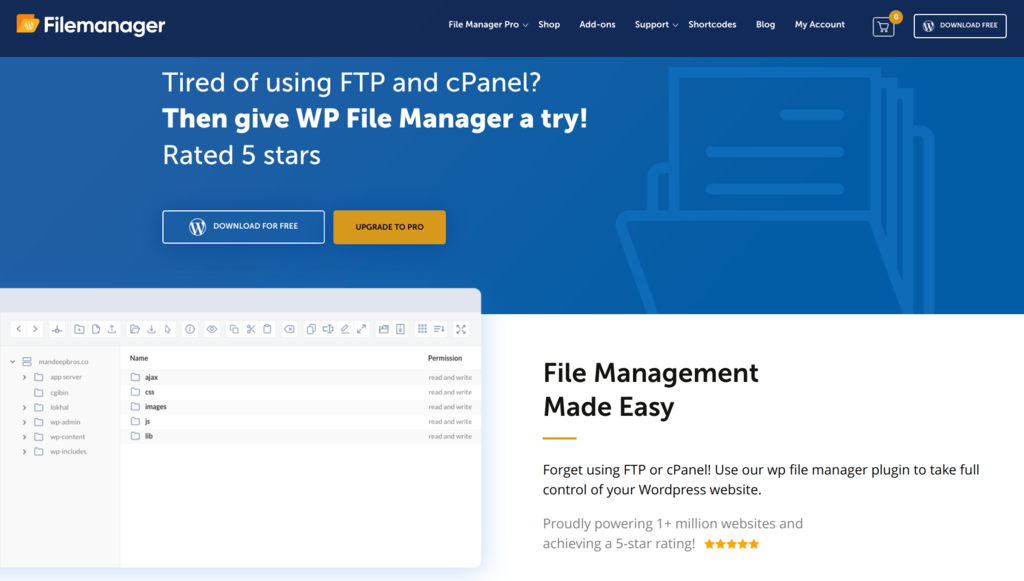
File Manager Stats:
- Downloads: 900,000+
- Rating: 4.5/5
- Notable Features:
- Code editor and syntax checker
- Add-ons and integrations
- Built-in database manager
- User management
- Best Suited For: Managing WordPress site files
- Price: Freemium (start from $25/license) with optional add-ons that each costs $19
WP File Manager provides an intuitive user interface with a clear structure pane and display.
The plugin is free to download and use, but you need to purchase a license to access its advanced features such as private folder creation and control file operations for different user roles. These are useful if you have a team managing multiple websites.
However, note that the WP File Manager plugin has recently faced a security issue, so make sure to perform WordPress security checks regularly.
2. Advanced File Manager
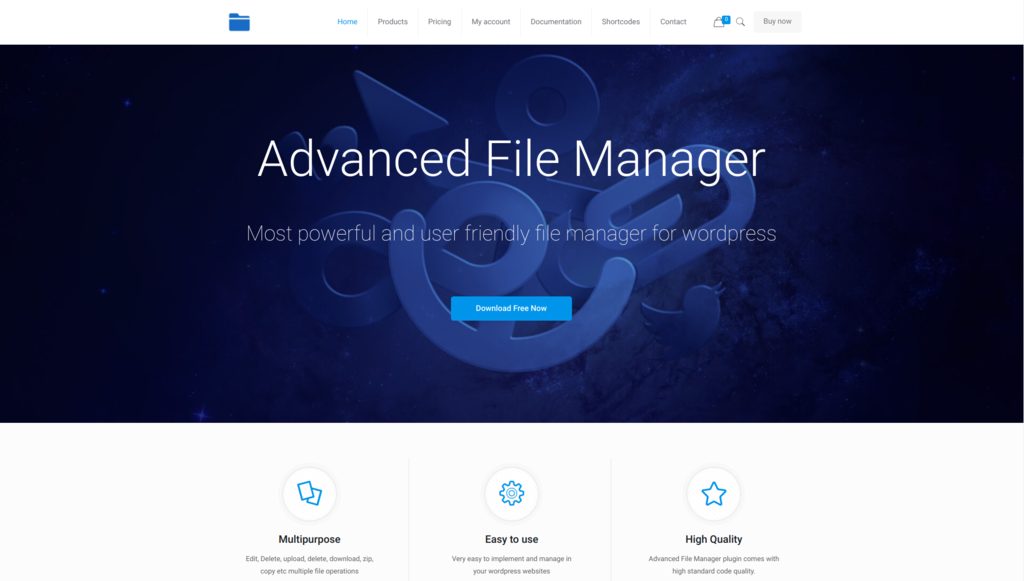
Advanced File Manager Stats:
- Downloads: 90,000+
- Rating: 5/5
- Notable Features:
- Access to the root directory path
- Personal folders
- PDF file preview
- Drag and drop file upload
- Best Suited For: Managing WordPress site files
- Price: Freemium (start from $12/license)
Advanced File Manager has a simple and intuitive user interface that helps you perform basic file management operations with ease.
The premium version of this plugin offers advanced features, such as shortcodes for logged-in and non-logged-in users. This enables you to insert the file manager in front-end web pages, so users can download and upload files directly.
3. FileBird

FileBird Stats:
- Downloads: 100,000+
- Rating: 4.5/5
- Notable Features:
- Select startup folder
- Smart sidebar and navigation
- Bulk select and delete folders
- Unlimited folders
- Best Suited For: Organizing media files
- Price: Freemium (start from $27/license)
FileBird helps users organize and manage their WordPress media library by sorting media files into folders.
This plugin is free to download and use, but it offers a premium plan for additional features, such as multiple page builders and six-month support. FileBird also has a free demo, so users can try the file manager without installing it first.
4. Real Media Library
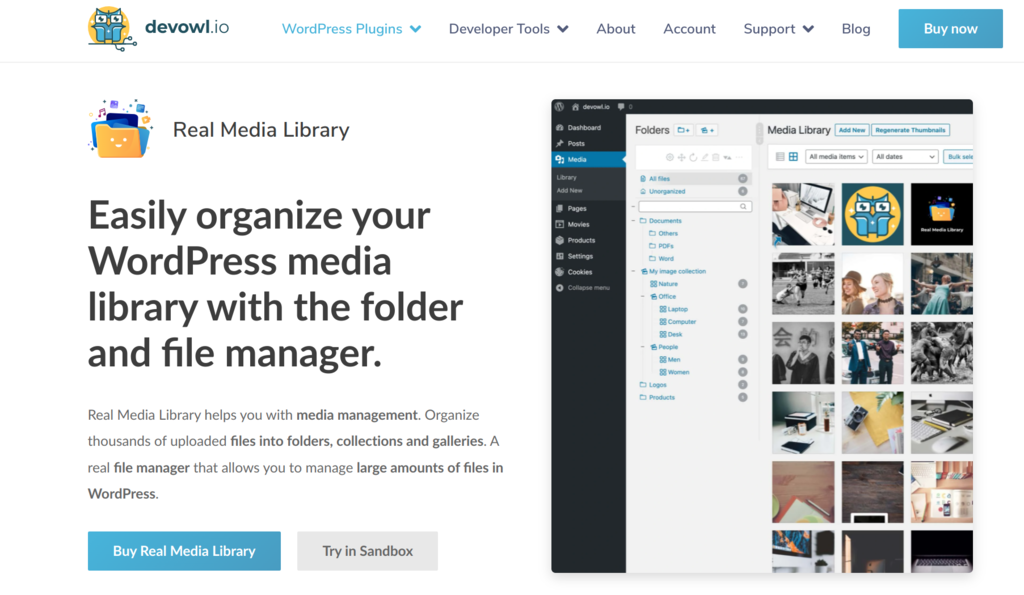
Real Media Library Stats:
- Downloads: 50,000+
- Rating: 5/5
- Notable Features:
- Drag and drop interface
- Shortcuts for files
- Create galleries from folders
- Advanced upload management
- Best Suited For: Managing WordPress website files
- Price: Freemium (costs $39/license)
Real Media Manager provides a simple and elegant user interface with a tree structure sidebar for better WordPress media library management. Meanwhile, the search bar feature is useful to quickly locate specific files.
This file manager provides a free demo for users to try before downloading and using the plugin.
5. Filester
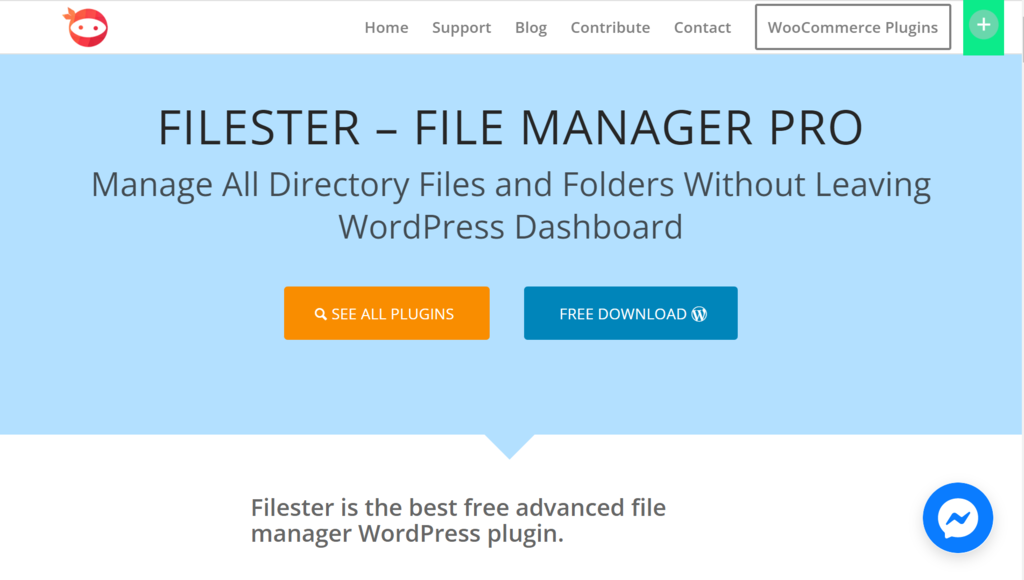
Filester Stats:
- Downloads: 30,000+
- Rating: 5/5
- Notable Features:
- Smart context menu
- Built-in Integrated Development Environment (IDE)
- Edit media files
- User authority settings
- Best Suited For: Managing WordPress files and folders
- Price: Free
Filester is a free plugin that offers complete file management functions. The user interface is clear and simple, making it easy to operate.
Filester lets you edit WordPress configuration files since it has a built-in advanced code editor. It also has a user authority settings feature where you can manage and access files from the root directory.
How to Use the WordPress File Manager to Transfer Files and Documents
In this section, we’ll go over the steps of installing and using different WordPress file manager plugins.
1. Install and Activate the Plugin
WordPress plugins can be installed from the WordPress dashboard, the WordPress Plugins’ official directory, or via manual installation.
The following steps will show you how to install File Manager from the WordPress dashboard:
- Log in to your WordPress dashboard and go to Plugins -> Add New.
- Search “WP File Manager” in the search bar.
- Click on the Install Now button to begin the installation.
- Once the installation process is complete, click the Activate button.
2. Upload Files
WordPress file manager plugins offer various methods to upload different file types, including media files, text files, zip files, and folders. We will go over three methods in detail.
Upload Manually
Here, we use WP File Manager to manually upload WordPress site files.
- Access the WordPress dashboard and navigate to the WP File Manager plugin.
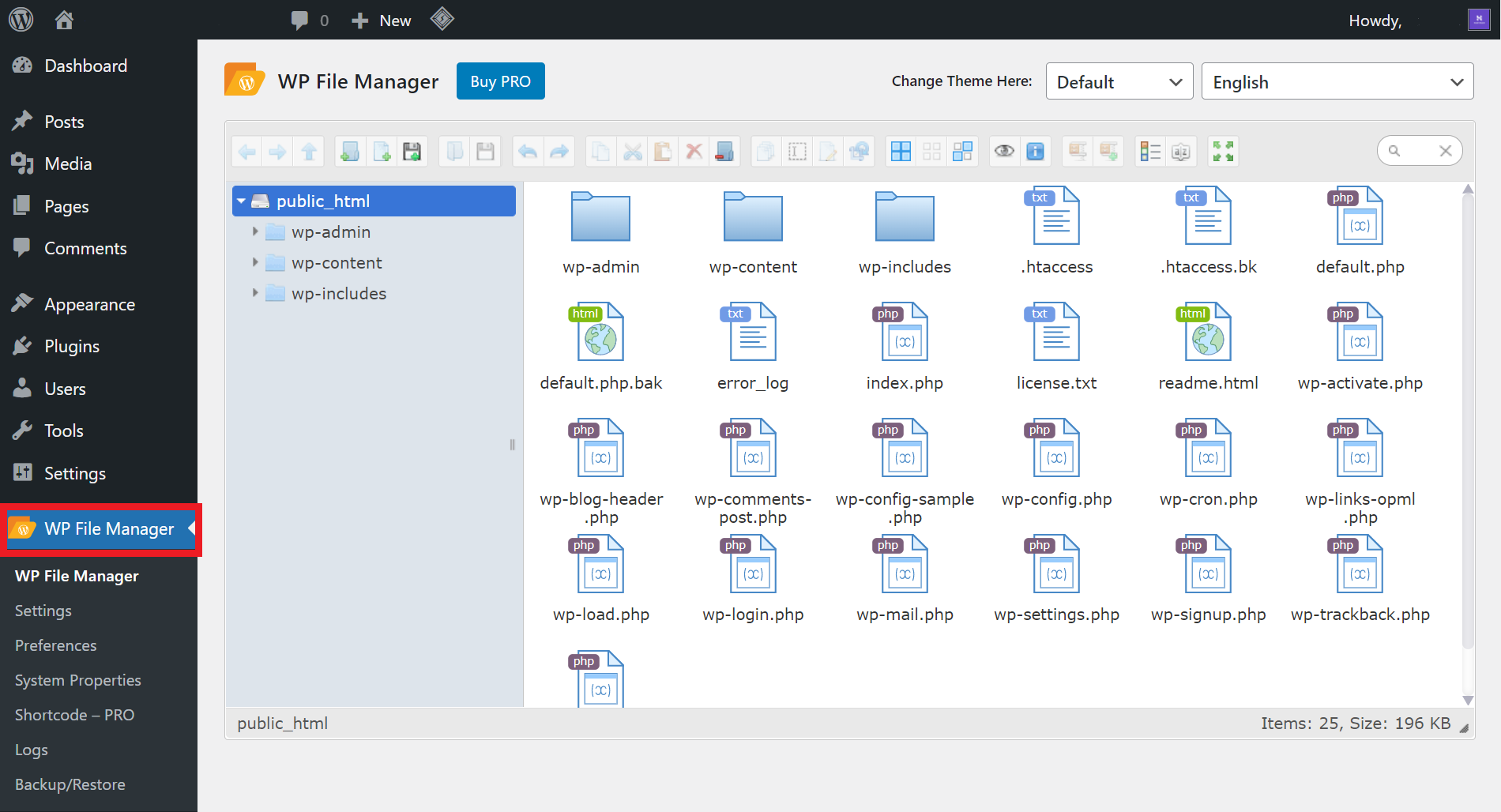
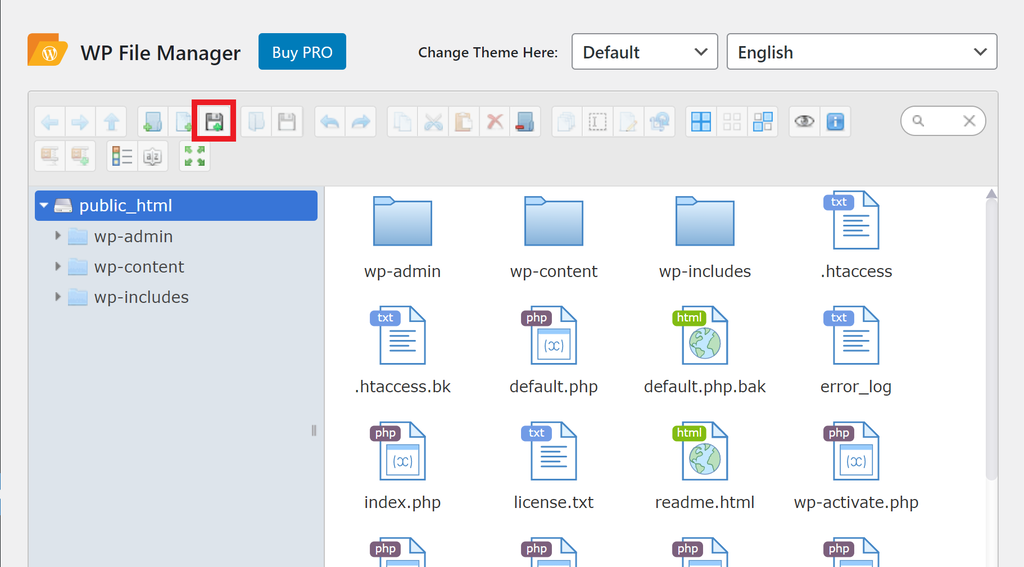
- Click the Upload Files icon on the toolbar, and a pop-up window will appear.
- There are two options – Select Files and Select Folders. Click Select Files.
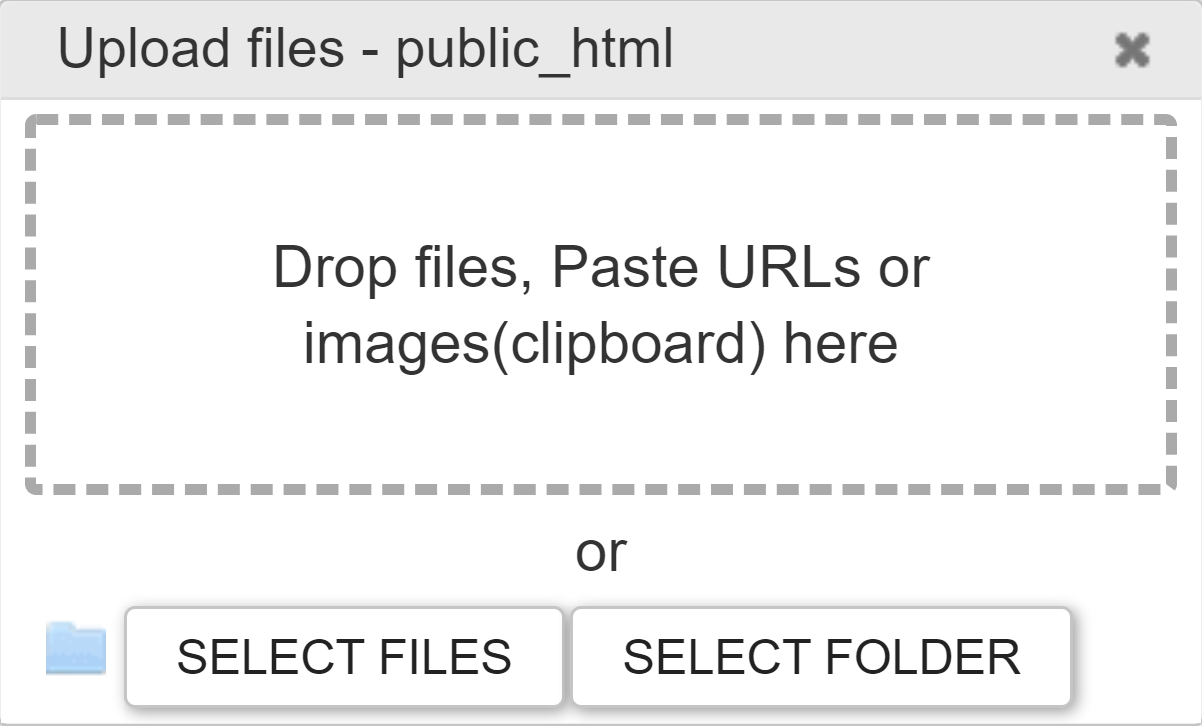
- Choose all the files you want to upload. Then, click Open to begin the upload process.
Upload Files in the Media Library
In this section, we use FileBird to upload files to the Media Library.
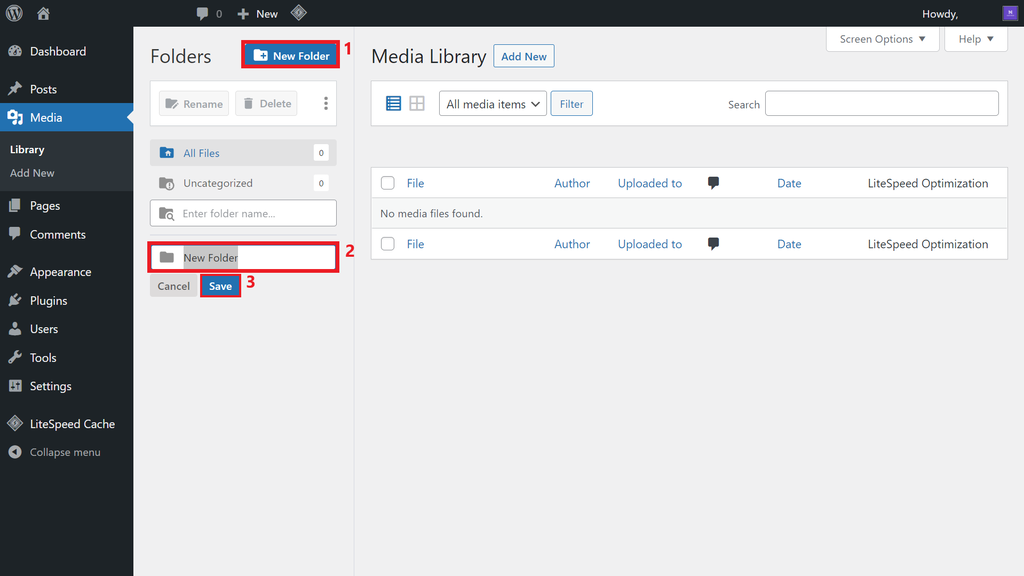
- From your WordPress admin dashboard, go to Media -> Library.
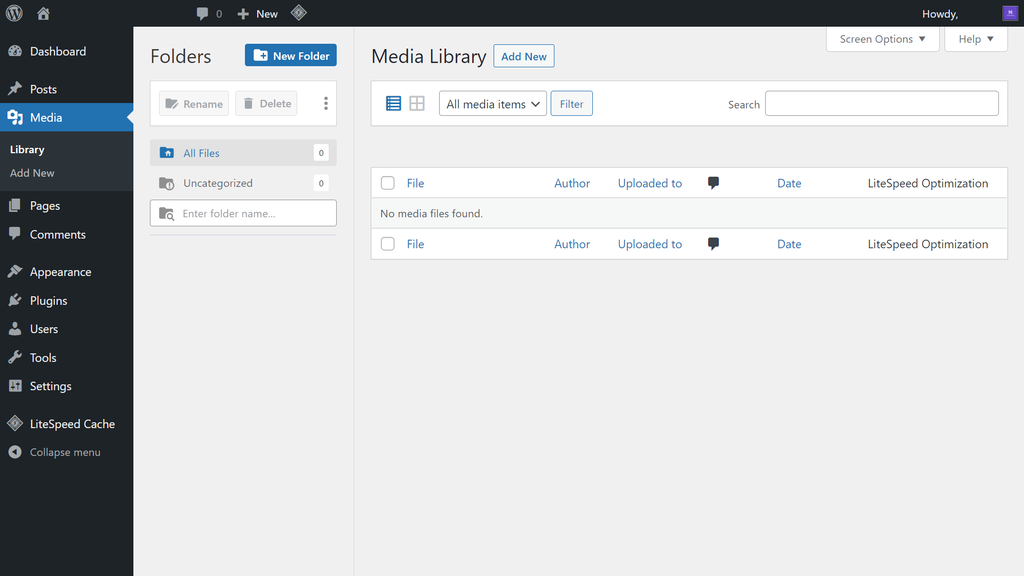
- Create a new folder by selecting the New Folder button, naming the folder, and clicking Save.
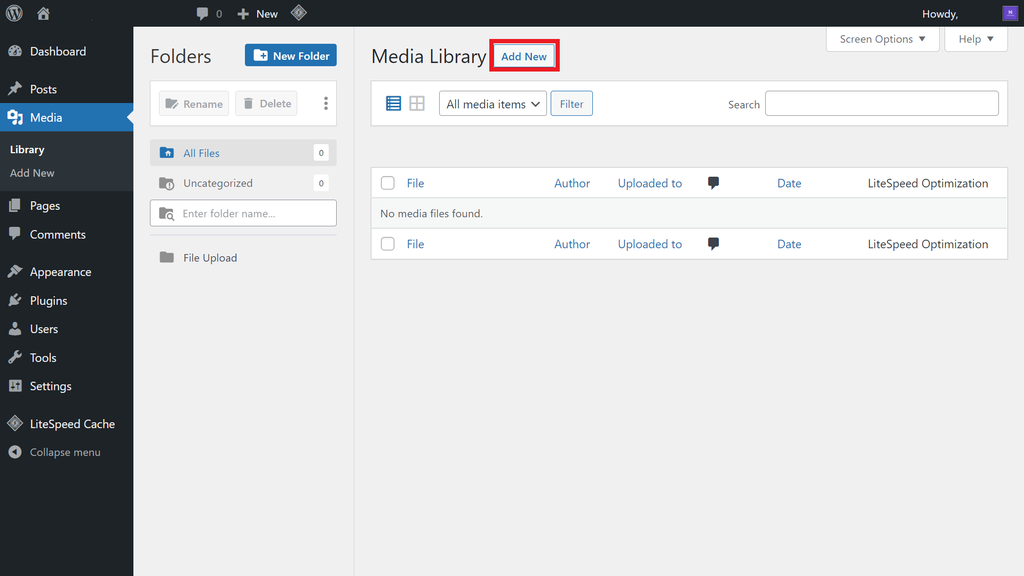
- Next, click on the Add New button.
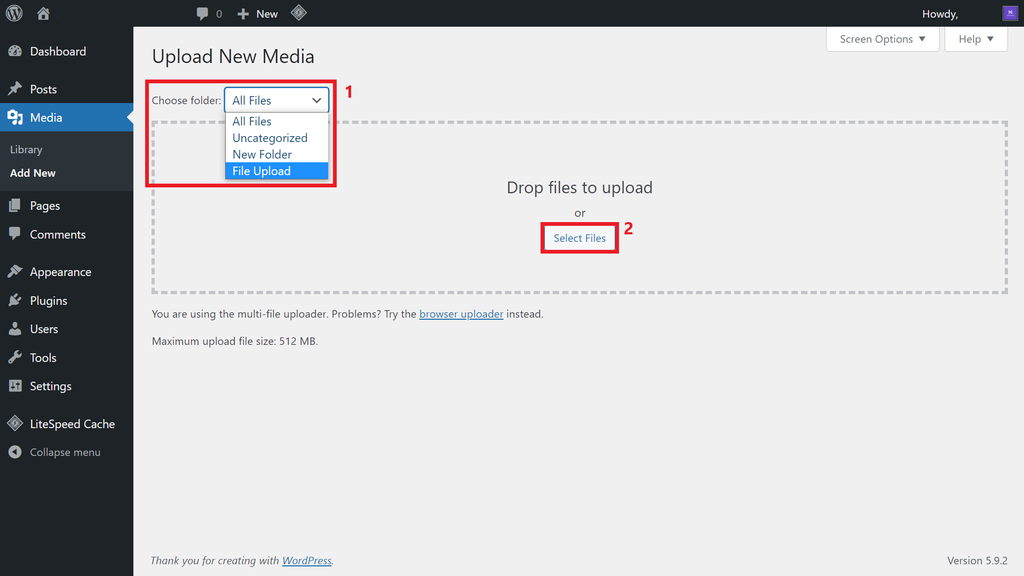
- Specify the file destination by clicking on the drop-down list next to Choose folder. Then, click on the Select Files button.
- Select the files from your local computer and click Open to upload them.
Upload Files with Drag and Drop
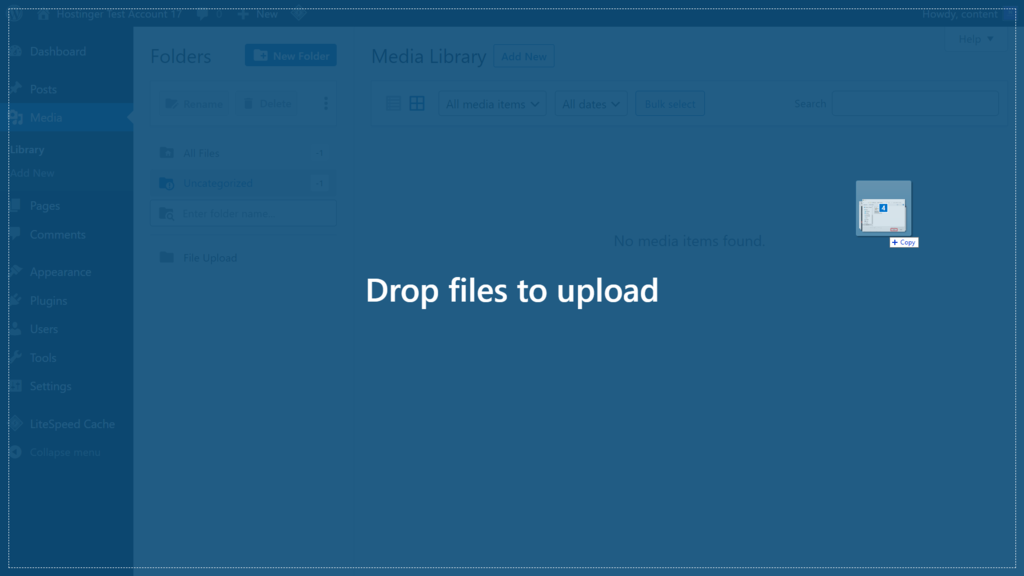
Another easy way to upload files and folders is to use the file manager’s drag and drop functionality. We’ll use the FileBird plugin as an example.
- Open the WordPress dashboard and navigate to Media -> Library.
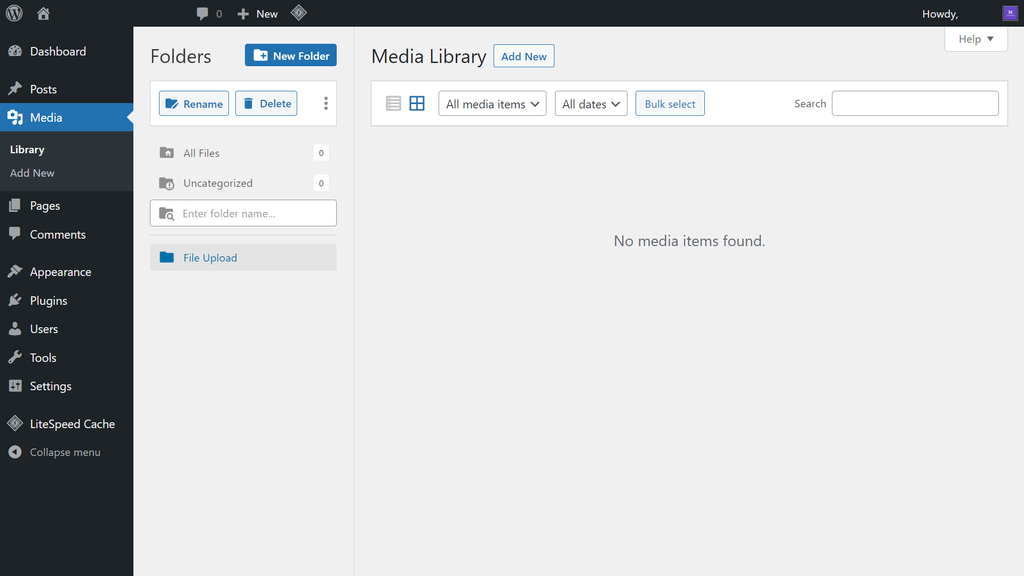
- Next, access the files from your local computer and select them.
- Drag the files from the local folder to the file manager by holding your mouse’s left-click button. Then, drop them to upload by releasing the button.

Conclusion
WordPress file managers are useful tools that help site owners handle various file management tasks without needing control panel or FTP access. These plugins also provide tons of additional features, making it convenient for users who have specific needs – for example, managing multiple websites.
To recap, this article provided five recommendations of top file manager plugins to help you decide which one suits your needs best. Moreover, we also reviewed the steps to activate a file manager plugin and three methods for uploading files to a file manager.
We hope this WordPress tutorial has helped you choose a file manager and understand how to use it on your WordPress site.
WordPress File Manager FAQ
To further understand how WordPress file manager works, here are some popular questions and answers on the topic.
Who Can Access My Website’s File Manager?
In general, only users with access to the website’s hosting control panel or FTP account can access the website’s file manager. Website owners and administrators can set permissions and restrict access to certain users or user groups for security purposes.
Where Does WordPress Store Its Files?
WordPress stores its core files in the website’s root directory, usually in the public_html folder. It also stores files for themes and plugins in the wp-content folder. Media files uploaded through WordPress are typically stored in the wp-content/uploads folder.
Why Is WordPress File Manager Important?
WordPress file manager allows website owners and administrators to manage their website files directly, without the need for FTP access or the hosting control panel. It provides an easy and convenient way to upload, edit, and delete files, change permissions, and manage backups.
This article is a localized version of WordPress file manager: top plugins and how to create one on your site, originally published in English.

Information Technology and web development are Yoga's passions. He loves nothing more than sharing his experience with readers, and helping them to understand the world of IT. In his spare time, Yoga likes to make music and learn to code. He is always looking for new challenges, and enjoys pushing himself to learn new things.



Comments
0 responses