Email management: How to organize, prioritize, and control your inbox
May 28, 2026
/
By Justina B.
/
7 min Read

Email management is the process of organizing, prioritizing, processing, and archiving messages so your inbox supports your work instead of slowing it down. It applies to both personal and business email and works whether you get 10 messages a day or 200.
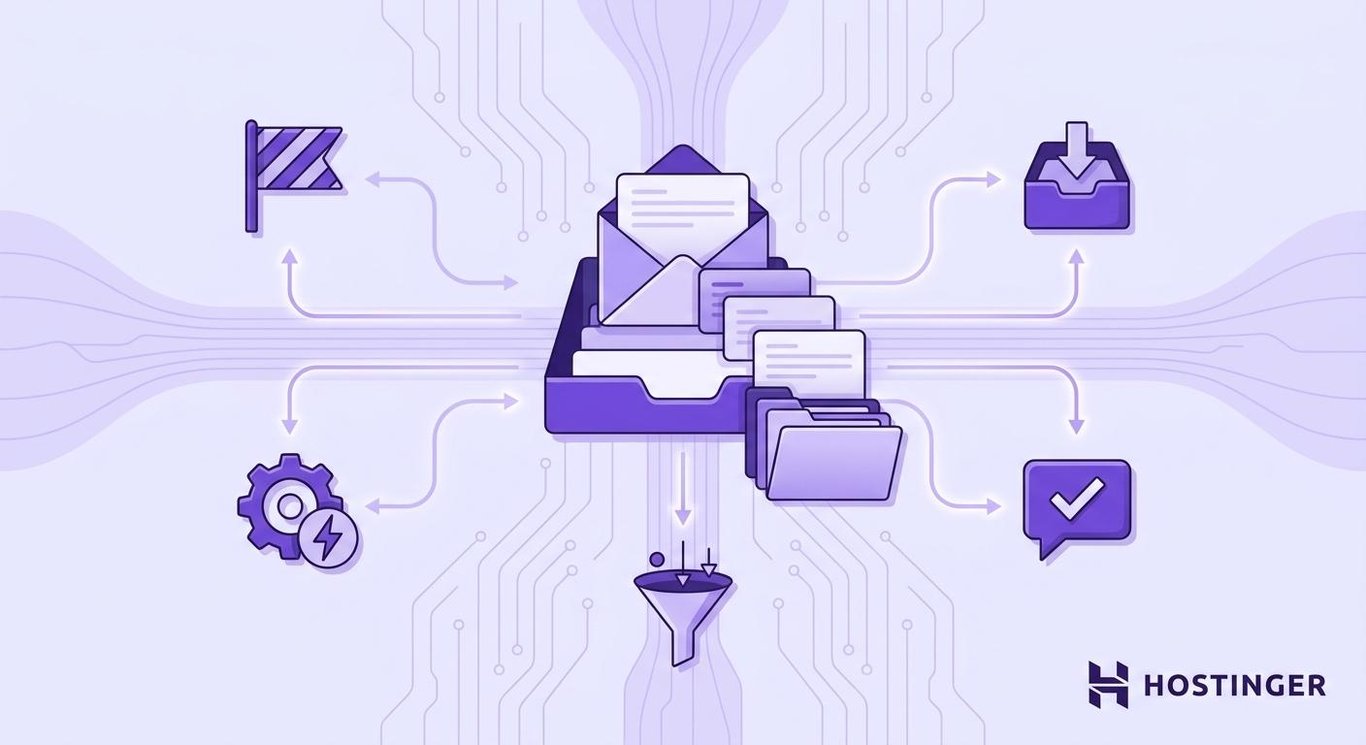
A solid email management system cuts inbox clutter at the source. You clean up old messages, organize emails with folders or labels, set filters for recurring senders, flag urgent messages, and use templates for replies you send often.
Business inboxes add another layer with custom domains, aliases, forwarding rules, and AI tools. These features keep team communication organized and your brand looking professional.
The payoff is real email productivity. You spend less time scrolling through your inbox, fewer important messages slip through, and the work that actually matters stops getting buried under newsletters and notifications.
What is email management?
Email management is the practice of sorting, prioritizing, responding to, archiving, and automating emails so important messages get attention, and the rest stay out of the way.
Good email organization applies to both personal and business inboxes, though the volume and stakes are usually higher at work. At its core, inbox management covers a few key habits:
- Sorting messages as they arrive.
- Deciding what needs a reply, archiving what’s done.
- Automating the rest.
Each habit is small on its own, but together they keep your inbox from running your day. Think of it as inbox hygiene plus a workflow.
You’re not just cleaning emails once. You’re building a system that helps you manage email week after week, not just on the day you decide to clean it out.
Why is email management important?
Email management matters because it cuts inbox overload and boosts email productivity. It also helps you reply faster to messages that actually need a response.
When you process email on your own terms, important emails stop getting buried under newsletters and notifications, and your email stress drops along with the unread count.
The effect compounds over time. A week of consistent email habits saves you hours you’d otherwise spend re-reading the same threads, hunting for attachments, or replying to messages you should have handled days ago.
For business inboxes, the benefits go further. Faster replies improve customer relationships, fewer missed emails protect revenue, and a clean inbox makes it easier to track invoices, support requests, and team updates.
Email management best practices
Email management works best as a repeatable routine, not a one-time cleanup. The practices below build on each other, so you can start with one and add the rest as you go.
Clean up your inbox before building a system
Start by removing clutter so you’re not organizing emails you don’t need. Delete old promotional messages, archive completed conversations, and remove anything that’s no longer relevant.
You don’t need to perfectly sort every old email. If a message is more than a few months old and you haven’t touched it, it’s probably safe to archive in bulk and move on.
Unsubscribe from emails you no longer read
Unsubscribing stops recurring clutter at the source. Newsletters, promotional emails, automated notifications, and low-value updates pile up faster than you can delete them.
Deleting one by one doesn’t fix anything because the next batch arrives tomorrow. Spend ten minutes unsubscribing from the senders you ignore the most, and you’ll see fewer emails by next week.
For senders that won’t take you off their list, you can block unwanted emails directly in your inbox.
Use folders, labels, or categories to group emails
Folders, labels, and categories help you group related emails so you can find them faster. Most email clients support at least one of these systems, and some support all three.
Useful groupings include clients, projects, invoices, receipts, urgent, waiting for reply, and read later. The trick is restraint: ten folders you actually use beat fifty you don’t. For a deeper walkthrough, here’s a full guide on how to organize emails by folder and label.
Set up filters and rules for recurring messages
Filters and rules automatically sort predictable emails so you don’t have to touch them. They handle the repetitive stuff in the background while you focus on actual work.
Common uses include:
- Moving newsletters to a read-later folder.
- Labeling invoices or receipts.
- Flagging emails from key clients.
- Forwarding specific emails to the right person.
- Sorting automated reports into their own folder.
Filters work best for recurring messages with predictable senders or subject lines. They’re not great for random high-priority emails, since those rarely follow a pattern. If you handle messages across multiple addresses, email forwarding lets you route them to one inbox.
Prioritize emails by urgency and importance
Not every unread email needs the same attention. A common approach is to sort messages into four buckets: urgent and important, important but not urgent, urgent but not important, and neither.
Useful signals for setting priority include the sender, any deadline mentioned, the business impact, customer urgency, and whether the email blocks another task. Once you know what’s actually urgent, the rest can wait.
Check email in scheduled batches
Batch processing means checking email at set times instead of reacting to every notification. It reduces context switching, which is one of the biggest drains on focus during the workday.
The right rhythm depends on your role. If you’re in customer support, you might need to check your inbox every hour, while writers or developers can usually get away with two or three check-ins a day.
Pick a few fixed times that fit your work, and turn off non-essential notifications so your inbox stops interrupting you.
Use the two-minute rule for quick replies
The two-minute rule says any email you can answer in under two minutes should be handled right away during your processing block. It clears small tasks before they pile up.
Good examples include confirming you received something, sending a short answer, approving a simple request, or sharing a file or link. The rule isn’t permission to check email all day, though. It only applies during your scheduled batches.
Snooze, archive, or defer emails that do not need action now
Snoozing, archiving, and deferring are three different tools for three different situations.
Snoozing hides an email until a specific time you’ll need it again, archiving moves a completed conversation out of the inbox, and deferring tags an email that needs more work so you can come back to it later.
Your inbox shouldn’t double as a storage space for unfinished tasks. Once you’ve decided what to do with a message, move it somewhere appropriate instead of leaving it to scroll past tomorrow.
Turn action-based emails into tasks
Emails that require real work should become tasks, calendar blocks, or project items. Leaving them in the inbox means re-reading the same message every time you scroll past it.
Most task managers and project tools let you forward an email or copy its content into a task with a deadline. Email is a communication channel, not a task management system, so move the work where it actually gets tracked.
Use templates for repeated responses
Templates save time and keep replies consistent. If you find yourself writing the same email more than three times, it’s a template candidate.
Common ones include customer support replies, meeting scheduling, invoice reminders, proposal follow-ups, and internal status updates. Templates still need personalization, though. A name, a specific detail, or a quick line about context keeps them from feeling generic.
Review and maintain your inbox weekly
Email management needs regular maintenance, or the system slowly falls apart. A short weekly review keeps things working.
During the review:
- Archive completed conversations.
- Check snoozed emails.
- Delete or unsubscribe from new clutter.
- Review filters and rules.
- Follow up on waiting-for-reply messages.
- Move any lingering tasks out of the inbox.
Fifteen minutes a week is usually enough.
How to manage business email more effectively
Business email is more complex than personal email as it handles customer inquiries, invoices, sales messages, support requests, and internal updates all in one place. The volume is higher, the stakes are bigger, and more people often share access to the same address.
A few structural changes make the biggest impact:
- Create a professional email address with a custom domain instead of a free generic one.
- Keep business and personal communication separate.
- Set up email aliases like support@, billing@, sales@, or partners@ to route messages to the right person.
- Use forwarding rules to send specific emails to teammates.
- Set auto-replies for time off or high-volume periods.
- Tighten your email security with spam, phishing, and virus filters.
- Add a clear, professional signature with your name, role, and contact details.
- Use shared access or audit logs when more than one person handles the inbox.
- Lean on AI summaries or search to handle long threads quickly.
Hostinger’s business email covers the basics, including custom domains, aliases, and AI tools, in one plan.

Which email management system should you use?
The best system depends on your email volume, your role, how quickly people expect replies, and whether your inbox is personal or shared. Most people end up combining two or three approaches instead of sticking to one.
A quick comparison:
System | How it works | Best for |
Inbox Zero | Every email is archived, deleted, snoozed, or turned into a task | People who want an empty inbox at the end of each day |
Touch-it-once | You decide what to do with an email the first time you open it | People who tend to re-open emails without acting on them |
Two-minute rule | Anything under two minutes gets handled immediately | Anyone with frequent small replies |
Batch processing | Email gets checked at set times, not constantly | Roles that need deep focus |
GTD-style task management | Emails become tasks in a separate system | People with lots of action emails |
Shared inbox workflow | Emails get assigned to team members with clear ownership | Support, sales, or billing teams |
You don’t have to pick just one. Many people batch their email checks, use the two-minute rule inside each batch, and keep Inbox Zero as a weekly goal rather than a daily one.
What tools help with email management?
Start with the features already built into your email client before adding anything new. Gmail, Outlook, Apple Mail, and most webmail providers include filters, labels, folders, stars, flags, and rules. For most people, that’s enough to build a real system.
Beyond the basics, a few tool categories are worth knowing about. Task management apps convert emails into tasks, calendar tools help you schedule work blocks, and shared inbox tools keep team accounts organized.
AI email assistants can summarize long threads or draft replies, while business email platforms handle custom domains and team features.
Add tools only when you’ve outgrown what’s built in. A new app won’t fix a missing routine.
Common email management mistakes to avoid
A few habits quietly undo good intentions. Knowing what they look like makes them easier to spot.
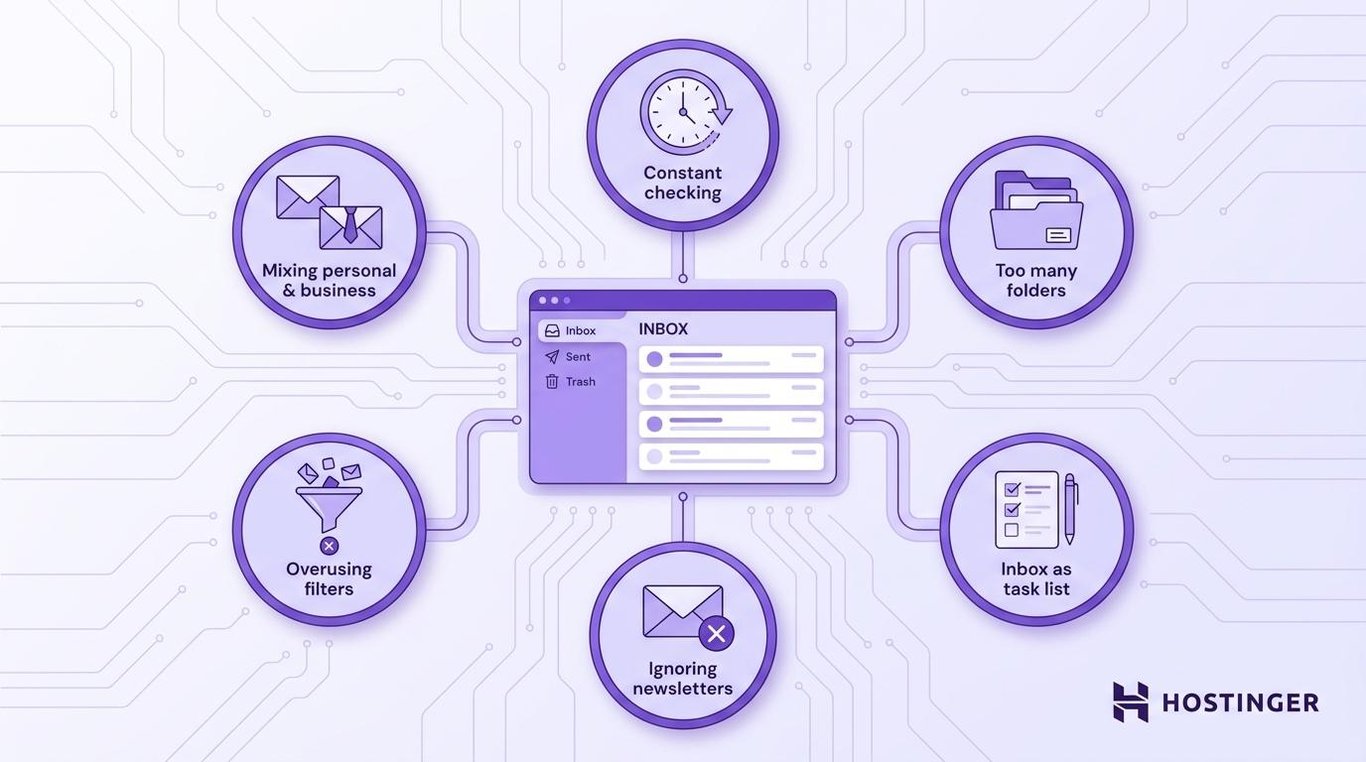
- Checking email constantly. Notifications break focus and turn email into your default activity. Batch processing fixes this.
- Creating too many folders. Twenty folders mean you spend more time deciding where to file than actually filing. Keep it under ten.
- Using the inbox as a task list. Action items get lost in the scroll. Move them to a task manager or calendar.
- Ignoring newsletters and automated emails. They pile up and bury real messages. Unsubscribe or filter them.
- Overusing filters. Filters that hide important emails are worse than no filters at all. Review them every few weeks.
- Mixing personal and business communication. It creates confusion and security risks. Use separate addresses.
Build an email management routine that lasts
A routine that holds up over time looks something like this:
- Clean up your inbox once.
- Unsubscribe from recurring clutter.
- Organize emails with folders or labels, set filters for predictable messages.
- Prioritize urgent emails first.
- Process the rest in scheduled batches.
- Move action items out of the inbox.
- Use templates and AI tools where they help.
- Review everything once a week.
Once your inbox routine is in place, you can turn attention to outgoing communication. Pick one email marketing tip and try it on your next newsletter or customer update.
Start with one habit from this article today, then add another once it sticks. The rest gets easier once the first one sticks.
This article is a localized version of Email management: How to organize, prioritize, and control your inbox, originally published in English.

Justina is a Content Writer passionate about marketing, with a background in social media and customer success management. She also loves reading books, traveling and exploring new places as well as cooking, and trying out new recipes. Follow her on LinkedIn.