How to use the Google SMTP server
Oct 27, 2026
/
By Domantas G.
/
6 min Read
You can use Google’s SMTP server to send emails from compatible email clients, applications, and WordPress websites. The Gmail SMTP server address is smtp.gmail.com, using port 587 (STARTTLS) or 465 (SSL/TLS).
To connect, you’ll need a Gmail or Google Workspace account and a supported authentication method, such as OAuth 2.0 or a Google app password. Below, we’ll cover the SMTP settings, configuration steps, sending limits, and common connection problems.

What are the Gmail SMTP server settings?
To send emails through Google’s SMTP server, use smtp.gmail.com with port 587 (STARTTLS) or 465 (SSL/TLS). You can use these settings to connect a Gmail or Google Workspace account to compatible email clients, applications, and websites.
Configure your outgoing email settings as follows:
| Setting | Value |
|---|---|
| SMTP server | smtp.gmail.com |
| SMTP port | 587 (STARTTLS) or 465 (SSL/TLS) |
| Encryption | TLS/STARTTLS for port 587; SSL/TLS for port 465 |
| Username | Your full Gmail or Google Workspace email address |
| Authentication | OAuth 2.0 or an app password, depending on the application |
| Password | A Google app password if password-based authentication is supported |
Important: Don’t use your regular Google Account password for SMTP authentication. If your application supports Sign in with Google (OAuth 2.0), use that method.
If your application requires password-based authentication, you may be able to use a 16-character Google app password. To create one, enable 2-Step Verification in your Google Account and open the App Passwords page. App passwords may be unavailable for certain accounts or restricted by your organization’s security policies.
What is SMTP?
Simple Mail Transfer Protocol (SMTP) is a standard protocol used to send emails from an email client, website, or application to an outgoing mail server. The server then relays the message to the recipient’s email provider.
To send emails through Gmail, your application connects to Google’s outgoing server using the correct port and encryption settings and a supported authentication method.
SMTP handles outgoing messages, while IMAP and POP3 handle incoming emails. These protocols differ in how they retrieve and store messages, which affects how your emails are accessed across devices.
Which Gmail SMTP authentication method should you use?
Gmail SMTP supports two authentication methods: OAuth 2.0 and app passwords. Google recommends OAuth 2.0 because it lets applications connect to your account without storing your Google password.
Choose the method based on your application:
- OAuth 2.0: Recommended for modern email clients and applications that support Sign in with Google. It uses access tokens instead of your Google Account password.
- App password: Suitable for compatible applications that require traditional SMTP authentication. It uses a separate 16-character password and requires 2-Step Verification to be enabled.
To create an app password, enable 2-Step Verification in your Google Account, then open the Google App Passwords page to generate one.
App passwords may be unavailable for certain accounts, including accounts with Advanced Protection or restrictions set by Google Workspace administrators.
Important: Don’t use your regular Google Account password for SMTP authentication. Google no longer supports basic username-and-password authentication for third-party Google Workspace applications.
How to configure Gmail SMTP in an email client or app
To configure Gmail SMTP in an email client or application, connect your Google Account using OAuth 2.0 or manually enter the SMTP server settings with an app password.
For email clients such as Outlook or Thunderbird, select Google or Gmail when adding an account and complete the Sign in with Google process. This is the recommended method because it doesn’t require storing an app password.
If your application only supports manual SMTP configuration with password-based authentication, follow these steps:
- Open your email client or application’s account settings and locate the outgoing mail server (SMTP) configuration.
- Enter
smtp.gmail.comas the SMTP server. - Set the port to 587 with STARTTLS encryption, or 465 with SSL/TLS encryption.
- Enable SMTP authentication and enter your full Gmail or Google Workspace email address as the username.
- Enter the Google app password you generated after enabling 2-Step Verification.
- Save the settings and send a test email to confirm that the connection works.
If authentication fails, verify your app password and make sure the selected port matches the encryption method. Google Workspace accounts may have additional restrictions set by their administrator.
How to configure Gmail SMTP in WordPress
You can send WordPress contact form submissions, notifications, and other automated emails through Google’s SMTP server using the WP Mail SMTP plugin.
For the manual configuration below, you’ll need access to your WordPress dashboard and a Gmail or Google Workspace account that supports app passwords.
To configure it, you’ll need a Gmail or Google Workspace account with an app password and access to your WordPress dashboard.
- Log in to your WordPress dashboard and navigate to Plugins → Add New Plugin. Search for WP Mail SMTP, then click Install Now → Activate.
- Open WP Mail SMTP → Settings → General. Enter your Gmail address in the From Email field and set the From Name to your preferred sender name.
- Under Mailer, select Other SMTP to configure Google’s outgoing mail server manually.
- Enter the following SMTP settings:
- SMTP Host: smtp.gmail.com
- Encryption: TLS
- SMTP Port: 587
- Authentication: On
- SMTP Username: Your full Gmail address
- SMTP Password: Your Google app password
- Click Save Settings to apply the configuration.
- Navigate to WP Mail SMTP → Tools → Email Test. Enter a recipient address and click Send Email to verify that your WordPress website can send messages.
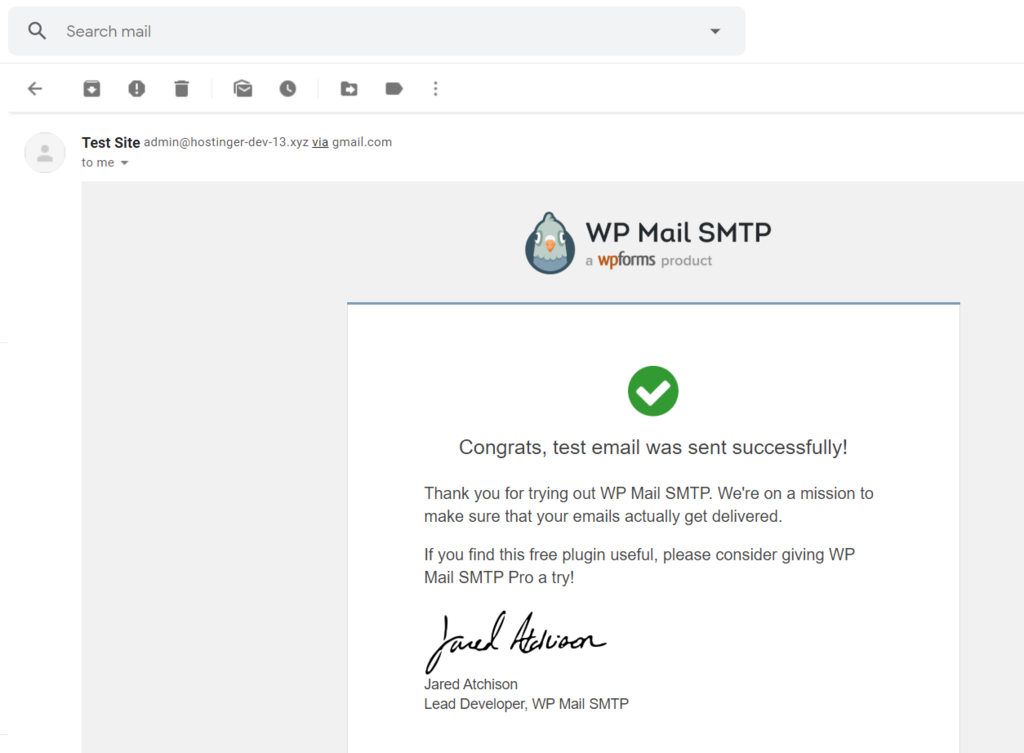
If the test succeeds, your WordPress website is ready to send emails using Google’s SMTP server.
Security note: WP Mail SMTP’s Other SMTP method stores SMTP credentials in your WordPress configuration. For better security, the plugin’s Google / Gmail mailer supports OAuth-based authentication through the Gmail API, eliminating the need to store an SMTP password.
If Gmail’s sending limits don’t meet your website’s needs, you can also configure WordPress to send emails through another SMTP provider.
Can you use Gmail SMTP with a custom domain?
Yes, you can use Gmail SMTP with a custom-domain email address if your email is hosted by Google Workspace. For example, you can configure name@yourdomain.com to send emails through smtp.gmail.com using your Google Workspace account credentials and a supported authentication method.
However, using a personal Gmail account to send messages from an email address hosted by another provider is different. Google will discontinue Gmail’s Send as feature for third-party email addresses in January 2027. This change won’t affect Google Workspace aliases or other Gmail addresses you own.
If your custom-domain email is hosted elsewhere, use your email provider’s SMTP server instead. If you haven’t set up email for your domain yet, you’ll need to choose a provider and create your mailbox before configuring SMTP.
What are Gmail SMTP sending limits?
Gmail SMTP has daily sending limits that depend on your Google Account type. Personal Gmail accounts can send up to 500 emails per day, while paid Google Workspace accounts can send up to 2,000.
Here’s how the limits compare:
| Account type | Daily sending limit |
|---|---|
| Personal Gmail | 500 emails |
| Google Workspace (paid) | 2,000 emails per user |
| Google Workspace (trial) | 500 emails per user |
These limits apply over a rolling 24-hour period. Google also restricts the number of recipients per message. For example, Google Workspace users sending through SMTP clients are limited to 100 recipients per message.
If you exceed a sending limit, Google may temporarily block outgoing emails for up to 24 hours.
Gmail SMTP is best suited for personal communication and low-volume website notifications. For websites that regularly send large volumes of transactional emails, such as order confirmations or account notifications, a dedicated transactional email service is a more suitable option.
For the latest restrictions, check Google’s official Gmail sending limits and Google Workspace sending limits.
How to fix common Gmail SMTP errors
If Gmail SMTP isn’t sending emails, the issue is usually caused by incorrect authentication credentials, SMTP connection settings, or account restrictions. Start by checking the error message in your email client, application, or WordPress SMTP plugin.
Here are the most common problems and how to fix them:
- Authentication failed (535 error): Check that you’re using your full Gmail address and the correct authentication method. If you’re using an app password, make sure it’s valid. Google revokes existing app passwords when you change your Google Account password.
- Connection timed out: Verify that the SMTP server is set to
smtp.gmail.comand that you’re using port587with STARTTLS or port465with SSL/TLS. Check whether your firewall or hosting provider blocks outgoing SMTP connections. You can also check whether SMTP port 587 is open. - Authentication required (530 error): Enable SMTP authentication in your application’s settings. If the error mentions STARTTLS, make sure encryption is enabled before attempting authentication.
- Daily sending limit exceeded (550 5.4.5 error): Stop sending emails and wait for Google’s temporary restriction to expire. Reduce your sending volume to avoid hitting the limit again.
- Emails aren’t reaching recipients: Check for bounced messages or delivery errors. If you’re sending from a Google Workspace domain, verify that your SPF and DKIM records are configured correctly.
If the problem continues, refer to Google’s official SMTP error codes to identify the issue and its recommended solution.

How to improve email delivery after configuring Gmail SMTP
Configuring Gmail SMTP allows your website or application to send emails through Google’s servers, but it doesn’t guarantee that every message will reach the recipient’s inbox. Factors such as domain authentication, sender reputation, and message content affect how reliably your emails reach recipients.
Once you’ve confirmed that SMTP works, take these steps to improve email delivery:
- Test your emails. Send messages to different email providers and check whether they arrive in the inbox or spam folder.
- Verify email authentication. If you’re using Google Workspace with a custom domain, check that SPF, DKIM, and DMARC are configured correctly.
- Monitor sending activity. Watch for bounced emails, authentication failures, and sending-limit warnings.
This article is a localized version of How to use the Google SMTP server, originally published in English.
All of the tutorial content on this website is subject to Hostinger's rigorous editorial standards and values.

Domantas leads the content and SEO teams forward with fresh ideas and out of the box approaches. Armed with extensive SEO and marketing knowledge, he aims to spread the word of Hostinger to every corner of the world. During his free time, Domantas likes to hone his web development skills and travel to exotic places.