How to use PuTTY to access your server
Oct 15, 2026
/
By Linas L.
/
4 min Read
To use PuTTY, install the client, enter your server’s IP address and SSH port, select SSH as the connection type, and click Open. Then, enter your SSH username and authenticate using your password or a configured SSH key.
PuTTY is an SSH client that lets you securely connect to and manage remote servers using a terminal. It’s commonly used on Windows, although macOS and Linux users can also connect through their built-in SSH clients.
For a successful connection, SSH access must be enabled on your server, and your IP address, port, and login credentials must be correct. If PuTTY can’t connect, common causes include incorrect credentials, blocked SSH ports, or server connectivity issues.
1. Install PuTTY
PuTTY is most commonly used on Windows. However, it is also available on Linux and Mac. Here is how you can get the putty download on different operating systems.
Install PuTTY on Windows
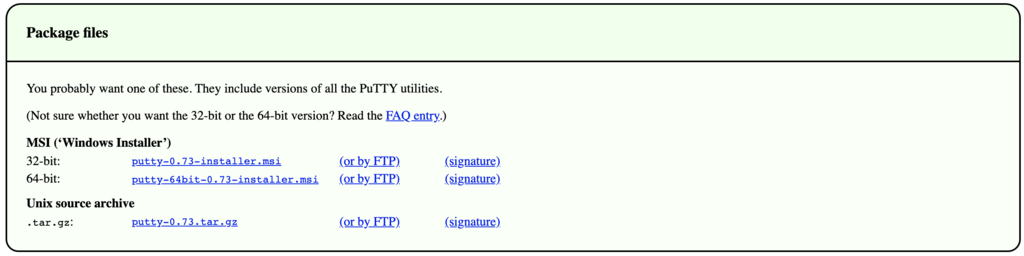
Download the latest version of PuTTY SSH from the official website. Be sure to select the right bit version for your computer. Once the file is downloaded, run the installer to start the setup.
Install PuTTY on Linux
Most people use the preinstalled OpenSSH on Linux. However, PuTTY on Linux is used more for debugging and connecting to serial ports and to raw sockets.
On Debian, use the following command:
sudo aptitude install putty
Followed by the tools installation command:
sudo aptitude install putty-tools
Install PuTTY on MacOS
Like Linux, the macOS comes with a command-line SSH client already installed. But to download PuTTY, open the terminal window and use the commands below.
To install PuTTY for MacOS:
brew install putty (or) port install putty
2. Get your SSH connection credentials
Before setting up an SSH connection using PuTTY, you will need the following information:
- Server IP Address
- SSH port
- SSH username
- SSH password
If you are a Hostinger user, there are two ways to find this information, depending on your hosting plan:
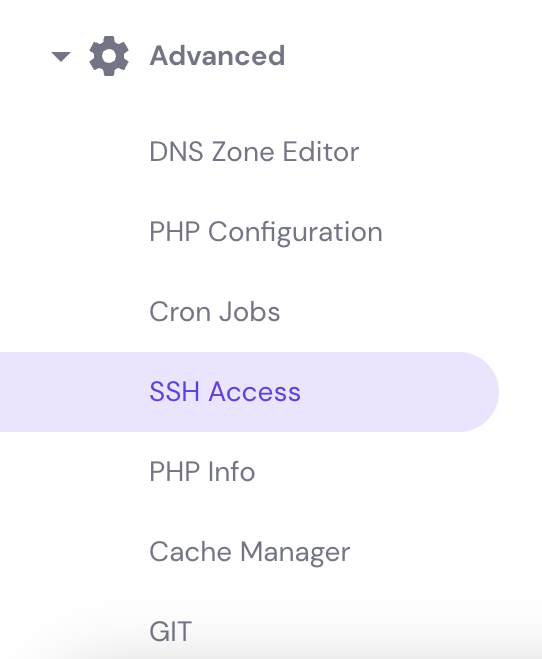
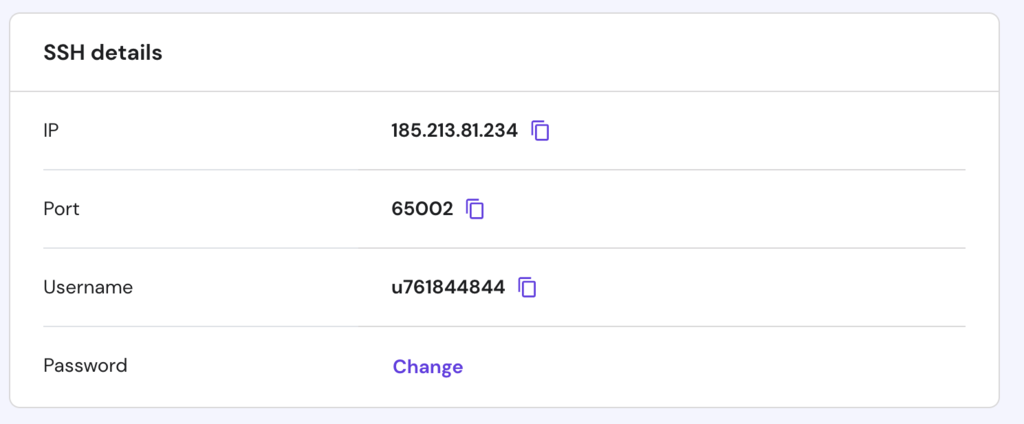
- Shared, WordPress, and Cloud hosting — go to the SSH Access menu under the Advanced category. Here you will see all the login details that you need. If you forgot your password, easily reset it via the FTP Accounts menu.
- VPS plan — the credentials are located in the Server tab of Hostinger dashboard, under SSH Details. In case you don’t know what your password is, scroll down to the Root Password section, and create a new one.
Alternatively, ask Hostinger Agent, our AI-powered assistant, to change your password for you. You can access it anywhere in Hostinger dashboard by clicking the Ask AI button. Then, enter a prompt like: “Change my VPS password. Here’s the new password: [your new password].”

3. Connect to your server using PuTTY
After getting all the SSH connection information, follow the following steps:
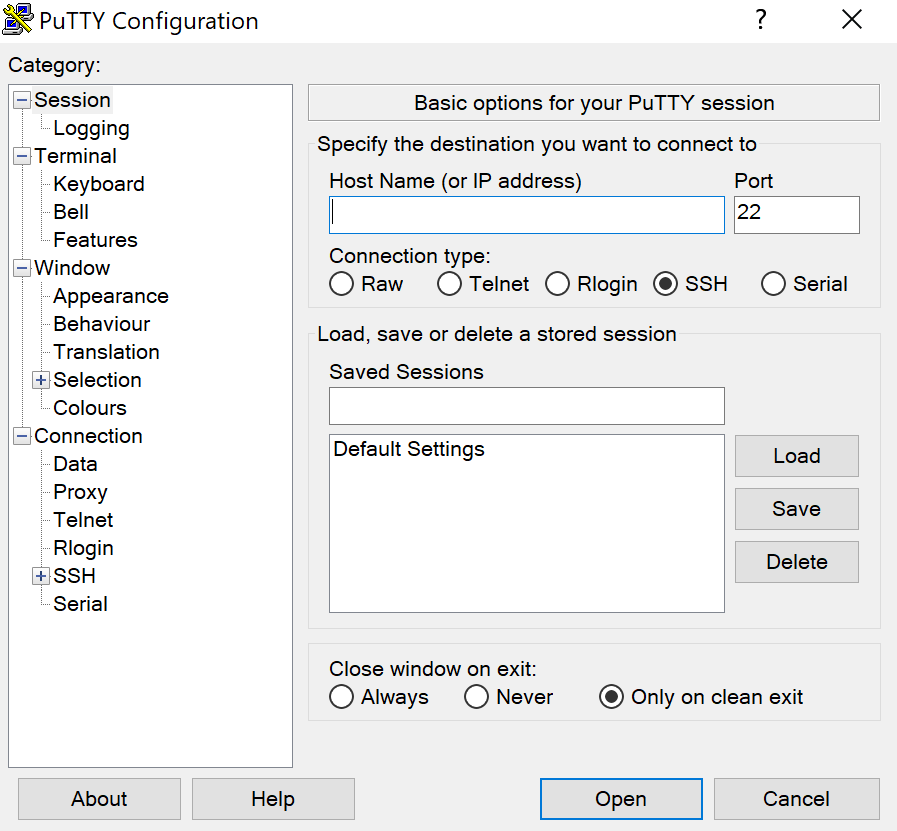
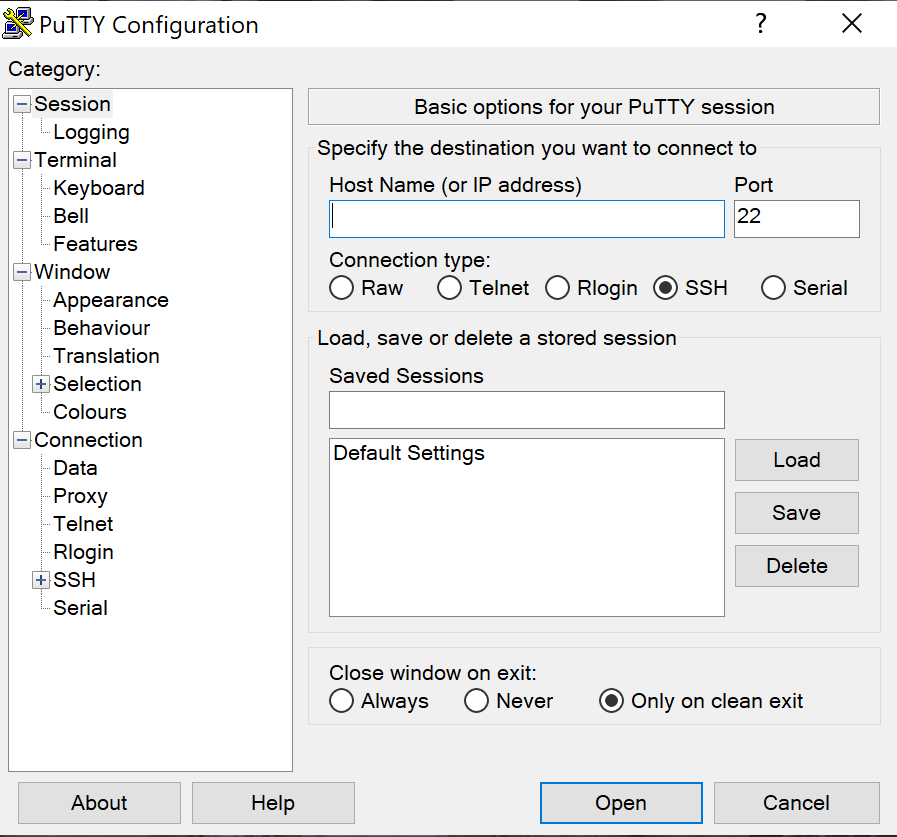
- Launch the PuTTY SSH client, then enter your server’s SSH IP and SSH Port. Click the Open button to proceed.
- A login as: message will pop up and asks you to enter your SSH username. For VPS users, this is usually root. However, for shared hosting users, you will need to enter a predefined username like u721233450. After entering your username, press Enter.
- Type your SSH password and press Enter again. For security reasons, the screen won’t show the password but will register what you type.
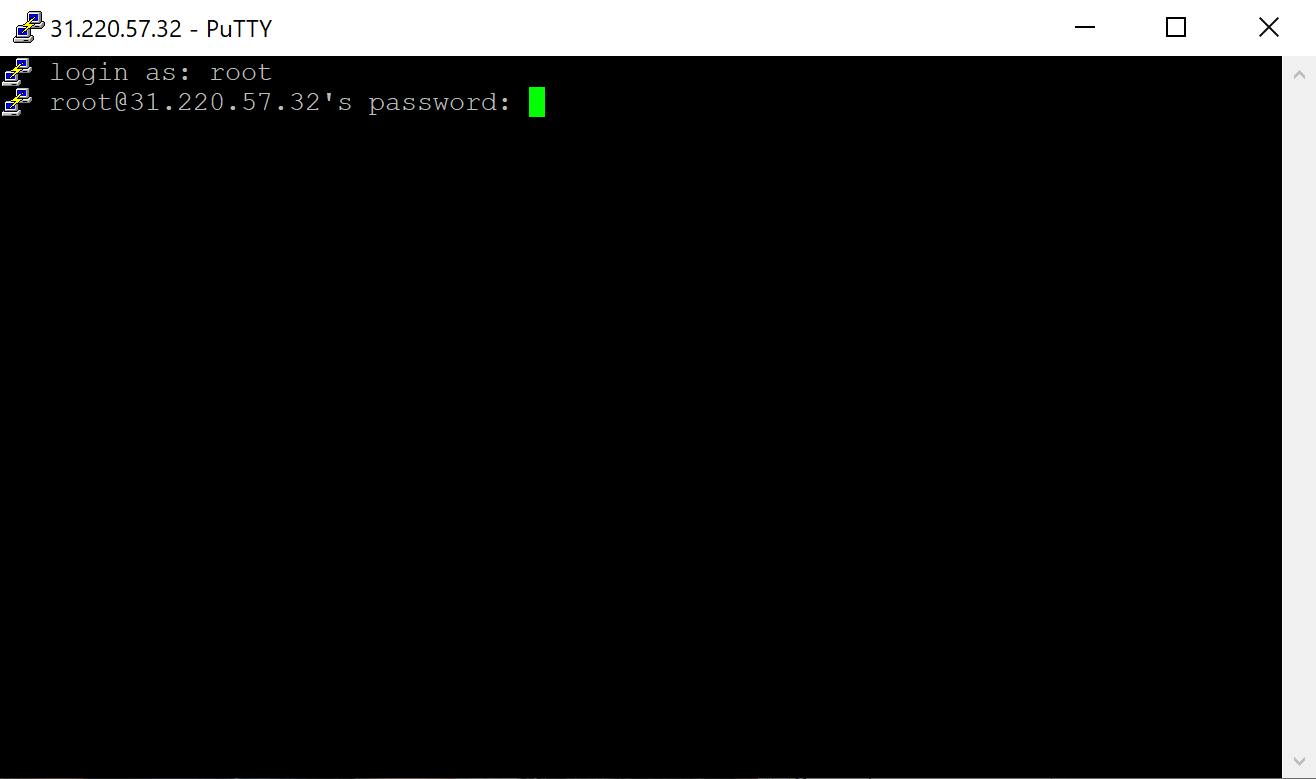
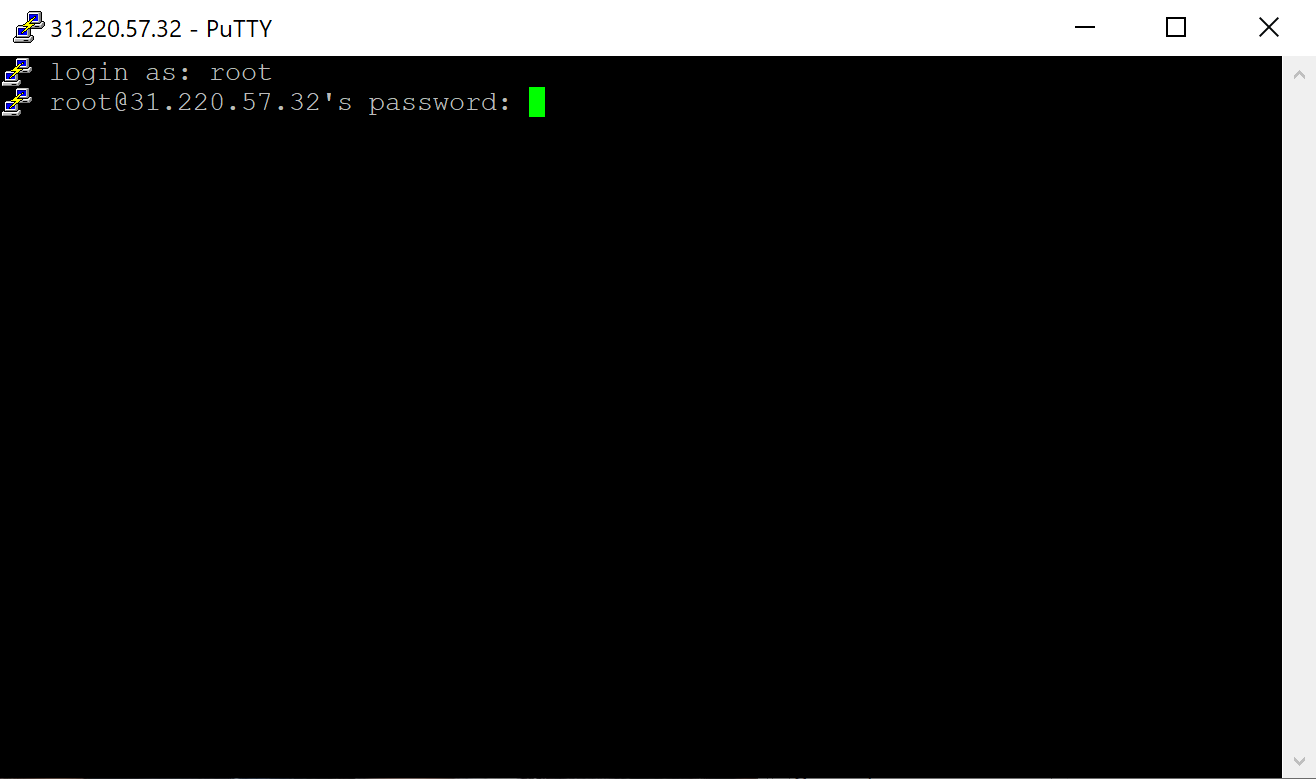
Congratulations! You have successfully connected to your account using the PuTTY SSH client. You can list all available SSH commands by executing help via the terminal.
4. Set up SSH key authentication with PuTTYgen (optional)
PuTTYgen is a tool that creates SSH key pairs. PuTTY stores these key authentications in its .ppk format files. With Windows, you will use the PuTTYgen.exe graphical tool, while with Linux, you will use the command line.
To begin, locate PuTTY and open PuTTYgen.
To create a new key pair, click the Generate button near the bottom and begin to move your mouse around within the window. Continue moving your mouse until the green progress bar is full.
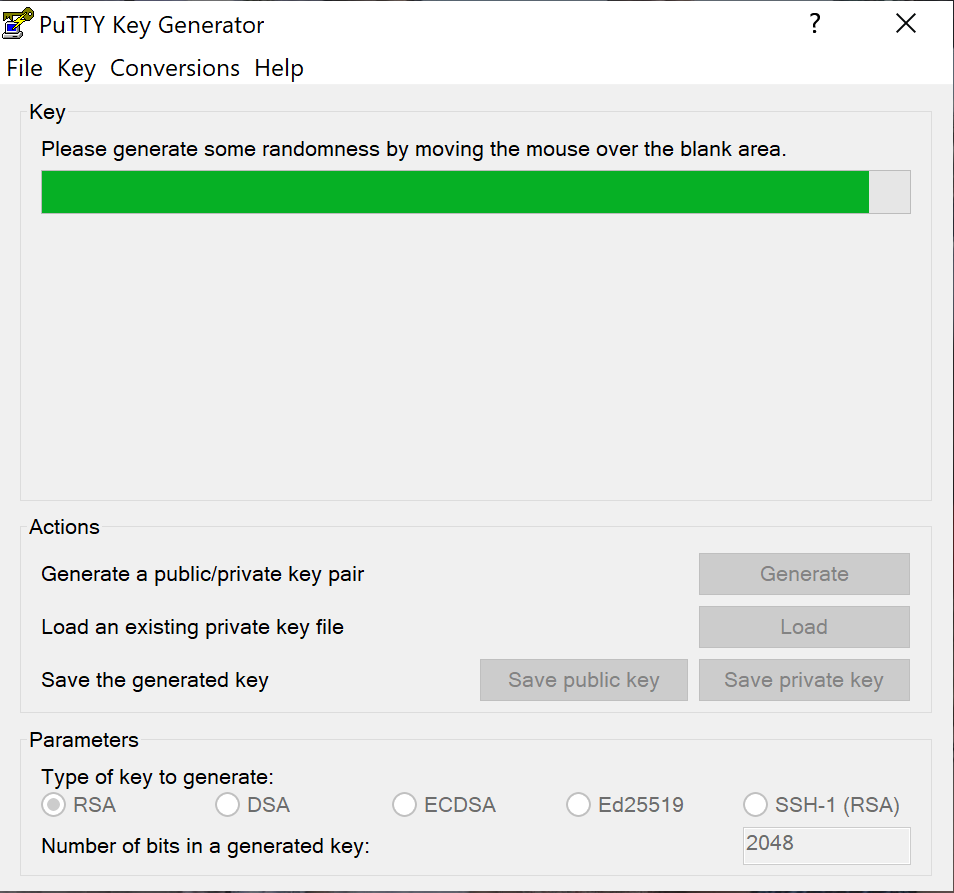
After it is complete, your public key will appear in the window.
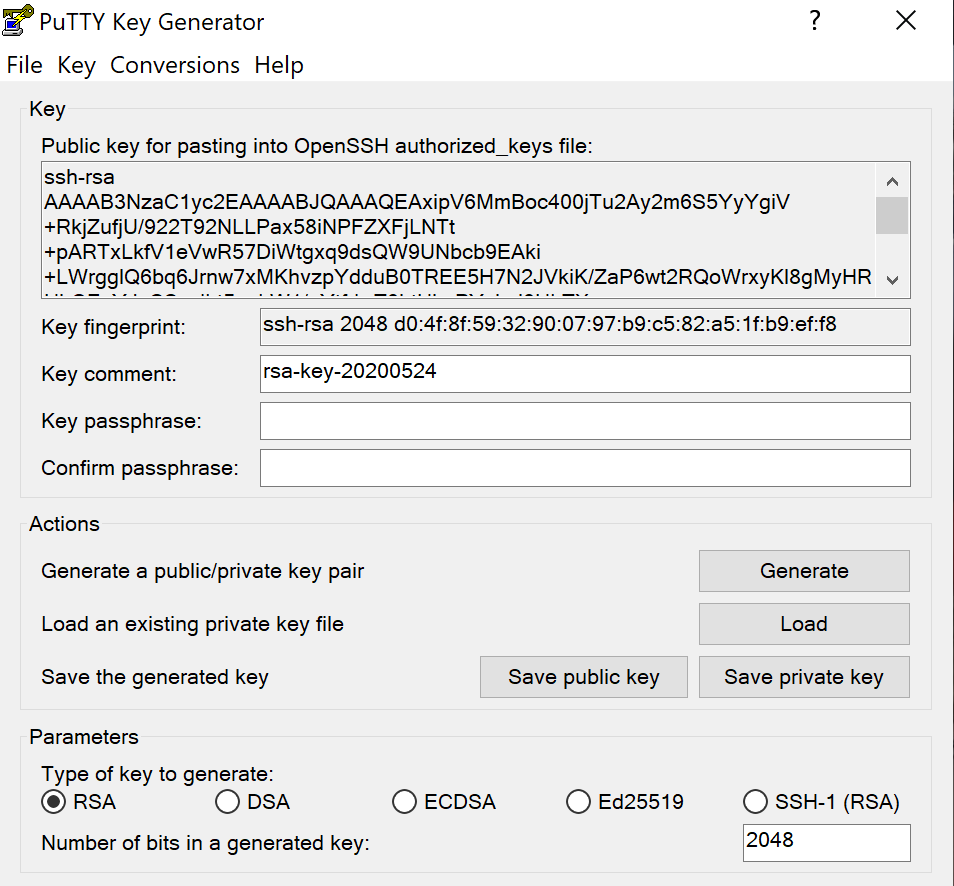
It is recommended to use a passphrase as well as save your private key.
Install the public key on your server
To grant access to an account, you will need to add the new public key to the file named ~/.ssh/authorized_keys.
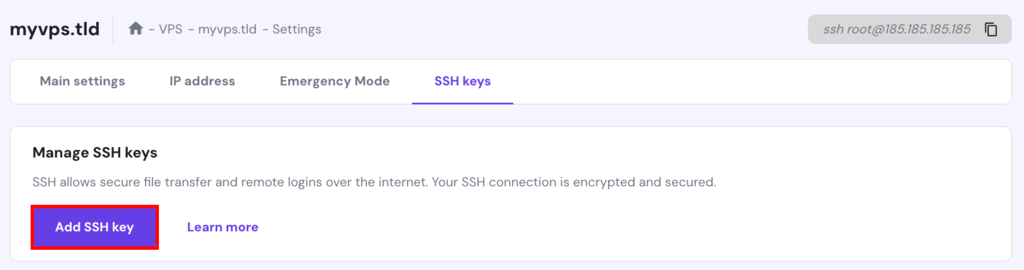
First, install the public key. Then, log into your server and locate the authorized_keys file. Edit the file and insert the new public key into the file. Save the file and test to see if the login works. Alternatively, if you have a VPS, you can add your public SSH key via Hostinger dashboard:
How to troubleshoot common PuTTY connection errors
If PuTTY can’t connect to your server, check the error message to identify the cause.
| Error | Possible cause | How to fix it |
|---|---|---|
| Connection refused | The SSH service isn’t accepting connections on the specified port. | Verify the SSH port, check that SSH is enabled, and review the server’s firewall settings. |
| Connection timed out | PuTTY can’t reach the server. | Check the server IP address, internet connection, firewall rules, and server availability. |
| Host key is not cached | You’re connecting to the server for the first time. | Verify the server’s host-key fingerprint against a trusted source before accepting it. |
| Host key has changed | The server’s identity differs from the previously saved key. | Confirm whether the server or its SSH keys were changed legitimately. Don’t accept the new key without verification. |
| Access denied | The SSH username, password, or authentication configuration is incorrect. | Verify your login credentials and confirm that the server allows your authentication method. |
| Server refused our key | The server doesn’t recognize or accept your SSH public key. | Check that the matching public key is installed for the correct user and that its permissions are correct. |
If the connection still fails, check your hosting provider’s SSH settings or contact its support team. Avoid changing server security settings until you’ve identified the cause.
Start managing your server with SSH commands
Once you’ve connected to your server using PuTTY, you can start managing files, navigating directories, and checking server information directly from the terminal.
Start with a few basic SSH commands, such as pwd to check your current directory, ls to list files, and cd to move between directories.
For future connections, save your session settings in PuTTY so you can reconnect without entering your server’s IP address and port every time. If you’re using SSH key authentication, keep your private key secure and protected with a passphrase.
This article is a localized version of How to use PuTTY to access your server, originally published in English.
All of the tutorial content on this website is subject to Hostinger's rigorous editorial standards and values.

Linas started as a customer success agent and is now a full-stack web developer and Technical Team Lead at Hostinger. He is passionate about presenting people with top-notch technical solutions, but as much as he enjoys coding, he secretly dreams of becoming a rock star.