How to change WordPress URL in database using phpMyAdmin
Oct 15, 2026
/
By Domantas G.
/
3 min Read
To change your WordPress URL in the database, open phpMyAdmin, select your WordPress database, and update the home and siteurl values in the wp_options table. These settings control your site’s public address and WordPress installation URL.
Editing the database directly is useful when you can’t access wp-admin, need to correct an incorrect site URL, or have changed your domain during a migration. For an HTTP-to-HTTPS change, you may also need to update these values.
Before making changes, back up your database. Updating home and siteurl changes WordPress’s main URL settings, but it doesn’t automatically update links stored elsewhere in your site’s content or plugin settings.
1. Find your WordPress database
Before changing your WordPress URL, identify the WordPress database connected to your website. This ensures you’re editing the correct installation, especially if your hosting account contains multiple WordPress websites or databases.
You can find your WordPress database name in the wp-config.php file or through your hosting control panel.
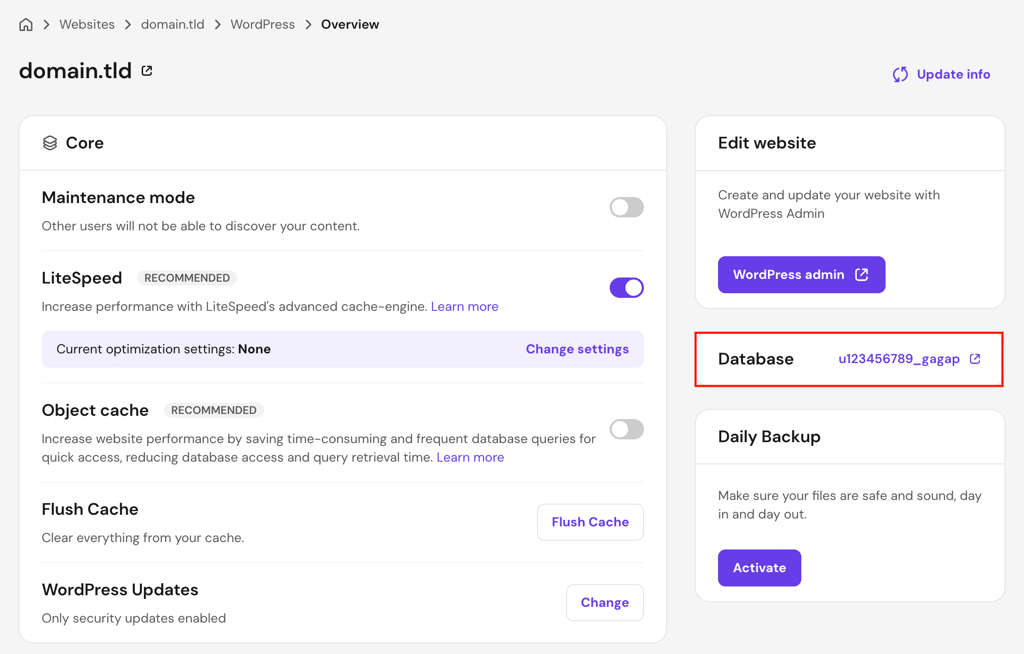
If you’re using Hostinger, Open Hostinger dashboard and navigate to WordPress → Overview. The database name is listed in the Database section.
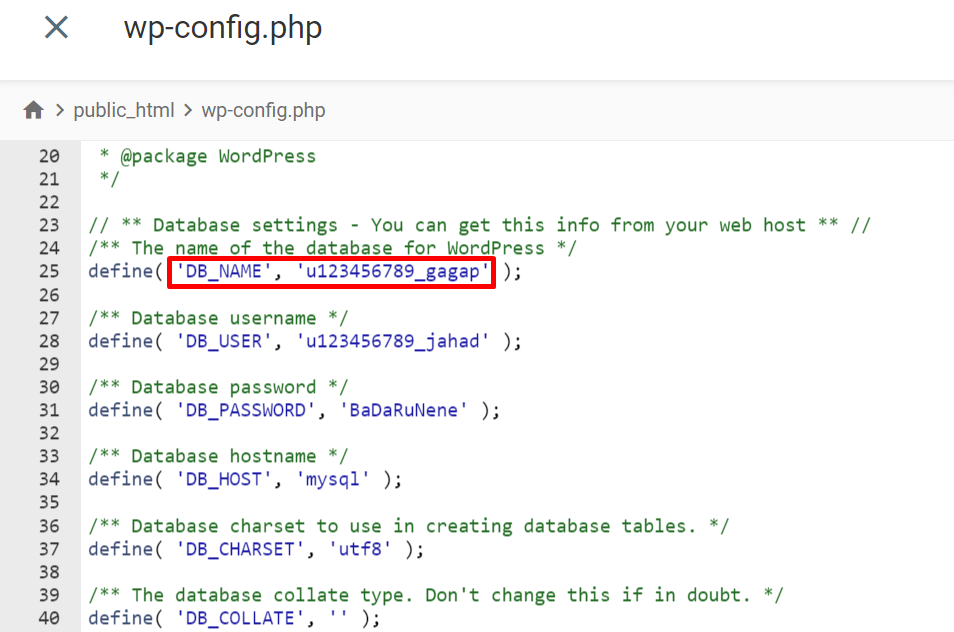
You can also find the database name in the wp-config.php file. Open File Manager from Hostinger dashboard, locate wp-config.php in your root directory, and search for DB_NAME. The value next for parameter is your database name.

2. Back up your WordPress database
Before changing your WordPress URL, back up your database so you can restore the original settings if something goes wrong.
To create a backup using phpMyAdmin:
- Open phpMyAdmin from your hosting control panel.
- Select your WordPress database from the left sidebar.
- Click the Export tab.
- Choose Quick as the export method and SQL as the format.
- Click Export to download the backup file.
Store the downloaded SQL file somewhere safe. If the URL change causes issues, you can restore the previous database using this backup.
If you’re using Hostinger, you can also back up your WordPress website using the available backup tools in hPanel.
3. Change your WordPress URL in phpMyAdmin
Once you’ve identified and backed up your WordPress database, you can change your website’s URL using phpMyAdmin. You can manually edit the home and siteurl values to change your website’s main address or run SQL queries to update those settings and replace old URLs in post content.
Method 1. Change the WordPress URL manually
This method is useful when you need to correct your website’s address, restore access to wp-admin, or update the primary URL after switching domains.
- Open phpMyAdmin and select your WordPress database from the left sidebar.
- Find the
wp_optionstable and click Browse. The table prefix may differ fromwp_depending on your WordPress installation. - Locate the row where
option_nameissiteurland click Edit. - Change its
option_valueto your new WordPress installation URL, such ashttps://example.com, then click Go to save. - Find the row where
option_nameishomeand click Edit. - Update its
option_valueto your website’s new public URL and click Go to save.
For most WordPress websites, home and siteurl contain the same URL. However, they can differ if WordPress is installed in a separate directory.
Use the full URL, including https:// when your website has a working SSL certificate, and don’t add a trailing slash.
Updating these values changes your WordPress website’s primary URL settings, but it doesn’t automatically update old links stored in posts, images, or plugin settings.
Method 2. Change WordPress URLs using SQL queries
If you’re migrating your WordPress website to a new domain, you can use SQL queries to change the main site URLs and replace references to the old domain in post content.
- Go to phpMyAdmin via your website’s control panel.
- The left panel lists all of your databases. Select the one connected to your WordPress site and head to the SQL tab.
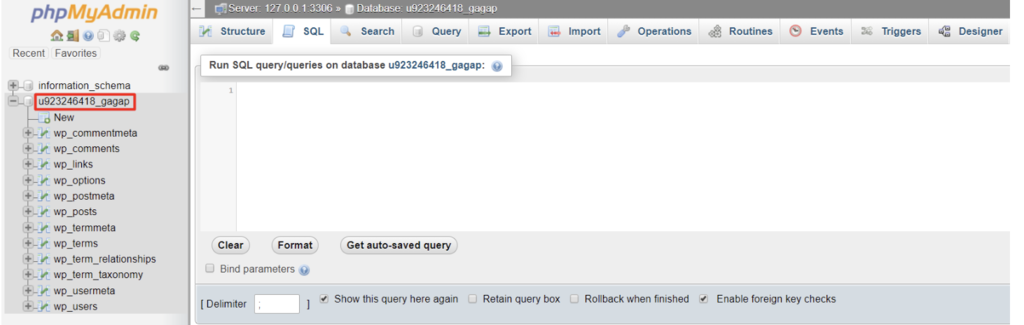
- Enter the following SQL query:
UPDATE wp_options SET option_value = replace(option_value, 'oldurl.com', 'newurl.com') WHERE option_name = 'home' OR option_name = 'siteurl';UPDATE wp_posts SET guid = replace(guid, 'oldurl.com','newurl.com');UPDATE wp_posts SET post_content = replace(post_content, 'oldurl.com', 'newurl.com'); UPDATE wp_postmeta SET meta_value = replace(meta_value,'oldurl.com','newurl.com');
Replace oldurl.com with your current WordPress address and newurl.com with your new WordPress address.
Important! Your table prefix might not be wp_. See the correct table prefix on the left panel of phpMyAdmin, and update the SQL query.
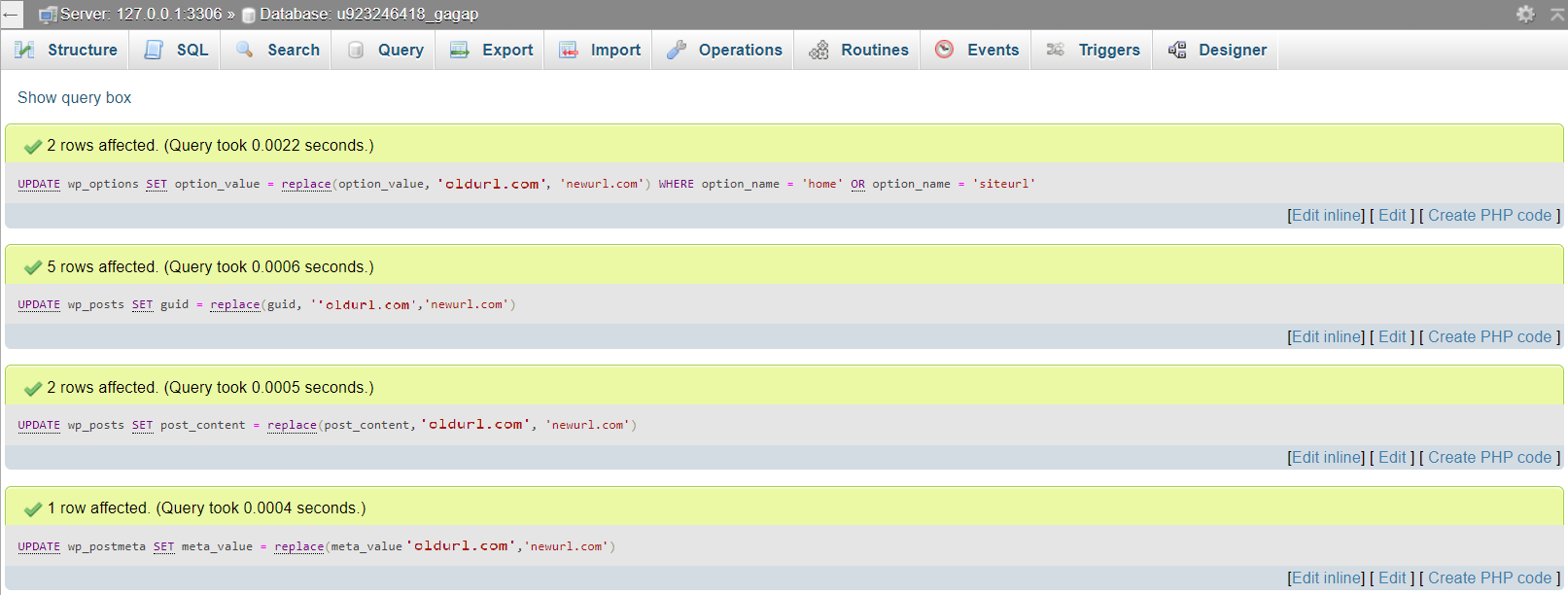
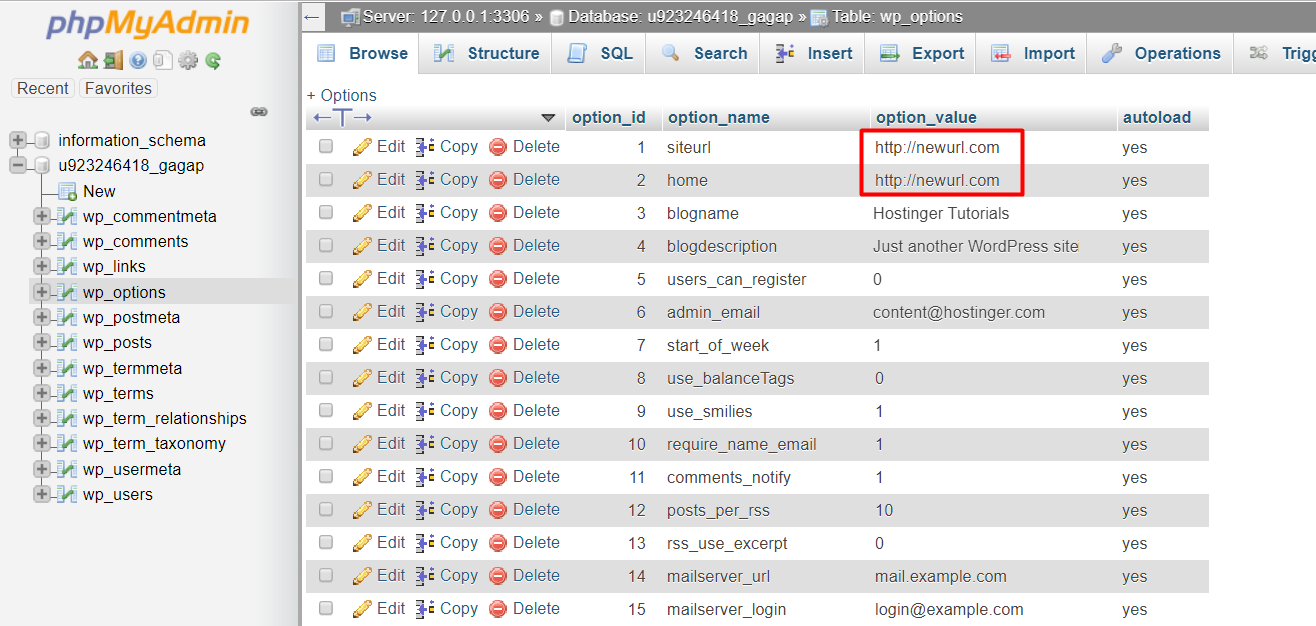
If you get error messages and the queries are not executing, check your code for syntax errors and make sure you are using the correct table prefix. Contact the hosting support for further assistance if the error persists.
Next step: Check your website for redirect issues
After changing your WordPress URL in the database, check that your website loads correctly and visitors can access its pages without unexpected redirects.
If your website still redirects to the previous address, review your WordPress settings, caching configuration, and existing redirect rules. You may need to manage your WordPress redirects to make sure visitors reach the correct URLs.
Also, check that your WordPress dashboard, internal links, and images work as expected. If you encounter problems, restore the previous URL settings or your database backup.
This article is a localized version of How to change WordPress URL in database using phpMyAdmin, originally published in English.
All of the tutorial content on this website is subject to Hostinger's rigorous editorial standards and values.

Domantas leads the content and SEO teams forward with fresh ideas and out of the box approaches. Armed with extensive SEO and marketing knowledge, he aims to spread the word of Hostinger to every corner of the world. During his free time, Domantas likes to hone his web development skills and travel to exotic places.