Jan 21, 2026
Ariffud M.
13min Read
My personal assistant just scheduled three meetings, summarized my unread emails, and drafted a reply – all while I was making coffee.
This wasn’t done with a simple script. I built a true AI agent by designing a custom automation workflow in n8n and running it on a Hostinger VPS.
The core of this system is the Model Context Protocol (MCP), which enables an AI “brain” to securely connect with and control other applications, such as Google Calendar and Gmail.
It’s a powerful way to create a self-hosted n8n personal assistant that interprets requests and automates tasks across multiple platforms.
Continue reading as I guide you through my entire process, from initial design to final build, and provide you with a downloadable workflow template so you can deploy your own assistant right away.
An MCP-powered personal assistant is an automation workflow that utilizes an AI language model to interpret requests and the Model Context Protocol (MCP) to execute complex, multi-step tasks across various applications.
This approach to AI integration lets you build a truly multi-platform assistant.
To make sense of this, let’s break down the three core components:
I decided to build this personal assistant to solve a specific problem: reducing the time I spent switching between apps for routine tasks.
My morning routine was a classic example. I’d check my Google Calendar for the day’s schedule, then switch to Gmail to scan for urgent emails, and then open another app to create a to-do list based on what I found.
It was a repetitive, manual process that wasted valuable time.
While I could create separate, simple automations for some of these steps, they couldn’t “talk” to each other. A basic workflow can fetch calendar events, and another can check emails, but neither can understand context or make decisions based on the other’s findings.
I needed more than just a script – I needed an AI-driven “agent” that could understand a natural language command like, “Summarize my morning and draft a priority list.”
To truly automate tasks with n8n in a dynamic way, I had to move beyond linear workflows. This justified the complexity of a full AI integration, leading me to design a system that not only followed instructions but also understood the intent behind them.
I designed my autonomous assistant’s workflow by conceptualizing the logic and then creating a visual diagram of the architecture before modifying any nodes in n8n.
First, I mapped the logic. Before you can create an automation workflow, you need to understand every step of the process you’re trying to replace.
I began by writing down the exact sequence of events for a common task, such as scheduling a meeting. This involved defining the inputs (the user’s request), the decision points (required information like the date or number of attendees), and the final output (a calendar event and a confirmation message).
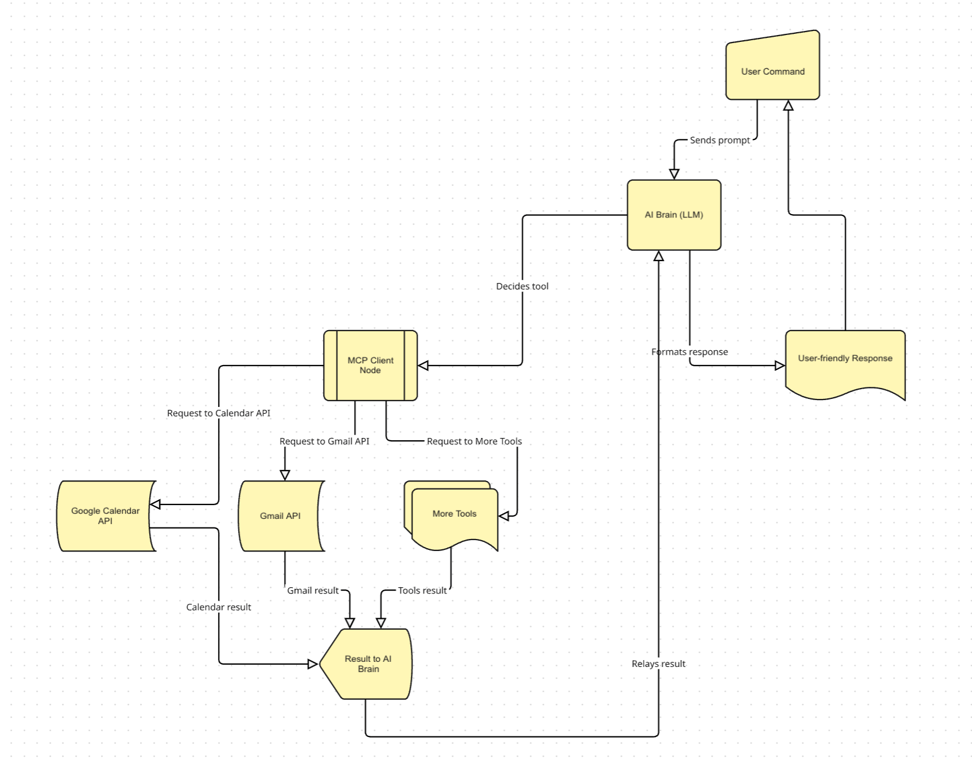
Secondly, I visualized the entire architecture. A simple list isn’t enough for a dynamic system, so I created a diagram to show how all the components connect and how data flows between them. This visual map shows the complete journey:
Here’s what that architecture looks like on the Miro board:
To build my self-hosted n8n personal assistant, I prepared a reliable server, an n8n instance, and the API credentials for the services I wanted to connect.
Here are the specific prerequisites:
Since its launch in January 2025, Hostinger’s n8n template has surpassed 50,000 total installations as of September 2025. Averaging around 800 new installs per month, it has quickly become Hostinger’s #1 most popular template and its second-most popular VPS product overall, behind only the regular VPS service.

My process for this n8n-MCP project breaks down into five direct stages: setting up the conversation entry point, building the AI core with memory, establishing the tool communication channel with MCP, connecting the assistant’s tools, and implementing error handling.
If you want to jump right in or follow along with a completed version, you can download the full workflow templates I used here:
The first step was to create the entry point for my assistant. I achieved this by adding the When chat message received node to my workflow.
This specific node is a Chat Trigger, serving as the front door for the entire automation. Its job is to listen for incoming messages and start the workflow whenever a new one arrives.
For this build, I used the built-in testing interface that this node provides. So, when I manually execute the workflow in the n8n editor, a chat box appears in the corner.

This lets me send prompts directly to the assistant to test its responses without needing to set up any external application.
With the entry point configured, the next step was to build the assistant’s brain. I added an AI Agent node and connected it to a language model for thinking and a memory node for context.
The central component here is the Personal Assistant node, which receives the prompt from the trigger and orchestrates the entire response.
I then connected two essential inputs to this agent:
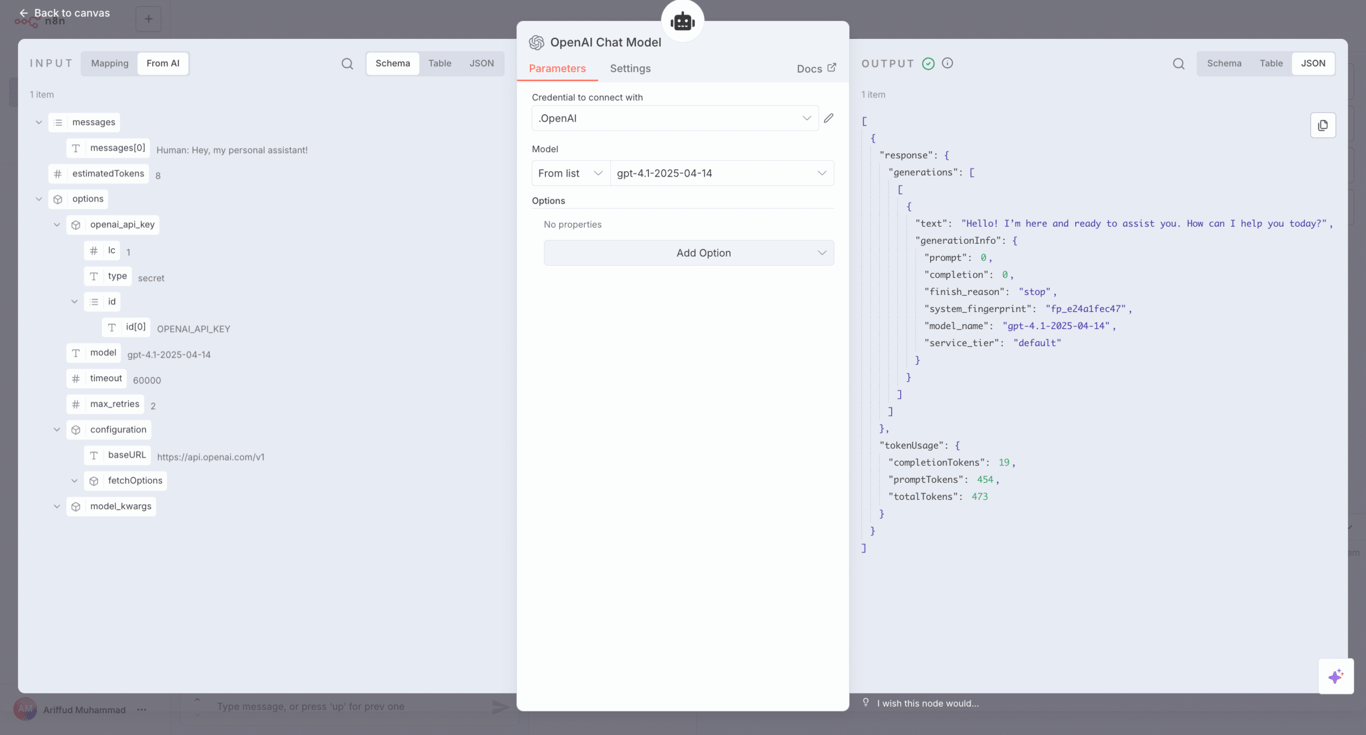
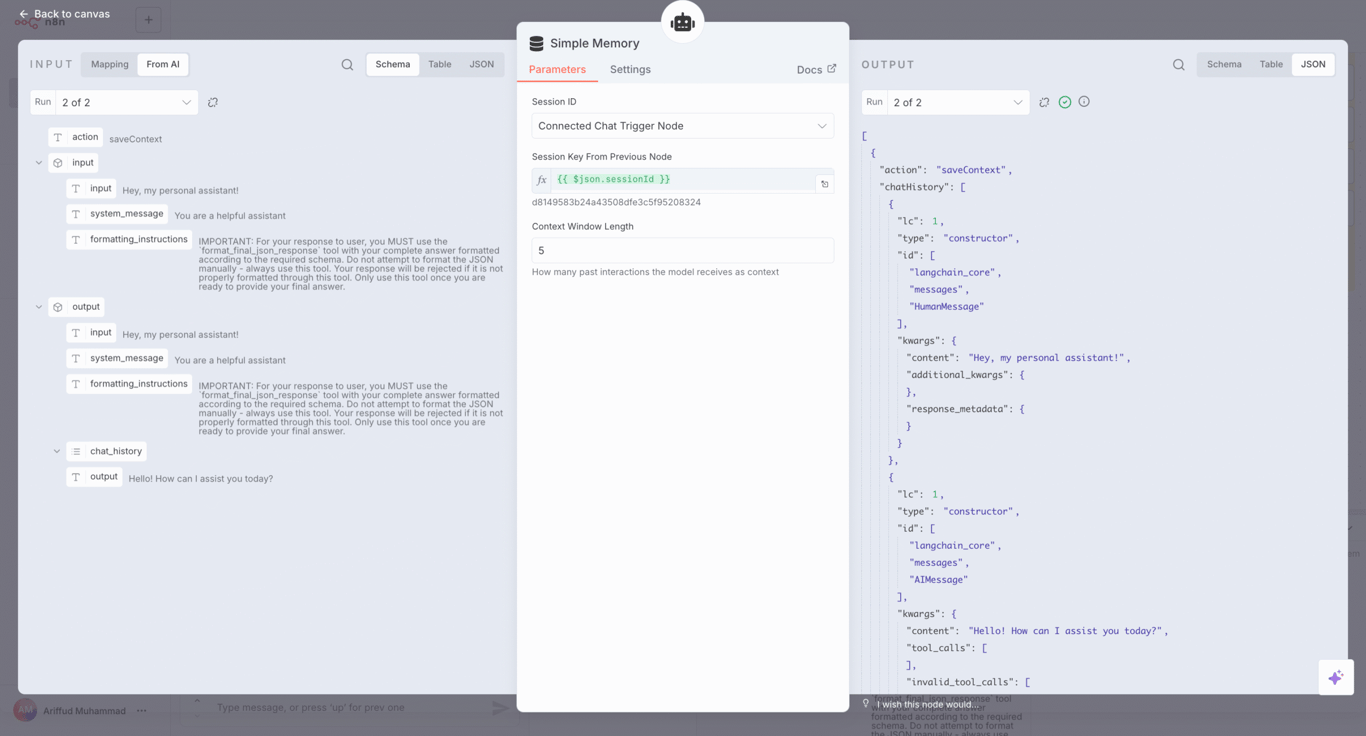
To guide the LLM’s behavior, I configured a system prompt within the Personal Assistant agent node. This is a critical step where I provide the AI with its core instructions, telling it how to act and what its purpose is. For example, I included instructions like:
You are a helpful personal assistant. Based on the user’s request, you must choose one of the available tools to assist them.
This ensures the assistant stays on task and uses the tools I provide.
The AI core requires a way to communicate with its tools. For this, I set up a two-part system using the MCP Server Trigger and the MCP Client nodes.
This process establishes a secure communication channel for the AI agent to interact with tools. Here’s how I configured it:
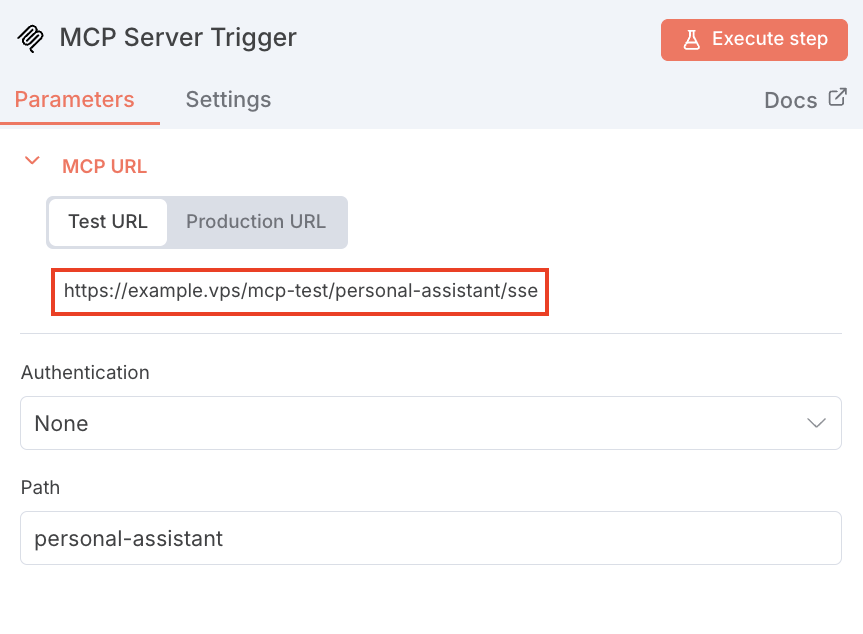
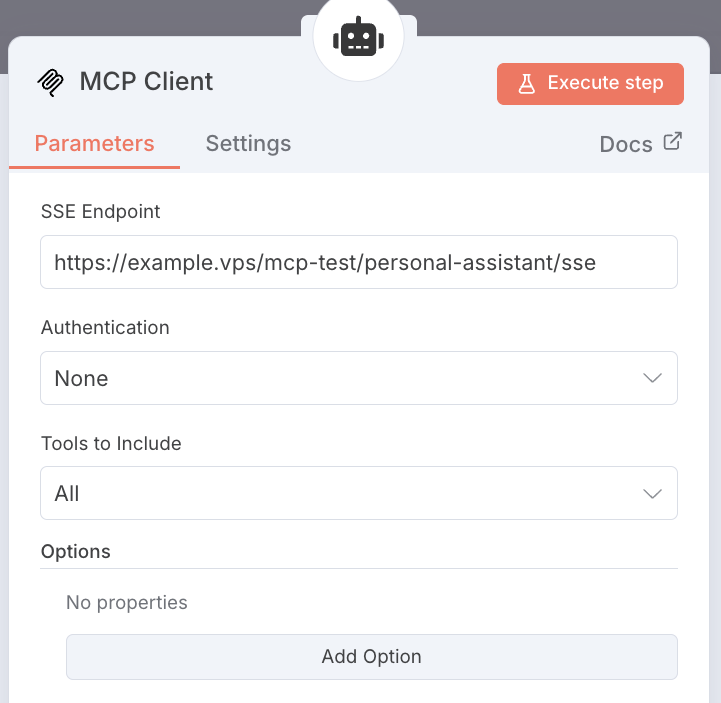
This two-node setup is the core of the MCP in this workflow. The agent doesn’t call tools like Google Calendar directly.
Instead, it sends an instruction to the MCP Client, and the client securely passes that message to the MCP Server, which then activates the correct tool. This makes the system more organized and secure.
With the communication channel ready, I equipped my assistant with the necessary skills by adding tool nodes for each desired capability and connecting them all to the MCP Server Trigger.
The MCP Server Trigger acts as a switchboard for all the assistant’s abilities. Any node that I connect to becomes a tool that the AI agent can choose to use.
For this project, I gave my assistant skills across three main services:
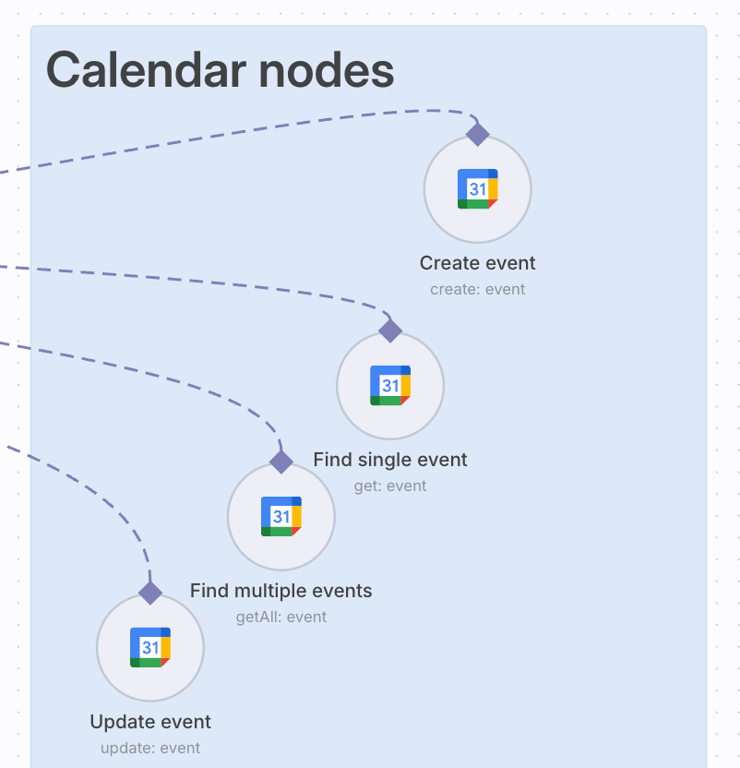
With all the tools in place, the main workflow canvas is now complete. Here’s what it looks like:
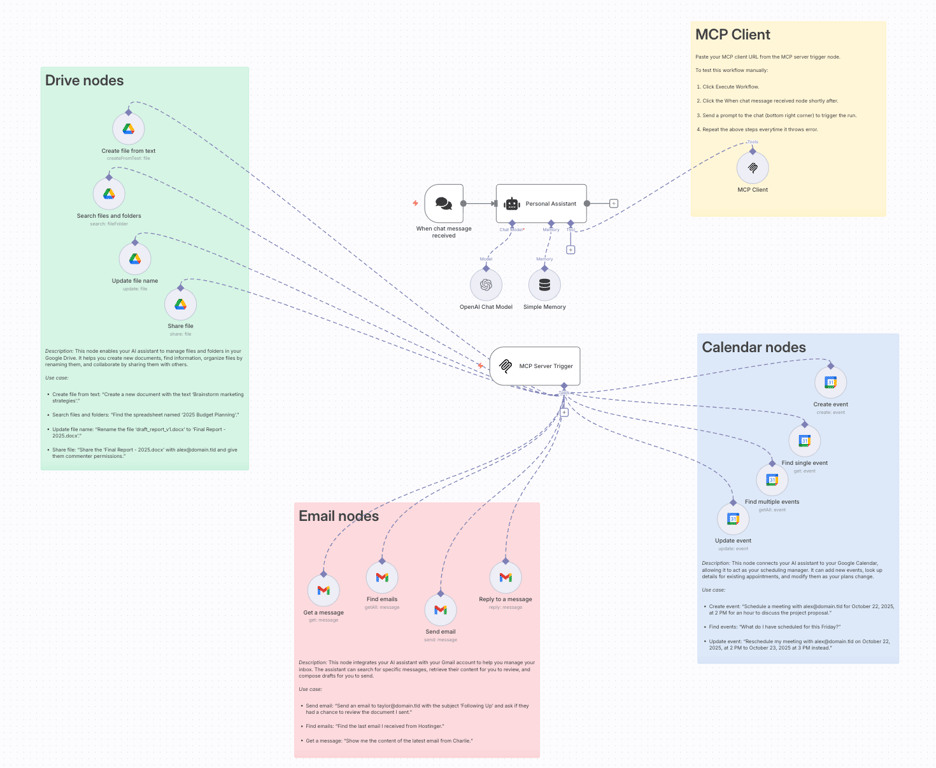
The final step in building a reliable assistant is to plan for failures.
Instead of adding complex error logic to my main workflow, I created a dedicated error-handling workflow focused on notifications and linked it to my main assistant workflow using n8n’s settings.
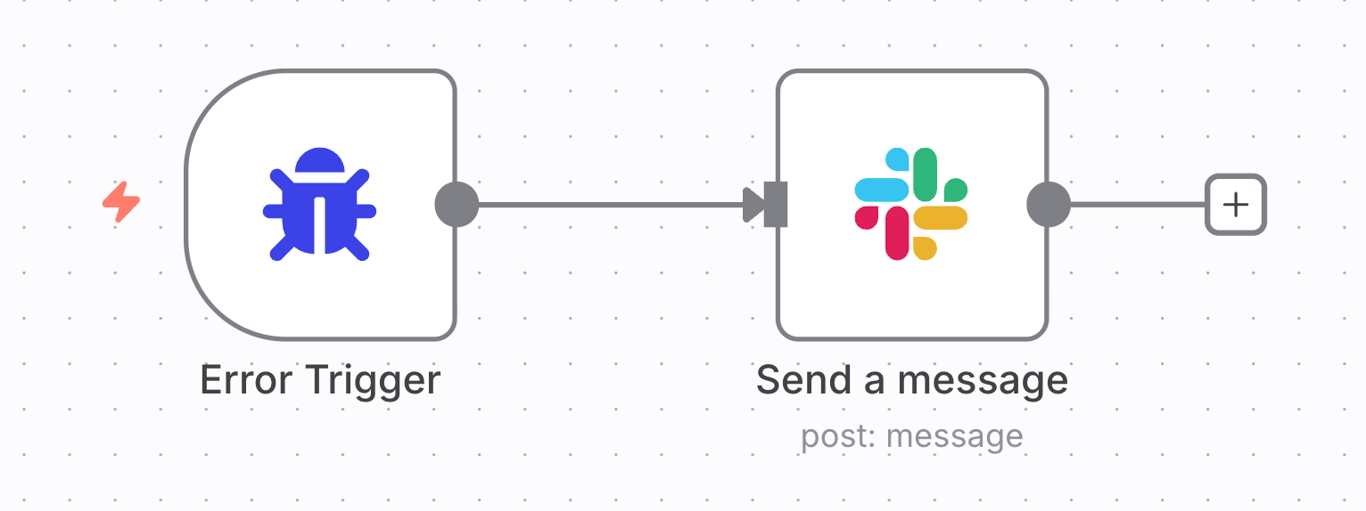
My error workflow is simple. It starts with an Error Trigger node, a special trigger that runs only when another workflow assigned to it fails.
This trigger connects to a Slack node configured to send a message. I customized the notification to include dynamic data, such as the workflow name, the node that failed, and a direct link to the execution log. This way, I gather all the necessary details to debug the issue quickly.
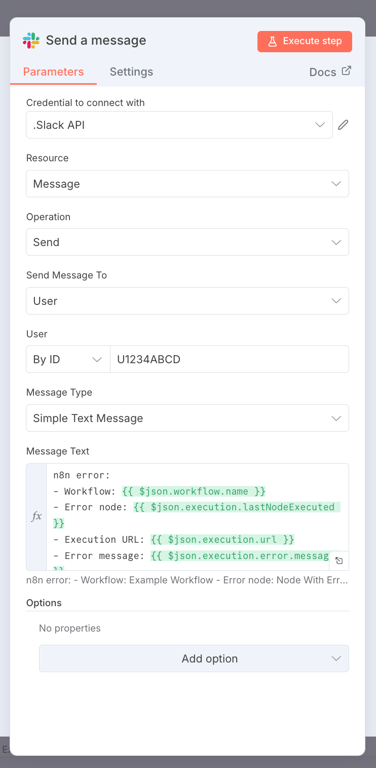
Using Slack for notifications is a matter of preference. You can easily replace this node with another service. For example, you can set up an n8n Telegram integration to receive alerts, or follow our guide on integrating n8n with WhatsApp for notifications.
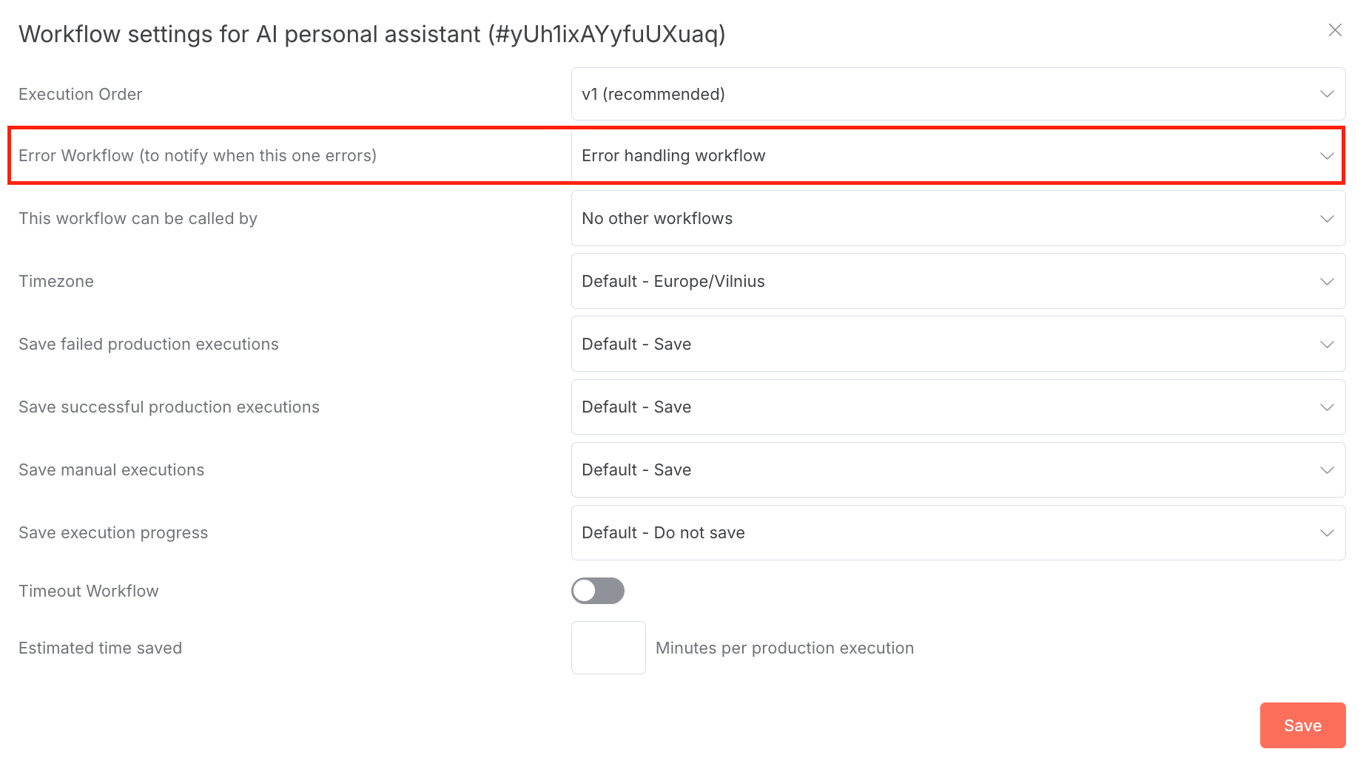
After saving the error workflow, the final step was connecting it. I went back to my main Personal Assistant workflow, opened the Settings menu, navigated to the Error Workflow field, and selected the new workflow I had just created.
My AI personal assistant using n8n can now run workflows that handle multi-step tasks that traditionally require manual intervention. Here are a few practical examples of what it can do.
Important! Since this workflow is running in test mode, you must click the Execute Workflow button in the n8n editor before sending each command in the chat interface. If you don’t, the trigger won’t be active, and you’ll see a 404 Not Found error message.
Scheduling meetings often involves checking my calendar, finding a free time slot, and then creating an invitation.
This use case demonstrates how the assistant can handle that entire process from a single text prompt, saving me several minutes of context switching.
Schedule a meeting with alex@domain.tld for October 22, 2025, at 2 PM for an hour to discuss the project proposal.

This use case shows how the assistant can act as a research and drafting partner. Instead of me having to find information and then manually create a document to store it, the assistant can do it in one step.
Research the topic ‘What is Retrieval-Augmented Generation (RAG)?’ and create a document based on your findings.

Drafting routine follow-up emails is another task that breaks my focus. This demonstration shows how I can delegate the entire process to the assistant, from composing the message to sending it.
Send an email to taylor@domain.tld with the subject ‘Following Up’ and ask if they have had a chance to review the document I sent.

While this n8n assistant is powerful, it’s important to understand its operational boundaries. Its effectiveness depends on the tools it’s connected to and the quality of its underlying AI model.
The assistant’s biggest limitation is that its functionality is entirely dependent on the third-party services it connects to.
My n8n workflow sends instructions to external services like Google Calendar and Gmail; if those services are not working, my assistant cannot perform its tasks.
This creates two main risks that are outside of my control:
The assistant is only as intelligent and reliable as the LLM that powers it. This presents two main constraints:
To ensure my personal assistant runs securely, reliably, and efficiently, I follow these best practices for prompting, managing credentials, and monitoring performance.
The key to getting reliable results is effective prompt engineering. Instead of treating the AI like a search engine, I treat it like a talented intern and give it clear, detailed instructions in the system prompt.
A great way to structure these instructions is with the CLEAR framework:
You are a helpful personal assistant.
You must not perform any action other than the ones provided.
Your available tools are Google Calendar, Gmail, and Google Drive.
This is covered in more detail in the Hostinger Academy video below.

A critical best practice I follow is to never expose API keys directly in my workflow. Instead, I always use n8n’s built-in credential manager to store them securely.
This prevents your keys from being accidentally shared through screenshots or workflow export files.
n8n encourages this by prompting you to create or select a secure credential whenever you add a node that requires authentication, keeping the actual secret hidden from view.
An automation is only helpful if it’s reliable, so proactive maintenance is essential. My two main practices are:
This initial build provides a strong foundation, but you can further expand its capabilities. Here are a few ideas to take your assistant to the next level:
Building this project showed me that combining n8n’s flexible automation with MCP’s robust communication protocol is what makes true AI agents possible. It’s the difference between a simple script and a system that can reason and act on my behalf.
I hope that this guide on how to build a personal assistant in n8n using MCP provides you with the workflow and the foundational knowledge to start building your own.
Now, what is the first repetitive task you’ll automate with your new assistant?
All of the tutorial content on this website is subject to Hostinger's rigorous editorial standards and values.

Ariffud is a Technical Content Writer with an educational background in Informatics. He has extensive expertise in Linux and VPS, authoring over 200 articles on server management and web development. Follow him on LinkedIn.
The best European VPS hosting providers offer isolated server resources in EU data centers, with more control and scalability than ...
OpenClaw is an open-source AI agent platform that can connect to your messaging apps, run tasks on your server, and ...
OpenClaw best practices help you run AI agents safely in production environments by reducing risk, limiting unintended actions, and preventing ...