If your Node.js application deployment fails, Hostinger provides build logs that help you identify the root cause of the issue. Build logs contain detailed information about what happened during the build process and why it failed.
You can access build logs directly from the Deployments section of your Node.js application.
How to find build logs
-
Log in to hPanel.
-
Go to Websites List.
-
Select to “Dashboard” your Node.js App.
-
Navigate to the Deployments section.
-
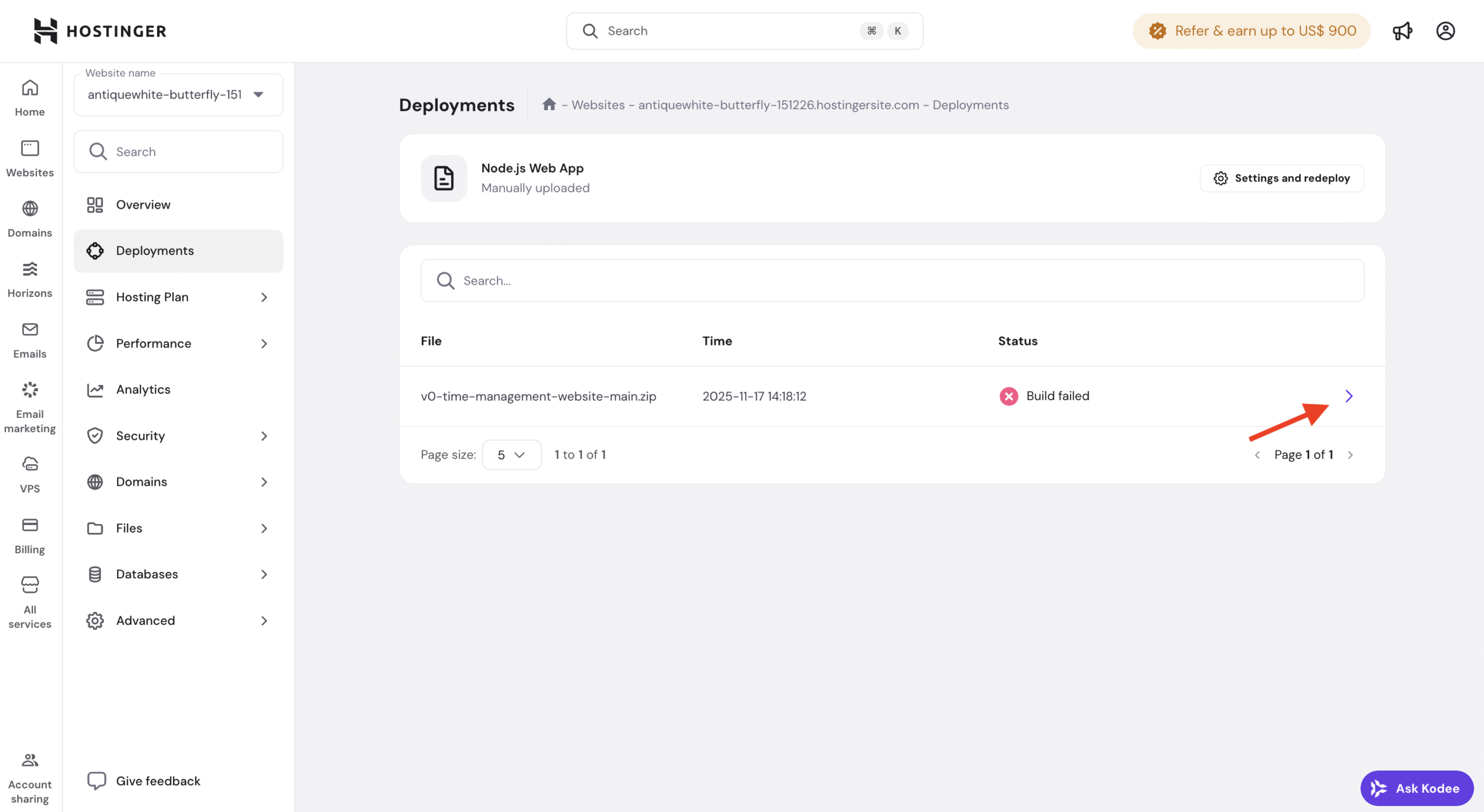
Locate the deployment marked as Failed.
-
Click on the failed deployment.
-
Open Build logs.
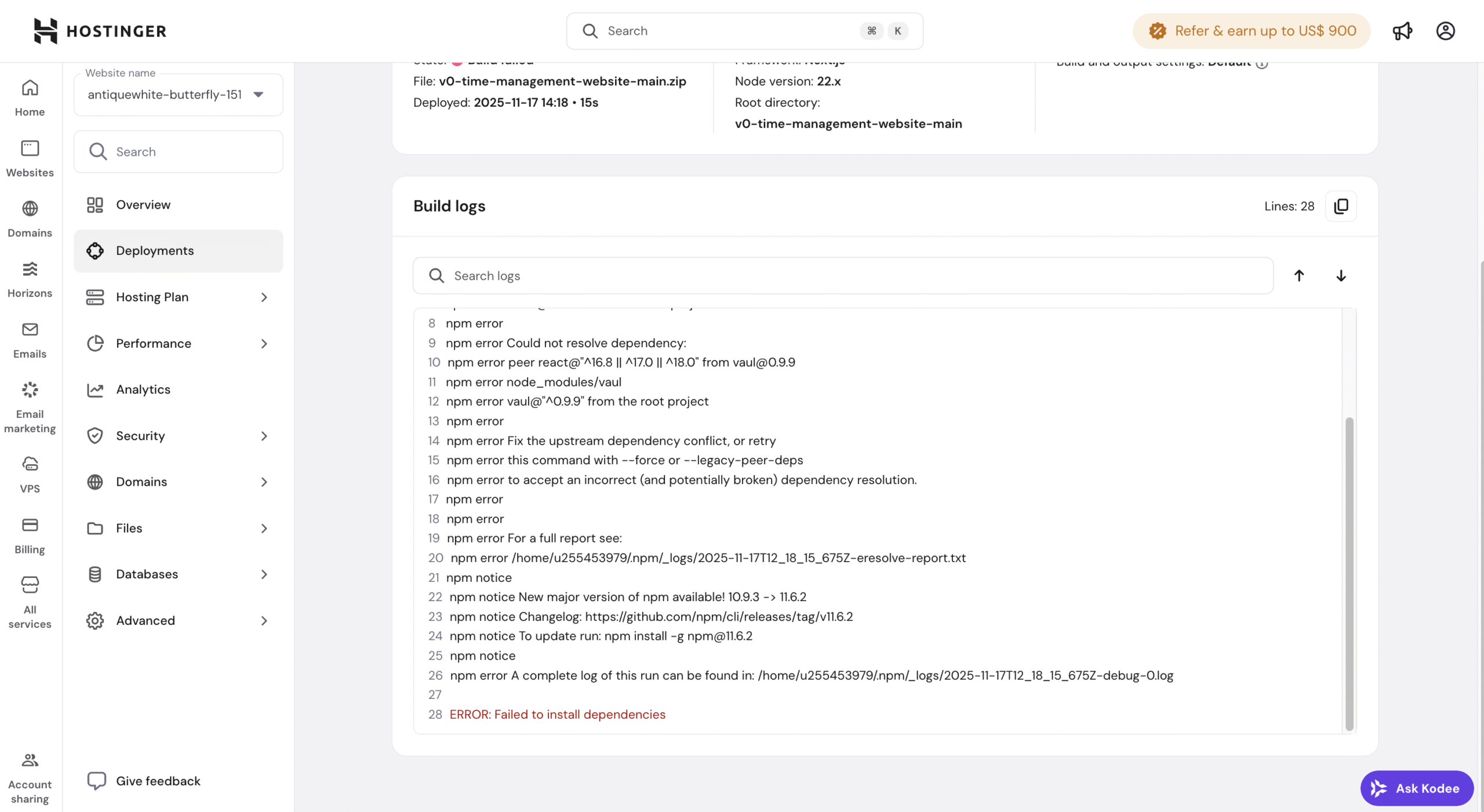
The build logs will be displayed on the screen.
Understanding build logs
Build logs show the exact output of the deployment process, including:
- Dependency installation
- Build command execution
- Errors and warnings
- Exit codes
Most build failures are caused by:
- Missing or incorrect dependencies
- Invalid build or start commands
- Unsupported Node.js version
- Missing environment variables
- Syntax or configuration errors in the application
When reviewing build logs, look for:
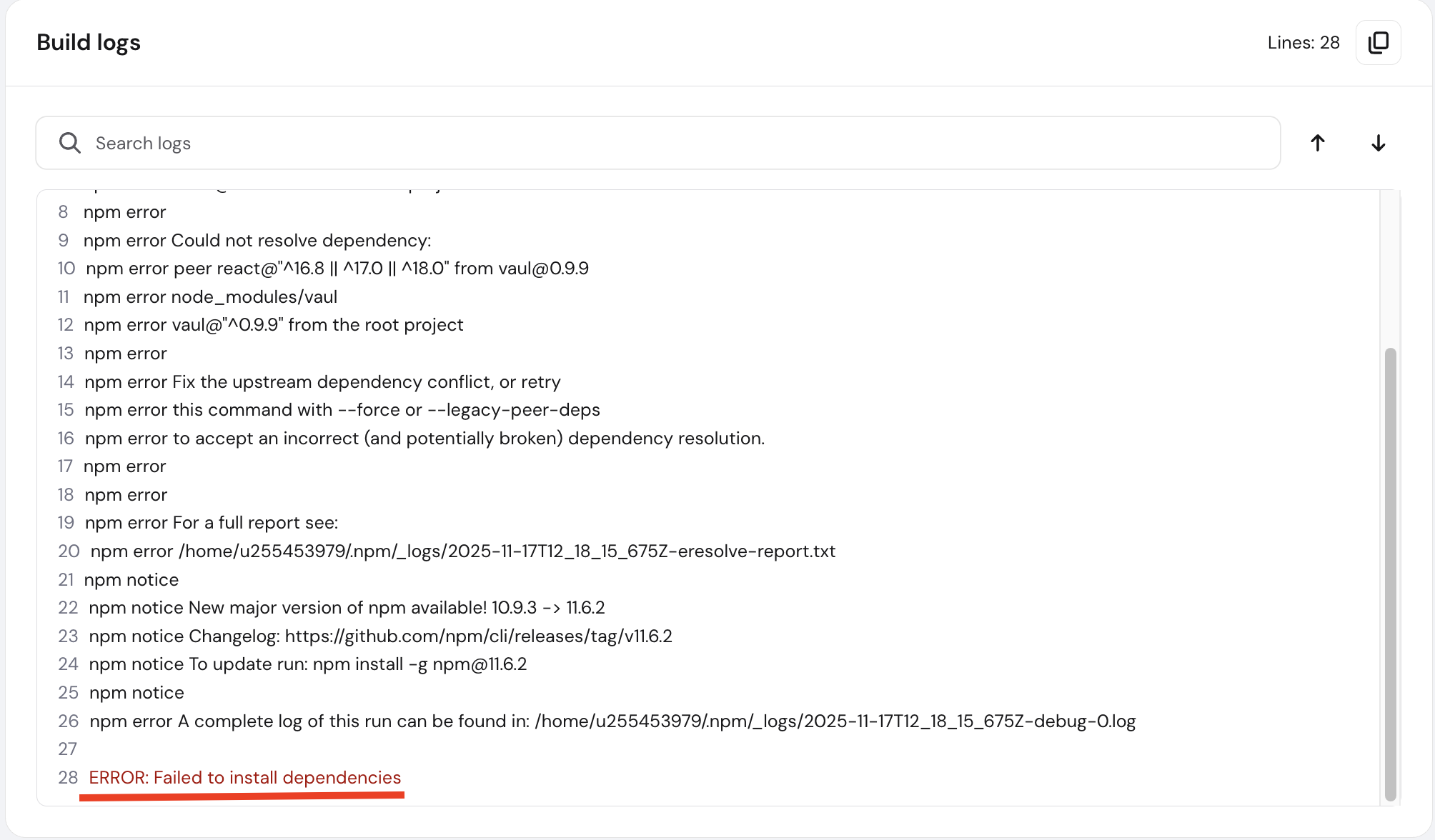
- Lines marked as ERROR
- Messages near the end of the log
- Stack traces or module-not-found errors
Using AI tools to analyze build logs
If you’re having difficulty understanding why the build failed, you can copy the build logs and paste them into ChatGPT or another AI assistant.
AI tools can help:
- Explain error messages in simple terms
- Identify common causes of failures
- Suggest steps to fix configuration or dependency issues
After fixing the issue
Once you identify and fix the cause of the failure:
-
Update your application code or configuration as needed.
-
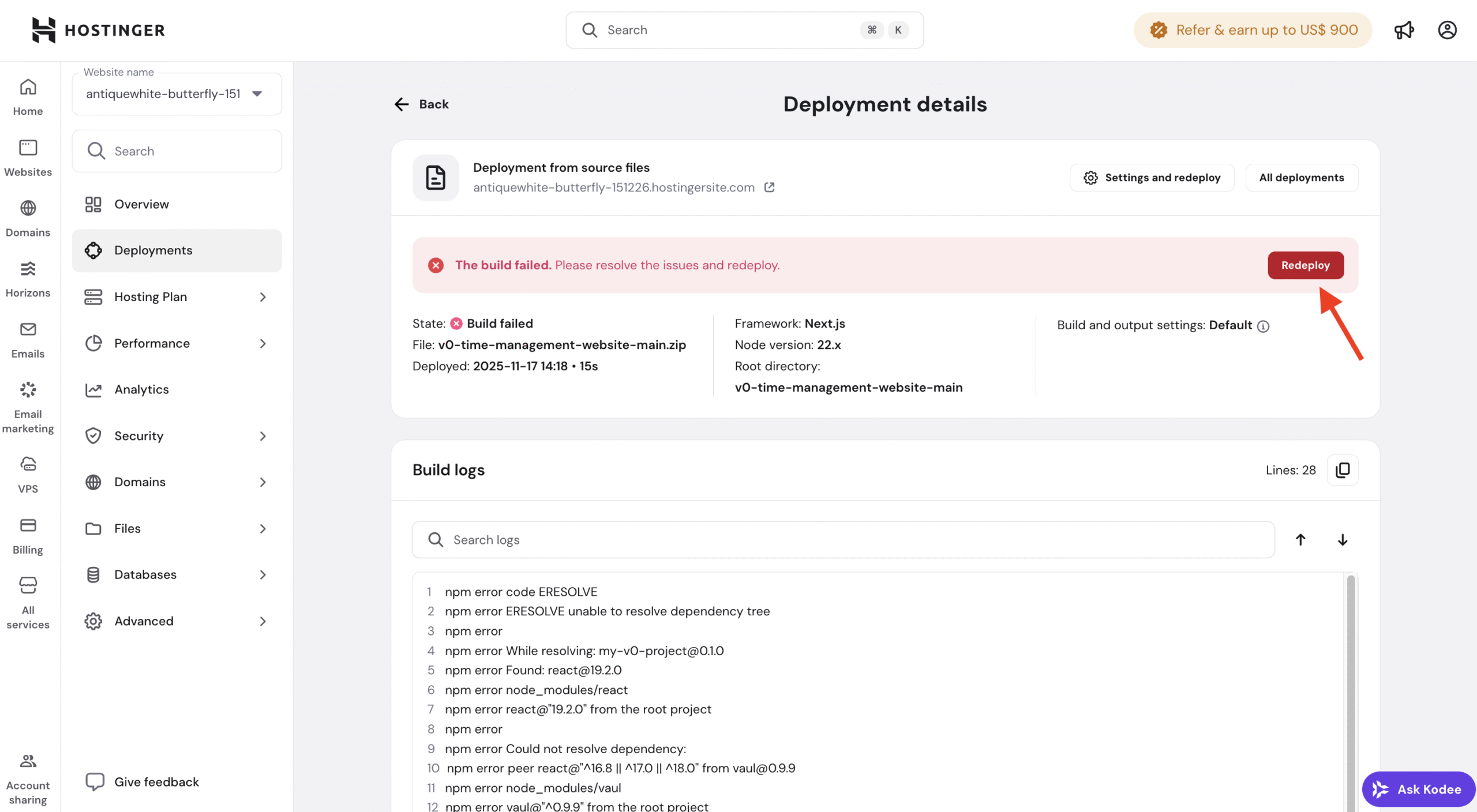
Redeploy the application.
-
Monitor the build logs to confirm the deployment completes successfully.
Common troubleshooting tips
- Verify the selected Node.js version matches your project requirements
- Ensure all required environment variables are added
- Check that package.json includes correct build and start scripts
- Avoid uploading node_modules when using ZIP deployments
- Review recent changes if the application deployed successfully before