Nginx Proxy Manager (NPM) is a web-based reverse proxy that allows you to route traffic to multiple applications using the same ports, such as 80 and 443, while managing domains and SSL certificates through a simple interface.
On Hostinger VPS, Nginx Proxy Manager can be deployed directly from the Docker Manager Catalog, which removes the need to manually create Docker Compose files or assign ports yourself.
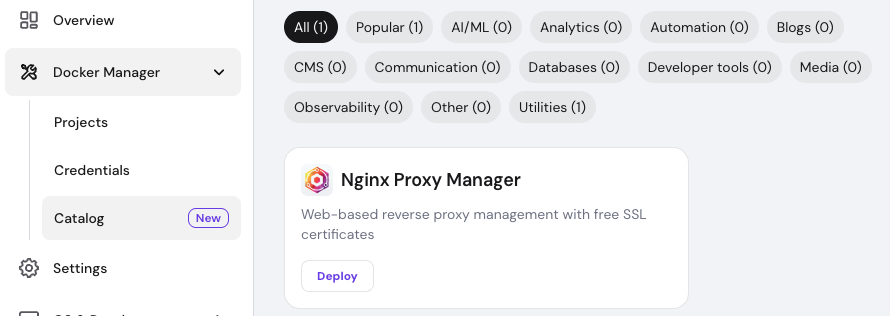
Deploying Nginx Proxy Manager from the Docker Compose Catalog
To deploy Nginx Proxy Manager, open Docker Manager in your VPS dashboard and navigate to the Catalog section. Locate Nginx Proxy Manager and click Deploy.
Docker Manager will automatically create and start the container using a predefined Docker Compose configuration. Ports required by Nginx Proxy Manager are assigned automatically, so you do not need to expose or configure them manually.
Once deployment is complete, the project will appear in your Docker Manager projects list with a Running status.
Accessing the Nginx Proxy Manager admin panel
After deployment, Docker Manager will automatically provide a direct access link to the Nginx Proxy Manager admin interface.
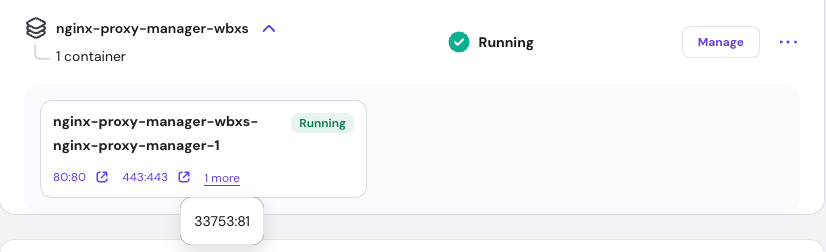
In the projects list, click the link shown next to the container’s exposed port for the admin panel. This link opens the Nginx Proxy Manager web interface in your browser, without needing to know the assigned port number.
All management actions, including adding proxy hosts and enabling SSL, are performed through this interface.
Adding a Proxy Host
To expose an application using Nginx Proxy Manager, open the admin panel and add a new Proxy Host.
Enter the domain name you want to use, such as example.com or app.example.com. For the forward hostname or IP, use your VPS IP address. The forward port should be the external port on which your application is currently accessible.
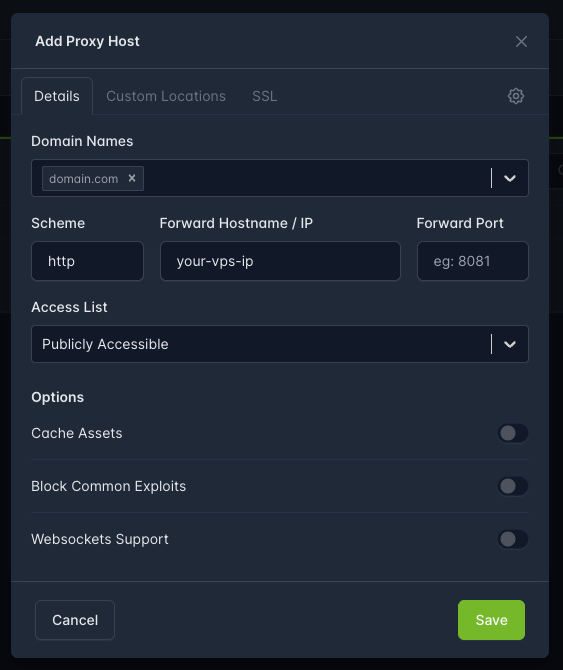
For example, if your application is running on port 8080, enter that port as the forward port. Nginx Proxy Manager will route incoming traffic for the selected domain to your application automatically.
You can then enable SSL from the SSL tab and request a free Let’s Encrypt certificate to secure your domain with HTTPS.
Using Nginx Proxy Manager with Docker networks
For more advanced setups, applications can be connected to the same Docker network as Nginx Proxy Manager. This allows Nginx Proxy Manager to forward traffic directly to containers by name instead of using the VPS IP and exposed ports.
This approach improves performance and is considered best practice when running multiple Dockerized services behind a reverse proxy.
More advanced configuration examples can be found in the official Nginx Proxy Manager documentation.
Before adding a domain in Nginx Proxy Manager, make sure its DNS records point to your VPS IP address. Any changes made in the admin panel are applied automatically, and no container restarts are required.
Using Nginx Proxy Manager through Hostinger Docker Manager provides a simple and user-friendly way to manage multiple applications, domains, and SSL certificates on a single VPS without port conflicts.