To point your domain to Firebase, follow these steps:
Step 1 – Add the domain to Firebase
- From your project’s Hosting page in Firebase, enter the wizard for connecting a custom domain:
- If you have only one Hosting site, click Add custom domain.
- If you have more than one Hosting site, click View for the desired site, then click Add custom domain.
- Enter the custom domain name that you’d like to connect to your Hosting site.
- (Optional) Check the box to redirect all requests on the custom domain to a second specified domain (such that example.com and www.example.com redirect to the same content).
- Click Continue to configure your DNS records and finish setting up your custom domain
Step 2 – Point the domain to Firebase
- If you have enabled Hostinger CDN, disable it.
- Remove the AAAA record for the root domain (@), if there is one.
- Remove the existing A record or the root domain (@):
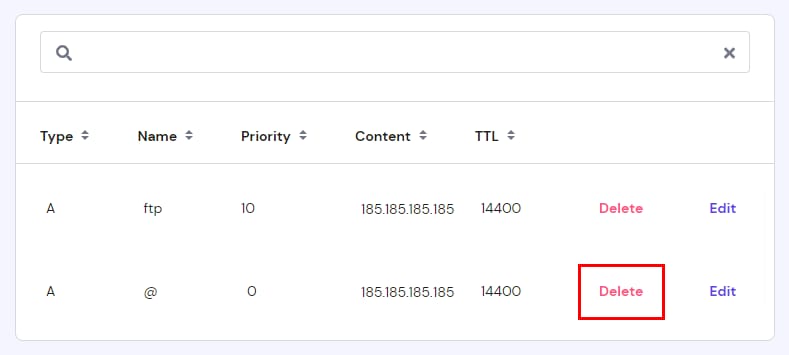
- Add the TXT record to verify your domain to your domain’s DNS zone:
| TXT record |
| Host: www
Points to: custom value from Firebase TTL: default |
Once the domain is verified, you can add the following DNS records to enable SSL certificate with your domain name.
| A record | AAAA record |
| Host: @
Points to: custom value from Firebase TTL: default |
Host: @
Points to: custom value from Firebase TTL: default |
Once it is fully propagated, you can click Verify in the Connect Domain window of the Firebase console allows you to begin the SSL certificate provisioning process.
After making these changes, DNS propagation will begin. This process can take up to 24 hours. During this time, your website may be temporarily unavailable, but it will come back online once the process is complete.
Additional resources